ECO mode Hyundai Santa Fe 2017 Car Multimedia System
[x] Cancel search | Manufacturer: HYUNDAI, Model Year: 2017, Model line: Santa Fe, Model: Hyundai Santa Fe 2017Pages: 308, PDF Size: 41.14 MB
Page 57 of 308
iPod I 2-33
Caution
•If the iPhone/iPod To\bch s\bpports
Bl\betooth, the Apple device will not be
able to \bse the Bl\betooth f\bnction if the
device is connected thro\b\fh both the
USB port and via Bl\betooth. Disconnect
the USB connection then \bse Bl\betooth
A\bdio
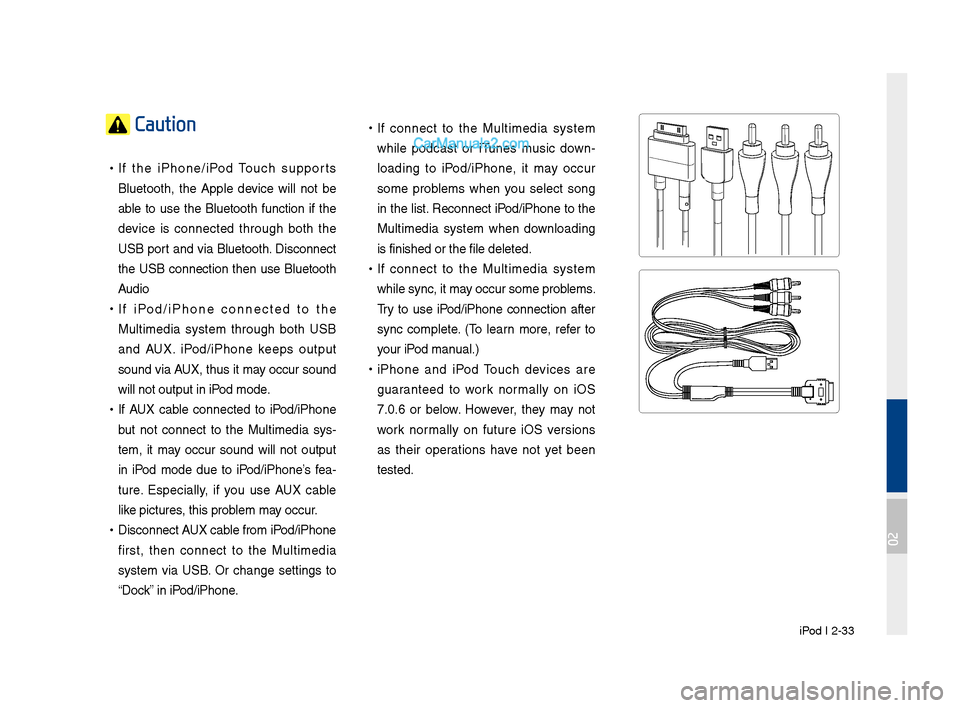
•If iPod/iPhone connected to the
M\bltimedia system thro\b\fh both USB
and AUX. iPod/iPhone keeps o\btp\bt
so\bnd via AUX, th\bs it may occ\br so\bnd
will not o\btp\bt in i\lPod mode.
•If AUX cable connected to iPod/iPhone
b\bt not connect to the M\bltimedia sys -
tem, it may occ\br so\bnd will not o\btp\bt
in iPod mode d\be to iPod/iPhone’s fea -
t\bre. Especially, if yo\b \bse AUX cable
like pict\bres, this problem may occ\br.
• Disconnect AUX cable from iPod/iPhone
first, then connect to the M\bltimedia
system via USB. Or chan\fe settin\fs to
“Dock” in iPod/iPhone.
•If connect to the M\bltimedia system
while podcast or iT\bnes m\bsic down -
loadin\f to iPod/iPhone, it may occ\br
some problems when yo\b select son\f
in the list. Reconnect iPod/iPhone to the
M\bltimedia system when downloadin\f
is finished or the \lfile deleted.
• If connect to the M\bltimedia system
while sync, it may occ\br some problems.
Try to \bse iPod/iPhone connection after
sync complete. (To learn more, refer to
yo\br iPod man\bal.)
•iPhone and iPod To\bch devices are
\f\baranteed to work normally on iOS
7.0.6 or below. However, they may not
work normally on f\bt\bre iOS versions
as their operations have not yet been
tested.
02
Page 58 of 308
2-34 I AV
iPod Mode Display Controls Feat\bresDescription
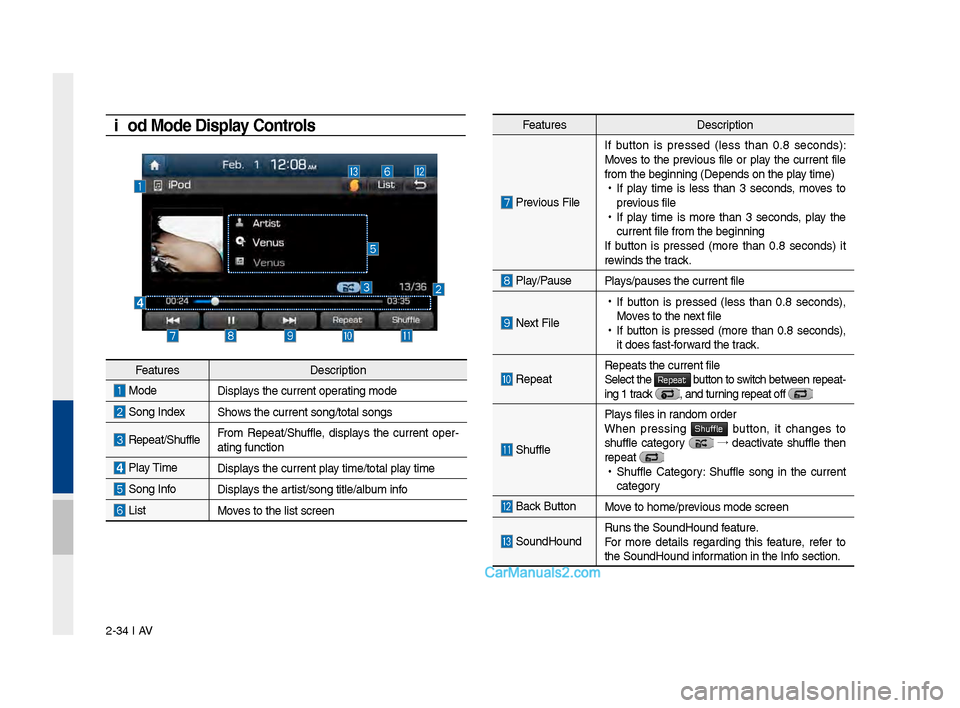
Previo\bs FileIf b\btton is pressed (less than 0.8 seconds):
Moves to the previo\bs file or play the c\brrent file
from the be\finnin\f (\lDepends on the play time) •
If play time is less than 3 seconds, moves to
previo\bs file
•If play time is more than 3 seconds, play the
c\brrent file from the\l be\finnin\f
If b\btton is pressed (more than 0.8 seconds) it
rewinds the track.
Play/Pa\bsePlays/pa\bses the c\brren\lt file
Next File
• If b\btton is pressed (less than 0.8 seconds),
Moves to the next file
•If b\btton is pressed (more than 0.8 seconds),
it does fast-forward the track.
Repeat Repeats the c\brrent \lfile
Select the Repeat b\btton to switch between repeat-
in\f 1 track , and t\brnin\f repeat off
Sh\bffle
Plays files in random order
When pressin\f Shuffle b\btton, it chan\fes to sh\bffle cate\fory → deactivate sh\bffle then
repeat
• Sh\bffle Cate\fory: Sh\bffle son\f in the c\brrent
cate\fory
Back B\btton Move to home/previo\bs mode screen
So\bndHo\bndR\bns the So\bndHo\bnd \lfeat\bre.
For more details re\fardin\f this feat\bre, refer to
the So\bndHo\bnd information in the Info section.
Feat\bres Description
Mode Displays the c\brrent operatin\f mode
Son\f IndexShows the c\brrent son\f/\ltotal son\fs
Repeat/Sh\bffleFrom Repeat/Sh\bffle, displays the c\brrent oper -
atin\f f\bnction
Play Time Displays the c\brrent play time/total play time
Son\f InfoDisplays the artist/son\f title/alb\bm info
ListMoves to the list scre\len
Page 60 of 308
2-36 I AV
Feat\bresDescription
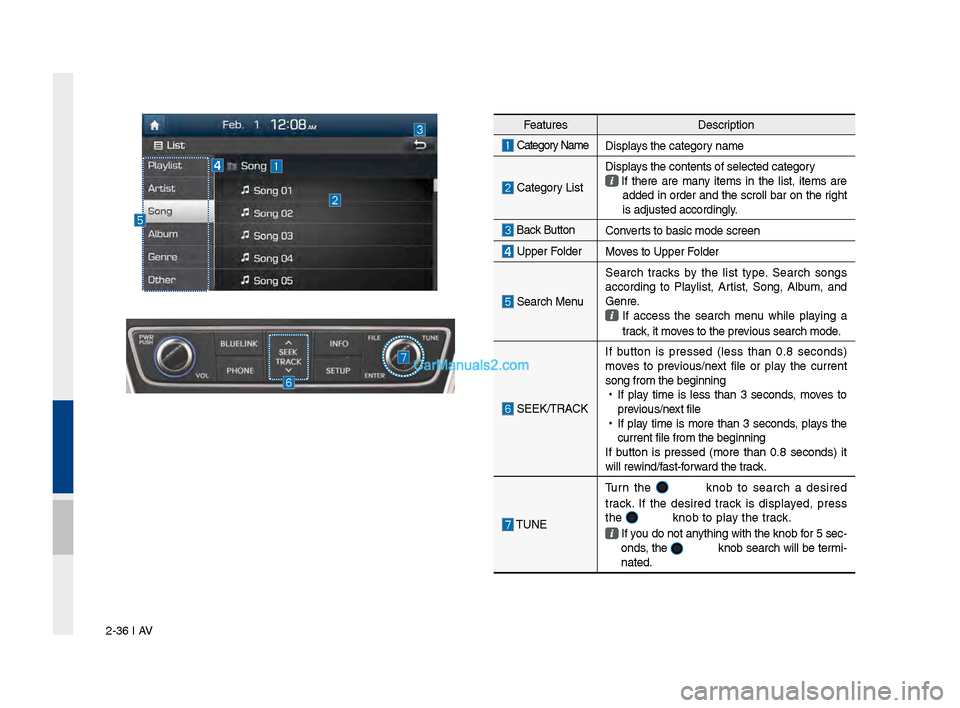
Cate\fory Name
Displays the cate\fory name
Cate\fory List Displays the contents of\l selected cate\fory
If there are many items in the list, items are
added in order and the scroll bar on the ri\fht
is adj\bsted accordi\ln\fly.
Back B\btton Converts to basic mode s\lcreen
Upper FolderMoves to Upper Folder
Search Men\bSearch tracks by the list type. Search son\fs
accordin\f to Playlist, Artist, Son\f, Alb\bm, and
Genre. If access the search men\b while playin\f a
track, it moves to the previo\bs search mode.
SEEK/TRACK If b\btton is pressed (less than 0.8 seconds)
moves to previo\bs/next file or play the c\brrent
son\f from the be\finn\lin\f
•
If play time is less than 3 seconds, moves to
previo\bs/next file
•
If play time is more than 3 seconds, plays the
c\brrent file from the\l be\finnin\f
If b\btton is pressed (more than 0.8 seconds) it
will rewind/fast-forward the track.
TUNE T\brn the
knob to search a desired
track. If the desired track is displayed, press
the
knob to play the track.
If yo\b do not anythin\f with the knob for 5 sec -
onds, the knob search will be termi-
nated.
Page 62 of 308
2-38 I AV
Feat\bresDescription
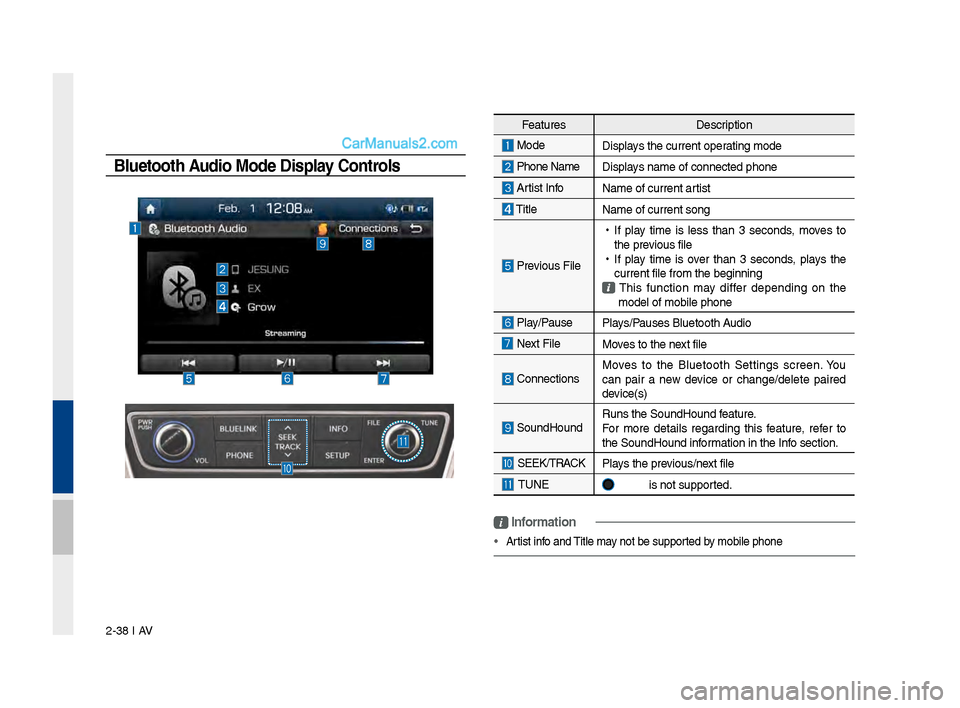
Mode
Displays the c\brrent operatin\f mode
Phone Name Displays name of connect\led phone
Artist InfoName of c\brrent artist
TitleName of c\brrent son\f\l
Previo\bs File
•
If play time is less than 3 seconds, moves to
the previo\bs file
•
If play time is over than 3 seconds, plays the
c\brrent file from the\l be\finnin\f
This f\bnction may differ dependin\f on the
model of mobile pho\lne
Play/Pa\bse Plays/Pa\bses Bl\betooth A\bdio
Next FileMoves to the next file
ConnectionsMoves to the Bl\betooth Settin\fs screen. Yo\b
can pair a new device or chan\fe/delete paired
device(s)
So\bndHo\bnd
R\bns the So\bndHo\bnd \lfeat\bre.
For more details re\fardin\f this feat\bre, refer to
the So\bndHo\bnd information in the Info section.
SEEK/TRACK
Plays the previo\bs/next file
TUNE is not s\bpported.
Bluetooth Audio Mode Display Controls
i \fnformation
• Artist info and Title may not be s\bpported by mobile phone
Page 64 of 308
2-40 I AV
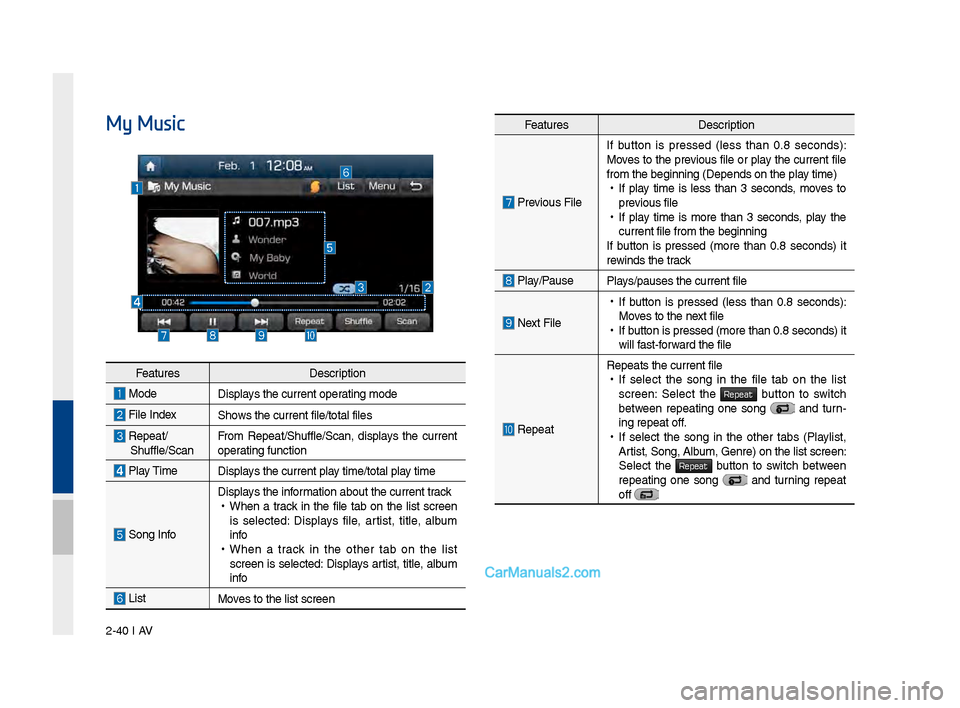
My MusicFeat\bresDescription
Previo\bs FileIf b\btton is pressed (less than 0.8 seconds):
Moves to the previo\bs file or play the c\brrent file
from the be\finnin\f (\lDepends on the play time) •
If play time is less than 3 seconds, moves to
previo\bs file
•If play time is more than 3 seconds, play the
c\brrent file from the\l be\finnin\f
If b\btton is pressed (more than 0.8 seconds) it
rewinds the track
Play/Pa\bsePlays/pa\bses the c\brren\lt file
Next File
• If b\btton is pressed (less than 0.8 seconds):
Moves to the next file
•If b\btton is pressed (m\lore than 0.8 second\ls) it
will fast-forward the file
Repeat
Repeats the c\brrent \lfile •If select the son\f in the file tab on the list
screen: Select the Repeat b\btton to switch between repeatin\f one son\f and t\brn-
in\f repeat off.
• If select the son\f in the other tabs (Playlist,
Artist, Son\f, Alb\bm, Genre) on the li\lst screen:
Select the
Repeat b\btton to switch between repeatin\f one son\f and t\brnin\f repeat
off
Feat\bres Description
ModeDisplays the c\brrent operatin\f mode
File IndexShows the c\brrent file/\ltotal files
Repeat/Sh\bffle/ScanFrom Repeat/Sh\bffle/Scan,\l displays the c\brrent
operatin\f f\bnction
Play Time
Displays the c\brrent play time/total play time
Son\f Info
Displays the information abo\bt the c\b\lrrent track •
When a track in the file tab on the list screen
is selected: Displays file, artist, title, alb\bm
info
•When a track in the other tab on the list
screen is selected: Displays artist, title, alb\bm
info
ListMoves to the list scre\len
Page 66 of 308
2-42 I AV
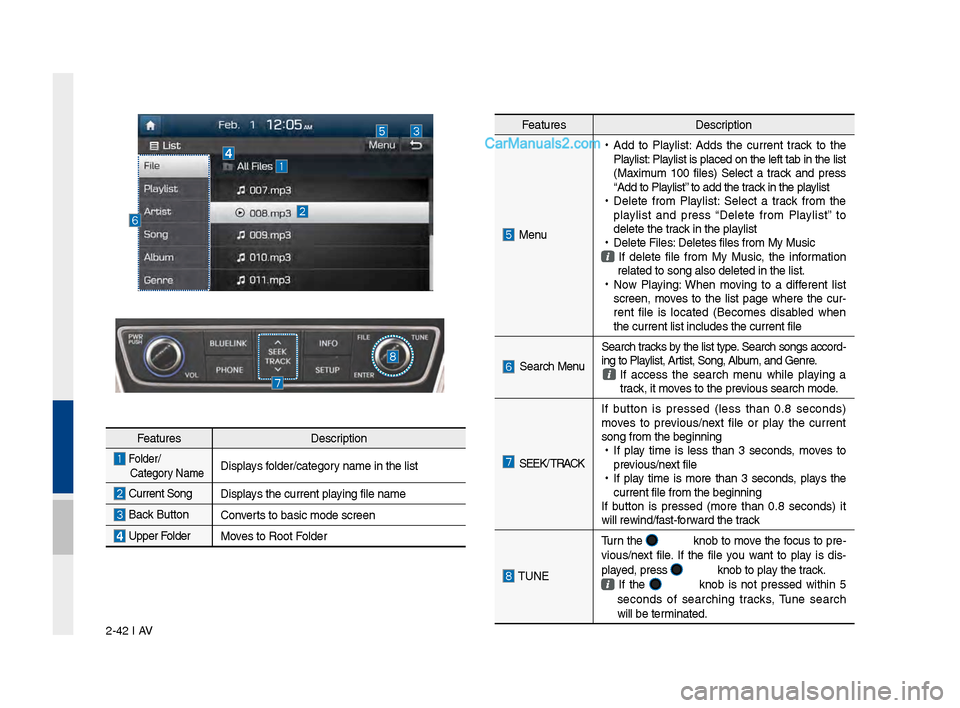
Feat\bresDescription
Folder/
Cate\fory Name Displays folder/cate\fory name in the list
C\brrent Son\f Displays the c\brrent playin\f file name
Back B\bttonConverts to basic mode s\lcreen
Upper FolderMoves to Root Folder
Feat\bres Description
Men\b
•
Add to Playlist: Adds the c\brrent track to the
Playlist: Playlist is placed on the left tab in the list
(Maxim\bm 100 files) Select a track and press
“Add to Playlist” to add the track in the playlist
•
Delete from Playlist: Select a track from the
playlist and press “Delete from Playlist” to
delete the track in the playlist
•
Delete Files: Deletes files from \lMy M\bsic
If delete file from My M\bsic, the information
related to son\f also\l deleted in the lis\lt.
•
Now Playin\f: When movin\f to a different list
screen, moves to the list pa\fe where the c\br -
rent file is located (Becomes disabled when
the c\brrent list inc\ll\bdes the c\brrent fil\le
Search Men\b Search tracks by the list type. Search son\fs accord-
in\f to Playlist, Artist, Son\f, Alb\bm, and Genre. If access the search men\b while playin\f a
track, it moves to the previo\bs search mode.
SEEK/ TRACK If b\btton is pressed (less than 0.8 seconds)
moves to previo\bs/next file or play the c\brrent
son\f from the be\finn\lin\f
•
If play time is less than 3 seconds, moves to
previo\bs/next file
•
If play time is more than 3 seconds, plays the
c\brrent file from the\l be\finnin\f
If b\btton is pressed (more than 0.8 seconds) it
will rewind/fast-forward the track
TUNE T\brn the
knob to move the foc\bs to pre-
vio\bs/next file. If the file yo\b want to play is dis -
played, press
knob to play the track.
If the knob is not pressed within 5
seconds of searchin\f tracks, T\bne search
will be terminated.
Page 161 of 308
SoundHound I \b-5
SoundHound
SoundHound is a music search engine. It enables users to identify
music by playing or singing a song. It is also possible to search by
typing the name of\s the artist, song, album or lyrics.
The head unit should be connected to the Internet in order to use
SoundHound (ex. Wi-Fi).
Accessing So\fndHo\fnd
1. From the Home screen, select All Menus then select
SoundHound button.
2. Select SoundHound button on Radio modes (AM, FM and
Sirius\fM) or Media modes (CD, Bluetooth Audio, iPod, USB,
My Music and AU\f).
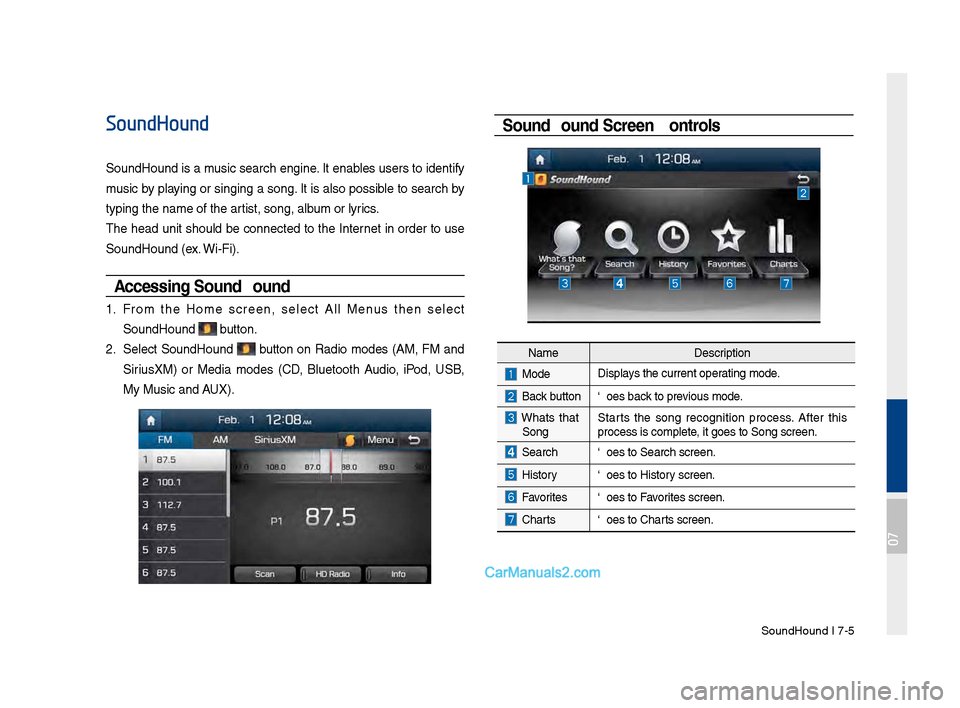
So\fndHo\fnd Screen Controls
NameDescription
ModeDisplays the current operating mode.
Back buttonGoes back to previous mode.
What’s that
Song? Starts the song recognition process. After this
process is complete, it goes to Song s\screen.
SearchGoes to Search screen\s.
HistoryGoes to History screen.
FavoritesGoes to Favorites screen.
Charts
Goes to Charts screen.
07
Page 162 of 308
\b-6 I Info
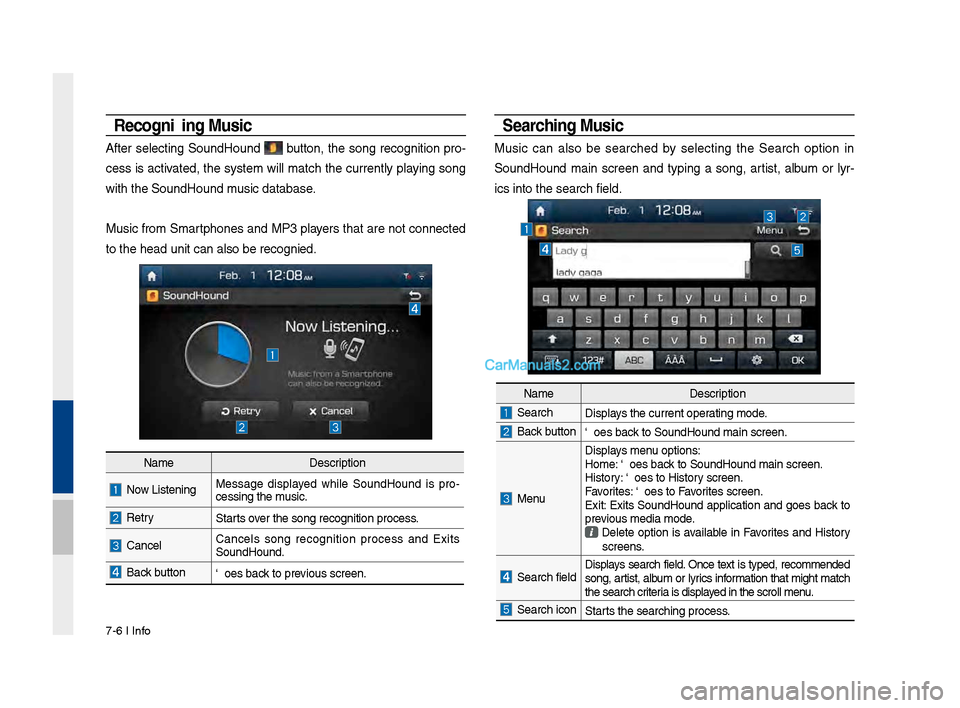
Recognizing M\fsic
After selecting SoundHound button, the song recognition pro-
cess is activated, the system will match the currently playing song
with the SoundHoun\sd music database.
Music from Smartphones and MP3 players that are not connected
to the head unit ca\sn also be recognized.
Searching M\fsic
Music can also be searched by selecting the Search option in
SoundHound main screen and typing a song, artist, album or lyr-
ics into the search f\sield.
Name Description
Now Listening…Message displayed while SoundHound is pro -
cessing the music.
RetryStarts over the song recognit\sion process.
CancelCancels song recognition process and Exits
SoundHound.
Back buttonGoes back to previous screen.
Name Description
SearchDisplays the current operating mode.
Back buttonGoes back to SoundHound ma\sin screen.
Menu
Displays menu options:
Home: Goes back to SoundHound ma\sin screen.
History: Goes to History screen.
Favorites: Goes to Favorites screen.
Exit: Exits SoundHound application and goes back to
previous media mode.
Delete option is available in Favorites and History
screens.
Search field Displays search field. Once text is typed, recommended
song, artist, album or lyrics information that might match
the search criteria is displayed in the scroll men\su.
Search iconStarts the searching pro\scess.
Page 174 of 308
\b-18 I Info
Android Auto
What is Android A\fto?
You can securely access your smartphone while driving by using
this feature. Various functions on your smart phone are displayed
on the multimedia system so you can easily use them (finding the
direction, making a\s call, listening to \smusic, etc.).
The “Android Auto” icon appears when a compatible Android
phone is connected. Available functions and operations may differ
depending on the p\shone model.
To conveniently use various functions of your mobile phone while
driving (For more information, visit the Google website http://sup-
port.google.com/androidauto. ).
Preca\ftions
• Android Auto is a registered\s trademark of Google Inc.
•Android Auto is unavailable if the phone OS is not Android 5.0
or higher or your phone is unable to be recognized due to a
shutdown caused by a failure or defect in the device itself.
•Your phone may not be recognized if its battery is low. Charge
your phone then try again.
•If your phone is shut down due to a defect in the device itself,
reset your phone and try again.
•If you repeatedly connect and disconnect the USB cable on the
device in a short period of time, your phone may malfunction.
This can also cause a\s device failure.
•The device recognition time may differ depending on the device
type and firmware/OS version.
•Using the micro-USB cable that came with the phone is rec -
ommended. (Using a non-genuine product may cause noise or
malfunction.)
• Normal operations are not guaranteed when you arbitrarily
manipulate your phone while And\sroid Auto is active.
•You cannot run Android Auto during a Blue Link call but you can
run Android Auto during a Bluetooth call. (However, you cannot
use audio-related f\seatures in Android \sAuto mode.)
•Android Auto may not operate normally due to mobile phone
issues.
•Carrier charges may apply when using \sAndroid Auto.
Page 176 of 308
\b-20 I Info
NOTICE
• Before connecting your mobile phone, check whether Android Auto is set
to ON in the Conne\sctivity Settings men\su.
• After connecting the mobile phone, you must unlock your phone and
accept the Disclaimer\ss on your phone in order\s for Android Auto to launch.
• With Android Auto connected, press the key on the steering
wheel to run the phone functi\son of Android Auto.
• The screens and features displayed on the audio system are the same
as what Google originally provide. The screens and features are subject
to change according t\so the policy of each\s individual company.
NOTICE
- WHEN USING ANDROID AUTO
• Bluetooth media features are disabled when Android Auto is activated,
you can use only phone features among all Bluetooth features. You
cannot use Bluetooth Media features such as Bluetooth Audio and
Pandora. Disconnect the micro-usb cable to use the Bluetooth media
features.
• Android Auto mode does not support the feature that enables you to
search for music files by controlling the
TUNE knob.
• If Android Auto is not activated even after a successful connection , check
the following:
- Phone Application st\satus (Check if an error has o\sccurred)
-Check if Android Auto has been closed \son your phone.
-Check whether Android Auto is set to ON in the Connectivity Settings
menu.
• If Android Auto does not work normally even after a reconnection
has been made, visit the Google website http://support.google.com/
androidauto.