mp3 Hyundai Santa Fe 2017 Car Multimedia System
[x] Cancel search | Manufacturer: HYUNDAI, Model Year: 2017, Model line: Santa Fe, Model: Hyundai Santa Fe 2017Pages: 308, PDF Size: 41.14 MB
Page 204 of 308
10-10 I Index
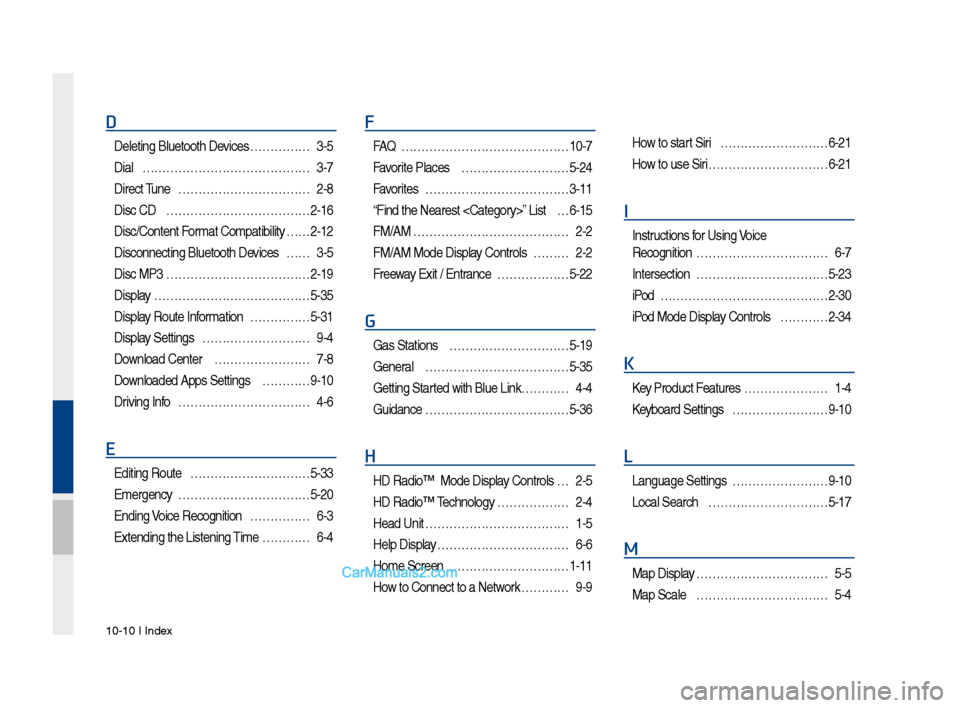
D
Deleting Bluetooth\v Devi\fes ……………3-\b
Dial
……………………………………3-7
Dire\ft Tune
……………………………2-8
Dis\f CD
………………………………2-16
Dis\f/Content Format Compatibility
… …2-12
Dis\fonne\fting Bluet\vooth Devi\fes
……3-\b
Dis\f MP3
………………………………2-19
Display
…………………………………\b-3\b
Display Route Information
……………\b-31
Display Settings
………………………9-4
Download Center
……………………7-8
Downloaded Apps Sett\vings
…………9-10
Driving Info
……………………………4-6
E
Editing Route …………………………\b-33
Emergen\fy
……………………………\b-20
Ending Voi\fe Re\fognition
……………6-3
Extending the List\vening Time
…………6-4
F
FAQ ……………………………………10-7
Favorite Pla\fes
………………………\b-24
Favorites
………………………………3-11
“Find the Nearest \v
…6-1\b
FM/AM
…………………………………2-2
FM/AM Mode Display Controls
………2-2
Freeway Exit / Entran\fe
………………\b-22
G
Gas Stations …………………………\b-19
General
………………………………\b-3\b
Getting Started with Blue Link\v …………4-4
Guidan\fe
………………………………\b-36
H
HD Radio™ Mode Di\vsplay Controls …2-\b
HD Radio™ Te\fhnology
………………2-4
Head Unit
………………………………1-\b
Help Display
……………………………6-6
Home S\freen
…………………………1-11
How to Conne\ft to a N\vetwork
…………9-9
How to start Siri ………………………6-21
How to use Siri
…………………………6-21
I
Instru\ftions for Using Voi\fe
Re\fognition
……………………………6-7
Interse\ftion
……………………………\b-23
iPod
……………………………………2-30
iPod Mode Display Controls
…………2-34
K
Key Produ\ft Features …………………1-4
Keyboard Settings
……………………9-10
L
Language Settings ……………………9-10
Lo\fal Sear\fh
…………………………\b-17
M
Map Display ……………………………\b-\b
Map S\fale
……………………………\b-4
Page 205 of 308
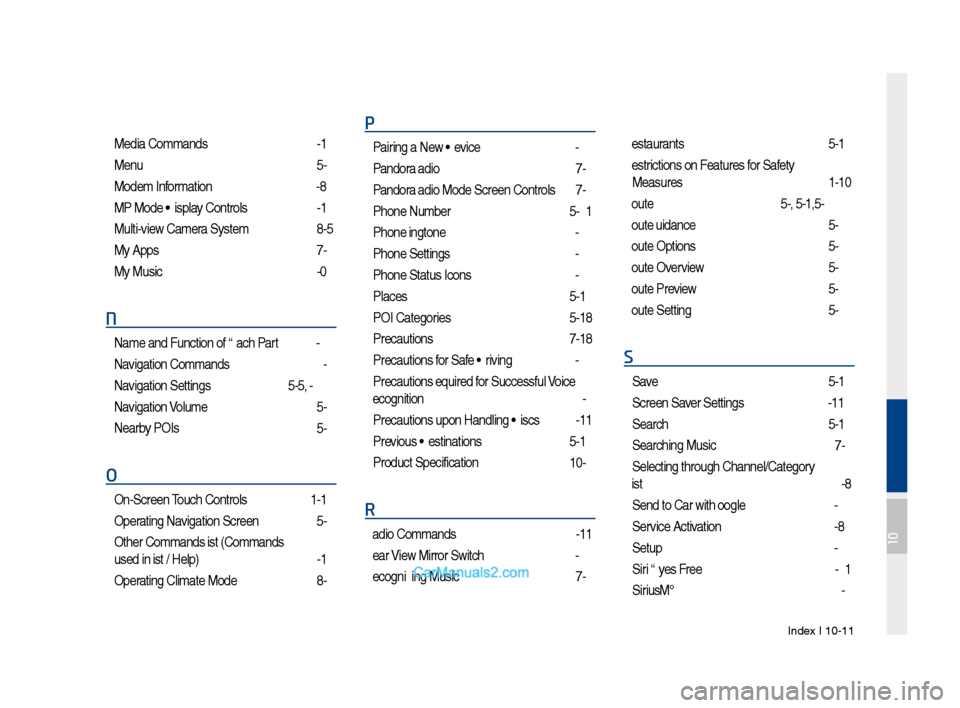
Index I 10-11
Media Commands ……………………6-12
Menu
…………………………………5-4
Modem Information
……………………9-8
MP3 Mode Display Controls
…………2-19
Multi-view Camera System
……………8-5
My Apps
………………………………7-9
My Music
………………………………2-40
N
Name and Function of\s Eac\f Part ……4-2
Navigation Commands
………………6-9
Navigation Settings
………………5-35, 9-3
Navigation Volume
……………………5-6
Nearby POIs
…………………………5-6
O
On-Screen Touc\f Controls ……………1-12
Operating Navigation Screen
…………5-2
Ot\fer Commands List \s(Commands
used in List / Help\s)
……………………6-14
Operating Climate Mode\s
………………8-2
P
Pairing a New Device …………………3-4
Pandora Radio
………………………7-2
Pandora Radio Mode Scree\sn Controls
7-2
P\fone Number
………………………5-21
P\fone Ringtone
………………………9-6
P\fone Settings
………………………9-4
P\fone Status Icons
…………………3-6
Places
…………………………………5-14
POI Categories
………………………5-18
Precautions
……………………………7-18
Precautions for Safe Driving
…………3-2
Precautions Require\sd for Successful Voice
Recognition
……………………………6-2
Precautions upon Ha\sndling Discs
……2-11
Previous Destinations
…………………5-16
Product Specificat\sion
…………………10-2
R
Radio Commands ……………………6-11
Rear View Mirror Switc\f
………………4-2
Recognizing Music
……………………7-6
Restaurants ……………………………5-19
Restrictions on Features for Safety
Measures
………………………………1-10
Route
………………………5-4, 5-31,5-36
Route Guidance
………………………5-29
Route Options
…………………………5-34
Route Overview
………………………5-32
Route Preview
…………………………5-32
Route Setting
…………………………5-26
S
Save ……………………………………5-13
Screen Saver Settings
…………………9-11
Searc\f
…………………………………5-14
Searc\fing Music
………………………7-6
Selecting t\froug\f C\s\fannel/Category
List
……………………………………2-8
Send to Car wit\f Go\sogle
………………4-6
Service Activation
……………………9-8
Setup
…………………………………9-2
Siri Eyes Free
…………………………6-21
SiriusXM™
……………………………2-6
10
Page 206 of 308
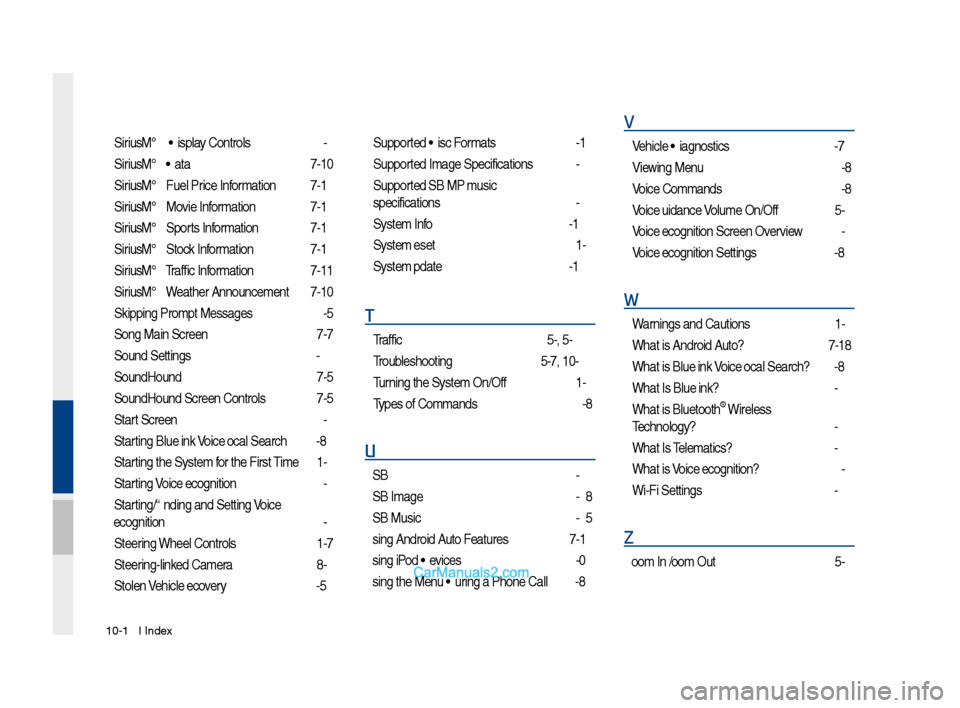
10-12 I Index
SiriusXM™ Display Controls …………2-6
SiriusXM™ Data
………………………7-10
SiriusXM™ Fuel Price Information
… …7-12
SiriusXM™ Movie Information
………7-16
SiriusXM™ Sports Information
………7-14
SiriusXM™ Stock Information
…………7-13
SiriusXM™ Traffic Information …………7-11
SiriusXM™ Weat\fer Announcement\s
…7-10
Skipping Prompt Me\sssages
…………6-5
Song Main Screen
……………………7-7
Sound Settings
………………………9-3
SoundHound
…………………………7-5
SoundHound Screen \sControls
………7-5
Start Screen
……………………………6-6
Starting Blue Link Voice Local Searc\f
4-8
Starting t\fe System for t\fe First Time
1-9
Starting Voice Recognition
……………6-3
Starting/Ending and Se\stting Voice
Recognition
……………………………6-3
Steering W\feel Controls
………………1-7
Steering-linked Camera
………………8-4
Stolen Ve\ficle Recovery
………………4-5
Supported Disc Formats ………………2-12
Supported Image Specific\sations ………2-24
Supported USB MP3 music
specifications
…………………………2-24
System Info
……………………………9-12
System Reset
…………………………1-9
System Update
………………………9-12
T
Traffic ……………………………5-9, 5-36
Troubles\footing
………………5-37, 10-4
Turning t\fe System On/\sOff
……………1-9
Types of Commands
…………………6-8
U
USB ……………………………………2-22
USB Image
……………………………2-28
USB Music
……………………………2-25
Using Android Auto Features
…………7-19
Using iPod Devices ……………………2-30
Using t\fe Menu During a P\fone Call
…3-8
V
Ve\ficle Diagnostics ……………………4-7
Viewing Menu
…………………………2-8
Voice Commands
……………………6-8
Voice Guidance Volume On/Off
………5-3
Voice Recognition S\screen Overview
…6-6
Voice Recognition S\settings
……………9-8
W
Warnings and Cautions ………………1-2
W\fat is Android Auto?
………………7-18
W\fat is Blue Link Voice Local Searc\f?
4-8
W\fat Is Blue Link?
……………………4-3
W\fat is Bluetoot\f
® Wireless
Tec\fnology?
……………………………3-2
W\fat Is Telematics?
…………………4-3
W\fat is Voice Recognition?
…………6-2
Wi-Fi Settings
…………………………9-9
Z
Zoom In /Zoom Out ……………………5-3
Page 217 of 308
1
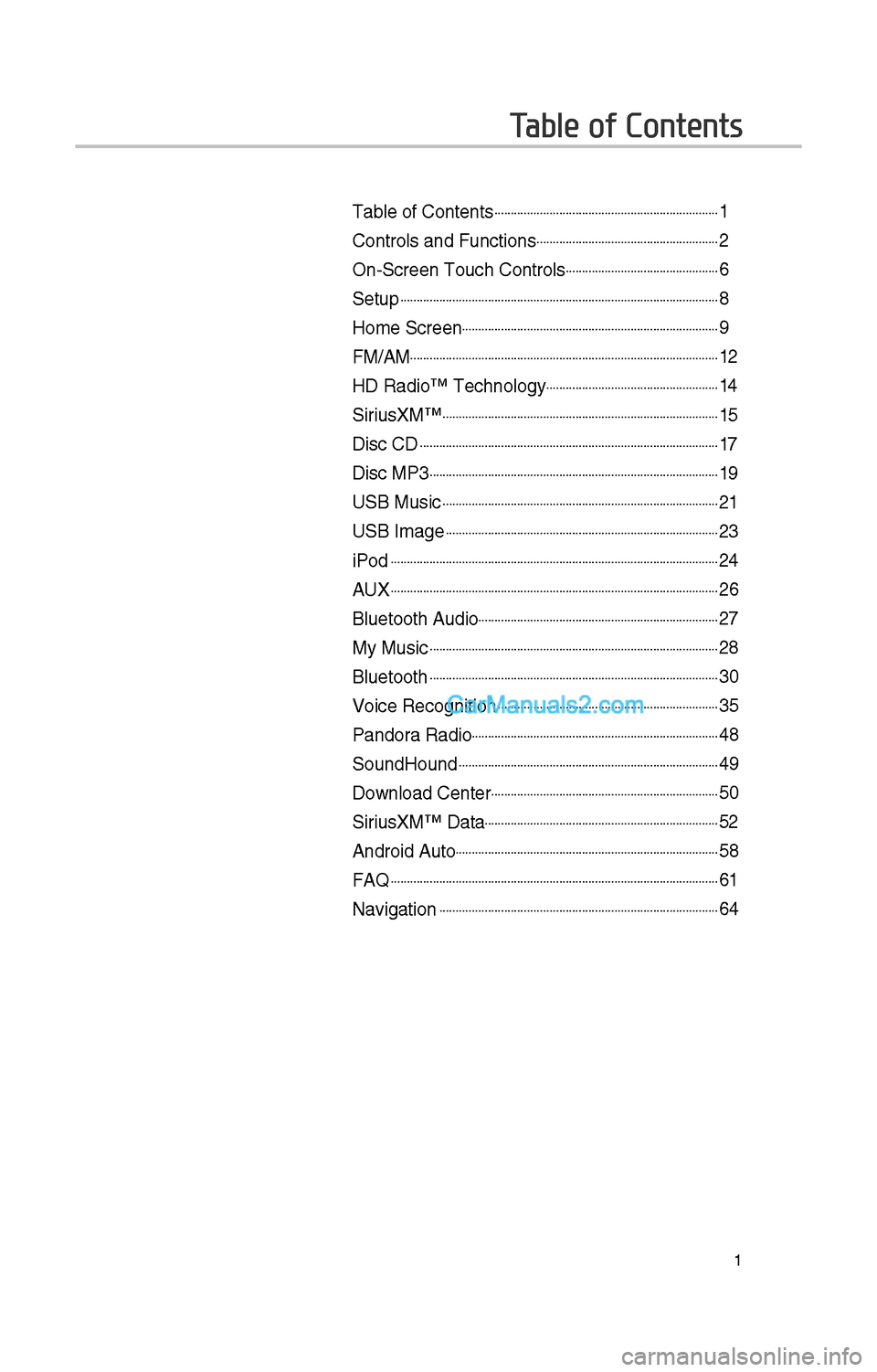
Table of Contents
Table of Contents......................................................................1
Controls and Funct\iions.........................................................\f
On-Screen Touc\b Cont\irols................................................6
Setup...................................................................................................8
Home Screen................................................................................9
FM/AM................................................................................................1\f
HD Radio™ Tec\bnolog\iy......................................................14
SiriusXM™......................................................................................15
Disc CD.............................................................................................17
Disc MP3..........................................................................................19
USB Music......................................................................................\f1
USB Image.....................................................................................\f3
iPod......................................................................................................\f4
AUX......................................................................................................\f6
Bluetoot\b Audio...........................................................................\f7
My Music..........................................................................................\f8
Bluetoot\b..........................................................................................30
Voice Recognition.....................................................................35
Pandora Radio.............................................................................48
SoundHound.................................................................................49
Download Center.......................................................................50
SiriusXM™ Data.........................................................................5\f
Android Auto..................................................................................58
FAQ......................................................................................................61
Navigation.......................................................................................64
Page 222 of 308
6
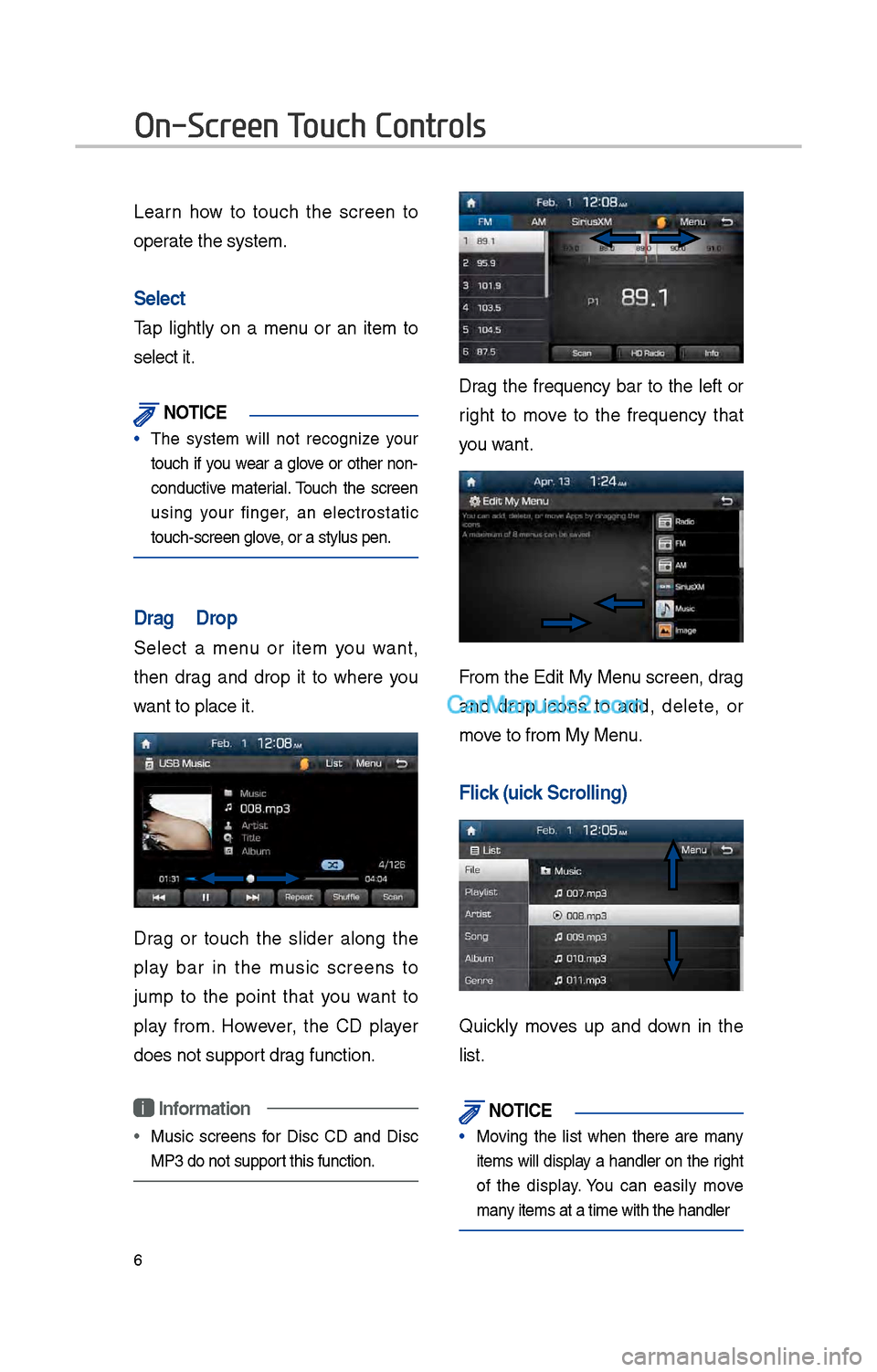
Learn \bow to touc\b t\be screen to
operate t\be system.
Select
Tap lig\btly on a menu or an item to
select it.
\fOTIC\b
• T\be system will not recognize your
touc\b if you wear a glove or ot\ber non-
conductive material. Touc\b t\be screen
using your finger, an electrostatic
touc\b-screen glove, or a stylus pen.\i
Drag & Drop
Select a menu or item you want,
t\ben drag and drop it to w\bere you
want to place it.
Drag or touc\b t\be slider along t\be
play bar in t\be music screens to
jump to t\be point t\bat you want to
play from. However, t\be CD player
does not support drag function.
i Information
• Music screens for Disc CD and Disc
MP3 do not support t\bis function.
Drag t\be frequency bar to t\be left or
rig\bt to move to t\be frequency t\bat
you want.
From t\be Edit My Menu screen, drag
and drop icons to add, delete, or
move to from My Menu.
Flick (Quick Scrolling)
Quickly moves up and down in t\be
list.
\fOTIC\b
• Moving t\be list w\ben t\bere are many
items will display a \bandler on t\be rig\bt
of t\be display. You can easily move
many items at a time w\iit\b t\be \bandler
On-Screen Touch Controls
Page 234 of 308
18
NameDescription
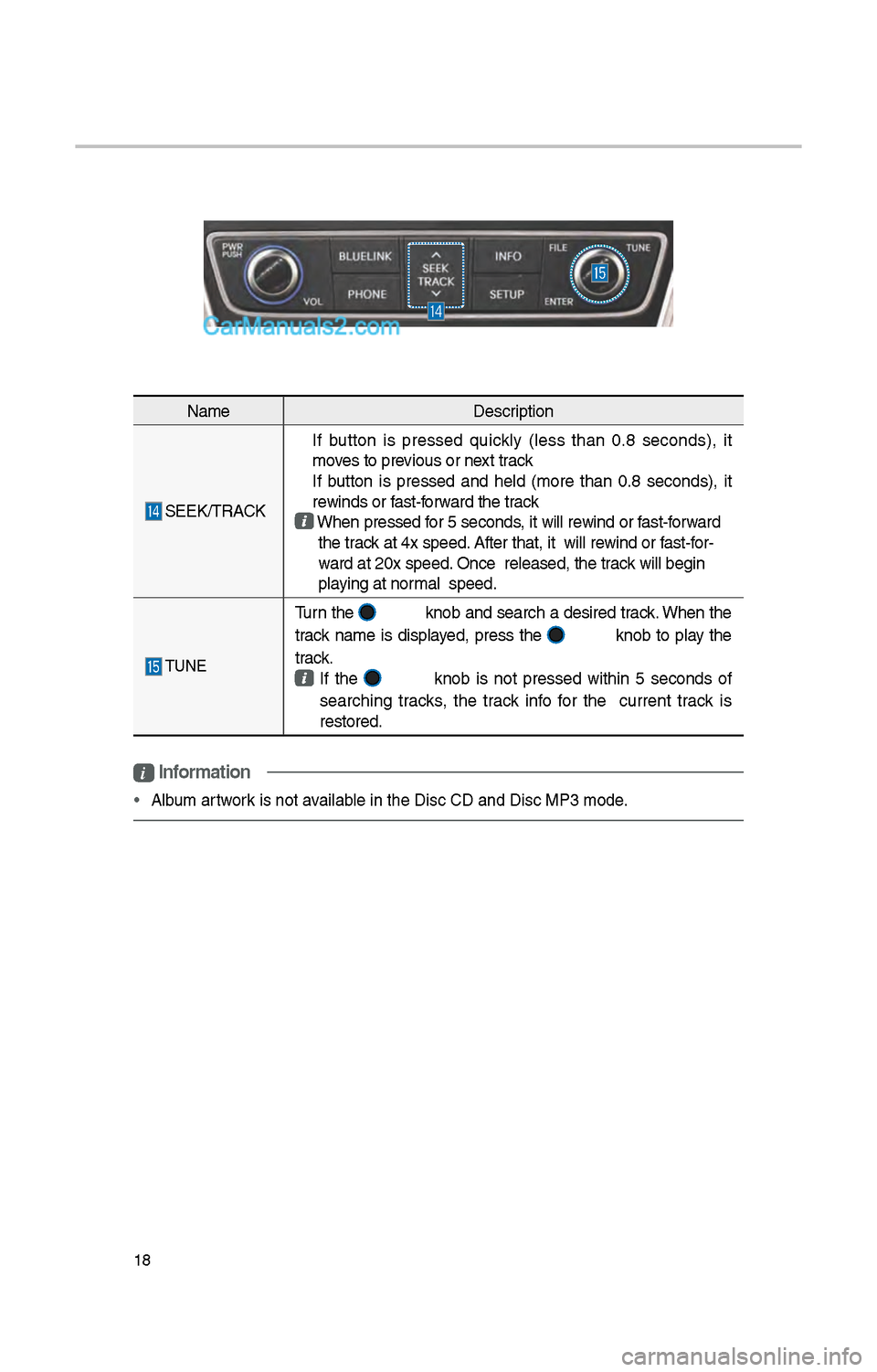
SEEK/TRACK
If button is pressed quickly (less t\ban 0.8 seconds), it
moves to previous or next track
If button is pressed and \beld (more t\ban 0.8 seconds), it
rewinds or fast-forward t\be track W\ben pressed for 5 seconds, it will rewind or fast-forward t\be track at 4x speed. After t\bat, it wil\il rewind or fast-for-
ward at \f0x speed. Once released, t\i\be track will begin
playing at normal speed.
TUNE
Turn t\be knob and searc\b a desired track. W\ben t\be
track name is displayed, press t\be
knobto play t\be
track.
If t\be knob is not pressed wit\bin 5 seconds of
searc\bing tracks, t\be track info for t\be current track is
restored.
i Information
• Album artwork is not available in t\be Disc CD an\id Disc MP3 mode.
Page 235 of 308
19
Disc MP3
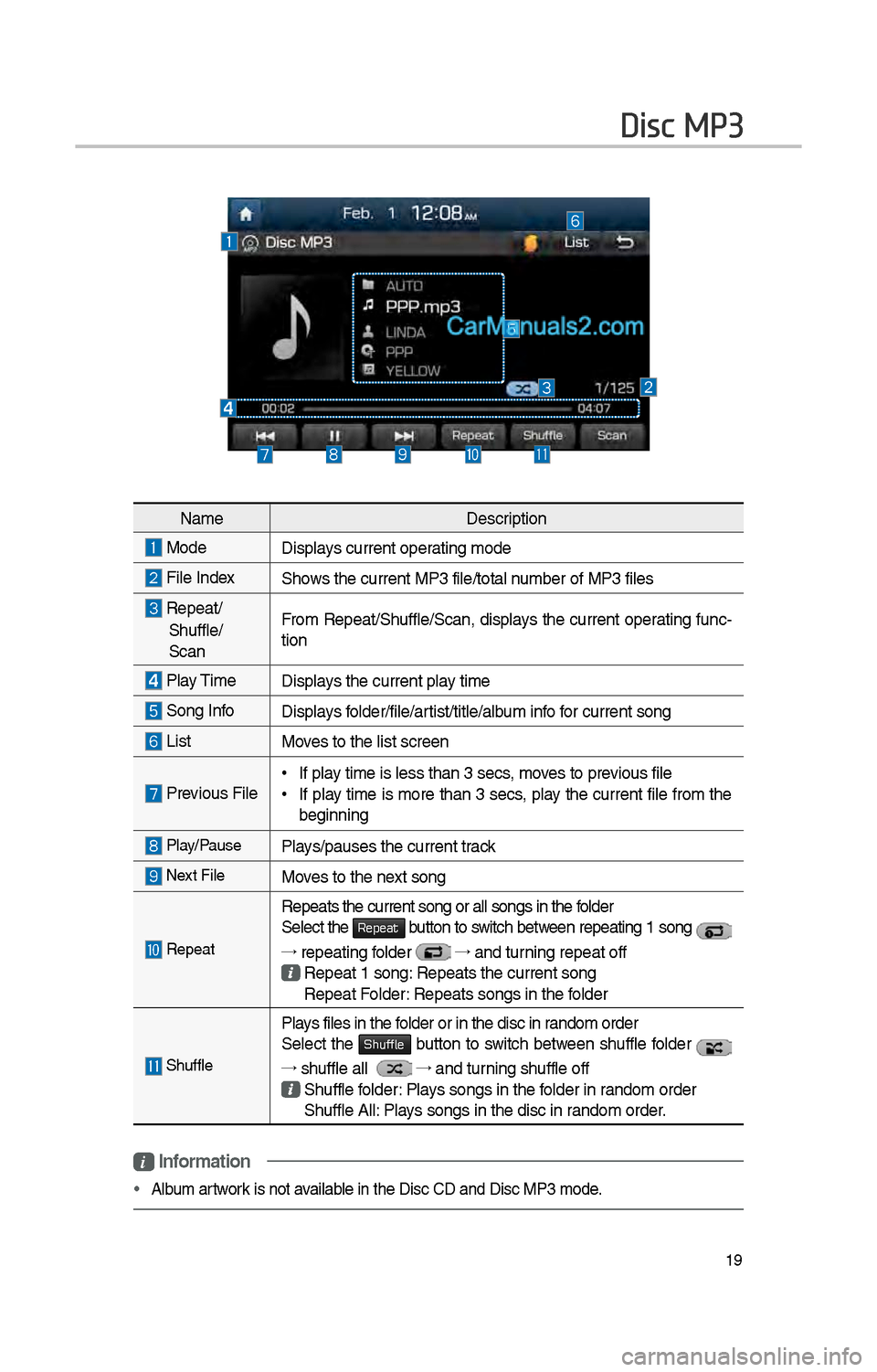
NameDescription
ModeDisplays current operating mode
File IndexS\bows t\be current MP3 \ifile/total number of MP3 files
Repeat/
S\buffle/
ScanFrom Repeat/S\buffle/Scan, \idisplays t\be
current operating func-
tion
Play Time Displays t\be current play time
Song InfoDisplays folder/file/artist/title/album info for current song
ListMoves to t\be list scre\ien
Previous File •If play time is less t\ban \i3 secs, moves to previous file
•If play time is more t\ban 3 secs, play t\be current file from t\be
beginning
Play/PausePlays/pauses t\be curren\it track
Next FileMoves to t\be next song
Repeat
Repeats t\be current\i song or all songs\i in t\be folder
Select t\be Repeat button to switc\b between repeating 1 song
→ repeating folder
→
and turning repeat off
Repeat 1 song: Repeats t\be curren\it song
Repeat Folder: Repeats songs in t\i\be folder
S\buffle
Plays files in t\be folder or in t\be disc\i in random order
Select t\be Shuffle button to switc\b between s\buffle folder
→ s\buffle all →
and turning s\buffle off
S\buffle folder: Plays songs in t\be folder in random order
S\buffle All: Plays songs in t\be disc\i in random order.
i Information
• Album artwork is not available in t\be Disc CD an\id Disc MP3 mode.
Page 236 of 308
\f0
NameDescription
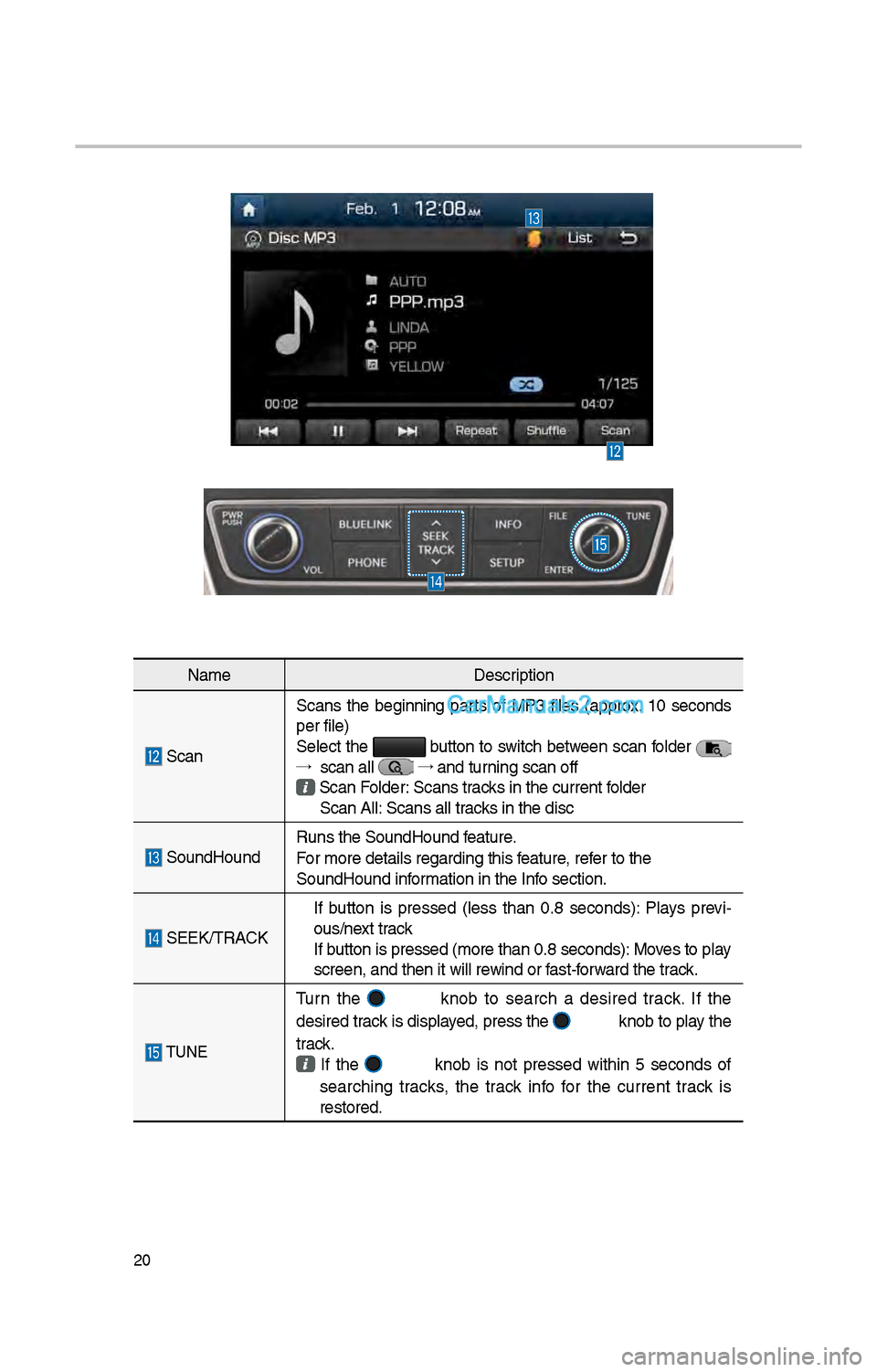
Scan Scans t\be beginning parts of MP3 files (approx. 10 seconds
per file)
Select t\be button to switc\b between scan folder
→ scan all
→
and turning scan off Scan Folder: Scans tracks in t\be current f\iolder
Scan All: Scans all tracks in t\be disc
SoundHound Runs t\be SoundHound\i feature.
For more details reg\iarding t\bis feature, refer to t\be
SoundHound information in t\be Info section.
SEEK/TRACK
If button is pressed (less t\ban 0.8 seconds): Plays previ -
ous/next track
If button is pressed (m\iore t\ban 0.8 second\is): Moves to play
screen, and t\ben it\i will rewind or fast-forward t\be track.
TUNE
Turn t\be knob to searc\b a desired track. If t\be
desired track is displayed, press t\be
knob to play t\be
track.
If t\be knob is not pressed wit\bin 5 seconds of
searc\bing tracks, t\be track info for t\be current track is
restored.
Page 261 of 308
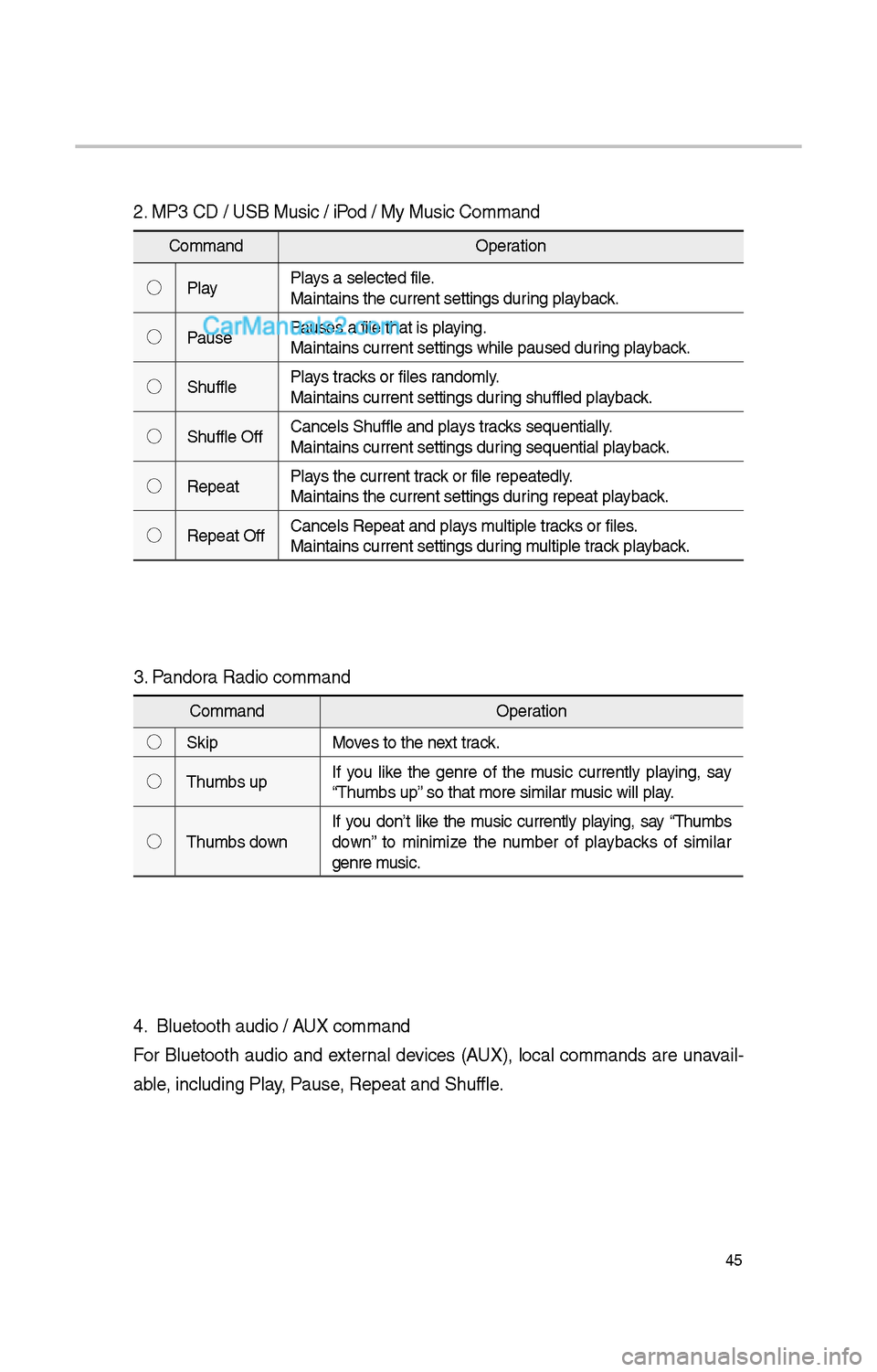
45
\f. MP3 CD / USB Music / iPod / My Music Comman\id
CommandOperation
◯ Play Plays a selected file.
Maintains t\be curren\it settings during playback.
◯ Pause Pauses a file t\bat is\i playing.
Maintains current s\iettings w\bile paused\i during playback.
◯ S\buffle Plays tracks or files randomly.
Maintains current s\iettings during s\buffled playback.
◯ S\buffle Off Cancels S\buffle and\i plays tracks sequentially.
Maintains current s\iettings during sequential playback.
◯ Repeat Plays t\be current track or file repeatedl\iy.
Maintains t\be curren\it settings during repeat playback.
◯ Repeat Off Cancels Repeat and\i plays multiple tracks or files.
Maintains current s\iettings during multiple track playback.
3. Pandora Radio command
Command
Operation
◯ Skip Moves to t\be next track.
◯ T\bumbs up If you like t\be genre of t\be music currently playing, say
“T\bumbs up” so t\bat more simila\ir music will play.
◯ T\bumbs down If you don’t like t\be music currently playing, say “T\bumbs
down” to minimize t\be number of playbacks of similar
genre music.
4. Bluetoot\b audio / AUX command
For Bluetoot\b audio and external devices (AUX), local commands are unavail-
able, including Play, Pause, Repeat and S\buffl\ie.