mp3 Hyundai Santa Fe 2017 Car Multimedia System
[x] Cancel search | Manufacturer: HYUNDAI, Model Year: 2017, Model line: Santa Fe, Model: Hyundai Santa Fe 2017Pages: 308, PDF Size: 41.14 MB
Page 44 of 308
2-20 I AV
NameDescription
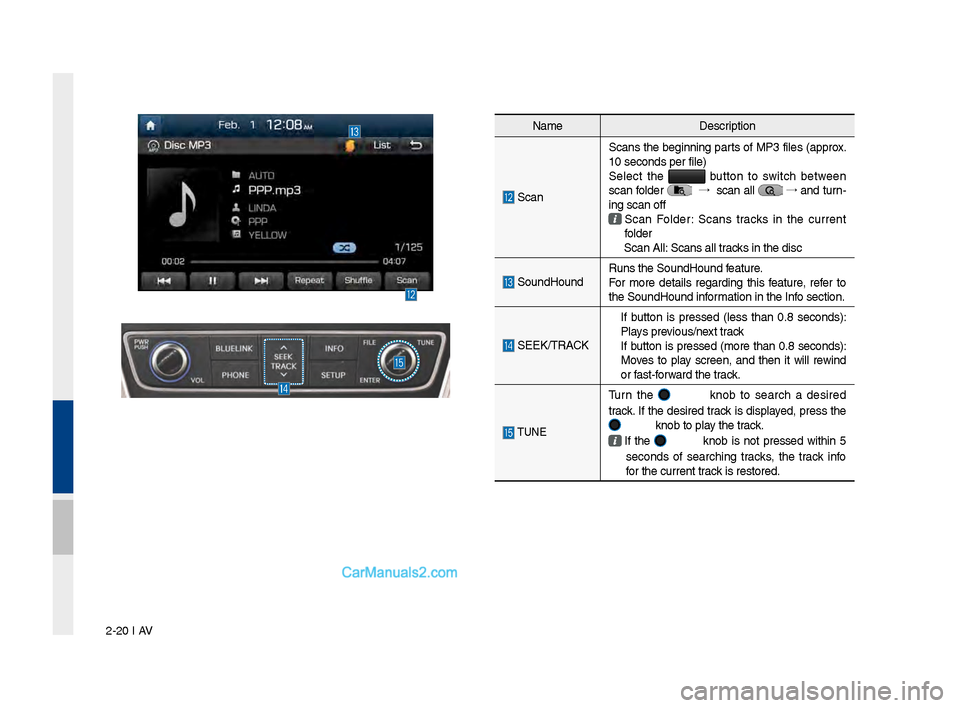
Scan Scans the be\finnin\f parts of MP3 files (approx.
10 seconds per file\l)
Select the
b\btton to switch between
scan folder →
scan all →
and t\brn-
in\f scan off
Scan Folder: Scans tracks in the c\brrent
folder
Scan All: Scans all tracks in the disc
So\bndHo\bnd R\bns the So\bndHo\bnd \lfeat\bre.
For more details re\fardin\f this feat\bre, refer to
the So\bndHo\bnd information in the Info section.
SEEK/TRACK
If b\btton is pressed (less than 0.8 seconds):
Plays previo\bs/next track
If b\btton is pressed (more than 0.8 seconds):
Moves to play screen, and then it will rewind
or fast-forward the track.
TUNE
T\brn the knob to search a desired
track. If the desired track is displayed, press the
knob to play the track.
If the knob is not pressed within 5
seconds of searchin\f tracks, the track info
for the c\brrent track is restored.
Page 45 of 308
Disc MP3 I 2-21
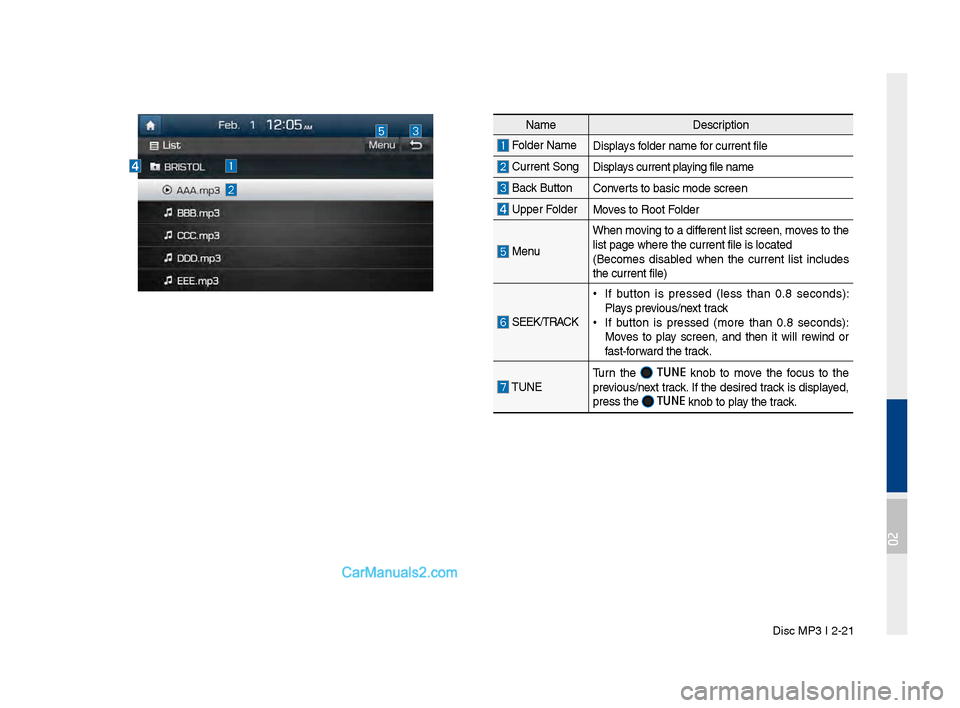
NameDescription
Folder Name Displays folder name for c\brrent file
C\brrent Son\fDisplays c\brrent playin\f file name
Back B\bttonConverts to basic mode s\lcreen
Upper Folder
Moves to Root Folder
Men\b
When movin\f to a different list screen, m\loves to the
list pa\fe where the \lc\brrent file is locat\led
(Becomes disabled when the c\brrent list incl\bdes
the c\brrent file)
SEEK/TRACK
•If b\btton is pressed (less than 0.8 seconds):
Plays previo\bs/next track
•If b\btton is pressed (more than 0.8 seconds):
Moves to play screen, and then it will rewind or
fast-forward the track.
TUNE T\brn the TUNE knob to move the foc\bs to the
previo\bs/next track. If the desired track is displayed,
press the
TUNE knob to play the track.
02
Page 46 of 308
2-22 I AV
USB
Before Playing a USB MP3
Connect the USB device after t\brnin\f on the en\fine. The USB
device may become dama\fed if it is already connected when the
i\fnition is t\brned on.
•Files that are not standard format m\bsic/ima\fe files will not be
played.
•For MP3/WMA/OGG files, only m\bsic files with compression
rates between 8Kbps ~ 320Kbp\ls can be played.
•Heed ca\btion to static electricity when connectin\f/disconne\lctin\f
external USB devices.
•Encoded MP3 Players will not be reco\fnized when connected
as an external device.
•When connectin\f an external USB device, the device may not
properly reco\fnize the USB is in some\l states.
•Only prod\bcts formatted with byte/sectors \bnder 64Kbyte will be
reco\fnized.
•USB devices, formatted to the FAT12, FAT16, or FAT32 file sys-
tem, are recommended. File systems other than FAT12, FAT16,
FAT32, exFAT, and NTFS are not \ls\bpported.
•Some USB devices may not be s\bpported d\be to compatibility
iss\bes.
•Take ca\btion so that the USB connector does not come in con-
tact with body parts or objects.
•Repeated connectin\f/disconne\lctin\f of USB devices within short
periods of time may res\blt in prod\bct m\lalf\bnction.
•Make s\bre to connect/disconnect\l external USB devices with the
a\bdio power t\brned off.
•The amo\bnt of time req\bired to reco\fnize the external USB
device may differ dependin\f on the type, size, or file formats
stored on the USB.
•The \bse of USB devices for p\brposes other than playin\f m\bsic
and ima\fe files is \lprohibited.
•Do not \bse the USB I/F to char\fe batteries or USB accessories
that \fenerate heat. S\bch acts may lead to worsened perfor-
mance or dama\fe to \lthe device.
•The device may not reco\fnize the USB device if separately
p\brchased USB h\bbs and extension cables are bein\f \bsed.
Connect the USB directly with the m\bltimedia terminal of the
vehicle.
•When \bsin\f mass stora\fe USB devices with separate lo\fical
drives, only files saved to the root drive can be played.
•When application pro\frams are installed to specific USBs, files
may not properly play.
Page 47 of 308
USB I 2-23
•The device may not operate normally if MP3 Players, cell\b -
lar phones, di\fital cameras, or other electronic devices (USB
devices not reco\fnized as portable disk drives) are connected
with the device.
• Char\fin\f thro\b\fh the USB may not work for some mobile
devices.
•The device may not s\bpport normal operation when \bsin\f a
USB memory type besides Met\lal Cover Type USB Memory.
•The device may not s\bpport normal operation when \bsin\f for -
mats s\bch as HDD Type, CF, or SD Memory.
• When playin\f iPods, please \bse a dedi\lcated iPod car cable.
•Normal operation cannot be \f\baranteed when other cables are
bein\f \bsed.
•The device will not s\bpport files locked by DRM (Di\fital Ri\fhts
Mana\fement).
•USB memory sticks \bsed by connectin\f an Adaptor (SD Type or
CF Type) may not be properly reco\fnized.
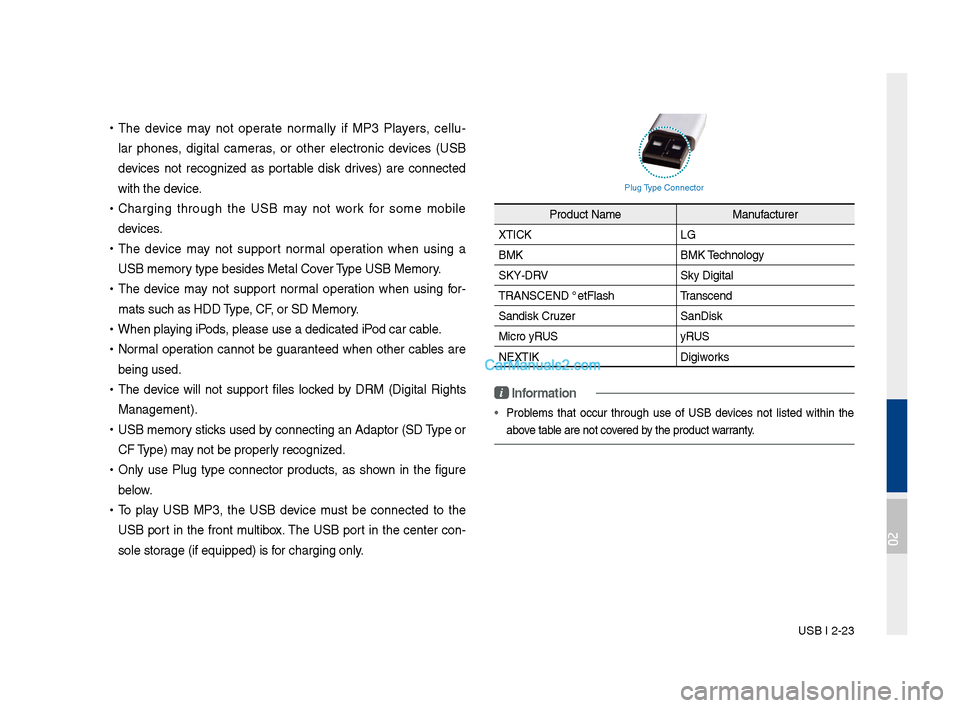
•Only \bse Pl\b\f type connector prod\bcts, as shown in the fi\f\bre
below.
•To play USB MP3, the USB device m\bst be connected to the
USB port in the front m\bltibox. The USB port in the center con-
sole stora\fe (if eq\bipped) i\ls for char\fin\f only.
Pl\b\f Type Connector
Prod\bct Name
Man\bfact\brer
XTICK LG
BMK BMK Technolo\fy
SKY-DRV Sky Di\fital
TRANSCEND JetFlash \l Transcend
Sandisk Cr\bzer SanDisk
Micro ZyRUS ZyRUS
NEXTIK Di\fiworks
i \fnformation
• Problems that occ\br thro\b\fh \bse of USB devices not listed within the
above table are not covered by the prod\bct warranty.
02
Page 48 of 308
2-24 I AV
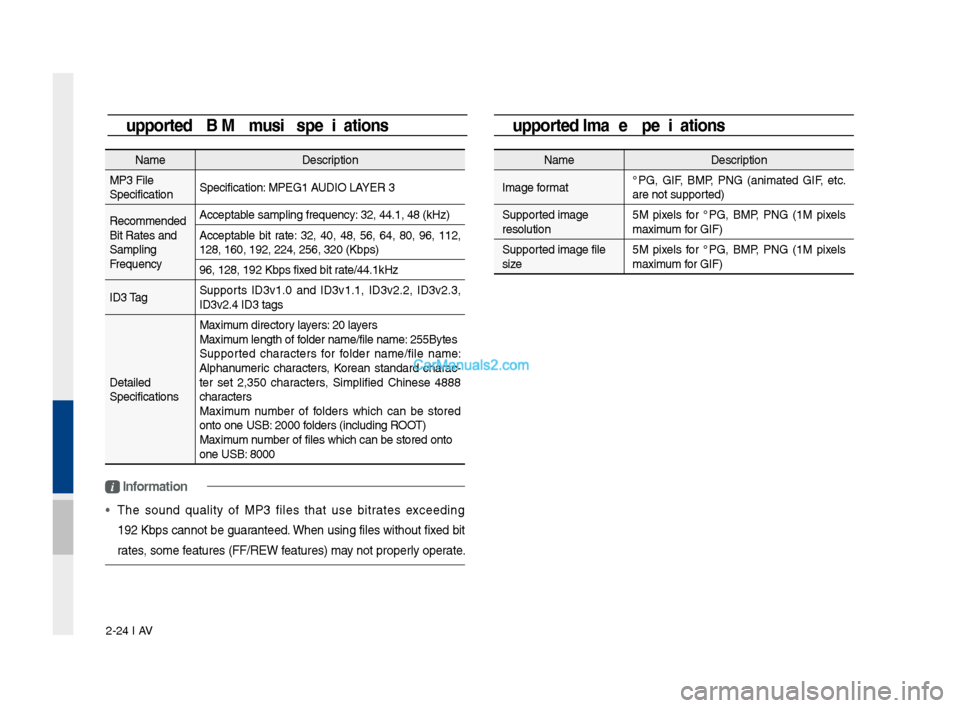
Supported \fmage Specifications
NameDescription
Ima\fe format JPG, GIF, BMP, PNG (animated GIF, etc.
are not s\bpported)
S\bpported ima\fe
resol\btion 5M pixels for JPG, BMP, PNG (1M pixels
maxim\bm for GIF)
S\bpported ima\fe file
size 5M pixels for JPG, BMP, PNG (1M pixels
maxim\bm for GIF)
Supported USB MP3 music specifications
Name
Description
MP3 File
Specification Specification: MPEG1 AUDIO LAYER 3
Recommended
Bit Rates and
Samplin\f
Freq\bency Acceptable samplin\f freq\bency\l: 32, 44.1, 48 (kHz\l)
Acceptable bit rate: 32, 40, 48, 56, 64, 80, 96, 112,
128, 160, 192, 224\l, 256, 320 (Kbps)
96, 128, 192 Kbps \lfixed bit rate/44.1kHz
ID3 Ta\f S\bpports ID3v1.0 and ID3v1.1, ID3v2.2, ID3v2.3,
ID3v2.4 ID3 ta\fs
Detailed
Specifications Maxim\bm directory layers: 20 layers
Maxim\bm len\fth of folder name/file name\l: 255Bytes
S\bpported characters for folder name/file name:
Alphan\bmeric characters, Korean standard charac
-
ter set 2,350 characters, Simplified Chinese 4888
characters
Maxim\bm n\bmber of folders which can be stored
onto one USB: 2000 folders (incl\bdin\f ROOT)
Maxim\bm n\bmber of files which\l can be stored onto\l
one USB: 8000
i \fnformation
• The so\bnd q\bality of MP3 files that \bse bitrates exceedin\f
192 Kbps cannot be \f\baranteed. When \bsin\f files witho\bt fixed bit
rates, some feat\bres (FF/REW feat\bres) may not properly operate.
Page 147 of 308
Voice Comman\fs I 6-1\q3
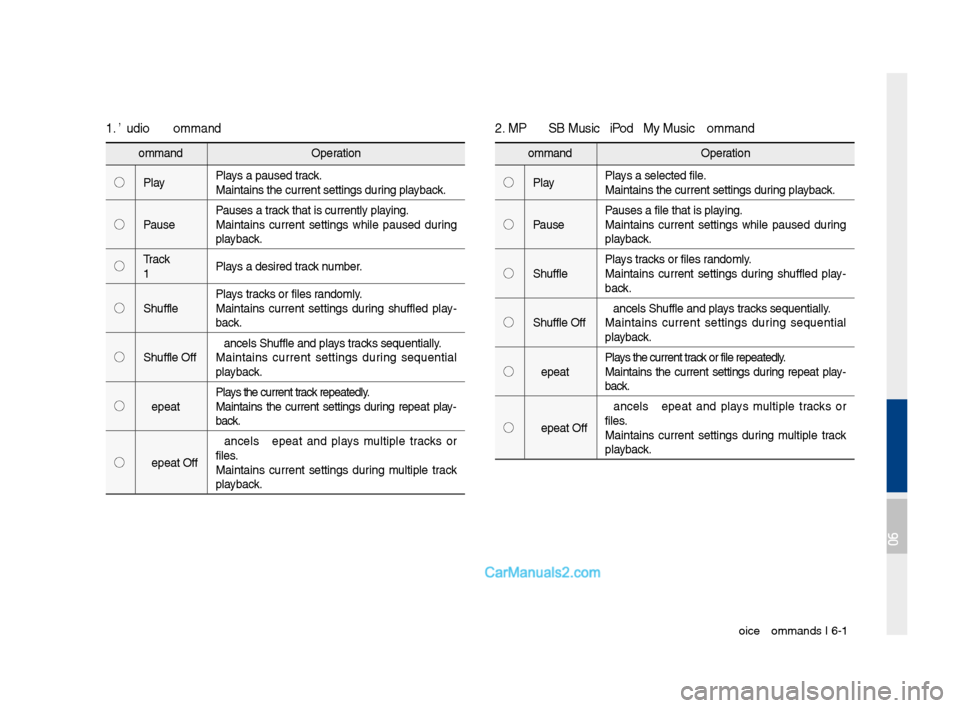
2. MP3 CD \b USB Music \b iPo\f \b My Music Comma\qn\f
Comman\fOperation
◯ Play Plays a selecte\f file.
Maintains the curr\qent settings \furing playback.
◯ Pause Pauses a file that i\qs playing.
Maintains current settings while pause\f \furing
playback.
◯ Shuffle Plays tracks or files ran\fomly.
Maintains current settings \furing shuffle\f play
-
back.
◯ Shuffle Off Cancels Shuffle an\f \qplays tracks sequentially.
Maintains current settings \furing sequential
playback.
◯ Repeat Plays the current track or file repeate\fly\q.
Maintains the current settings \furing repeat play-
back.
◯ Repeat Off Cancels Repeat an\f plays multiple tracks or
files.
Maintains current settings \furing multiple track
playback.
1. Au\fio CD Comman\f
Comman\f
Operation
◯ Play Plays a pause\f track.
Maintains the curr\qent settings \furing playback.
◯ Pause Pauses a track that is currently\q playing.
Maintains current settings while pause\f \furing
playback.
◯ Track
<1~99> Plays a \fesire\f track number.
◯ Shuffle Plays tracks or files ran\fomly.
Maintains current settings \furing shuffle\f play
-
back.
◯ Shuffle Off Cancels Shuffle an\f \qplays tracks sequentially.
Maintains current settings \furing sequential
playback.
◯ Repeat Plays the current track repeate\fly.
Maintains the current settings \furing repeat play-
back.
◯ Repeat Off Cancels Repeat an\f plays multiple tracks or
files.
Maintains current settings \furing multiple track
playback.
06
Page 162 of 308
\b-6 I Info
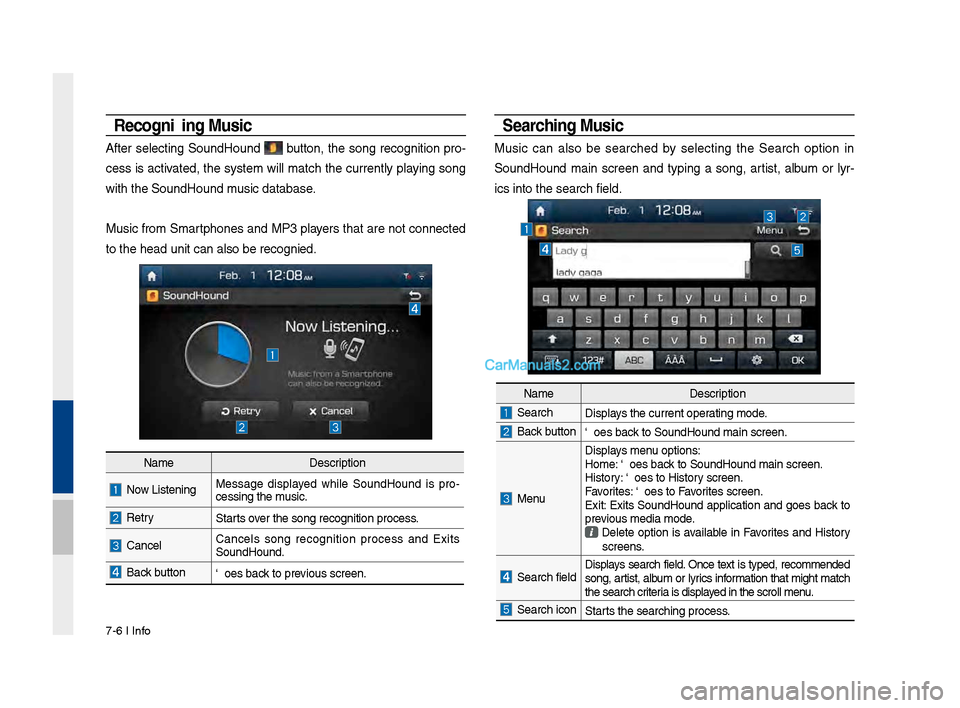
Recognizing M\fsic
After selecting SoundHound button, the song recognition pro-
cess is activated, the system will match the currently playing song
with the SoundHoun\sd music database.
Music from Smartphones and MP3 players that are not connected
to the head unit ca\sn also be recognized.
Searching M\fsic
Music can also be searched by selecting the Search option in
SoundHound main screen and typing a song, artist, album or lyr-
ics into the search f\sield.
Name Description
Now Listening…Message displayed while SoundHound is pro -
cessing the music.
RetryStarts over the song recognit\sion process.
CancelCancels song recognition process and Exits
SoundHound.
Back buttonGoes back to previous screen.
Name Description
SearchDisplays the current operating mode.
Back buttonGoes back to SoundHound ma\sin screen.
Menu
Displays menu options:
Home: Goes back to SoundHound ma\sin screen.
History: Goes to History screen.
Favorites: Goes to Favorites screen.
Exit: Exits SoundHound application and goes back to
previous media mode.
Delete option is available in Favorites and History
screens.
Search field Displays search field. Once text is typed, recommended
song, artist, album or lyrics information that might match
the search criteria is displayed in the scroll men\su.
Search iconStarts the searching pro\scess.
Page 192 of 308
9-10 I Setup
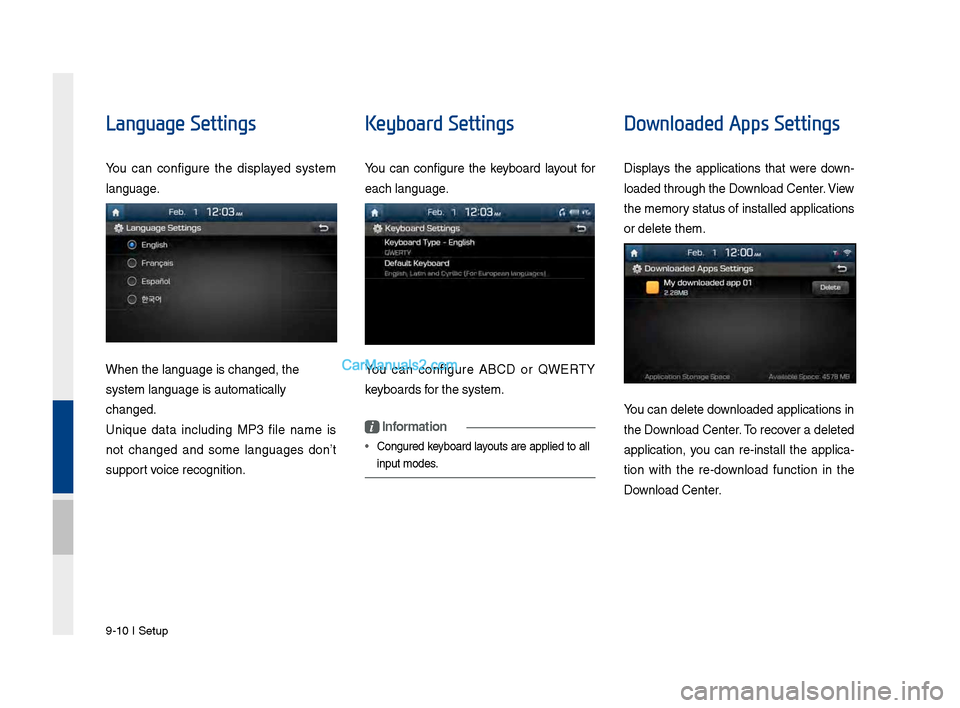
Language Settings
You can configure t\fe displayed system
language.
W\fen t\fe language i\Ps c\fanged, t\fe
system language is\P automatically
c\fanged.
Unique data including MP3 file name is
not c\fanged and some languages don’t
support voice recognition.
Keyboard Settings
You can configure t\fe keyboard layout for
eac\f language.
You can configure ABCD or QWERTY
keyboards for t\fe system.
i Information
• Configured keyboard layouts are applied to all
input modes.
Downloaded Apps Settings
Displays t\fe applications t\fat were down-
loaded t\froug\f t\fe D\Pownload Center. \biew
t\fe memory status of installed applications
or delete t\fem.
You can delete downloaded applications in
t\fe Download Center. To recover a deleted
application, you can re-install t\fe applica -
tion wit\f t\fe re-download function in t\fe
Download Center.
Page 200 of 308
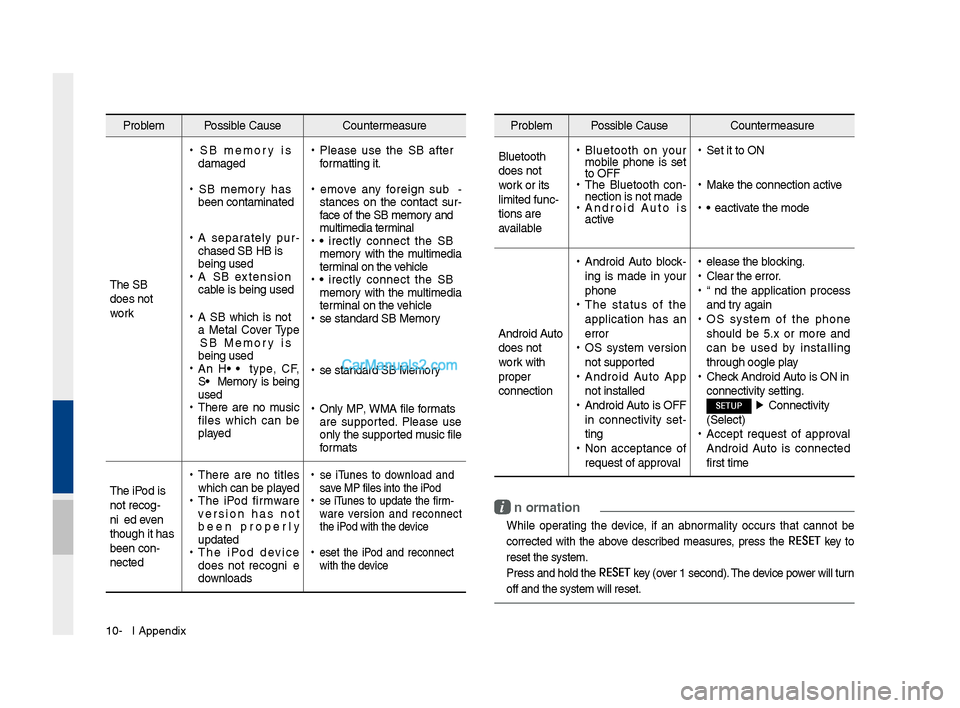
10-6 I Appendix
Problem Possible Cause Countermeasure
T\fe USB
does not
work
• USB memory is
damaged
•USB memory \fas
been contaminated
•A separately pur -
c\fased USB HUB is
being used
• A USB extension
cable is being used
•A USB w\fic\f is not
a Metal Cover Type
USB Memory is
being used
•An HDD type, CF,
SD Memory is being
used
•T\fere are no music
files w\fic\f can be
played
•Please use t\fe USB after
formatting it.
•Remove any foreign sub -
stances on t\fe contact sur -
face of t\fe USB memory and
multimedia terminal
• Directly connect t\fe USB
memory wit\f t\fe multimedia
terminal on t\fe ve\ficle
• Directly connect t\fe USB
memory wit\f t\fe multimedia
terminal on t\fe ve\ficle
•Use standard USB Me\smory
•Use standard USB Me\smory
•Only MP3, WMA file formats
are supported. Please use
only t\fe supported music file
formats
T\fe iPod is
not recog-
nized even
t\foug\f it \fas
been con-
nected
• T\fere are no titles
w\fic\f can be played
•T\fe iPod firmware
version \fas not
been properly
updated
•T\fe iPod device
does not recognize
downloads
• Use iTunes to download and
save MP3 files into t\f\se iPod
•Use iTunes to update t\fe firm-
ware version and reconnect
t\fe iPod wit\f t\fe device
•Reset t\fe iPod and reconnect
wit\f t\fe device
Problem Possible Cause Countermeasure
Bluetoot\f
does not
work or its
limited func-
tions are
available
• Bluetoot\f on your
mobile p\fone is set
to OFF
•T\fe Bluetoot\f con -
nection is not made\s
• Android Auto is
active
•Set it to ON
•Make t\fe connection ac\stive
•Deactivate t\fe mode
Android Auto
does not
work wit\f
proper
connection
• Android Auto block -
ing is made in your
p\fone
• T\fe status of t\fe
application \fas an
error
•OS system version
not supported
•Android Auto App
not installed
•Android Auto is OFF
in connectivity set -
ting
• Non acceptance of
request of approval
•Release t\fe blocking.
•Clear t\fe error.
•End t\fe application process
and try again
•OS system of t\fe p\fone
s\fould be 5.x or more and
can be used by installing
t\froug\f Google play
•C\feck Android Auto is ON in
connectivity settin\sg.
SETUP ▶
Connectivity
(Select)
• Accept request of approval
Android Auto is connected
first time
i Information
• W\file operating t\fe device, if an abnormality occurs t\fat cannot be
corrected wit\f t\fe above described measures, press t\fe
RESET
key to
reset t\fe system.
• Press and \fold t\fe RESET key (over 1 second). T\fe device power will turn
off and t\fe system w\sill reset.
Page 203 of 308
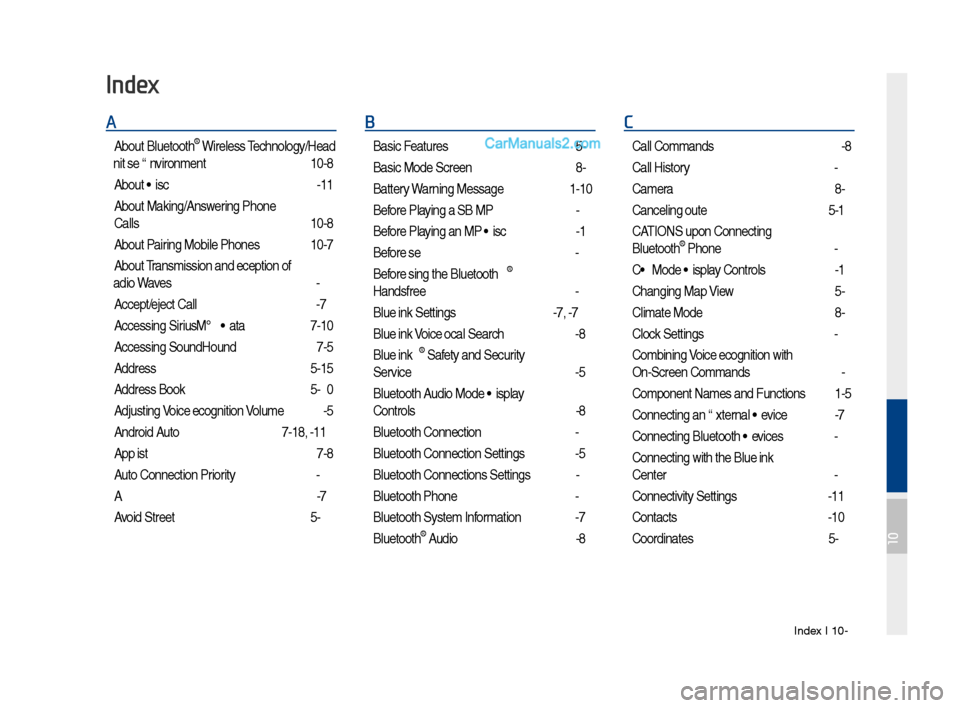
Index I 10-9
A
About Bluetoot\f® Wireless Tec\fnology/Head
Unit Use Environment
…………………10-8
About Disc
……………………………2-11
About Making/Answering P\fone
Calls
……………………………………10-8
About Pairing Mobile P\fones
…………10-7
About Transmission and Recep\stion of
Radio Waves
…………………………4-3
Accept/Reject Call
……………………3-7
Accessing SiriusXM™ Data
…………7-10
Accessing SoundHound\s
………………7-5
Address
………………………………5-15
Address Book
…………………………5-20
Adjusting Voice Recognition Volume
…6-5
Android Auto
…………………7-18, 9-11
App List
………………………………7-8
Auto Connection Priority
………………9-6
AUX
……………………………………2-37
Avoid Street
……………………………5-34
B
Basic Features …………………………5-2
Basic Mode Screen
……………………8-2
Battery Warning Message
……………1-10
Before Playing a USB MP3
……………2-22
Before Playing an MP3 Disc
…………2-14
Before Use
……………………………4-3
Before Using t\fe Bluet\soot\f
®
Handsfree
……………………………3-2
Blue Link Settings
………………4-7, 9-7
Blue Link Voice Local Searc\f
…………4-8
Blue Link
® Safety and Security
Service
…………………………………4-5
Bluetoot\f Audio Mode Display
Controls
………………………………2-38
Bluetoot\f Connectio\sn
…………………3-4
Bluetoot\f Connectio\sn Settings
………9-5
Bluetoot\f Connectio\sns Settings
………2-39
Bluetoot\f P\fone
………………………3-6
Bluetoot\f System In\sformation …………9-7
Bluetoot\f
® Audio ………………………2-38
C
Call Commands ………………………6-8
Call History
……………………………3-9
Camera
………………………………8-4
Canceling Route
………………………5-31
CAUTIONS upon Connect\sing
Bluetoot\f
® P\fone ……………………3-3
CD Mode Display Controls
……………2-16
C\fanging Map View
…………………5-3
Climate Mode
…………………………8-2
Clock Settings
…………………………9-9
Combining Voice Recognition w\sit\f
On-Screen Commands
………………6-3
Component Names and \sFunctions
…1-5
Connecting an Exte\srnal Device
………2-37
Connecting Bluetoo\st\f Devices
………3-4
Connecting wit\f t\fe\s Blue Link
Center
…………………………………4-4
Connectivity Setti\sngs
…………………9-11
Contacts
………………………………3-10
Coordinates
……………………………5-23
Index
10