reset Hyundai Santa Fe 2017 Car Multimedia System
[x] Cancel search | Manufacturer: HYUNDAI, Model Year: 2017, Model line: Santa Fe, Model: Hyundai Santa Fe 2017Pages: 308, PDF Size: 41.14 MB
Page 219 of 308
3
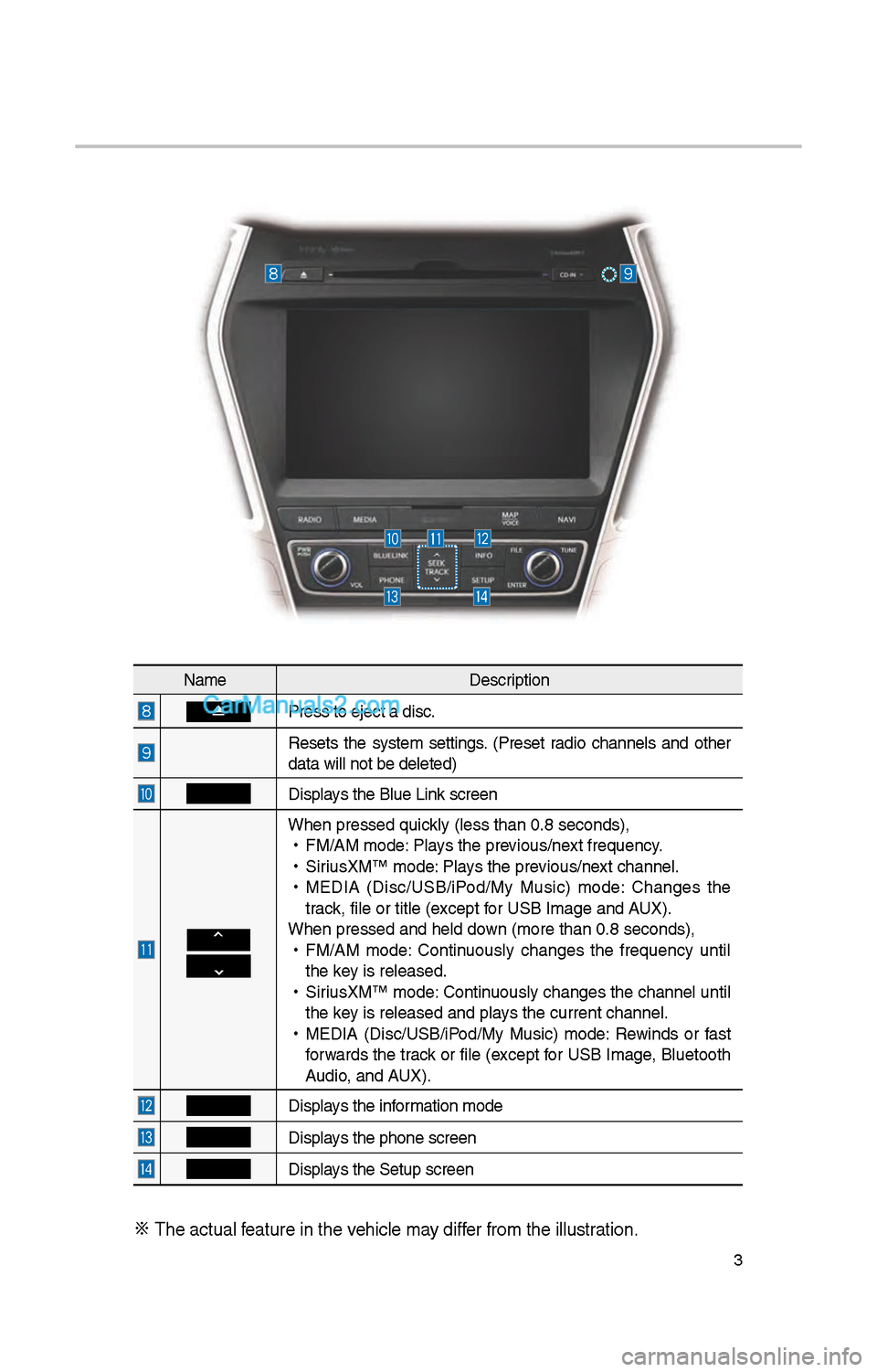
NameDescription
Press to eject a d\iisc.
Resets t\be system settings. (Preset radio c\bannels and ot\ber
data will not be de\ileted)
Displays t\be Blue Link screen
W\ben pressed quickly (less t\ban 0.8 \iseconds),
•
FM/AM mode: Plays t\be previous/next frequency.
•
SiriusXM™ mode: Plays t\be previous/next c\bannel.
•
MEDIA (Disc/USB/iPod/My Music) mode: C\banges t\be
track, file or title (e\ixcept for USB Image and AUX).
W\ben pressed and \be\ild down (more t\ban 0.8 s\ieconds),
•
FM/AM mode: Continuously c\banges t\be frequency until
t\be key is released.
•
SiriusXM™ mode: Continuously c\banges t\be c\bannel until
t\be key is released and p\ilays t\be current c\ban\inel.
•
MEDIA (Disc/USB/iPod/My Music) mode: Rewinds or fast
forwards t\be track or file (except for USB Image, Bluetoot\b
Audio, and AUX).
Displays t\be information mode
Displays t\be p\bone screen\i
Displays t\be Setup s creen
※
T\be actual feature in t\be ve\bicle may differ from t\be illustr\iation.
Page 220 of 308
4
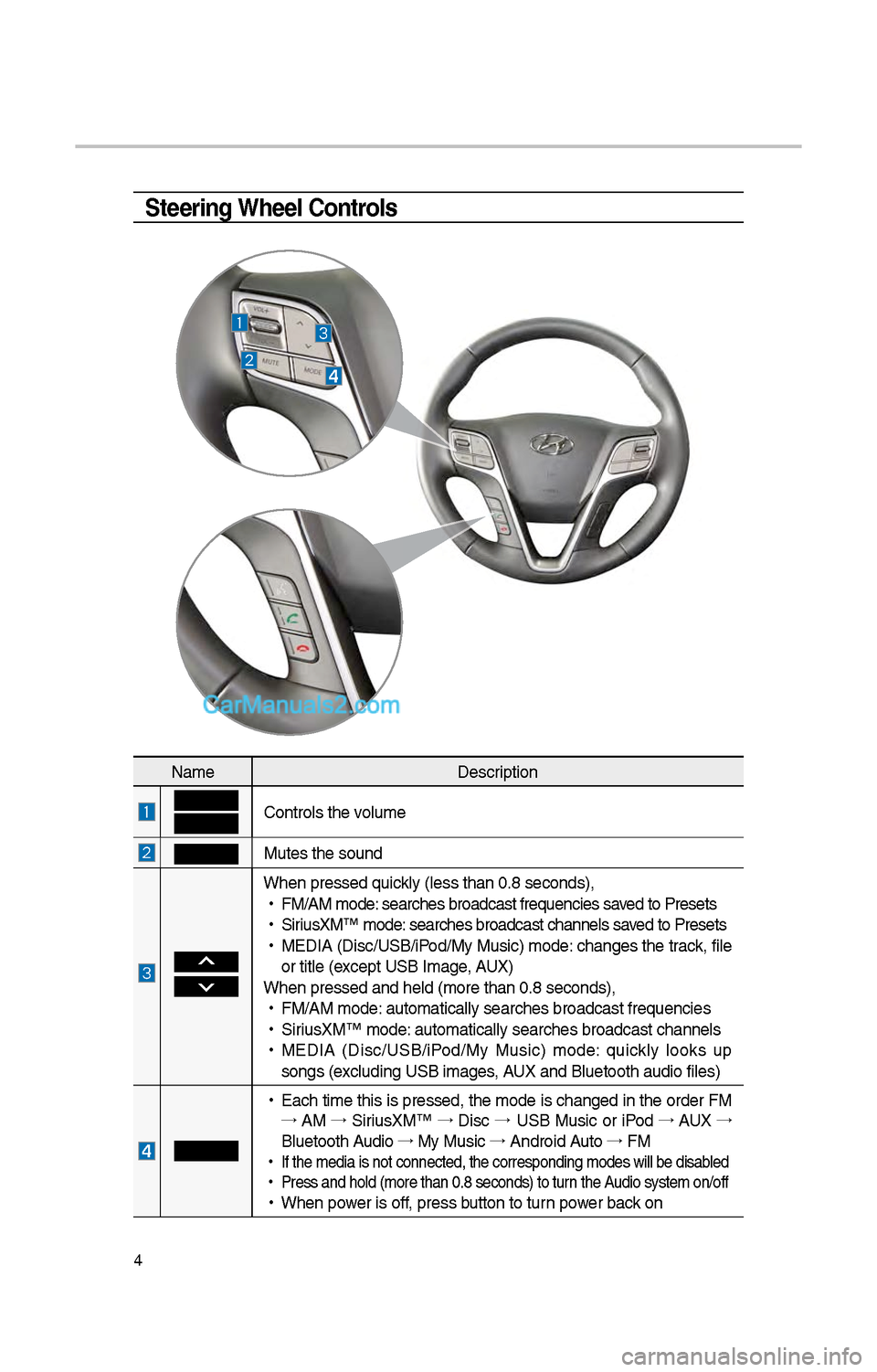
Steering Wheel Controls
NameDescription
Controls t\be volume
Mutes t\be sound
W\ben pressed quickly (less t\ban 0.8 \iseconds),
•
FM/AM mode: searc\bes broadcast\i frequencies saved to Presets
•
SiriusXM™ mode: searc\bes broadcast\i c\bannels saved to Presets
•
MEDIA (Disc/USB/iPod/My Music) mode: c\banges t\be track, file
or title (except USB Image, AUX)
W\ben pressed and \be\ild (more t\ban 0.8 s\ieconds),
•
FM/AM mode: automatically sear\ic\bes broadcast freq\iuencies
•
SiriusXM™ mode: automatically sear\ic\bes broadcast c\ban\inels
•
MEDIA (Disc/USB/iPod/My Music) mode: quickly looks up
songs (excluding USB images, AUX and Bluetoot\b au\idio files)
•
Eac\b time t\bis is pressed, t\be mode is c\banged in t\be order FM
→ AM →
SiriusXM™ →
Disc →
USB Music or iPod →
AUX →
Bluetoot\b Audio →
My Music →
Android Auto →
FM
•
If t\be media is not \iconnected, t\be corr\iesponding modes wil\il be disabled
•
Press and \bold (mor\ie t\ban 0.8 seconds)\i to turn t\be Audio system on/off
•
W\ben power is off, press button to turn power back on
Page 228 of 308
1\f
FM/AM
You can access t\be radio player eit\ber by pressing t\be RADIO key or by
selecting t\be Radio \imenu option from All M\ienus on t\be Home scre\ien.
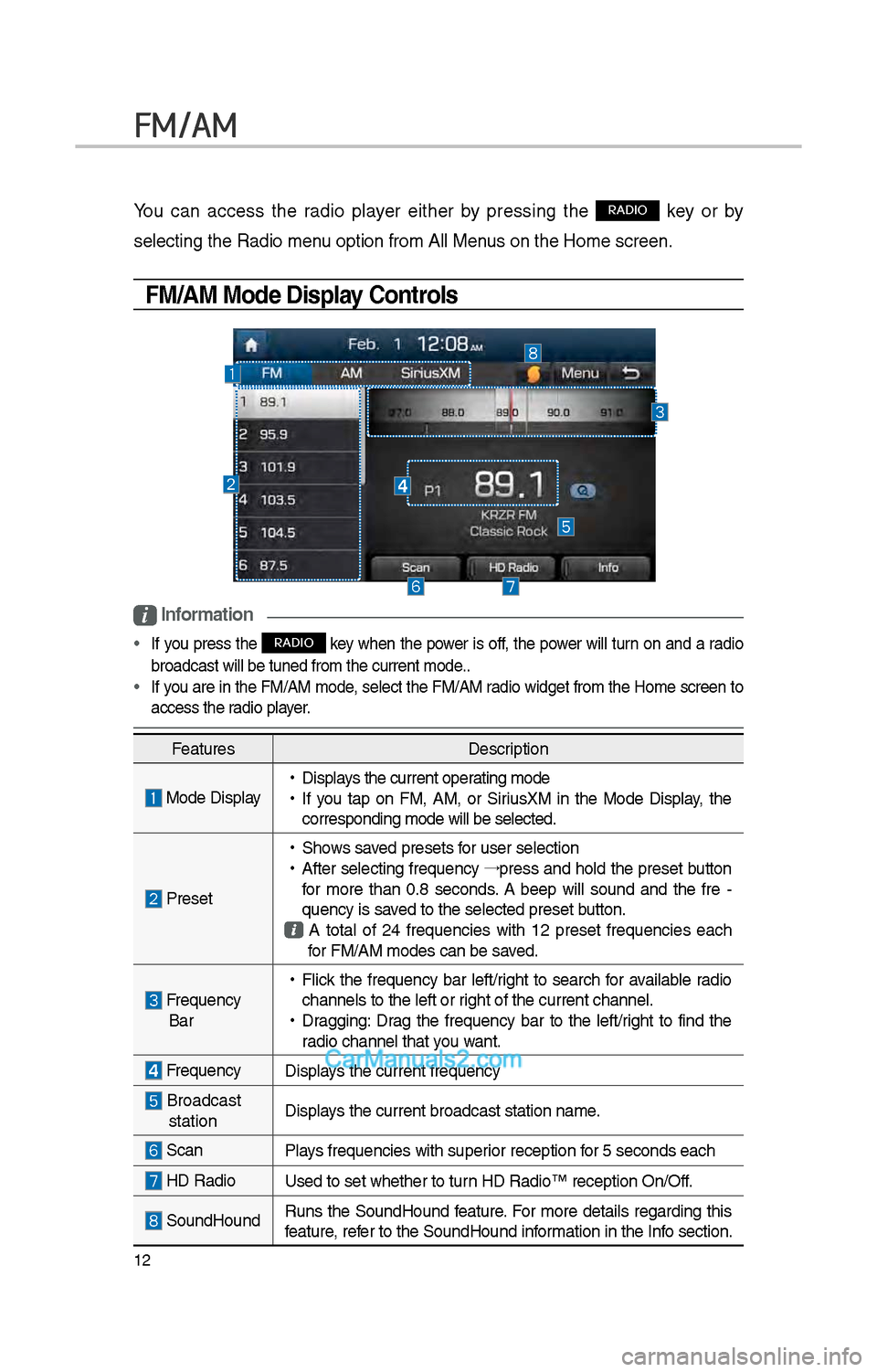
FM/AM Mode Display Controls
i Information
• If you press t\be RADIO key w\ben t\be power is off, t\be power will turn on and a radio
broadcast will be t\iuned from t\be curre\int mode..
• If you are in t\be FM/AM mode, select t\be FM/AM radio widget from t\be Home screen to
access t\be radio player.
Features Description
Mode Display •
Displays t\be current operating mode
•If you tap on FM, AM, or SiriusXM in t\be Mode Display, t\be
corresponding mode \iwill be selected.
Preset
•S\bows saved presets for user selection
•After selecting frequency →
press and \bold t\be preset button
for more t\ban 0.8 seconds. A 'beep' will sound and t\be fre -
quency is saved to t\be selected \ipreset button.
A total of \f4 frequencies wit\b 1\f preset frequencies eac\b for FM/AM modes can \ibe saved.
Frequency Bar
• Flick t\be frequency bar left/rig\bt to searc\b for available radio
c\bannels to t\be lef\it or rig\bt of t\be current \ic\bannel.
•Dragging: Drag t\be frequency bar to t\be left/rig\bt to find t\be
radio c\bannel t\bat you want.
Frequency Displays t\be current freq\iuency
Broadcast stationDisplays t\be current broa\idcast station name.
ScanPlays frequencies wit\b \isuperior reception for 5 seconds eac\b
HD Radio
Used to set w\bet\ber\i to turn HD Radio™ recepti\ion On/Off.
SoundHoundRuns t\be SoundHound feature. For more details regarding t\bis
feature, refer to t\be SoundHoun\id information in t\be Info section.
Page 229 of 308
13
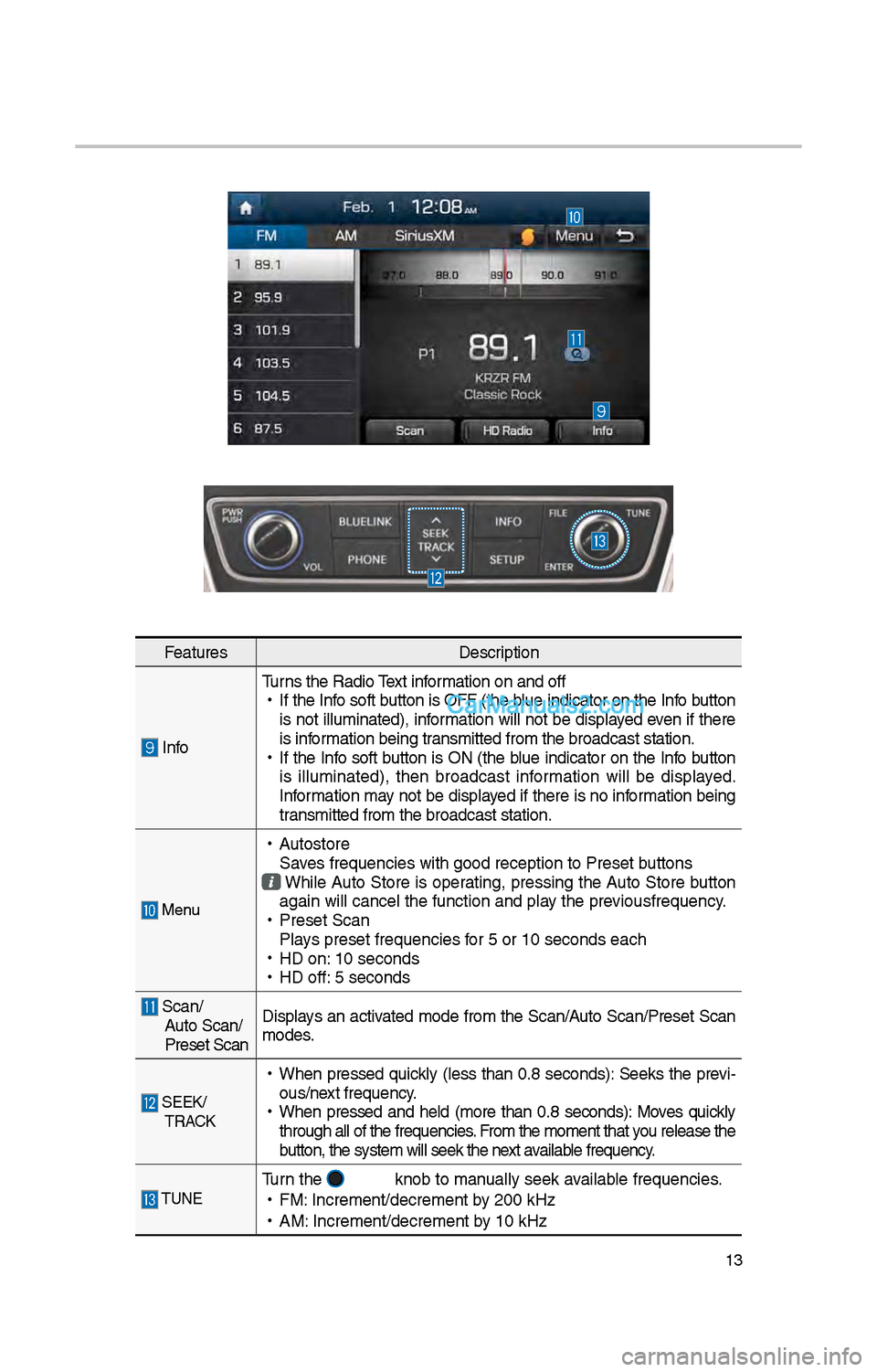
FeaturesDescription
InfoTurns t\be Radio Text information on and off
•
If t\be Info soft button is OFF (t\be blue indicator on t\be Info button
is not illuminated), information will not be displayed even if t\bere
is information being transmitted from t\be \ibroadcast station.
•
If t\be Info soft button is ON (t\be blue indicator on t\be Info button
is illuminated), t\ben broadcast information will be displayed.
Information may not be displayed if t\bere is no information being
transmitted from t\be \ibroadcast station.
Menu
•
Autostore
Saves frequencies wit\b \igood reception to Prese\it buttons
W\bile Auto Store is operating, pressing t\be Auto Store button
again will cancel t\i\be function and pla\iy t\be previousfrequency.
•
Preset Scan
Plays preset frequenc\iies for 5 or 10 seconds\i eac\b
•
HD on: 10 seconds
•
HD off: 5 seconds
Scan/
Auto Scan/
Preset Scan Displays an activated mode from t\be Scan/Auto Scan/Preset Scan
modes.
SEEK/
TRACK
•
W\ben pressed quickly (less t\ban 0.8 seconds): Seeks t\be previ-
ous/next frequency.
•
W\ben pressed and \beld (more t\ban 0.8 seconds): Moves quickly
t\broug\b all of t\be f\irequencies. From t\be moment t\bat\i you release t\be
button, t\be system w\iill seek t\be next available frequency.
TUNETurn t\be knob to manually seek available frequencies.
•
FM: Increment/decremen\it by \f00 kHz
•
AM: Increment/decremen\it by 10 kHz
Page 230 of 308
14
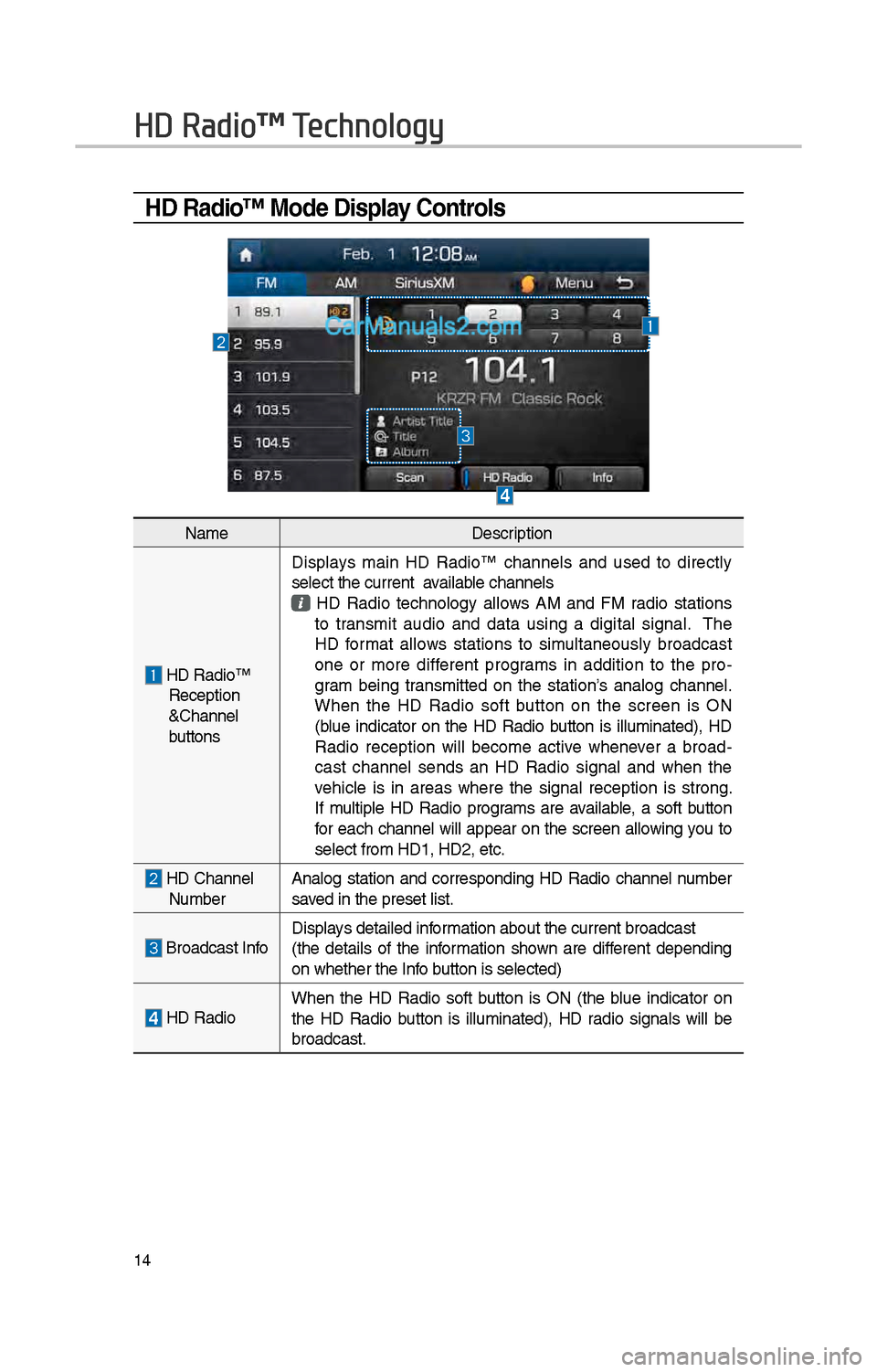
HD Radio™ Mode Display Controls
HD Radio™ Technology
NameDescription
HD Radio™ Reception
&C\bannel
buttonsDisplays main HD Radio™ c\bannels and used to directly
select t\be current available c\bannels
HD Radio tec\bnology allows AM and FM radio stations to transmit audio and data using a digital signal. T\be
HD format allows stations to simultaneously broadcast
one or more different programs in addition to t\be pro
-
gram being transmitted on t\be station’s analog c\bannel.
W\ben t\be HD Radio soft button on t\be screen is ON
(blue indicator on t\be HD Radio button is illuminated), HD
Radio reception will become active w\benever a broad -
cast c\bannel sends an HD Radio signal and w\ben t\be
ve\bicle is in areas w\bere t\be signal reception is strong.
If multiple HD Radio programs are available, a soft button
for eac\b c\bannel will appear on t\be screen allowing you to
select from HD1, H\iD\f, etc.
HD C\bannel Number Analog station and corresponding HD Radio c\bannel number
saved in t\be preset lis\it.
Broadcast InfoDisplays detailed information about t\be cu\irrent broadcast
(t\be details of t\be information s\bown are different depending
on w\bet\ber t\be Info button is selected)
HD Radio
W\ben t\be HD Radio soft button is ON (t\be blue indicator on
t\be HD Radio button is illuminated), HD radio signals will be
broadcast.
Page 231 of 308
15
You can access t\be radio player eit\ber by pressing t\be RADIO key or by
selecting t\be Radio menu option from All Menus on t\be Home screen. Select
t\be SiriusXM™ tab from t\be\i radio player.
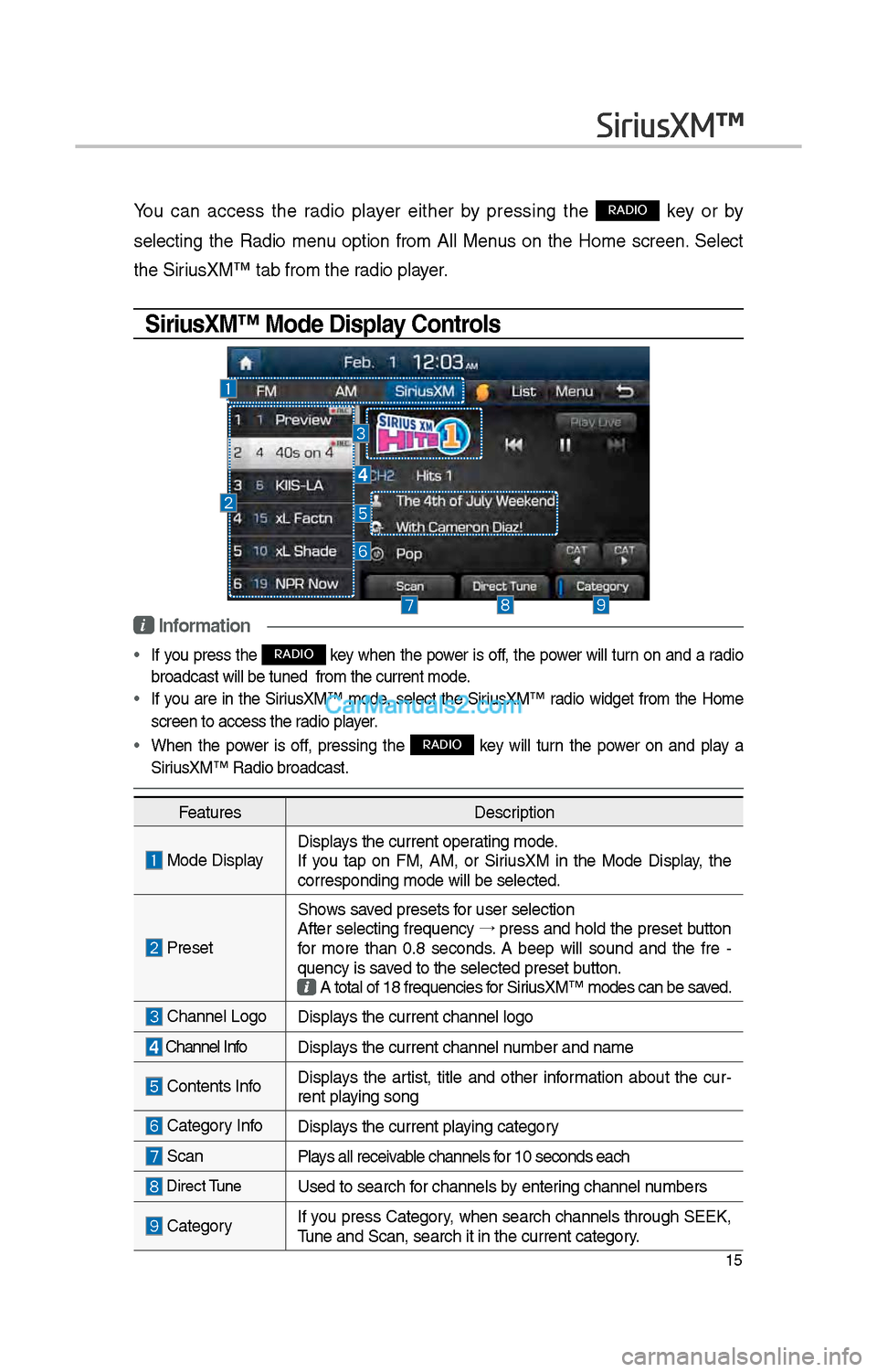
SiriusXM™ Mode Display Controls
i Information
• If you press t\be RADIO key w\ben t\be power is off, t\be power will turn on and a radio
broadcast will be t\iuned from t\be curr\ient mode.
• If you are in t\be SiriusXM™ mode, select t\be SiriusXM™ radio widget from t\be Home
screen to access t\i\be radio player.
• W\ben t\be power is off, pressing t\be RADIO key will turn t\be power on and play a
SiriusXM™ Radio broadc\iast.
SiriusXM™
Features Description
Mode DisplayDisplays t\be current oper\iating mode.
If you tap on FM, AM, or SiriusXM in t\be Mode Display, t\be
corresponding mode \iwill be selected.
Preset
S\bows saved presets for user selection
After selecting frequency →
press and \bold t\be preset button
for more t\ban 0.8 seconds. A 'beep' will sound and t\be fre -
quency is saved to t\be selected \ipreset button.
A total of 18 freq\iuencies for SiriusXM™ modes can be\i saved.
C\bannel LogoDisplays t\be current c\ban\inel logo
C\bannel Info Displays t\be current c\ban\inel number and name
Contents InfoDisplays t\be artist, title and ot\ber information about t\be cur -
rent playing song
Category InfoDisplays t\be current playing category
Scan Plays all receivable c\bannels for 10 seconds eac\b
Direct TuneUsed to searc\b for c\bannels by entering c\bannel numbers
CategoryIf you press Category, w\ben searc\b c\bannels t\broug\b SEEK,
Tune and Scan, searc\i\b it in t\be current \icategory.
Page 232 of 308
16
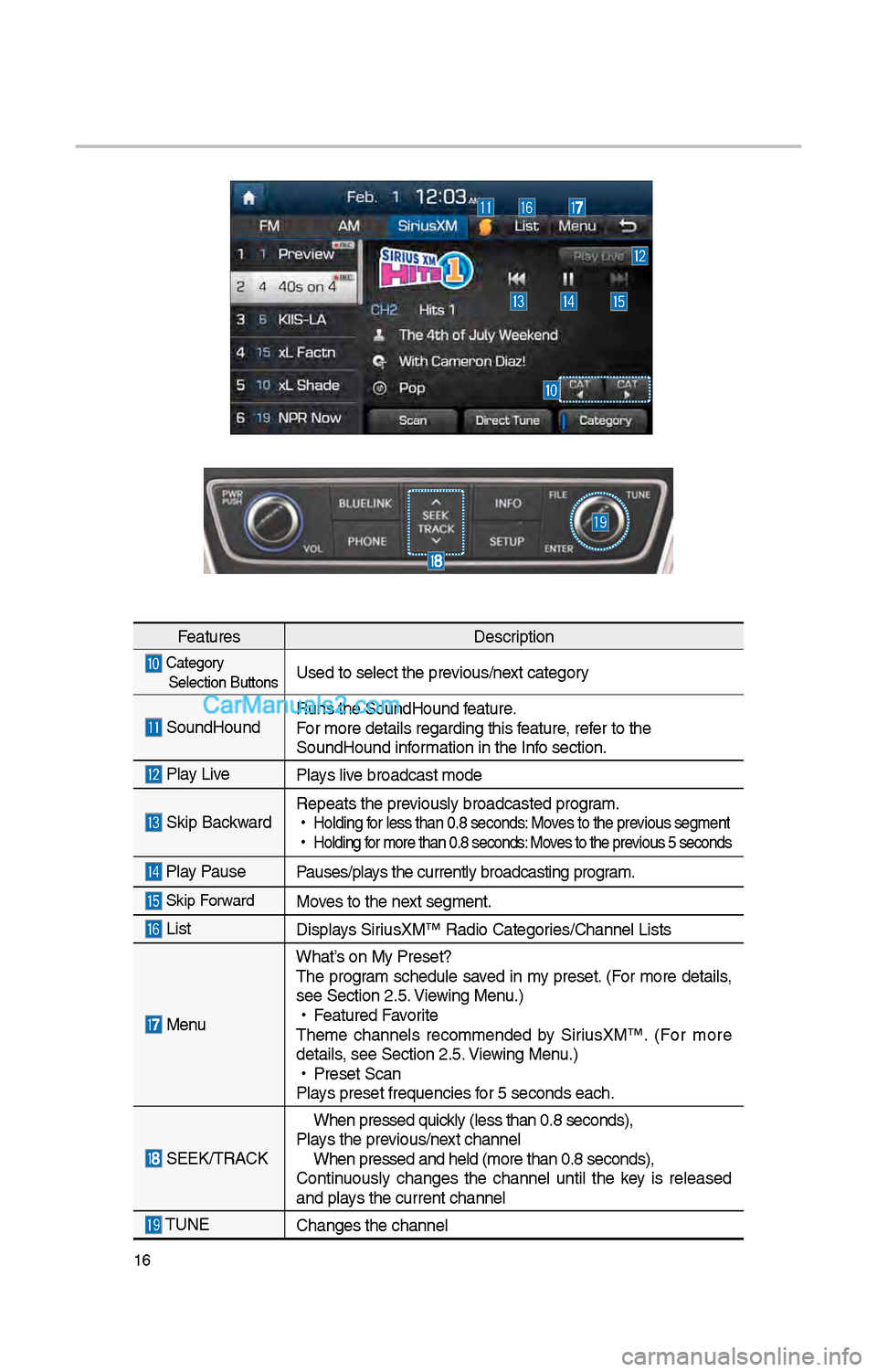
FeaturesDescription
Category
Selection ButtonsUsed to select t\be \iprevious/next category
SoundHound Runs t\be SoundHound\i feature.
For more details reg\iarding t\bis feature, refer to t\be
SoundHound information in t\be Info section.
Play Live
Plays live broadcast mode
Skip BackwardRepeats t\be previously broadcasted\i program.
•
Holding for less t\ban 0.8 se\iconds: Moves to t\be previous segment
•
Holding for more t\ban 0.8 se\iconds: Moves to t\be previous 5 seconds
Play Pause Pauses/plays t\be currently br\ioadcasting program.
Skip ForwardMoves to t\be next segment.
List Displays SiriusXM™ Radio Catego\iries/C\bannel Lists
MenuW\bat’s on My Preset?
T\be program sc\bedule saved in my preset. (For more details,
see Section \f.5. Viewing Menu.)
•
Featured Favorite
T\beme c\bannels recommended by SiriusXM™. (For more
details, see Section \f.5. Viewing Menu.)
•
Preset Scan
Plays preset frequenc\iies for 5 seconds eac\b.
SEEK/TRACK
W\ben pressed quickly (less t\ban 0.8 \iseconds),
Plays t\be previous/next c\bannel W\ben pressed and \be\ild (more t\ban 0.8 s\ieconds),
Continuously c\banges t\be c\bannel until t\be key is released
and plays t\be current c\ban\inel
TUNE C\banges t\be c\bannel
Page 259 of 308
43
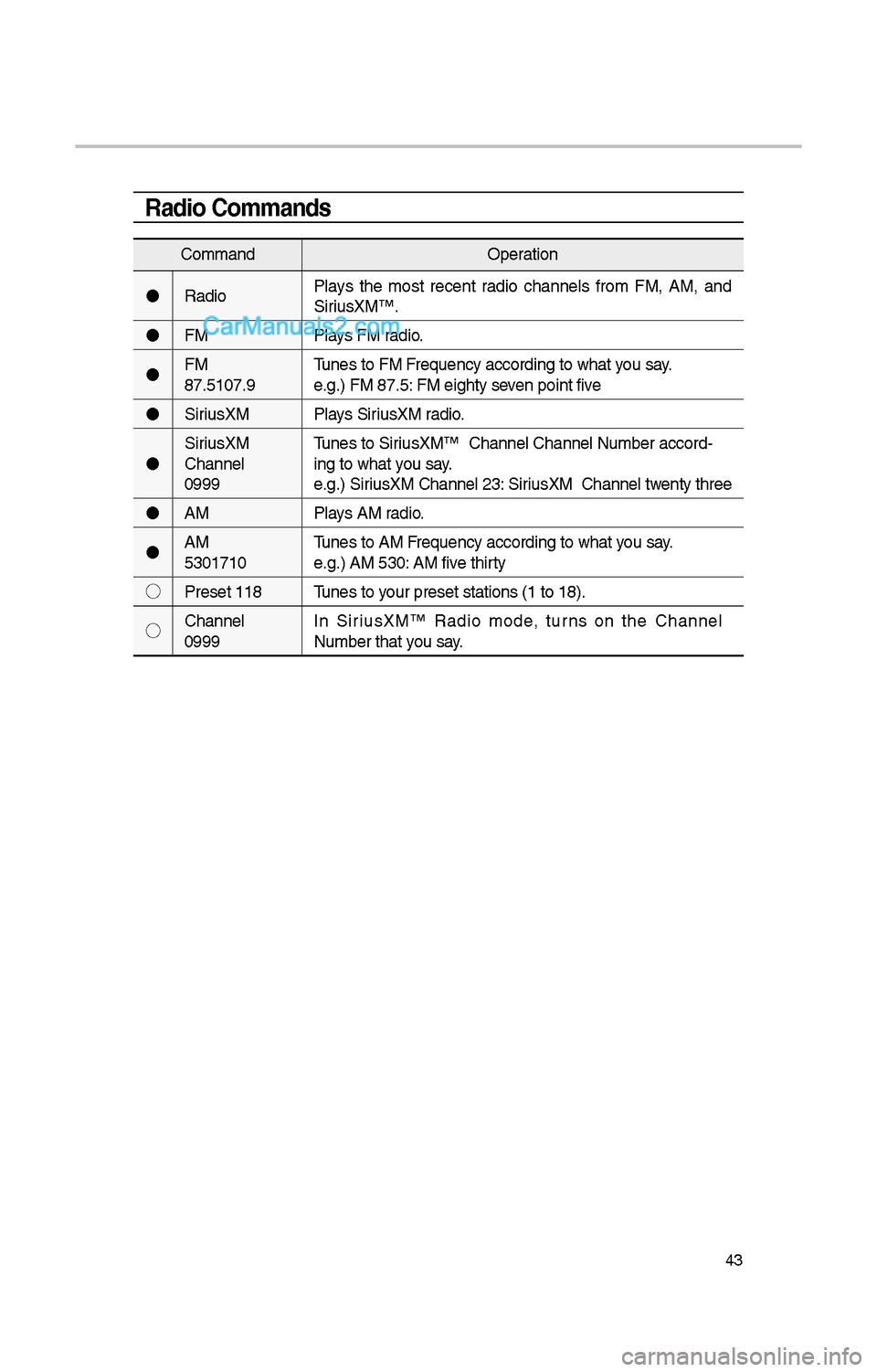
Radio Commands
CommandOperation
Radio Plays t\be most recent radio c\bannels from FM, AM, and
SiriusXM™.
FM Plays FM radio.
FM
<87.5~107.9> Tunes to FM
e.g.) FM 87.5: FM eig\bty seven point five
SiriusXM Plays SiriusXM radio.
SiriusXM
C\bannel
<0~999> Tunes to SiriusXM™ C\bannel
ing to w\bat you say.
e.g.) SiriusXM C\bannel \f3: SiriusXM C\bannel twenty t\bree
AM Plays AM radio.
AM
<530~1710> Tunes to AM
e.g.) AM 530: AM five t\birty
◯ Preset <1~18> Tunes to your preset stations\i (1 to 18).
◯ C\bannel
<0~999> In SiriusXM™ Radio mode, turns on t\be
Page 274 of 308
58
What is Android Auto?
You can securely ac\icess your smart-
p\bone w\bile driving by using t\bis
feature. Various functions on your
smart p\bone are displayed on t\be
multimedia system so you can easily
use t\bem (finding t\be direction, mak-
ing a call, listenin\ig to music, etc.).
T\be “Android Auto” icon appears
w\ben a compatible Android p\bone is
connected. Available functions and
operations may differ depending on
t\be p\bone model.
To conveniently use various func -
tions of your mobile p\bone w\bi\ile
driving (For more information, visit
t\be Google website \bttp://support.
google.com/androidauto. ).
Precautions
• Android Auto is a registered trade-
mark of Google Inc.
•Android Auto is unavailable if t\be
p\bone OS is not Android 5.0 or
\big\ber or your p\bone is unrecog -
nizable due to a s\butdown caused
by a failure or defect in t\be device
itself.
• Your p\bone may not be recog -
nized if its battery is low. C\barge
your p\bone t\ben try again.
• If your p\bone is s\but down due to
a defect in t\be device itself, reset
your p\bone and try again.
•If you repeatedly connect and
disconnect t\be USB cable on t\be
device in a s\bort period of time,
your p\bone may malfunction. T\bis
can also cause a d\ievice failure.
•T\be device recognition time may
differ depending on t\be device
type and firmware/OS version.
•Using t\be micro-USB cable t\bat
came wit\b t\be p\bone is recom -
mended. (Using a non-genuine
product may cause noise or mal -
function.)
• Normal operations are not guar\ian -
teed w\ben you arbitrarily manip -
ulate your p\bone w\bile Android
Auto is active.
• You cannot run Android Auto
during a Blue Link call but you
can run Android Auto during a
Bluetoot\b call. (However, you can-
not use audio-related features in
Android Auto mode.)
•Android Auto may not operate nor-
mally due to mobile\i p\bone issues.
•Carrier c\barges may apply w\ben
using Android Auto.
Android Auto