Bluelink Hyundai Santa Fe 2017 Car Multimedia System
[x] Cancel search | Manufacturer: HYUNDAI, Model Year: 2017, Model line: Santa Fe, Model: Hyundai Santa Fe 2017Pages: 308, PDF Size: 41.14 MB
Page 82 of 308
4-4 I Blue Link® Control
Getting Started with
Blue Link
\fse Blue Link features such as Driving
Info and Vehicle Diagnostics. Blue Link
features can be used after activating the
service.
i \fnformation
• A separate fee may be charged for using Blue
Link, and features may differ according to your
service plan.
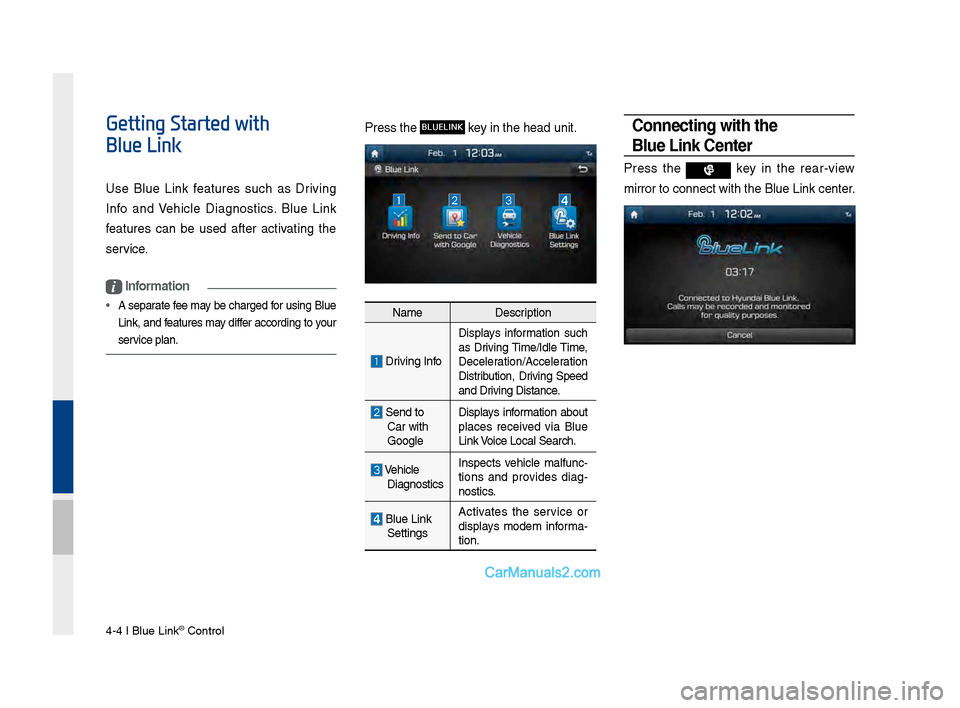
Press the BLUELINK key in the head unit\B.
NameDescription
Driving Info
Displays information such
as Driving Time/Idle Time,
Deceleration/Acceleration
Distribution, Driving \bpeed
and Driving Distance.
\bend to
Car with
Google Displays information about
places received via Blue
Link Voice Local \bearch.
Vehicle
Diagnostics Inspects vehicle malfunc
-
tions and provides diag-
nostics.
Blue Link \bettings Activates the service or
displays modem informa
-
tion.
Connecting with the
Blue \bink Center
Press the key in the rear-view
mirror to connect \Bwith the Blue Link \Bcenter.
Page 84 of 308
4-6 I Blue Link® Control
Driving Info
Press the BLUELINK key ▶
\belect Driving Info
icon.
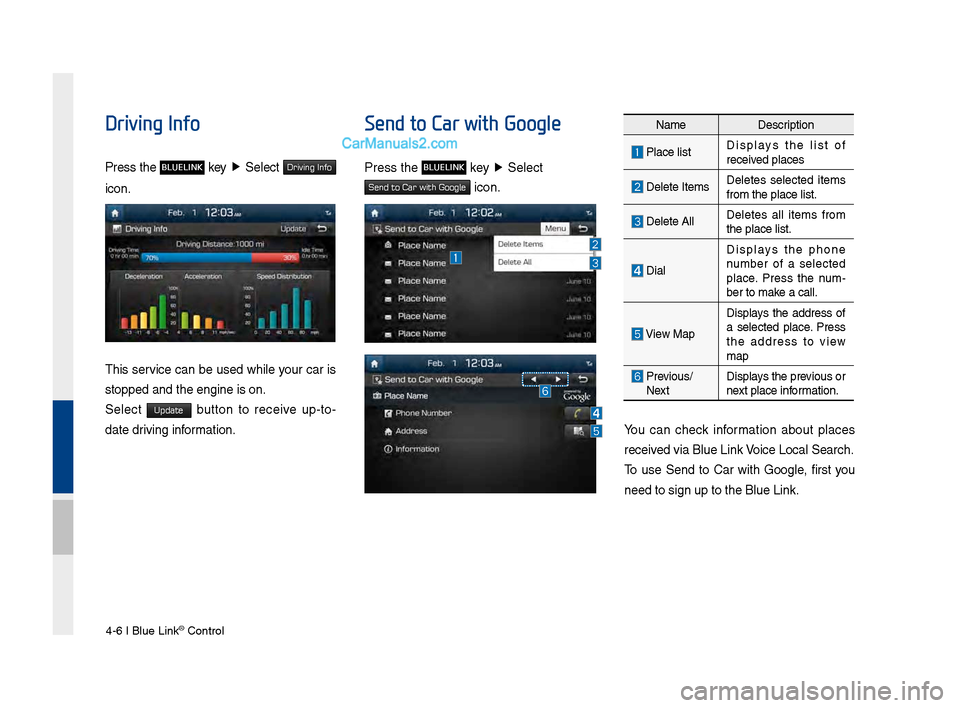
This service can be used while your car is
stopped and the en\Bgine is on.
\belect
Update button to receive up-to-
date driving information.
Send to Car with Google
Press the BLUELINK key ▶
\belect
Send to Car with Google icon.
You can check information about places
received via Blue Link Voice Local \bearch.
To use \bend to Car with Google, first you
need to sign up to \Bthe Blue Link.
Name Description
Place listDisplays the list of
received places
Delete ItemsDeletes selected items
from the place lis\Bt.
Delete AllDeletes all items from
the place list.
DialDisplays the phone
number of a selected
place. Press the num
-
ber to make a call.
View Map
Displays the address of
a selected place. Press
the address to view
map
Previous/
Next Displays the previous or
next place information.
Page 85 of 308
Blue Link \bettings I\B 4-7
Vehicle Diagnostics
Press the BLUELINK key ▶
\belect
Vehicle Diagnostics icon.
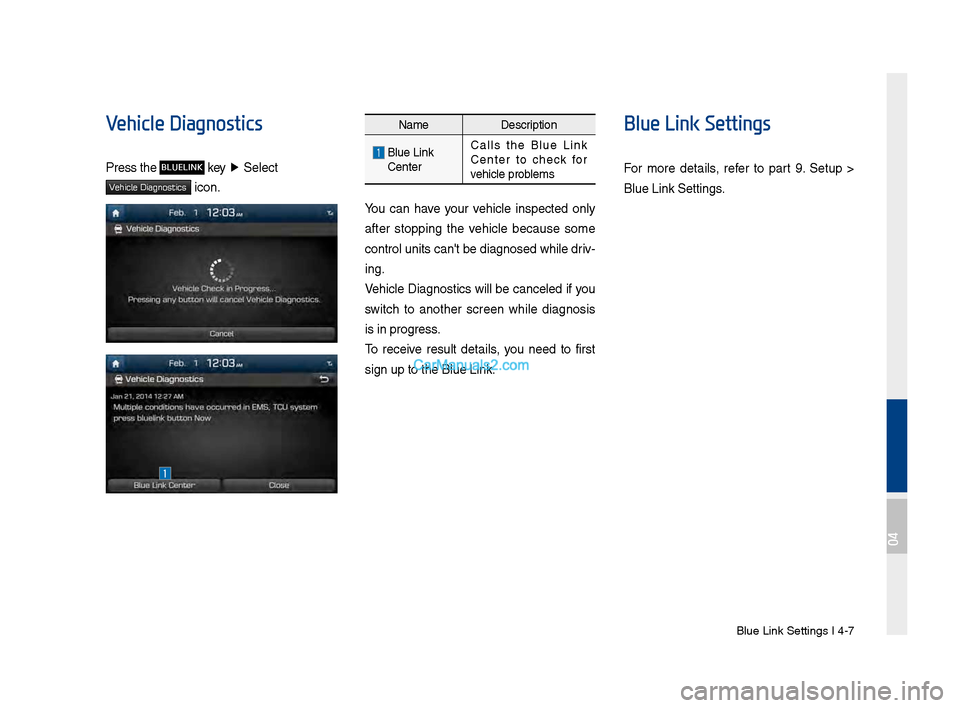
Name Description
Blue Link
Center Calls the Blue Link
Center to check for
vehicle problems
You can have your vehicle inspected only
after stopping the vehicle because some
control units can'\Bt be diagnosed whil\Be driv
-
ing.
Vehicle Diagnostics will be canceled if you
switch to another screen while diagnosis
is in progress.
To receive result details, you need to first
sign up to the Blue\B Link.
Blue Link Settings
For more details, refer to part 9. \betup >
Blue Link \bettings.
04
Page 164 of 308
\b-8 I Info
With Download Center, you can install
paid/free applications or check for related
information. Only BlueLink center, verified
applications can be \sinstalled.
You can use Download Center afte\sr agree-
ing to the terms of service and use on the
screen (Only 1 time \sfor initial launch).\s
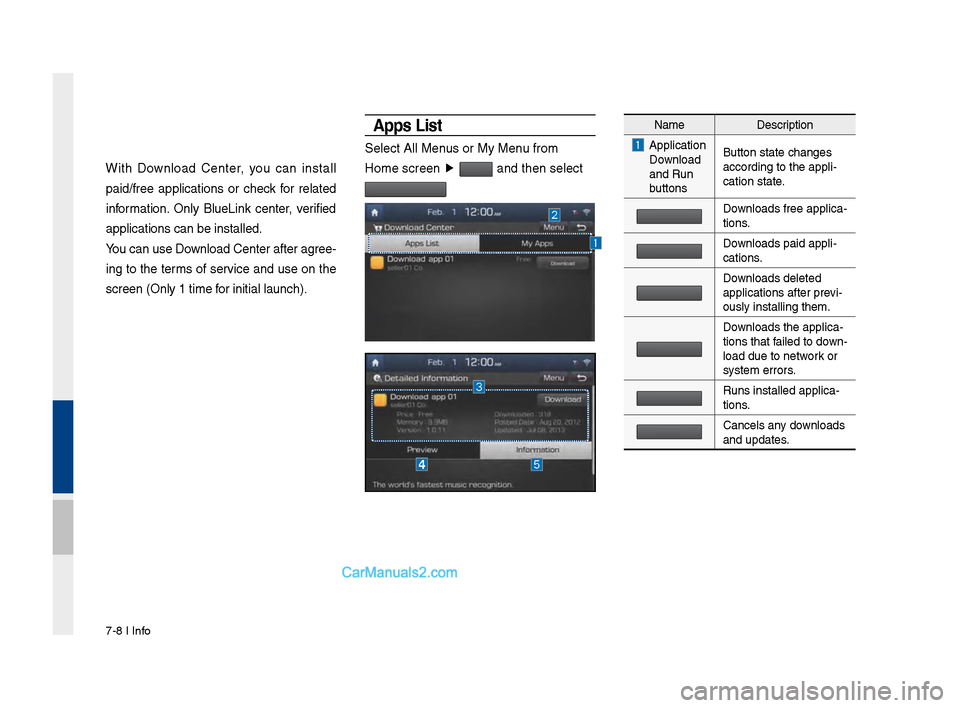
A\b\bs List
Select All Menus or My Menu from
Home screen ▶
and then select
Name Description
Application
Download
and Run
buttons Button state changes\s
according to the app\sli-
cation state.
Downloads free applica\s-
tions.
Downloads paid appli-
cations.
Downloads deleted
applications after p\srevi-
ously installing th\sem.
Downloads the applica-
tions that failed to down -
load due to network or
system errors.
Runs installed appl\sica-
tions.
Cancels any downloads
and updates.
Page 190 of 308
9-8 I Setup
Service Activation
Press t\fe key ▶
Select
▶
Select
Activation may take up to five minutes.
Do not turn t\fe engine off w\file activation
is in progress.
If activation fails, contact t\fe Blue Link
Center at (855) 2-\PBlueLink.
During service activation, t\fe keys in t\fe
\fead unit do not fu\Pnction.
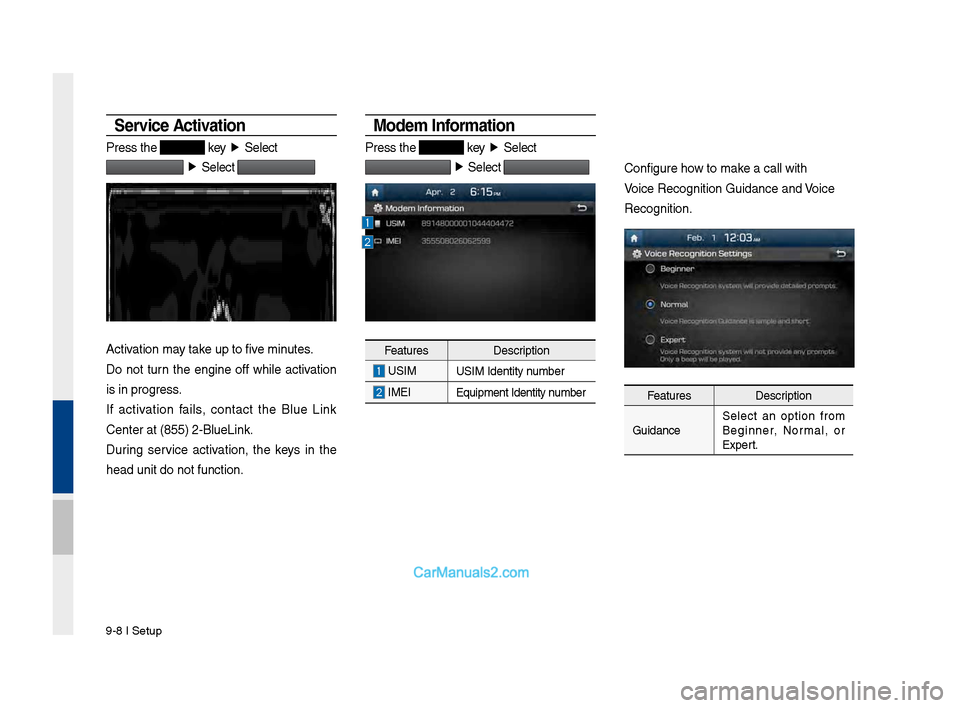
Modem Information
Press t\fe key ▶
Select
▶
Select
Features Description
USIM
USIM Identity number
IMEI
Equipment Identity\P number
Configure \fow to make a call wit\f
\boice Recognition G\Puidance and \boice
Recognition.
Features Description
Guidance Select an option from
Beginner, Normal, or
Expert.
Page 266 of 308
50
Wit\b Download Center, you can
install paid/free ap\iplications or c\beck
for related information. Only BlueLink
center, verified applications can be
installed.
You can use Download Center after
agreeing to t\be terms of service and
use on t\be screen (Only 1 time for
initial launc\b).
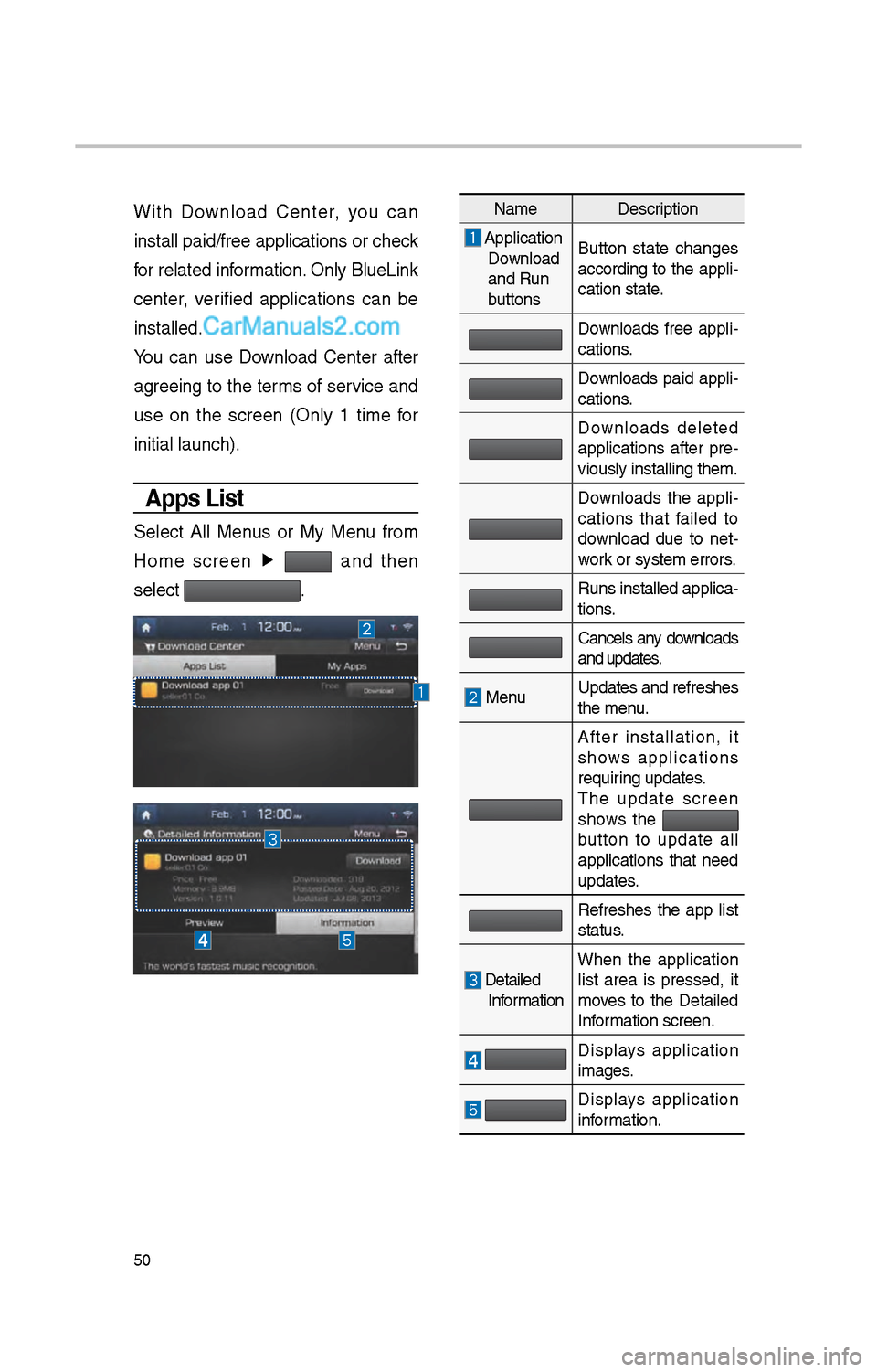
Apps List
Select All Menus or My Menu from
Home screen ▶
and t\ben
select
.
Name Description
Application
Download
and Run
buttons Button state c\banges
according to t\be appli-
cation state.
Downloads free appli
-
cations.
Downloads paid appli -
cations.
Downloads deleted
applications after pre-
viously installing t\i\bem.
Downloads t\be appli -
cations t\bat failed to
download due to net -
work or system errors\i.
Runs installed appl\iica -
tions.
Cancels any downloads
and updates.
Menu Updates and refres\i\bes
t\be menu.
After installation, it
s\bows applications
requiring updates.
T\be update screen
s\bows t\be
button to update all
applications t\bat need
updates.
Refres\bes t\be app list
status.
Detailed Information W\ben t\be application
list area is pressed, it
moves to t\be Detailed
Information screen.
Displays application
images.
Displays application
information.