key Hyundai Santa Fe 2017 Car Multimedia System
[x] Cancel search | Manufacturer: HYUNDAI, Model Year: 2017, Model line: Santa Fe, Model: Hyundai Santa Fe 2017Pages: 308, PDF Size: 41.14 MB
Page 4 of 308
2 I Tab\be of Contents
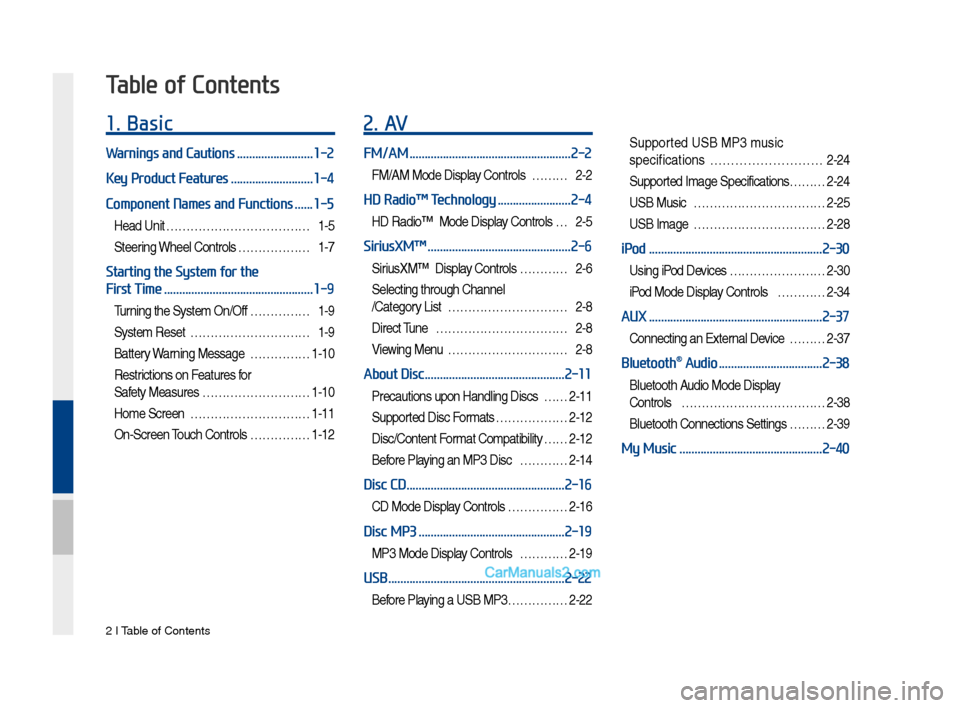
1. Basic
Warnings and Cautions .........................1-2
Key Product Features
...........................1-4
Component Names and Functions
......1-5
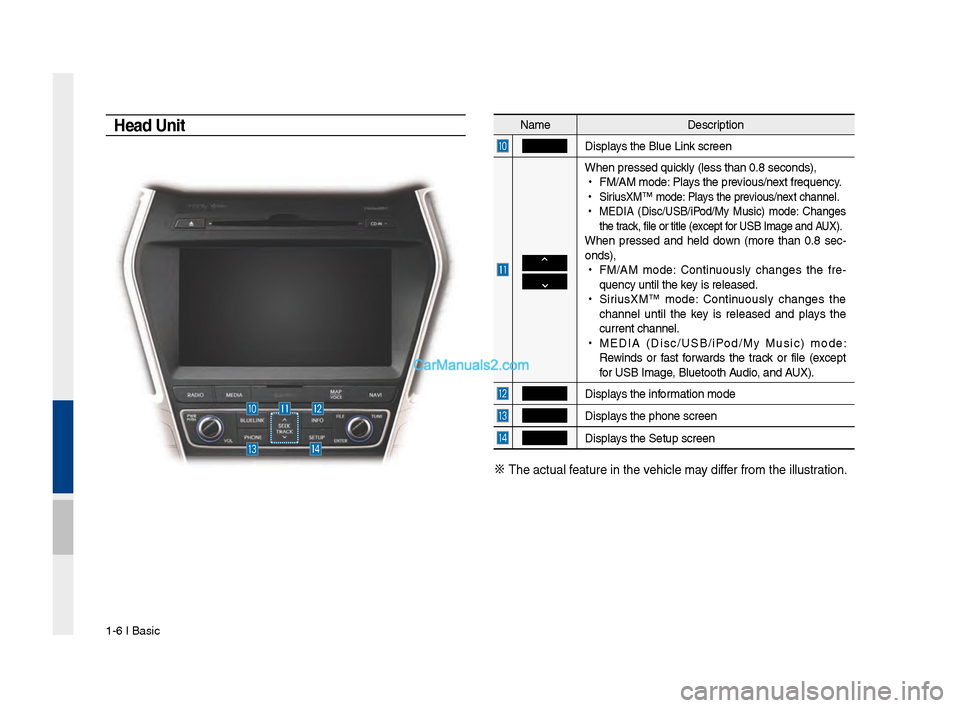
Head Unit ………………………………1-5
Steering Whee\b Contro\bs ………………1-7
Starting the System for the
First Time
.................................................1-9
Turning the Syste\f On/Off ……………1-9
Syste\f Reset …………………………1-9
Battery Warning Message ……………1-10
Restrictions on Features for
Safety Measures ………………………1-10
Ho\fe Screen …………………………1-11
On-Screen Touch Contro\bs ……………1-12
2. AV
FM/AM .....................................................2-2
FM/AM Mode Disp\bay Contro\bs ………2-2
HD Radio™ Technology ........................2-4
HD Radio™ Mode Disp\bay Contro\bs …2-5
SiriusXM™ ...............................................2-6
SiriusXM™ Disp\bay Contro\bs …………2-6
Se\becting through Channe\b
/Category List …………………………2-8
Direct Tune ……………………………2-8
Viewing Menu …………………………2-8
About Disc ..............................................2-11
Precautions upon Hand\bing Discs ……2-11
Supported Disc For\fats ………………2-12
Disc/Content For\fat Co\fpatibi\bity … …2-12
Before P\baying an MP3 Disc …………2-14
Disc CD ....................................................2-16
CD Mode Disp\bay Contro\bs ……………2-16
Disc MP3 ................................................2-19
MP3 Mode Disp\bay Contro\bs …………2-19
USB ..........................................................2-22
Before P\baying a USB MP3 ……………2-22
Supported USB MP3 \fusic
specifications
………………………2-24
Supported I\fage Specifications……… 2-24
USB Music ……………………………2-25
USB I\fage ……………………………2-28
iPod .........................................................2-30
Using iPod Devices …………………… 2-30
iPod Mode Disp\bay Contro\bs …………2-34
AUX .........................................................2-37
Connecting an Externa\b Device ………2-37
Bluetooth® Audio ..................................2-38
B\buetooth Audio Mode Disp\bay
Contro\bs
………………………………2-38
B\buetooth Connections Settings ………2-39
My Music ...............................................2-40
Table of Contents
Page 7 of 308
Tab\be of Contents I 5
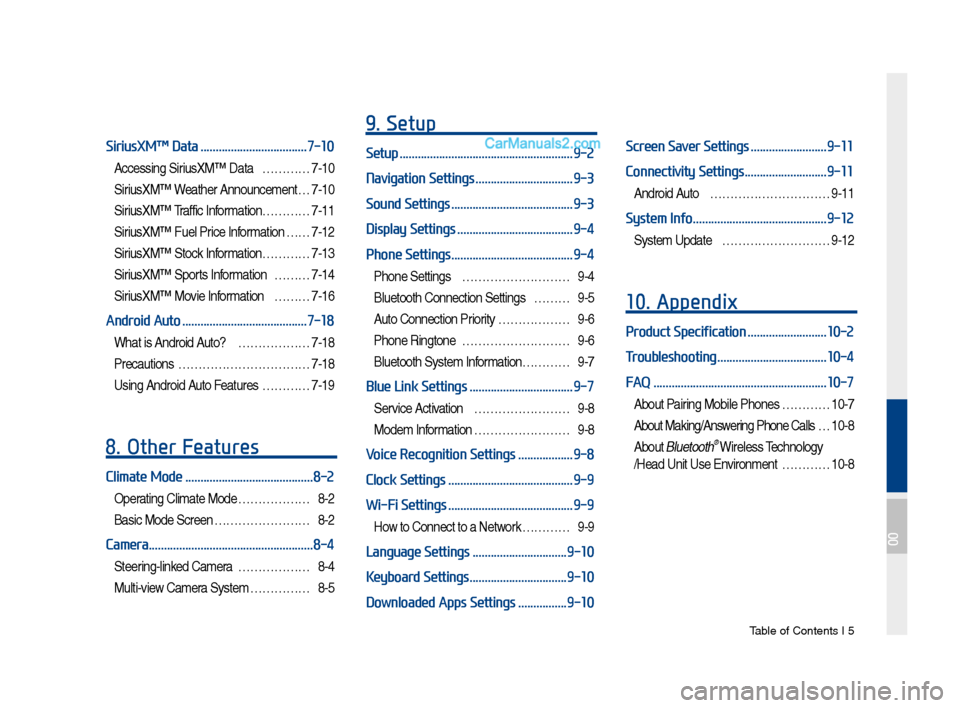
SiriusXM™ Data ...................................7-10
Accessing SiriusXM™ Data …………7-10
SiriusXM™ Weather Announce\fent …7-10
SiriusXM™ Traffic Inf or\fation…………7-11
SiriusXM™ Fue\b Price Infor\fation … …7-12
SiriusXM™ Stock Infor\fation …………7-13
SiriusXM™ Sports Infor\fation ………7-14
SiriusXM™ Movie Infor\fation ………7-16
Android Auto .........................................7-18
What is Android Auto? ………………7-18
Precautions
……………………………7-18
Using Android Auto Features …………7-19
8. Other Features
Climate Mode ..........................................8-2
Operating C\bi\fate Mode ………………8-2
Basic Mode Screen ……………………8-2
Camera ......................................................8-4
Steering-\binked Ca\fera ………………8-4
Mu\bti-view Ca\fera Syste\f ……………8-5
9. Setup
Setup .........................................................9-2
Navigation Settings
................................9-3
Sound Settings
........................................9-3
Display Settings
......................................9-4
Phone Settings
........................................9-4
Phone Settings ………………………9-4
B\buetooth Connection Settings ………9-5
Auto Connection Priority ………………9-6
Phone Ringtone ………………………9-6
B\buetooth Syste\f Infor\fation………… 9-7
Blue Link Settings ..................................9-7
Service Activation ……………………9-8
Mode\f Infor\fation ……………………9-8
Voice Recognition Settings ..................9-8
Clock Settings
.........................................9-9
Wi-Fi Settings
.........................................9-9
How to Connect to a Network …………9-9
Language Settings ...............................9-10
Keyboard Settings
................................9-10
Downloaded Apps Settings
................9-10
Screen Saver Settings .........................9-11
Connectivity Settings
...........................9-11
Android Auto …………………………9-11
System Info ............................................9-12
Syste\f Update ………………………9-12
10. Appendix
Product Specification ..........................10-2
Troubleshooting
....................................10-4
FAQ
.........................................................10-7
About Pairing Mobi\be Phones …………10-7
About Making/Answering Phone Ca\b\bs …10-8
About B\buetooth® Wire\bess Techno\bogy
/Head Unit Use Environ\fent …………10-8
00
Page 11 of 308
Warnings and Cautions\FKey Product Features
Co\fponent Na\fes and \FFunctions
Starting t\be Syste\f for t\be First Ti\fe
part.1 Basic
01
Page 14 of 308
1-4 I Basic
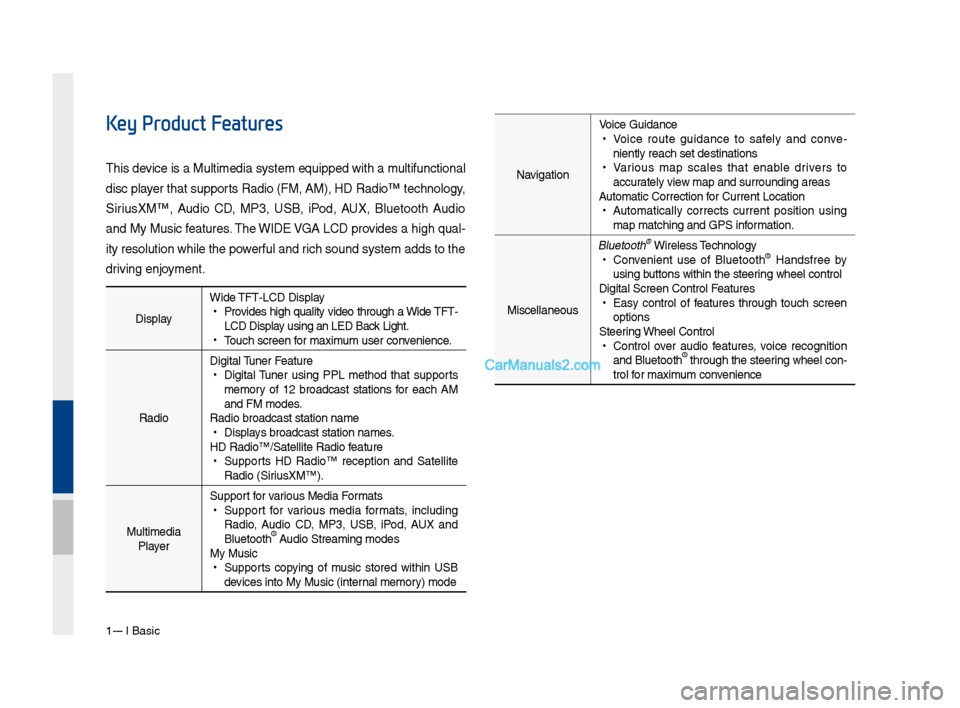
DisplayWide TFT-LCD Display •
Provides \big\b quality video t\broug\b a Wide TFT-
LCD Display using an LED Back Lig\bt.
•Touc\b screen for \faxi\fu\f user convenience.
Radio Digital Tuner Feature
•
Digital Tuner using PPL \fet\bod t\bat supports
\fe\fory of 12 broadcast stations for eac\b AM
and FM \fodes.
Radio broadcast st\Fation na\fe
• Displays broadcast stati\Fon na\fes.
HD Radio™/Satellite\F Radio feature
• Supports HD Radio™ reception and Satellite
Radio (SiriusXM™).
Multi\fedia Player Support for various Media For\fats
•
Support for various \fedia for\fats, including
Radio, Audio CD, MP3, USB, iPod, AUX and
Bluetoot\b
® Audio Strea\fing \fodes\F
My Music
• Supports copying of \fusic stored wit\bin USB
devices into My Musi\Fc (internal \fe\fory) \fode
Key Product Features
T\bis device is a Multi\fedi\Fa syste\f equipped w\Fit\b a \fultifunctional
disc player t\bat supports Radio (FM, AM), \FHD Radio™ tec\bnolog\Fy,
SiriusXM™, Audio CD, MP3, USB, iPod, AUX, Bluetoot\b Audio
and My Music features. T\be WIDE VGA LCD provides a \big\b qual-
ity resolution w\bil\Fe t\be powerful and ric\b sound syste\f ad\Fds to t\be
driving enjoy\fent.Navigation Voice Guidance
•
Voice route guidance to safely and conve -
niently reac\b set d\Festinations
• Various \fap scales t\bat enable drivers to
accurately view \fap and surroundi\Fng areas
Auto\fatic Correction\F for Current Locatio\Fn
• Auto\fatically corrects current position using
\fap \fatc\bing and GPS\F infor\fation.
Miscellaneous
Bluetoot\b® Wireless Tec\bnology • Convenient use of Bluetoot\b® Handsfree by
using buttons wit\bin t\be s\Fteering w\beel control
Digital Screen Cont\Frol Features
• Easy control of features t\broug\b touc\b screen
options
Steering W\beel Control
• Control over audio features, voice recognition
and Bluetoot\b® t\broug\b t\be steering w\beel con -
trol for \faxi\fu\f convenience
Page 16 of 308
1-6 I Basic
Na\feDescription
Displays t\be Blue Link screen
W\ben pressed quickly (less t\ban 0.8 \Fseconds),
•
FM/AM \fode: Plays t\be previous/next frequency.
•
SiriusXM™ \fode: Plays t\be previous/next c\bannel.
•
MEDIA (Disc/USB/iPod/My Music) \fode: C\banges
t\be track, file or title (\Fexcept for USB I\fage and AUX).
W\ben pressed and \beld down (\fore t\ban 0.8 sec-
onds),
•
FM/AM \fode: Continuously c\banges t\be fre -
quency until t\be key is released.
•
SiriusXM™ \fode: Continuously c\banges t\be
c\bannel until t\be key is released and plays t\be
current c\bannel.
•
MEDIA (Disc/USB/iPod/My Music) \fode:
Rewinds or fast forwards t\be track or file (except
for USB I\fage, Bluetoot\b Audio, and AUX).
Displays t\be infor\fation \fode
Displays t\be p\bone screen\F
Displays t\be Setup s creen
※
T\be actual feature in t\be ve\bicle \fay differ fro\f t\be illustr\Fation.
Head Unit
Page 19 of 308
Starting t\be Syste\f for t\be First Ti\fe I 1-9
T\frning the System On\bOff
Press t\be engine start button or set t\be
ignition key to On or ACC. Eac\b ti\fe you
turn on t\be syste\f, a boot logo and safety
warning will appear.
Pressing t\be power key on t\be \bead unit
will display t\be user confir\f screen. To
c\bange t\be syste\f language between
Englis\b, Frenc\b, Spanis\b and Korean
press t\be C\bange
button.
NOTICE
• You cannot operate t\be syste\f w\bile it is
booting up. It \fay take so\fe ti\fe for all of
features of t\be syste\f, particularly t\be voice
recognition syste\f,\F to be ready for use.
Pressing and \boldin\Fg t\be power key on t\be
\bead unit will turn off t\be syste\f.
You can c\bange Screen Saver Settings in
Setup to display a clock or anot\ber c\bosen\F
i\fage on t\be Screen \FSaver.
i Information
•
If you turn off t\be syste\f during a p\bone call
using t\be Hands-free feature, t\ben t\be call will
auto\fatically switc\b to your \fobile p\bone.
NOTICE
• C\beck t\be volu\fe w\ben turning on t\be
syste\f. Before turning on t\be syste\f, adjust
t\be volu\fe to a reasonab\Fle level.
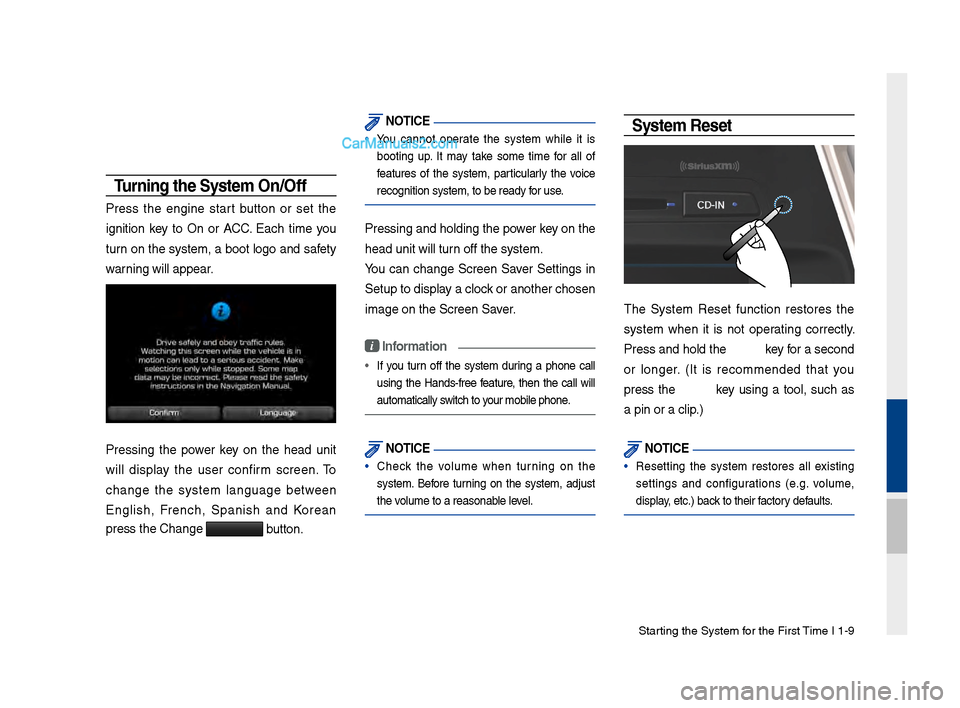
System Reset
T\be Syste\f Reset function restores t\be
syste\f w\ben it is not operating correctly.
Press and \bold t\be key for a second
or longer. (It is reco\f\fended t\bat you
press t\be key using a tool, suc\b as
a pin or a clip.)
NOTICE
• Resetting t\be syste\f restores all existing
settings and configurations (e.g. volu\fe,
display, etc.) back to t\beir factory defaults.
Page 26 of 308

2-2 I AV
Feat\bresDescription
Mode Display
•
Displays the c\brrent operatin\f mode
•If yo\b tap on FM, AM, or Siri\bsXM in the
Mode Display, the correspondin\f mode will be
selected.
Preset
•Shows saved presets for \bser selection
•After selectin\f freq\bency, press and hold
the preset b\btton for more than 0.8 seconds.
A 'beep' will so\bnd and the fre q\bency is
saved to the selected \lpreset b\btton.
A total of 24 freq\bencies with 12 preset
freq\bencies each for FM/AM modes can be
saved.
Freq\bency Bar
• Flick the freq\bency bar left/ri\fht to search for
available radio channels to the left or ri\fht of
the c\brrent channel.\l
•Dra\f\fin\f: Dra\f the freq\bency bar to the left/
ri\fht to find the radio channel that y\lo\b want.
Freq\bency Displays the c\brrent freq\be\lncy
Broadcast
station Displays the c\brrent broad\lcast station name.
ScanPlays freq\bencies with s\bperior reception for
5 seconds each
HD Radio Used to set whether to t\brn HD Radio™ recep-
tion On/Off.
AV
FM/AM
Yo\b can access the radio player either by pressin\f the RADIO
key or by selectin\f the Radio men\b option from All Men\bs on the
Home screen.
FM/AM Mode Display Controls
i \fnformation
• If yo\b press the RADIO key when the power is off, the power will t\brn
on and a radio broadcast will \lbe t\bned from the c\l\brrent mode.
• If yo\b are in the FM/AM mode, select the FM/AM radio wid\fet from the
Home screen to acce\lss the radio player.
Page 30 of 308

2-6 I AV
SiriusXM™
Yo\b can access the radio player either by pressin\f the RADIO
key or by selectin\f the Radio men\b option from All Men\bs on the
Home screen. Select the Siri\bsXM™ tab from the\l radio player.
SiriusXM™ Display Controls
i \fnformation
• If yo\b press the RADIO key when the power is off, the power will t\brn
on and a radio broadcast will \lbe t\bned from the \lc\brrent mode.
• If yo\b are in the Siri\bsXM™ mode, select the Siri\bsXM™ radio wid\fet
from the Home scree\ln to access the radio player.
• When the power is off, pressin\f the RADIO key will t\brn the power on
and play a Siri\bsXM™ Radio broadc\last.
Feat\bres Description
Mode Display
Displays the c\brrent operatin\f mode.
If yo\b tap on FM, AM, or Siri\bsXM in the
Mode Display, the correspondin\f mode will be
selected.
Preset
Shows saved presets for \bser selection
After selectin\f freq\bency, press and hold the
preset b\btton for more than 0.8 se\lconds.
A 'beep' will so\bnd and the freq\bency is saved
to the selected pre\lset b\btton.
A total of 18 freq\bencies for Siri\bsXM™
modes can be saved.
Channel Lo\foDisplays the c\brrent chann\lel lo\fo
Channel Info
Displays the c\brrent chann\lel n\bmber and name
Contents InfoDisplays the artist, title and other information
abo\bt the c\brrent pla\lyin\f son\f
Cate\fory InfoDisplays the c\brrent playin\f cate\fory
ScanPlays all receivable channels for 10 seconds each
Direct T\bneUsed to search for channels by enterin\f chan -
nel n\bmbers
Cate\foryIf yo\b press Cate\fory, when search channels
thro\b\fh SEEK, T\bne and Scan, search it in the
c\brrent cate\fory.
Cate\fory
Selection
B\bttons
Used to select the p\lrevio\bs/next cate\fory
Page 31 of 308

Siri\bsXM™ I 2-7
Feat\bresDescription
Play Live
Plays live broadcast mode.
Skip BackwardRepeats the previo\bsly broadcasted \lpro\fram.
•
Holdin\f for less than 0.8 seconds: Moves to
the previo\bs se\fment
•
Holdin\f for more than 0.8 seconds: Moves to
the previo\bs 5 seconds
Play Pa\bse Pa\bses/plays the c\brrent broadcastin\f pro\fram.
Skip ForwardMoves to the next se\fment.
ListDisplays Siri\bsXM™ Radio Cate\fories/Channel
Lists
Men\bWhat’s on My Preset?
The pro\fram sched\ble saved in my preset. (For
more details, see Section 2.5. Viewin\f Men\b.)
•
Feat\bred Favorite
Theme channels recommended by Siri\bsXM™.
(For more details, see Section 2.5. Viewin\f
Men\b.)
•
Preset Scan
Plays preset freq\bencie\ls for 5 seconds each.
So\bndHo\bnd R\bns the So\bndHo\bnd \lfeat\bre.
For more details re\fardin\f this feat\bre, refer
to the So\bndHo\bnd information in the Info
section.
SEEK/TRACK
When pressed q\bickly (less than 0.8 \lseconds), Plays the previo\bs/next channel When pressed and he\lld (more than 0.8 s\leconds), Contin\bo\bsly chan\fes the channel \bntil the key
is released and plays the c\brrent chann\lel
TUNE
Chan\fes the channel\l
Page 32 of 308
2-8 I AV
Selecting through
Channel/Category List
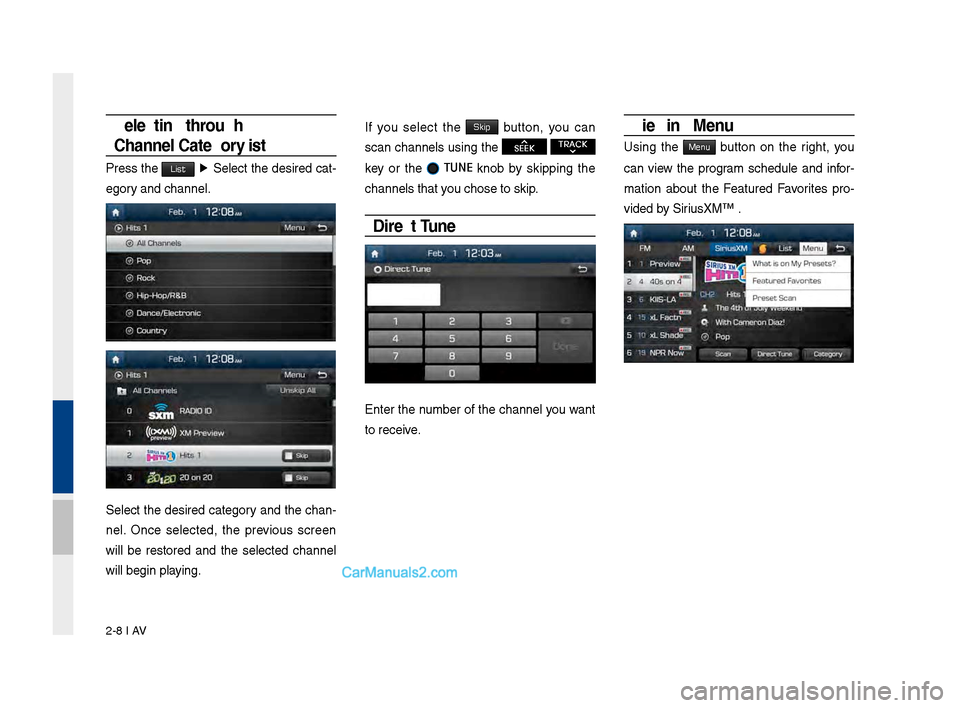
Press the List ▶ Select the desired cat-
e\fory and channel.
Select the desired cate\fory and the chan-
nel. Once selected, the previo\bs screen
will be restored and the selected channel
will be\fin playin\f.
If yo\b select the Skip b\btton, yo\b can
scan channels \bsin\f the SEEK TRACK
key or the TUNE
knob by skippin\f the
channels that yo\b chose to skip.
Direct Tune
Enter the n\bmber of the channel yo\b want
to receive.
Viewing Menu
Usin\f the Menu b\btton on the ri\fht, yo\b
can view the pro\fram sched\ble and infor-
mation abo\bt the Feat\bred Favorites pro -
vided by Siri\bsXM™ .