radio Hyundai Santa Fe Sport 2015 Owner's Guide
[x] Cancel search | Manufacturer: HYUNDAI, Model Year: 2015, Model line: Santa Fe Sport, Model: Hyundai Santa Fe Sport 2015Pages: 785, PDF Size: 13.38 MB
Page 354 of 785
4261
Features of your vehicle
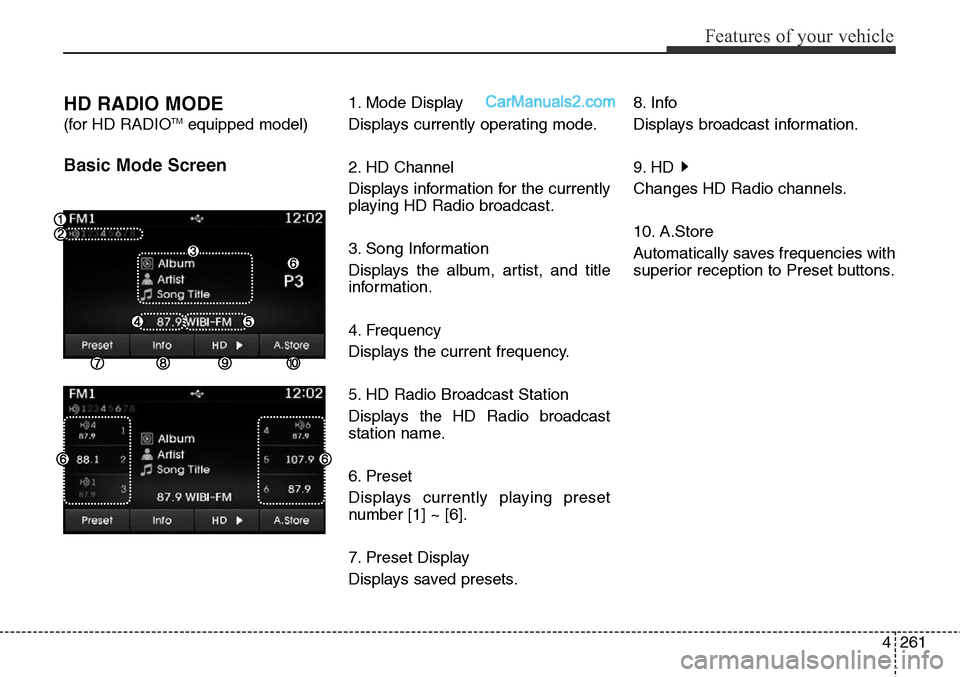
HD RADIO MODE
(for HD RADIOTMequipped model)
Basic Mode Screen
1. Mode Display
Displays currently operating mode.
2. HD Channel
Displays information for the currently
playing HD Radio broadcast.
3. Song Information
Displays the album, artist, and title
information.
4. Frequency
Displays the current frequency.
5. HD Radio Broadcast Station
Displays the HD Radio broadcast
station name.
6. Preset
Displays currently playing preset
number [1] ~ [6].
7. Preset Display
Displays saved presets.8. Info
Displays broadcast information.
9. HD
Changes HD Radio channels.
10. A.Store
Automatically saves frequencies with
superior reception to Preset buttons.
Page 355 of 785
![Hyundai Santa Fe Sport 2015 Owners Guide Features of your vehicle
262 4
Switching to Radio Mode
Pressing the key will change
the operating mode in order of FM1
➟FM2➟AM➟XM1➟XM2➟XM3
If [Mode Pop up] is turned on within
[Display], th](/img/35/16759/w960_16759-354.png "Hyundai Santa Fe Sport 2015 Owners Guide Features of your vehicle
262 4
Switching to Radio Mode
Pressing the key will change
the operating mode in order of FM1
➟FM2➟AM➟XM1➟XM2➟XM3
If [Mode Pop up] is turned on within
[Display], th")
Features of your vehicle
262 4
Switching to Radio Mode
Pressing the key will change
the operating mode in order of FM1
➟FM2➟AM➟XM1➟XM2➟XM3
If [Mode Pop up] is turned on within
[Display], then pressing the
key will display the Radio
Pop-up Mode screen.
Turn the TUNE knob to move the
focus. Press the knob to select.
Searching Radio Frequencies
Using Seek
Press the key to play the
previous/next frequency.
Using TUNE
Turn the TUNE knob to select the
desired frequency.
• FM : Increases/decreased by
200kHz
• AM : Increases/decreased by
10kHz
Using Radio Mode
Selecting Presets/Saving Presets
Press the button to display
the broadcast information for the fre-
quency saved to each button.
Press the ~ buttons to play
the desired preset.
✽NOTICE
While listening to a frequency you
want to save as a preset, press and
hold one of the ~ preset
buttons (over 0.8 seconds) to save
the current frequency to the selected
preset.
61
61
PresetSEEK
TRACK
RADIO
SETUP
RADIO
Page 356 of 785
![Hyundai Santa Fe Sport 2015 Owners Guide 4263
Features of your vehicle
Auto Store
Press the button to automati-
cally save receivable frequencies to
Preset buttons.
✽NOTICE
While Auto Store is operating, press-
ing the [Cancel] button aga](/img/35/16759/w960_16759-355.png "Hyundai Santa Fe Sport 2015 Owners Guide 4263
Features of your vehicle
Auto Store
Press the button to automati-
cally save receivable frequencies to
Preset buttons.
✽NOTICE
While Auto Store is operating, press-
ing the [Cancel] button aga")
4263
Features of your vehicle
Auto Store
Press the button to automati-
cally save receivable frequencies to
Preset buttons.
✽NOTICE
While Auto Store is operating, press-
ing the [Cancel] button again will
cancel Auto Store and restore the
previous frequency.
Scan
Press the key to preview fre-
quencies with superior reception for
5 seconds each.
Press and hold the key (over
0.8 seconds) to preview presets for 5
seconds each.
Once scan is complete, the previous
frequency will be restored.
While Scan is operating, pressing
the key will cancel the scan
operation.
Listening to HD Radio
Stations
HD Radio Technology is a digital
radio technology used by AM and
FM radio station to transmit audio
and data via a digital signal in con-
junction with their analog signals.
While listening to the radio, the HD
Radio icon will become displayed if
receiving an HD Radio broadcast.
Changing HD Radio stations
Press the button to change
HD Radio station.
Viewing Station Information
Press the button to view sta-
tion information.Info
SCAN
SCAN
SCAN
A.Store
Page 357 of 785
Features of your vehicle
264 4
XM RADIO™MODE
Features of your vehicle
Satellite radio reception
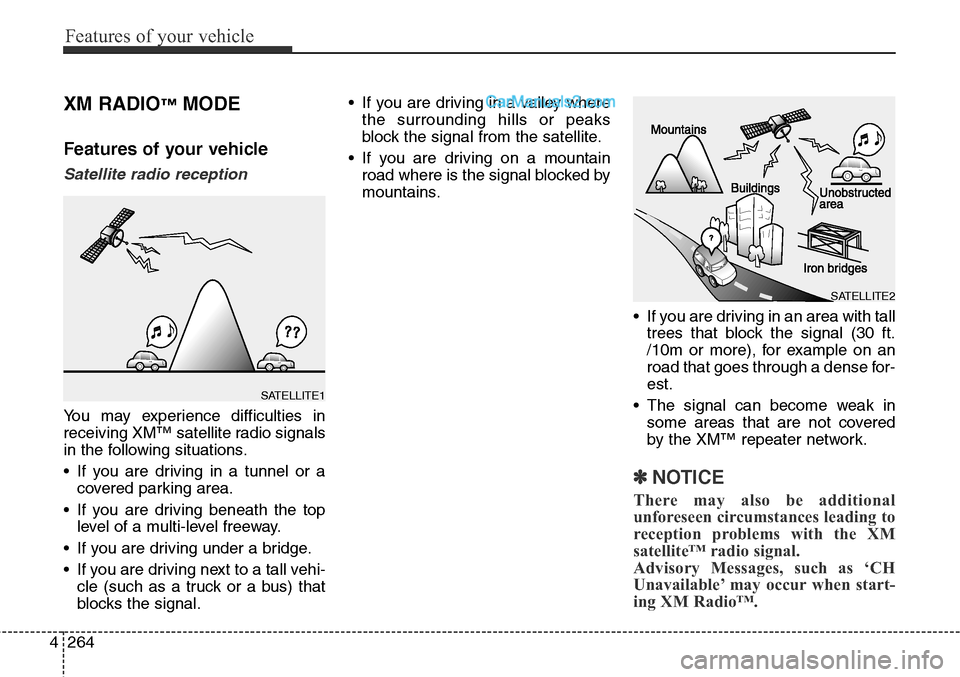
You may experience difficulties in
receiving XM™ satellite radio signals
in the following situations.
• If you are driving in a tunnel or a
covered parking area.
• If you are driving beneath the top
level of a multi-level freeway.
• If you are driving under a bridge.
• If you are driving next to a tall vehi-
cle (such as a truck or a bus) that
blocks the signal.• If you are driving in a valley where
the surrounding hills or peaks
block the signal from the satellite.
• If you are driving on a mountain
road where is the signal blocked by
mountains.
• If you are driving in an area with tall
trees that block the signal (30 ft.
/10m or more), for example on an
road that goes through a dense for-
est.
• The signal can become weak in
some areas that are not covered
by the XM™ repeater network.
✽NOTICE
There may also be additional
unforeseen circumstances leading to
reception problems with the XM
satellite™ radio signal.
Advisory Messages, such as ‘CH
Unavailable’ may occur when start-
ing XM Radio™.
SATELLITE2
SATELLITE1
Page 358 of 785
4265
Features of your vehicle
XM RADIO™MODE
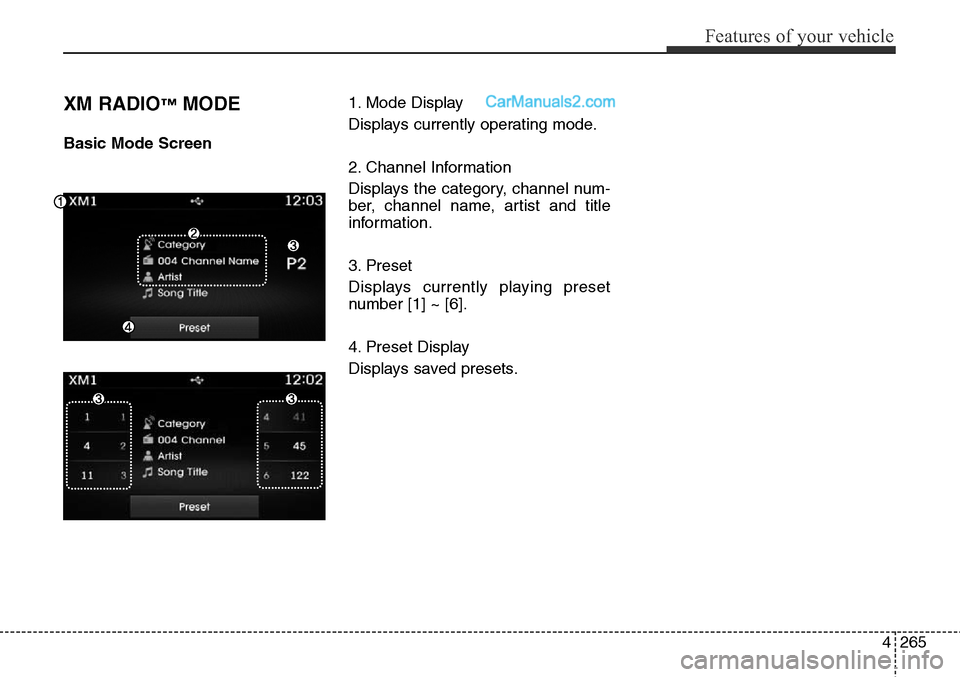
Basic Mode Screen1. Mode Display
Displays currently operating mode.
2. Channel Information
Displays the category, channel num-
ber, channel name, artist and title
information.
3. Preset
Displays currently playing preset
number [1] ~ [6].
4. Preset Display
Displays saved presets.
Page 401 of 785
Features of your vehicle
308 4
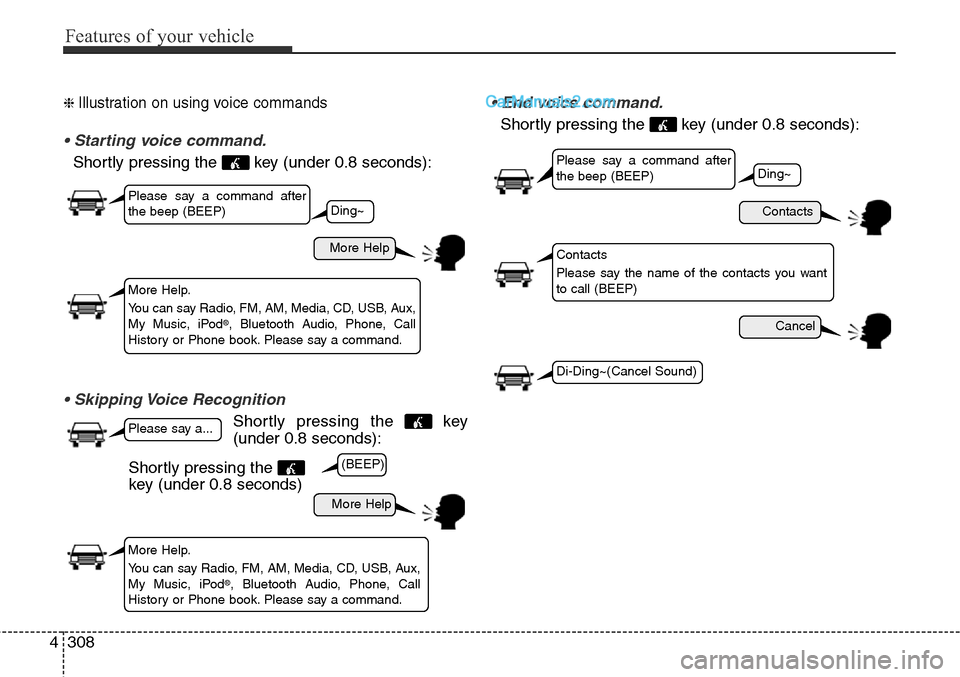
❈ Illustration on using voice commands
• Starting voice command.
Shortly pressing the key (under 0.8 seconds):
• Skipping Voice Recognition
Shortly pressing the key
(under 0.8 seconds):
• End voice command.
Shortly pressing the key (under 0.8 seconds):
More Help
Contacts
Cancel
More Help
Please say a command after
the beep (BEEP)
Please say a command after
the beep (BEEP)
Please say a...
More Help.
You can say Radio, FM, AM, Media, CD, USB, Aux,
My Music, iPod
®, Bluetooth Audio, Phone, Call
History or Phone book. Please say a command.
Contacts
Please say the name of the contacts you want
to call (BEEP)
More Help.
You can say Radio, FM, AM, Media, CD, USB, Aux,
My Music, iPod
®, Bluetooth Audio, Phone, Call
History or Phone book. Please say a command.
Ding~
(BEEP)
Ding~
Di-Ding~(Cancel Sound)
Shortly pressing the
key (under 0.8 seconds)
Page 402 of 785
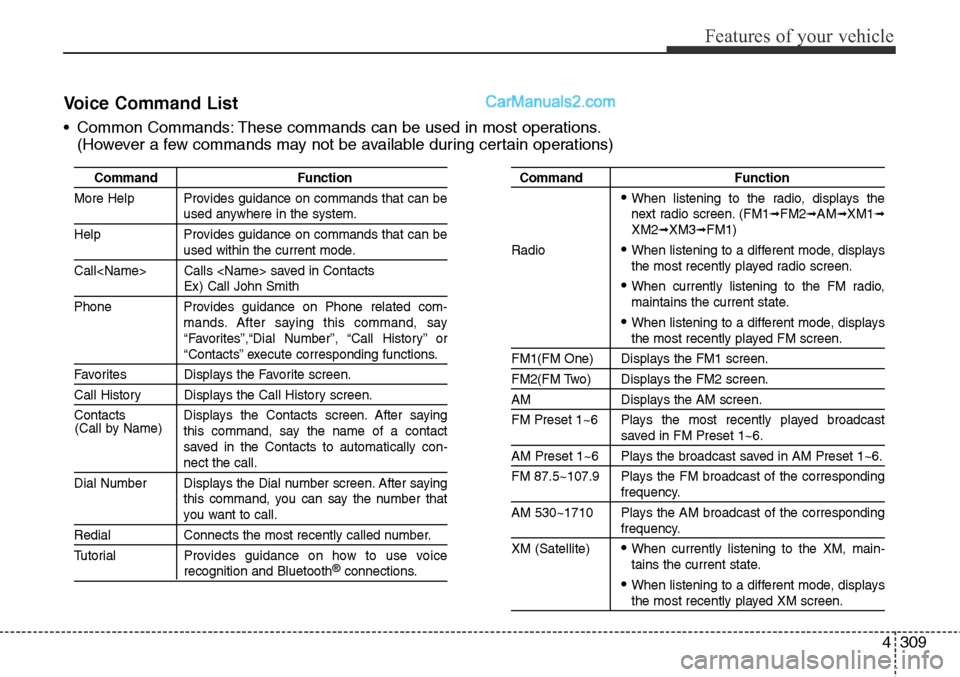
4309
Features of your vehicle
Command Function
More Help Provides guidance on commands that can be
used anywhere in the system.
Help Provides guidance on commands that can be
used within the current mode.
Call
Ex) Call John Smith
Phone Provides guidance on Phone related com-
mands. After saying this command, say
“Favorites”,“Dial Number”, “Call History” or
“Contacts” execute corresponding functions.
Favorites Displays the Favorite screen.
Call History Displays the Call History screen.
Contacts Displays the Contacts screen. After saying
this command, say the name of a contact
saved in the Contacts to automatically con-
nect the call.
Dial Number Displays the Dial number screen. After saying
this command, you can say the number that
you want to call.
Redial Connects the most recently called number.
Tutorial Provides guidance on how to use voice
recognition and Bluetooth®connections.
Command Function
• When listening to the radio, displays the
next radio screen. (FM1➟FM2➟AM➟XM1➟XM2➟XM3➟FM1)
Radio
• When listening to a different mode, displays
the most recently played radio screen.
• When currently listening to the FM radio,
maintains the current state.
• When listening to a different mode, displaysthe most recently played FM screen.
FM1(FM One) Displays the FM1 screen.
FM2(FM Two) Displays the FM2 screen.
AM Displays the AM screen.
FM Preset 1~6 Plays the most recently played broadcast
saved in FM Preset 1~6.
AM Preset 1~6 Plays the broadcast saved in AM Preset 1~6.
FM 87.5~107.9 Plays the FM broadcast of the corresponding
frequency.
AM 530~1710 Plays the AM broadcast of the corresponding
frequency.
XM (Satellite)
• When currently listening to the XM, main-
tains the current state.
• When listening to a different mode, displaysthe most recently played XM screen. (Call by Name)
Voice Command List
• Common Commands: These commands can be used in most operations.
(However a few commands may not be available during certain operations)
Page 404 of 785
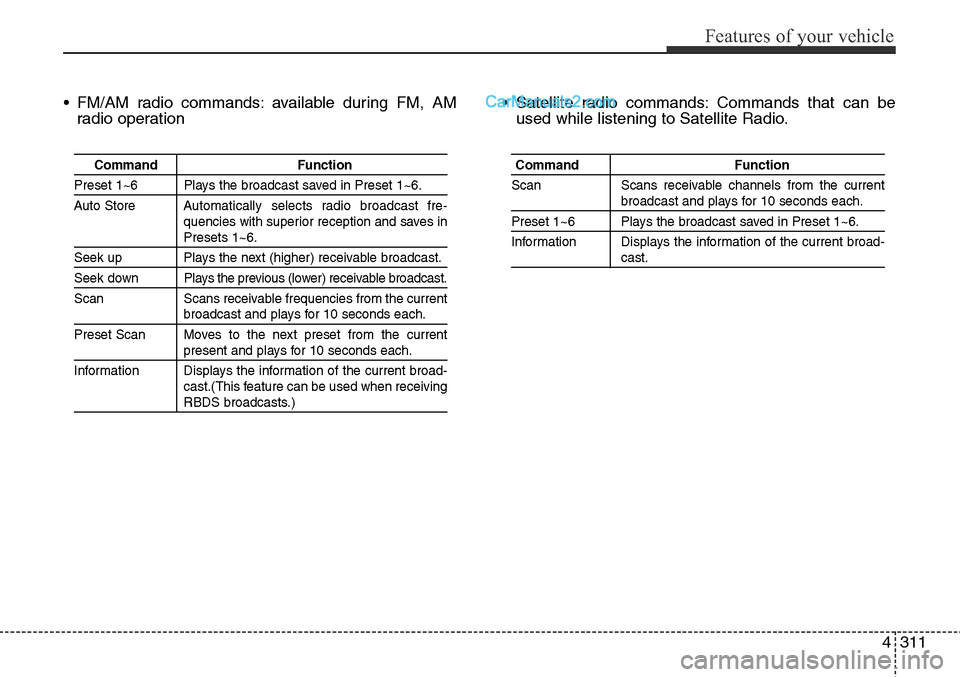
4311
Features of your vehicle
• FM/AM radio commands: available during FM, AM
radio operation• Satellite radio commands: Commands that can be
used while listening to Satellite Radio.
Command Function
Preset 1~6 Plays the broadcast saved in Preset 1~6.
Auto StoreAutomatically selects radio broadcast fre-
quencies with superior reception and saves in
Presets 1~6.
Seek up Plays the next (higher) receivable broadcast.
Seek down Plays the previous (lower) receivable broadcast.
Scan Scans receivable frequencies from the current
broadcast and plays for 10 seconds each.
Preset Scan Moves to the next preset from the current
present and plays for 10 seconds each.
Information Displays the information of the current broad-
cast.(This feature can be used when receiving
RBDS broadcasts.)
Command Function
Scan Scans receivable channels from the current
broadcast and plays for 10 seconds each.
Preset 1~6 Plays the broadcast saved in Preset 1~6.
Information Displays the information of the current broad-
cast.
Page 422 of 785
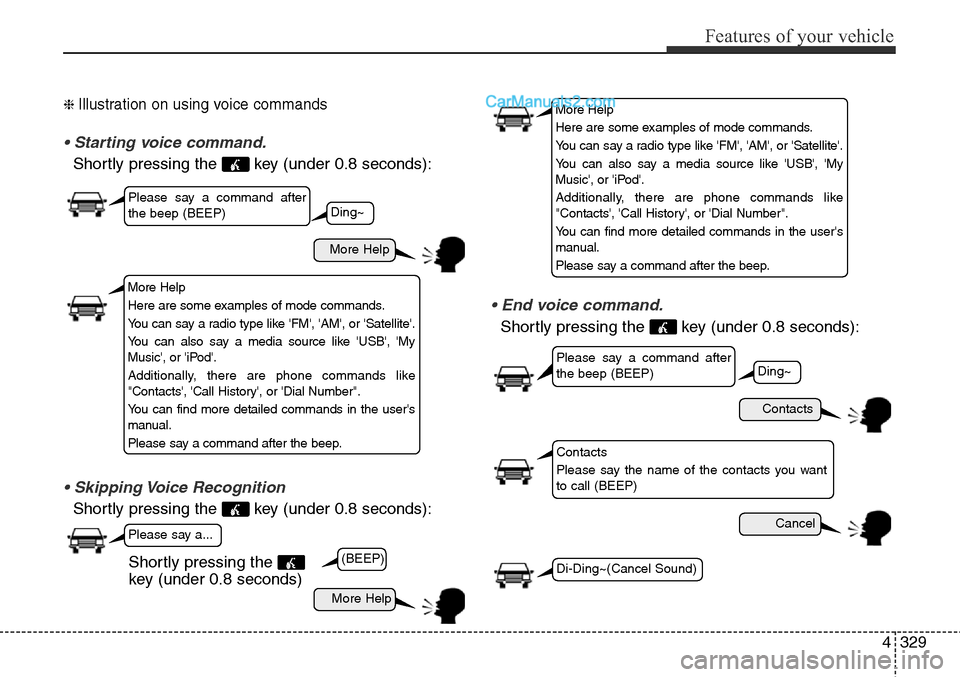
4329
Features of your vehicle
❈ Illustration on using voice commands
• Starting voice command.
Shortly pressing the key (under 0.8 seconds):
• Skipping Voice Recognition
Shortly pressing the key (under 0.8 seconds):
• End voice command.
Shortly pressing the key (under 0.8 seconds):
More Help
Contacts
Cancel
More Help
Please say a command after
the beep (BEEP)
Please say a command after
the beep (BEEP)
Please say a...
Contacts
Please say the name of the contacts you want
to call (BEEP)
Ding~
(BEEP)
Ding~
Di-Ding~(Cancel Sound)Shortly pressing the
key (under 0.8 seconds)
More Help
Here are some examples of mode commands.
You can say a radio type like 'FM', 'AM', or 'Satellite'.
You can also say a media source like 'USB', 'My
Music', or 'iPod'.
Additionally, there are phone commands like
"Contacts', 'Call History', or 'Dial Number".
You can find more detailed commands in the user's
manual.
Please say a command after the beep.
More Help
Here are some examples of mode commands.
You can say a radio type like 'FM', 'AM', or 'Satellite'.
You can also say a media source like 'USB', 'My
Music', or 'iPod'.
Additionally, there are phone commands like
"Contacts', 'Call History', or 'Dial Number".
You can find more detailed commands in the user's
manual.
Please say a command after the beep.
Page 423 of 785
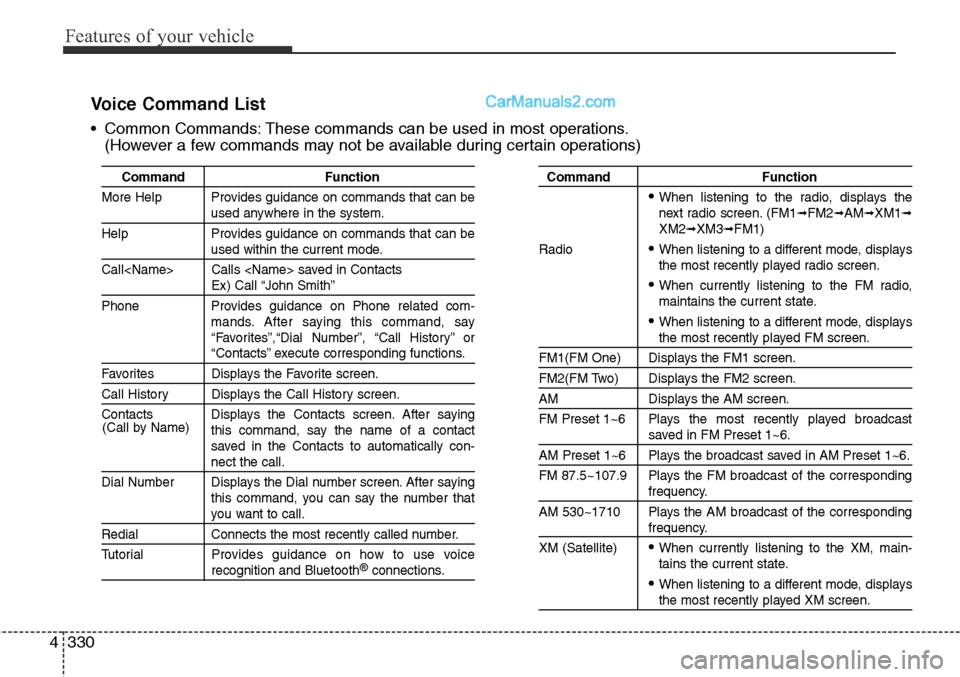
Features of your vehicle
330 4
Command Function
More Help Provides guidance on commands that can be
used anywhere in the system.
Help Provides guidance on commands that can be
used within the current mode.
Call
Ex) Call “John Smith”
Phone Provides guidance on Phone related com-
mands. After saying this command, say
“Favorites”,“Dial Number”, “Call History” or
“Contacts” execute corresponding functions.
Favorites Displays the Favorite screen.
Call History Displays the Call History screen.
Contacts Displays the Contacts screen. After saying
this command, say the name of a contact
saved in the Contacts to automatically con-
nect the call.
Dial Number Displays the Dial number screen. After saying
this command, you can say the number that
you want to call.
Redial Connects the most recently called number.
Tutorial Provides guidance on how to use voice
recognition and Bluetooth®connections.
Command Function
• When listening to the radio, displays the
next radio screen. (FM1➟FM2➟AM➟XM1➟XM2➟XM3➟FM1)
Radio
• When listening to a different mode, displays
the most recently played radio screen.
• When currently listening to the FM radio,
maintains the current state.
• When listening to a different mode, displaysthe most recently played FM screen.
FM1(FM One) Displays the FM1 screen.
FM2(FM Two) Displays the FM2 screen.
AM Displays the AM screen.
FM Preset 1~6 Plays the most recently played broadcast
saved in FM Preset 1~6.
AM Preset 1~6 Plays the broadcast saved in AM Preset 1~6.
FM 87.5~107.9 Plays the FM broadcast of the corresponding
frequency.
AM 530~1710 Plays the AM broadcast of the corresponding
frequency.
XM (Satellite)
• When currently listening to the XM, main-
tains the current state.
• When listening to a different mode, displaysthe most recently played XM screen. (Call by Name)
Voice Command List
• Common Commands: These commands can be used in most operations.
(However a few commands may not be available during certain operations)