radio Hyundai Santa Fe Sport 2015 Service Manual
[x] Cancel search | Manufacturer: HYUNDAI, Model Year: 2015, Model line: Santa Fe Sport, Model: Hyundai Santa Fe Sport 2015Pages: 785, PDF Size: 13.38 MB
Page 425 of 785
Features of your vehicle
332 4
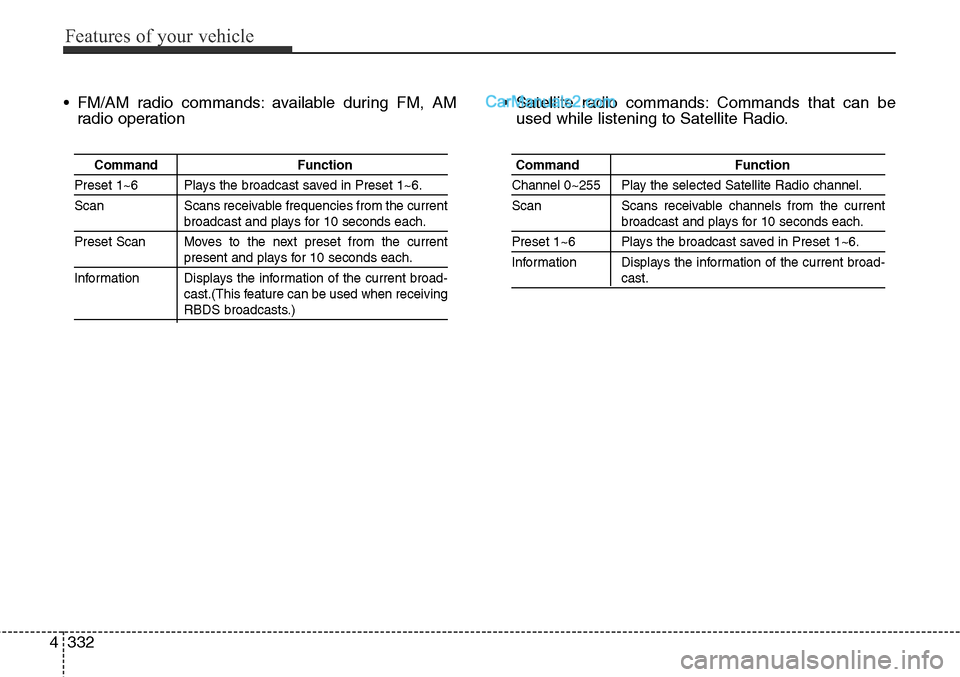
• FM/AM radio commands: available during FM, AM
radio operation• Satellite radio commands: Commands that can be
used while listening to Satellite Radio.
Command Function
Preset 1~6 Plays the broadcast saved in Preset 1~6.
Scan Scans receivable frequencies from the current
broadcast and plays for 10 seconds each.
Preset Scan Moves to the next preset from the current
present and plays for 10 seconds each.
Information Displays the information of the current broad-
cast.(This feature can be used when receiving
RBDS broadcasts.)
Command Function
Channel 0~255 Play the selected Satellite Radio channel.
Scan Scans receivable channels from the current
broadcast and plays for 10 seconds each.
Preset 1~6 Plays the broadcast saved in Preset 1~6.
Information Displays the information of the current broad-
cast.
Page 428 of 785
![Hyundai Santa Fe Sport 2015 Service Manual 4335
Features of your vehicle
SETUP
Starting Mode
Press the key to display the
Setup screen.
You can select and control options
related to [Display], [Sound],
[Clock/Calendar], [Phone] and
[System].](/img/35/16759/w960_16759-427.png "Hyundai Santa Fe Sport 2015 Service Manual 4335
Features of your vehicle
SETUP
Starting Mode
Press the key to display the
Setup screen.
You can select and control options
related to [Display], [Sound],
[Clock/Calendar], [Phone] and
[System].")
4335
Features of your vehicle
SETUP
Starting Mode
Press the key to display the
Setup screen.
You can select and control options
related to [Display], [Sound],
[Clock/Calendar], [Phone] and
[System].
Display Settings
Adjusting the Brightness
Press the key Select
[Display] Select [Brightness]
Use the , buttons to adjust the
screen brightness or set the
Brightness on Automatic, Daylight, or
Night mode.
Press the button to reset.
1) Automatic : Adjusts the brightness
automatically
2) Daylight : Always maintains the
brightness on high
3) Night : Always maintains the
brightness on low
Pop-up Mode
Press the key Select
[Display] Select [Mode Pop up]
This feature is used to display the
Pop-up Mode screen when entering
radio and media modes.
When this feature is turned on,
pressing the or key
will display the Pop-up Mode screen.
✽NOTICE
The media Pop-up Mode screen can
be displayed only when two or more
media modes have been connected.
MEDIA RADIO
SETUP
Default
SETUP SETUP
Page 433 of 785
![Hyundai Santa Fe Sport 2015 Service Manual Features of your vehicle
340 4
System Setting
HD Radio™On/Off
Press the key Select
[System] Select [FM], [AM]
This feature is used to set whether to
receive FM/AM HD Radio broad-
casts.
Prompt Feed](/img/35/16759/w960_16759-432.png "Hyundai Santa Fe Sport 2015 Service Manual Features of your vehicle
340 4
System Setting
HD Radio™On/Off
Press the key Select
[System] Select [FM], [AM]
This feature is used to set whether to
receive FM/AM HD Radio broad-
casts.
Prompt Feed")
Features of your vehicle
340 4
System Setting
HD Radio™On/Off
Press the key Select
[System] Select [FM], [AM]
This feature is used to set whether to
receive FM/AM HD Radio broad-
casts.
Prompt Feedback
Press the key Select
[System] Select [Prompt Feedback]
This feature is used to select the
desired prompt feedback option from
ON and OFF.
1) ON : When using voice recognition,
provides detailed guidance prompts
2) OFF : When using voice recognition,
omits some guidance prompts
Language
Press the key Select
[System] Select [Language]
This feature is used to change the sys-
tem and voice recognition language.
If the language is changed, the sys-
tem will restart and apply the select-
ed language.
SETUP SETUP
SETUP
Page 439 of 785
Features of your vehicle
346 4
How vehicle audio works
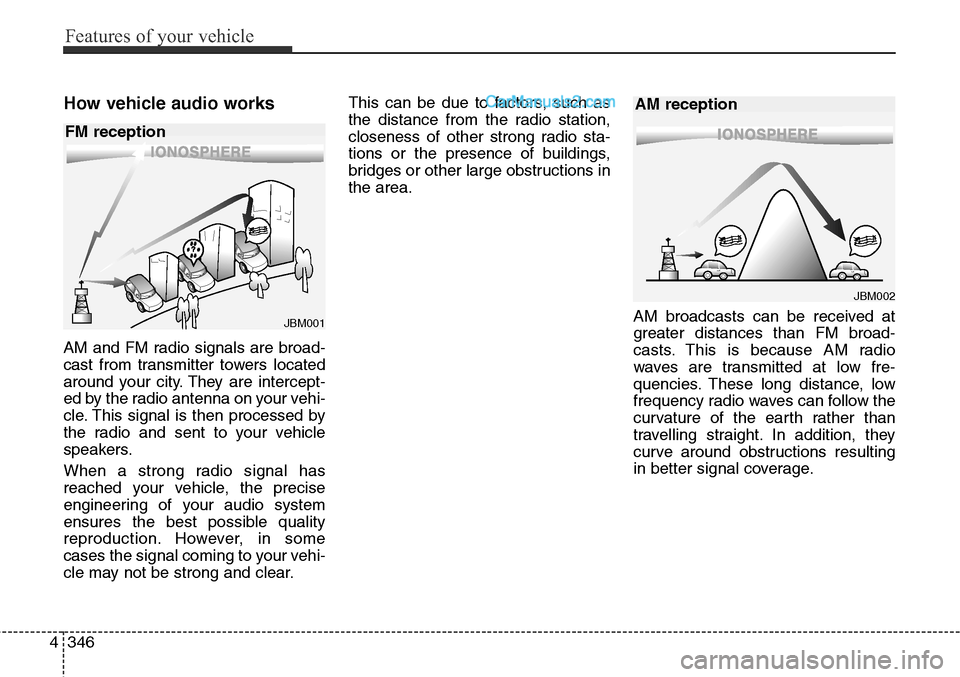
AM and FM radio signals are broad-
cast from transmitter towers located
around your city. They are intercept-
ed by the radio antenna on your vehi-
cle. This signal is then processed by
the radio and sent to your vehicle
speakers.
When a strong radio signal has
reached your vehicle, the precise
engineering of your audio system
ensures the best possible quality
reproduction. However, in some
cases the signal coming to your vehi-
cle may not be strong and clear.This can be due to factors, such as
the distance from the radio station,
closeness of other strong radio sta-
tions or the presence of buildings,
bridges or other large obstructions in
the area.
AM broadcasts can be received at
greater distances than FM broad-
casts. This is because AM radio
waves are transmitted at low fre-
quencies. These long distance, low
frequency radio waves can follow the
curvature of the earth rather than
travelling straight. In addition, they
curve around obstructions resulting
in better signal coverage.
JBM001
FM reception
JBM002
AM reception
Page 440 of 785
4347
Features of your vehicle
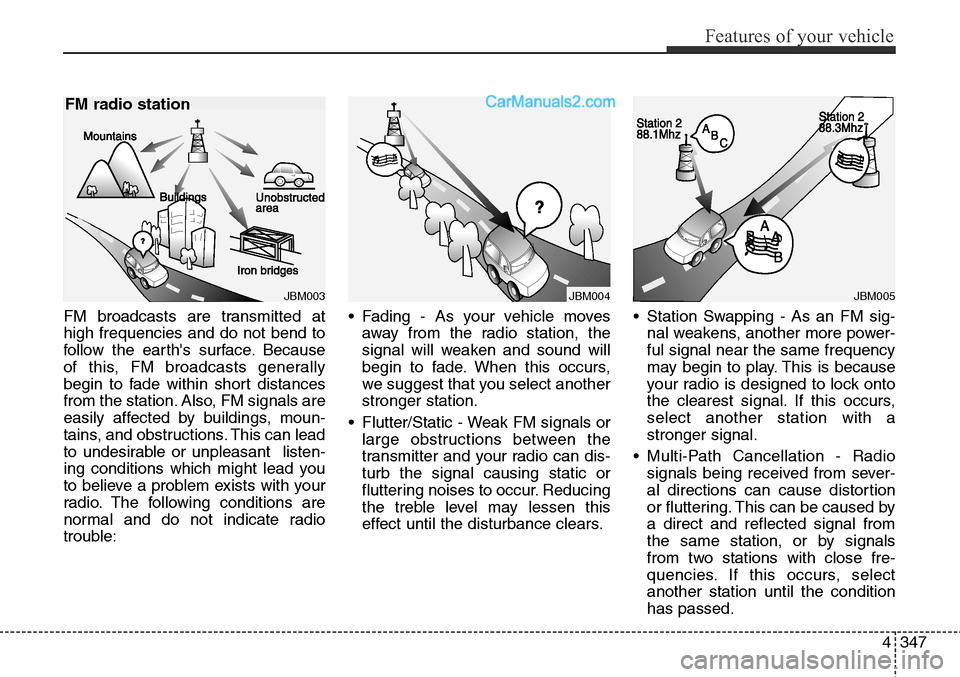
FM broadcasts are transmitted at
high frequencies and do not bend to
follow the earth's surface. Because
of this, FM broadcasts generally
begin to fade within short distances
from the station. Also, FM signals are
easily affected by buildings, moun-
tains, and obstructions. This can lead
to undesirable or unpleasant listen-
ing conditions which might lead you
to believe a problem exists with your
radio. The following conditions are
normal and do not indicate radio
trouble:• Fading - As your vehicle moves
away from the radio station, the
signal will weaken and sound will
begin to fade. When this occurs,
we suggest that you select another
stronger station.
• Flutter/Static - Weak FM signals or
large obstructions between the
transmitter and your radio can dis-
turb the signal causing static or
fluttering noises to occur. Reducing
the treble level may lessen this
effect until the disturbance clears.• Station Swapping - As an FM sig-
nal weakens, another more power-
ful signal near the same frequency
may begin to play. This is because
your radio is designed to lock onto
the clearest signal. If this occurs,
select another station with a
stronger signal.
• Multi-Path Cancellation - Radio
signals being received from sever-
al directions can cause distortion
or fluttering. This can be caused by
a direct and reflected signal from
the same station, or by signals
from two stations with close fre-
quencies. If this occurs, select
another station until the condition
has passed.
JBM003
FM radio station
JBM004JBM005
Page 441 of 785
Features of your vehicle
348 4
Using a cellular phone or a two-
way radio
When a cellular phone is used inside
the vehicle, noise may be produced
from the audio system. This does not
mean that something is wrong with
the audio equipment. In such a case,
try to operate mobile devices as far
from the audio equipment as possible.
Caring for disc
• If the temperature inside the car is too
high, open the car windows to venti-
late before using the system.
• It is illegal to copy and use
MP3/WMA files without permission.
Use CDs that are created only by
lawful means.
• Do not apply volatile agents, such
as benzene and thinner, normal
cleaners and magnetic sprays
made for analogue disc onto CDs.
• To prevent the disc surface from
getting damaged, hold CDs by the
edges or the center hole only.
• Clean the disc surface with a piece
of soft cloth before playback (wipe
it from the center to the outside
edge).
• Do not damage the disc surface or
attach pieces of sticky tape or
paper.
• Make certain only CDs are insert-
ed into the CD player (Do not insert
more than one CD at a time).
• Keep CDs in their cases after use to
protect them from scratches or dirt.
CAUTION
When using a communication
system such as a cellular phone
or a radio set inside the vehicle,
a separate external antenna
must be fitted. When a cellular
phone or a radio set is used
with an internal antenna alone,
it may interfere with the vehi-
cle's electrical system and
adversely affect safe operation
of the vehicle.
WARNING
Do not use a cellular phone
while driving. Stop at a safe
location to use a cellular phone.
Page 445 of 785
Features of your vehicle
352 4
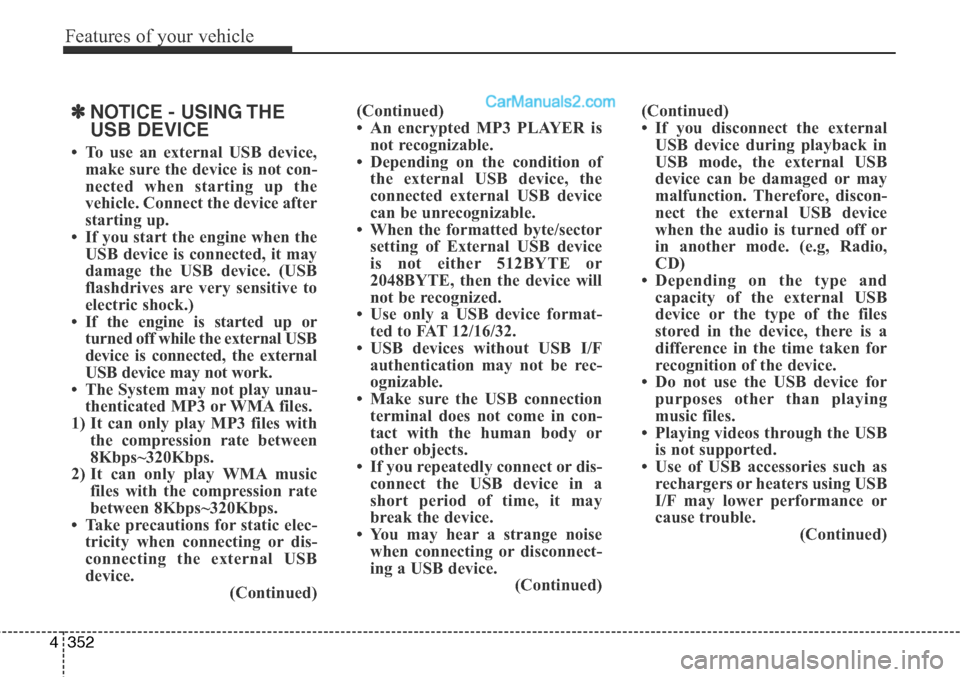
✽NOTICE - USING THE
USB DEVICE
• To use an external USB device,
make sure the device is not con-
nected when starting up the
vehicle. Connect the device after
starting up.
• If you start the engine when the
USB device is connected, it may
damage the USB device. (USB
flashdrives are very sensitive to
electric shock.)
• If the engine is started up or
turned off while the external USB
device is connected, the external
USB device may not work.
• The System may not play unau-
thenticated MP3 or WMA files.
1) It can only play MP3 files with
the compression rate between
8Kbps~320Kbps.
2) It can only play WMA music
files with the compression rate
between 8Kbps~320Kbps.
• Take precautions for static elec-
tricity when connecting or dis-
connecting the external USB
device.
(Continued)(Continued)
• An encrypted MP3 PLAYER is
not recognizable.
• Depending on the condition of
the external USB device, the
connected external USB device
can be unrecognizable.
• When the formatted byte/sector
setting of External USB device
is not either 512BYTE or
2048BYTE, then the device will
not be recognized.
• Use only a USB device format-
ted to FAT 12/16/32.
• USB devices without USB I/F
authentication may not be rec-
ognizable.
• Make sure the USB connection
terminal does not come in con-
tact with the human body or
other objects.
• If you repeatedly connect or dis-
connect the USB device in a
short period of time, it may
break the device.
• You may hear a strange noise
when connecting or disconnect-
ing a USB device.
(Continued)(Continued)
• If you disconnect the external
USB device during playback in
USB mode, the external USB
device can be damaged or may
malfunction. Therefore, discon-
nect the external USB device
when the audio is turned off or
in another mode. (e.g, Radio,
CD)
• Depending on the type and
capacity of the external USB
device or the type of the files
stored in the device, there is a
difference in the time taken for
recognition of the device.
• Do not use the USB device for
purposes other than playing
music files.
• Playing videos through the USB
is not supported.
• Use of USB accessories such as
rechargers or heaters using USB
I/F may lower performance or
cause trouble.
(Continued)
Page 452 of 785
4359
Features of your vehicle
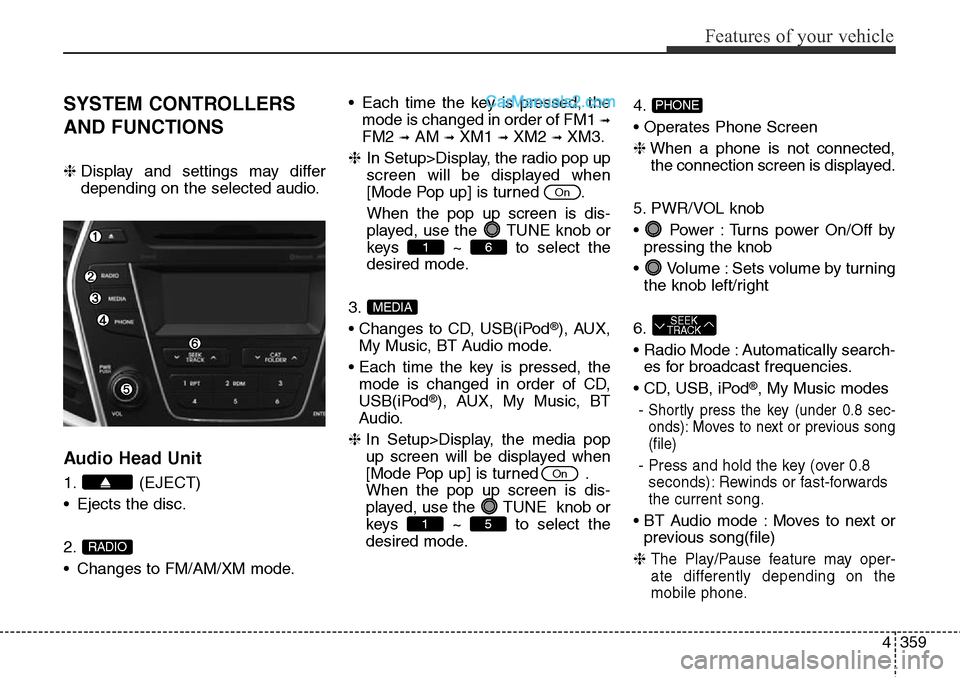
SYSTEM CONTROLLERS
AND FUNCTIONS
❈Display and settings may differ
depending on the selected audio.
Audio Head Unit
1. (EJECT)
• Ejects the disc.
2.
• Changes to FM/AM/XM mode.• Each time the key is pressed, the
mode is changed in order of FM1
➟
FM2 ➟AM ➟XM1 ➟XM2 ➟XM3.
❈In Setup>Display, the radio pop up
screen will be displayed when
[Mode Pop up] is turned .
When the pop up screen is dis-
played, use the TUNE knob or
keys ~ to select the
desired mode.
3.
• Changes to CD, USB(iPod
®), AUX,
My Music, BT Audio mode.
• Each time the key is pressed, the
mode is changed in order of CD,
USB(iPod
®), AUX, My Music, BT
Audio.
❈In Setup>Display, the media pop
up screen will be displayed when
[Mode Pop up] is turned .
When the pop up screen is dis-
played, use the TUNE knob or
keys ~ to select the
desired mode.4.
• Operates Phone Screen
❈When a phone is not connected,
the connection screen is displayed.
5. PWR/VOL knob
• Power : Turns power On/Off by
pressing the knob
• Volume : Sets volume by turning
the knob left/right
6.
• Radio Mode : Automatically search-
es for broadcast frequencies.
• CD, USB, iPod
®, My Music modes
-
Shortly press the key (under 0.8 sec-
onds): Moves to next or previous song
(file)
- Press and hold the key (over 0.8
seconds): Rewinds or fast-forwards
the current song.
• BT Audio mode : Moves to next or
previous song(file)
❈
The Play/Pause feature may oper-
ate differently depending on the
mobile phone.
SEEK
TRACK
PHONE
51
On
MEDIA
61
On
RADIO
Page 453 of 785
Features of your vehicle
360 4
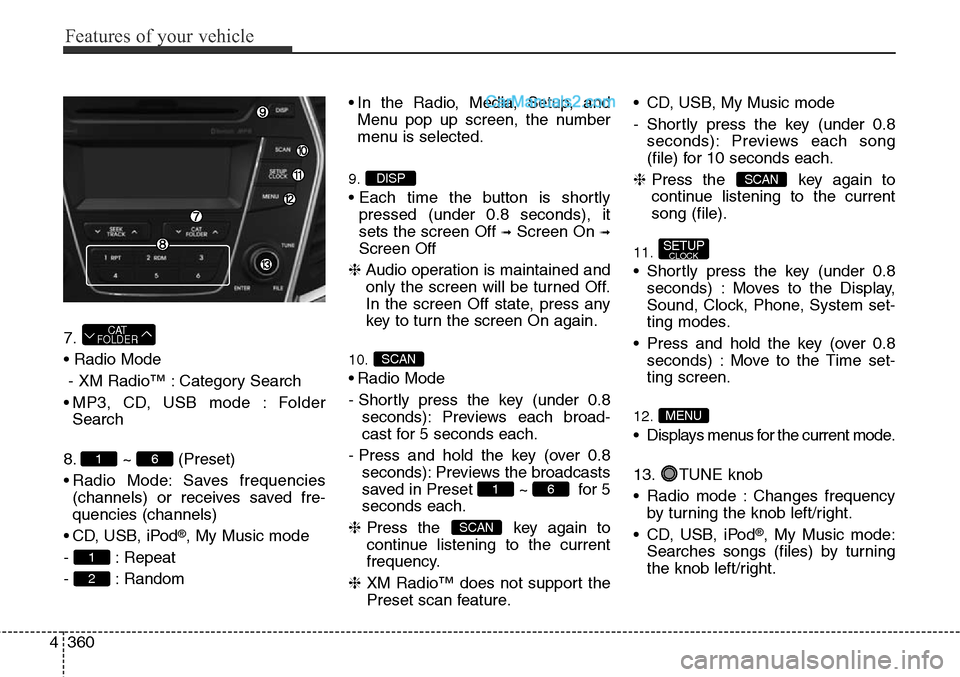
7.
• Radio Mode
- XM Radio™ : Category Search
• MP3, CD, USB mode : Folder
Search
8. ~ (Preset)
• Radio Mode: Saves frequencies
(channels) or receives saved fre-
quencies (channels)
• CD, USB, iPod
®, My Music mode
- : Repeat
- : Random• In the Radio, Media, Setup, and
Menu pop up screen, the number
menu is selected.
9.
• Each time the button is shortly
pressed (under 0.8 seconds), it
sets the screen Off
➟Screen On ➟
Screen Off
❈Audio operation is maintained and
only the screen will be turned Off.
In the screen Off state, press any
key to turn the screen On again.
10.
• Radio Mode
- Shortly press the key (under 0.8
seconds): Previews each broad-
cast for 5 seconds each.
- Press and hold the key (over 0.8
seconds): Previews the broadcasts
saved in Preset ~ for 5
seconds each.
❈Press the key again to
continue listening to the current
frequency.
❈XM Radio™ does not support the
Preset scan feature.• CD, USB, My Music mode
- Shortly press the key (under 0.8
seconds): Previews each song
(file) for 10 seconds each.
❈Press the key again to
continue listening to the current
song (file).
11.
• Shortly press the key (under 0.8
seconds) : Moves to the Display,
Sound, Clock, Phone, System set-
ting modes.
• Press and hold the key (over 0.8
seconds) : Move to the Time set-
ting screen.
12.
• Displays menus for the current mode.
13. TUNE knob
• Radio mode : Changes frequency
by turning the knob left/right.
• CD, USB, iPod
®, My Music mode:
Searches songs (files) by turning
the knob left/right.
MENU
SETUPCLOCK
SCAN
SCAN
61
SCAN
DISP
2
1
61
CAT
FOLDER
Page 455 of 785
![Hyundai Santa Fe Sport 2015 Service Manual Features of your vehicle
362 4
SETUP
Display Settings
Press the key Select [Display]
through TUNE knob or key
Select menu through TUNE knob
Mode Pop up
[Mode Pop up] Changes /
selection mode
•](/img/35/16759/w960_16759-454.png "Hyundai Santa Fe Sport 2015 Service Manual Features of your vehicle
362 4
SETUP
Display Settings
Press the key Select [Display]
through TUNE knob or key
Select menu through TUNE knob
Mode Pop up
[Mode Pop up] Changes /
selection mode
•")
Features of your vehicle
362 4
SETUP
Display Settings
Press the key Select [Display]
through TUNE knob or key
Select menu through TUNE knob
Mode Pop up
[Mode Pop up] Changes /
selection mode
• During On state, press the
or key to display the mode
change pop up screen.
Text Scroll
[Text Scroll] Set /
• : Maintains scroll
• : Scrolls only one (1) time.
Media Display
When playing an MP3 file, select the
desired display info from ‘Folder/File’
or ‘Album/Artist/Song’.
Sound Settings
Press the key Select [Sound]
through TUNE knob or key
Select menu through TUNE knob2
SETUP
Off
On
OffOn
MEDIA
RADIO
OffOn
1
SETUP