eco Hyundai Sonata 2013 Owners Manual
[x] Cancel search | Manufacturer: HYUNDAI, Model Year: 2013, Model line: Sonata, Model: Hyundai Sonata 2013Pages: 410, PDF Size: 35.93 MB
Page 211 of 410
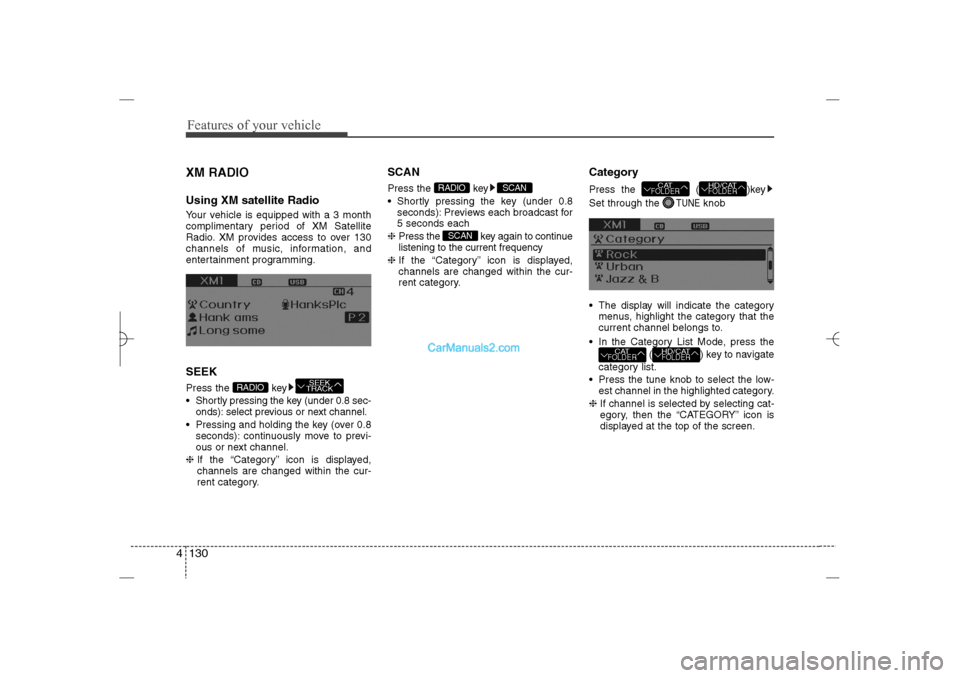
Features of your vehicle130 4XM RADIOUsing XM satellite RadioYour vehicle is equipped with a 3 month
complimentary period of XM Satellite
Radio. XM provides access to over 130
channels of music, information, and
entertainment programming.SEEKPress the key
Shortly pressing the key (under 0.8 sec-
onds): select previous or next channel.
Pressing and holding the key (over 0.8
seconds): continuously move to previ-
ous or next channel.
❈If the “Category” icon is displayed,
channels are changed within the cur-
rent category.
SCANPress the key
Shortly pressing the key (under 0.8
seconds): Previews each broadcast for
5 seconds each
❈Press the key again to continue
listening to the current frequency
❈If the “Category” icon is displayed,
channels are changed within the cur-
rent category.
CategoryPress the ( )key
Set through the
TUNE
knob
The display will indicate the category
menus, highlight the category that the
current channel belongs to.
In the Category List Mode, press the
( ) key to navigate
category list.
Press the tune knob to select the low-
est channel in the highlighted category.
❈If channel is selected by selecting cat-
egory, then the “CATEGORY” icon is
displayed at the top of the screen.
HD/CATFOLDER
CATFOLDER
HD/CATFOLDER
CATFOLDER
SCAN
SCAN
RADIO
SEEK
TRACK
RADIO
YF HMA 4b-112~(Audio).qxp 3/5/2012 4:24 PM Page 130
Page 212 of 410
4 131
Features of your vehicle
PresetPress the key ~
Shortly pressing the key (under 0.8
seconds): Plays the frequency saved in
the corresponding key.
Pressing and holding the key (over 0.8
seconds): Pressing and holding the
desired key from
~ will
save the current broadcast to the
selected key and sound a BEEP.Tune Rotate TUNE knob : Changes the
channel number or scrolls category list.
Press TUNE knob : Selects the
menu.
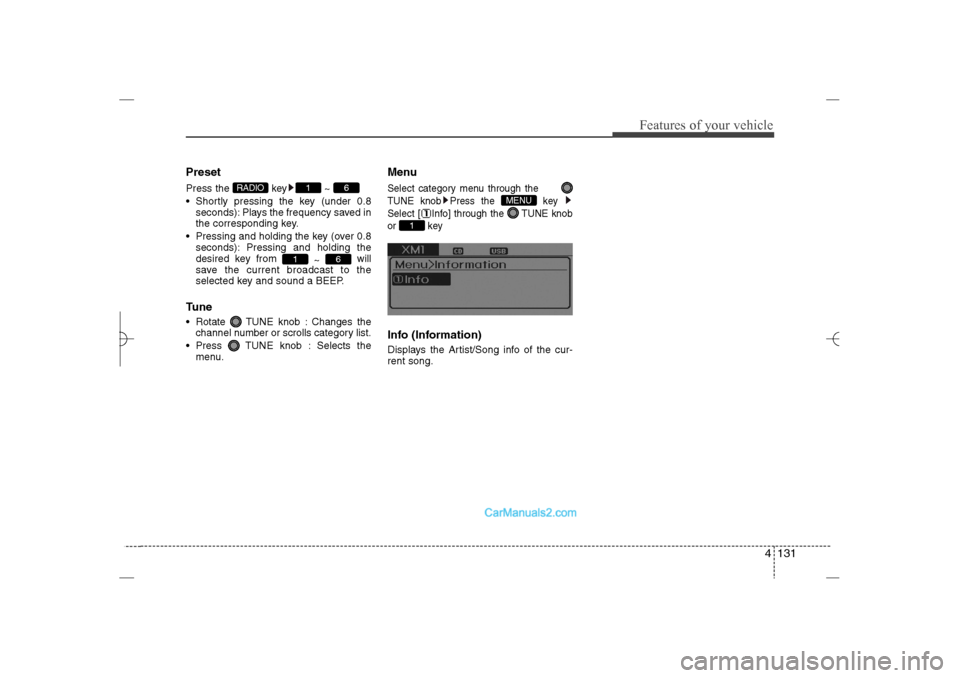
MenuSelect category menu through the
TUNE knob Press the key
Select [ Info] through the TUNE knob
or keyInfo (Information)Displays the Artist/Song info of the cur-
rent song.
1
MENU
6
1
6
1
RADIO
YF HMA 4b-112~(Audio).qxp 3/5/2012 4:24 PM Page 131
Page 215 of 410
Features of your vehicle134 4Satellite radio receptionYou may experience difficulties in receiv-
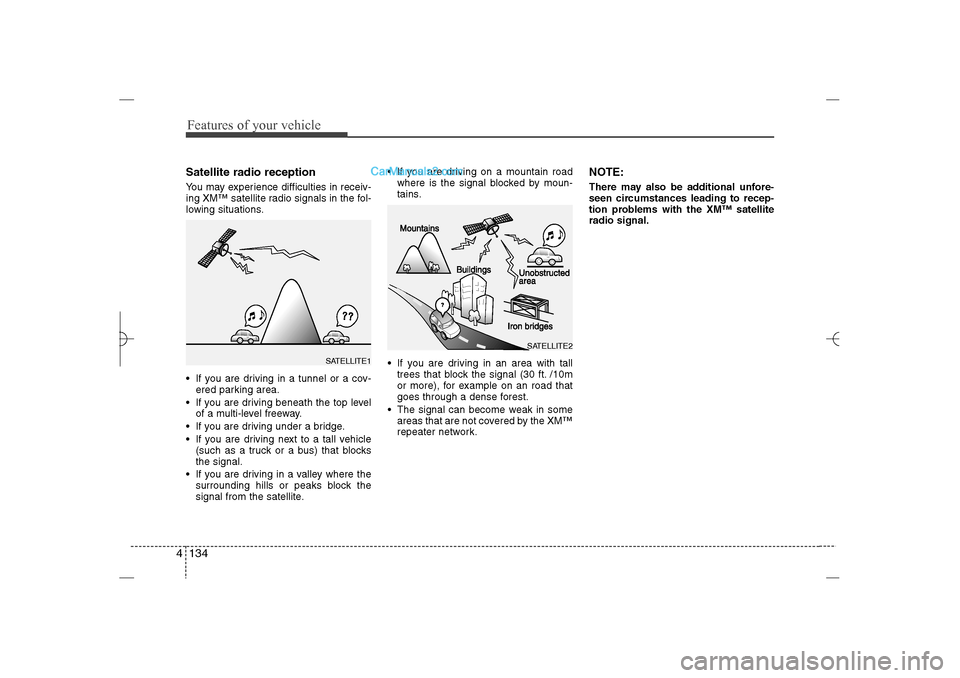
ing XM™ satellite radio signals in the fol-
lowing situations.
If you are driving in a tunnel or a cov-
ered parking area.
If you are driving beneath the top level
of a multi-level freeway.
If you are driving under a bridge.
If you are driving next to a tall vehicle
(such as a truck or a bus) that blocks
the signal.
If you are driving in a valley where the
surrounding hills or peaks block the
signal from the satellite. If you are driving on a mountain road
where is the signal blocked by moun-
tains.
If you are driving in an area with tall
trees that block the signal (30 ft. /10m
or more), for example on an road that
goes through a dense forest.
The signal can become weak in some
areas that are not covered by the XM™
repeater network.
NOTE:There may also be additional unfore-
seen circumstances leading to recep-
tion problems with the XM™ satellite
radio signal.
SATELLITE2
SATELLITE1
YF HMA 4b-112~(Audio).qxp 3/5/2012 4:24 PM Page 134
Page 216 of 410
4 135
Features of your vehicle
BASIC METHOD OF USE :
Audio CD / MP3 CD / USB /
iPod / My MusicPress the key to change the mod
mode in order of CD
➟USB(iPod)
➟AUX
➟My Music
➟BT Audio.
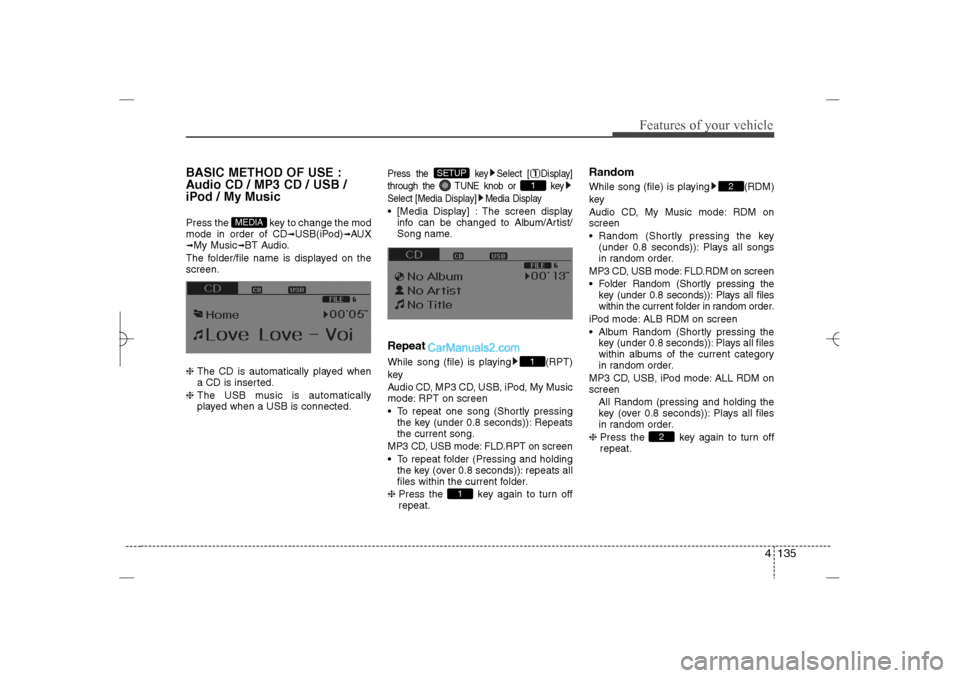
The folder/file name is displayed on the
screen.
❈ The CD is automatically played when
a CD is inserted.
❈ The USB music is automatically
played when a USB is connected.
Press the key Select [ Display]
through the TUNE knob or key
Select [Media Display] Media Display [Media Display] : The screen display
info can be changed to Album/Artist/
Song name.RepeatWhile song (file) is playing (RPT)
key
Audio CD, MP3 CD, USB, iPod, My Music
mode: RPT on screen
To repeat one song (Shortly pressing
the key (under 0.8 seconds)): Repeats
the current song.
MP3 CD, USB mode: FLD.RPT on screen
To repeat folder (Pressing and holding
the key (over 0.8 seconds)): repeats all
files within the current folder.
❈ Press the key again to turn off
repeat.
RandomWhile song (file) is playing (RDM)
key
Audio CD, My Music mode: RDM on
screen
Random (Shortly pressing the key
(under 0.8 seconds)): Plays all songs
in random order.
MP3 CD, USB mode: FLD.RDM on screen
Folder Random (Shortly pressing the
key (under 0.8 seconds)): Plays all files
within the current folder in random order.
iPod mode: ALB RDM on screen
Album Random (Shortly pressing the
key (under 0.8 seconds)): Plays all files
within albums of the current category
in random order.
MP3 CD, USB, iPod mode: ALL RDM on
screen
All Random (pressing and holding the
key (over 0.8 seconds)): Plays all files
in random order.
❈ Press the key again to turn off
repeat.
2
2
1
11
SETUP
MEDIA
YF HMA 4b-112~(Audio).qxp 3/5/2012 4:24 PM Page 135
Page 217 of 410
Features of your vehicle136 4Changing Song/FileWhile song (file) is playing key Shortly pressing the key (under 0.8
seconds): Plays the current song from
the beginning.
❈ If the key is pressed again
within 1 second, the previous song is
played.
Pressing and holding the key (over 0.8
seconds): Rewinds the song.While song (file) is playing key Shortly pressing the key (under 0.8
seconds): Plays the next song.
Pressing and holding the key (over 0.8
seconds): Fast forwards the song.
ScanWhile song (file) is playing keyScans all songs for 10 seconds starting
from the next song.
❈ Press the key again to turn off.
❈ The SCAN function is not supported in
iPod mode.Folder Search : MP3 CD, USB
ModeWhile file is playing
( ) (Folder Up) key Searches the next folder.While file is playing
( ) (Folder Down) key Searches the previous folder.
❈ If a folder is selected by pressing the
TUNE knob, the first file within the
selected folder will be played.
❈ In iPod mode, moves to the Parent
Folder.
Searching Songs (File) Turning TUNE knob : Searches for
songs (files)
Pressing TUNE knob : Plays select-
ed song (file).
HD/CAT
FOLDER
CAT
FOLDER
HD/CAT
FOLDER
CAT
FOLDER
SCAN
SCAN
SEEK
TRACK
SEEK
TRACK
SEEK
TRACK
YF HMA 4b-112~(Audio).qxp 3/5/2012 4:24 PM Page 136
Page 222 of 410
4 141
Features of your vehicle
Care of disc If the temperature inside the car is too
high, open the car windows to ventilate
before using the system.
It is illegal to copy and use MP3/WMA
files without permission. Use CDs that
are created only by lawful means.
Do not apply volatile agents, such as
benzene and thinner, normal cleaners
and magnetic sprays made for ana-
logue disc onto CDs.
To prevent the disc surface from get-
ting damaged, hold CDs by the edges
or the center hole only.
Clean the disc surface with a piece of
soft cloth before playback (wipe it from
the center to the outside edge).
Do not damage the disc surface or
attach pieces of sticky tape or paper.
Make certain only CDs are inserted
into the CD player (Do not insert more
than one CD at a time).
Keep CDs in their cases after use to
protect them from scratches or dirt.
Depending on the type of CD-R/CD-
RW CDs, certain CDs may not operate
normally according to manufacturing
companies or making and recording
methods. In such circumstances, con-
tinued use may cause malfunctions to
your audio system.
✽ ✽
NOTICE
- Playing an
Incompatible Copy
Protected Audio CD
Some copy protected CDs, which do not
comply with international audio CD
standards (Red Book), may not play on
your car audio. Please note that inabili-
ties to properly play a copy protected
CD may indicate that the CD is defec-
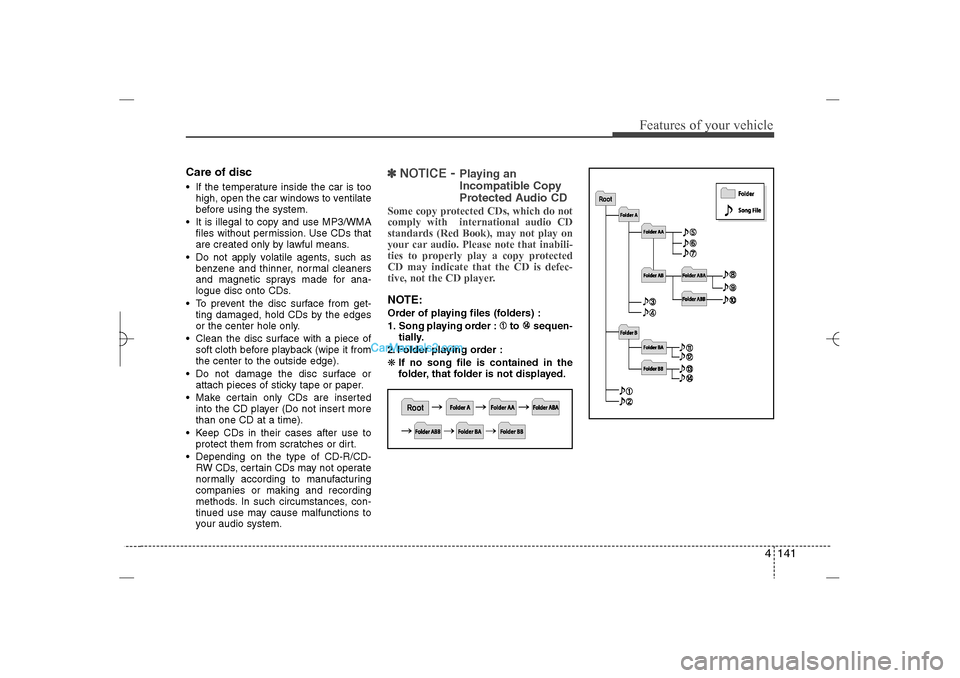
tive, not the CD player.NOTE:Order of playing files (folders) :
1. Song playing order : to sequen-
tially.
2. Folder playing order :
❋If no song file is contained in the
folder, that folder is not displayed.
YF HMA 4b-112~(Audio).qxp 3/5/2012 4:24 PM Page 141
Page 223 of 410
Features of your vehicle142 4
CAUTION IN USING
USB DEVICE
To use an external USB device,
make sure the device is not con-
nected when starting up the vehi-
cle. Connect the device after
starting up.
If you start the engine when the
USB device is connected, it may
damage the USB device. (USB
flashdrives are very sensitive to
electric shock.)
If the engine is started up or
turned off while the external USB
device is connected, the external
USB device may not work.
The System may not play inau-
thentic MP3 or WMA files.
1) It can only play MP3 files with
the compression rate between
8Kbps~320Kbps.
2) It can only play WMA music
files with the compression rate
between 8Kbps~320Kbps.
Take precautions for static elec-
tricity when connecting or discon-
necting the external USB device.
(Continued)
(Continued)
An encrypted MP3 PLAYER is not
recognizable.
Depending on the condition of
the external USB device, the con-
nected external USB device can
be unrecognizable.
When the formatted byte/sector
setting of External USB device is
not either 512BYTE or 2048BYTE,
then the device will not be recog-
nized.
Use only a USB device formatted
to FAT 12/16/32.
USB devices without USB I/F
authentication may not be recog-
nizable.
Make sure the USB connection
terminal does not come in con-
tact with the human body or other
objects.
If you repeatedly connect or dis-
connect the USB device in a short
period of time, it may break the
device.
You may hear a strange noise
when connecting or disconnect-
ing a USB device.
(Continued)
(Continued)
If you disconnect the external USB
device during playback in USB
mode, the external USB device can
be damaged or may malfunction.
Therefore, disconnect the external
USB device when the audio is
turned off or in another mode. (e.g,
Radio, XM or CD)
Depending on the type and
capacity of the external USB
device or the type of the files
stored in the device, there is a dif-
ference in the time taken for
recognition of the device.
Do not use the USB device for
purposes other than playing
music files.
Playing videos through the USB
is not supported.
Use of USB accessories such as
rechargers or heaters using USB
I/F may lower performance or
cause trouble.
(Continued)
YF HMA 4b-112~(Audio).qxp 3/5/2012 4:24 PM Page 142
Page 224 of 410
4 143
Features of your vehicle
✽ ✽
NOTICE FOR USING THE
iPod
®DEVICE
• Some iPod models may not support
communication protocol and files may
not properly play.
Supported iPod models:
- iPod Mini
- iPod 4th(Photo) ~ 6th(Classic)
generation
- iPod Nano 1st~4th generation
- iPod Touch 1st~2nd generation
• The order of search or playback of
songs in the iPod can be different
from the order searched in the audio
system.
• If the iPod disabled due to its own
malfunction, reset the iPod. (Reset:
Refer to iPod manual)
• An iPod may not operate normally on
low battery.
• Some iPod devices, such as the
iPhone, can be connected through the
Bluetooth
®Wireless Technology inter-
face. The device must have audio
Bluetooth®Wireless Technology capa-
bility (such as for stereo headphone
Bluetooth®Wireless Technology). The
device can play, but it will not be con-
trolled by the audio system.
(Continued)
(Continued)
Some USB flash memory readers
(such as CF, SD, micro SD, etc.) or
external-HDD type devices can be
unrecognizable.
Music files protected by DRM
(DIGITAL RIGHTS MANAGE-
MENT) are not recognizable.
The data in the USB memory may
be lost while using this audio.
Always back up important data on
a personal storage device.
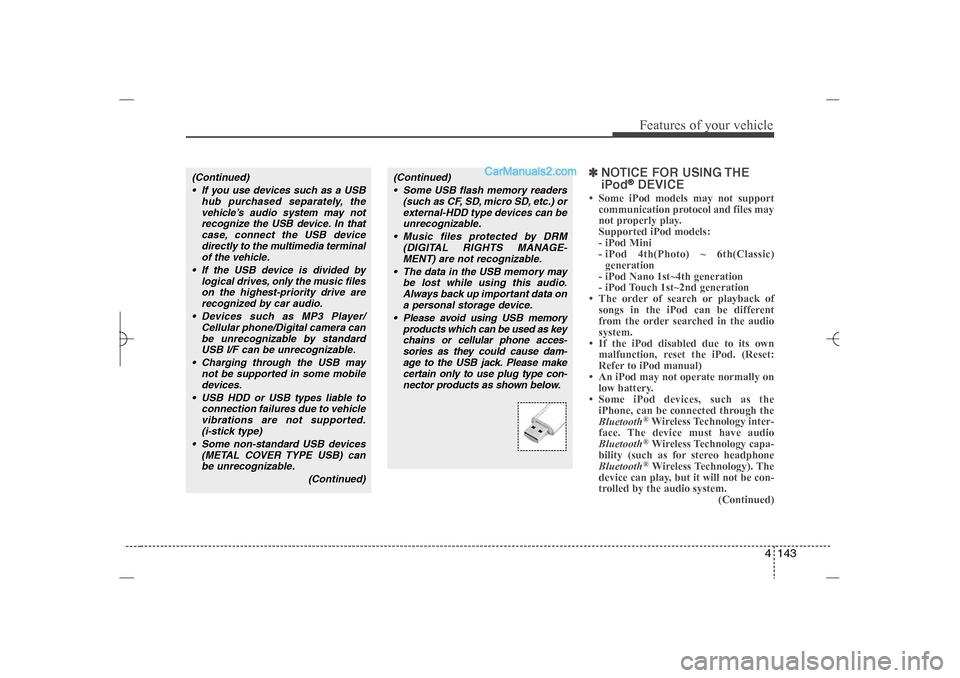
Please avoid using USB memory
products which can be used as key
chains or cellular phone acces-
sories as they could cause dam-
age to the USB jack. Please make
certain only to use plug type con-
nector products as shown below.
(Continued)
If you use devices such as a USB
hub purchased separately, the
vehicle’s audio system may not
recognize the USB device. In that
case, connect the USB device
directly to the multimedia terminal
of the vehicle.
If the USB device is divided by
logical drives, only the music files
on the highest-priority drive are
recognized by car audio.
Devices such as MP3 Player/
Cellular phone/Digital camera can
be unrecognizable by standard
USB I/F can be unrecognizable.
Charging through the USB may
not be supported in some mobile
devices.
USB HDD or USB types liable to
connection failures due to vehicle
vibrations are not supported.
(i-stick type)
Some non-standard USB devices
(METAL COVER TYPE USB) can
be unrecognizable.
(Continued)
YF HMA 4b-112~(Audio).qxp 3/5/2012 4:24 PM Page 143
Page 227 of 410
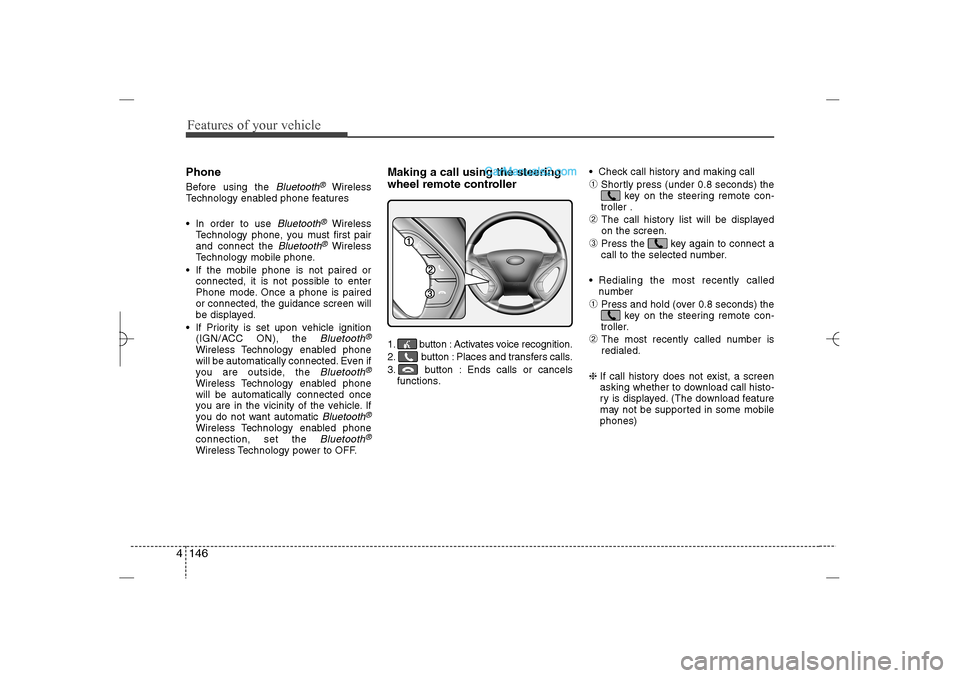
Features of your vehicle146 4PhoneBefore using the
Bluetooth
®
Wireless
Technology enabled phone features
In order to use
Bluetooth
®
Wireless
Technology phone, you must first pair
and connect the
Bluetooth
®Wireless
Technology mobile phone.
If the mobile phone is not paired or
connected, it is not possible to enter
Phone mode. Once a phone is paired
or connected, the guidance screen will
be displayed.
If Priority is set upon vehicle ignition
(IGN/ACC ON), the
Bluetooth
®
Wireless Technology enabled phone
will be automatically connected. Even if
you are outside, the
Bluetooth
®
Wireless Technology enabled phone
will be automatically connected once
you are in the vicinity of the vehicle. If
you do not want automatic
Bluetooth
®
Wireless Technology enabled phone
connection, set the
Bluetooth
®
Wireless Technology power to OFF.
Making a call using the steering
wheel remote controller1. button : Activates voice recognition.
2. button : Places and transfers calls.
3. button : Ends calls or cancels
functions. Check call history and making call
➀
Shortly press (under 0.8 seconds) the
key on the steering remote con-
troller .
➁
The call history list will be displayed
on the screen.
➂
Press the key again to connect a
call to the selected number.
Redialing the most recently called
number
➀
Press and hold (over 0.8 seconds) the
key on the steering remote con-
troller.
➁
The most recently called number is
redialed.
❈ If call history does not exist, a screen
asking whether to download call histo-
ry is displayed. (The download feature
may not be supported in some mobile
phones)
YF HMA 4b-112~(Audio).qxp 3/5/2012 4:24 PM Page 146
Page 228 of 410
![Hyundai Sonata 2013 Owners Manual 4 147
Features of your vehicle
Phone MENUPress the key to display three
menus (Call History, Contacts, Phone
Setup).Call historyPress the key Set [ Call
History] through the TUNE knob or
key.
The c](/img/35/16808/w960_16808-227.png "Hyundai Sonata 2013 Owners Manual 4 147
Features of your vehicle
Phone MENUPress the key to display three
menus (Call History, Contacts, Phone
Setup).Call historyPress the key Set [ Call
History] through the TUNE knob or
key.
The c")
4 147
Features of your vehicle
Phone MENUPress the key to display three
menus (Call History, Contacts, Phone
Setup).Call historyPress the key Set [ Call
History] through the TUNE knob or
key.
The call history is displayed and can be
used to select a number and make a call.
If call history does not exist, a screen
asking whether to download call history
is displayed. (The download feature may
not be supported in some mobile
phones)Contacts
Press the key Set [ Contacts]
through the TUNEknob or key.The Contacts are displayed and can be
used to select a number and make a call.
❈ If more than one number is saved to
one contact, then a screen showing
the mobile phone number, house and
office number are displayed. Select the
desired number to make the call.
❈ If Contacts do not exist, a screen asking
whether to download Contacts is dis-
played. (The download feature may not
be supported in some mobile phones)Phone SetupPress the key Set [ Phone
Setup] through the TUNEknob or
key.The
Bluetooth
®
Wireless Technology
enabled mobile phone setup screen is
displayed. For more information, refer to
“Phone Setup”.
3
PHONE
2
PHONE
1
PHONEPHONE
CAUTION IN USINGBLUETOOTH
®WIRELESS
TECHNOLOGY CELLU-
LAR PHONE
Do not use a cellular phone or
perform Bluetooth
®
Wireless
Technology settings (e.g. pairing
a phone) while driving.
Some Bluetooth
®
Wireless
Technology-enabled phones may
not be recognized by the system or
fully compatible with the system.
Before using Bluetooth®Wireless
Technology related features of
the audio system, refer your
phone’s User’s Manual for phone-
side Bluetooth
®
Wireless
Technology operations.
The phone must be paired to the
audio system to use Bluetooth
®
Wireless Technology related fea-
tures.
You will not be able to use the
hands-free feature when your
phone (in the car) is outside of
the cellular service area (e.g. in a
tunnel, in a underground, in a
mountainous area, etc.).
(Continued)
YF HMA 4b-112~(Audio).qxp 3/5/2012 4:24 PM Page 147