eco Hyundai Sonata 2013 Manual Online
[x] Cancel search | Manufacturer: HYUNDAI, Model Year: 2013, Model line: Sonata, Model: Hyundai Sonata 2013Pages: 410, PDF Size: 35.93 MB
Page 190 of 410
4 109
Features of your vehicle
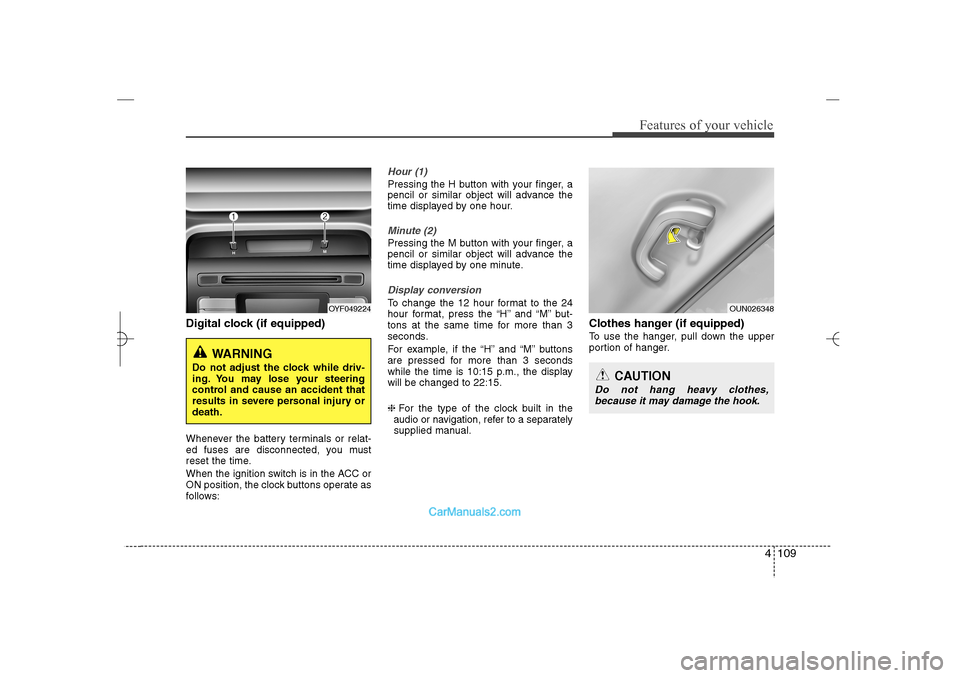
Digital clock (if equipped)Whenever the battery terminals or relat-
ed fuses are disconnected, you must
reset the time.
When the ignition switch is in the ACC or
ON position, the clock buttons operate as
follows:
Hour (1)Pressing the H button with your finger, a
pencil or similar object will advance the
time displayed by one hour.Minute (2)Pressing the M button with your finger, a
pencil or similar object will advance the
time displayed by one minute.Display conversionTo change the 12 hour format to the 24
hour format, press the “H” and “M” but-
tons at the same time for more than 3
seconds.
For example, if the “H” and “M” buttons
are pressed for more than 3 seconds
while the time is 10:15 p.m., the display
will be changed to 22:15.
❈For the type of the clock built in the
audio or navigation, refer to a separately
supplied manual.
Clothes hanger (if equipped)To use the hanger, pull down the upper
portion of hanger.
OYF049224
WARNING
Do not adjust the clock while driv-
ing. You may lose your steering
control and cause an accident that
results in severe personal injury or
death.
OUN026348
CAUTION
Do not hang heavy clothes,
because it may damage the hook.
YF HMA 4a-111.qxp 1/16/2012 6:35 PM Page 109
Page 191 of 410
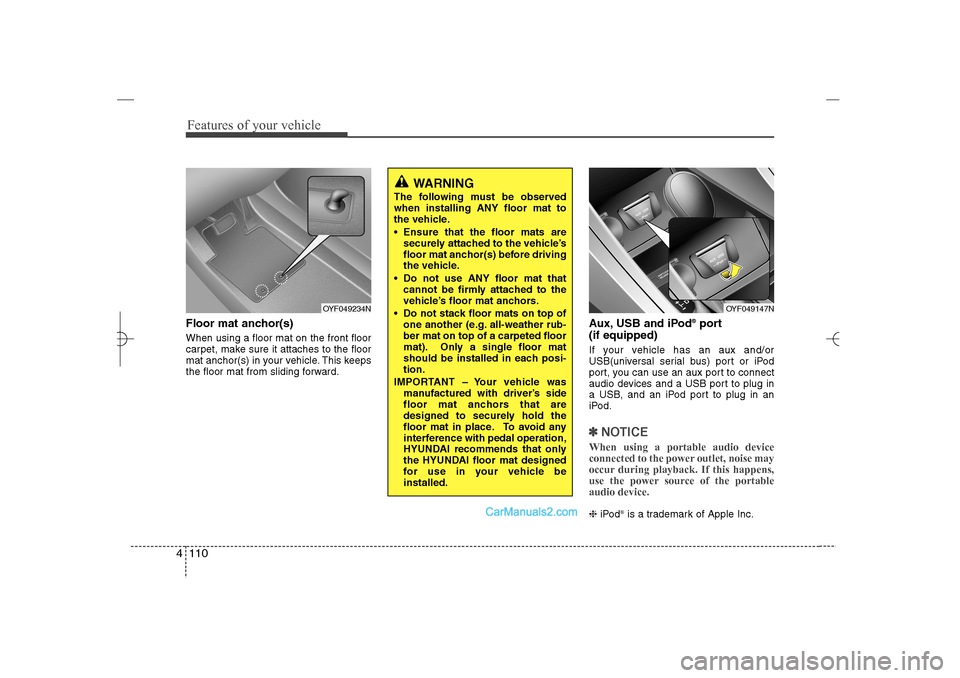
Features of your vehicle110 4Floor mat anchor(s)When using a floor mat on the front floor
carpet, make sure it attaches to the floor
mat anchor(s) in your vehicle. This keeps
the floor mat from sliding forward.
Aux, USB and iPod
®port
(if equipped)
If your vehicle has an aux and/or
USB(universal serial bus) port or iPod
port, you can use an aux port to connect
audio devices and a USB port to plug in
a USB, and an iPod port to plug in an
iPod.✽ ✽
NOTICEWhen using a portable audio device
connected to the power outlet, noise may
occur during playback. If this happens,
use the power source of the portable
audio device. ❈iPod
is a trademark of Apple Inc.
OYF049234N
OYF049147N
WARNING
The following must be observed
when installing ANY floor mat to
the vehicle.
Ensure that the floor mats are
securely attached to the vehicle’s
floor mat anchor(s) before driving
the vehicle.
Do not use ANY floor mat that
cannot be firmly attached to the
vehicle’s floor mat anchors.
Do not stack floor mats on top of
one another (e.g. all-weather rub-
ber mat on top of a carpeted floor
mat). Only a single floor mat
should be installed in each posi-
tion.
IMPORTANT – Your vehicle was
manufactured with driver’s side
floor mat anchors that are
designed to securely hold the
floor mat in place. To avoid any
interference with pedal operation,
HYUNDAI recommends that only
the HYUNDAI floor mat designed
for use in your vehicle be
installed.
YF HMA 4a-111.qxp 1/16/2012 6:36 PM Page 110
Page 194 of 410
4 113
Features of your vehicle
Steering wheel audio control
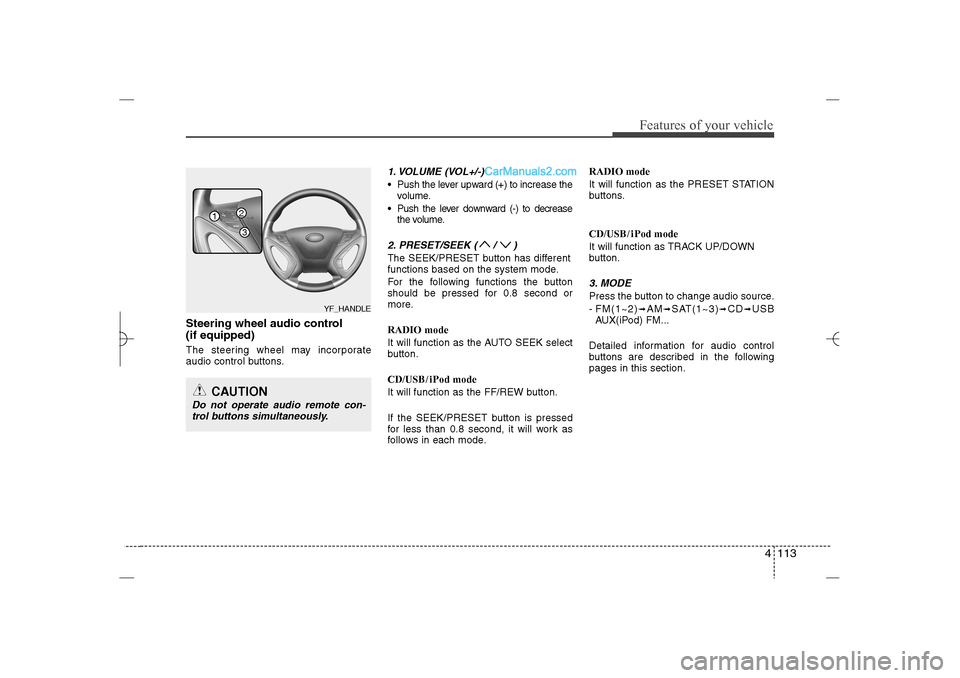
(if equipped) The steering wheel may incorporate
audio control buttons.
1. VOLUME (VOL+/-) Push the lever upward (+) to increase the
volume.
Push the lever downward (-) to decrease
the volume.2. PRESET/SEEK ( / )The SEEK/PRESET button has different
functions based on the system mode.
For the following functions the button
should be pressed for 0.8 second or
more.
RADIO mode
It will function as the AUTO SEEK select
button.
CD/USB/ iPod mode
It will function as the FF/REW button.
If the SEEK/PRESET button is pressed
for less than 0.8 second, it will work as
follows in each mode.RADIO mode
It will function as the PRESET STATION
buttons.
CD/USB/ iPod mode
It will function as TRACK UP/DOWN
button.
3. MODEPress the button to change audio source.
- FM(1~2)
➟AM
➟SAT(1~3)
➟CD
➟USB
AUX(iPod) FM...
Detailed information for audio control
buttons are described in the following
pages in this section.
CAUTION
Do not operate audio remote con-
trol buttons simultaneously.
1
32
YF_HANDLE
YF HMA 4b-112~(Audio).qxp 3/5/2012 4:24 PM Page 113
Page 197 of 410
Features of your vehicle116 48.
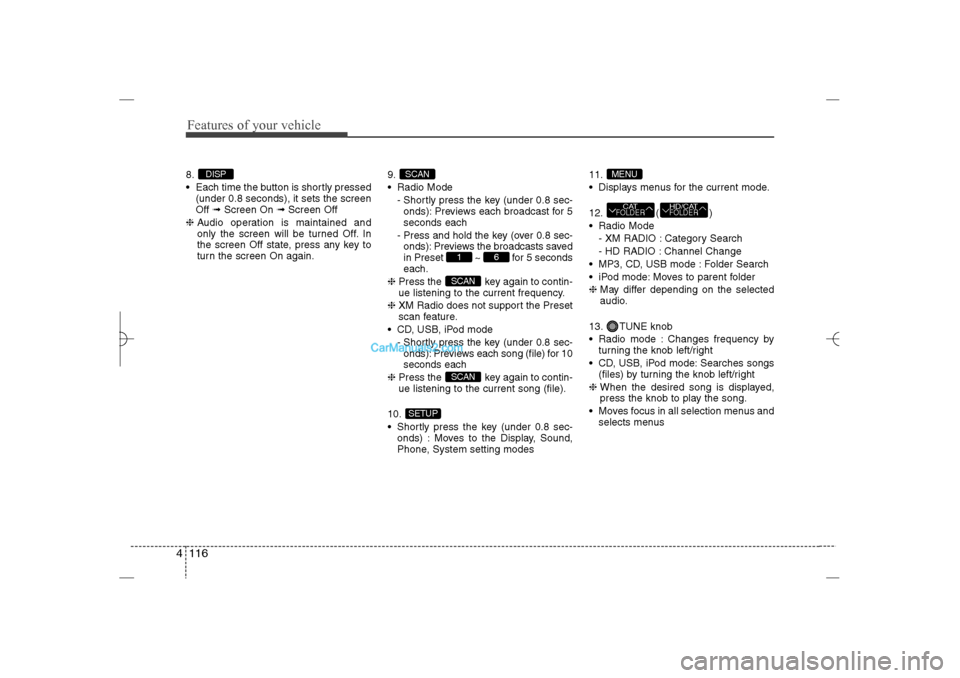
Each time the button is shortly pressed
(under 0.8 seconds), it sets the screen
Off ➟Screen On ➟Screen Off
❈Audio operation is maintained and
only the screen will be turned Off. In
the screen Off state, press any key to
turn the screen On again.9.
Radio Mode
- Shortly press the key (under 0.8 sec-
onds): Previews each broadcast for 5
seconds each
- Press and hold the key (over 0.8 sec-
onds): Previews the broadcasts saved
in Preset ~ for 5 seconds
each.
❈Press the key again to contin-
ue listening to the current frequency.
❈XM Radio does not support the Preset
scan feature.
CD, USB, iPod mode
- Shortly press the key (under 0.8 sec-
onds): Previews each song (file) for 10
seconds each
❈Press the key again to contin-
ue listening to the current song (file).
10.
Shortly press the key (under 0.8 sec-
onds) : Moves to the Display, Sound,
Phone, System setting modes11.
Displays menus for the current mode.
12. ( )
Radio Mode
- XM RADIO : Category Search
- HD RADIO : Channel Change
MP3, CD, USB mode : Folder Search
iPod mode: Moves to parent folder
❈May differ depending on the selected
audio.
13. TUNE knob
Radio mode : Changes frequency by
turning the knob left/right
CD, USB, iPod mode: Searches songs
(files) by turning the knob left/right
❈ When the desired song is displayed,
press the knob to play the song.
Moves focus in all selection menus and
selects menus
HD/CATFOLDER
CATFOLDERMENU
SETUP
SCANSCAN
6
1
SCAN
DISP
YF HMA 4b-112~(Audio).qxp 3/5/2012 4:24 PM Page 116
Page 200 of 410
![Hyundai Sonata 2013 Manual Online 4 119
Features of your vehicle
Speed Dependent Volume ControlThis feature is used to automatically con-
trol the volume level according to the
speed of the vehicle.
Select [SDVC] Set in 4 levels [Off/](/img/35/16808/w960_16808-199.png "Hyundai Sonata 2013 Manual Online 4 119
Features of your vehicle
Speed Dependent Volume ControlThis feature is used to automatically con-
trol the volume level according to the
speed of the vehicle.
Select [SDVC] Set in 4 levels [Off/")
4 119
Features of your vehicle
Speed Dependent Volume ControlThis feature is used to automatically con-
trol the volume level according to the
speed of the vehicle.
Select [SDVC] Set in 4 levels [Off/
Low/Mid/High] of
TUNE
knob
Voice Recognition VolumeAdjusts voice recognition volume.
Select [Voice Recognition Vol.] Set vol-
ume of
TUNE
knob
Blue Link Voice VolumeSets the Blue Link voice recognition vol-
ume.
❈While using Blue Link voice recogni-
tion, turning the tune knob will display
the volume control popup screen.
❈May differ depending on the selected
audio.
YF HMA 4b-112~(Audio).qxp 3/5/2012 4:24 PM Page 119
Page 204 of 410
4 123
Features of your vehicle
Bluetooth
®Wireless Technology
System Off
This feature is used when you do not
wish to use the
Bluetooth
®
Wireless
Technology system.
Select [
Bluetooth
®Wireless Technology
System Off] Set through TUNE knob
❈If a phone is already connected, dis-
connect the currently connected phone
and turn the Bluetooth
®
Wireless
Technology system off.
Using the
Bluetooth
®Wireless
Technology System
To use
Bluetooth
®Wireless Technology
when the system is currently off, follow
these next steps.
Turning On Bluetooth
®
Wireless
Technology through the Key
Press the key Screen Guidance❈Moves to the screen where
Bluetooth
®
Wireless Technology functions can be
used and displays guidance. Turning On
Bluetooth
®
Wireless
Technology through the Key
Press the key Select [Phone]
through TUNE knob or key➀A screen asking whether to turn onBluetooth
®
Wireless Technology will
be displayed.
➁On the screen, select to turn on
Bluetooth
®Wireless Technology and
display guidance.
❈If the
Bluetooth
®Wireless Technology
system is turned on, the system will
automatically try to connect the most
recently connected Bluetooth
®Wireless
Technology enabled mobile phone.
YES3
SETUP
SETUP
PHONE
PHONE
CAUTION
Bluetooth
®
Wireless Technology
connection may become intermit-
tently disconnected in some
mobile phones. Follow these next
steps to try again.
1) Turn the Bluetooth
®
Wireless
Technology function within the
mobile phone ON/OFF and try to
connect again.
2) Turn the mobile phone power
ON/OFF and try to connect again.
3) Completely remove the mobile
phone battery, reboot, and then
try to connect again.
4) Reboot the audio system and try
to connect again
5) Delete all paired devices in your
mobile phone and the audio sys-
tem and pair again for use.
YF HMA 4b-112~(Audio).qxp 3/5/2012 4:24 PM Page 123
Page 205 of 410
![Hyundai Sonata 2013 Manual Online Features of your vehicle124 4SYSTEM SETTINGSPress the key Select [System]
through tune knob or key Select
menu through TUNE knob
Memory InformationDisplays currently used memory and
total system me](/img/35/16808/w960_16808-204.png "Hyundai Sonata 2013 Manual Online Features of your vehicle124 4SYSTEM SETTINGSPress the key Select [System]
through tune knob or key Select
menu through TUNE knob
Memory InformationDisplays currently used memory and
total system me")
Features of your vehicle124 4SYSTEM SETTINGSPress the key Select [System]
through tune knob or key Select
menu through TUNE knob
Memory InformationDisplays currently used memory and
total system memory.
Select [Memory Information] OK
The currently used memory is displayed
on the left side while the total system
memory is displayed on the right side.Prompt FeedbackThis feature is used to change voice
command feedback between Normal and
Expert modes.
Select [Prompt Feedback] Set through
TUNE
knob
Normal : This mode is for beginner
users and provides detailed instruc-
tions during voice command operation.
Expert : This mode is for expert users
and omits some information during
voice command operation. (When using
Expert mode, guidance instructions can
be heard through the [Help] or [Menu]
commands.
LanguageThis menu is used to set the display and
voice recognition language.Select [Language] Set through TUNE
knob❈The system will reboot after the lan-
guage is changed.
❈Language support by region
- English, Francais, Espanol
4
SETUP
YF HMA 4b-112~(Audio).qxp 3/5/2012 4:24 PM Page 124
Page 206 of 410
4 125
Features of your vehicle
HD RADIO
TM
INFORMATION
Licensing informationHD Radio
TM
Technology Manufactured
Under License From iBiquity Digital
Corporation. U.S. and Foreign Patents.
HD Radio
TM
and the HD and HD Radio
logos are proprietary trademarks of
iBiquity Digital Corporation.
Availability informationHD Radio
TM reception is available in the
United States, including Alaska and
Hawaii.
What is HD Radio
TM
technology?
The vehicle audio system (if equipped) is
able to receive standard analog FM/AM
radio broadcasting as well as digital HD
Radio
TMFM/AM broadcasting.
HD RadioTM
technology provides digital
and analog reception using existing FM
and AM broadcasting frequencies.
Currently, radio stations broadcasting an
HD Radio
TM
signal are operating in a
hybrid mode of both, analog and digital, in
order to reach both receivers. In both
modes, analog and digital, the broadcast-
ed program contents is the same(except
of multicasting, see below).
Eventually, as analog receivers are
replaced by digital ones, radio stations
may be able to turn off their analog broad-
casting and use only digital broadcasting.
MulticastingHD Radio
TMFM stations are able to broad-
cast multiple digital program streams(chan-
nels) over a single FM frequency. For
example, a HD Radio
TMFM station can run
a main channel of music and a sub chan-
nel of news(or even two different music
channels) at one frequency.
But only the program content of the main
channel is broadcasted in analog.
HD Radio
TM
signal delay
To overcome the delay that digital sys-
tems inherently produce, HD Radio
TM
technology first uses the audio signal of
the analog broadcasting when you tune
to an AM station or to the main channel
of a FM station. After that, the system will
blend from analog to digital signal.
Normally, this blending is very smooth. If
you experience a skip in program content
of several seconds, the radio station has
not implemented HD Radio
TMbroadcast-
ing correctly. This is not a problem with
your audio system.
Due to the fact that sub channels are only
broadcasting digital, blending from ana-
log to digital signal is not possible if you
tune to a sub channel. In this case play-
back of the sub channel starts after sev-
eral seconds, this is a normal function.
YF HMA 4b-112~(Audio).qxp 3/5/2012 4:24 PM Page 125
Page 208 of 410
4 127
Features of your vehicle
RADIO : FM, AM OR XMChanging RADIO mode
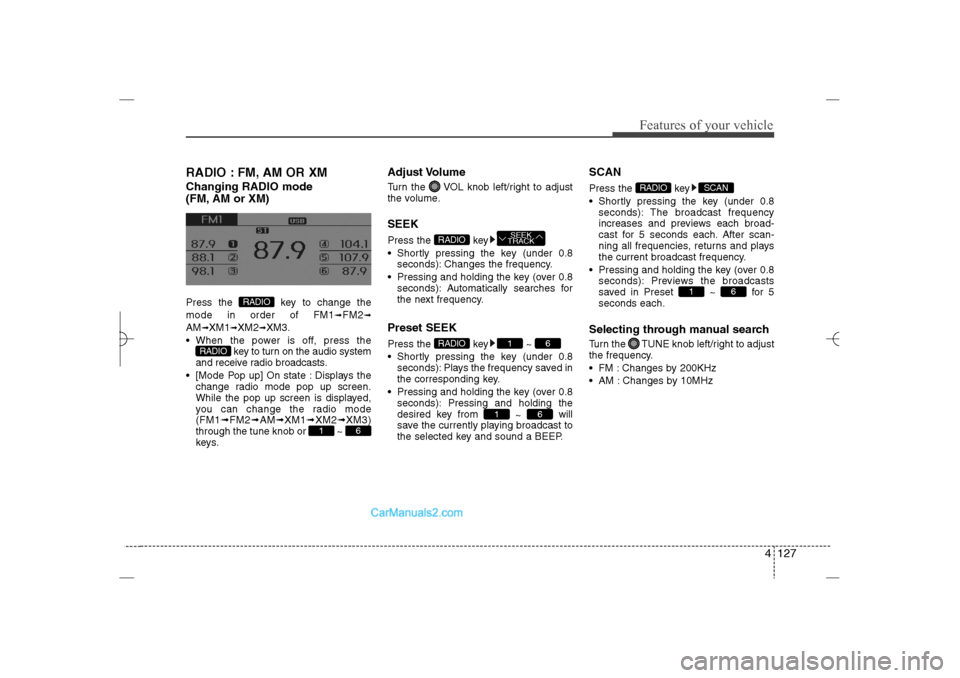
(FM, AM or XM)Press the key to change the
mode in order of FM1
➟FM2
➟
AM
➟XM1
➟XM2
➟XM3.
When the power is off, press the
key to turn on the audio system
and receive radio broadcasts.
[Mode Pop up] On state : Displays the
change radio mode pop up screen.
While the pop up screen is displayed,
you can change the radio mode
(FM1➟FM2➟AM➟XM1➟XM2➟XM3)
through the tune knob or ~
keys.
Adjust VolumeTurn the VOL knob left/right to adjust
the volume.SEEKPress the key
Shortly pressing the key (under 0.8
seconds): Changes the frequency.
Pressing and holding the key (over 0.8
seconds): Automatically searches for
the next frequency.Preset SEEKPress the key ~
Shortly pressing the key (under 0.8
seconds): Plays the frequency saved in
the corresponding key.
Pressing and holding the key (over 0.8
seconds): Pressing and holding the
desired key from
~ will
save the currently playing broadcast to
the selected key and sound a BEEP.
SCANPress the key
Shortly pressing the key (under 0.8
seconds): The broadcast frequency
increases and previews each broad-
cast for 5 seconds each. After scan-
ning all frequencies, returns and plays
the current broadcast frequency.
Pressing and holding the key (over 0.8
seconds): Previews the broadcasts
saved in Preset ~ for 5
seconds each.Selecting through manual searchTurn the TUNE knob left/right to adjust
the frequency.
FM : Changes by 200KHz
AM : Changes by 10MHz
6
1
SCAN
RADIO
6
1
6
1
RADIO
SEEK
TRACK
RADIO
6
1
RADIO
RADIO
YF HMA 4b-112~(Audio).qxp 3/5/2012 4:24 PM Page 127
Page 210 of 410
4 129
Features of your vehicle
HD RADIOListening to HD Radio StationsHD Radio Technology is a digital radio
technology used by AM and FM radio
station to transmit audio and data via a
digital signal in conjunction with their
analog signals.
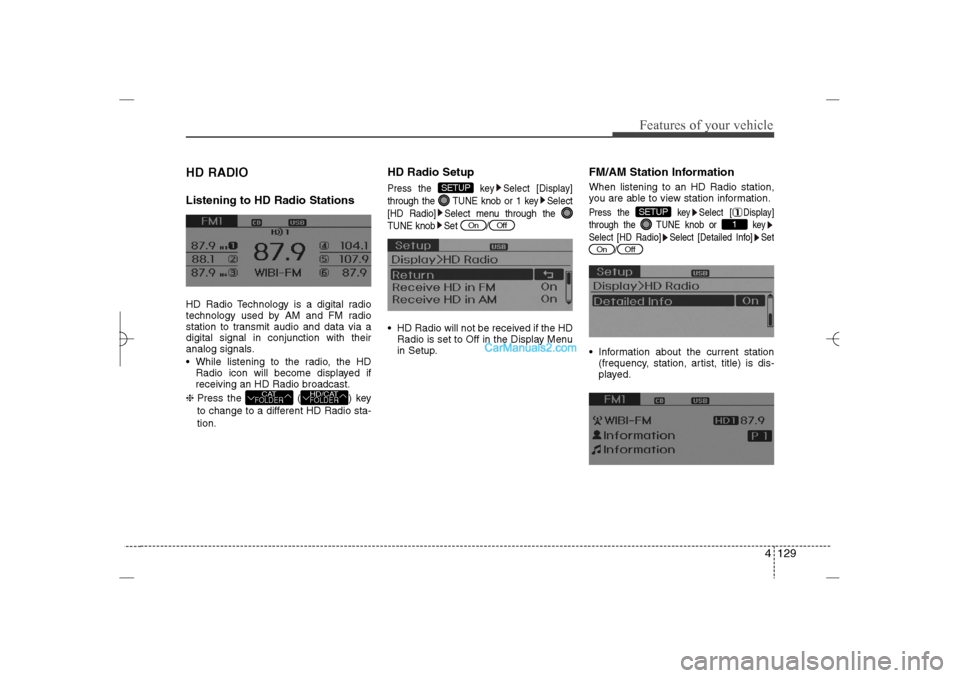
While listening to the radio, the HD
Radio icon will become displayed if
receiving an HD Radio broadcast.
❈ Press the ( ) key
to change to a different HD Radio sta-
tion.
HD Radio SetupPress the key Select [Display]
through the TUNE knob or 1 key Select
[HD Radio] Select menu through the
TUNE knob Set / HD Radio will not be received if the HD
Radio is set to Off in the Display Menu
in Setup.
FM/AM Station InformationWhen listening to an HD Radio station,
you are able to view station information.Press the key Select [ Display]
through the TUNE knob or key
Select [HD Radio] Select [Detailed Info] Set
/ Information about the current station
(frequency, station, artist, title) is dis-
played.
Off
On
1
SETUP
Off
On
SETUP
HD/CATFOLDER
CATFOLDER
YF HMA 4b-112~(Audio).qxp 3/5/2012 4:24 PM Page 129