all Hyundai Sonata 2013 Owner's Manual
[x] Cancel search | Manufacturer: HYUNDAI, Model Year: 2013, Model line: Sonata, Model: Hyundai Sonata 2013Pages: 410, PDF Size: 35.93 MB
Page 203 of 410
![Hyundai Sonata 2013 Owners Manual Features of your vehicle122 4 DeleteSelect [Phone List] Select mobile phone
through TUNE knob Select [Delete]➀Select the desired mobile phone.
➁Delete the selected mobile phone.
➂Deletion comp](/img/35/16808/w960_16808-202.png "Hyundai Sonata 2013 Owners Manual Features of your vehicle122 4 DeleteSelect [Phone List] Select mobile phone
through TUNE knob Select [Delete]➀Select the desired mobile phone.
➁Delete the selected mobile phone.
➂Deletion comp")
Features of your vehicle122 4 DeleteSelect [Phone List] Select mobile phone
through TUNE knob Select [Delete]➀Select the desired mobile phone.
➁Delete the selected mobile phone.
➂Deletion completion is displayed.
❈When attempting to delete a currently
connected phone, the phone is first
disconnected.
Contacts DownloadThis feature is used to download con-
tacts and call histories into the audio sys-
tem.
Select [Contacts Download] Select
through
TUNE
knob
Auto DownloadWhen connecting a mobile phone, it is
possible to automatically download new
Contacts and Call Histories.Select [Auto Download] Set
/
through TUNE knob
Audio StreamingSongs (files) saved in your
Bluetooth
®
Wireless Technology enabled mobile
phone can be played through the audio
system.Select [Audio Streaming] Set /
through TUNE knobOutgoing VolumeThis is used to set the volume of your
voice as heard by the other party while
on a
Bluetooth
®
Wireless Technology
enabled handsfree call.
Select [Outgoing Volume] Set volume
through
TUNE
knob
❈ Even while on a call, the volume can
be changed by using the
key.
SEEK
TRACK
Off
On
Off
On
CAUTION
The download feature may not be
supported in some mobile phones.
If a different operation is per-
formed while Contacts are being
downloaded, downloading will be
discontinued. Contacts already
downloaded will be saved.
When downloading new Contacts,
delete all previously saved
Contacts before starting down-
load.
CAUTION
The Bluetooth
®
Wireless
Technology audio streaming fea-
ture may not be supported in some
mobile phones.
CAUTION
When you delete a mobile phone,
the mobile phone contacts will
also be erased.
For stable Bluetooth
®
Wireless
Technology communication,
delete the mobile phone from the
audio and also delete the audio
from your mobile phone.
YF HMA 4b-112~(Audio).qxp 3/5/2012 4:24 PM Page 122
Page 204 of 410
4 123
Features of your vehicle
Bluetooth
®Wireless Technology
System Off
This feature is used when you do not
wish to use the
Bluetooth
®
Wireless
Technology system.
Select [
Bluetooth
®Wireless Technology
System Off] Set through TUNE knob
❈If a phone is already connected, dis-
connect the currently connected phone
and turn the Bluetooth
®
Wireless
Technology system off.
Using the
Bluetooth
®Wireless
Technology System
To use
Bluetooth
®Wireless Technology
when the system is currently off, follow
these next steps.
Turning On Bluetooth
®
Wireless
Technology through the Key
Press the key Screen Guidance❈Moves to the screen where
Bluetooth
®
Wireless Technology functions can be
used and displays guidance. Turning On
Bluetooth
®
Wireless
Technology through the Key
Press the key Select [Phone]
through TUNE knob or key➀A screen asking whether to turn onBluetooth
®
Wireless Technology will
be displayed.
➁On the screen, select to turn on
Bluetooth
®Wireless Technology and
display guidance.
❈If the
Bluetooth
®Wireless Technology
system is turned on, the system will
automatically try to connect the most
recently connected Bluetooth
®Wireless
Technology enabled mobile phone.
YES3
SETUP
SETUP
PHONE
PHONE
CAUTION
Bluetooth
®
Wireless Technology
connection may become intermit-
tently disconnected in some
mobile phones. Follow these next
steps to try again.
1) Turn the Bluetooth
®
Wireless
Technology function within the
mobile phone ON/OFF and try to
connect again.
2) Turn the mobile phone power
ON/OFF and try to connect again.
3) Completely remove the mobile
phone battery, reboot, and then
try to connect again.
4) Reboot the audio system and try
to connect again
5) Delete all paired devices in your
mobile phone and the audio sys-
tem and pair again for use.
YF HMA 4b-112~(Audio).qxp 3/5/2012 4:24 PM Page 123
Page 206 of 410
4 125
Features of your vehicle
HD RADIO
TM
INFORMATION
Licensing informationHD Radio
TM
Technology Manufactured
Under License From iBiquity Digital
Corporation. U.S. and Foreign Patents.
HD Radio
TM
and the HD and HD Radio
logos are proprietary trademarks of
iBiquity Digital Corporation.
Availability informationHD Radio
TM reception is available in the
United States, including Alaska and
Hawaii.
What is HD Radio
TM
technology?
The vehicle audio system (if equipped) is
able to receive standard analog FM/AM
radio broadcasting as well as digital HD
Radio
TMFM/AM broadcasting.
HD RadioTM
technology provides digital
and analog reception using existing FM
and AM broadcasting frequencies.
Currently, radio stations broadcasting an
HD Radio
TM
signal are operating in a
hybrid mode of both, analog and digital, in
order to reach both receivers. In both
modes, analog and digital, the broadcast-
ed program contents is the same(except
of multicasting, see below).
Eventually, as analog receivers are
replaced by digital ones, radio stations
may be able to turn off their analog broad-
casting and use only digital broadcasting.
MulticastingHD Radio
TMFM stations are able to broad-
cast multiple digital program streams(chan-
nels) over a single FM frequency. For
example, a HD Radio
TMFM station can run
a main channel of music and a sub chan-
nel of news(or even two different music
channels) at one frequency.
But only the program content of the main
channel is broadcasted in analog.
HD Radio
TM
signal delay
To overcome the delay that digital sys-
tems inherently produce, HD Radio
TM
technology first uses the audio signal of
the analog broadcasting when you tune
to an AM station or to the main channel
of a FM station. After that, the system will
blend from analog to digital signal.
Normally, this blending is very smooth. If
you experience a skip in program content
of several seconds, the radio station has
not implemented HD Radio
TMbroadcast-
ing correctly. This is not a problem with
your audio system.
Due to the fact that sub channels are only
broadcasting digital, blending from ana-
log to digital signal is not possible if you
tune to a sub channel. In this case play-
back of the sub channel starts after sev-
eral seconds, this is a normal function.
YF HMA 4b-112~(Audio).qxp 3/5/2012 4:24 PM Page 125
Page 207 of 410
Features of your vehicle126 4Automatic switching between dig-
ital and analog broadcastingIf the reception of the digital signal is lost,
the system switches automatically to the
analog signal. As soon as the digital sig-
nal is available again, it will switch back.
Due to the fact that sub channels are
only broadcasted digital, the system
mutes playback if you have tuned to a
sub channel and the digital signal is lost.
The main line will shows the message No
HD signal in place of station name.
After approximately one minute with the
digital signal lost, the system will auto-
matically tune to the analog signal of the
corresponding frequency.Text based informationHD Radio
TM
stations are able to broad-
cast text based information, e.g. station
name, song title and artist name. The
Driver Information System is able to dis-
play this information. Digital, CD-quality sound. HD Radio
Technology enables local radio stations
to broadcast a clean digital signal. AM
sounds like today’s FM and FM sounds
like a CD.
Program Service Data : Contributes to
the superior user experience of HD
Radio Technology. Presents song
name, artist, station IDs, HD2/HD3
Channel Guide, and other relevant data
stream.
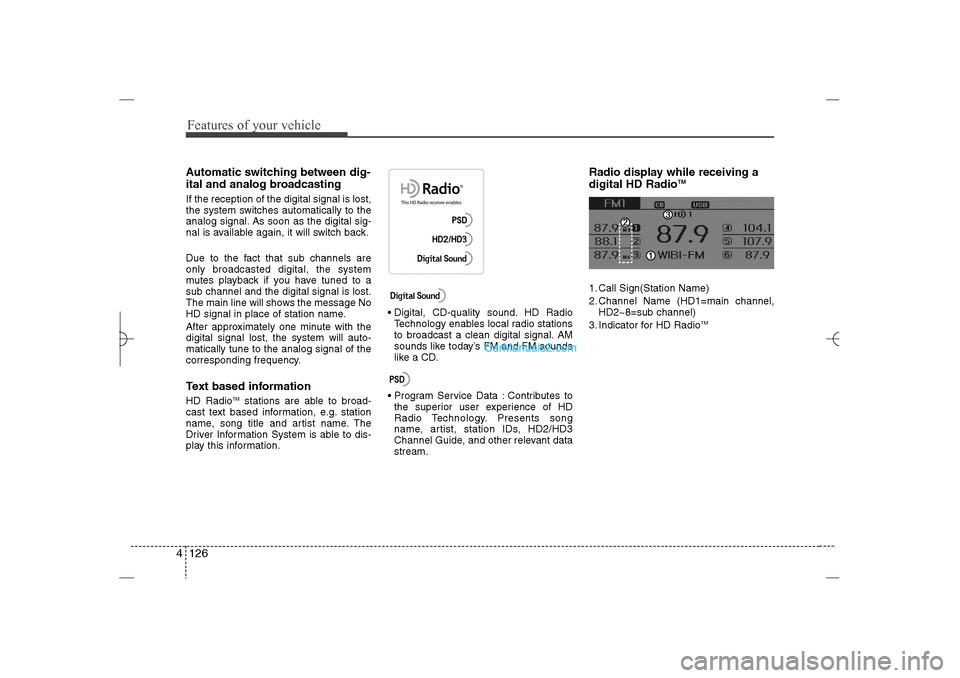
Radio display while receiving a
digital HD Radio
TM
1. Call Sign(Station Name)
2. Channel Name (HD1=main channel,
HD2~8=sub channel)
3. Indicator for HD Radio
TM
YF HMA 4b-112~(Audio).qxp 3/5/2012 4:24 PM Page 126
Page 208 of 410
4 127
Features of your vehicle
RADIO : FM, AM OR XMChanging RADIO mode
(FM, AM or XM)Press the key to change the
mode in order of FM1
➟FM2
➟
AM
➟XM1
➟XM2
➟XM3.
When the power is off, press the
key to turn on the audio system
and receive radio broadcasts.
[Mode Pop up] On state : Displays the
change radio mode pop up screen.
While the pop up screen is displayed,
you can change the radio mode
(FM1➟FM2➟AM➟XM1➟XM2➟XM3)
through the tune knob or ~
keys.
Adjust VolumeTurn the VOL knob left/right to adjust
the volume.SEEKPress the key
Shortly pressing the key (under 0.8
seconds): Changes the frequency.
Pressing and holding the key (over 0.8
seconds): Automatically searches for
the next frequency.Preset SEEKPress the key ~
Shortly pressing the key (under 0.8
seconds): Plays the frequency saved in
the corresponding key.
Pressing and holding the key (over 0.8
seconds): Pressing and holding the
desired key from
~ will
save the currently playing broadcast to
the selected key and sound a BEEP.
SCANPress the key
Shortly pressing the key (under 0.8
seconds): The broadcast frequency
increases and previews each broad-
cast for 5 seconds each. After scan-
ning all frequencies, returns and plays
the current broadcast frequency.
Pressing and holding the key (over 0.8
seconds): Previews the broadcasts
saved in Preset ~ for 5
seconds each.Selecting through manual searchTurn the TUNE knob left/right to adjust
the frequency.
FM : Changes by 200KHz
AM : Changes by 10MHz
6
1
SCAN
RADIO
6
1
6
1
RADIO
SEEK
TRACK
RADIO
6
1
RADIO
RADIO
YF HMA 4b-112~(Audio).qxp 3/5/2012 4:24 PM Page 127
Page 213 of 410
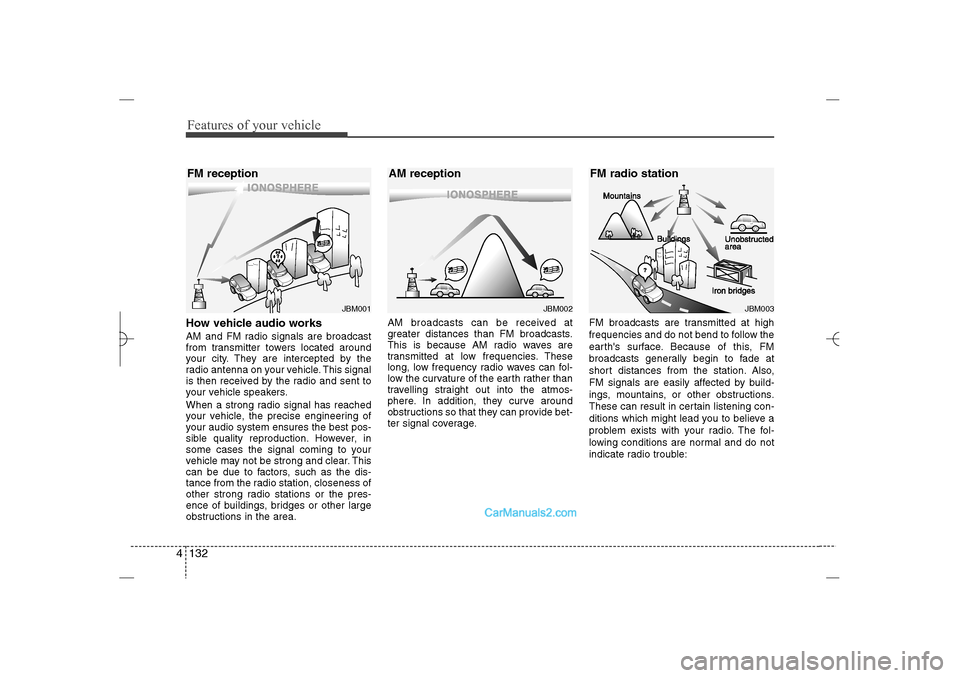
Features of your vehicle132 4How vehicle audio worksAM and FM radio signals are broadcast
from transmitter towers located around
your city. They are intercepted by the
radio antenna on your vehicle. This signal
is then received by the radio and sent to
your vehicle speakers.
When a strong radio signal has reached
your vehicle, the precise engineering of
your audio system ensures the best pos-
sible quality reproduction. However, in
some cases the signal coming to your
vehicle may not be strong and clear. This
can be due to factors, such as the dis-
tance from the radio station, closeness of
other strong radio stations or the pres-
ence of buildings, bridges or other large
obstructions in the area.AM broadcasts can be received at
greater distances than FM broadcasts.
This is because AM radio waves are
transmitted at low frequencies. These
long, low frequency radio waves can fol-
low the curvature of the earth rather than
travelling straight out into the atmos-
phere. In addition, they curve around
obstructions so that they can provide bet-
ter signal coverage.FM broadcasts are transmitted at high
frequencies and do not bend to follow the
earth's surface. Because of this, FM
broadcasts generally begin to fade at
short distances from the station. Also,
FM signals are easily affected by build-
ings, mountains, or other obstructions.
These can result in certain listening con-
ditions which might lead you to believe a
problem exists with your radio. The fol-
lowing conditions are normal and do not
indicate radio trouble:
JBM002
AM reception
JBM001
FM reception
JBM003
FM radio station
YF HMA 4b-112~(Audio).qxp 3/5/2012 4:24 PM Page 132
Page 215 of 410
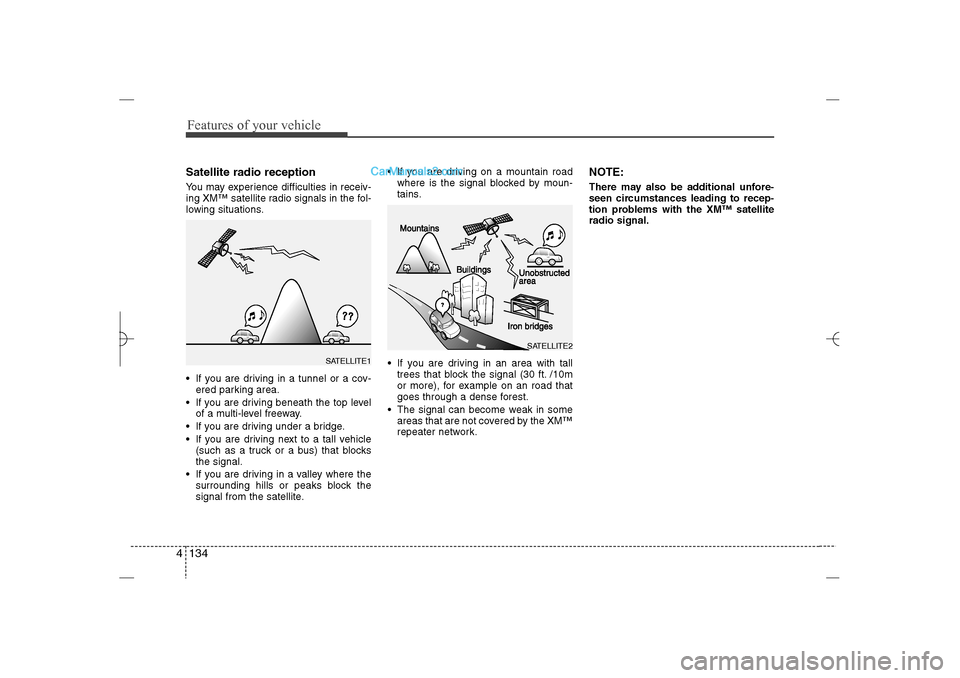
Features of your vehicle134 4Satellite radio receptionYou may experience difficulties in receiv-
ing XM™ satellite radio signals in the fol-
lowing situations.
If you are driving in a tunnel or a cov-
ered parking area.
If you are driving beneath the top level
of a multi-level freeway.
If you are driving under a bridge.
If you are driving next to a tall vehicle
(such as a truck or a bus) that blocks
the signal.
If you are driving in a valley where the
surrounding hills or peaks block the
signal from the satellite. If you are driving on a mountain road
where is the signal blocked by moun-
tains.
If you are driving in an area with tall
trees that block the signal (30 ft. /10m
or more), for example on an road that
goes through a dense forest.
The signal can become weak in some
areas that are not covered by the XM™
repeater network.
NOTE:There may also be additional unfore-
seen circumstances leading to recep-
tion problems with the XM™ satellite
radio signal.
SATELLITE2
SATELLITE1
YF HMA 4b-112~(Audio).qxp 3/5/2012 4:24 PM Page 134
Page 216 of 410
4 135
Features of your vehicle
BASIC METHOD OF USE :
Audio CD / MP3 CD / USB /
iPod / My MusicPress the key to change the mod
mode in order of CD
➟USB(iPod)
➟AUX
➟My Music
➟BT Audio.
The folder/file name is displayed on the
screen.
❈ The CD is automatically played when
a CD is inserted.
❈ The USB music is automatically
played when a USB is connected.
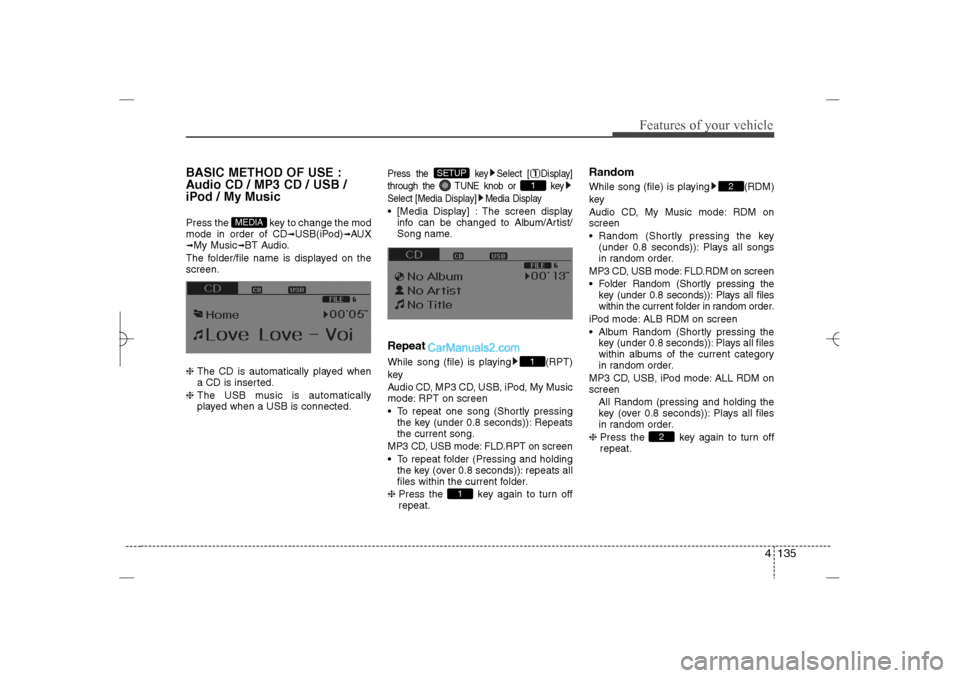
Press the key Select [ Display]
through the TUNE knob or key
Select [Media Display] Media Display [Media Display] : The screen display
info can be changed to Album/Artist/
Song name.RepeatWhile song (file) is playing (RPT)
key
Audio CD, MP3 CD, USB, iPod, My Music
mode: RPT on screen
To repeat one song (Shortly pressing
the key (under 0.8 seconds)): Repeats
the current song.
MP3 CD, USB mode: FLD.RPT on screen
To repeat folder (Pressing and holding
the key (over 0.8 seconds)): repeats all
files within the current folder.
❈ Press the key again to turn off
repeat.
RandomWhile song (file) is playing (RDM)
key
Audio CD, My Music mode: RDM on
screen
Random (Shortly pressing the key
(under 0.8 seconds)): Plays all songs
in random order.
MP3 CD, USB mode: FLD.RDM on screen
Folder Random (Shortly pressing the
key (under 0.8 seconds)): Plays all files
within the current folder in random order.
iPod mode: ALB RDM on screen
Album Random (Shortly pressing the
key (under 0.8 seconds)): Plays all files
within albums of the current category
in random order.
MP3 CD, USB, iPod mode: ALL RDM on
screen
All Random (pressing and holding the
key (over 0.8 seconds)): Plays all files
in random order.
❈ Press the key again to turn off
repeat.
2
2
1
11
SETUP
MEDIA
YF HMA 4b-112~(Audio).qxp 3/5/2012 4:24 PM Page 135
Page 217 of 410
Features of your vehicle136 4Changing Song/FileWhile song (file) is playing key Shortly pressing the key (under 0.8
seconds): Plays the current song from
the beginning.
❈ If the key is pressed again
within 1 second, the previous song is
played.
Pressing and holding the key (over 0.8
seconds): Rewinds the song.While song (file) is playing key Shortly pressing the key (under 0.8
seconds): Plays the next song.
Pressing and holding the key (over 0.8
seconds): Fast forwards the song.
ScanWhile song (file) is playing keyScans all songs for 10 seconds starting
from the next song.
❈ Press the key again to turn off.
❈ The SCAN function is not supported in
iPod mode.Folder Search : MP3 CD, USB
ModeWhile file is playing
( ) (Folder Up) key Searches the next folder.While file is playing
( ) (Folder Down) key Searches the previous folder.
❈ If a folder is selected by pressing the
TUNE knob, the first file within the
selected folder will be played.
❈ In iPod mode, moves to the Parent
Folder.
Searching Songs (File) Turning TUNE knob : Searches for
songs (files)
Pressing TUNE knob : Plays select-
ed song (file).
HD/CAT
FOLDER
CAT
FOLDER
HD/CAT
FOLDER
CAT
FOLDER
SCAN
SCAN
SEEK
TRACK
SEEK
TRACK
SEEK
TRACK
YF HMA 4b-112~(Audio).qxp 3/5/2012 4:24 PM Page 136
Page 219 of 410
![Hyundai Sonata 2013 Owners Manual Features of your vehicle138 4MENU : MP3 CD / USBPress the CD MP3 mode key to
set the Repeat, Folder Random, Folder
Repeat, All Random, Information, and
Copy features.RepeatPress the key Set [ RPT]
t](/img/35/16808/w960_16808-218.png "Hyundai Sonata 2013 Owners Manual Features of your vehicle138 4MENU : MP3 CD / USBPress the CD MP3 mode key to
set the Repeat, Folder Random, Folder
Repeat, All Random, Information, and
Copy features.RepeatPress the key Set [ RPT]
t")
Features of your vehicle138 4MENU : MP3 CD / USBPress the CD MP3 mode key to
set the Repeat, Folder Random, Folder
Repeat, All Random, Information, and
Copy features.RepeatPress the key Set [ RPT]
through the
TUNE
knob or key to
repeat the current song.
❈ Press RPT again to turn off.
Folder RandomPress the key Set [ F.RDM]
through the
TUNE
knob or key to
randomly play songs within the current
folder.
❈ Press F.RDM again to turn off.
Folder RepeatPress the key Set [ F.RPT]
through the
TUNE
knob or key to
repeat songs within the current folder.
❈ Press F.RPT again to turn off.
All RandomPress the key Set [ A.RDM]
through the
TUNE
knob or key to
randomly play all songs within the CD.
❈ Press A.RDM again to turn off.
InformationPress the key Set [ Info]
through the
TUNE
knob or key to
display information of the current song.
❈ Press the key to turn off info
display.
CopyPress the key Set [ Copy]
through the
TUNE
knob or key.
This is used to copy the current song
into My Music. You can play the copied
Music in My Music mode.
❈ If another key is pressed while copying
is in progress, a pop up asking you
whether to cancel copying is dis-
played.
❈ If another media is connected or
inserted (USB, CD, iPod, AUX) while
copying is in progress, copying is can-
celed.
❈ Music will not be played while copying
is in progress.
6
MENU
MENU
5
MENU
4
MENU
3
MENU
2
MENU
1
MENU
MENU
YF HMA 4b-112~(Audio).qxp 3/5/2012 4:24 PM Page 138