bluetooth Hyundai Sonata 2014 User Guide
[x] Cancel search | Manufacturer: HYUNDAI, Model Year: 2014, Model line: Sonata, Model: Hyundai Sonata 2014Pages: 665, PDF Size: 17.43 MB
Page 281 of 665
4-23
Multimedia System
4
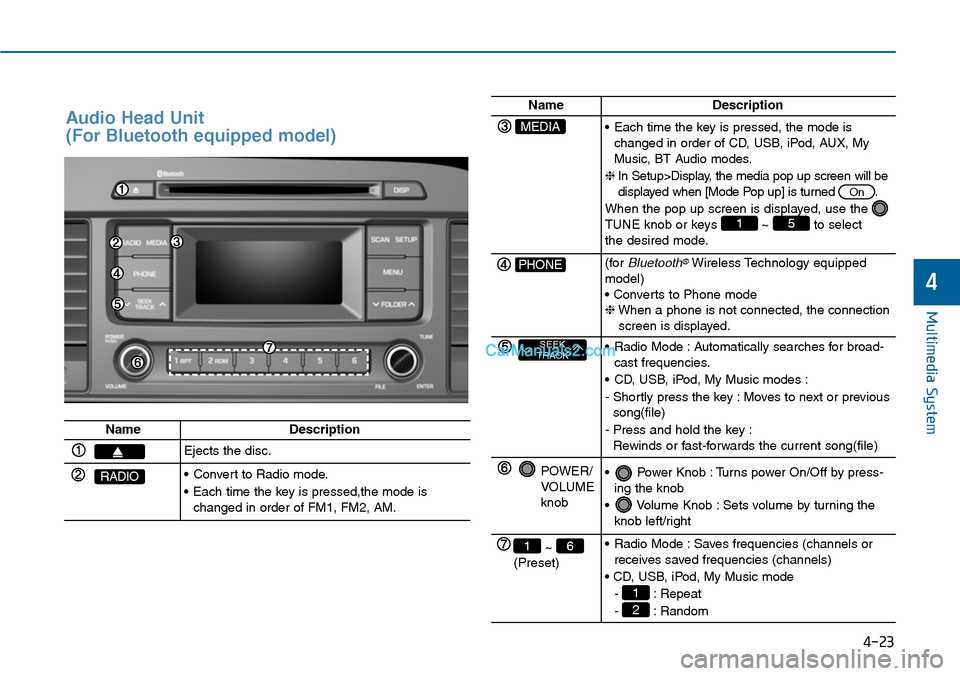
Audio Head Unit
(For Bluetooth equipped model)
NameDescription
Ejects the disc.
RADIO•Convert to Radio mode.
•Each time the key is pressed,the mode ischanged in order of FM1, FM2, AM.
NameDescription
MEDIA•Each time the key is pressed, the mode ischanged in order of CD, USB, iPod, AUX, MyMusic, BT Audio modes.
❈In Setup>Display, the media pop up screen will bedisplayed when [Mode Pop up] is turned .
When the pop up screen is displayed, use the TUNE knob or keys ~ to selectthe desired mode.
51
On
PHONE(forBluetooth®Wireless Technology equippedmodel)• Converts to Phone mode❈When a phone is not connected, the connectionscreen is displayed.
SEEKTRACK•Radio Mode :Automatically searches for broad-cast frequencies.
•CD, USB, iPod, My Music modes :
- Shortly press the key : Moves to next or previoussong(file)
- Press and hold the key :Rewinds or fast-forwards the current song(file)
POWER/VOLUMEknob
•Power Knob :Turns power On/Off by press-ing the knob
•Volume Knob :Sets volume by turning theknob left/right
~ (Preset)
61•Radio Mode :Saves frequencies (channels orreceives saved frequencies (channels)
• CD, USB, iPod, My Music mode
- : Repeat
- : Random2
1
Page 286 of 665
![Hyundai Sonata 2014 User Guide Phone Setup
(for RDS, Bluetooth®Wireless
Technologyequipped model)
Press the key Select [Phone]
through TUNE knob or key
Select menu through TUNE knob
Pair Phone
To p a i r a Bluetooth](/img/35/16805/w960_16805-285.png "Hyundai Sonata 2014 User Guide Phone Setup
(for RDS, Bluetooth®Wireless
Technologyequipped model)
Press the key Select [Phone]
through TUNE knob or key
Select menu through TUNE knob
Pair Phone
To p a i r a Bluetooth")
Phone Setup
(for RDS, Bluetooth®Wireless
Technologyequipped model)
Press the key Select [Phone]
through TUNE knob or key
Select menu through TUNE knob
Pair Phone
To p a i r a Bluetooth®Wireless
Te ch n o l o g y e n a bl e d m o b i l e
phone, authentication and con-
nection processes are first
required. As a result, you cannot
pair your mobile phone while driv-
ing the vehicle. First park your
vehicle before use.
Select [Pair Phone] Set through
TUNE knob
➀ Search for device names as dis-
played on your mobile phone and
connect.
➁ Input the passkey displayed on the
screen. (Passkey : 0000)
❈The device name and passkey will
be displayed on the screen for up
to 3 minutes. If pairing is not com-
pleted within the 3 minutes, the
mobile phone pairing process will
automatically be canceled.
➂ Pair ing completion is displayed.
❈In some mobile phones, pairing
will automatically be followed by
connection.
❈It is possible to pair up to five
Bluetooth®Wireless Technology
enabled mobile phones.
NOTICE
4
SETUP
4-28
Multimedia System
Page 288 of 665
![Hyundai Sonata 2014 User Guide • Delete
Select [Phone List] Select mobile
phone through TUNE knob
Select [Delete]
➀ Select the desired mobile phone.
➁ Delete the selected mobile phone.
➂ Deletion completion is display](/img/35/16805/w960_16805-287.png "Hyundai Sonata 2014 User Guide • Delete
Select [Phone List] Select mobile
phone through TUNE knob
Select [Delete]
➀ Select the desired mobile phone.
➁ Delete the selected mobile phone.
➂ Deletion completion is display")
• Delete
Select [Phone List] Select mobile
phone through TUNE knob
Select [Delete]
➀ Select the desired mobile phone.
➁ Delete the selected mobile phone.
➂ Deletion completion is displayed.
❈When attempting to delete a cur-
rently connected phone, the
phone is first disconnected.
•When you delete a mobile
phone, the mobile phone phone
book will also be erased.
•For stable Bluetooth®Wireless
Te ch n o l o g y c o m mu n i c a t i o n ,
delete the mobile phone from
the audio and also delete the
audio from your mobile phone.
Phone book Download
This feature is used to download
phone book and call histories into
the audio system.
Select [Phone book Download]
Select through TUNE knob
•The download feature may not
be supported in some mobile
phones.
•If a different operation is per-
formed while phone book is
being downloaded, downloading
will be discontinued. Phone
book already downloaded will
be saved.
•When downloading new phone
book, delete all previously saved
phone book before starting
download.
Auto Download
When connecting a mobile phone, it
is possible to automatically download
new phone book and Call Histories.
Select [Auto Download] Set /
through TUNE knob
Audio Streaming
Songs (files) saved in your
Bluetooth®Wireless Technology
enabledmobile phone can be played
through the audio system.
Select [Audio Streaming] Set /
through TUNE knob
The Bluetooth®Wireless Technology
audio streaming feature may not be
supported in some mobile phones.
NOTICE
Off
On
Off
On
NOTICE
NOTICE
4-30
Multimedia System
Page 289 of 665
![Hyundai Sonata 2014 User Guide Outgoing Volume
This is used to set the volume of your
voice as heard by the other par ty
while on a Bluetooth®Wireless
Technology enabled handsfree call.
Select [Outgoing Volume] Set vol-](/img/35/16805/w960_16805-288.png "Hyundai Sonata 2014 User Guide Outgoing Volume
This is used to set the volume of your
voice as heard by the other par ty
while on a Bluetooth®Wireless
Technology enabled handsfree call.
Select [Outgoing Volume] Set vol-")
Outgoing Volume
This is used to set the volume of your
voice as heard by the other par ty
while on a Bluetooth®Wireless
Technology enabled handsfree call.
Select [Outgoing Volume] Set vol-
ume through TUNE knob
❈ Even while on a call, the volume
can be changed by using the
key.
Bluetooth®Wireless
Technology System Off
This feature is used when you do not
wish to use the Bluetooth®Wireless
Technologysystem.
Select [Bluetooth System Off] Set
through TUNE knob
❈ If a phone is already connected,
disconnect the currently connected
phone and turn the Bluetooth®
Wireless Technologysystem off.
Using the Bluetooth®Wireless
Technology System
To u s e Bluetooth®Wireless Technology
when the system is currently off, fol-
low these next steps.
•Turning On Bluetooth®Wireless
Te c h n o l o g y t h r o u g h t h e
Key
Press the key Screen
Guidance
❈ Moves to the screen where
Bluetooth®Wireless Technology
functions can be used and displays
guidance.
• Turning On Bluetooth®Wireless
Te c h n o l o g y t h r o u g h t h e
Key
Press the key Select [Phone]
through TUNE knob or key
➀ A screen asking whether to turn
on Bluetooth®Wireless Technology
will be displayed.
➁ On the screen, select to turn
on Bluetooth®Wireless Technology
and display guidance.
❈ If the Bluetooth®Wireless Technologysystem is turned on, the system willautomatically try to connect themost recently connected Bluetooth®
Wireless Technologymobile phone.
•Bluetooth®Wireless Technology
connection may become inter-
mittently disconnected in some
mobile phones. Follow these
next steps to try again.
1) Turn the Bluetooth®Wireless
Technology function within the
mobile phone ON/OFF and try
to connect again.
2) Turn the mobile phone power
ON/OFF and try to connect
again.
3) Completely remove the mobile
phone battery, reboot, and then
try to connect again.
4) Reboot the audio system and
try to connect again
5) Delete all paired devices in your
mobile phone and the audio
system and pair again for use.
NOTICE
YES
3
SETUP
SETUP
PHONE
PHONE
SEEKTRACK
4-31
Multimedia System
4
Page 293 of 665
![Hyundai Sonata 2014 User Guide Phone Setup
(for Bluetooth®Wireless
Technology equipped model)
Press the key Select
[Phone] through TUNE knob or
key Select menu through
TUNE knob
Pair Phone
To p a i r a Bluetooth®W](/img/35/16805/w960_16805-292.png "Hyundai Sonata 2014 User Guide Phone Setup
(for Bluetooth®Wireless
Technology equipped model)
Press the key Select
[Phone] through TUNE knob or
key Select menu through
TUNE knob
Pair Phone
To p a i r a Bluetooth®W")
Phone Setup
(for Bluetooth®Wireless
Technology equipped model)
Press the key Select
[Phone] through TUNE knob or
key Select menu through
TUNE knob
Pair Phone
To p a i r a Bluetooth®Wireless
Te ch n o l o g y e n a bl e d m o b i l e p h o n e ,
authentication and connection
processes are first required. As a
result, you cannot pair your mobile
phone while driving the vehicle.
First park your vehicle before use.
Select [Pair Phone] Set through
TUNE knob
➀Search for device names as dis-
played on your mobile phone and
connect.
➁ Input the passkey displayed on the
screen. (Passkey : 0000)
❈ The device name and passkey will
be displayed on the screen for up
to 3 minutes. If pairing is not com-
pleted within the 3 minutes, the
mobile phone pairing process will
automatically be canceled.
➂ Pair ing completion is displayed.
❈ In some mobile phones, pairing
will automatically be followed by
connection.
❈ It is possible to pair up to five
Bluetooth®Wireless Technology
enabled mobile phones.
NOTICE
4
SETUP
4-35
Multimedia System
4
Page 295 of 665
![Hyundai Sonata 2014 User Guide - The connected phone will auto-
matically be changed to No. 1 pri-
ority.
• Delete
Select [Phone List] Select mobile
phone through TUNE knob Select
[Delete]
➀ Select the desired mobile](/img/35/16805/w960_16805-294.png "Hyundai Sonata 2014 User Guide - The connected phone will auto-
matically be changed to No. 1 pri-
ority.
• Delete
Select [Phone List] Select mobile
phone through TUNE knob Select
[Delete]
➀ Select the desired mobile")
- The connected phone will auto-
matically be changed to No. 1 pri-
ority.
• Delete
Select [Phone List] Select mobile
phone through TUNE knob Select
[Delete]
➀ Select the desired mobile phone.
➁ Delete the selected mobile phone.
➂ Deletion completion is displayed.
❈ When attempting to delete a currentlyconnected phone, the phone is firstdisconnected.
•When you delete a mobile
phone, the mobile phone con-
tacts will also be erased.
•For stable Bluetooth®Wireless
Te ch n o l o g y c o m mu n i c a t i o n ,
delete the mobile phone from
the audio and also delete the
audio from your mobile phone.
Contacts Download
This feature is used to download
contacts and call histories into the
audio system.
Select [Contacts Download] Select
through TUNEknob
•The download feature may not
be supported in some mobile
phones.
•If a different operation is per-
formed while Contacts are being
downloaded, downloading will be
discontinued. Contacts already
downloaded will be saved.
•When downloading new
Contacts, delete all previously
saved Contacts before starting
download.
Auto Download
When connecting a mobile phone, it
is possible to automatically download
new Contacts and Call Histories.
Select [Auto Download] Set /
through TUNE knob
Audio Streaming
Songs (files) saved in your
Bluetooth®Wireless Technology
enabledmobile phone can be played
through the audio system.
Select [Audio Streaming] Set /
through TUNE knob
The Bluetooth®Wireless Technology
audio streaming feature may not be
supported in some mobile phones.
Outgoing Volume
This is used to set the volume of your
voice as heard by the other par ty
while on a Bluetooth®Wireless
Technology enabled handsfree call.
Select [Outgoing Volume] Set vol-
ume through TUNEknob
❈ Even while on a call, the volume
can be changed by using the
key.SEEKTRACK
NOTICE
Off
On
Off
On
NOTICE
NOTICE
4-37
Multimedia System
4
Page 296 of 665
![Hyundai Sonata 2014 User Guide Bluetooth®Wireless
Technology System Off
This feature is used when you do not
wish to use the Bluetooth®Wireless
Technologysystem.
Select [Bluetooth System Off] Set
through TUNE knob
❈ If](/img/35/16805/w960_16805-295.png "Hyundai Sonata 2014 User Guide Bluetooth®Wireless
Technology System Off
This feature is used when you do not
wish to use the Bluetooth®Wireless
Technologysystem.
Select [Bluetooth System Off] Set
through TUNE knob
❈ If")
Bluetooth®Wireless
Technology System Off
This feature is used when you do not
wish to use the Bluetooth®Wireless
Technologysystem.
Select [Bluetooth System Off] Set
through TUNE knob
❈ If a phone is already connected,
disconnect the currently connect-
ed phone and turn the Bluetooth®
Wireless Technology system off.
Using the Bluetooth®Wireless
Technology System
To u s e Bluetooth®Wireless Technology
when the system is currently off, fol-
low these next steps.
• Turning On Bluetooth®Wireless
Te c h n o l o g y t h r o u g h t h e
Key
Press the key Screen
Guidance
❈ Moves to the screen where
Bluetooth®Wireless Technology
functions can be used and dis-
plays guidance.
•Turning On Bluetooth®Wireless
Te c h n o l o g y t h r o u g h t h e
key
Press the key Select [Phone]
through TUNE knob or key
➀ A screen asking whether to turn
on Bluetooth®Wireless Technology
will be displayed.
➁ On the screen, select to turn
on Bluetooth®Wireless Technology
and display guidance.
❈ If the Bluetooth®Wireless
Technology system is turned on,
the system will automatically try to
connect the most recently con-
nected Bluetooth®Wireless
Technology mobile phone.
•Bluetooth®Wireless Technology
connection may become inter-
mittently disconnected in some
mobile phones. Follow these
next steps to try again.
1) Turn the Bluetooth®Wireless
Technology function within the
mobile phone ON/OFF and try
to connect again.
2) Turn the mobile phone power
ON/OFF and try to connect
again.
3) Completely remove the mobile
phone battery, reboot, and then
try to connect again.
4) Reboot the audio system and
try to connect again
5) Delete all paired devices in your
mobile phone and the audio
system and pair again for use.
NOTICE
YES
3
SETUP
SETUP
PHONE
PHONE
4-38
Multimedia System
Page 306 of 665
![Hyundai Sonata 2014 User Guide Phone MENU (for RDS model)
Press the key to display three
menus (Call History, Phone Book,
Phone Setup).
Call history
Press the key Set [
History] through the TUNE knob
or key.
The call h](/img/35/16805/w960_16805-305.png "Hyundai Sonata 2014 User Guide Phone MENU (for RDS model)
Press the key to display three
menus (Call History, Phone Book,
Phone Setup).
Call history
Press the key Set [
History] through the TUNE knob
or key.
The call h")
Phone MENU (for RDS model)
Press the key to display three
menus (Call History, Phone Book,
Phone Setup).
Call history
Press the key Set [
History] through the TUNE knob
or key.
The call history is displayed and can
be used to select a number and
make a call.
If call history does not exist, a screen
asking whether to download call his-
tory is displayed. (The download fea-
ture may not be supported in some
mobile phones)
Phone Book
Press the key Set [ P.
Book] through the TUNE knob or
key.
The phone book is displayed and
can be used to select a number and
make a call.
❈If more than one number is saved
to one contact, then a screen
showing the mobile phone num-
ber, Home and office number is
displayed. Select the desired num-
ber to make the call.
❈If phone book do not exist, a
screen asking whether to down-
load phone book is displayed. (The
download feature may not be sup-
ported in some mobile phones)
Phone Setup
Press the key Set [ Setup]
through the TUNE knob or
key.
The Bluetooth®Wireless Technology
mobile phone setup screen is dis-
played. For more information, refer to
“Phone Setup”.
3
PHONE
2 RDM
PHONE
1 RPT
PHONE
PHONE
4-48
Multimedia System
Page 307 of 665
![Hyundai Sonata 2014 User Guide 4-49
Multimedia System
4
Phone MENU
Press the key to display three
menus (Call History, Contacts,
Phone Setup).
Call history
Press the key Set [ History]
through the TUNEknob or
key.
The call](/img/35/16805/w960_16805-306.png "Hyundai Sonata 2014 User Guide 4-49
Multimedia System
4
Phone MENU
Press the key to display three
menus (Call History, Contacts,
Phone Setup).
Call history
Press the key Set [ History]
through the TUNEknob or
key.
The call")
4-49
Multimedia System
4
Phone MENU
Press the key to display three
menus (Call History, Contacts,
Phone Setup).
Call history
Press the key Set [ History]
through the TUNEknob or
key.
The call history is displayed and can
be used to select a number and
make a call.
If call history does not exist, a screen
asking whether to download call his-
tory is displayed. (The download fea-
ture may not be supported in some
mobile phones)
Contacts
Press the key Set [
Contacts] through the TUNEknob or
key.
The Contacts are displayed and can
be used to select a number and
make a call.
❈If more than one number is saved
to one contact, then a screen
showing the mobile phone num-
ber, Home and office number is
displayed. Select the desired num-
ber to make the call.
❈If Contacts do not exist, a screen
asking whether to download
Contacts is displayed. (The down-
load feature may not be supported
in some mobile phones)
Phone Setup
Press the key Set [ Setup]
through the TUNEknob or
key.
The Bluetooth®Wireless Technology
mobile phone setup screen is dis-
played. For more information, refer to
“Phone Setup”.
3
PHONE
2 RDM
PHONE
1 RPT
PHONE
PHONE
Page 308 of 665
Information
- Using the Bluetooth®
Wireless Technology cellular
phone
•Do not use a cellularphone orper-
form Bluetooth®Wireless Technology
settings (e.g. pairing a phone) while
driving.
•Some Bluetooth® Wireless Technology
-enabled phones may not be recog-
nized by the system or fully compati-
ble with the system.
•Before using Bluetooth®Wireless
Technology related features of the
audio system, refer your phone’s
User’s Manual for phone-side
Bluetooth®Wireless Technology
operations.
• The phone must be paired to the
audio system to use Bluetooth®
Wireless Technology related fea-
tures.
(Continued)
(Continued)
•You will not be able to use the
hands-free feature when your phone
(in the car) is outside of the cellular
service area (e.g. in a tunnel, in a
underground, in a mountainous
area, etc.).
• If the cellular phone signal is poor
or the vehicles interior noise is too
loud, it may be difficult to hear the
other person’s voice during a call.
• Do not place the phone near or
inside metallic objects, otherwise
communications with Bluetooth®
Wireless Technology system or cel-
lular service stations can be dis-
turbed.
• While a phone is connected through
Bluetooth®Wireless Technology your
phone may discharge quicker than
usual for additional Bluetooth®
Wireless Technology-related opera-
tions.
(Continued)
(Continued)
•Some cellular phones or other
devices may cause interference noise
or malfunction to audio system. In
this case, store the device in a differ-
ent location may resolve the condi-
tion.
•Phone contact names should be
saved in English or they may not be
displayed correctly.
• If Priority is set upon vehicle igni-
tion(IGN/ACC ON), the Bluetooth®
Wireless Technology phone will be
automatically connected.
Even if you are outside, the
Bluetooth®Wireless Technology
phone will be automatically con-
nected once you are in the vicinity of
the vehicle.
If you do not want automatic
Bluetooth®Wireless Technology con-
nection, turn the Bluetooth®Wireless
Technology feature off.
(Continued)
i
4-50
Multimedia System