can Hyundai Sonata 2015 Blue Link Manual
[x] Cancel search | Manufacturer: HYUNDAI, Model Year: 2015, Model line: Sonata, Model: Hyundai Sonata 2015Pages: 18, PDF Size: 2.16 MB
Page 14 of 18
Blue link User’s Manual I 25
24 I Blue link User’s Manual
car Finder
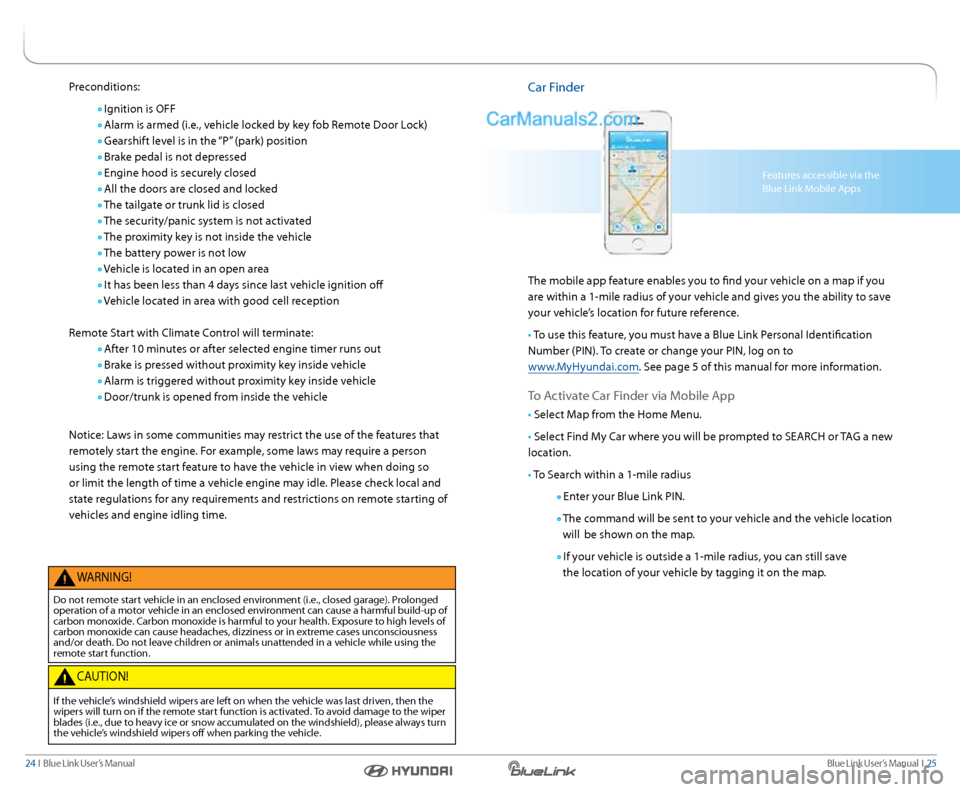
The mobile app feature enables you to find your vehicle on a map if you
are within a 1-mile radius of your vehicle and gives you the ability to save
your vehicle’s location for future reference.
• To use this feature, you must have a Blue link Personal Identification
number (PIn). To create or change your PIn, log on to
www.MyHyundai.com. s ee page 5 of this manual for more information.
To activate c ar Finder via Mobile a pp
• select Map from the Home Menu.
• s elect Find My c ar where you will be prompted to searcH or T aG a new
location.
• To s earch within a 1-mile radius
enter your Blue link PIn.
The command will be sent to your vehicle and the vehicle location
will be shown on the map.
If your vehicle is outside a 1-mile radius, you can still save
the location of your vehicle by tagging it on the map.
Features accessible via the
Blue link Mobile a pps
Preconditions:
Ignition is OFF
a larm is armed (i.e., vehicle locked by key fob r emote Door lock)
Gearshift level is in the “P” (park) position
Brake pedal is not depressed
engine hood is securely closed
a ll the doors are closed and locked
The tailgate or trunk lid is closed
The security/panic system is not activated
The proximity key is not inside the vehicle
The battery power is not low
Vehicle is located in an open area
It has been less than 4 days since last vehicle ignition off
Vehicle located in area with good cell reception
r emote s tart with climate c ontrol will terminate:
a fter 10 minutes or after selected engine timer runs out
Brake is pressed without proximity key inside vehicle
a larm is triggered without proximity key inside vehicle
Door/trunk is opened from inside the vehicle
notice: laws in some communities may restrict the use of the features that
remotely start the engine. For example, some laws may require a person
using the remote start feature to have the vehicle in view when doing so
or limit the length of time a vehicle engine may idle. Please check local and
state regulations for any requirements and restrictions on remote starting of
vehicles and engine idling time.
W arnInG!
Do not remote start vehicle in an enclosed environment (i.e., closed garage). Prolonged
operation of a motor vehicle in an enclosed environment can cause a harmful build-up of
carbon monoxide. c arbon monoxide is harmful to your health. exposure to high levels of
carbon monoxide can cause headaches, dizziness or in extreme cases unconsciousness
and/or death. Do not leave children or animals unattended in a vehicle while using the
remote start function.
ca UTIOn!
If the vehicle’s windshield wipers are left on when the vehicle was last driven, then the
wipers will turn on if the remote start function is activated. To avoid damage to the wiper
blades (i.e., due to heavy ice or snow accumulated on the windshield), please always turn
the vehicle’s windshield wipers off when parking the vehicle.
Page 15 of 18
Blue link User’s Manual I 27
26 I Blue link User’s Manual
Vehicle Immobilization
In the event your vehicle is reported stolen to law enforcement authorities,
they may elect to utilize this feature to completely turn off the engine once
the vehicle has been stopped using vehicle slowdown. This will prevent the
vehicle from being restarted until law enforcement has arrived on
the scene.
• To inform Hyundai of the theft of your Hyundai vehicle, call
855-2- Bluelink (855-225-8354).
• a live operator will work with law enforcement in initiating vehicle
immobilization and assist in the vehicle’s recovery.
Panic notification
This feature will notify any pre-selected persons if your vehicle’s remote panic
button is engaged, via your choice of text messaging or email.
•
In order to activate this feature, you must first log on to
www.MyHyundai.com and set your preferences as outlined on page 4
of this manual.
•
all individuals designated by you will be notified of your vehicle’s
precise location should the panic button be activated.
Please note: notifications are subject to adequate cellular coverage
and signal strength, and only available in the 50 United s tates.
alarm notification
In the event your vehicle’s alarm is activated, this feature will automatically
notify any pre-selected persons via your choice of text messaging or email.
•
In order to activate this feature, you must first log on to
www.MyHyundai.com and set your preferences as outlined
on page 4 of this guide.
•
y our pre-selected contacts will be notified if your vehicle’s
alarm is activated.
Please note: notifications are subject to adequate cellular coverage
and signal strength, and only available in the 50 United s tates.
stolen Vehicle recovery
In the event your vehicle is reported stolen to law enforcement authorities,
the Blue link c ustomer care center can use the GPs system to help pinpoint
the exact location of the vehicle and assist in its recovery.
l og on to www.MyHyundai.com, select the Blue link logo for your
applicable vehicle, then select notification s ettings and set your alert
preferences.
• To inform Hyundai of the theft of your Hyundai vehicle, call
855-2- Bluelink (855-225-8354).
• a live operator will come online to assist you.
• y ou will be asked to verify your name, phone numbers, and Hyundai
PIn and provide verification that a police report has been filed,
including the case number.
• The agent will initiate a stolen vehicle recovery signal to pin point
the vehicle’s location and will coordinate with law enforcement in its
recovery.
Once the stolen vehicle recovery routine has been started, the owner will not
have access to Blue link services or be provided vehicle status or location,
due to personal safety issues. a t the conclusion of the recovery process, Blue
link will contact the owner and inform them of the vehicle’s disposition.
s tolen Vehicle slowdown
In the event your vehicle is reported stolen to law enforcement authorities,
they may elect to utilize this feature to gradually reduce engine power,
thereby slowing the vehicle’s speed and eventually bringing it to a complete stop.
• To inform Hyundai of the theft of your Hyundai vehicle,
call 855-2- Bluelink (855-225-8354).
• a live operator will work with law enforcement in initiating vehicle
slowdown and assist in the vehicle’s recovery.
Page 16 of 18
Blue link User’s Manual I 29
28 I Blue link User’s Manual
speed a lert
Ideal for parents of younger drivers, this feature allows you to pre-set a speed
limit for your Hyundai vehicle. should the speed limit be exceeded, you will
be notified in-vehicle and via your choice of text messaging or email.
•
In order to activate this feature, you must first log on to
www.MyHyundai.com.
s elect the Blue link logo for your applicable vehicle
s elect speed a lert
Turn on speed a lert and set a speed limit
•
Once activated, you will automatically receive an alert should your
vehicle exceed the pre-designated speed limits.
Please note: notifications are subject to adequate cellular coverage
and signal strength, and only available in the 50 United s tates.
curfew a lert
This feature allows you to pre-set acceptable time intervals for when your
Hyundai vehicle can and cannot be driven. should these be exceeded, you
will be notified in-vechiel and via your choice of text messaging or email.
•
In order to activate this feature, you must first log on to
www.MyHyundai.com.
s elect the Blue link logo for your applicable vehicle
s elect c urfew a lert
Turn on c urfew alert and set c urfew days and times
•
Once activated, you will automatically receive an alert should the
curfew limits be exceeded.
Please note: notifications are subject to adequate cellular coverage
and signal strength, and only available in the 50 United s tates.
Download the Vehicle safeguard alerts app to your vehicle to
activate the features and start receiving notifications.
Valet a lert
Whenever you leave your Hyundai vehicle with a valet and it travels farther
than your pre-selected distance boundary after activation, you will be
notified in-vehicle and via your choice of text message or email.
•
In order to activate this feature, you must first log on to
www.MyHyundai.com.
s elect the Blue link logo for your applicable vehicle
s elect Geo-Fence & Valet a lert
s elect the Valet tab
Turn on Valet a lert and set a distance boundary
Once activated, you will automatically receive an alert should your vehicle
travel farther than your pre-selected distance boundary from the point of
activation.
Please note: Hyundai Blue link s ervices are subject to adequate cellular
coverage and signal strength, and only available in the 50 United s tates.
Geo-Fence
This feature allows you to designate the boundaries of areas in which
your vehicle may and may not be driven. should the vehicle cross these
boundaries, you will be notified in-vehicle and via your choice of text
messaging or email.
•
In order to activate this feature, you must first log on to
www.MyHyundai.com.
s elect the Blue link logo for your applicable vehicle
s elect Geo-Fence & Valet a lert
Turn on Geo-Fence and set driving boundaries
•
Once activated, you will automatically receive an alert should your
vehicle cross the boundaries of your designated areas.
Please note: notifications are subject to adequate cellular coverage
and signal strength, and only available in the 50 United s tates.
*Delayed availability
VeHIcle saFeGU arD aler Ts*
Page 17 of 18
Blue link User’s Manual I 31
30 I Blue link User’s Manual
nOTenOTes
Bl Ue lInk GUID ance PackaGe
Destination search Powered by Google
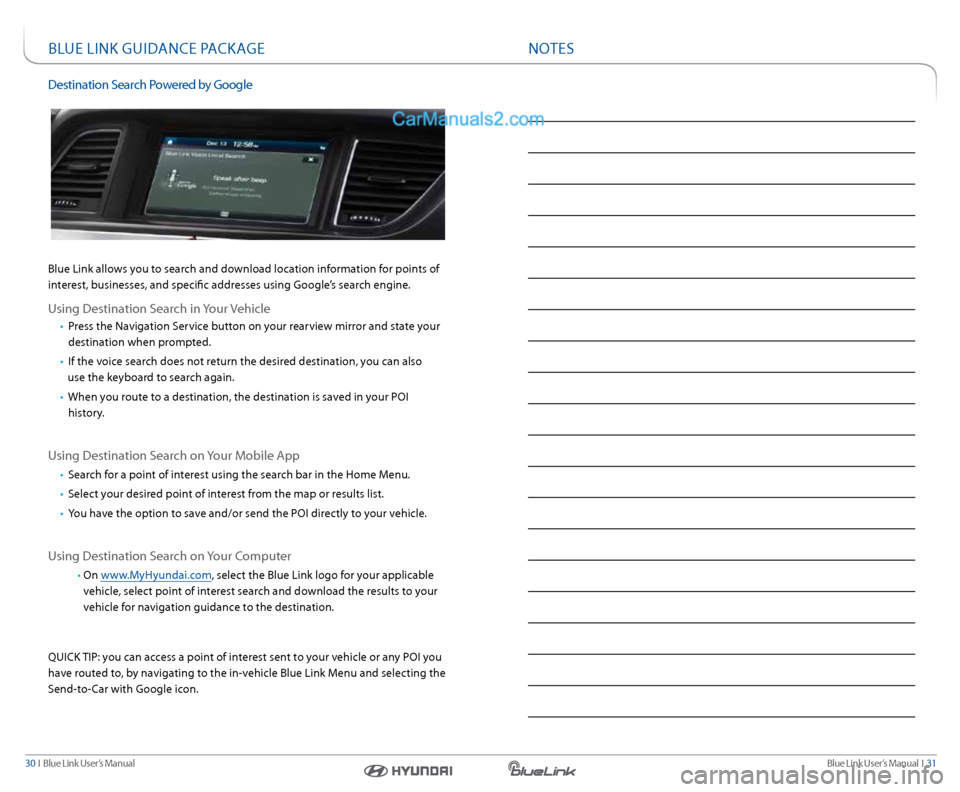
Blue link allows you to search and download location information for points of
interest, businesses, and specific addresses using Google’s search engine.
Using Destination s earch in your Vehicle
• Press the navigation s ervice button on your rearview mirror and state your
destination when prompted.
• If the voice search does not return the desired destination, you can also
use the keyboard to search again.
• When you route to a destination, the destination is saved in your POI
history.
Using Destination s earch on your Mobile a pp
• search for a point of interest using the search bar in the Home Menu.
• select your desired point of interest from the map or results list.
• you have the option to save and/or send the POI directly to your vehicle.
Using Destination s earch on your c omputer
• On www.MyHyundai.com, select the Blue link logo for your applicable
vehicle, select point of interest search and download the results to your
vehicle for navigation guidance to the destination.
QUIck TIP: you can access a point of interest sent to your vehicle or any POI you
have routed to, by navigating to the in-vehicle Blue link Menu and selecting the
s end-to- car with Google icon.