Radio Hyundai Sonata 2015 User Guide
[x] Cancel search | Manufacturer: HYUNDAI, Model Year: 2015, Model line: Sonata, Model: Hyundai Sonata 2015Pages: 603, PDF Size: 14.7 MB
Page 154 of 603
3-59
Convenient features of your vehicle
3
Information
• The Smart Trunk function will notwork if any of the following occurs:
- The smart key is close to a radiotransmitter such as a radio station
or an airport which can interfere
with normal operation of the
transmitter.
- The smart key is near a mobile two way radio system or a cellular
phone.
- Another vehicle's smart key is being operated close to your vehicle.
• The detecting range may decrease or increase when :
- One side of the tire is raised toreplace a tire or to inspect the vehi-
cle.
- The vehicle is parked on a slope or unpaved road, etc.
Fuel Filler Door
Opening the fuel filler door
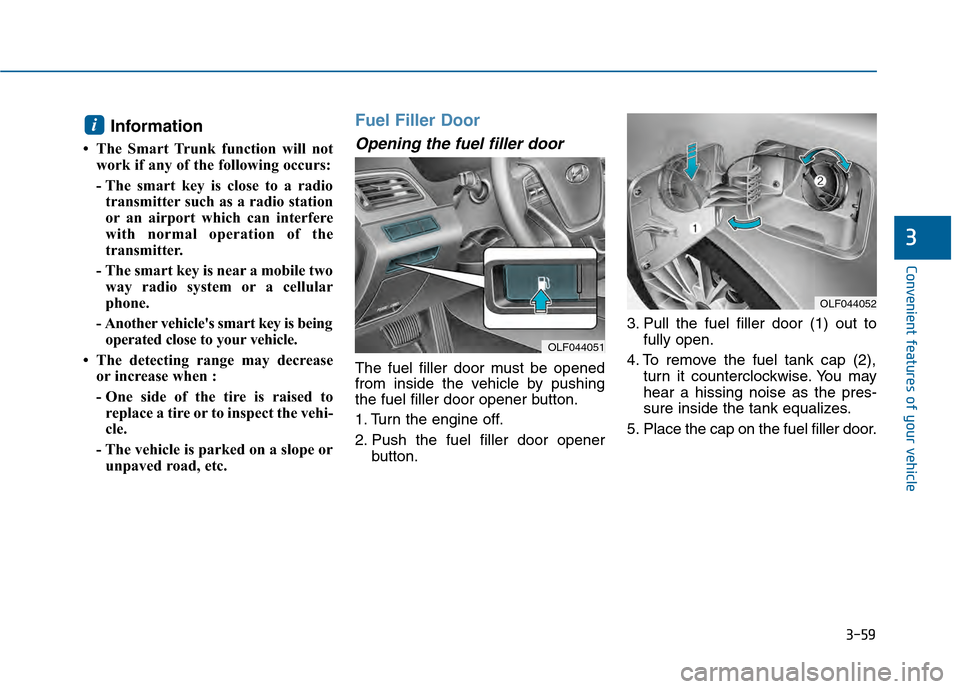
The fuel filler door must be opened
from inside the vehicle by pushing
the fuel filler door opener button.
1. Turn the engine off.
2. Push the fuel filler door opener button. 3. Pull the fuel filler door (1) out to
fully open.
4. To remove the fuel tank cap (2), turn it counterclockwise. You may
hear a hissing noise as the pres-
sure inside the tank equalizes.
5. Place the cap on the fuel filler door.
i
OLF044052
OLF044051
Page 254 of 603
Multimedia System
Multimedia System.................................................4-2
AUX, USB and iPod®Port ...............................................4-2
Antenna ........................................................................\
.......4-2
Steering Wheel Audio Control........................................4-3
Audio / Video / Navigation System (AVN) ..................4-4
Bluetooth®Wireless Technology Hands-Free ...........4-4
How Vehicle Audio Works ...............................................4-5
Features of Your Vehicle.................................................4-7
System Controllers and Functions
- 3.8 Inch Mono TFT ...........................................4-17
Audio Head Unit ..............................................................4-17
Setup ........................................................................\
..........4-19
Radio : FM, AM ................................................................4-22
XM
TMRADIO ......................................................................4-\
23
Basic Method of Use : Audio CD / MP3 CD / USB /
iPod
®/ My Music ...........................................................4-25
Bluetooth®Wireless Technology Audio ....................4-31
Making a Call Using the Steering Wheel Remote
Controller........................................................................\
...4-32
Bluetooth®Wireless Technology ................................4-33
Voice Recognition ...........................................................4-45
Ending Voice Recognition .............................................4-46
System Controllers and Functions
- 5 Inch Color TFT LCD .......................................4-52
Audio Head Unit ..............................................................4-52
Steering-Wheel Mounted Controls ............................4-54
Radio Mode.......................................................................4\
-56
XM
TMRadio Mode ...........................................................4-58
Media Mode......................................................................4-\
60
Audio CD Mode ................................................................4-61
MP3 CD Mode ..................................................................4-63
USB Mode ........................................................................\
.4-66
iPod
®Mode ......................................................................4-\
69
AUX Mode ........................................................................\
.4-71
MY Music Mode ..............................................................4-72
Bluetooth®Wireless Technology Audio Mode ........4-75
Voice Recognition ...........................................................4-91
Setup ........................................................................\
..........4-97
Rear View Camera ........................................................4-102
Blue Link
®.......................................................................4\
-102
4
Page 256 of 603
4-3
Multimedia System
Do not clean the inside of therear window glass with a cleaner
or scraper to remove foreign
deposits as this may cause dam-
age to the antenna elements.
Avoid adding metallic coatings such as Ni, Cd, and so on. These
can degrade the receiving AM
and FM broadcast signals.
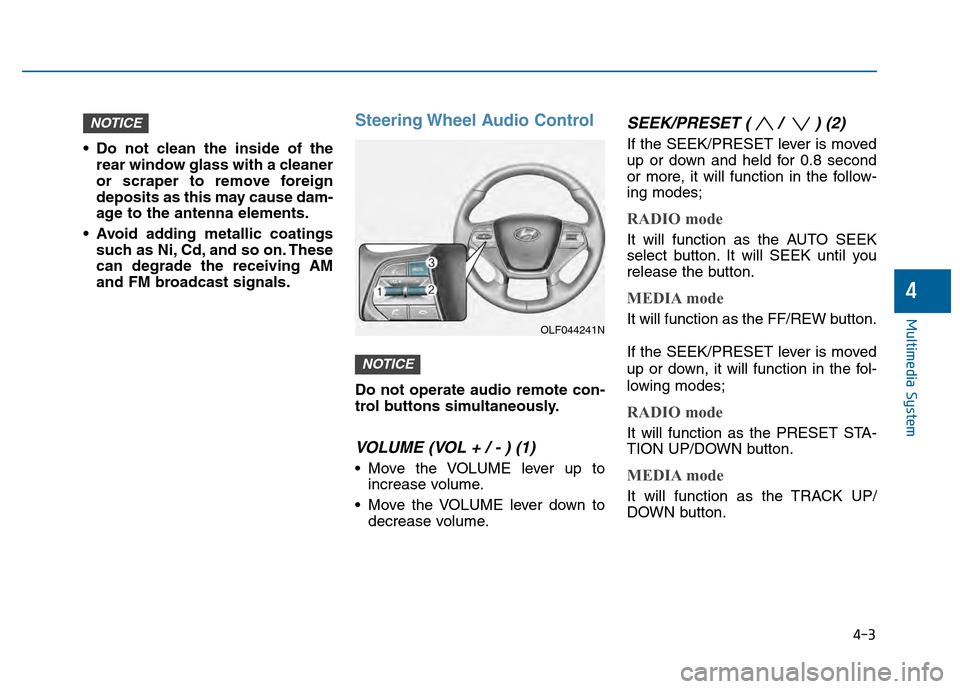
Steering Wheel Audio Control
Do not operate audio remote con-
trol buttons simultaneously.
VOLUME (VOL + / - ) (1)
Move the VOLUME lever up toincrease volume.
Move the VOLUME lever down to decrease volume.
SEEK/PRESET ( / ) (2)
If the SEEK/PRESET lever is moved
up or down and held for 0.8 second
or more, it will function in the follow-
ing modes;
RADIO mode
It will function as the AUTO SEEK
select button. It will SEEK until you
release the button.
MEDIA mode
It will function as the FF/REW button.
If the SEEK/PRESET lever is moved
up or down, it will function in the fol-
lowing modes;
RADIO mode
It will function as the PRESET STA-
TION UP/DOWN button.
MEDIA mode
It will function as the TRACK UP/
DOWN button.
NOTICE
NOTICE
4
OLF044241N
Page 257 of 603
4-4
MODE (3)
Press the MODE button to select
Radio, XM, Disc, or AUX.
Information
Detailed information for audio control
buttons are described in the following
pages in this chapter.
Audio / Video / Navigation
System (AVN)
Detailed information for the AVN sys-
tem is described in a separately sup-
plied manual.
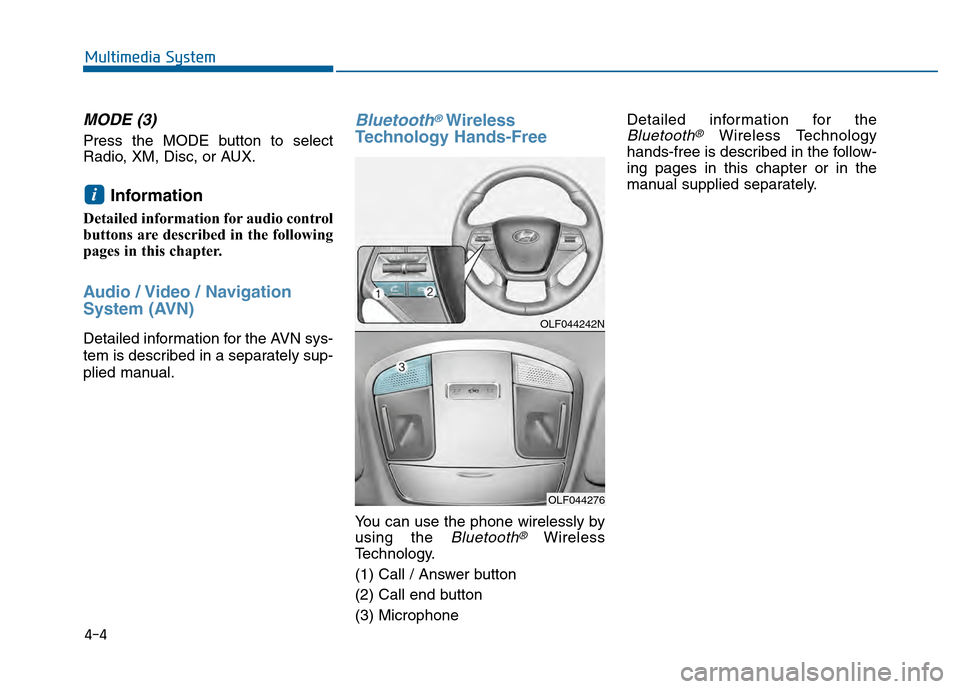
Bluetooth®Wireless
Technology Hands-Free
You can use the phone wirelessly by
using the
Bluetooth®Wireless
Technology.
(1) Call / Answer button
(2) Call end button
(3) Microphone Detailed information for the
Bluetooth®Wireless Technology
hands-free is described in the follow-
ing pages in this chapter or in the
manual supplied separately.
i
Multimedia System
OLF044242N
OLF044276
Page 258 of 603
4-5
Multimedia System
4
How vehicle audio works
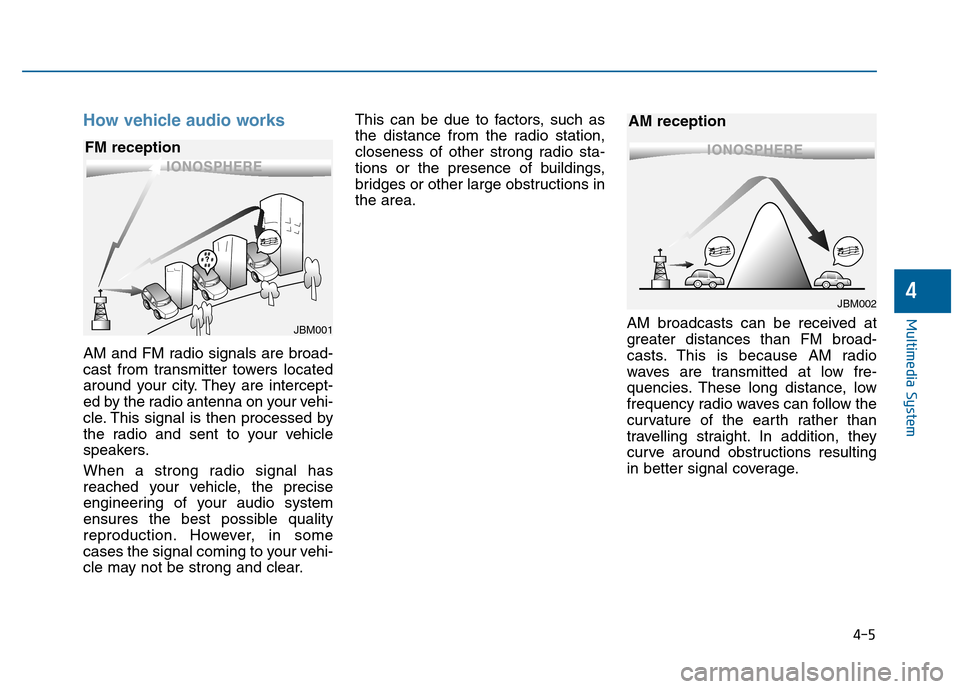
AM and FM radio signals are broad-
cast from transmitter towers located
around your city. They are intercept-
ed by the radio antenna on your vehi-
cle. This signal is then processed by
the radio and sent to your vehicle
speakers.
When a strong radio signal has
reached your vehicle, the precise
engineering of your audio system
ensures the best possible quality
reproduction. However, in some
cases the signal coming to your vehi-
cle may not be strong and clear.This can be due to factors, such as
the distance from the radio station,
closeness of other strong radio sta-
tions or the presence of buildings,
bridges or other large obstructions in
the area.
AM broadcasts can be received at
greater distances than FM broad-
casts. This is because AM radio
waves are transmitted at low fre-
quencies. These long distance, low
frequency radio waves can follow the
curvature of the earth rather than
travelling straight. In addition, they
curve around obstructions resulting
in better signal coverage.
JBM001
FM reception
JBM002
AM reception
Page 259 of 603
4-6
Multimedia System
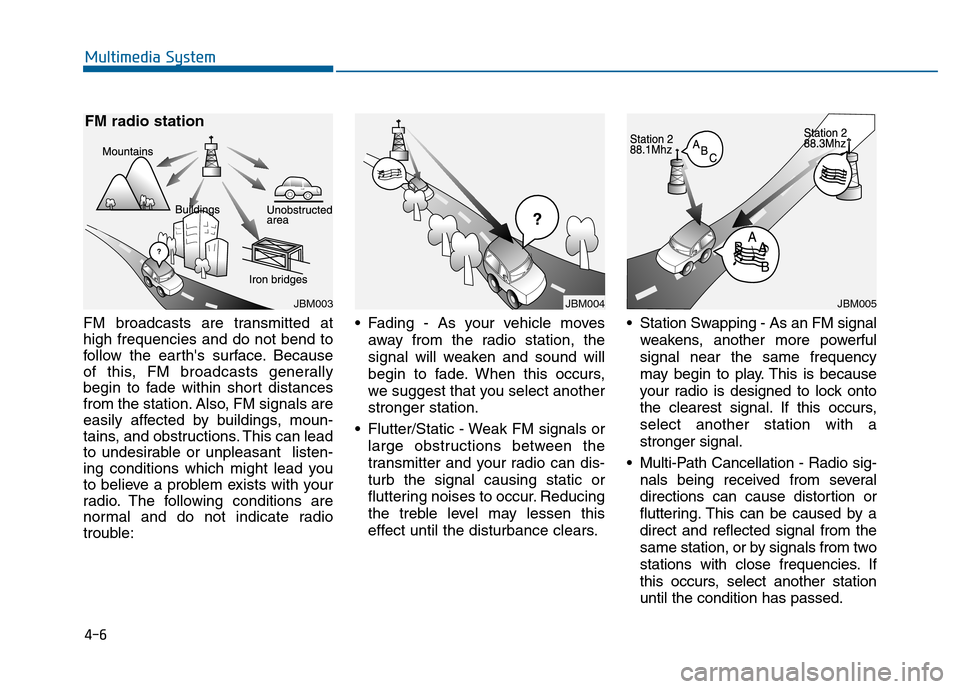
FM broadcasts are transmitted at
high frequencies and do not bend to
follow the earth's surface. Because
of this, FM broadcasts generally
begin to fade within short distances
from the station. Also, FM signals are
easily affected by buildings, moun-
tains, and obstructions. This can lead
to undesirable or unpleasant listen-
ing conditions which might lead you
to believe a problem exists with your
radio. The following conditions are
normal and do not indicate radio
trouble: Fading - As your vehicle moves
away from the radio station, the
signal will weaken and sound will
begin to fade. When this occurs,
we suggest that you select another
stronger station.
Flutter/Static - Weak FM signals or large obstructions between the
transmitter and your radio can dis-
turb the signal causing static or
fluttering noises to occur. Reducing
the treble level may lessen this
effect until the disturbance clears. Station Swapping - As an FM signal
weakens, another more powerful
signal near the same frequency
may begin to play. This is because
your radio is designed to lock onto
the clearest signal. If this occurs,
select another station with a
stronger signal.
Multi-Path Cancellation - Radio sig- nals being received from several
directions can cause distortion or
fluttering. This can be caused by a
direct and reflected signal from the
same station, or by signals from two
stations with close frequencies. If
this occurs, select another station
until the condition has passed.
JBM003
FM radio station
JBM004JBM005
Page 260 of 603
4-7
Multimedia System
4
Features of your vehicle
Satellite radio reception
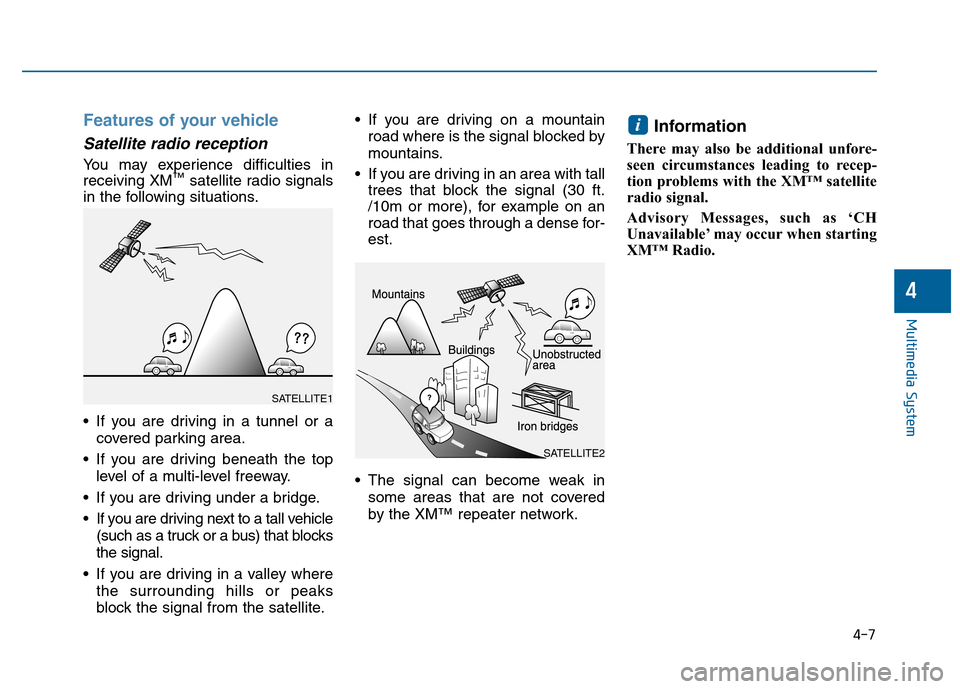
You may experience difficulties in
receiving XM™satellite radio signals
in the following situations.
If you are driving in a tunnel or a
covered parking area.
If you are driving beneath the top level of a multi-level freeway.
If you are driving under a bridge.
If you are driving next to a tall vehicle (such as a truck or a bus) that blocks
the signal.
If you are driving in a valley where the surrounding hills or peaks
block the signal from the satellite. If you are driving on a mountain
road where is the signal blocked by
mountains.
If you are driving in an area with tall trees that block the signal (30 ft.
/10m or more), for example on an
road that goes through a dense for-
est.
The signal can become weak in some areas that are not covered
by the XM™ repeater network.
Information
There may also be additional unfore-
seen circumstances leading to recep-
tion problems with the XM™ satellite
radio signal.
Advisory Messages, such as ‘CH
Unavailable’ may occur when starting
XM™ Radio.
i
SATELLITE2
SATELLITE1
Page 261 of 603
4-8
Multimedia System
Caring for disc
If the temperature inside the car is toohigh, open the car windows to venti-
late before using the system.
It is illegal to copy and use MP3/WMA files without permission.
Use CDs that are created only by
lawful means.
Do not apply volatile agents, such as benzene and thinner, normal
cleaners and magnetic sprays
made for analogue disc onto CDs.
To prevent the disc surface from getting damaged, hold CDs by the
edges or the center hole only.
Clean the disc surface with a piece of soft cloth before playback (wipe
it from the center to the outside
edge).
Do not damage the disc surface or attach pieces of sticky tape or
paper.
Make certain only CDs are insert- ed into the CD player (Do not insert
more than one CD at a time).
Keep CDs in their cases after use to protect them from scratches or dirt. Depending on the type of CD-
R/CD-RW CDs, certain CDs may
not operate normally according to
the manufacturing companies. In
such circumstances, continued
use may cause malfunctions to
your audio system.
Information - Playing an
Incompatible Copy Protected
Audio CD
Some copy protected CDs, which do
not comply with international audio
CD standards (Red Book), may not
play on your car audio. Please note
that inabilities to properly play a copy
protected CD may indicate that the
CD is defective, not the CD player.
Using a cellular phone or a two- way radio
When a cellular phone is used inside
the vehicle, noise may be produced
from the audio system. This does not
mean that something is wrong with
the audio equipment. In such a case,
try to operate mobile devices as far
from the audio equipment as possible.
i
When using a communication
system such as a cellular phone
or a radio set inside the vehicle, a
separate external antenna must
be fitted. When a cellular phone
or a radio set is used with an
internal antenna alone, it may
interfere with the vehicle's electri-
cal system and adversely affect
safe operation of the vehicle.
CAUTION
Do not use a cellular phone
while driving. Stop at a safe
location to use a cellular phone.
WARNING
Page 270 of 603
S
SY
Y S
ST
T E
EM
M
C
C O
O N
NT
TR
R O
O L
LL
LE
E R
R S
S
A
A N
N D
D
F
F U
U N
NC
CT
T I
IO
O N
NS
S
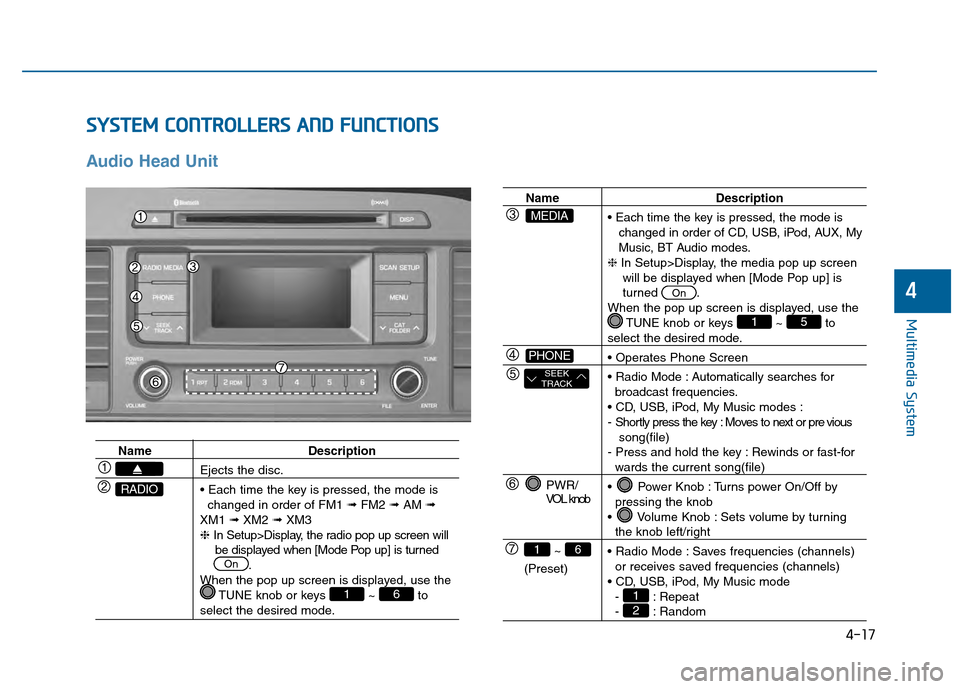
Audio Head Unit
4-17
Multimedia System
4
Name Description
Ejects the disc.
changed in order of FM1 ➟FM2 ➟AM ➟
XM1 ➟XM2 ➟XM3
❈ In Setup>Display, the radio pop up screen will
be displayed when [Mode Pop up] is turned .
When the pop up screen is displayed, use the TUNE knob or keys ~ to
select the desired mode.
61
On
RADIO
Name Description
changed in order of CD, USB, iPod, AUX, My
Music, BT Audio modes.
❈ In Setup>Display, the media pop up screen
will be displayed when [Mode Pop up] is
turned .
When the pop up screen is displayed, use the TUNE knob or keys ~ to
select the desired mode.
Automatically searches for broadcast frequencies.
- Shortly press the key : Moves to next or pre vious song(file)
- Press and hold the key : Rewinds or fast-for
wards the current song(file)
Power Knob : Turns power On/Off by pressing the knob
Volume Knob : Sets volume by turning
the knob left/right
Saves frequencies (channels) or receives saved frequencies (channels)
- : Repeat
- : Random21
51
On
PWR/
VOL knob
~
(Preset)
61
SEEK
TRACK
PHONE
MEDIA
Page 271 of 603
4-18
Multimedia System
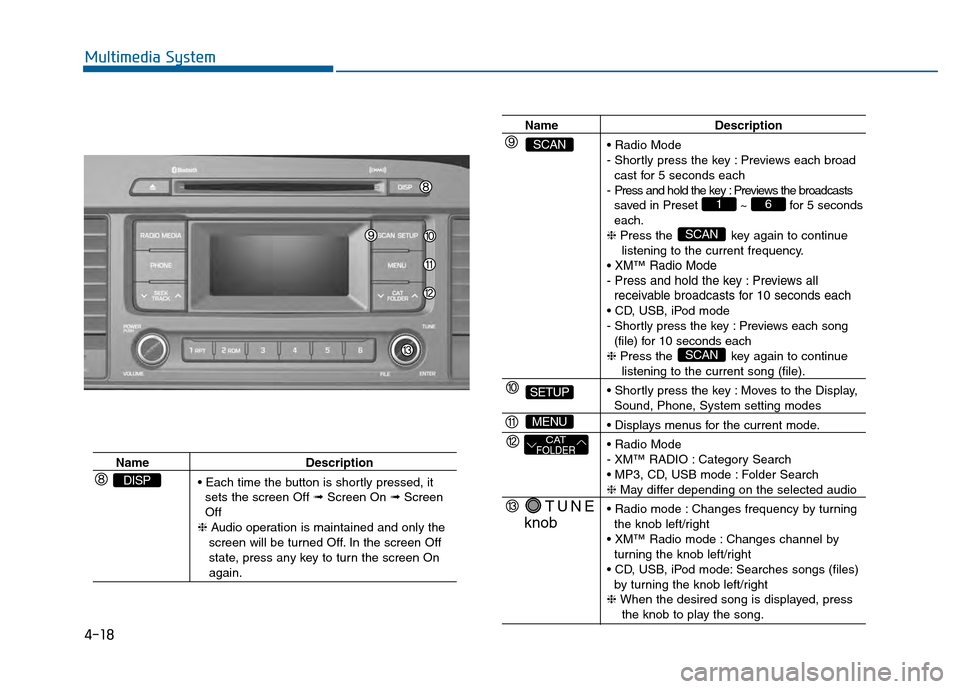
NameDescription
sets the screen Off ➟ Screen On ➟Screen
Off
❈ Audio operation is maintained and only the
screen will be turned Off. In the screen Off
state, press any key to turn the screen On
again.
DISP
Name Description
- Shortly press the key : Previews each broad cast for 5 seconds each
- Press and hold the key : Previews the broadcasts saved in Preset ~ for 5 seconds
each.
❈ Press the key again to continue
listening to the current frequency.
XM™Radio Mode
- Press and hold the key : Previews all receivable broadcasts for 10 seconds each
- Shortly press the key : Previews each song
(file) for 10 seconds each
❈ Press the key again to continue
listening to the current song (file).
Moves to the Display,
Sound, Phone, System setting modes
- XM™ RADIO : Category Search
Folder Search
❈ May differ depending on the selected audio
Changes frequency by turning the knob left/right
Changes channel by turning the knob left/right
Searches songs (files) by turning the knob left/right
❈ When the desired song is displayed, press
the knob to play the song.
SCAN
SCAN
61
TUNE
knob
CATFOLDER
MENU
SETUP
SCAN