START Hyundai Sonata 2015 Workshop Manual
[x] Cancel search | Manufacturer: HYUNDAI, Model Year: 2015, Model line: Sonata, Model: Hyundai Sonata 2015Pages: 603, PDF Size: 14.7 MB
Page 232 of 603
3-137
Convenient features of your vehicle
3
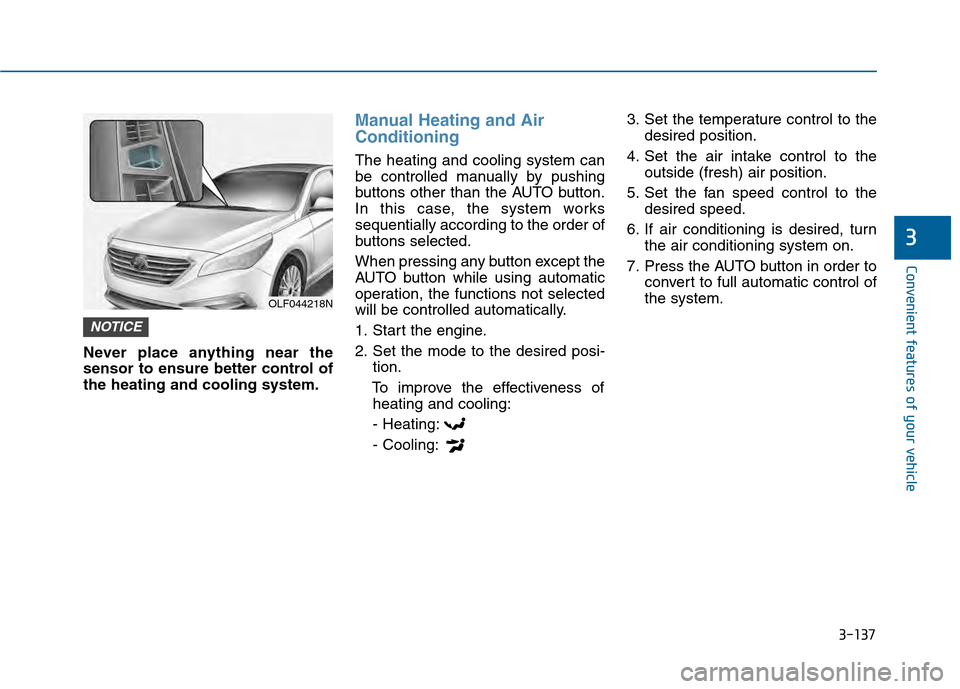
Never place anything near the
sensor to ensure better control of
the heating and cooling system.
Manual Heating and Air
Conditioning
The heating and cooling system can
be controlled manually by pushing
buttons other than the AUTO button.
In this case, the system works
sequentially according to the order of
buttons selected.
When pressing any button except the
AUTO button while using automatic
operation, the functions not selected
will be controlled automatically.
1. Start the engine.
2. Set the mode to the desired posi-tion.
To improve the effectiveness of heating and cooling:
- Heating:
- Cooling: 3. Set the temperature control to the
desired position.
4. Set the air intake control to the outside (fresh) air position.
5. Set the fan speed control to the desired speed.
6. If air conditioning is desired, turn the air conditioning system on.
7. Press the AUTO button in order to convert to full automatic control of
the system.
NOTICE
OLF044218N
Page 239 of 603
3-144
Convenient features of your vehicle
Air conditioning
All HYUNDAI Air Conditioning
Systems are filled with environmen-
tally friendly R-134a refrigerant.
1. Start the engine.
2. Push the air conditioning button.
3. Set the mode to the Face Levelmode.
4. Set the air intake control to the recirculated air position. However,
prolonged operation of the recircu-
lated air position will excessively
dry the air. In this case, change the
air position.
5. Adjust the fan speed control and temperature control to maintain
maximum comfort.
When maximum cooling is desired,
set the temperature control to the
extreme left position then set the fan
speed control to the highest speed. When using the air conditioning
system, monitor the engine tem-
perature gauge closely while driv-
ing up hills or in heavy traffic
when outside temperatures are
high. Air conditioning system
operation can cause engine over-
heating. Continue to use the blow-
er fan, but turn the air condition-
ing system off if the engine tem-
perature gauge indicates engine
overheating.
Air conditioning system operation
tips
If the vehicle has been parked in
direct sunlight during hot weather,
open the windows for a short time
to let the hot air inside the vehicle
escape.
After sufficient cooling has been achieved, switch back from the
recirculated air to the fresh outside
air position.
To help reduce moisture inside of the windows on rainy or humid
days, decrease the humidity inside
the vehicle by operating the air
conditioning system with the win-
dows and sunroof closed.
Use the air conditioning system every month only for a few minutes
to ensure maximum system per-
formance.
NOTICE
Page 242 of 603
3-147
Convenient features of your vehicle
3
W
WI
IN
N D
DS
SH
H I
IE
E L
LD
D
D
D E
EF
FR
R O
O S
ST
T I
IN
N G
G
A
A N
N D
D
D
D E
EF
FO
O G
GG
GI
IN
N G
G
For maximum defrosting, set the
temperature control to the extreme
right/hot position and the fan speed
control to the highest speed.
If warm air to the floor is desired while defrosting or defogging, set the
mode to the floor-defrost position.
Before driving, clear all snow and ice from the windshield, rear win-
dow, outside rear view mirrors, and
all side windows.
Clear all snow and ice from the hood and air inlet in the cowl grill to
improve heater and defroster effi-
ciency and to reduce the probability
of fogging up the inside of the wind-
shield.
If the engine temperature is still
cold after starting, then a brief
engine warm up period may be
required for the vented air flow to
become warm or hot.Manual Climate Control System
To defog inside windshield
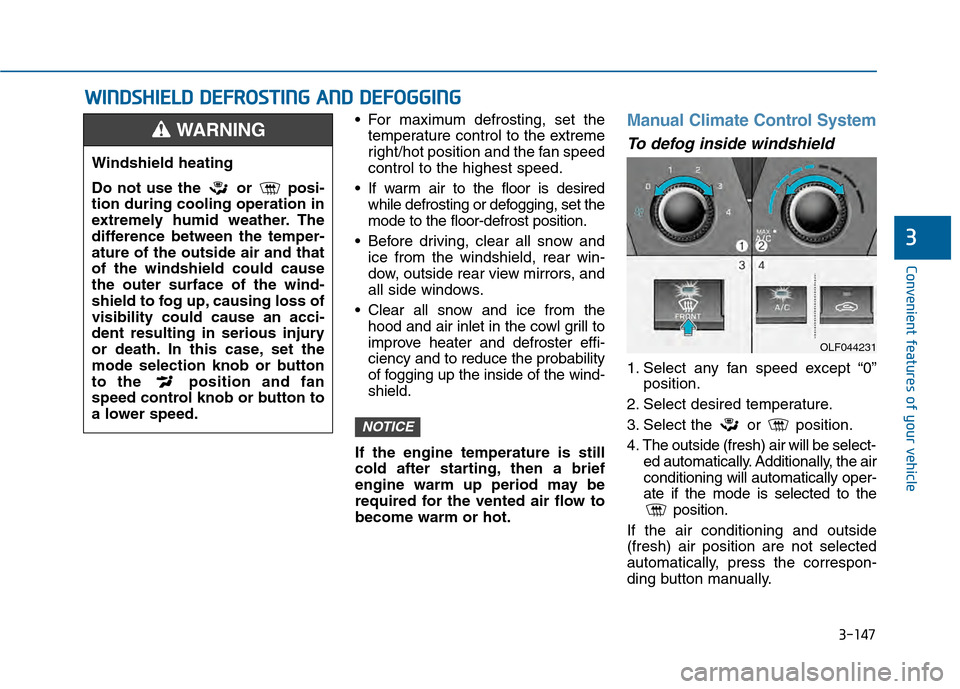
1. Select any fan speed except “0” position.
2. Select desired temperature.
3. Select the or position.
4. The outside (fresh) air will be select- ed automatically. Additionally, the air
conditioning will automatically oper-
ate if the mode is selected to the position.
If the air conditioning and outside
(fresh) air position are not selected
automatically, press the correspon-
ding button manually.
NOTICE
Windshield heating
Do not use the or posi-
tion during cooling operation in
extremely humid weather. The
difference between the temper-
ature of the outside air and that
of the windshield could cause
the outer surface of the wind-
shield to fog up, causing loss of
visibility could cause an acci-
dent resulting in serious injury
or death. In this case, set the
mode selection knob or button
to the position and fan
speed control knob or button to
a lower speed.
WARNING
OLF044231
Page 247 of 603
3-152
Convenient features of your vehicle
I
IN
N T
TE
ER
R I
IO
O R
R
F
F E
E A
A T
TU
U R
RE
ES
S
Cup Holder
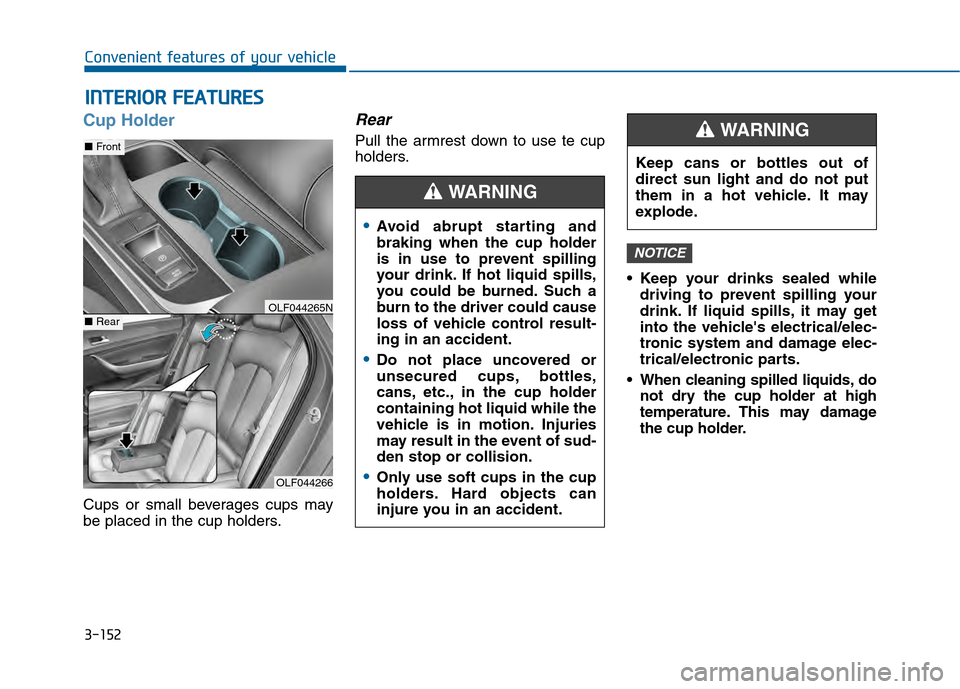
Cups or small beverages cups may
be placed in the cup holders.
Rear
Pull the armrest down to use te cup
holders.
Keep your drinks sealed whiledriving to prevent spilling your
drink. If liquid spills, it may get
into the vehicle's electrical/elec-
tronic system and damage elec-
trical/electronic parts.
When cleaning spilled liquids, do not dry the cup holder at high
temperature. This may damage
the cup holder.
NOTICE
OLF044266
■ Front
■RearOLF044265N
Avoid abrupt starting and
braking when the cup holder
is in use to prevent spilling
your drink. If hot liquid spills,
you could be burned. Such a
burn to the driver could cause
loss of vehicle control result-
ing in an accident.
Do not place uncovered or
unsecured cups, bottles,
cans, etc., in the cup holder
containing hot liquid while the
vehicle is in motion. Injuries
may result in the event of sud-
den stop or collision.
Only use soft cups in the cup
holders. Hard objects can
injure you in an accident.
WARNING
Keep cans or bottles out of
direct sun light and do not put
them in a hot vehicle. It may
explode.
WARNING
Page 260 of 603
4-7
Multimedia System
4
Features of your vehicle
Satellite radio reception
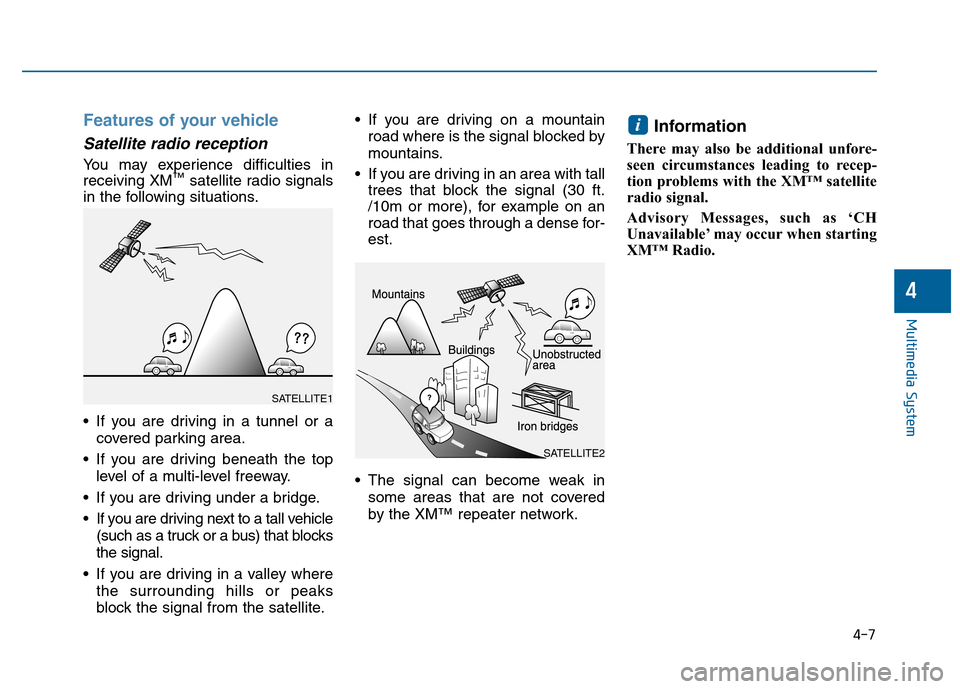
You may experience difficulties in
receiving XM™satellite radio signals
in the following situations.
If you are driving in a tunnel or a
covered parking area.
If you are driving beneath the top level of a multi-level freeway.
If you are driving under a bridge.
If you are driving next to a tall vehicle (such as a truck or a bus) that blocks
the signal.
If you are driving in a valley where the surrounding hills or peaks
block the signal from the satellite. If you are driving on a mountain
road where is the signal blocked by
mountains.
If you are driving in an area with tall trees that block the signal (30 ft.
/10m or more), for example on an
road that goes through a dense for-
est.
The signal can become weak in some areas that are not covered
by the XM™ repeater network.
Information
There may also be additional unfore-
seen circumstances leading to recep-
tion problems with the XM™ satellite
radio signal.
Advisory Messages, such as ‘CH
Unavailable’ may occur when starting
XM™ Radio.
i
SATELLITE2
SATELLITE1
Page 279 of 603
4-26
Multimedia System
NameDescription
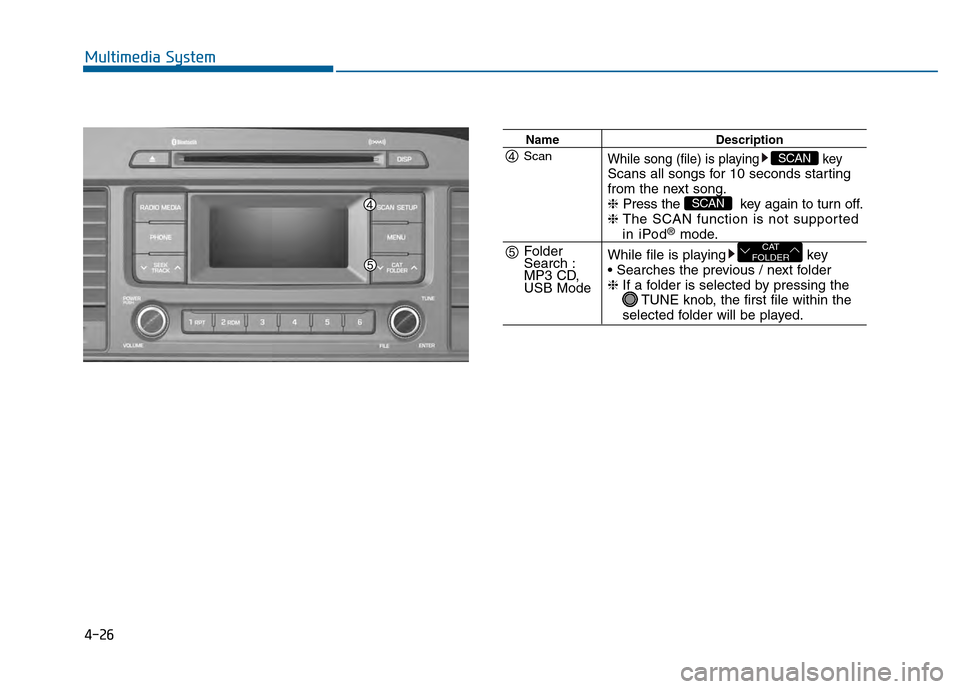
While song (file) is playing keyScans all songs for 10 seconds starting
from the next song.
❈Press the key again to turn off.
❈ The SCAN function is not supported
in iPod®mode.
While file is playing key
❈ If a folder is selected by pressing the
TUNE knob, the first file within the
selected folder will be played.
CAT
FOLDER
SCAN
SCANScan
Folder
Search :
MP3 CD,
USB Mode
Page 283 of 603
![Hyundai Sonata 2015 Workshop Manual 4-30
Multimedia System
Delete All
Set [ Del.All] through the TUNE
knob or key.
Deletes all songs of My Music.
Delete Selection
Press the key Set [ Del.Sel]
through the TUNEknob or key.
Songs withi](/img/35/16796/w960_16796-282.png "Hyundai Sonata 2015 Workshop Manual 4-30
Multimedia System
Delete All
Set [ Del.All] through the TUNE
knob or key.
Deletes all songs of My Music.
Delete Selection
Press the key Set [ Del.Sel]
through the TUNEknob or key.
Songs withi")
4-30
Multimedia System
Delete All
Set [ Del.All] through the TUNE
knob or key.
Deletes all songs of My Music.
Delete Selection
Press the key Set [ Del.Sel]
through the TUNEknob or key.
Songs within My Music are selected
and deleted.
➀Select the songs you wish to
delete from the list.
➁ After selecting, press the
key and select the delete menu.
AUX
AUX is used to play external MEDIA
currently connected with the AUX
terminal.
AUX mode will automatically start
when an external device is connect-
ed to the AUX terminal.
If an external device is connected,
you can also press the key to
change to AUX mode.
❈ AUX mode cannot be started
unless there is an external device
connected to the AUX terminal.
MEDIA
MENU
6
MENU
5
Page 284 of 603
4-31
Multimedia System
4
Bluetooth®Wireless
Technology AUDIO
What is
Bluetooth®Wireless
Technology?
Bluetooth®Wireless Technology allows
devices to be connected in a short dis-
tance, including hands-free devices,
stereo headsets, wireless remote con-
trollers, etc. For more information, visit
the
Bluetooth®Wireless Technology
website
at www.Bluetooth.com
Before using Bluetooth®Wireless
Technology audio features
Bluetooth®Wireless Technology
audio may not be supported
depending on the compatibility of
your
Bluetooth®Wireless
Technology mobile phone.
In order to use
Bluetooth®Wireless
Technology audio, you must first
pair and connect the
Bluetooth®
Wireless Technology mobile phone.
Bluetooth®Wireless Technology
audio can be used only when the
[Audio Streaming] of Phone is
turned .
❈ Setting
Bluetooth®Wireless
Technology Audio Streaming :
Press the key Select
[Phone] through the tune knob or key Select [Audio
Streaming] through the TUNE
knob Set /
Starting Bluetooth®Wireless
Technology Audio
Press the key to change
the mode in order of CD ➟ USB ➟
AUX ➟ My Music ➟ BT Audio.
If BT Audio is selected,
Bluetooth®
Wireless Technology audio will
start playing.
❈ Audio may not automatically start
playing in some mobile phones.
Using the Bluetooth®Wireless
Technology audio features
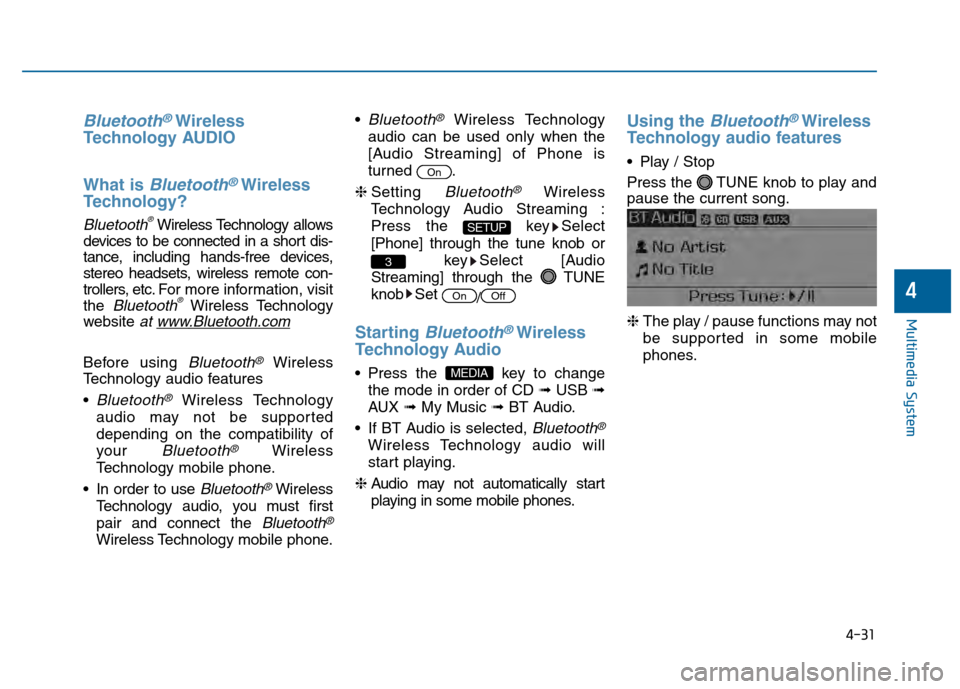
Play / Stop
Press the TUNE knob to play and
pause the current song.
❈ The play / pause functions may not
be supported in some mobile
phones.
MEDIA
OffOn
3
SETUP
On
Page 298 of 603
4-45
Multimedia System
4
V
VO
O I
IC
C E
E
R
R E
EC
CO
O G
GN
N I
IT
T I
IO
O N
N
Using Voice Recognition
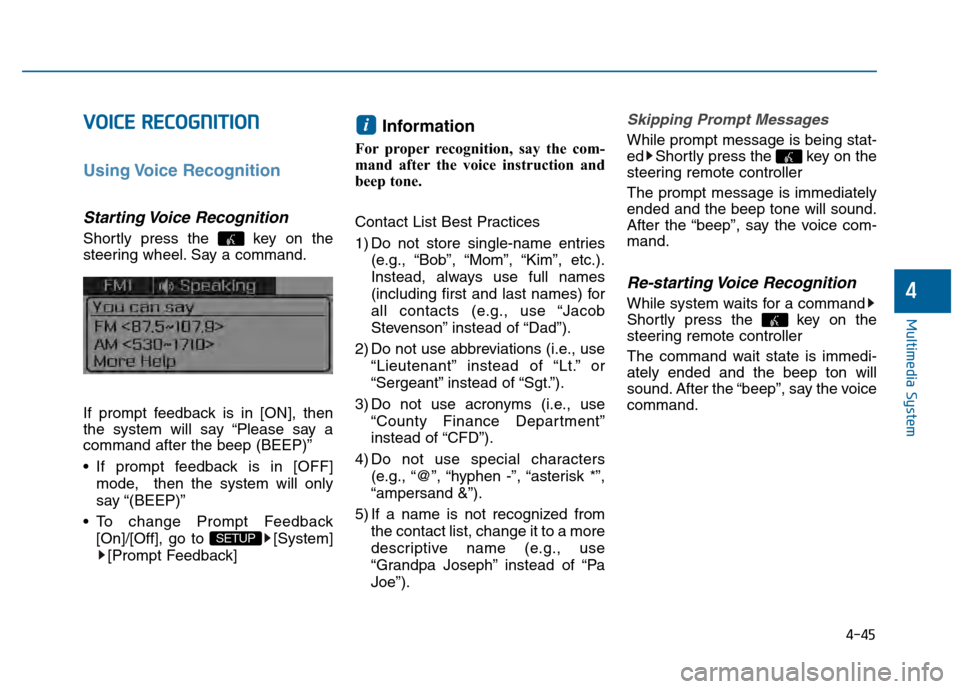
Starting Voice Recognition
Shortly press the key on the
steering wheel. Say a command.
If prompt feedback is in [ON], then
the system will say “Please say a
command after the beep (BEEP)”
If prompt feedback is in [OFF]
mode, then the system will only
say “(BEEP)”
To change Prompt Feedback [On]/[Off], go to [System][Prompt Feedback]
Information
For proper recognition, say the com-
mand after the voice instruction and
beep tone.
Contact List Best Practices
1) Do not store single-name entries (e.g., “Bob”, “Mom”, “Kim”, etc.).
Instead, always use full names
(including first and last names) for
all contacts (e.g., use “Jacob
Stevenson” instead of “Dad”).
2) Do not use abbreviations (i.e., use “Lieutenant” instead of “Lt.” or
“Sergeant” instead of “Sgt.”).
3) Do not use acronyms (i.e., use “County Finance Department”
instead of “CFD”).
4) Do not use special characters (e.g., “@”, “hyphen -”, “asterisk *”,
“ampersand &”).
5) If a name is not recognized from the contact list, change it to a more
descriptive name (e.g., use
“Grandpa Joseph” instead of “Pa
Joe”).
Skipping Prompt Messages
While prompt message is being stat-
ed Shortly press the key on the
steering remote controller
The prompt message is immediately
ended and the beep tone will sound.
After the “beep”, say the voice com-
mand.
Re-starting Voice Recognition
While system waits for a command
Shortly press the key on the
steering remote controller
The command wait state is immedi-
ately ended and the beep ton will
sound. After the “beep”, say the voice
command.
i
SETUP
Page 300 of 603
4-47
Multimedia System
4
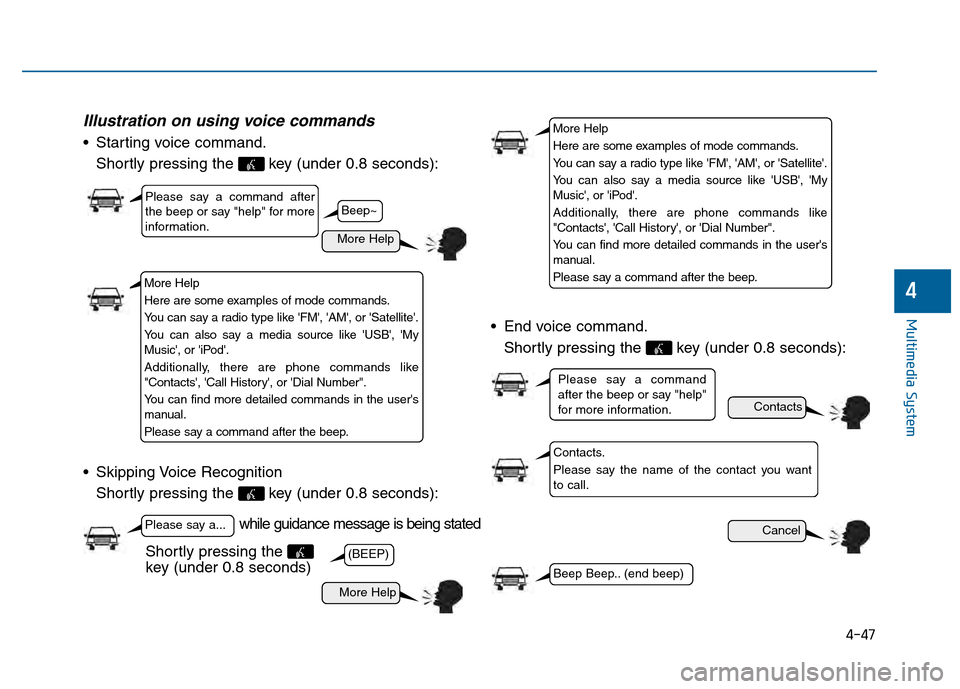
Illustration on using voice commands
Starting voice command.Shortly pressing the key (under 0.8 seconds):
Skipping Voice Recognition Shortly pressing the key (under 0.8 seconds): End voice command.
Shortly pressing the key (under 0.8 seconds):
while guidance message is being stated
More Help
Contacts
Cancel
More Help
Please say a command after
the beep or say "help" for more
information.
Please say a...
Contacts.
Please say the name of the contact you want
to call.
(BEEP)
Please say a command
after the beep or say "help"
for more information.
Beep Beep.. (end beep)
Shortly pressing the
key (under 0.8 seconds)
Beep~
More Help
Here are some examples of mode commands.
You can say a radio type like 'FM', 'AM', or 'Satellite'.
You can also say a media source like 'USB', 'My
Music', or 'iPod'.
Additionally, there are phone commands like
"Contacts', 'Call History', or 'Dial Number".
You can find more detailed commands in the user's
manual.
Please say a command after the beep.
More Help
Here are some examples of mode commands.
You can say a radio type like 'FM', 'AM', or 'Satellite'.
You can also say a media source like 'USB', 'My
Music', or 'iPod'.
Additionally, there are phone commands like
"Contacts', 'Call History', or 'Dial Number".
You can find more detailed commands in the user's
manual.
Please say a command after the beep.