START Hyundai Sonata 2015 Repair Manual
[x] Cancel search | Manufacturer: HYUNDAI, Model Year: 2015, Model line: Sonata, Model: Hyundai Sonata 2015Pages: 603, PDF Size: 14.7 MB
Page 307 of 603
4-54
Multimedia System
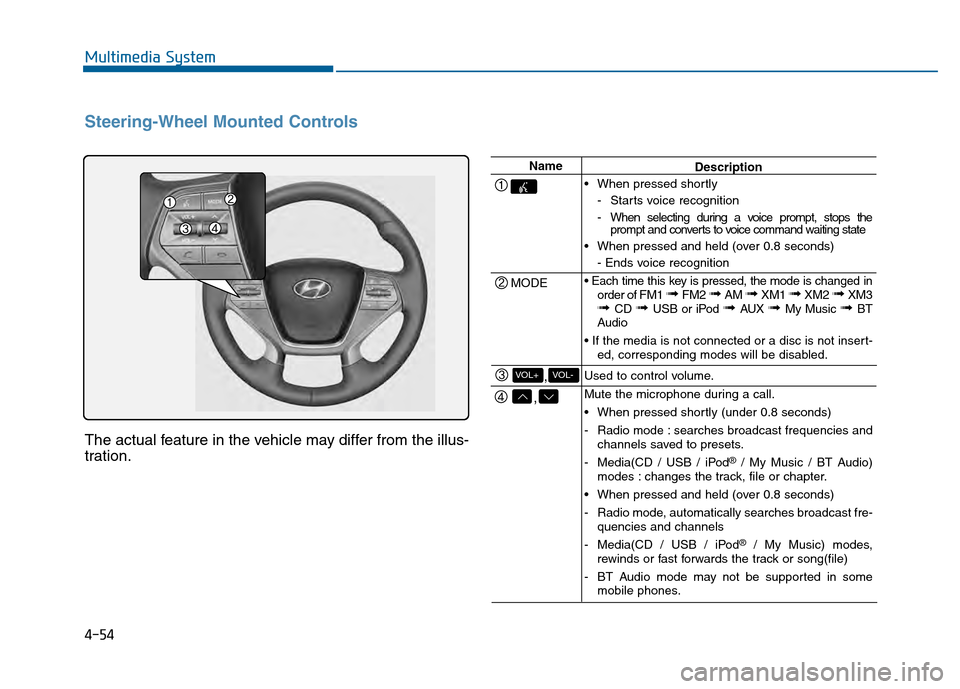
Steering-Wheel Mounted Controls
The actual feature in the vehicle may differ from the illus-
tration.
Name
MODE
,
,VOL-VOL+
Description
When pressed shortly - Starts voice recognition
- When selecting during a voice prompt, stops theprompt and converts to voice command waiting state
When pressed and held (over 0.8 seconds) - Ends voice recognition
order of FM1
➟ FM2 ➟ AM ➟ XM1 ➟ XM2 ➟ XM3➟ CD ➟ USB or iPod ➟ AUX ➟ My Music ➟ BT
Audio
ed, corresponding modes will be disabled.
Used to control volume.
Mute the microphone during a call.
When pressed shortly (under 0.8 seconds)
- Radio mode : searches broadcast frequencies and channels saved to presets.
- Media(CD / USB / iPod
®/ My Music / BT Audio)
modes : changes the track, file or chapter.
When pressed and held (over 0.8 seconds)
- Radio mode, automatically searches broadcast fre- quencies and channels
- Media(CD / USB / iPod
®/ My Music) modes,
rewinds or fast forwards the track or song(file)
- BT Audio mode may not be supported in some mobile phones.
Page 314 of 603
4-61
Multimedia System
4
A
AU
U D
DI
IO
O
C
C D
D
M
M O
OD
DE
E
Using Audio CD Mode
Playing/Pausing CD Tracks
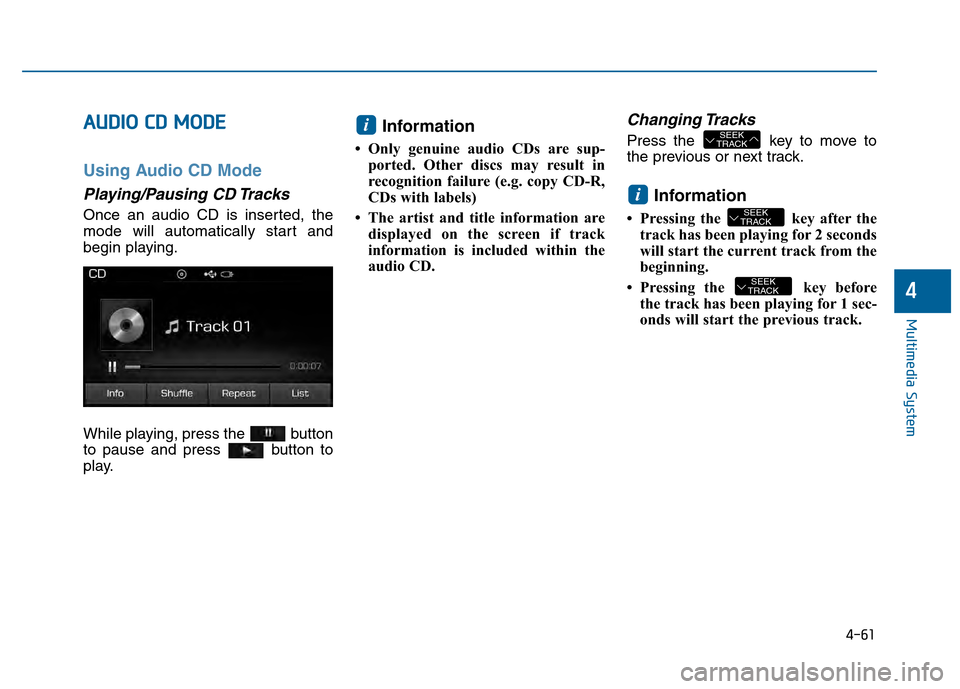
Once an audio CD is inserted, the
mode will automatically start and
begin playing.
While playing, press the button
to pause and press button to
play.
Information
• Only genuine audio CDs are sup-
ported. Other discs may result in
recognition failure (e.g. copy CD-R,
CDs with labels)
• The artist and title information are displayed on the screen if track
information is included within the
audio CD.
Changing Tracks
Press the key to move to
the previous or next track.
Information
• Pressing the key after thetrack has been playing for 2 seconds
will start the current track from the
beginning.
• Pressing the key before the track has been playing for 1 sec-
onds will start the previous track.
SEEK
TRACK
SEEK
TRACKi
SEEK
TRACKi
Page 315 of 603
4-62
Multimedia System
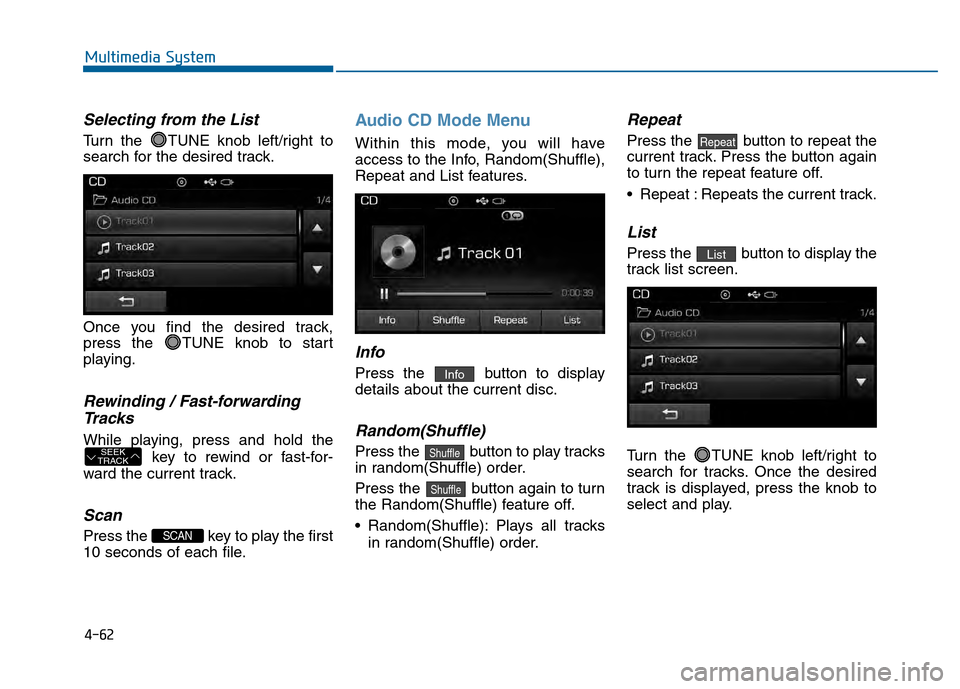
Selecting from the List
Turn the TUNE knob left/right to
search for the desired track.
Once you find the desired track,
press the TUNE knob to start
playing.
Rewinding / Fast-forwardingTracks
While playing, press and hold the
key to rewind or fast-for-
ward the current track.
Scan
Press the key to play the first
10 seconds of each file.
Audio CD Mode Menu
Within this mode, you will have
access to the Info, Random(Shuffle),
Repeat and List features.
Info
Press the button to display
details about the current disc.
Random(Shuffle)
Press the button to play tracks
in random(Shuffle) order.
Press the button again to turn
the Random(Shuffle) feature off.
Random(Shuffle): Plays all tracks in random(Shuffle) order.
Repeat
Press the button to repeat the
current track. Press the button again
to turn the repeat feature off.
Repeat : Repeats the current track.
List
Press the button to display the
track list screen.
Turn the TUNE knob left/right to
search for tracks. Once the desired
track is displayed, press the knob to
select and play.List
Repeat
Shuffle
Shuffle
Info
SCAN
SEEK
TRACK
Page 316 of 603
4-63
Multimedia System
4
M
MP
P3
3
C
C D
D
M
M O
OD
DE
E
Using MP3 CD Mode
Playing/Pausing MP3 Files
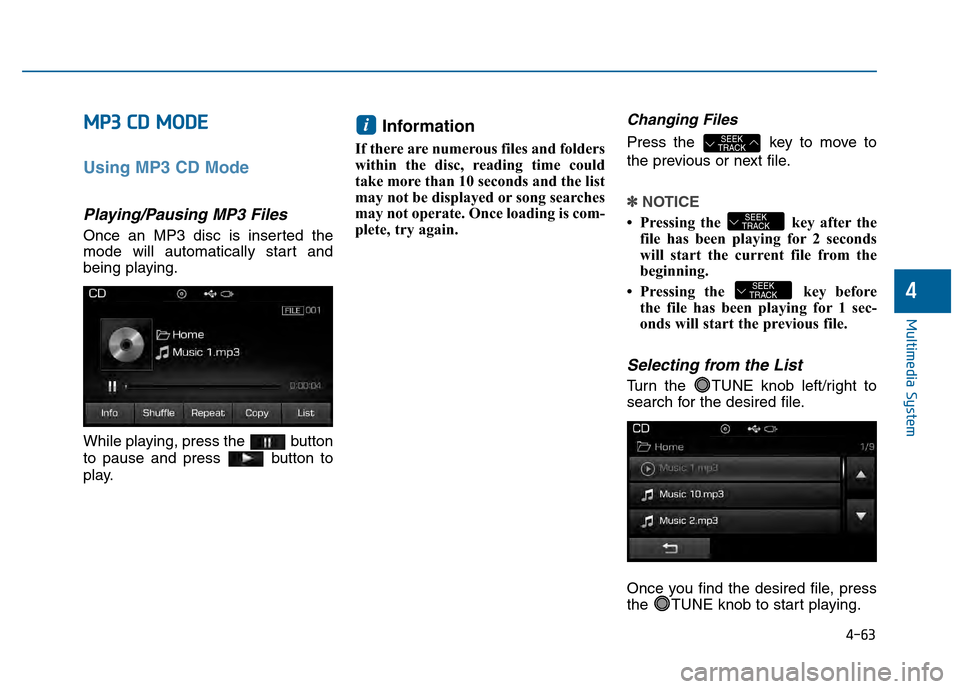
Once an MP3 disc is inserted the
mode will automatically start and
being playing.
While playing, press the button
to pause and press button to
play.
Information
If there are numerous files and folders
within the disc, reading time could
take more than 10 seconds and the list
may not be displayed or song searches
may not operate. Once loading is com-
plete, try again.
Changing Files
Press the key to move to
the previous or next file.
\b \b NOTICE
• Pressing the key after the file has been playing for 2 seconds
will start the current file from the
beginning.
• Pressing the key before the file has been playing for 1 sec-
onds will start the previous file.
Selecting from the List
Turn the TUNE knob left/right to
search for the desired file.
Once you find the desired file, press
the TUNE knob to start playing.
SEEK
TRACK
SEEK
TRACK
SEEK
TRACKi
Page 319 of 603
4-66
Multimedia System
U
US
SB
B
M
M O
OD
DE
E
Using USB Mode
Playing/Pausing USB Files
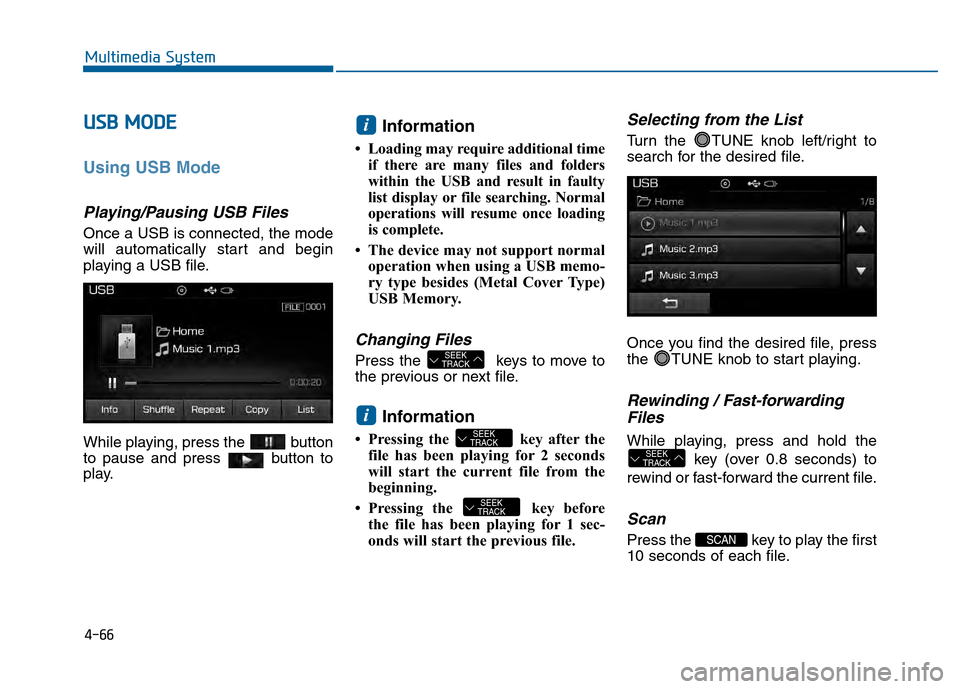
Once a USB is connected, the mode
will automatically start and begin
playing a USB file.
While playing, press the button
to pause and press button to
play.
Information
• Loading may require additional time
if there are many files and folders
within the USB and result in faulty
list display or file searching. Normal
operations will resume once loading
is complete.
• The device may not support normal operation when using a USB memo-
ry type besides (Metal Cover Type)
USB Memory.
Changing Files
Press the keys to move to
the previous or next file.
Information
• Pressing the key after thefile has been playing for 2 seconds
will start the current file from the
beginning.
• Pressing the key before the file has been playing for 1 sec-
onds will start the previous file.
Selecting from the List
Turn the TUNE knob left/right to
search for the desired file.
Once you find the desired file, press
the TUNE knob to start playing.
Rewinding / Fast-forwardingFiles
While playing, press and hold the
key (over 0.8 seconds) to
rewind or fast-forward the current file.
Scan
Press the key to play the first
10 seconds of each file.SCAN
SEEK
TRACK
SEEK
TRACK
SEEK
TRACK
i
SEEK
TRACK
i
Page 322 of 603
4-69
Multimedia System
4
i
iPPo od
d®M
M O
OD
DE
E
Using iPod®Mode
Playing/Pausing iPod®Songs
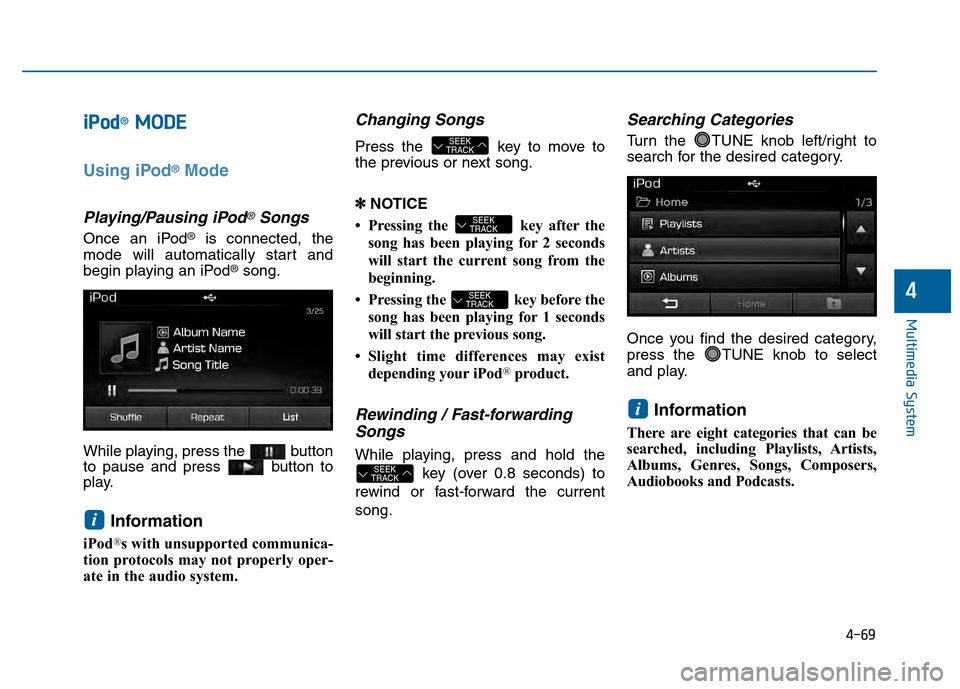
Once an iPod®is connected, the
mode will automatically start and
begin playing an iPod
®song.
While playing, press the button
to pause and press button to
play.
Information
iPod®s with unsupported communica-
tion protocols may not properly oper-
ate in the audio system.
Changing Songs
Press the key to move to
the previous or next song.
\b \b NOTICE
• Pressing the key after the song has been playing for 2 seconds
will start the current song from the
beginning.
• Pressing the key before the song has been playing for 1 seconds
will start the previous song.
• Slight time differences may exist depending your iPod
®product.
Rewinding / Fast-forwardingSongs
While playing, press and hold the
key (over 0.8 seconds) to
rewind or fast-forward the current
song.
Searching Categories
Turn the TUNE knob left/right to
search for the desired category.
Once you find the desired category,
press the TUNE knob to select
and play.
Information
There are eight categories that can be
searched, including Playlists, Artists,
Albums, Genres, Songs, Composers,
Audiobooks and Podcasts.
i
SEEK
TRACK
SEEK
TRACK
SEEK
TRACK
SEEK
TRACK
i
Page 325 of 603
4-72
Multimedia System
M
MY
Y
M
M U
US
SI
IC
C
M
M O
OD
DE
E
Using My Music Mode
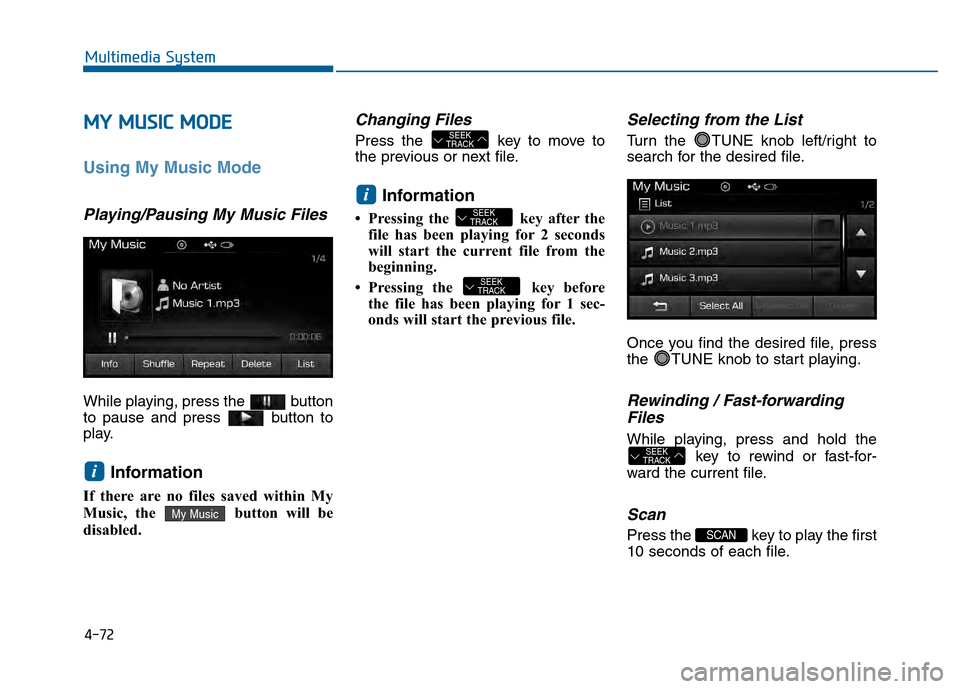
Playing/Pausing My Music Files
While playing, press the button
to pause and press button to
play.
Information
If there are no files saved within My
Music, the button will be
disabled.
Changing Files
Press the key to move to
the previous or next file.
Information
• Pressing the key after the
file has been playing for 2 seconds
will start the current file from the
beginning.
• Pressing the key before the file has been playing for 1 sec-
onds will start the previous file.
Selecting from the List
Turn the TUNE knob left/right to
search for the desired file.
Once you find the desired file, press
the TUNE knob to start playing.
Rewinding / Fast-forwardingFiles
While playing, press and hold the
key to rewind or fast-for-
ward the current file.
Scan
Press the key to play the first
10 seconds of each file.SCAN
SEEK
TRACK
SEEK
TRACK
SEEK
TRACK
i
SEEK
TRACK
My Music
i
Page 328 of 603
4-75
Multimedia System
4
Information - Using the
Bluetooth®wireless technology
audio mode
• Bluetooth
®Wireless Technology
Audio Mode can be used only when
a Bluetooth
®Wireless Technology
phone has been connected.
• Bluetooth
®Wireless Technology
Audio Mode will not be available
when connecting mobile phones that
do not support this feature.
• While Bluetooth
®Wireless
Technology Audio is playing, if the
Bluetooth
®Wireless Technology
phone is connected, then the music
will also stop.
• Moving the Track up/down while playing Bluetooth
®Wireless
Technology audio mode may result
in pop noises in some mobile phones.
• Bluetooth
®Wireless Technology
streaming audio may not be sup-
ported in some mobile phones.
(Continued)(Continued)
• When returning to Bluetooth
®
Wireless Technology Audio mode
after ending a call, the mode may
not automatically restart in some
mobile phones.
• Receiving an incoming call or mak- ing an outgoing call while playing
Bluetooth
®Wireless Technology
Audio may result in audio interfer-
ence.
B B l
lu
u e
et
to
o o
ot
th
h®
®W
W i
ir
r e
e l
le
e s
ss
s
T
T e
ec
ch
h n
no
o l
lo
o g
gy
y A
AU
U D
DI
IO
O
M
M O
OD
DE
E
(
( I
If
f
e
e q
q u
u i
ip
p p
pe
ed
d )
)
Using Bluetooth®Wireless
Technology Audio Mode
Playing/Pausing Bluetooth®
Wireless TechnologyAudio
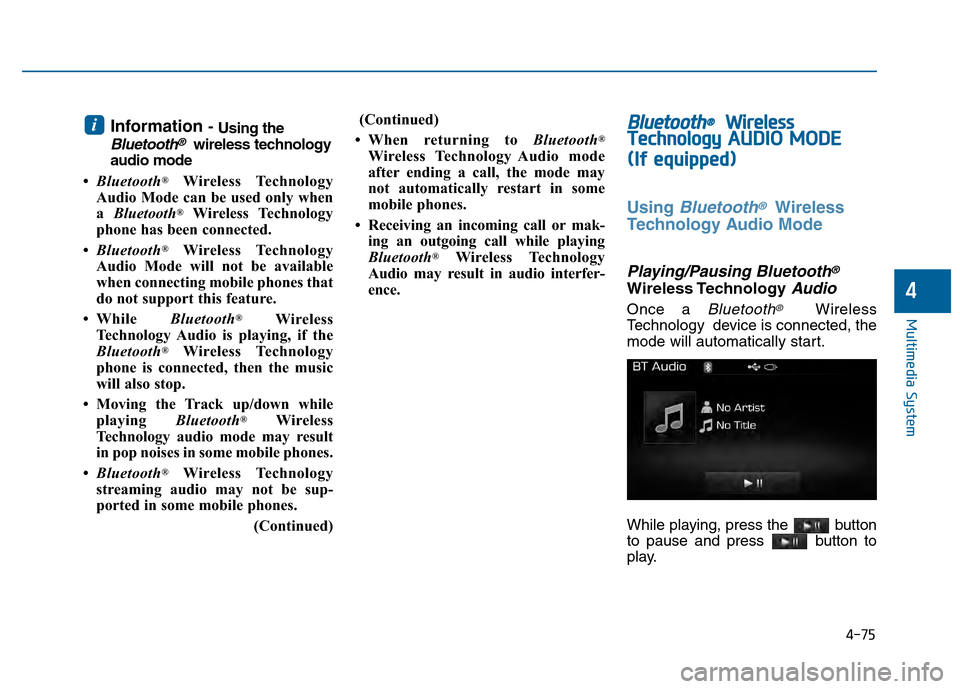
Once a Bluetooth®Wireless
Technology device is connected, the
mode will automatically start.
While playing, press the button
to pause and press button to
play.
i
Page 329 of 603
4-76
Multimedia System
Information
The play/pause feature may operate
differently depending on the mobile
phone.
Changing Files
Press the key to move to
the previous or next file.
Setting Connection
If a Bluetooth®Wireless Technology
device has not been connected, press
the key [Phone] button to
display the
Bluetooth®Wireless
Technology connection screen.
It is possible to use the pair phone,
connect/disconnect and delete fea-
tures from your
Bluetooth®Wireless
Technology phone.
Information
• If the Bluetooth®Wireless Technology
audio is not operating properly,
check whether the feature is turned
off at [Phone] [Streaming
Audio]. If the feature is off, turn back
on and try again.
• If music is not yet playing from your mobile device after converting to
Bluetooth
®Wireless Technology
Audio mode, pressing the play but-
ton once may start playing the mode.
Check to see that music is playing
from the Bluetooth
®Wireless
Technology device after converting
to Bluetooth
®Wireless Technology
Audio Mode.
Information - Pairing through
[PHONE] Setup
• The Bluetooth
®and Voice
Recognition Manual is provided in
two versions due to software version
differences.
• Before reading the manual, check the following.
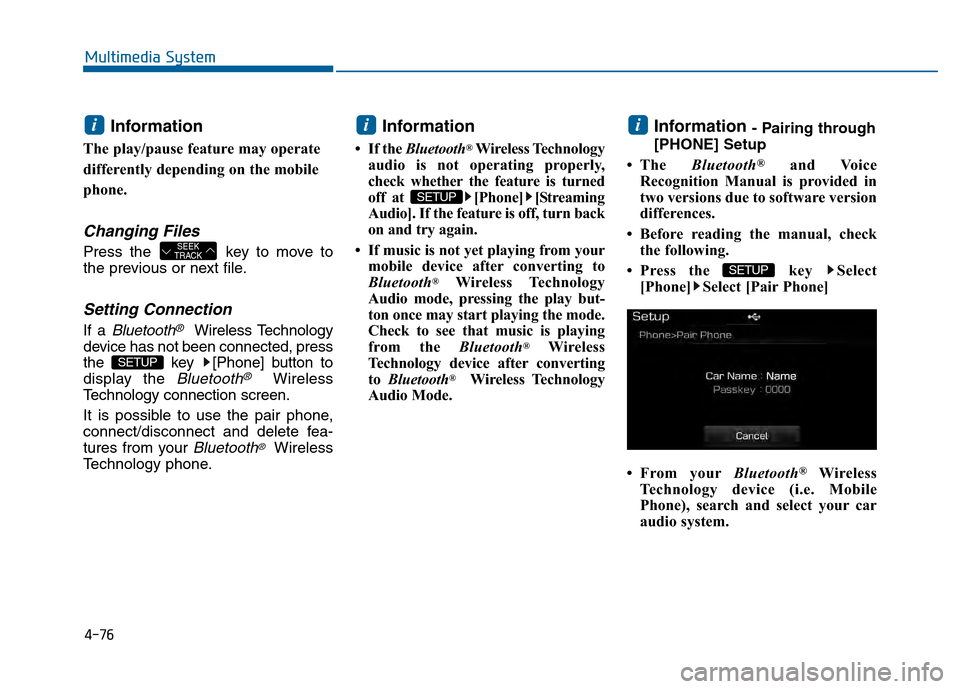
• Press the key Select [Phone] Select [Pair Phone]
• From your Bluetooth
®Wireless
Technology device (i.e. Mobile
Phone), search and select your car
audio system.
SETUP
i
SETUP
i
SETUP
SEEK
TRACK
i
Page 344 of 603
4-91
Multimedia System
4
V
VO
O I
IC
C E
E
R
R E
EC
CO
O G
GN
N I
IT
T I
IO
O N
N
Using Voice Recognition
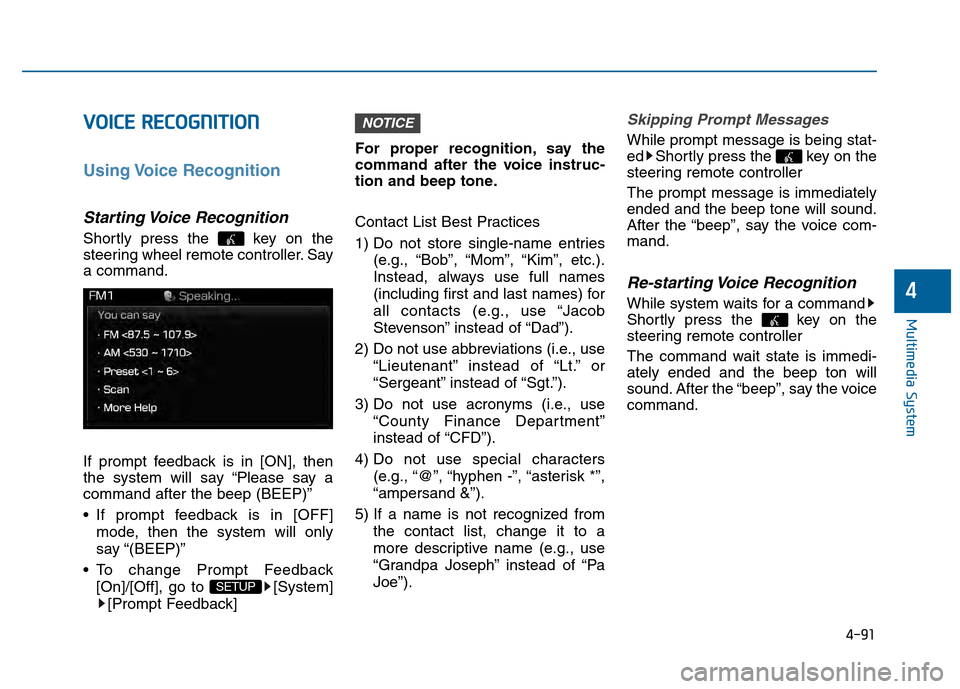
Starting Voice Recognition
Shortly press the key on the
steering wheel remote controller. Say
a command.
If prompt feedback is in [ON], then
the system will say “Please say a
command after the beep (BEEP)”
If prompt feedback is in [OFF]
mode, then the system will only
say “(BEEP)”
To change Prompt Feedback [On]/[Off], go to [System][Prompt Feedback] For proper recognition, say the
command after the voice instruc-
tion and beep tone.
Contact List Best Practices
1) Do not store single-name entries
(e.g., “Bob”, “Mom”, “Kim”, etc.).
Instead, always use full names
(including first and last names) for
all contacts (e.g., use “Jacob
Stevenson” instead of “Dad”).
2) Do not use abbreviations (i.e., use “Lieutenant” instead of “Lt.” or
“Sergeant” instead of “Sgt.”).
3) Do not use acronyms (i.e., use “County Finance Department”
instead of “CFD”).
4) Do not use special characters (e.g., “@”, “hyphen -”, “asterisk *”,
“ampersand &”).
5) If a name is not recognized from the contact list, change it to a
more descriptive name (e.g., use
“Grandpa Joseph” instead of “Pa
Joe”).
Skipping Prompt Messages
While prompt message is being stat-
ed Shortly press the key on the
steering remote controller
The prompt message is immediately
ended and the beep tone will sound.
After the “beep”, say the voice com-
mand.
Re-starting Voice Recognition
While system waits for a command
Shortly press the key on the
steering remote controller
The command wait state is immedi-
ately ended and the beep ton will
sound. After the “beep”, say the voice
command.
NOTICE
SETUP