maint HYUNDAI SONATA 2023 Service Manual
[x] Cancel search | Manufacturer: HYUNDAI, Model Year: 2023, Model line: SONATA, Model: HYUNDAI SONATA 2023Pages: 555, PDF Size: 42.72 MB
Page 379 of 555
While Driving
6-92
OTMA058094
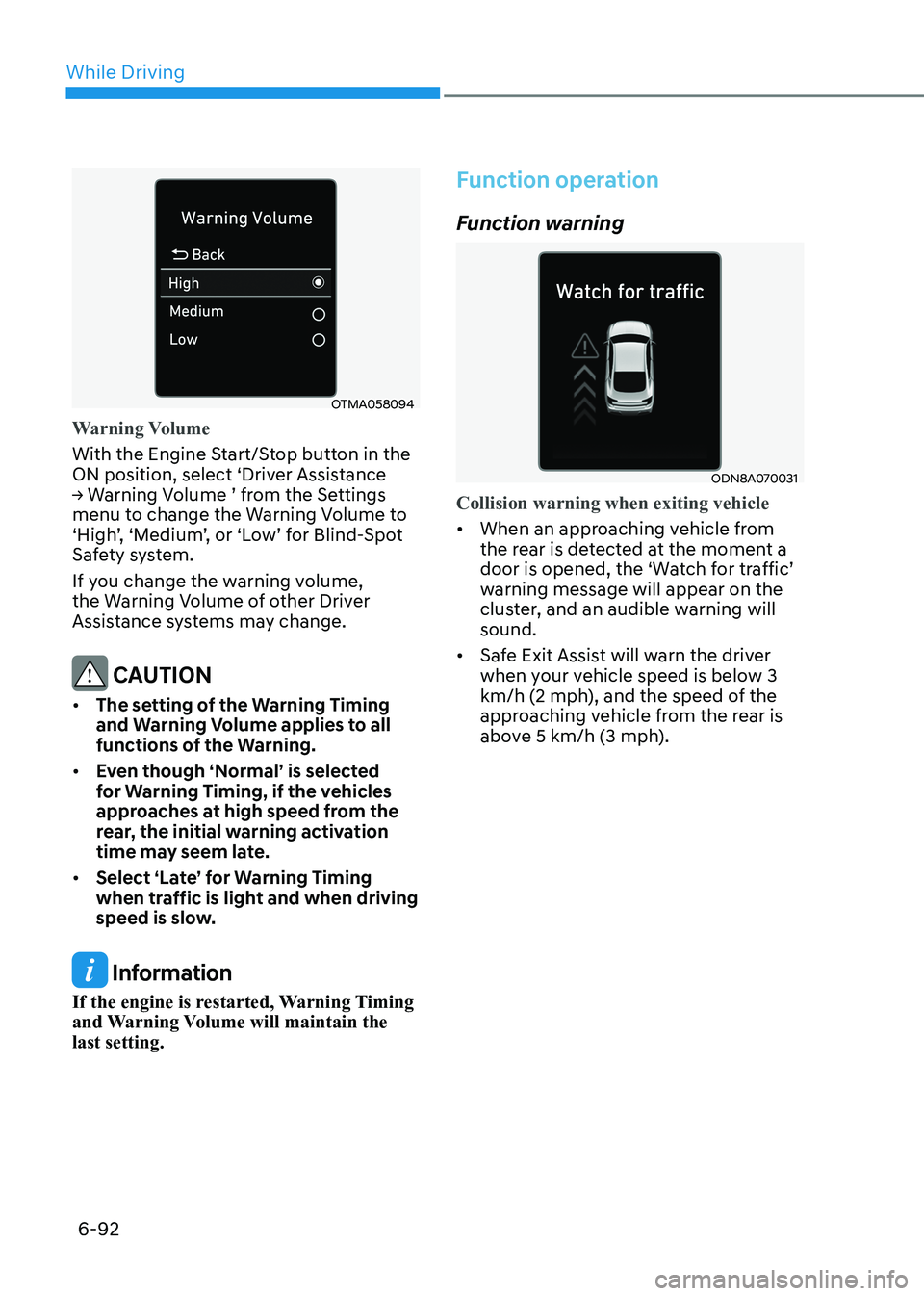
Warning Volume
With the Engine Start/Stop button in the
ON position, select ‘Driver Assistance
→ Warning Volume ’ from the Settings
menu to change the Warning Volume to
‘High’, ‘Medium’, or ‘Low’ for Blind-Spot
Safety system.
If you change the warning volume,
the Warning Volume of other Driver
Assistance systems may change.
CAUTION
• The setting of the Warning Timing
and Warning Volume applies to all
functions of the Warning.
• Even though ‘Normal’ is selected
for Warning Timing, if the vehicles
approaches at high speed from the
rear, the initial warning activation
time may seem late.
• Select ‘Late’ for Warning Timing
when traffic is light and when driving
speed is slow.
Information
If the engine is restarted, Warning Timing
and Warning Volume will maintain the last setting.
Function operation
Function warning
ODN8A070031
Collision warning when exiting vehicle
• When an approaching vehicle from
the rear is detected at the moment a
door is opened, the ‘Watch for traffic’
warning message will appear on the
cluster, and an audible warning will sound.
• Safe Exit Assist will warn the driver
when your vehicle speed is below 3
km/h (2 mph), and the speed of the
approaching vehicle from the rear is
above 5 km/h (3 mph).
Page 383 of 555
While Driving
6-96
Driver Attention Warning system displays
the condition of the driver’s fatigue level
and inattentive driving practices.
System Setting and Operation
System setting
ODN8H069209L
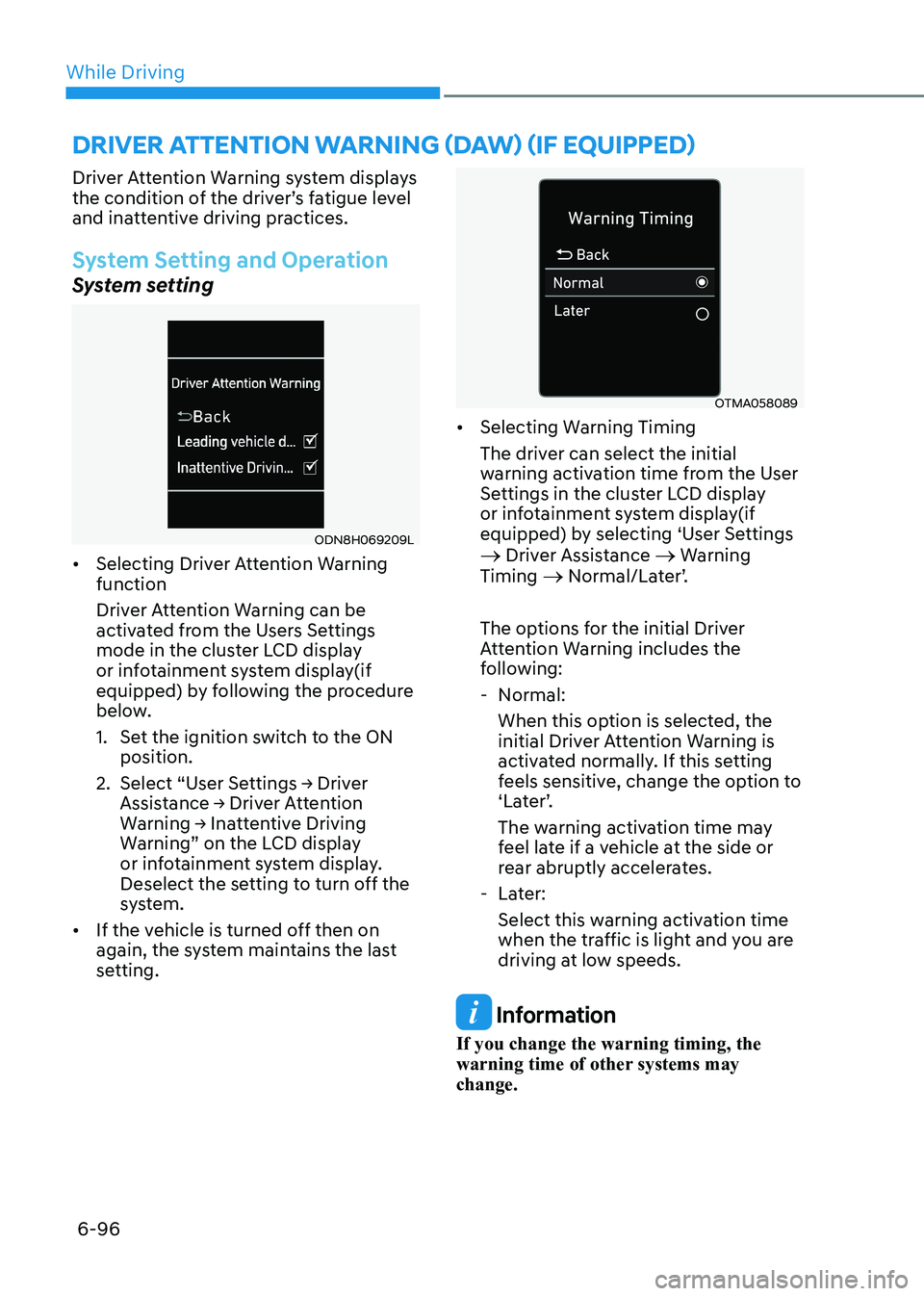
• Selecting Driver Attention Warning function
Driver Attention Warning can be
activated from the Users Settings
mode in the cluster LCD display
or infotainment system display(if
equipped) by following the procedure
below.
1. Set the ignition switch to the ON
position.
2. Select “User Settings → Driver
Assistance → Driver Attention
Warning → Inattentive Driving
Warning” on the LCD display
or infotainment system display.
Deselect the setting to turn off the
system.
• If the vehicle is turned off then on
again, the system maintains the last
setting.
OTMA058089
• Selecting Warning Timing
The driver can select the initial
warning activation time from the User
Settings in the cluster LCD display
or infotainment system display(if
equipped) by selecting ‘User Settings
→ Driver Assistance → Warning
Timing → Normal/Later’.
The options for the initial Driver
Attention Warning includes the
following: - Normal: When this option is selected, the
initial Driver Attention Warning is
activated normally. If this setting
feels sensitive, change the option to
‘Later’.
The warning activation time may
feel late if a vehicle at the side or
rear abruptly accelerates.
- Later: Select this warning activation time
when the traffic is light and you are
driving at low speeds.
Information
If you change the warning timing, the
warning time of other systems may change.
Driver attention warning (Daw) (if equippeD)
Page 388 of 555
06
6-101
Leading Vehicle Departure Alert (if equipped)
After the vehicle in front departs an alert
informs the driver.
System setting
With the engine ON, Leading Vehicle
Departure Alert function turns on and
gets ready to be activated when the
‘User Settings → Driver Assistance →
Driver Attention Warning → Leading
Vehicle Departure Alert’ is selected on
the cluster. The function stops operation
when the setting is deactivated.
However, if the engine is turned off then
on again, the function maintains the
previous state.
Operating conditions
ODN8059263L
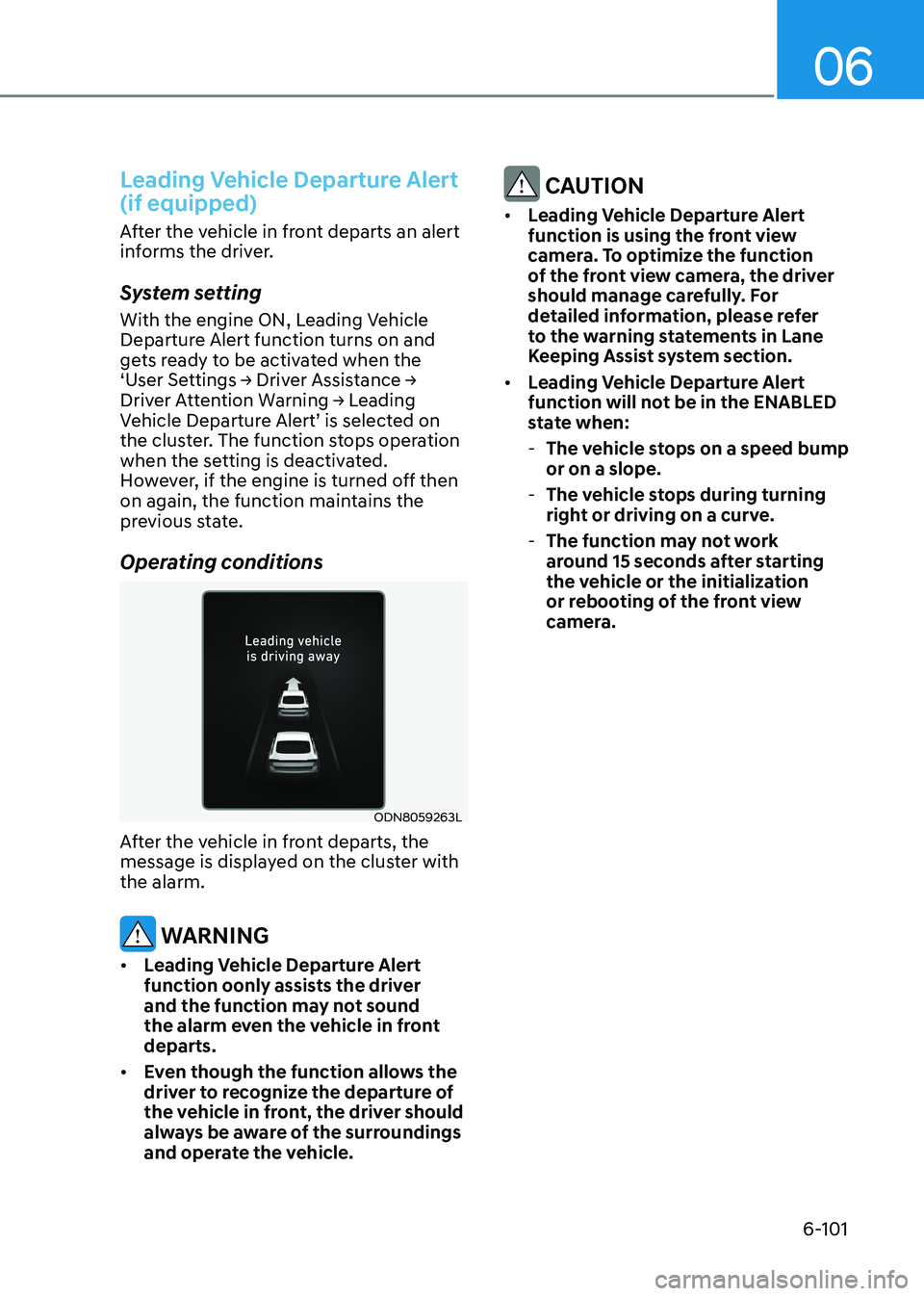
After the vehicle in front departs, the
message is displayed on the cluster with the alarm.
WARNING
• Leading Vehicle Departure Alert
function oonly assists the driver
and the function may not sound
the alarm even the vehicle in front departs.
• Even though the function allows the
driver to recognize the departure of
the vehicle in front, the driver should
always be aware of the surroundings
and operate the vehicle.
CAUTION
• Leading Vehicle Departure Alert
function is using the front view
camera. To optimize the function
of the front view camera, the driver
should manage carefully. For
detailed information, please refer
to the warning statements in Lane
Keeping Assist system section.
• Leading Vehicle Departure Alert
function will not be in the ENABLED
state when:
- The vehicle stops on a speed bump or on a slope.
- The vehicle stops during turning
right or driving on a curve.
- The function may not work
around 15 seconds after starting
the vehicle or the initialization
or rebooting of the front view
camera.
Page 392 of 555
06
6-105
ODN8A069211C
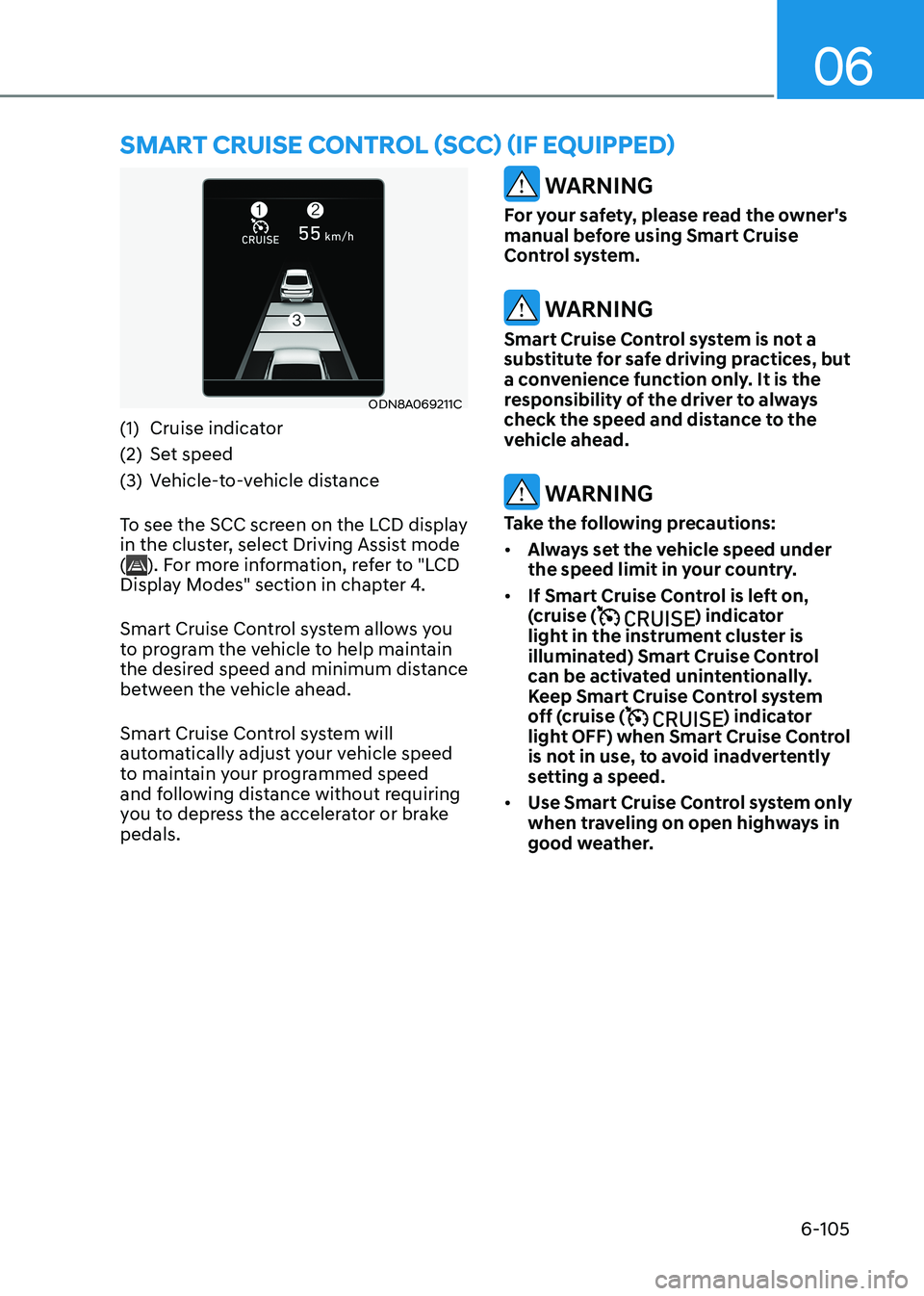
(1) Cruise indicator
(2) Set speed
(3) Vehicle-to-vehicle distance
To see the SCC screen on the LCD display
in the cluster, select Driving Assist mode (
). For more information, refer to "LCD
Display Modes" section in chapter 4.
Smart Cruise Control system allows you
to program the vehicle to help maintain
the desired speed and minimum distance
between the vehicle ahead.
Smart Cruise Control system will
automatically adjust your vehicle speed
to maintain your programmed speed
and following distance without requiring
you to depress the accelerator or brake pedals.
WARNING
For your safety, please read the owner's
manual before using Smart Cruise
Control system.
WARNING
Smart Cruise Control system is not a
substitute for safe driving practices, but
a convenience function only. It is the
responsibility of the driver to always
check the speed and distance to the
vehicle ahead.
WARNING
Take the following precautions: • Always set the vehicle speed under
the speed limit in your country.
• If Smart Cruise Control is left on,
(cruise (
) indicator
light in the instrument cluster is
illuminated) Smart Cruise Control
can be activated unintentionally.
Keep Smart Cruise Control system
off (cruise (
) indicator
light OFF) when Smart Cruise Control
is not in use, to avoid inadvertently
setting a speed.
• Use Smart Cruise Control system only
when traveling on open highways in
good weather.
smart cruise control (scc) (if equippeD)
Page 394 of 555
06
6-107
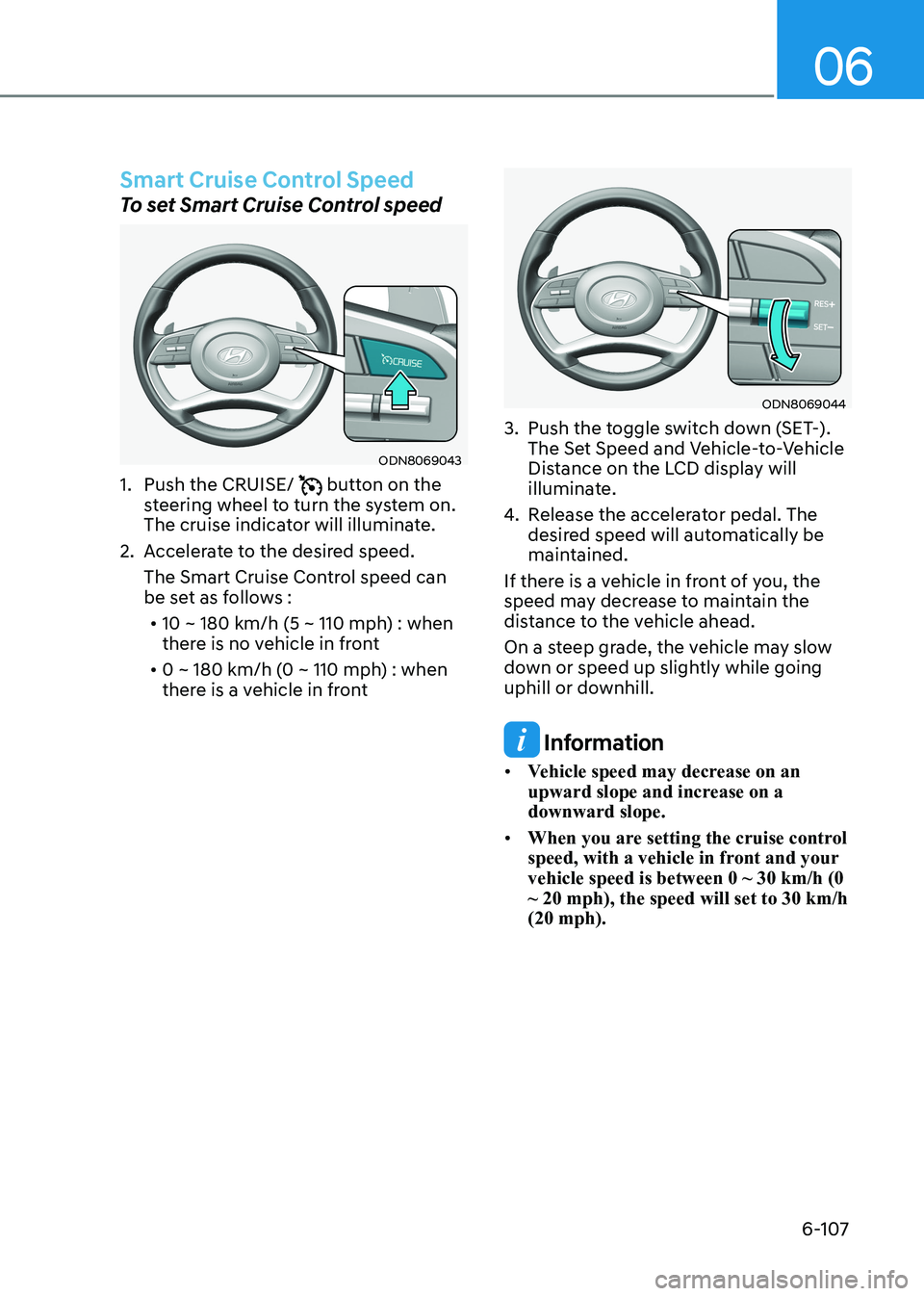
Smart Cruise Control Speed
To set Smart Cruise Control speed
ODN8069043
1. Push the CRUISE/
button on the
steering wheel to turn the system on.
The cruise indicator will illuminate.
2. Accelerate to the desired speed. The Smart Cruise Control speed can
be set as follows :• 10 ~ 180 km/h (5 ~ 110 mph) : when
there is no vehicle in front
• 0 ~ 180 km/h (0 ~ 110 mph) : when
there is a vehicle in front
ODN8069044
3. Push the toggle switch down (SET-). The Set Speed and Vehicle-to-Vehicle
Distance on the LCD display will
illuminate.
4. Release the accelerator pedal. The
desired speed will automatically be
maintained.
If there is a vehicle in front of you, the
speed may decrease to maintain the
distance to the vehicle ahead.
On a steep grade, the vehicle may slow
down or speed up slightly while going
uphill or downhill.
Information
• Vehicle speed may decrease on an
upward slope and increase on a downward slope.
• When you are setting the cruise control
speed, with a vehicle in front and your vehicle speed is between 0 ~ 30 km/h (0 ~ 20 mph), the speed will set to 30 km/h (20 mph).
Page 400 of 555
06
6-113
Smart Cruise Control Vehicle-to-
Vehicle Distance
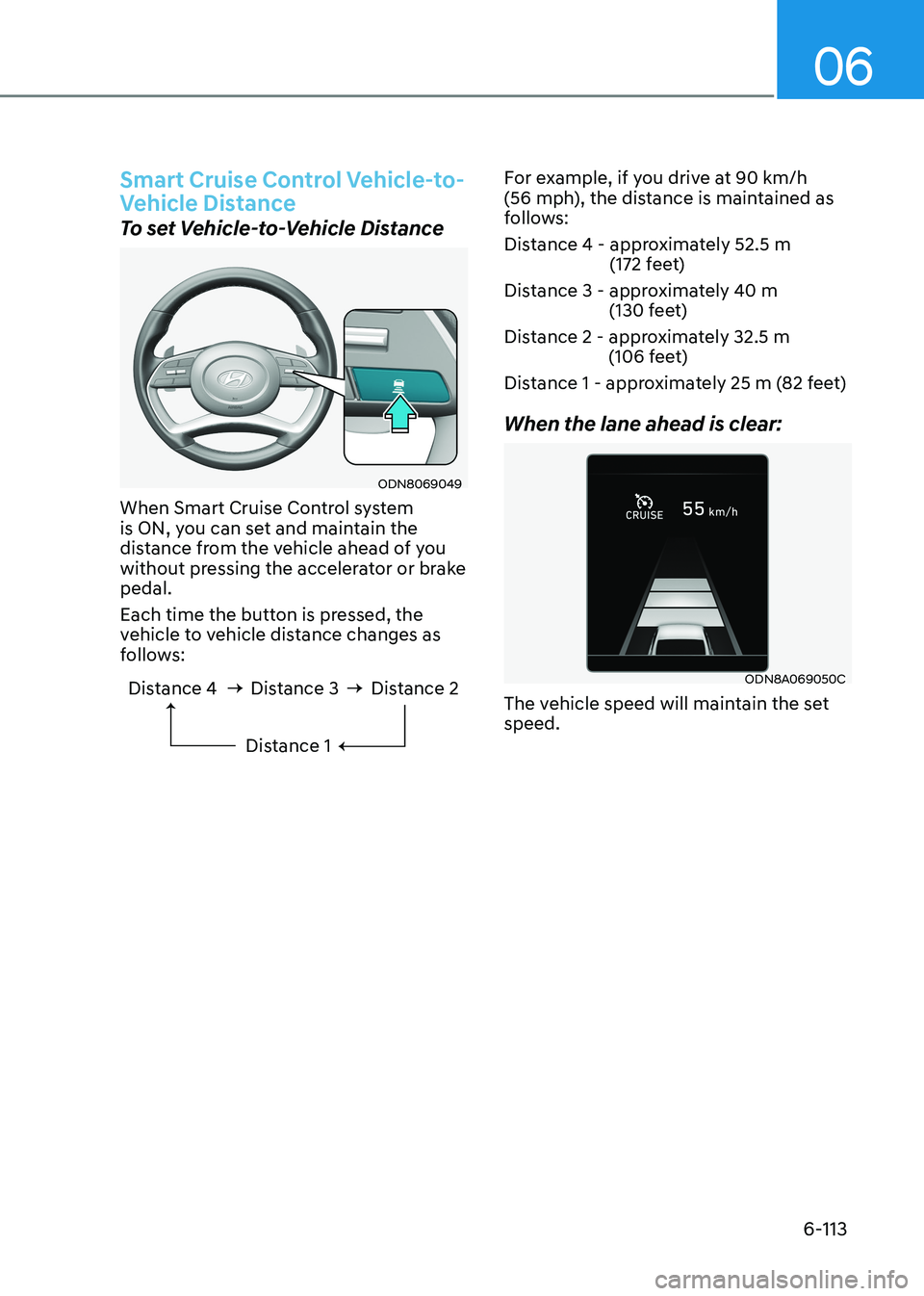
To set Vehicle-to-Vehicle Distance
ODN8069049
When Smart Cruise Control system
is ON, you can set and maintain the
distance from the vehicle ahead of you
without pressing the accelerator or brake pedal.
Each time the button is pressed, the
vehicle to vehicle distance changes as
follows:
Distance 4 Distance 3
Distance 1Distance 2
For example, if you drive at 90 km/h
(56 mph), the distance is maintained as
follows:
Distance 4 - approximately 52.5 m (172 feet)
Distance 3 - approximately 40 m (130 feet)
Distance 2 - approximately 32.5 m (106 feet)
Distance 1 - approximately 25 m (82 feet) When the lane ahead is clear:
ODN8A069050C
The vehicle speed will maintain the set speed.
Page 401 of 555
While Driving
6-114
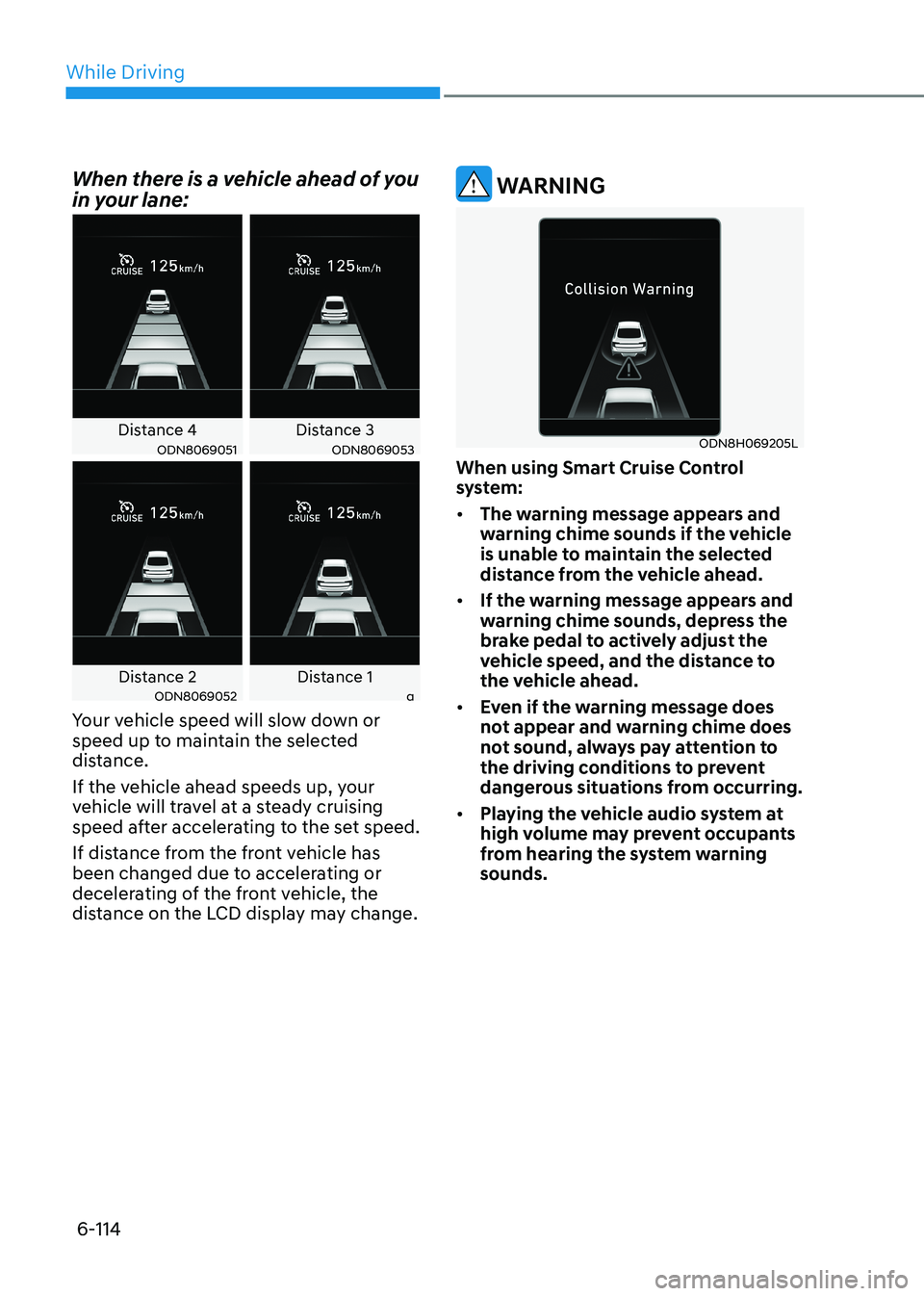
When there is a vehicle ahead of you
in your lane:
Distance 4 Distance 3ODN8069051ODN8069053
Distance 2 Distance 1ODN8069052a
Your vehicle speed will slow down or
speed up to maintain the selected
distance.
If the vehicle ahead speeds up, your
vehicle will travel at a steady cruising
speed after accelerating to the set speed.
If distance from the front vehicle has
been changed due to accelerating or
decelerating of the front vehicle, the
distance on the LCD display may change.
WARNING
ODN8H069205L
When using Smart Cruise Control
system: • The warning message appears and
warning chime sounds if the vehicle
is unable to maintain the selected
distance from the vehicle ahead.
• If the warning message appears and
warning chime sounds, depress the
brake pedal to actively adjust the
vehicle speed, and the distance to
the vehicle ahead.
• Even if the warning message does
not appear and warning chime does
not sound, always pay attention to
the driving conditions to prevent
dangerous situations from occurring.
• Playing the vehicle audio system at
high volume may prevent occupants
from hearing the system warning sounds.
Page 403 of 555
While Driving
6-116
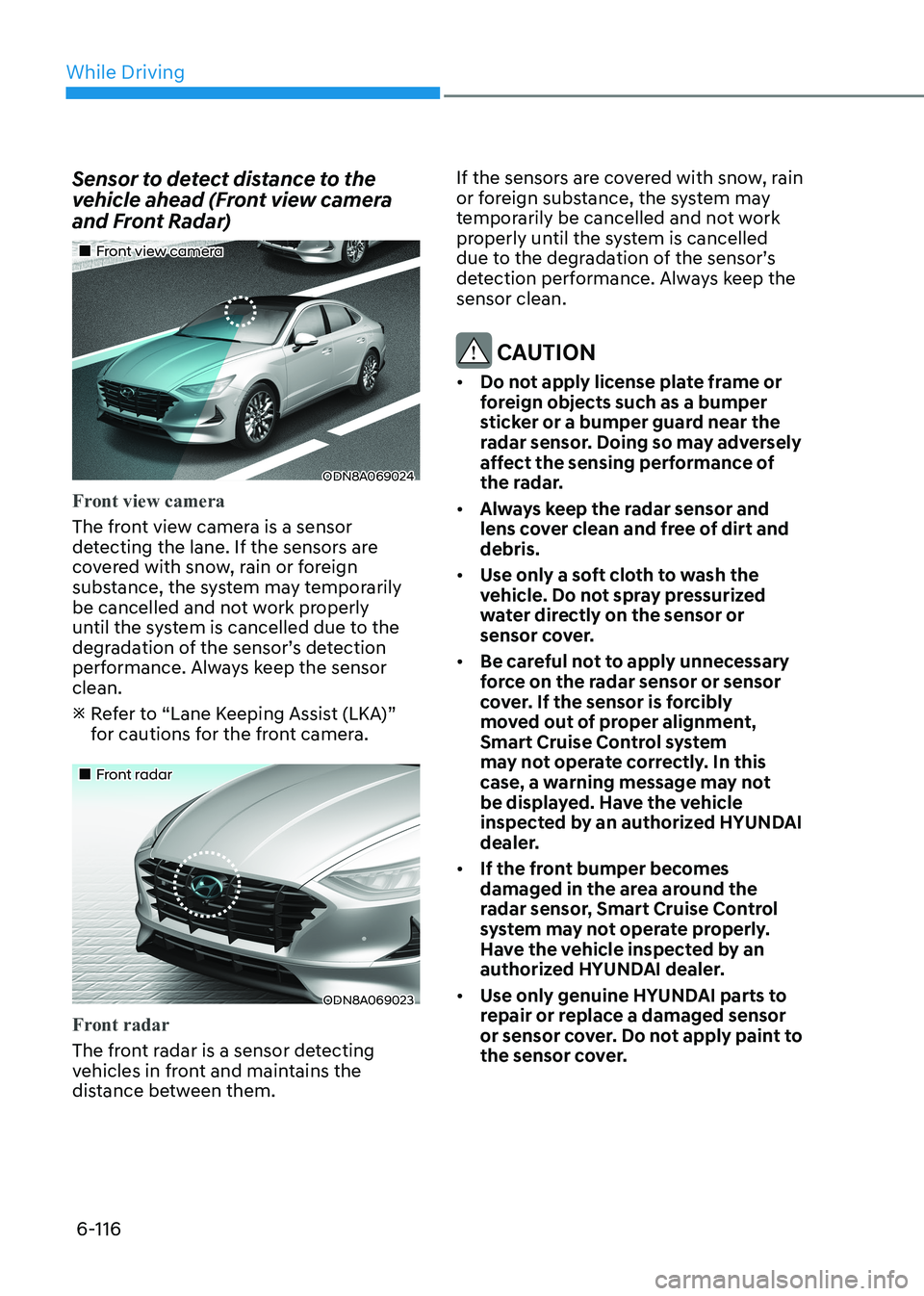
Sensor to detect distance to the
vehicle ahead (Front view camera
and Front Radar)
„„Front view camera
ODN8A069024
Front view camera
The front view camera is a sensor
detecting the lane. If the sensors are
covered with snow, rain or foreign
substance, the system may temporarily
be cancelled and not work properly
until the system is cancelled due to the
degradation of the sensor’s detection
performance. Always keep the sensor clean.
Refer to “Lane Keeping Assist (LKA)”
for cautions for the front camera.
„„Front radar
ODN8A069023
Front radar
The front radar is a sensor detecting
vehicles in front and maintains the
distance between them. If the sensors are covered with snow, rain
or foreign substance, the system may
temporarily be cancelled and not work
properly until the system is cancelled
due to the degradation of the sensor’s
detection performance. Always keep the sensor clean.
CAUTION
• Do not apply license plate frame or
foreign objects such as a bumper
sticker or a bumper guard near the
radar sensor. Doing so may adversely
affect the sensing performance of
the radar.
• Always keep the radar sensor and
lens cover clean and free of dirt and debris.
• Use only a soft cloth to wash the
vehicle. Do not spray pressurized
water directly on the sensor or
sensor cover.
• Be careful not to apply unnecessary
force on the radar sensor or sensor
cover. If the sensor is forcibly
moved out of proper alignment,
Smart Cruise Control system
may not operate correctly. In this
case, a warning message may not
be displayed. Have the vehicle
inspected by an authorized HYUNDAI
dealer.
• If the front bumper becomes
damaged in the area around the
radar sensor, Smart Cruise Control
system may not operate properly.
Have the vehicle inspected by an
authorized HYUNDAI dealer.
• Use only genuine HYUNDAI parts to
repair or replace a damaged sensor
or sensor cover. Do not apply paint to
the sensor cover.
Page 406 of 555
06
6-119
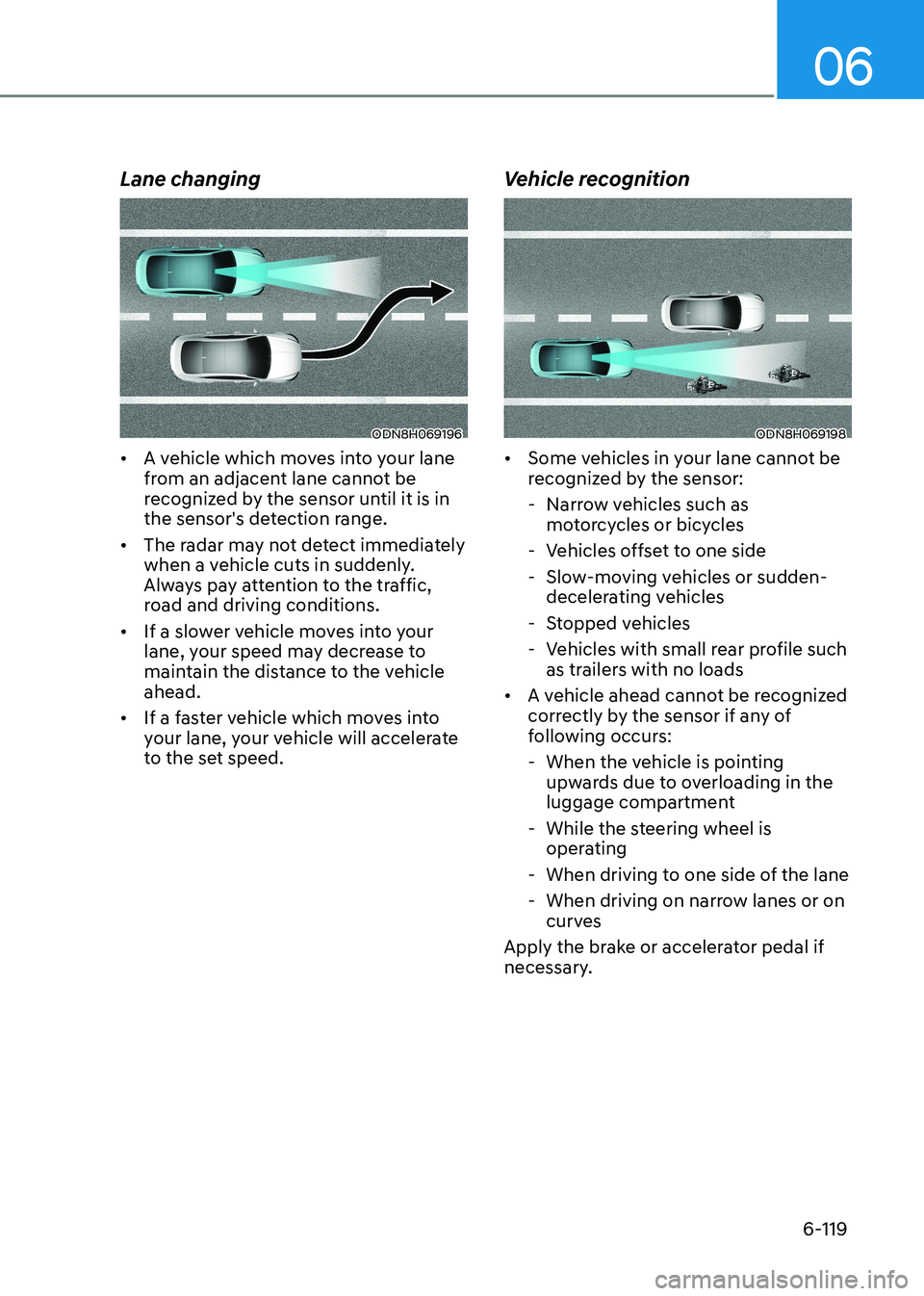
Lane changing
ODN8H069196
• A vehicle which moves into your lane
from an adjacent lane cannot be
recognized by the sensor until it is in
the sensor's detection range.
• The radar may not detect immediately
when a vehicle cuts in suddenly.
Always pay attention to the traffic,
road and driving conditions.
• If a slower vehicle moves into your
lane, your speed may decrease to
maintain the distance to the vehicle ahead.
• If a faster vehicle which moves into
your lane, your vehicle will accelerate
to the set speed. Vehicle recognitionODN8H069198
• Some vehicles in your lane cannot be
recognized by the sensor:
- Narrow vehicles such as motorcycles or bicycles
- Vehicles offset to one side
- Slow-moving vehicles or sudden- decelerating vehicles
- Stopped vehicles
- Vehicles with small rear profile such as trailers with no loads
• A vehicle ahead cannot be recognized
correctly by the sensor if any of
following occurs:
- When the vehicle is pointing upwards due to overloading in the
luggage compartment
- While the steering wheel is operating
- When driving to one side of the lane
- When driving on narrow lanes or on curves
Apply the brake or accelerator pedal if
necessary.
Page 407 of 555
While Driving
6-120
OAE056108
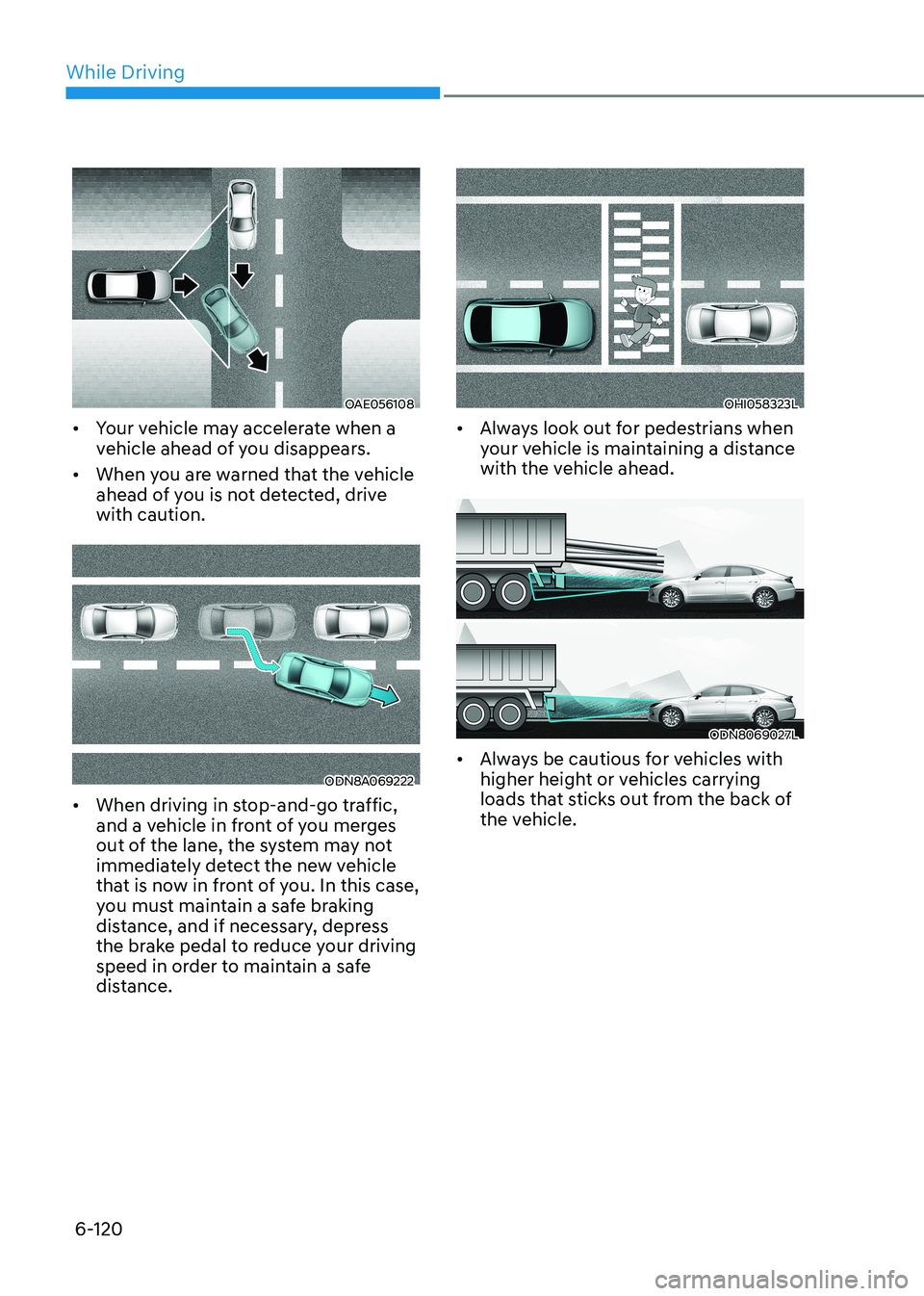
• Your vehicle may accelerate when a
vehicle ahead of you disappears.
• When you are warned that the vehicle
ahead of you is not detected, drive with caution.
ODN8A069222
• When driving in stop-and-go traffic,
and a vehicle in front of you merges
out of the lane, the system may not
immediately detect the new vehicle
that is now in front of you. In this case,
you must maintain a safe braking
distance, and if necessary, depress
the brake pedal to reduce your driving
speed in order to maintain a safe
distance.
OHI058323L
• Always look out for pedestrians when
your vehicle is maintaining a distance
with the vehicle ahead.
ODN8069027L
• Always be cautious for vehicles with
higher height or vehicles carrying
loads that sticks out from the back of
the vehicle.