key Hyundai Sonata Hybrid 2015 Owner's Manual
[x] Cancel search | Manufacturer: HYUNDAI, Model Year: 2015, Model line: Sonata Hybrid, Model: Hyundai Sonata Hybrid 2015Pages: 543, PDF Size: 25.53 MB
Page 349 of 543
![Hyundai Sonata Hybrid 2015 Owners Manual Features of your vehicle
268
4
Text Scroll
Press the key Select
[Display] Select [Text Scroll]
This feature is used to scroll text dis-
played on the screen when it is too long
to be displayed at onc](/img/35/19645/w960_19645-348.png "Hyundai Sonata Hybrid 2015 Owners Manual Features of your vehicle
268
4
Text Scroll
Press the key Select
[Display] Select [Text Scroll]
This feature is used to scroll text dis-
played on the screen when it is too long
to be displayed at onc")
Features of your vehicle
268
4
Text Scroll
Press the key Select
[Display] Select [Text Scroll]
This feature is used to scroll text dis-
played on the screen when it is too long
to be displayed at once.
When turned on, the text is repeatedly
scrolled. When turned off, the text is
scrolled just once.
MP3 Information Display
Press the key Select
[Display] Select [Media Display]
This feature is used to change the infor-
mation displayed within USB and MP3
CD modes.
1) Folder File : Displays file name and folder name
2) Album Artist Song : Displays album name/artist name/song
Sound Settings
Sound Settings
Press the key Select
[Sound] Select [Sound Setting]SETUP
SETUP
SETUP
Page 350 of 543
4269
Features of your vehicle
Use the , , , buttons to
adjust the Fader/Balance settings.
Use the , buttons to adjust the
Bass/Middle/Treble settings.
Press the button to reset.SDVC (Speed Dependent VolumeControl)
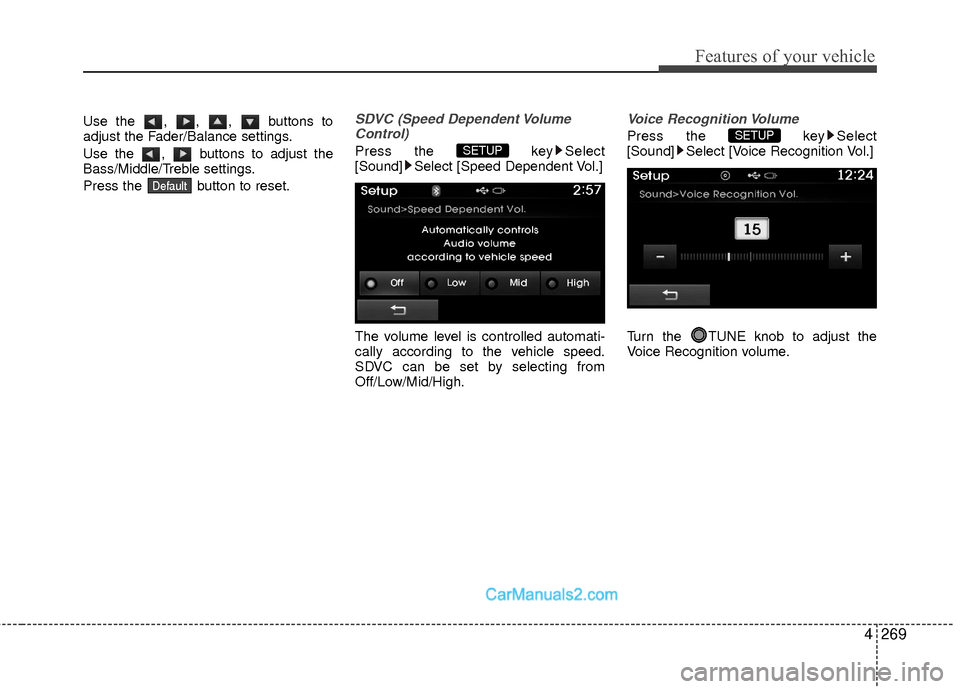
Press the key Select
[Sound] Select [Speed Dependent Vol.]
The volume level is controlled automati-
cally according to the vehicle speed.
SDVC can be set by selecting from
Off/Low/Mid/High.
Voice Recognition Volume
Press the key Select
[Sound] Select [Voice Recognition Vol.]
Turn the TUNE knob to adjust the
Voice Recognition volume.SETUP SETUP
Default
Page 351 of 543
![Hyundai Sonata Hybrid 2015 Owners Manual Features of your vehicle
270
4
Touch Screen Beep
Press the key Select
[Sound] Select [Touch Screen Beep]
This feature is used to turn the touch
screen beep on/off.
Blue Link Voice Volume (if equipped](/img/35/19645/w960_19645-350.png "Hyundai Sonata Hybrid 2015 Owners Manual Features of your vehicle
270
4
Touch Screen Beep
Press the key Select
[Sound] Select [Touch Screen Beep]
This feature is used to turn the touch
screen beep on/off.
Blue Link Voice Volume (if equipped")
Features of your vehicle
270
4
Touch Screen Beep
Press the key Select
[Sound] Select [Touch Screen Beep]
This feature is used to turn the touch
screen beep on/off.
Blue Link Voice Volume (if equipped)
Press the key Select
[Sound] Select [Blue Link Voice Vol.]
Turn the TUNE knob to adjust the
Blue Link Voice Volume.
System Setting
HD Radio™ On/Off
Press the key Select [System]
Select [FM], [AM]
This feature is used to set whether to
receive FM/AM HD Radio™ broadcasts.SETUP
SETUP SETUP
Page 352 of 543
![Hyundai Sonata Hybrid 2015 Owners Manual 4271
Features of your vehicle
Prompt Feedback
Press the key Select [System]
Select [Prompt Feedback]
This feature is used to select the desired
prompt feedback option from ON and OFF.
1) ON : When us](/img/35/19645/w960_19645-351.png "Hyundai Sonata Hybrid 2015 Owners Manual 4271
Features of your vehicle
Prompt Feedback
Press the key Select [System]
Select [Prompt Feedback]
This feature is used to select the desired
prompt feedback option from ON and OFF.
1) ON : When us")
4271
Features of your vehicle
Prompt Feedback
Press the key Select [System]
Select [Prompt Feedback]
This feature is used to select the desired
prompt feedback option from ON and OFF.
1) ON : When using voice recognition,provides detailed guidance prompts
2) OFF : When using voice recognition, omits some guidance prompts
Language
Press the key Select
[System] Select [Language]
This feature is used to change the system
and voice recognition language.
If the language is changed, the system
will restart and apply the selected lan-
guage.
Memory Information
Press the key Select [System]
Select [Memory Information]
This feature displays information related
to system memory.
1) Using : Displays capacity currently in use
2) Capacity : Displays total capacity
SETUP SETUP SETUP
Page 353 of 543
Features of your vehicle
272
4
REAR VIEW CAMERA
(if equipped)
The system has been equipped with a
rear view camera for user safety by
allowing a wider rear range of vision.
The rear view camera will automatical- ly operate when the ignition key is
turned ON and the transmission lever
is set to R.
The rear view camera will automatical- ly stop operating when set to a differ-
ent lever.
CAUTION
The rear view camera has been equipped with an optical lens toprovide a wider range of visionand may appear different from theactual distance. For safety, directlycheck the rear and left/right sides.
WARNING
This system is a supplementary function only. It is the responsi-
bility of the driver to always
check the inside/outside rearview
mirror and the area behind the
vehicle before and while backing
up.
Always keep the camera lens clean. If the lens is covered with
foreign matter, the camera may
not operate normally.
Page 354 of 543
4273
Features of your vehicle
Blue Link®
(if equipped)
Hyundai aims to offer differentiated cus-
tomer values through a ‘Connected Car
Life,’ which is to provide consumers with
fast and reliable IT technology. As con-
sumers’ lifestyles become more and more
mobile in thanks to remarkable advances
in smart phones, tablet PCs and overall
wireless telecommunication, new lifestyle
patterns demand seamless connection
between one’s office, home, outdoors and
automobiles.
Automobile companies are now faced with
the task of shifting their paradigm from
vehicle-centered services to customer
value-centered services, with the ultimate
goal of securing global leadership in the
field of vehicle IT and telematics.Hyundai Motor plans to achieve this by
realizing a terminal platform flexible to
changes in IT technology, cooperating
with global IT companies, creating an
eco-system and providing the latest con-
tents & services based on an open envi-
ronment.
Using the Room Mirror Key
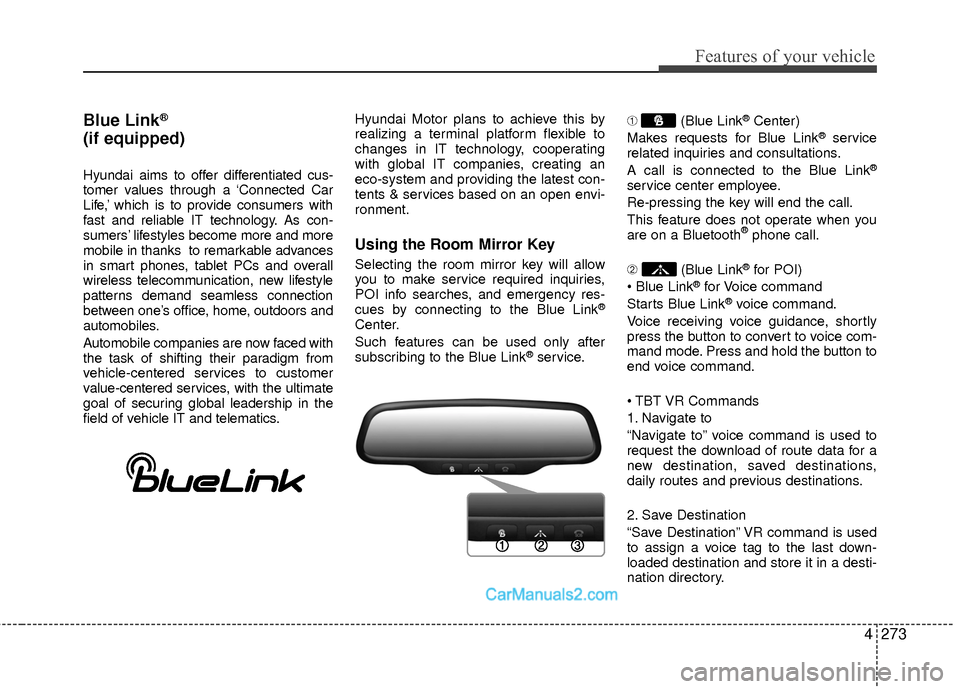
Selecting the room mirror key will allow
you to make service required inquiries,
POI info searches, and emergency res-
cues by connecting to the Blue Link
®
Center.
Such features can be used only after
subscribing to the Blue Link
®service.
➀
(Blue Link
®Center)
Makes requests for Blue Link®service
related inquiries and consultations.
A call is connected to the Blue Link
®
service center employee.
Re-pressing the key will end the call.
This feature does not operate when you
are on a Bluetooth
®phone call.
\b (Blue Link
®for POI)
®for Voice command
Starts Blue Link®voice command.
Voice receiving voice guidance, shortly
press the button to convert to voice com-
mand mode. Press and hold the button to
end voice command.
1. Navigate to
“Navigate to” voice command is used to
request the download of route data for a
new destination, saved destinations,
daily routes and previous destinations.
2. Save Destination
“Save Destination” VR command is used
to assign a voice tag to the last down-
loaded destination and store it in a desti-
nation directory.
Page 355 of 543
Features of your vehicle
274
4
NOTE:
The Turn by Turn(TBT) feature sup-
ports the store of ten(10) destinations
in the TBT destinations directory.
3. Route Preview
“Route Preview” VR command allows the
user to preview the route instructions
(upcoming maneuver instructions) at any
time during the route guidance.
4. Destinations List
“Destinations List” VR command allows
the user to preview and delete the stored
destinations with their associated voice
tags in the Turn by Turn destinations
directory. 5. Voice Guidance
“Voice Guidance” VR command allows
the user to mute/unmute the Turn by
Turn(TBT) direction announcements.
6. Suspend Route
“Suspend Route” VR command allows
the user to suspend and pause Turn by
Turn(TBT) route guidance while in the
guidance mode.
7. Resume Route
“Resume Route” VR command allows
the user to resume Turn by Turn(TBT)
route guidance.
➂
(Blue Link
®for SOS)
In the case of an emergency, requests for
help to the Blue Link
®center.
Call is connected to the Blue Link®emer-
gency rescue center. Re-pressing the
key will end the call.
If already on a Bluetooth
®phone call, the
call will end to connect you to the Blue Link®
Emergency Rescue Center.
CAUTION
You cannot talk simultaneously on the Bluetooth®phone and
Blue Link®phone.
While on a Bluetooth®call, press-
ing the key or key will display a message indicating thatyou are currently on a call.
A message will be displayed if you receive a Bluetooth
®Bluetooth®
Wireless Technology call whilealready on a Blue Link®call. At
this time, press the key on the steering wheel remote controllerto accept the call. The phone bell will not ring.
Page 363 of 543

Driving your vehicle
65
✽
✽NOTICE
• If you press the HEV system start/stop
button without depressing the brake
pedal, the HEV system does not start
and the HEV system start/stop button
changes as follows :
OFF → →
ACC →
→
ON →
→
OFF
• If you leave the engine start/stop but- ton in the ACC or the ON position for
a long time, the battery will be dis-
charged.
Starting the hybrid system
1. Carry the smart key or leave it inside
the vehicle.
2. Make sure the parking brake is firmly applied.
3. Place the shift lever in the P(Park) position. In N(Neutral) position, you
can not start the vehicle.
4. Depress the brake pedal.
5. Press the HEV system start/stop but- ton.
It should be started without depress-
ing the accelerator.
WARNING
Except in an emergency, neverpress the engine start/stop but-
ton while the vehicle is in motion.
This could result in higher brak-
ing effort and steering, which
could cause an accident.
Before leaving the driver’s seat, always make sure the shift lever
is engaged in P (Park), set the
parking brake fully and shut the
engine off. Unexpected and sud-
den vehicle movement may occur
if these precautions are not
taken.
Never reach for the engine start/stop button, or any other
controls through the steering
wheel while the vehicle is in
motion. The presence of your
hand or arm in this area could
cause a loss of vehicle control,
an accident and serious bodily
injury or death.
Do not place any movable objects around the driver’s seat as they
may move while driving, interfere
with the driver and lead to an
accident.WARNING
Always wear appropriate shoes
when operating your vehicle.
Unsuitable shoes (high heels, ski
boots, etc.) may interfere with your
ability to use the brake and acceler-
ator pedal.
Even if you depress the brake pedal
before starting the vehicle in a
sloped area, the vehicle may move
when the parking brake is released.
For your safety, release the parking
brake after starting the vehicle.
Page 364 of 543
57
Driving your vehicle
6. Do not wait for the engine to warm upwhile the vehicle remains stationary.
Start driving at moderate engine
speeds.(Steep accelerating and
decelerating should be avoided.)
Even if the smart key is in the vehicle,
if it is far away from you, the HEV sys-
tem may not start.
When the HEV system start/stop but- ton is in the ACC or ON position, if any
door is open, the system checks for the
smart key. If the smart key is not in the
vehicle, the warning, "Key not in vehi-
cle" will come on, and if all doors are
closed, the chime will also sound for
about 5 seconds. The indicator will turn
off while the vehicle is moving. Keep
the smart key in the vehicle when
using the ACC position or if the vehicle
HEV system is on.
WARNING
The HEV system will start only
when the smart key is in the vehi-
cle. Never allow children or any per-
son who is unfamiliar with the vehi-
cle to touch the HEV system
start/stop button or related parts.
CAUTION
If the "READY" indicator is turnedoff while you are in motion, do notattempt to move the shift lever tothe P(Park) position. If traffic androad conditions permit, you maykeep the previous lever positionwhile the vehicle is still moving and press the engine start/stop buttonin an attempt to restart the hybridsystem without pressing the brakepedal.
If the hybrid system starts, the "READY" symbol comes on. If the"READY" symbol does not comeon, have the vehicle checked andrepaired by an authorizedHYUNDAI dealer.
Page 365 of 543
Driving your vehicle
85
✽
✽NOTICE
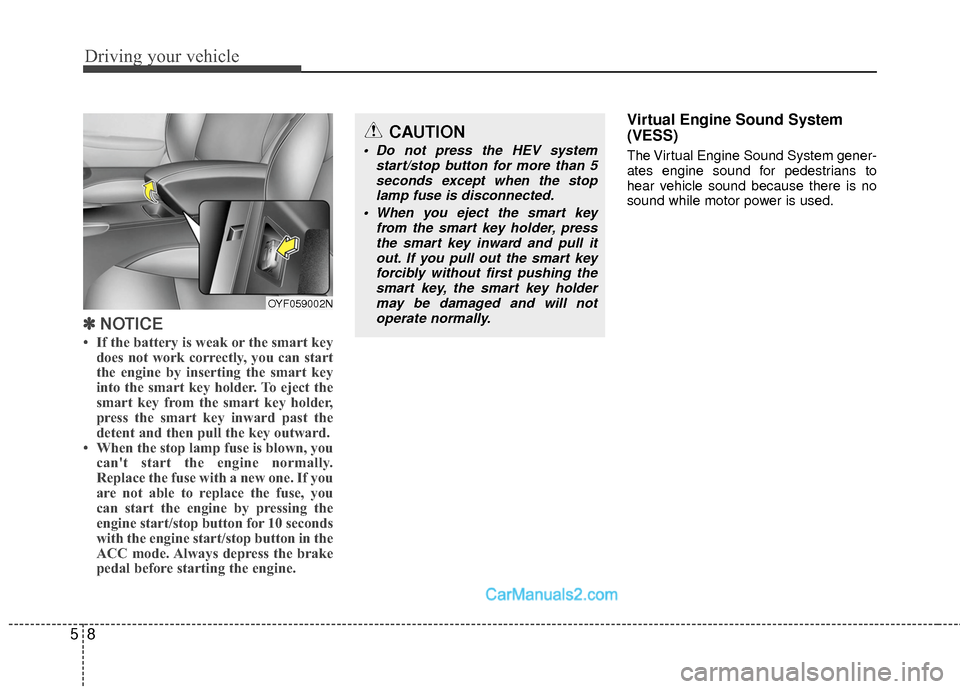
• If the battery is weak or the smart key
does not work correctly, you can start
the engine by inserting the smart key
into the smart key holder. To eject the
smart key from the smart key holder,
press the smart key inward past the
detent and then pull the key outward.
• When the stop lamp fuse is blown, you can't start the engine normally.
Replace the fuse with a new one. If you
are not able to replace the fuse, you
can start the engine by pressing the
engine start/stop button for 10 seconds
with the engine start/stop button in the
ACC mode. Always depress the brake
pedal before starting the engine.
Virtual Engine Sound System
(VESS)
The Virtual Engine Sound System gener-
ates engine sound for pedestrians to
hear vehicle sound because there is no
sound while motor power is used.
CAUTION
Do not press the HEV system
start/stop button for more than 5seconds except when the stoplamp fuse is disconnected.
When you eject the smart key from the smart key holder, pressthe smart key inward and pull it out. If you pull out the smart keyforcibly without first pushing thesmart key, the smart key holdermay be damaged and will notoperate normally.
OYF059002N