ad blue Hyundai Sonata Hybrid 2015 Owner's Guide
[x] Cancel search | Manufacturer: HYUNDAI, Model Year: 2015, Model line: Sonata Hybrid, Model: Hyundai Sonata Hybrid 2015Pages: 543, PDF Size: 25.53 MB
Page 286 of 543
4205
Features of your vehicle
NOTE:
The Turn by Turn(TBT) feature sup-
ports the store of ten(10) destinations
in the TBT destinations directory.
3. Route Preview
“Route Preview” VR command allows the
user to preview the route instructions
(upcoming maneuver instructions) at any
time during the route guidance.
4. Destinations List
“Destinations List” VR command allows
the user to preview and delete the stored
destinations with their associated voice
tags in the Turn by Turn destinations
directory.5. Voice Guidance
“Voice Guidance” VR command allows
the user to mute/unmute the Turn by
Turn(TBT) direction announcements.
6. Suspend Route
“Suspend Route” VR command allows
the user to suspend and pause Turn by
Turn(TBT) route guidance while in the
guidance mode.
7. Resume Route
“Resume Route” VR command allows
the user to resume Turn by Turn(TBT)
route guidance.
➂
(Blue Link
®for SOS)
In the case of an emergency, requests for
help to the Blue Link
®center.
Call is connected to the Blue Link®emer-
gency rescue center. Re-pressing the
key will end the call.
If already on a Bluetooth
®phone call, the
call will end to connect you to the Blue Link®
Emergency Rescue Center.
CAUTION
You cannot talk simultaneously on the Bluetooth®phone and
Blue Link®phone.
While on a Bluetooth®call, press-
ing the key or key will display a message indicating thatyou are currently on a call.
A message will be displayed if you receive a Bluetooth
®Bluetooth®
Wireless Technology call whilealready on a Blue Link®call. At
this time, press the key on the steering wheel remote controllerto accept the call. The phone bell will not ring.
Page 288 of 543
4207
Features of your vehicle
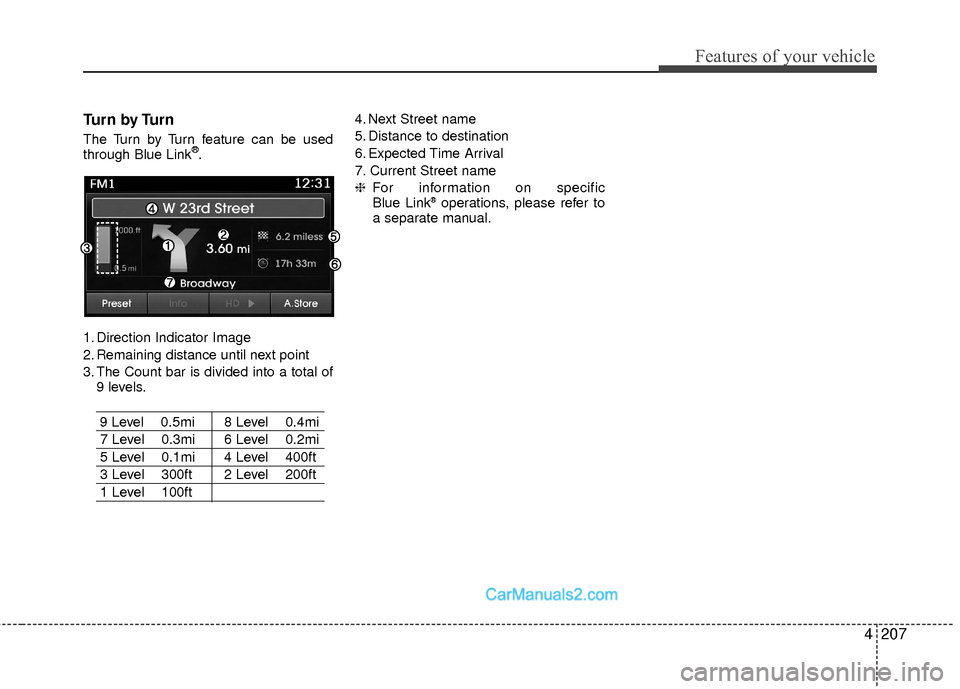
Turn by Turn
The Turn by Turn feature can be used
through Blue Link®.
1. Direction Indicator Image
2. Remaining distance until next point
3. The Count bar is divided into a total of 9 levels.
9 Level 0.5mi 8 Level 0.4mi
7 Level 0.3mi 6 Level 0.2mi
5 Level 0.1mi 4 Level 400ft
3 Level 300ft 2 Level 200ft
1 Level 100ft 4. Next Street name
5. Distance to destination
6. Expected Time Arrival
7. Current Street name
❈
For information on specific
Blue Link
®operations, please refer to
a separate manual.
Page 290 of 543
4209
Features of your vehicle
SYSTEM CONTROLLERS AND
FUNCTIONS
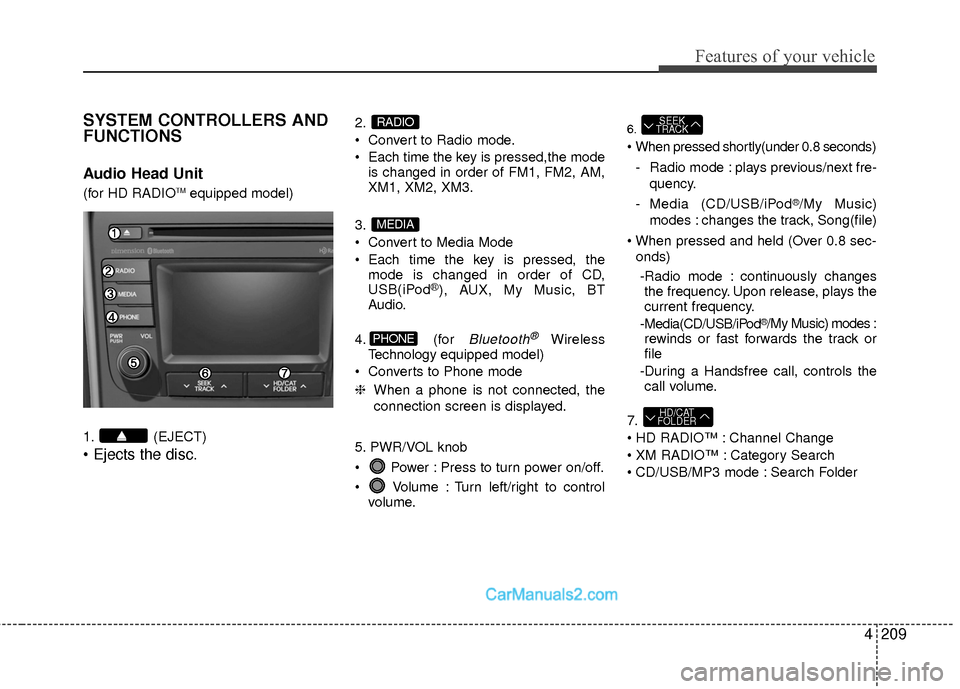
Audio Head Unit
(for HD RADIOTMequipped model)
1. (EJECT)
• Ejects the disc.
2.
Convert to Radio mode.
Each time the key is pressed,the mode is changed in order of FM1, FM2, AM,
XM1, XM2, XM3.
3.
Convert to Media Mode
Each time the key is pressed, the mode is changed in order of CD,
USB(iPod
®), AUX, My Music, BT
Audio.
4. (for
Bluetooth®Wireless
Technology equipped model)
Converts to Phone mode
❈ When a phone is not connected, the
connection screen is displayed.
5. PWR/VOL knob
Power : Press to turn power on/off.
Volume : Turn left/right to control volume.
6.
- Radio mode : plays previous/next fre- quency.
- Media (CD/USB/iPod
®/My Music)
modes : changes the track, Song(file)
onds)
-Radio mode : continuously changes the frequency. Upon release, plays the
current frequency.
-Media(CD/USB/iPod
®/My Music) modes :
rewinds or fast forwards the track or
file
-During a Handsfree call, controls the call volume.
7.
Channel Change
Category Search
CD/USB/MP3 mode : Search Folder
HD/CAT
FOLDER
SEEK
TRACK
PHONE
MEDIA
RADIO
Page 293 of 543
Features of your vehicle
212
4
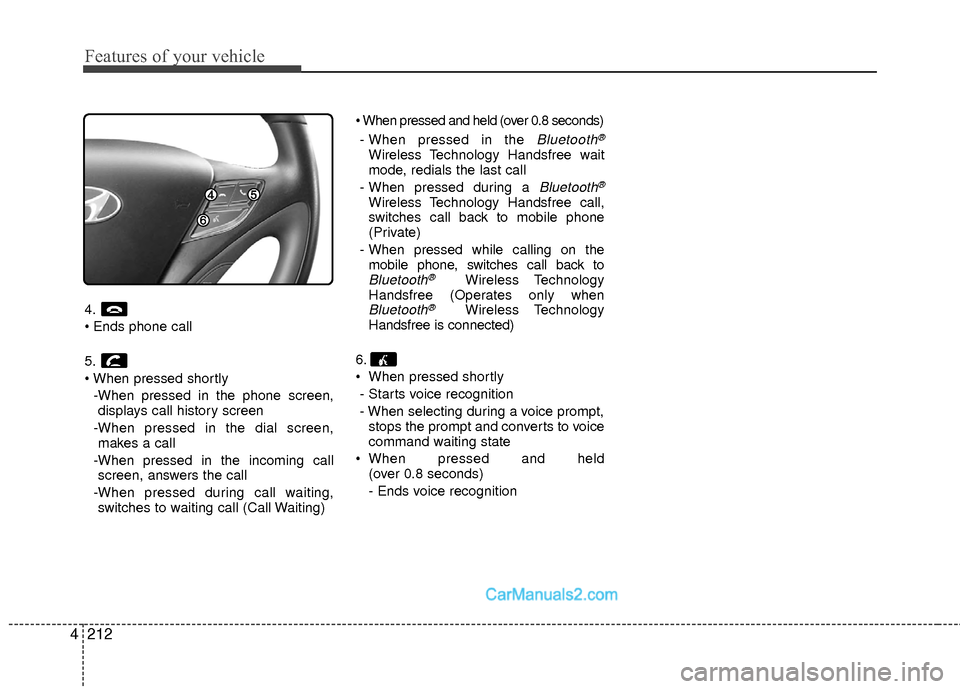
4.
5.
-When pressed in the phone screen,displays call history screen
-When pressed in the dial screen, makes a call
-When pressed in the incoming call screen, answers the call
-When pressed during call waiting, switches to waiting call (Call Waiting)
- When pressed in the
Bluetooth®
Wireless Technology Handsfree wait
mode, redials the last call
- When pressed during a
Bluetooth®
Wireless Technology Handsfree call,
switches call back to mobile phone
(Private)
- When pressed while calling on the mobile phone, switches call back to
Bluetooth®Wireless Technology
Handsfree (Operates only when
Bluetooth®Wireless Technology
Handsfree is connected)
6.
When pressed shortly - Starts voice recognition
- When selecting during a voice prompt, stops the prompt and converts to voice
command waiting state
When pressed and held (over 0.8 seconds)
- Ends voice recognition
Page 303 of 543
![Hyundai Sonata Hybrid 2015 Owners Guide Features of your vehicle
222
4
MEDIA MODE
Pressing the key will change the
operating mode in order of CD ➟USB(iPod®) ➟ AUX ➟ My Music ➟BT
Audio.
If [Mode Pop up] is turned on within
[Display](/img/35/19645/w960_19645-302.png "Hyundai Sonata Hybrid 2015 Owners Guide Features of your vehicle
222
4
MEDIA MODE
Pressing the key will change the
operating mode in order of CD ➟USB(iPod®) ➟ AUX ➟ My Music ➟BT
Audio.
If [Mode Pop up] is turned on within
[Display")
Features of your vehicle
222
4
MEDIA MODE
Pressing the key will change the
operating mode in order of CD ➟USB(iPod®) ➟ AUX ➟ My Music ➟BT
Audio.
If [Mode Pop up] is turned on within
[Display], then pressing the
key will display the Media Pop-
up Mode screen.
Turn the TUNE knob to move the
focus. Press the knob to select.
✽ ✽ NOTICE
The media mode pop up screen can be
displayed only when there are two or
more media modes turned on.
Title Icon
When a Bluetooth®Wireless
Technology, iPod®, USB, or AUX device
is connected or a CD is inserted, the cor-
responding mode icon will be displayed.
Icon Title
Bluetooth®Wireless Technology
CD
iPod®
USB
AUX
MEDIA
SETUP
MEDIA
Page 316 of 543
4235
Features of your vehicle
✽
✽NOTICE - USING THE
iPod®DEVICE
• iPod®is a registered trademark of
Apple Inc.
• In order to use the iPod
®while
operating the keys, you must use a
dedicated iPod
®cable. (the cable
that is supplied when purchasing
iPod
®/iPhone®products)
• If the iPod®is connected to the
vehicle while it is playing, a high
pitch sound could occur for approx-
imately 1-2 seconds immediately
after connecting. If possible, con-
nect the iPod to the vehicle with the
iPod
®stopped/paused.
• During ACC ON state, connecting the iPod
®through the iPod®cable
will charge the iPod®through the
car audio system.
• When connecting with the iPod
®
cable, make sure to fully insert the
jack to prevent communication
interference. (Continued)(Continued)
• When the EQ features of an exter-
nal device, such as the iPod
®, and
the audio system are both active,
EQ effects could overlap and cause
sound deterioration and distortion.
Whenever possible, turn off the EQ
feature within the external device
upon use by connecting with the
audio system.
• Noise may occur when an iPod
®or
AUX device is connected. When
such devices are not being used, dis-
connect the device for storage.
• When the iPod
®or AUX device
power is connected to the power
jack, playing the external device
may result in noise. In such cases,
disconnect the power connection
before use.
• Skipping or improper operation may occur depending on the char-
acteristics of your iPod
® /Phone®
device. (Continued)(Continued)
• If your iPhone
®is connected to
both the Bluetooth®Wireless
Technology and USB, the sound
may not be properly played. In
your iPhone
®, select the Dock con-
nector or Bluetooth®Wireless
Technology to change the sound
output (source).
• iPod mode cannot be operated when the iPod
®cannot be recog-
nized due to versions that do not
support communication protocols.
• For fifth generation iPod
®Nano
devices, the iPod®may not be rec-
ognized when the battery level is
low. Please charge the iPod
®for
use.
• Search/play orders shown within the iPod
®device may differ with the
orders shown within the audio sys-
tem.
• If the iPod
®malfunctions due to an
iPod®device defect, reset the iPod®
and try again. (To learn more, refer
to your iPod®manual)
(Continued)
Page 326 of 543
4245
Features of your vehicle
✽
✽NOTICE - USING THE
Bluetooth®Wireless
Technology Audio Mode
• Bluetooth®Wireless Technology
Audio Mode can be used only when a
Bluetooth
®Wireless Technology
phone has been connected.
• Bluetooth
®Wireless Technology
Audio Mode will not be available
when connecting mobile phones that
do not support this feature.
• While Bluetooth
®Wireless
Technology Audio is playing, if the
Bluetooth
®Wireless Technology
phone is connected, then the music
will also stop.
• Moving the Track up/down while playing Bluetooth
®Wireless
Technology audio mode may result in
pop noises in some mobile phones.
• Bluetooth
®Wireless Technology
streaming audio may not be support-
ed in some mobile phones. (Continued)(Continued)
• When returning to Bluetooth
®
Wireless Technology Audio mode
after ending a call, the mode may not
automatically restart in some mobile
phones.
• Receiving an incoming call or making an outgoing call while playing
Bluetooth
®Wireless Technology Audio
may result in audio interference.
Page 327 of 543
Features of your vehicle
246
4
Bluetooth®Wireless
Technology A UDIO MODE
Using Bluetooth®Wireless
Technology Audio Mode
Playing/Pausing Bluetooth®Wireless
TechnologyAudio
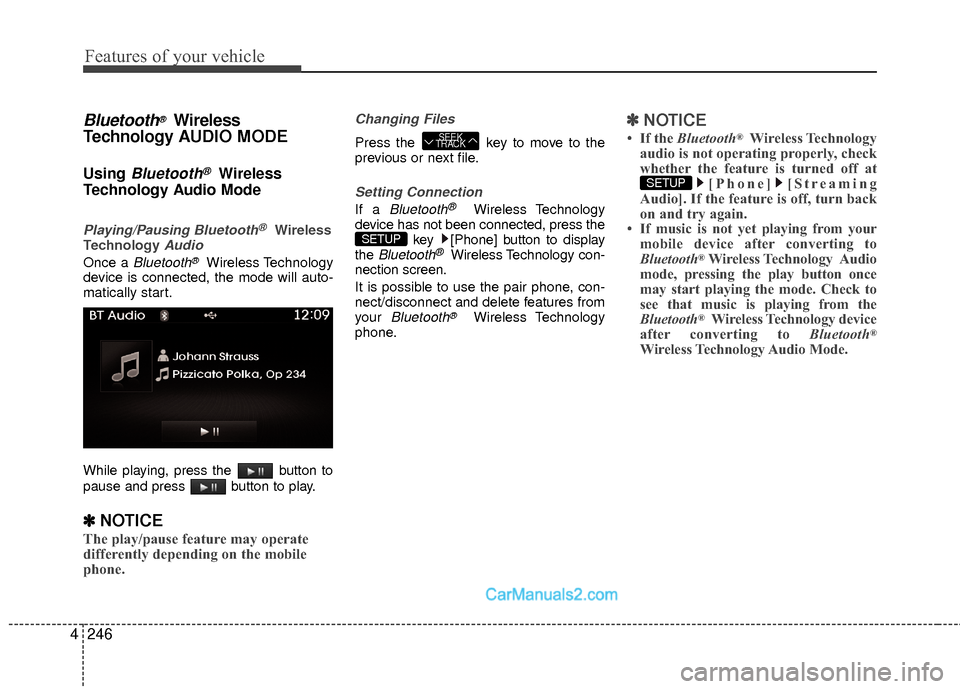
Once a Bluetooth®Wireless Technology
device is connected, the mode will auto-
matically start.
While playing, press the button to
pause and press button to play.
✽ ✽ NOTICE
The play/pause feature may operate
differently depending on the mobile
phone.
Changing Files
Press the key to move to the
previous or next file.
Setting Connection
If a Bluetooth®Wireless Technology
device has not been connected, press the key [Phone] button to display
the
Bluetooth®Wireless Technology con-
nection screen.
It is possible to use the pair phone, con-
nect/disconnect and delete features from
your
Bluetooth®Wireless Technology
phone.
✽ ✽ NOTICE
• If the Bluetooth®Wireless Technology
audio is not operating properly, check
whether the feature is turned off at [Phone] [Streaming
Audio]. If the feature is off, turn back
on and try again.
• If music is not yet playing from your mobile device after converting to
Bluetooth
®Wireless Technology Audio
mode, pressing the play button once
may start playing the mode. Check to
see that music is playing from the
Bluetooth
®Wireless Technology device
after converting to Bluetooth®
Wireless Technology Audio Mode.
SETUP
SETUP
SEEK
TRACK
Page 328 of 543
4247
Features of your vehicle
Pairing a Bluetooth®Wireless
Technology Device
What is Bluetooth® Wireless
Technology Pairing?
Pairing refers to the process of synchro-
nizing your Bluetooth®Wireless
Technology phone or device with the car
audio system for connection. Pairing is
necessary to connect and use the
Bluetooth®Wireless Technology feature.
Pairing Key / Key on
the Steering Remote Controller
When No Devices have been Paired
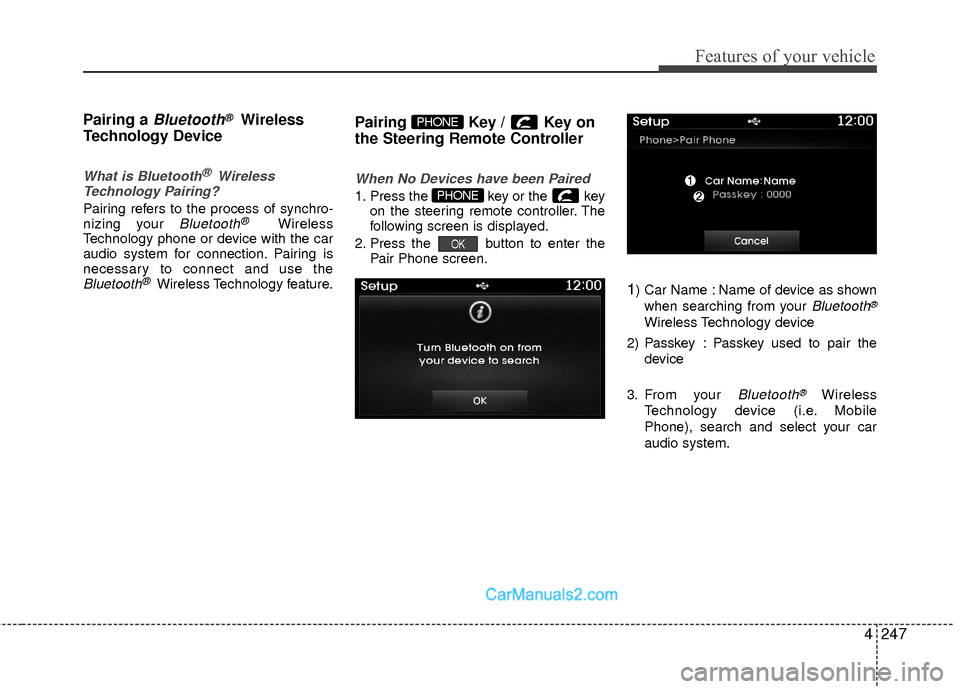
1. Press the key or the key on the steering remote controller. The
following screen is displayed.
2. Press the button to enter the Pair Phone screen.
1) Car Name : Name of device as shown
when searching from your
Bluetooth®
Wireless Technology device
2) Passkey : Passkey used to pair the device
3. From your
Bluetooth®Wireless
Technology device (i.e. Mobile
Phone), search and select your car
audio system.
OK
PHONE
PHONE
Page 329 of 543
![Hyundai Sonata Hybrid 2015 Owners Guide Features of your vehicle
248
4
[Non SSP supported device]
(SSP: Secure Simple Pairing)
4. After a few moments, a screen is dis-
played where the passkey is entered.
Hear, enter the passkey “0000”](/img/35/19645/w960_19645-328.png "Hyundai Sonata Hybrid 2015 Owners Guide Features of your vehicle
248
4
[Non SSP supported device]
(SSP: Secure Simple Pairing)
4. After a few moments, a screen is dis-
played where the passkey is entered.
Hear, enter the passkey “0000”")
Features of your vehicle
248
4
[Non SSP supported device]
(SSP: Secure Simple Pairing)
4. After a few moments, a screen is dis-
played where the passkey is entered.
Hear, enter the passkey “0000” to pair
your
Bluetooth®Wireless Technology
device with the car audio system.
[SSP supported device]
4. After a few moments, a screen is dis- played 6 digits passkey.
Hear, check the passkey on your
Bluetooth®Wireless Technology
device and confirm.
5. Once pairing is complete, the following screen is displayed.
✽ ✽NOTICE
If Bluetooth®Wireless Technology
devices are paired but none are current-
ly connected, pressing the key
or the key on the
steering wheel displays the following
screen. Press the [Pair] button to pair a
new device or press the [Connect] to
connect a previously paired device.
Pairing through [PHONE] Setup
Press the key Select
[Phone] Select [Pair Phone] Select TUNE knob
1. The following steps are the same as those described in the section "When
No Devices have been Paired" on the
previous page.SETUP
PHONE