ECO mode INFINITI FX 2012 Owner's Manual
[x] Cancel search | Manufacturer: INFINITI, Model Year: 2012, Model line: FX, Model: INFINITI FX 2012Pages: 522, PDF Size: 3.51 MB
Page 164 of 522
6. Push and hold the power lift gateswitch
*2on the lower part of the lift
gate for 3 seconds to set the user
selected open position. A chime will
sound when setting is successful.
7. Fully close the lift gate.
The lift gate will open and stop at the user
selected position.
CAUTION
. Do not lean against a partially opened
lift gate. The lift gate may close un-
expectedly and may result in personal
injury.
. If the vehicle was driven by another
person, confirm the garage mode func-
tion before opening the lift gate in a
location with low clearance. The lift gate
can be damaged if the previous driver
changed or canceled the setting.
. If the switch is pressed two times
quickly (1 second or less) when opening
the lift gate from the fully closed
position, the system may not recognize
the second switch press. The lift gate
will continue to open. This is normal
operation and does not indicate a mal- function. However, this may result in
minor personal injury if someone is
behind the vehicle when the switch is
activated, or damage to the lift gate.
NOTE:
.
To avoid damaging the lift gate system,
do not manually force the lift gate to
open or close when the lift gate is
moving. When manually operating the
lift gate from the full close or full open
position, do not use excessive force.
Using excessive force may damage the
system.
. Do not install accessories such as bike
racks onto the lift gate. The additional
weight of these accessories may cause
the lift gate to operate slowly or to not
open completely. This is a normal
operation and does not indicate a
malfunction. The lift gate will operate
normally when the accessory is re-
moved.
. If the lift gate is opened when the
vehicle is parked on a steep slope, the
lift gate may not open to the expected
position. This is a normal operation
and does not indicate a malfunction. .
If the automatic lift gate is operated
continuously for approximately 180
seconds, the system automatically
turns off to prevent overheating. The
lift gate cannot be opened using the
switches. The system resets and opera-
tion returns to normal after approxi-
mately 180 seconds. This is a normal
operation and does not indicate a
malfunction.
. The lift gate may automatically reverse
direction if the lift gate is operating
and passengers enter/exit the vehicle.
This is a normal operation and does
not indicate a malfunction.
. The lift gate must be operated manually
if the battery is disconnected or
discharged.
. If the lift gate is not activated due to a
low voltage (less than approximately
11V), operate the lift gate with the
engine running.
Manual mode
If power operation is not available, the lift
gate can be operated manually. Power
operation may not be available if multiple
obstacles have been detected in a single
power cycle or if the battery voltage is low.
Pre-driving checks and adjustments3-23
Page 178 of 522
4 Monitor, climate, audio, phone and voice recogni-tion systems
Safety note .......................................................... 4-3
Center multi-function control panel ...................... 4-3 How to use INFINITI controller.......................... 4-5
How to use touch screen (models with
navigation system) .......................................... 4-5
Menu options (models with
navigation system) .......................................... 4-7
How to select menus on the screen................. 4-8
Vehicle information and settings.......................... 4-9 How to use STATUS button .............................. 4-9
How to use brightness control and display
ON/OFF button ................................................ 4-9
How to use INFO button .................................. 4-9
How to use SETTING button ........................... 4-15
RearView monitor (if so equipped) ..................... 4-24 How to read displayed lines .......................... 4-25
How to park with predicted course lines........ 4-25 Difference between predicted and
actual distances ............................................ 4-27
Predictive course line settings ....................... 4-30
How to adjust screen .................................... 4-30
Operating tips ............................................... 4-30
Around View
TMMonitor (AVM) (if so equipped) ... 4-31
How to switch the display ............................. 4-33
How to see each view.................................... 4-34 Difference between predicted and
actual distances........................................... 4-37
Camera aiding corner sonar function ........... 4-40
How to adjust the screen view ..................... 4-40Around view monitor settings ...................... 4-41
Operating tips.............................................. 4-41
Ventilators ........................................................ 4-42
Automatic climate control.................................. 4-43 Automatic climate control ............................ 4-45
Operating tips.............................................. 4-47
In-cabin microfilter....................................... 4-48
Servicing climate control.............................. 4-48
Audio system .................................................... 4-49
Audio operation precautions ........................ 4-49
FM-AM-SAT radio with Compact Disc
(CD) player................................................... 4-63DVD (Digital Versatile Disc) player operation
(models with navigation system) .................. 4-67
USB memory operation ................................ 4-71Bluetooth
®streaming audio (models with
navigation system)....................................... 4-75
iPod
®player operation ................................ 4-80
Music Box®(if so equipped) ........................ 4-82
CD/DVD/USB memory care and cleaning...... 4-90
Page 179 of 522
Steering-wheel-mounted controls for audio.... 4-91Antenna ........................................................ 4-92
Car phone or CB radio ....................................... 4-93
Bluetooth
®Hands-Free Phone System
(models with navigation system)........................ 4-94
Regulatory information .................................. 4-95
Voice commands ........................................... 4-96
Control buttons ............................................. 4-96
Connecting procedure.................................... 4-96 Phone selection............................................. 4-97Vehicle phonebook ........................................ 4-97
Making a call .............................................. 4-100
Receiving a call ........................................... 4-101
During a call ............................................... 4-101
Phone setting .............................................. 4-102
Troubleshooting guide ................................. 4-104
Bluetooth
®Hands-Free Phone System
(models without navigation system)................. 4-105
Regulatory information ................................ 4-106 Control buttons.......................................... 4-107
Voice Recognition System .......................... 4-107
Pairing procedure ...................................... 4-112
Phonebook registration .............................. 4-113
Making a call ............................................. 4-114
Receiving a call.......................................... 4-114
During a call .............................................. 4-114
Phone operation ........................................ 4-115
Speaker adaptation mode .......................... 4-118
INFINITI Voice Recognition System
(models with navigation system) ..................... 4-120
INFINITI Voice Recognition
Standard Mode .......................................... 4-120
Using the system ....................................... 4-123
INFINITI Voice Recognition Alternate
Command Mode......................................... 4-132 Using the system ....................................... 4-141
Troubleshooting guide ............................... 4-147
Page 180 of 522
WARNING
.Do not disassemble or modify this
system. If you do, it may result in
accidents, fire, or electric shock.
. Do not use this system if you notice any
abnormality, such as a frozen screen or
lack of sound. Continued use of the
system may result in accident, fire or
electric shock.
. In case you notice any foreign object in
the system hardware, spill liquid on it,
or notice smoke or smell coming from it,
stop using the system immediately and
contact your nearest INFINITI retailer.
Ignoring such conditions may lead to
accidents, fire, or electric shock.
. Park the vehicle in a safe location and
apply the parking brake to view the
images on the front center display
screen.
Do not attempt to operate the system in
extreme temperature conditions [below
−48F( −208C) and above 1588F (708C)].
Operating this system under these condi-
tions may result in system malfunctions.
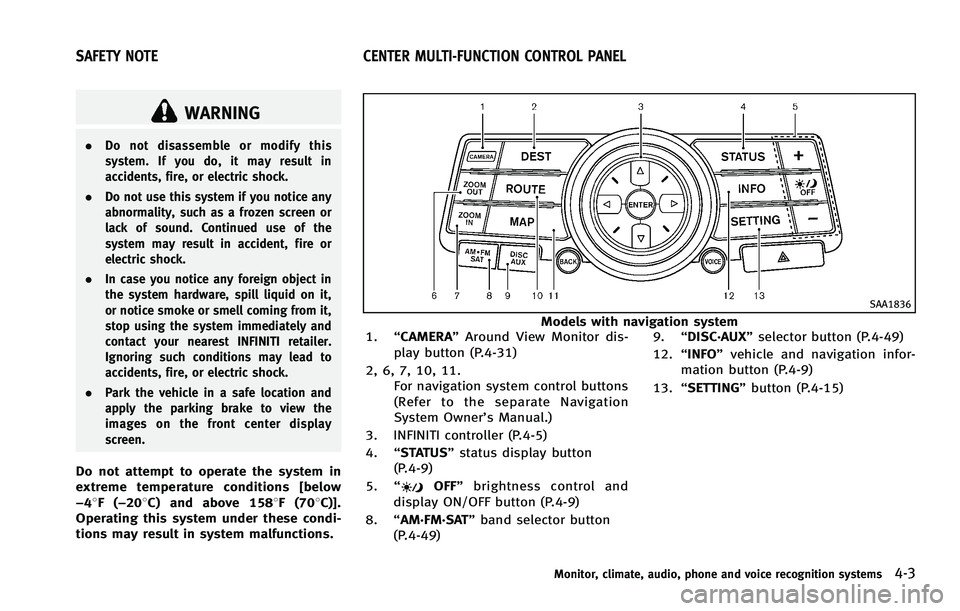
SAA1836
Models with navigation system
1. “CAMERA” Around View Monitor dis-
play button (P.4-31)
2, 6, 7, 10, 11. For navigation system control buttons
(Refer to the separate Navigation
System Owner’s Manual.)
3. INFINITI controller (P.4-5)
4. “STATUS” status display button
(P.4-9)
5. “
OFF” brightness control and
display ON/OFF button (P.4-9)
8. “AM·FM·SAT” band selector button
(P.4-49) 9.
“DISC·AUX” selector button (P.4-49)
12. “INFO” vehicle and navigation infor-
mation button (P.4-9)
13. “SETTING” button (P.4-15)
Monitor, climate, audio, phone and voice recognition systems4-3
SAFETY NOTE CENTER MULTI-FUNCTION CONTROL PANEL
Page 181 of 522
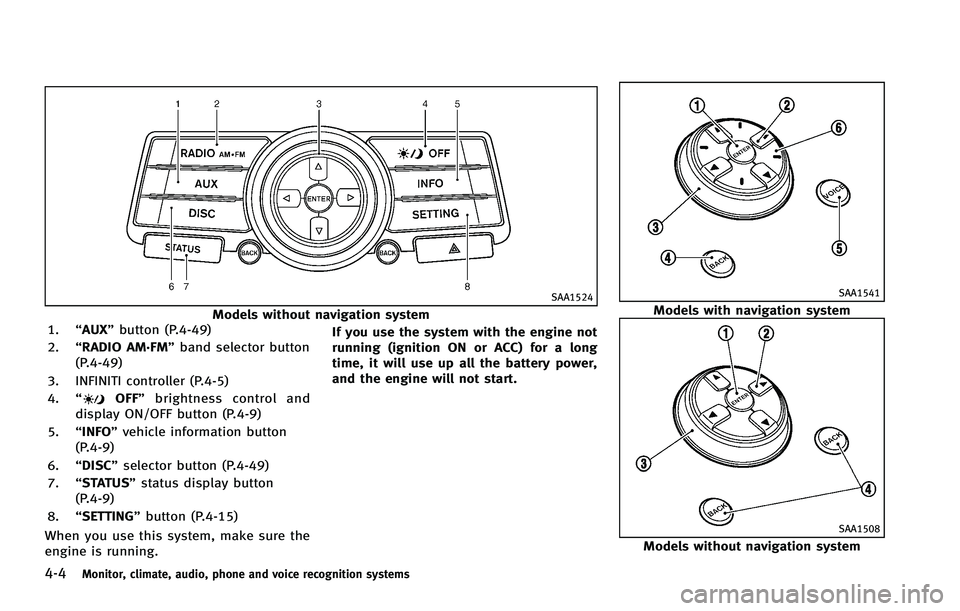
4-4Monitor, climate, audio, phone and voice recognition systems
SAA1524
Models without navigation system
1. “AUX” button (P.4-49)
2. “RADIO AM·FM” band selector button
(P.4-49)
3. INFINITI controller (P.4-5)
4. “
OFF” brightness control and
display ON/OFF button (P.4-9)
5. “INFO” vehicle information button
(P.4-9)
6. “DISC” selector button (P.4-49)
7. “STATUS” status display button
(P.4-9)
8. “SETTING” button (P.4-15)
When you use this system, make sure the
engine is running. If you use the system with the engine not
running (ignition ON or ACC) for a long
time, it will use up all the battery power,
and the engine will not start.
SAA1541
Models with navigation system
SAA1508
Models without navigation system
Page 182 of 522

HOW TO USE INFINITI CONTROLLER
Choose an item on the display using the
main directional buttons
*2(or additional
directional buttons
*6models with navi-
gation system) or center dial
*3, and push
the ENTER button
*1for operation.
If you push the BACKbutton
*4before the
setup is completed, the setup will be
canceled and/or the display will return to
the previous screen. This button can also
be used to delete characters that have
been input.
After the setup is completed, push the
BACK button
*4and return to the previous
screen.
For the VOICEbutton
*5functions, refer to
the separate Navigation System Owner’s
Manual.
HOW TO USE TOUCH SCREEN
(models with navigation system)
CAUTION
. The glass screen on the liquid crystal
display may break if it is hit with a hard
or sharp object. If the glass screen
breaks, do not touch it. Doing so could result in an injury.
. To clean the display, use a soft, dry
cloth. If additional cleaning is necessary,
use a small amount of neutral detergent
with a soft cloth. Never use a rough
cloth, alcohol, benzine, thinner or any
kind of solvent or paper towel with a
chemical cleaning agent. They will
scratch or deteriorate the panel.
. Do not splash any liquid such as water
or car fragrance on the display. Contact
with liquid will cause the system to
malfunction.
To ensure safe driving, some functions
cannot be operated while driving.
The on-screen functions that are not
available while driving will be “grayed
out” or muted.
Park the vehicle in a safe location and then
operate the navigation system.
WARNING
. ALWAYS give your full attention to
driving.
. Avoid using vehicle features that could distract you. If distracted, you could lose
control of your vehicle and cause an
accident.
Monitor, climate, audio, phone and voice recognition systems4-5
Page 184 of 522

.Delete:
Deletes the last character that has been
input with one touch. Push and hold
the button to delete all of the char-
acters.
. OK:
Completes character inputs.
Touch screen maintenance
If you clean the display screen, use a dry,
soft cloth. If additional cleaning is neces-
sary, use a small amount of neutral
detergent with a soft cloth. Never spray
the screen with water or detergent. Dam-
pen the cloth first, and then wipe the
screen.
SAA2143
MENU OPTIONS (models with navi-
gation system)
The start menu can be displayed using the
menu control switch on the steering-wheel-
mounted controls.
1. While the MAP or STATUS screen is displayed, push and hold the menu
control switch until the “Menu Options”
screen appears.
2. Highlight the preferred item by tilting the menu control switch up or down,
and then push the menu control switch
to select it.
SAA2476
Available items
Destination/Route:
These items are for the navigation system.
See the separate Navigation System Own-
er’s Manual for details.
Info:
Displays the information screen. It is the
same screen that appears when you push
the INFO button.
Settings:
Displays the settings screen. It is the same
screen that appears when you push the
SETTING button.
Monitor, climate, audio, phone and voice recognition systems4-7
Page 185 of 522

4-8Monitor, climate, audio, phone and voice recognition systems
SAA2477
Models with navigation system
SAA1510
Models without navigation system
HOW TO SELECT MENUS ON THE
SCREEN
Vehicle functions are viewed on the display
screen in menus. To select each key item,
highlight the preferred item using the
INFINITI controller and push the ENTER
button.
Whenever a menu selection is made or
menu item is highlighted, different areas
on the screen provide you with important
information. See the following for details.
1. Header:Shows the path used to get to the
current screen.
2. Menu Selections: Shows the options to choose within
that menu screen.
3. UP/DOWN Movement indicator: Shows that the INFINITI controller may
be used to move UP/DOWN on the
screen and select more options.
4. Menu Items Counter: Shows the total number of items listed
across all pages for the current menu.
5. Footer/Information Line: Provides more information (if available) about the menu selection currently
highlighted.
Page 186 of 522

HOW TO USE STATUS BUTTON
You can check information related to the
audio, climate control system, fuel con-
sumption and navigation system (if
equipped) by pressing the STATUS button
repeatedly.
HOW TO USE BRIGHTNESS CON-
TROL AND DISPLAY ON/OFF BUTTON
Push the“OFF”button to switch the
display brightness to the daytime mode or
the nighttime mode, and to adjust the
display brightness using the INFINITI con-
troller while the indicator is displayed at
the bottom of the screen.
Push and hold the “
OFF”button for
more than 2 seconds to turn the display
off. Push the button again to turn the
display on.
Models with navigation system
The display brightness can also be ad-
justed using the brightness UP button (+)
or brightness DOWN button (−).
HOW TO USE INFO BUTTON
The display screen shows vehicle and
navigation (if so equipped) information
for your convenience.
The information shown on the screen
should be a guide to determine the
condition of the vehicle. See the following
for details.
SAA3144
Models with navigation system
SAA2145
Models without navigation system
Monitor, climate, audio, phone and voice recognition systems4-9
VEHICLE INFORMATION AND SETTINGS
Page 187 of 522

4-10Monitor, climate, audio, phone and voice recognition systems
Vehicle information display
1. Push the INFO button on the controlpanel.
2. Select an item from the INFO menu.
3. After viewing or adjusting the informa- tion on the following screens, push the
BACK button to return to the INFO
menu.
See the separate Navigation System Own-
er’s Manual for the following items:
. Where am I?
. Traffic Info
. Weather Info
. Map Update
. Navigation Version
SAA2479
SAA2480
Models with navigation system
JVH0056M
JVH0057M
Models without navigation system