audio INFINITI M 2010 Owners Manual
[x] Cancel search | Manufacturer: INFINITI, Model Year: 2010, Model line: M, Model: INFINITI M 2010Pages: 445, PDF Size: 6.15 MB
Page 254 of 445
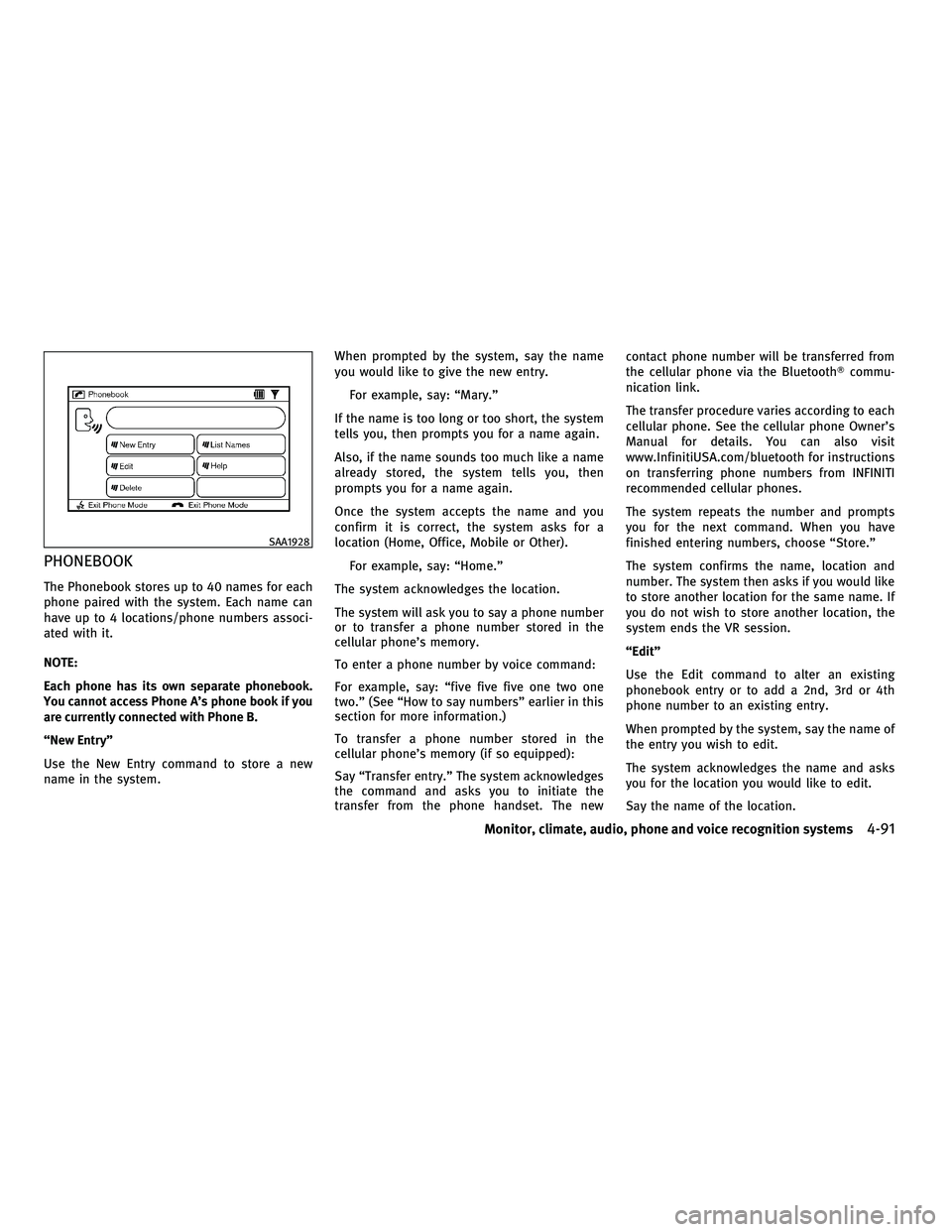
PHONEBOOK
The Phonebook stores up to 40 names for each
phone paired with the system. Each name can
have up to 4 locations/phone numbers associ-
ated with it.
NOTE:
Each phone has its own separate phonebook.
You cannot access Phone A's phone book if you
are currently connected with Phone B.
ªNew Entryº
Use the New Entry command to store a new
name in the system.When prompted by the system, say the name
you would like to give the new entry.
For example, say: ªMary.º
If the name is too long or too short, the system
tells you, then prompts you for a name again.
Also, if the name sounds too much like a name
already stored, the system tells you, then
prompts you for a name again.
Once the system accepts the name and you
confirm it is correct, the system asks for a
location (Home, Office, Mobile or Other). For example, say: ªHome.º
The system acknowledges the location.
The system will ask you to say a phone number
or to transfer a phone number stored in the
cellular phone's memory.
To enter a phone number by voice command:
For example, say: ªfive five five one two one
two.º (See ªHow to say numbersº earlier in this
section for more information.)
To transfer a phone number stored in the
cellular phone's memory (if so equipped):
Say ªTransfer entry.º The system acknowledges
the command and asks you to initiate the
transfer from the phone handset. The new contact phone number will be transferred from
the cellular phone via the Bluetooth
Tcommu-
nication link.
The transfer procedure varies according to each
cellular phone. See the cellular phone Owner's
Manual for details. You can also visit
www.InfinitiUSA.com/bluetooth for instructions
on transferring phone numbers from INFINITI
recommended cellular phones.
The system repeats the number and prompts
you for the next command. When you have
finished entering numbers, choose ªStore.º
The system confirms the name, location and
number. The system then asks if you would like
to store another location for the same name. If
you do not wish to store another location, the
system ends the VR session.
ªEditº
Use the Edit command to alter an existing
phonebook entry or to add a 2nd, 3rd or 4th
phone number to an existing entry.
When prompted by the system, say the name of
the entry you wish to edit.
The system acknowledges the name and asks
you for the location you would like to edit.
Say the name of the location.
SAA1928
Monitor, climate, audio, phone and voice recognition systems4-91
wÐ
Ð
05/19/09Ðtbrooks
X
Page 255 of 445
The system acknowledges the location.
The system will ask you to say a phone number
or to transfer a phone number stored in the
cellular phone's memory.
To enter a phone number by voice command:
For example, say: ªfive five five one two one
two.º (See ªHow to say numbersº earlier in this
section for more information.)
To transfer a phone number stored in the
cellular phone's memory (if so equipped):
Say ªTransfer entry.º The system acknowledges
the command and asks you to initiate the
transfer from the phone handset. The new
contact phone number will be transferred from
the cellular phone via the BluetoothTcommu-
nication link.
The transfer procedure varies according to each
cellular phone. See the cellular phone Owner's
Manual for details. You can also visit
www.InfinitiUSA.com/bluetooth for instructions
on transferring phone numbers from INFINITI
recommended cellular phones.
The system repeats the number and prompts
you for the next command. When you have
finished entering numbers, choose ªStore.º The system confirms the name, location and
number, then announces that the entry has
been stored. The system then ends the VR
session.
ªDeleteº
Use the Delete command to erase one entry
from the phonebook, all entries from the phone-
book, the current redial number or the current
call back number.
To delete entries from the phonebook, say a
name or ªAll entriesº when prompted by the
system.
The system acknowledges the command and
asks you to confirm the deletion.
To delete the current redial number or call back
number, say ªredial numberº or ªcall back
numberº when prompted by the system.
If a redial number or a call back number exists,
the system deletes them without asking for
confirmation.
If there is no number for the entry you are trying
to delete, the system says so and ends the VR
session.
ªList Namesº
Use the List Names command to hear all the
names and locations in the phonebook.The system recites the phonebook entries but
does not include the actual phone numbers.
When the playback of the list is complete the
system ends the VR session.
You can stop the playback of the list at any time
by pressing the
button on the steering
wheel. The system ends the VR session.
4-92Monitor, climate, audio, phone and voice recognition systems
wÐ
Ð
05/14/09Ðpattie
X
Page 256 of 445
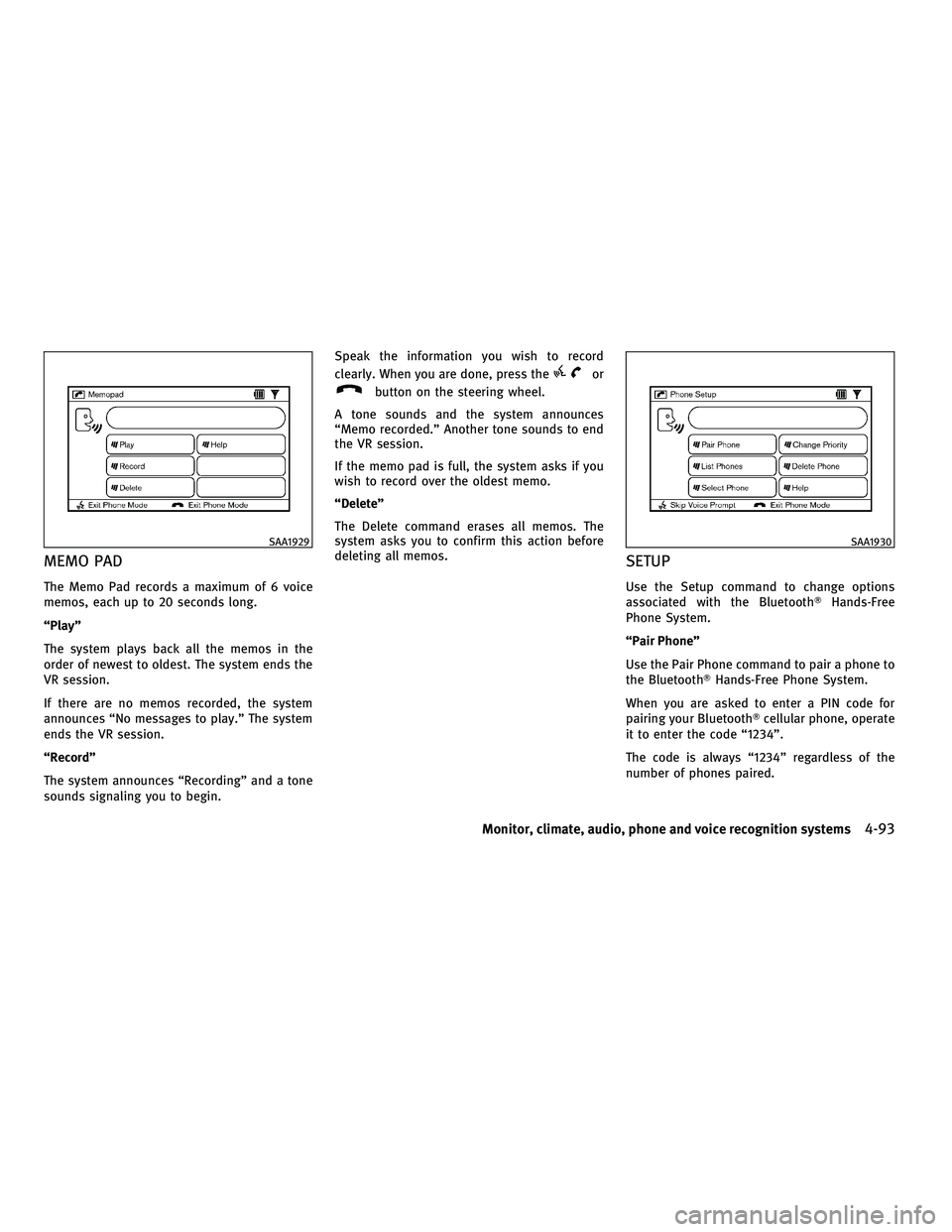
MEMO PAD
The Memo Pad records a maximum of 6 voice
memos, each up to 20 seconds long.
ªPlayº
The system plays back all the memos in the
order of newest to oldest. The system ends the
VR session.
If there are no memos recorded, the system
announces ªNo messages to play.º The system
ends the VR session.
ªRecordº
The system announces ªRecordingº and a tone
sounds signaling you to begin.Speak the information you wish to record
clearly. When you are done, press the
or
button on the steering wheel.
A tone sounds and the system announces
ªMemo recorded.º Another tone sounds to end
the VR session.
If the memo pad is full, the system asks if you
wish to record over the oldest memo.
ªDeleteº
The Delete command erases all memos. The
system asks you to confirm this action before
deleting all memos.
SETUP
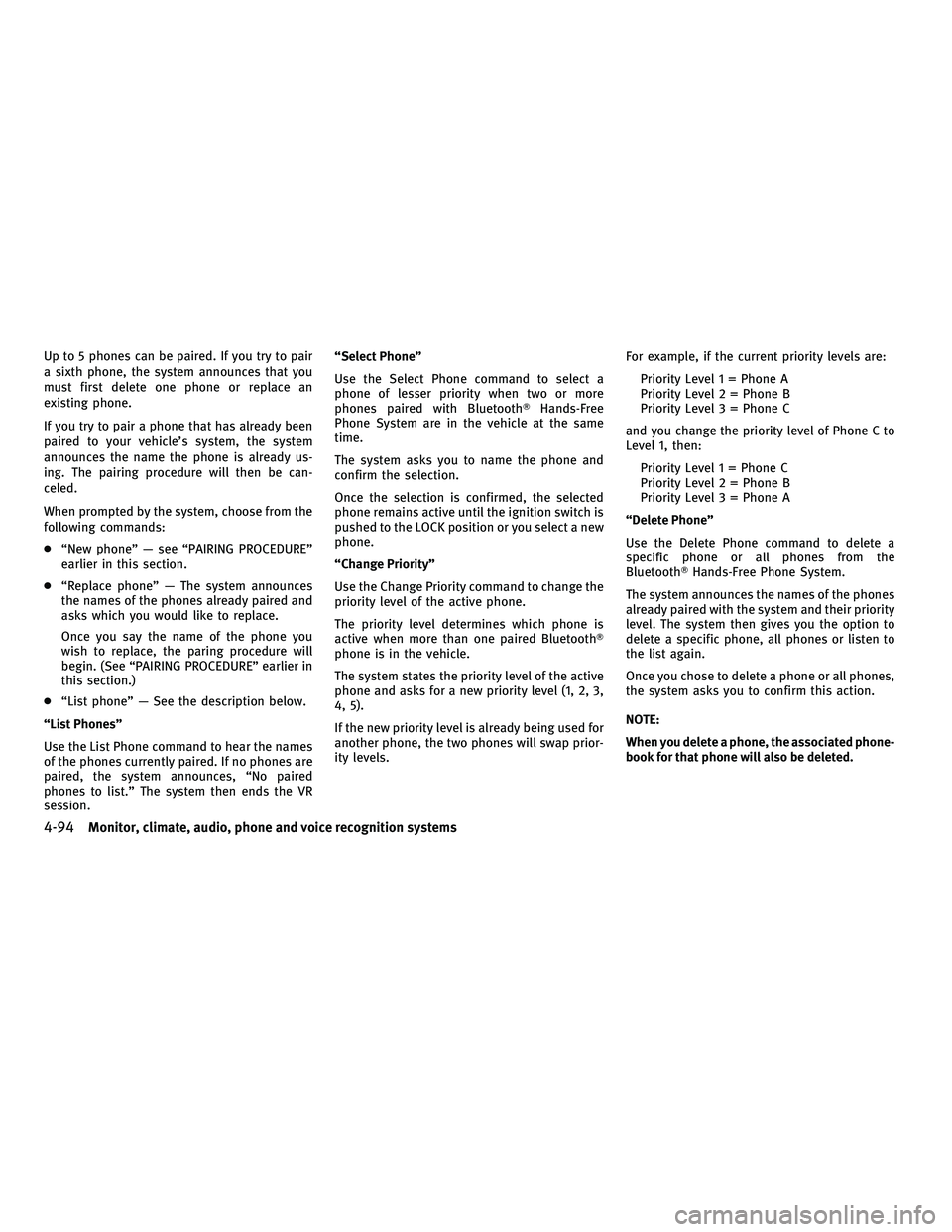
Use the Setup command to change options
associated with the Bluetooth THands-Free
Phone System.
ªPair Phoneº
Use the Pair Phone command to pair a phone to
the BluetoothT Hands-Free Phone System.
When you are asked to enter a PIN code for
pairing your BluetoothT cellular phone, operate
it to enter the code ª1234º.
The code is always ª1234º regardless of the
number of phones paired.
SAA1929SAA1930
Monitor, climate, audio, phone and voice recognition systems4-93
wÐ
Ð
05/14/09Ðpattie
X
Page 257 of 445
Up to 5 phones can be paired. If you try to pair
a sixth phone, the system announces that you
must first delete one phone or replace an
existing phone.
If you try to pair a phone that has already been
paired to your vehicle's system, the system
announces the name the phone is already us-
ing. The pairing procedure will then be can-
celed.
When prompted by the system, choose from the
following commands:
cªNew phoneº Ð see ªPAIRING PROCEDUREº
earlier in this section.
c ªReplace phoneº Ð The system announces
the names of the phones already paired and
asks which you would like to replace.
Once you say the name of the phone you
wish to replace, the paring procedure will
begin. (See ªPAIRING PROCEDUREº earlier in
this section.)
c ªList phoneº Ð See the description below.
ªList Phonesº
Use the List Phone command to hear the names
of the phones currently paired. If no phones are
paired, the system announces, ªNo paired
phones to list.º The system then ends the VR
session. ªSelect Phoneº
Use the Select Phone command to select a
phone of lesser priority when two or more
phones paired with Bluetooth
THands-Free
Phone System are in the vehicle at the same
time.
The system asks you to name the phone and
confirm the selection.
Once the selection is confirmed, the selected
phone remains active until the ignition switch is
pushed to the LOCK position or you select a new
phone.
ªChange Priorityº
Use the Change Priority command to change the
priority level of the active phone.
The priority level determines which phone is
active when more than one paired Bluetooth T
phone is in the vehicle.
The system states the priority level of the active
phone and asks for a new priority level (1, 2, 3,
4, 5).
If the new priority level is already being used for
another phone, the two phones will swap prior-
ity levels. For example, if the current priority levels are:
Priority Level 1 = Phone A
Priority Level 2 = Phone B
Priority Level 3 = Phone C
and you change the priority level of Phone C to
Level 1, then: Priority Level 1 = Phone C
Priority Level 2 = Phone B
Priority Level 3 = Phone A
ªDelete Phoneº
Use the Delete Phone command to delete a
specific phone or all phones from the
BluetoothT Hands-Free Phone System.
The system announces the names of the phones
already paired with the system and their priority
level. The system then gives you the option to
delete a specific phone, all phones or listen to
the list again.
Once you chose to delete a phone or all phones,
the system asks you to confirm this action.
NOTE:
When you delete a phone, the associated phone-
book for that phone will also be deleted.
4-94Monitor, climate, audio, phone and voice recognition systems
wÐ
Ð
05/19/09Ðtbrooks
X
Page 258 of 445
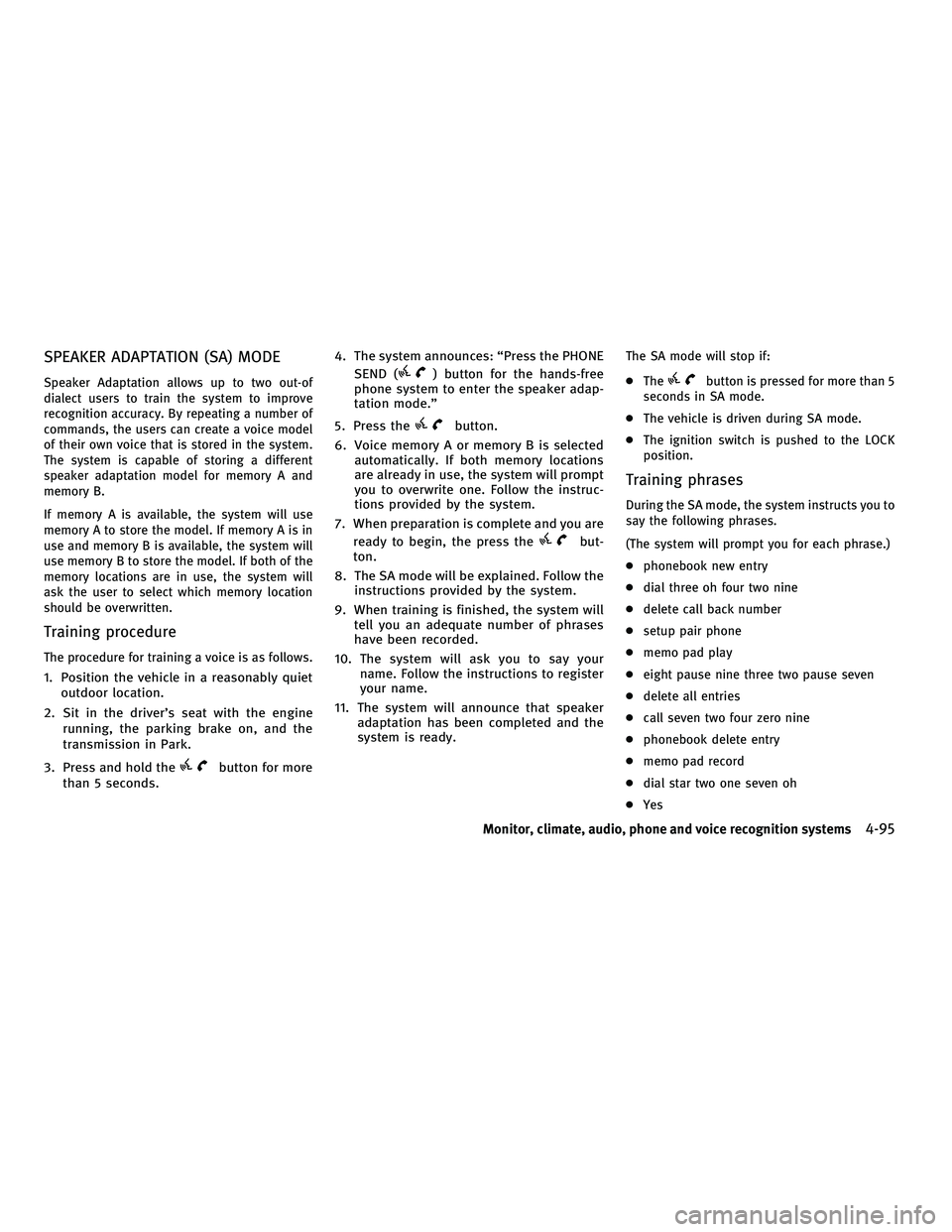
SPEAKER ADAPTATION (SA) MODE
Speaker Adaptation allows up to two out-of
dialect users to train the system to improve
recognition accuracy. By repeating a number of
commands, the users can create a voice model
of their own voice that is stored in the system.
The system is capable of storing a different
speaker adaptation model for memory A and
memory B.
If memory A is available, the system will use
memory A to store the model. If memory A is in
use and memory B is available, the system will
use memory B to store the model. If both of the
memory locations are in use, the system will
ask the user to select which memory location
should be overwritten.
Training procedure
The procedure for training a voice is as follows.
1. Position the vehicle in a reasonably quietoutdoor location.
2. Sit in the driver's seat with the engine running, the parking brake on, and the
transmission in Park.
3. Press and hold the
button for more
than 5 seconds. 4. The system announces: ªPress the PHONE
SEND (
) button for the hands-free
phone system to enter the speaker adap-
tation mode.º
5. Press the
button.
6. Voice memory A or memory B is selected automatically. If both memory locations
are already in use, the system will prompt
you to overwrite one. Follow the instruc-
tions provided by the system.
7. When preparation is complete and you are ready to begin, the press the
but-
ton.
8. The SA mode will be explained. Follow the instructions provided by the system.
9. When training is finished, the system will tell you an adequate number of phrases
have been recorded.
10. The system will ask you to say your name. Follow the instructions to register
your name.
11. The system will announce that speaker adaptation has been completed and the
system is ready.
The SA mode will stop if:
cThe
button is pressed for more than 5
seconds in SA mode.
c The vehicle is driven during SA mode.
c The ignition switch is pushed to the LOCK
position.
Training phrases
During the SA mode, the system instructs you to
say the following phrases.
(The system will prompt you for each phrase.)
cphonebook new entry
c dial three oh four two nine
c delete call back number
c setup pair phone
c memo pad play
c eight pause nine three two pause seven
c delete all entries
c call seven two four zero nine
c phonebook delete entry
c memo pad record
c dial star two one seven oh
c Yes
Monitor, climate, audio, phone and voice recognition systems4-95
wÐ
Ð
05/15/09Ðpattie
X
Page 259 of 445
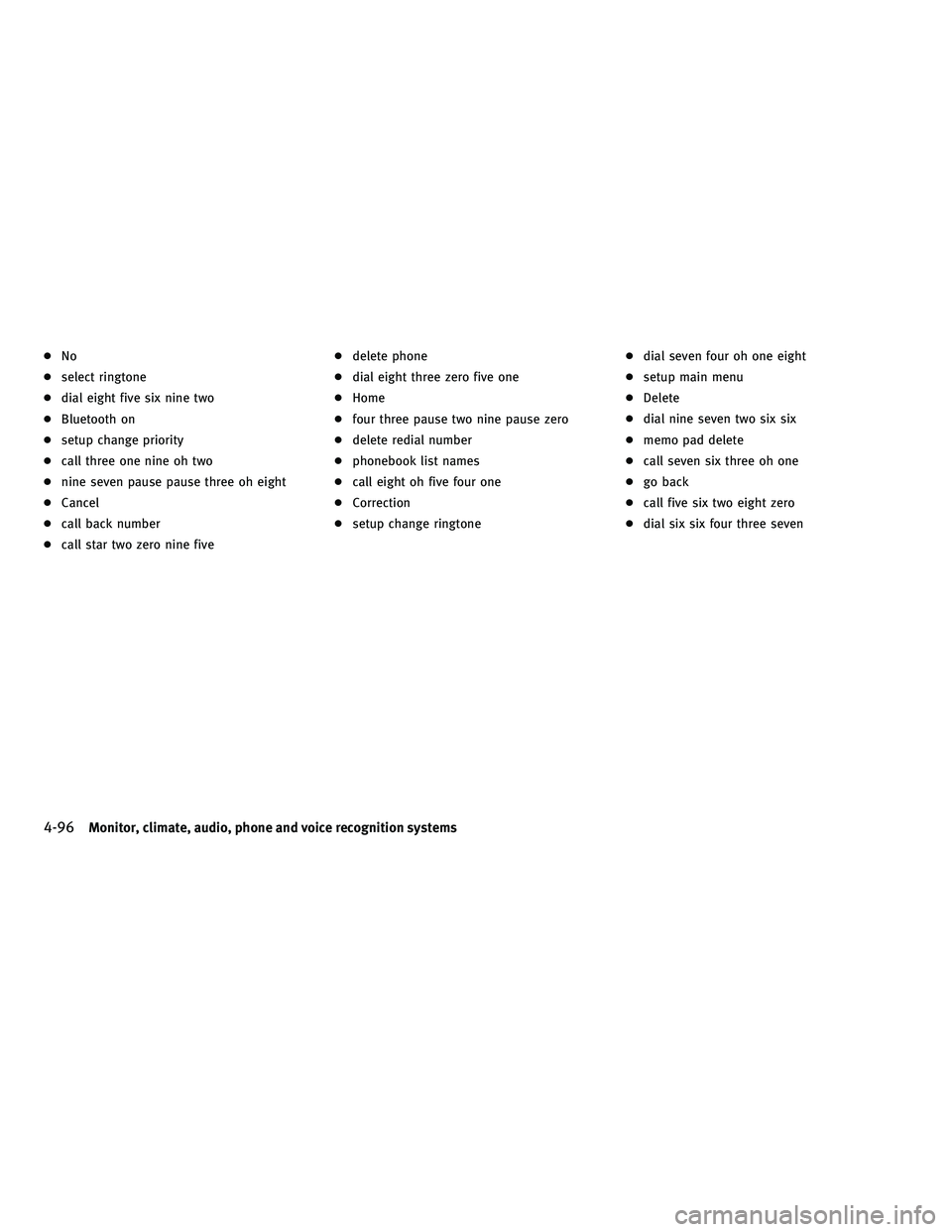
cNo
c select ringtone
c dial eight five six nine two
c Bluetooth on
c setup change priority
c call three one nine oh two
c nine seven pause pause three oh eight
c Cancel
c call back number
c call star two zero nine five c
delete phone
c dial eight three zero five one
c Home
c four three pause two nine pause zero
c delete redial number
c phonebook list names
c call eight oh five four one
c Correction
c setup change ringtone c
dial seven four oh one eight
c setup main menu
c Delete
c dial nine seven two six six
c memo pad delete
c call seven six three oh one
c go back
c call five six two eight zero
c dial six six four three seven
4-96Monitor, climate, audio, phone and voice recognition systems
wÐ
Ð
05/15/09Ðpattie
X
Page 260 of 445
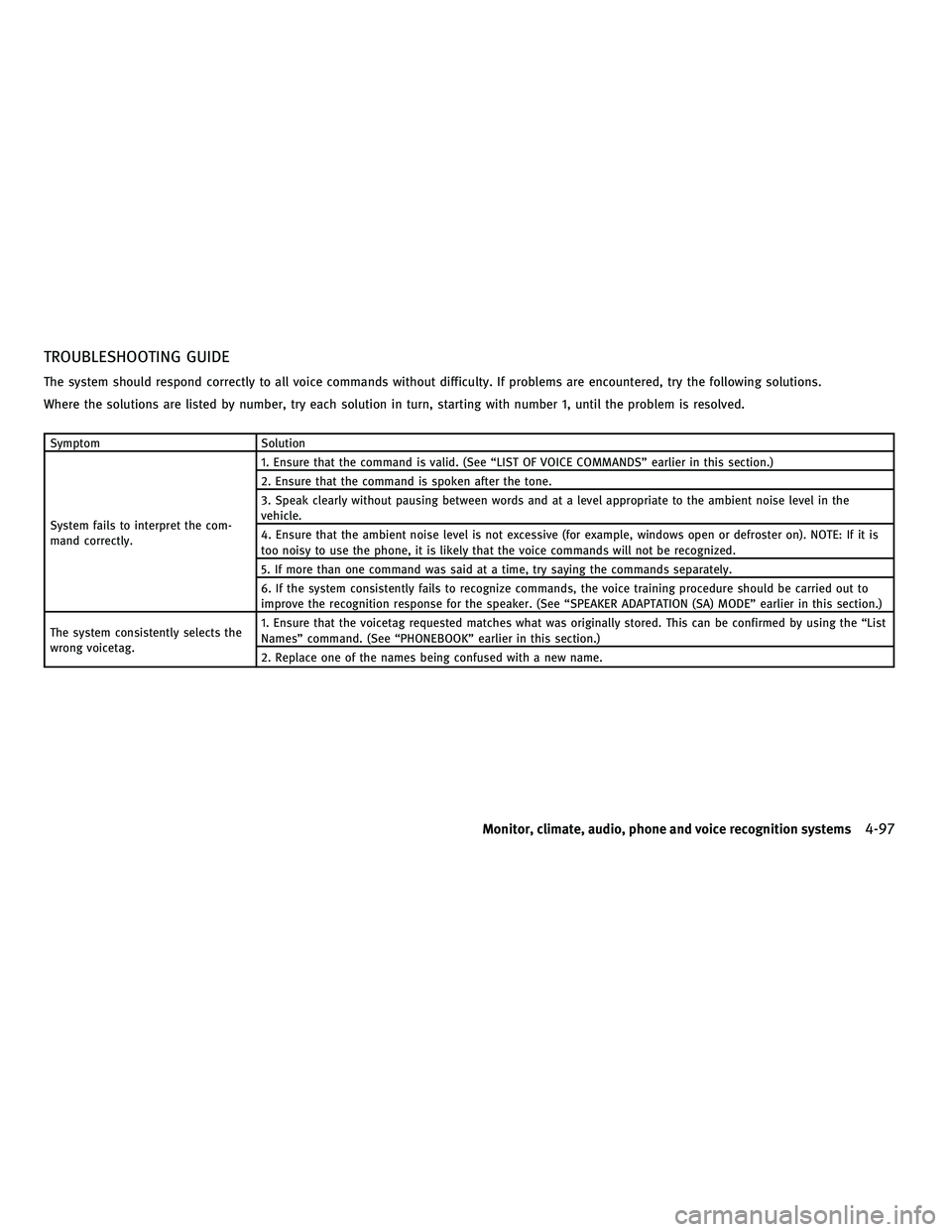
TROUBLESHOOTING GUIDE
The system should respond correctly to all voice commands without difficulty. If problems are encountered, try the following solutions.
Where the solutions are listed by number, try each solution in turn, starting with number 1, until the problem is resolved.
SymptomSolution
System fails to interpret the com-
mand correctly. 1. Ensure that the command is valid. (See ªLIST OF VOICE COMMANDSº earlier in this section.)
2. Ensure that the command is spoken after the tone.
3. Speak clearly without pausing between words and at a level appropriate to the ambient noise level in the
vehicle.
4. Ensure that the ambient noise level is not excessive (for example, windows open or defroster on). NOTE: If it is
too noisy to use the phone, it is likely that the voice commands will not be recognized.
5. If more than one command was said at a time, try saying the commands separately.
6. If the system consistently fails to recognize commands, the voice training procedure should be carried out to
improve the recognition response for the speaker. (See ªSPEAKER ADAPTATION (SA) MODEº earlier in this section.)
The system consistently selects the
wrong voicetag. 1. Ensure that the voicetag requested matches what was originally stored. This can be confirmed by using the ªList
Namesº command. (See ªPHONEBOOKº earlier in this section.)
2. Replace one of the names being confused with a new name.
Monitor, climate, audio, phone and voice recognition systems4-97
wÐ
Ð
05/14/09Ðpattie
X
Page 261 of 445
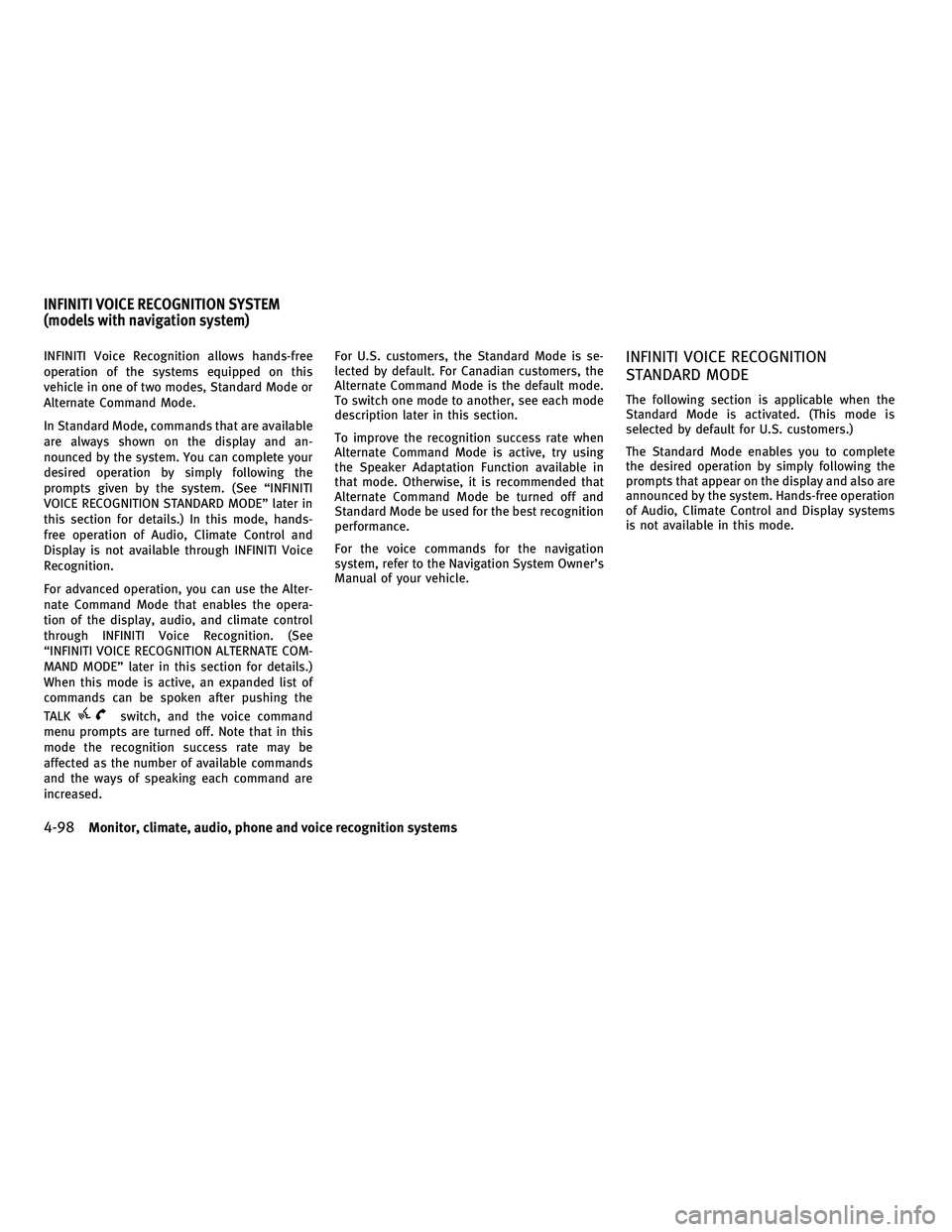
INFINITI Voice Recognition allows hands-free
operation of the systems equipped on this
vehicle in one of two modes, Standard Mode or
Alternate Command Mode.
In Standard Mode, commands that are available
are always shown on the display and an-
nounced by the system. You can complete your
desired operation by simply following the
prompts given by the system. (See ªINFINITI
VOICE RECOGNITION STANDARD MODEº later in
this section for details.) In this mode, hands-
free operation of Audio, Climate Control and
Display is not available through INFINITI Voice
Recognition.
For advanced operation, you can use the Alter-
nate Command Mode that enables the opera-
tion of the display, audio, and climate control
through INFINITI Voice Recognition. (See
ªINFINITI VOICE RECOGNITION ALTERNATE COM-
MAND MODEº later in this section for details.)
When this mode is active, an expanded list of
commands can be spoken after pushing the
TALK
switch, and the voice command
menu prompts are turned off. Note that in this
mode the recognition success rate may be
affected as the number of available commands
and the ways of speaking each command are
increased. For U.S. customers, the Standard Mode is se-
lected by default. For Canadian customers, the
Alternate Command Mode is the default mode.
To switch one mode to another, see each mode
description later in this section.
To improve the recognition success rate when
Alternate Command Mode is active, try using
the Speaker Adaptation Function available in
that mode. Otherwise, it is recommended that
Alternate Command Mode be turned off and
Standard Mode be used for the best recognition
performance.
For the voice commands for the navigation
system, refer to the Navigation System Owner's
Manual of your vehicle.
INFINITI VOICE RECOGNITION
STANDARD MODE
The following section is applicable when the
Standard Mode is activated. (This mode is
selected by default for U.S. customers.)
The Standard Mode enables you to complete
the desired operation by simply following the
prompts that appear on the display and also are
announced by the system. Hands-free operation
of Audio, Climate Control and Display systems
is not available in this mode.
INFINITI VOICE RECOGNITION SYSTEM
(models with navigation system)
4-98Monitor, climate, audio, phone and voice recognition systems
wÐ
Ð
05/14/09Ðpattie
X
Page 262 of 445
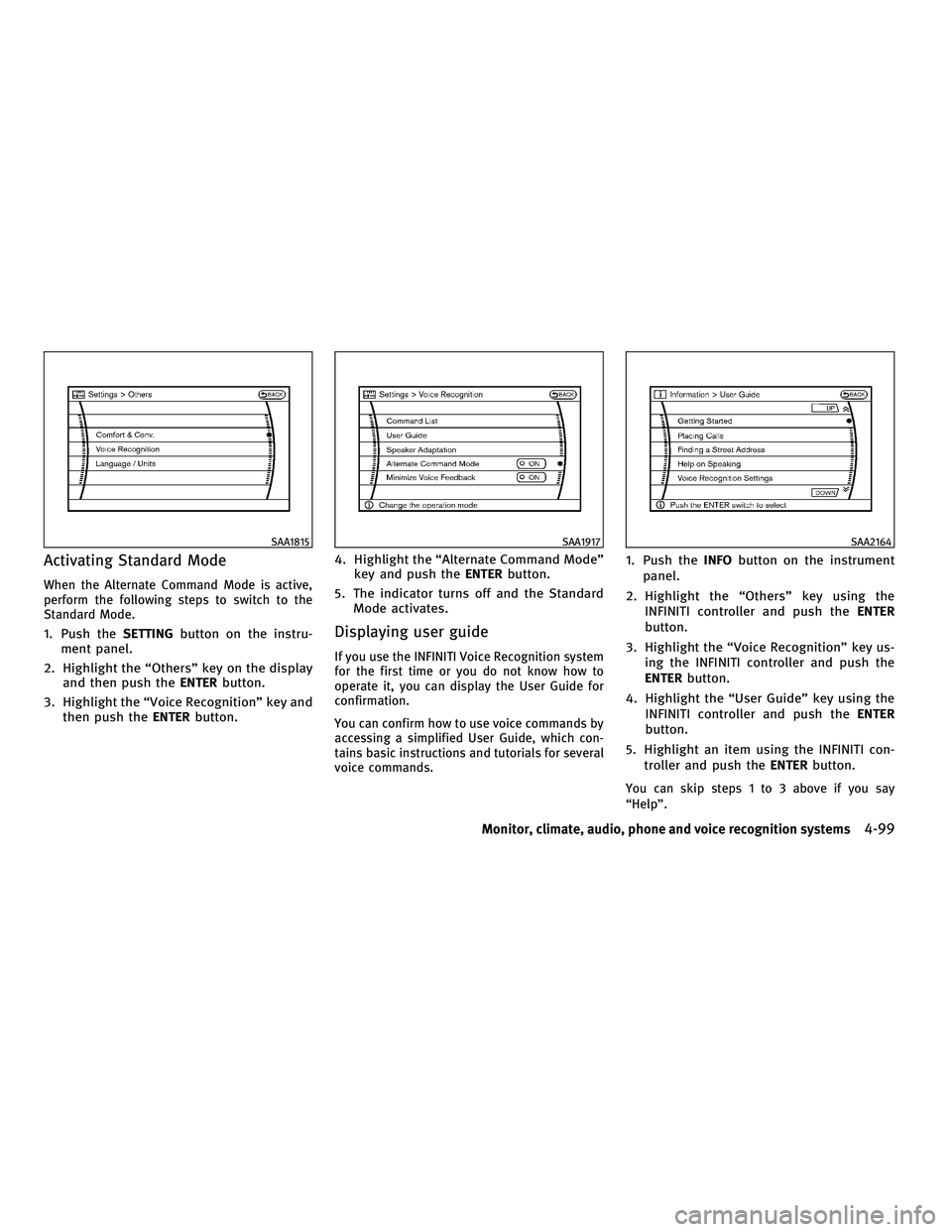
Activating Standard Mode
When the Alternate Command Mode is active,
perform the following steps to switch to the
Standard Mode.
1. Push theSETTINGbutton on the instru-
ment panel.
2. Highlight the ªOthersº key on the display and then push the ENTERbutton.
3. Highlight the ªVoice Recognitionº key and then push the ENTERbutton. 4. Highlight the ªAlternate Command Modeº
key and push the ENTERbutton.
5. The indicator turns off and the Standard Mode activates.Displaying user guide
If you use the INFINITI Voice Recognition system
for the first time or you do not know how to
operate it, you can display the User Guide for
confirmation.
You can confirm how to use voice commands by
accessing a simplified User Guide, which con-
tains basic instructions and tutorials for several
voice commands.
1. Push the INFObutton on the instrument
panel.
2. Highlight the ªOthersº key using the INFINITI controller and push the ENTER
button.
3. Highlight the ªVoice Recognitionº key us- ing the INFINITI controller and push the
ENTER button.
4. Highlight the ªUser Guideº key using the INFINITI controller and push the ENTER
button.
5. Highlight an item using the INFINITI con- troller and push the ENTERbutton.
You can skip steps 1 to 3 above if you say
ªHelpº.
SAA1815SAA1917SAA2164
Monitor, climate, audio, phone and voice recognition systems4-99
wÐ
Ð
05/14/09Ðpattie
X
Page 263 of 445

Available items :
cGetting Started
Describes the basics of how to operate the
INFINITI Voice Recognition system.
c Placing Calls
Tutorial for making a phone call by voice
command operation.
c Finding a Street Address
Tutorial for entering a destination by street
address.
c Help on Speaking
Displays useful tips of speaking for correct
command recognition by the system.
c Voice Recognition Settings
Describes the available voice recognition
settings.
Note that the Command List feature is only
available when Alternate Command Mode is
active.
Getting Started
Before using the INFINITI Voice Recognition
system for the first time, you can confirm how to
use commands by viewing the Getting Started
section of the User Guide.
1. Highlight ªGetting Startedº and push the ENTER button.
2. You can confirm the page by scrolling the screen using the INFINITI controller.
Tutorials on the operation of the INFINITI Voice
Recognition system
If you choose ªFinding a Street Addressº or
ªPlacing Callsº, you can view tutorials on how
to perform these operations using INFINITI
Voice Recognition.
Useful tips for correct operation
You can display useful speaking tips to help the
system recognize your voice commands cor-
rectly.
Highlight ªHelp on Speakingº and push the
ENTER button.
SAA1904SAA2165
4-100Monitor, climate, audio, phone and voice recognition systems
wÐ
Ð
05/14/09Ðpattie
X