maintenance INFINITI M 2010 User Guide
[x] Cancel search | Manufacturer: INFINITI, Model Year: 2010, Model line: M, Model: INFINITI M 2010Pages: 445, PDF Size: 6.15 MB
Page 101 of 445

10. Intelligent Key battery discharge
indicator
This indicator appears when the Intelligent Key
battery is running out of power.
If this indicator appears, replace the battery
with a new one. (See ªBATTERY REPLACEMENTº
in the ª8. Maintenance and do-it-yourselfº sec-
tion.)Your vehicle has two types of security systems,
as follows:
cVehicle security system
c INFINITI Vehicle Immobilizer System
The security condition will be shown by the
security indicator light.
VEHICLE SECURITY SYSTEM
The vehicle security system provides visual and
audio alarm signals if someone opens the
doors, hood, or trunk lid when the system is
armed. It is not, however, a motion detection
type system that activates when a vehicle is
moved or when a vibration occurs.
The system helps deter vehicle theft but cannot
prevent it, nor can it prevent the theft of interior
or exterior vehicle components in all situations.
Always secure your vehicle even if parking for a
brief period. Never leave your Intelligent Key(s)
in the vehicle, and always lock it when unat-
tended. Be aware of your surroundings, and
park in secure, well-lit areas whenever pos-
sible.
Many devices offering additional protection,
such as component locks, identification mark-
ers, and tracking systems, are available at auto
supply stores and specialty shops. Your INFINITI
retailer may also offer such equipment. Check
with your insurance company to see if you may
be eligible for discounts for various theft pro-
tection features.
SIC2132
SECURITY SYSTEMS
2-24Instruments and controls
wÐ
Ð
05/14/09Ðpattie
X
Page 138 of 445

cNever leave the Intelligent Key in the vehicle
when you leave the vehicle.
The Intelligent Key is always communicating
with the vehicle as it receives radio waves. The
Intelligent Key system transmits weak radio
waves. Environmental conditions may interfere
with the operation of the Intelligent Key system
under the following operating conditions.
c When operating near a location where strong
radio waves are transmitted, such as a TV
tower, power station and broadcasting sta-
tion.
c When in possession of wireless equipment,
such as a cellular telephone, transceiver,
and CB radio.
c When the Intelligent Key is in contact with or
covered by metallic materials.
c When any type of radio wave remote control
is used nearby.
c When the Intelligent Key is placed near an
electric appliance such as a personal com-
puter.
c When the vehicle is parked near a parking
meter. In such cases, correct the operating conditions
before using the Intelligent Key function or use
the mechanical key.
Although the life of the battery varies depend-
ing on the operating conditions, the battery's
life is approximately 2 years. If the battery is
discharged, replace it with a new one.
Since the Intelligent Key is continuously receiv-
ing radio waves, if the key is left near equip-
ment which transmits strong radio waves, such
as signals from a TV and personal computer, the
battery life may become shorter.
For information regarding replacement of a
battery, see ªBATTERY REPLACEMENTº in the
ª8. Maintenance and do-it-yourselfº section.
Because the steering wheel is locked electri-
cally, unlocking the steering wheel with the
ignition switch in the LOCK position is impos-
sible when the vehicle battery is completely
discharged. Pay special attention that the ve-
hicle battery is not completely discharged.
As many as 4 Intelligent Keys can be registered
and used with one vehicle. For information
about the purchase and use of additional Intel-
ligent Keys, contact an INFINITI retailer.CAUTION
c
Do not allow the Intelligent Key, which con-
tains electrical components, to come into
contact with water or salt water. This could
affect the system function.
c Do not drop the Intelligent Key.
c Do not strike the Intelligent Key sharply
against another object.
c Do not change or modify the Intelligent Key.
c Wetting may damage the Intelligent Key. If
the Intelligent Key gets wet, immediately
wipe until it is completely dry.
c Do not place the Intelligent Key for an ex-
tended period in an area where tempera-
tures exceed 140ÉF (60ÉC).
c Do not attach the Intelligent Key with a key
holder that contains a magnet.
c Do not place the Intelligent Key near equip-
ment that produces a magnetic field, such as
a TV, audio equipment, personal computers
or cellular phones.
Pre-driving checks and adjustments3-7
wÐ
Ð
05/19/09Ðtbrooks
X
Page 163 of 445
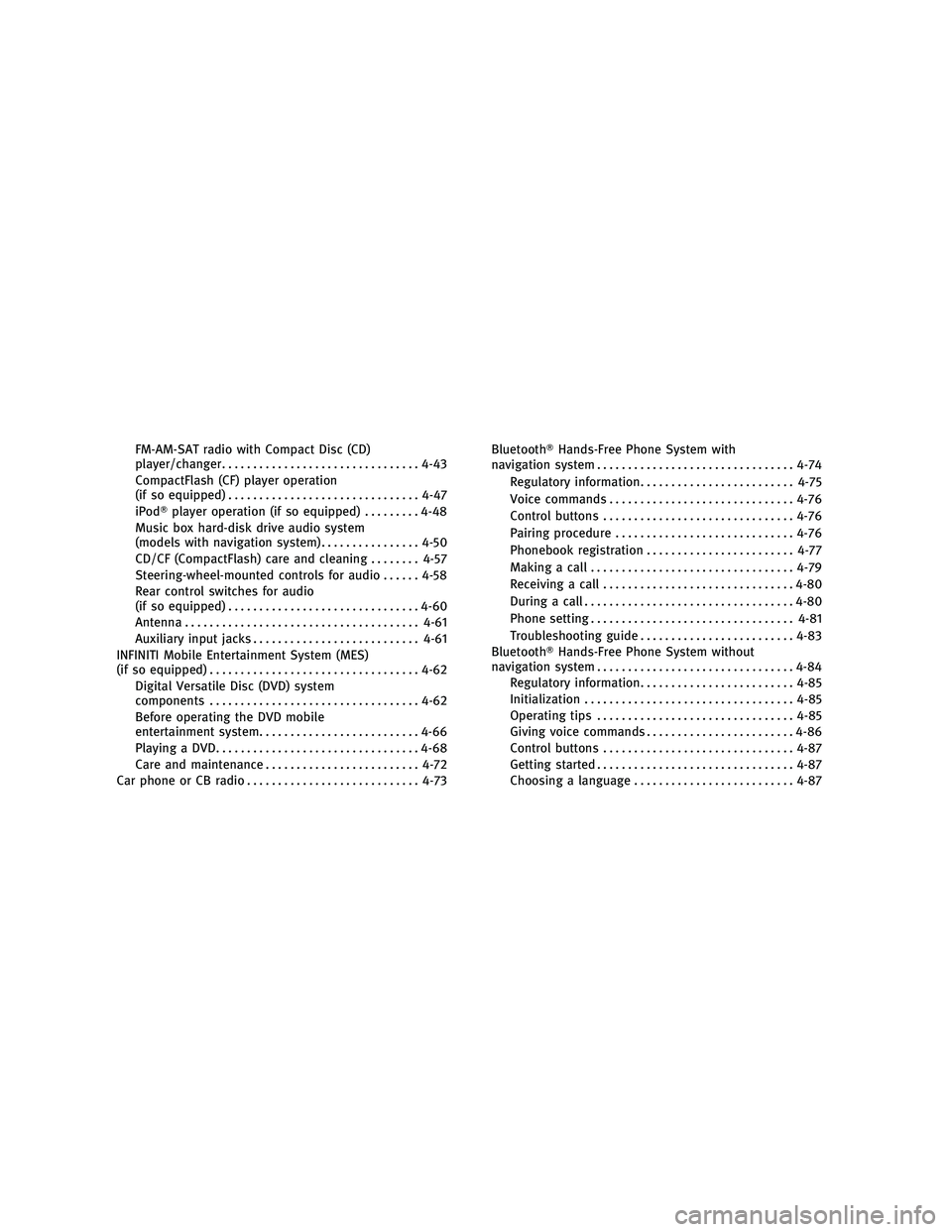
FM-AM-SAT radio with Compact Disc (CD)
player/changer................................ 4-43
CompactFlash (CF) player operation
(if so equipped) ............................... 4-47
iPodT player operation (if so equipped) .........4-48
Music box hard-disk drive audio system
(models with navigation system) ................4-50
CD/CF (CompactFlash) care and cleaning ........4-57
Steering-wheel-mounted controls for audio ......4-58
Rear control switches for audio
(if so equipped) ............................... 4-60
Antenna ...................................... 4-61
Auxiliary input jacks ........................... 4-61
INFINITI Mobile Entertainment System (MES)
(if so equipped) .................................. 4-62
Digital Versatile Disc (DVD) system
components .................................. 4-62
Before operating the DVD mobile
entertainment system .......................... 4-66
Playing a DVD ................................. 4-68
Care and maintenance ......................... 4-72
Car phone or CB radio ............................ 4-73BluetoothT
Hands-Free Phone System with
navigation system ................................ 4-74
Regulatory information ......................... 4-75
Voice commands .............................. 4-76
Control buttons ............................... 4-76
Pairing procedure ............................. 4-76
Phonebook registration ........................ 4-77
Making a call ................................. 4-79
Receiving a call ............................... 4-80
During a call .................................. 4-80
Phone setting ................................. 4-81
Troubleshooting guide ......................... 4-83
BluetoothT Hands-Free Phone System without
navigation system ................................ 4-84
Regulatory information ......................... 4-85
Initialization .................................. 4-85
Operating tips ................................ 4-85
Giving voice commands ........................ 4-86
Control buttons ............................... 4-87
Getting started ................................ 4-87
Choosing a language .......................... 4-87
wÐ
Ð
05/19/09Ðtbrooks
X
Page 168 of 445
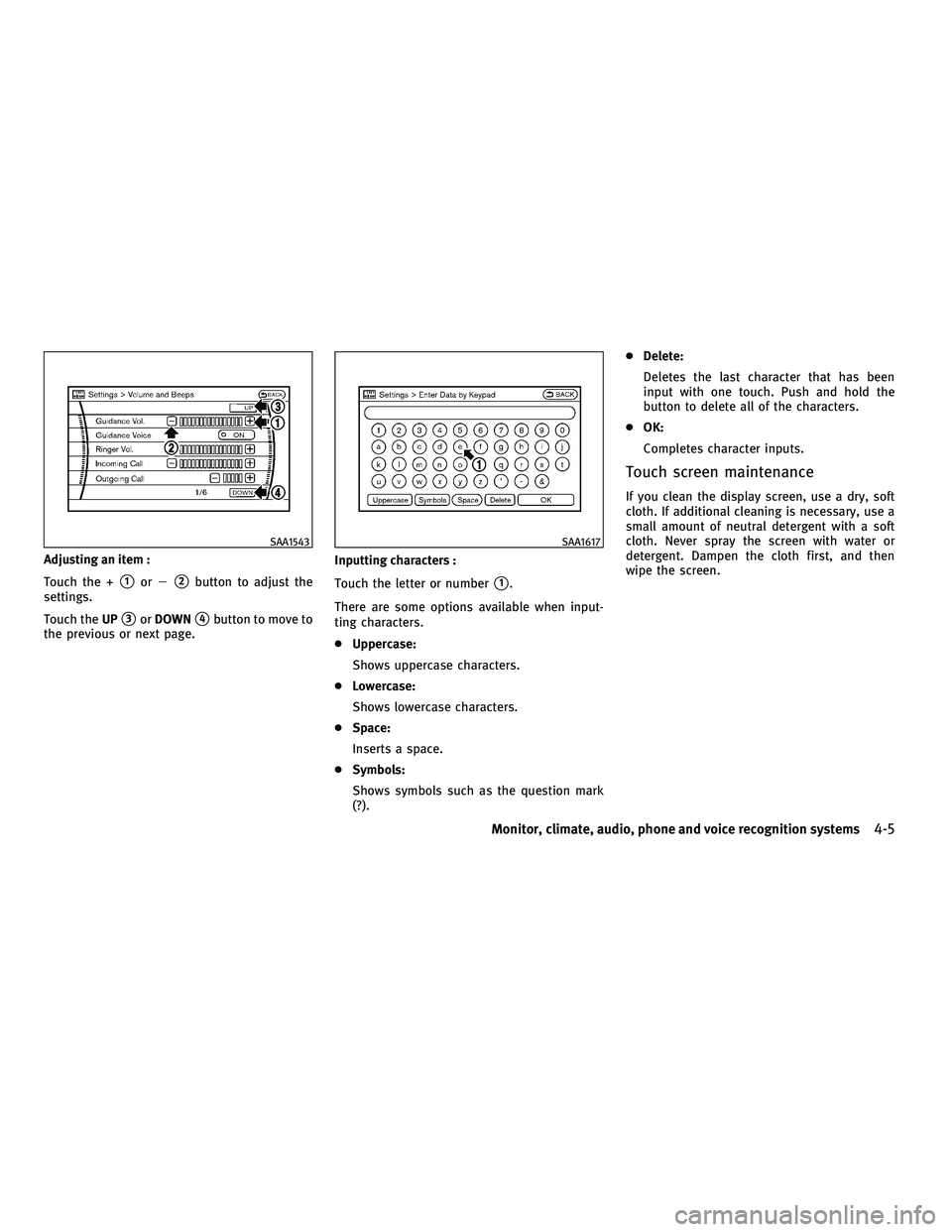
Adjusting an item :
Touch the +
s1or2s2button to adjust the
settings.
Touch the UP
s3orDOWNs4button to move to
the previous or next page. Inputting characters :
Touch the letter or number
s1.
There are some options available when input-
ting characters.
c Uppercase:
Shows uppercase characters.
c Lowercase:
Shows lowercase characters.
c Space:
Inserts a space.
c Symbols:
Shows symbols such as the question mark
(?). c
Delete:
Deletes the last character that has been
input with one touch. Push and hold the
button to delete all of the characters.
c OK:
Completes character inputs.
Touch screen maintenance
If you clean the display screen, use a dry, soft
cloth. If additional cleaning is necessary, use a
small amount of neutral detergent with a soft
cloth. Never spray the screen with water or
detergent. Dampen the cloth first, and then
wipe the screen.
SAA1543SAA1617
Monitor, climate, audio, phone and voice recognition systems4-5
wÐ
Ð
05/14/09Ðpattie
X
Page 174 of 445
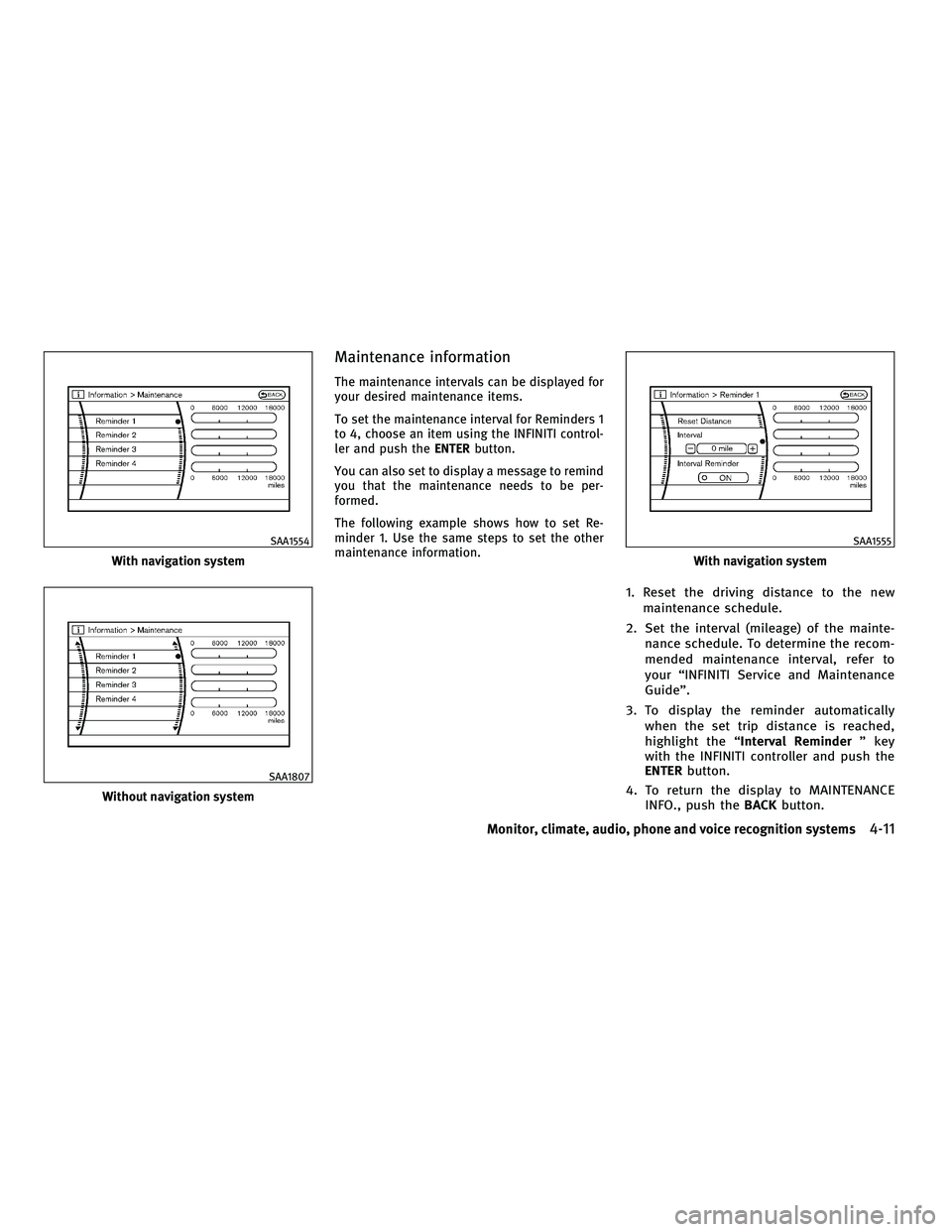
Maintenance information
The maintenance intervals can be displayed for
your desired maintenance items.
To set the maintenance interval for Reminders 1
to 4, choose an item using the INFINITI control-
ler and push theENTERbutton.
You can also set to display a message to remind
you that the maintenance needs to be per-
formed.
The following example shows how to set Re-
minder 1. Use the same steps to set the other
maintenance information.
1. Reset the driving distance to the new maintenance schedule.
2. Set the interval (mileage) of the mainte- nance schedule. To determine the recom-
mended maintenance interval, refer to
your ªINFINITI Service and Maintenance
Guideº.
3. To display the reminder automatically when the set trip distance is reached,
highlight the ª Interval Reminder º key
with the INFINITI controller and push the
ENTER button.
4. To return the display to MAINTENANCE INFO., push the BACKbutton.
With navigation system
SAA1554
Without navigation system
SAA1807
With navigation system
SAA1555
Monitor, climate, audio, phone and voice recognition systems4-11
wÐ
Ð
05/14/09Ðpattie
X
Page 175 of 445
Maintenance information display cannot be op-
erated when the vehicle is moving. Stop the
vehicle in a safe place to see the information.
The unit can be converted between ªUSº and
ªMetricº. (See ªHOW TO USE SETTING BUTTONº
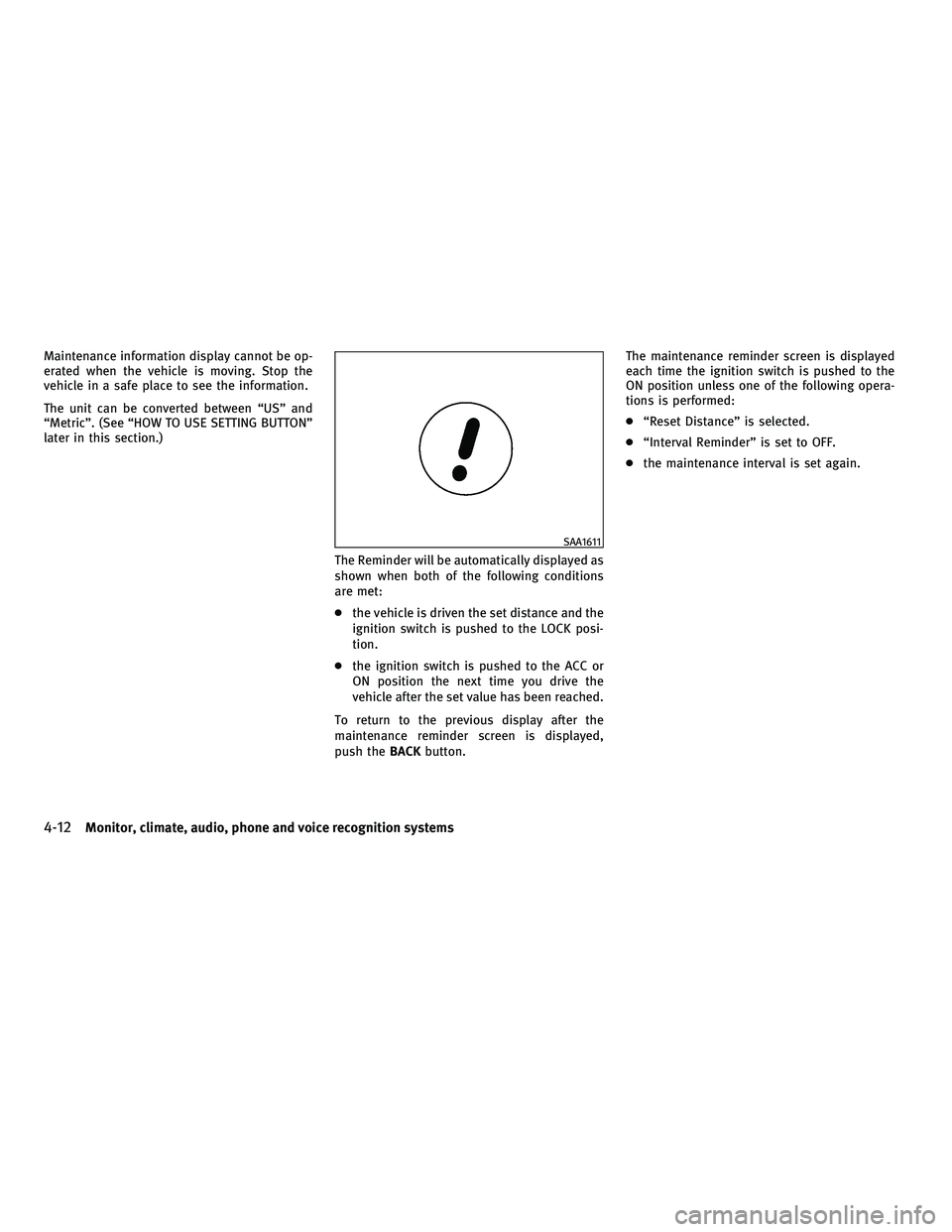
later in this section.)The Reminder will be automatically displayed as
shown when both of the following conditions
are met:
cthe vehicle is driven the set distance and the
ignition switch is pushed to the LOCK posi-
tion.
c the ignition switch is pushed to the ACC or
ON position the next time you drive the
vehicle after the set value has been reached.
To return to the previous display after the
maintenance reminder screen is displayed,
push the BACKbutton. The maintenance reminder screen is displayed
each time the ignition switch is pushed to the
ON position unless one of the following opera-
tions is performed:
c
ªReset Distanceº is selected.
c ªInterval Reminderº is set to OFF.
c the maintenance interval is set again.
SAA1611
4-12Monitor, climate, audio, phone and voice recognition systems
wÐ
Ð
05/14/09Ðpattie
X
Page 196 of 445
REAR SWITCHES FOR CLIMATE
CONTROL (if so equipped)
The rear seat passengers can adjust the climate
control system using the climate controls in the
rear armrest panel.
ªAUTOº button: automatic climate control
mode on
ª
º button: Fan speed control up (Max fan
speed !return to Low fan speed)
ª
º button: Temperature control up/down
OPERATING TIPS
When the engine coolant temperature and out-
side air temperature are low, the air flow from
the foot outlets may not operate for a maximum
of 150 seconds. This is not a malfunction. After
the coolant temperature warms up, air will flow
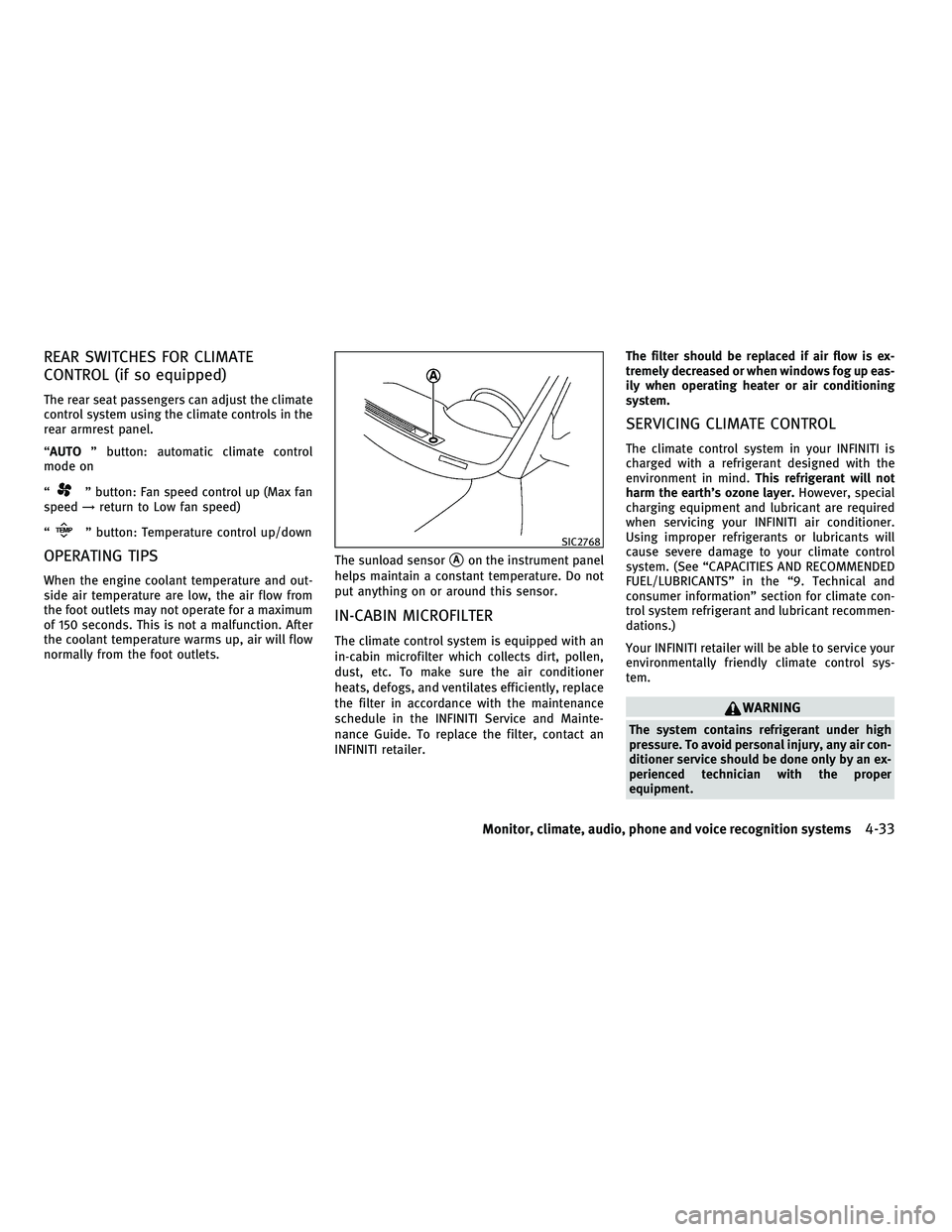
normally from the foot outlets. The sunload sensor
sAon the instrument panel
helps maintain a constant temperature. Do not
put anything on or around this sensor.
IN-CABIN MICROFILTER
The climate control system is equipped with an
in-cabin microfilter which collects dirt, pollen,
dust, etc. To make sure the air conditioner
heats, defogs, and ventilates efficiently, replace
the filter in accordance with the maintenance
schedule in the INFINITI Service and Mainte-
nance Guide. To replace the filter, contact an
INFINITI retailer. The filter should be replaced if air flow is ex-
tremely decreased or when windows fog up eas-
ily when operating heater or air conditioning
system.
SERVICING CLIMATE CONTROL
The climate control system in your INFINITI is
charged with a refrigerant designed with the
environment in mind.
This refrigerant will not
harm the earth's ozone layer. However, special
charging equipment and lubricant are required
when servicing your INFINITI air conditioner.
Using improper refrigerants or lubricants will
cause severe damage to your climate control
system. (See ªCAPACITIES AND RECOMMENDED
FUEL/LUBRICANTSº in the ª9. Technical and
consumer informationº section for climate con-
trol system refrigerant and lubricant recommen-
dations.)
Your INFINITI retailer will be able to service your
environmentally friendly climate control sys-
tem.
WARNING
The system contains refrigerant under high
pressure. To avoid personal injury, any air con-
ditioner service should be done only by an ex-
perienced technician with the proper
equipment.
SIC2768
Monitor, climate, audio, phone and voice recognition systems4-33
wÐ
Ð
05/14/09Ðpattie
X
Page 219 of 445
Title Text Priority :
Set the priority to CDDB (Compact Disc Data
Base) to acquire track information from the
Gracenote Database or set to CD TEXT to acquire
the information from CDs.
Delete ALL Music Box Data :
Delete all music data stored on the hard disk.
Gracenote
NOTE:
cThe information contained in the Gracenote
Database is not fully guaranteed.
c The service of the Gracenote Database on
the Internet may be stopped without prior
notice for maintenance.
End-User License Agreement
USE OF THIS PRODUCT IMPLIES ACCEPTANCE OF
THE TERMS BELOW.
GracenoteT MusicIDTTerms of Use
This device contains software from Gracenote,
Inc. of Emeryville, California (ªGracenoteº). The
software from Gracenote (the ªGracenote Soft-
wareº) enables this application to do online
disc identification and obtain music-related in- formation, including name, artist, track, and
title information (ªGracenote Dataº) from online
servers (ªGracenote Serversº) and to perform
other functions. You may use Gracenote Data
only by means of the intended End-User func-
tions of this device.
You agree that you will use Gracenote Data, the
Gracenote Software, and Gracenote Servers for
your own personal non-commercial use only.
You agree not to assign, copy, transfer or
transmit the Gracenote Software or any
Gracenote Data to any third party. YOU AGREE
NOT TO USE OR EXPLOIT GRACENOTE DATA, THE
GRACENOTE SOFTWARE, OR GRACENOTE SERV-
ERS, EXCEPT AS EXPRESSLY PERMITTED HEREIN.
You agree that your non-exclusive license to use
the Gracenote Data, the Gracenote Software,
and Gracenote Servers will terminate if you
violate these restrictions. If your license termi-
nates, you agree to cease any and all use of the
Gracenote Data, the Gracenote Software, and
Gracenote Servers. Gracenote reserves all
rights in Gracenote Data, the Gracenote Soft-
ware, and the Gracenote Servers, including all
ownership rights. Under no circumstances will
Gracenote become liable for any payment to
you for any information that you provide. You
agree that Gracenote, Inc. may enforce its rights
under this Agreement against you directly in its
own name.The Gracenote MusicID Service uses a unique
identifier to track queries for statistical pur-
poses. The purpose of a randomly assigned
numeric identifier is to allow the Gracenote
MusicID service to count queries without know-
ing anything about who you are. For more
information, see the web page for the
Gracenote Privacy Policy for the Gracenote Mu-
sicID Service.
The Gracenote Software and each item of
Gracenote Data are licensed to you ªAS IS.º
Gracenote makes no representations or warran-
ties, express or implied, regarding the accuracy
of any Gracenote Data from in the Gracenote
Servers. Gracenote reserves the right to delete
data from the Gracenote Servers or to change
data categories for any cause that Gracenote
deems sufficient. No warranty is made that the
Gracenote Software or Gracenote Servers are
error-free or that functioning of Gracenote Soft-
ware or Gracenote Servers will be uninter-
rupted. Gracenote is not obligated to provide
you with new enhanced or additional data types
or categories that Gracenote may provide in the
future and is free to discontinue its online
services at any time.
4-56Monitor, climate, audio, phone and voice recognition systems
wÐ
Ð
05/14/09Ðpattie
X
Page 235 of 445
Volume :
To control the volume level, push the VOL
button ª
º.
Display :
To adjust the rear display screen (brightness,
tint, contrast, etc.), push the DISP button.
Aspect :
To change the display size, push the ASPECT
button. Each time the button is pushed, the
display size will change to ªCinemaº, ªWideº,
ªFullº or ªNormalº.
Sound :
To change the language, push the SOUND but-
ton. Each time the button is pushed, the lan-
guage will change to each language stored in
the DVD.
Headphones :
The DVD sound can be heard through the
headphones.
Push the headphones ª
º button. Each
time the button is pushed, the headphones
mode will switch to ON or OFF.
To control the volume of sound from the head-
phones, use the volume control knob attached
to the headphones. Track/Channel :
To skip to the previous or next DVD scene
selection, push the TRACK CH button
ª
º.
Keypad :
: PLAY/PAUSE button
: STOP button
: FORWARD button
: REWIND button
: FORWARD button for still images (for DVD-AUDIO)
: REWIND button for still images (forDVD-AUDIO)
CARE AND MAINTENANCE
Use a lightly dampened, lint free cloth to clean
the surfaces of your Mobile Entertainment Sys-
tem. (DVD player face, screen, remote control-
ler, etc.)
c Do not attempt to operate the system in
extreme temperature conditions [below
24ÉF (220ÉC) and above 158ÉF (70ÉC)]. c
Do not attempt to operate the system in
extreme humidity conditions (less than 10%
or more than 75%).
CAUTION
cDo not use any solvents or cleaning solu-
tions when cleaning the video system.
c Do not use excessive force on the monitor
screen.
c Avoid touching or scratching the monitor
screen as it may become dirty or damaged.
4-72Monitor, climate, audio, phone and voice recognition systems
wÐ
Ð
05/14/09Ðpattie
X
Page 267 of 445

cInformation Command:
Command Action
Fuel Economy Displays fuel economy information.
Trip Computer Displays trip information.
Maintenance Displays maintenance information.
Traffic Info. Turns the traffic information system ON and OFF.
4-104Monitor, climate, audio, phone and voice recognition systems
wÐ
Ð
05/14/09Ðpattie
X