Phonebook INFINITI QX60 2017 Owners Manual
[x] Cancel search | Manufacturer: INFINITI, Model Year: 2017, Model line: QX60, Model: INFINITI QX60 2017Pages: 629, PDF Size: 6.89 MB
Page 222 of 629

SHORTCUT MENU
Push the ENTER button on the steering wheel
while the status, audio, climate or current location
map (models with navigation system) screen is
displayed to display the shortcut menu screen.
The items on the shortcut menu can be custom-
ized to your preference
Available items:● Audio Source
● Audio List
● Call History
● Phonebook
● Cancel Route*
● Nearby Places*
● Store Location*
● View Settings*
● Select Add/Edit
● (Blank)
*: Models with navigation system.
Edit shortcut menu
The following procedure can edit or sort the
shortcut menu.
1. Touch the “Select Add/Edit” key to register a new item to the menu, or to change an
existing menu item.
2. Select a preferred setting. ●“Change Order” key
Change the order in which shortcut menu
items are shown. Touch and hold the “
”
key displayed next to the item you wish to
relocate. Drag the icon to the position in the
list where you wish to insert the item.
● “Edit Shortcut Items” key
Select items to be displayed in the shortcut
menu.
Monitor, climate, audio, phone and voice recognition systems4-19
Page 268 of 629

Bluetooth® Audio player
The Bluetooth® word mark and logos are regis-
tered trademarks owned by Bluetooth SIG, Inc.
and any use of such marks by DENSO
CORPORATION is under license. Other trade-
marks and trade names are those of their respec-
tive owners.● Some Bluetooth® streaming audio devices
may not be recognized by the in-vehicle
audio system.
● It is necessary to set up the wireless con-
nection between a compatible Bluetooth®
streaming audio device and the in-vehicle
Bluetooth® module before using the
Bluetooth® streaming audio.
● The Bluetooth® streaming audio may be
stopped under the following conditions:
– When receiving a hands-free call
– When checking the connection to the hand-free phone
– When connecting the hands-free phone or audio device – When downloading a phonebook
memory from a connected cellular phone
● Do not place a Bluetooth® streaming
audio device in an area surrounded by
metal or far away from the in-vehicle
Bluetooth® module to prevent tone qual-
ity degradation and wireless connection
disruption.
● While an audio device is connected
through Bluetooth® wireless connection,
the battery of the device may discharge
quicker than usual.
● This system supports the Bluetooth® Ad-
vanced Audio Distribution Profile (A2DP)
and Audio/Video Remote Control Profile
(AVRCP) .
● Wireless LAN (Wi-Fi) and the
Bluetooth® functions share the same fre-
quency band (2.4 GHz) . Using the
Bluetooth® and the wireless LAN func-
tions at the same time may slow down or
disconnect the communication and
cause undesired noise. It is recom-
mended that you turn off the wireless LAN
(Wi-Fi) when using the Bluetooth® func-
tions. Regulatory Information
La operación de este equipo está sujeta a las
siguientes dos condiciones: (1) es posible que
este equipo o dispositivo no cause interferencia
perjudicial y (2) este equipo o dispositivo debe
aceptar cualquier interferencia, incluyendo la que
pueda causar su operación no deseada.
FCC Regulatory Information
FCC ID: HYQDNNS086
NOTE:
This device complies with part 15 of the
FCC Rules. Operation is subject to the fol-
lowing two conditions: (1) This device may
not cause harmful interference, and (2) this
device must accept any interference re-
ceived, including interference that may
cause undesired operation.
FCC WARNING: Changes or modifications not
expressly approved by the party responsible for
compliance could void the user’s authority to
operate the equipment.
Monitor, climate, audio, phone and voice recognition systems4-65
Page 323 of 629
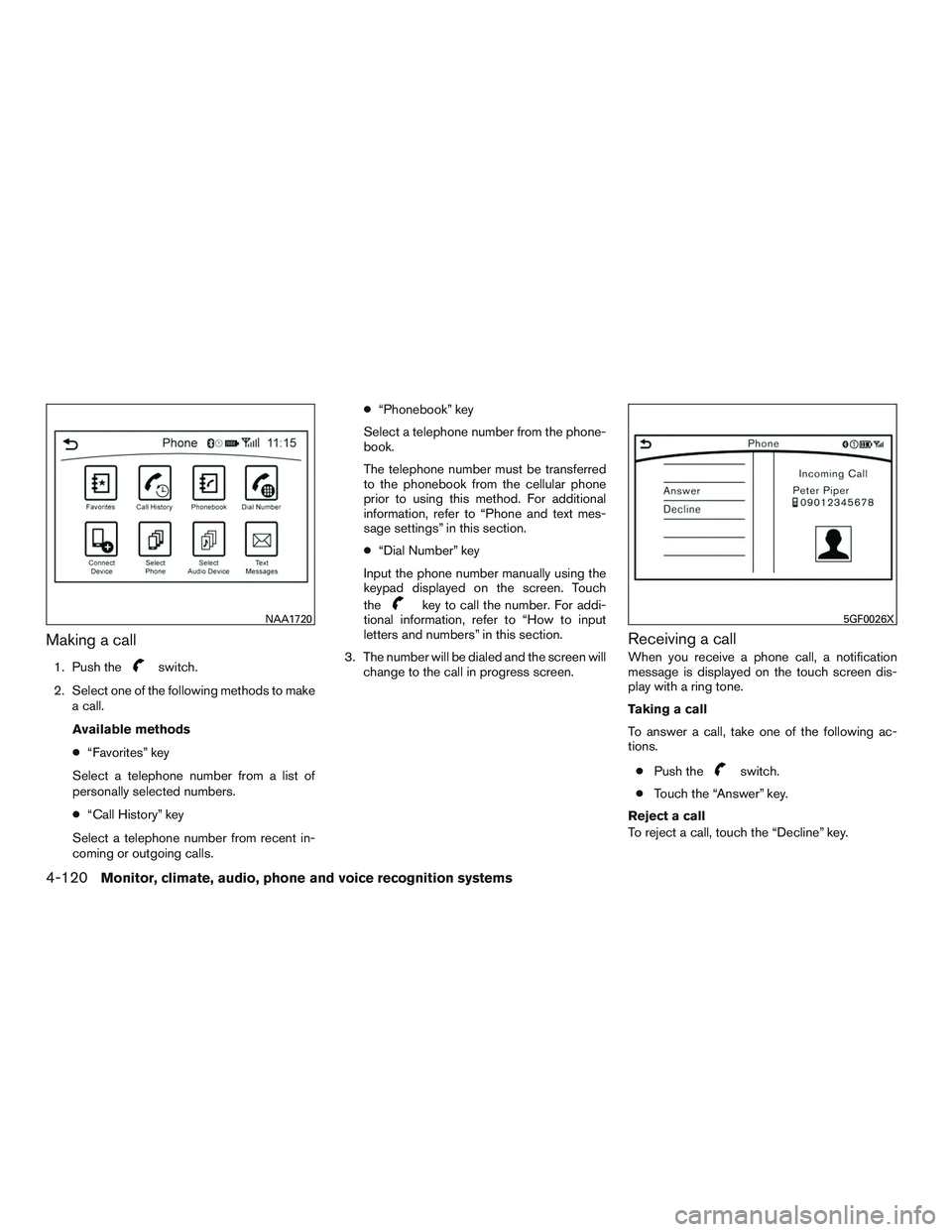
Making a call
1. Push theswitch.
2. Select one of the following methods to make a call.
Available methods
● “Favorites” key
Select a telephone number from a list of
personally selected numbers.
● “Call History” key
Select a telephone number from recent in-
coming or outgoing calls. ●
“Phonebook” key
Select a telephone number from the phone-
book.
The telephone number must be transferred
to the phonebook from the cellular phone
prior to using this method. For additional
information, refer to “Phone and text mes-
sage settings” in this section.
● “Dial Number” key
Input the phone number manually using the
keypad displayed on the screen. Touch
the
key to call the number. For addi-
tional information, refer to “How to input
letters and numbers” in this section.
3. The number will be dialed and the screen will change to the call in progress screen.
Receiving a call
When you receive a phone call, a notification
message is displayed on the touch screen dis-
play with a ring tone.
Taking a call
To answer a call, take one of the following ac-
tions.
● Push the
switch.
● Touch the “Answer” key.
Reject a call
To reject a call, touch the “Decline” key.
NAA17205GF0026X
4-120Monitor, climate, audio, phone and voice recognition systems
Page 327 of 629
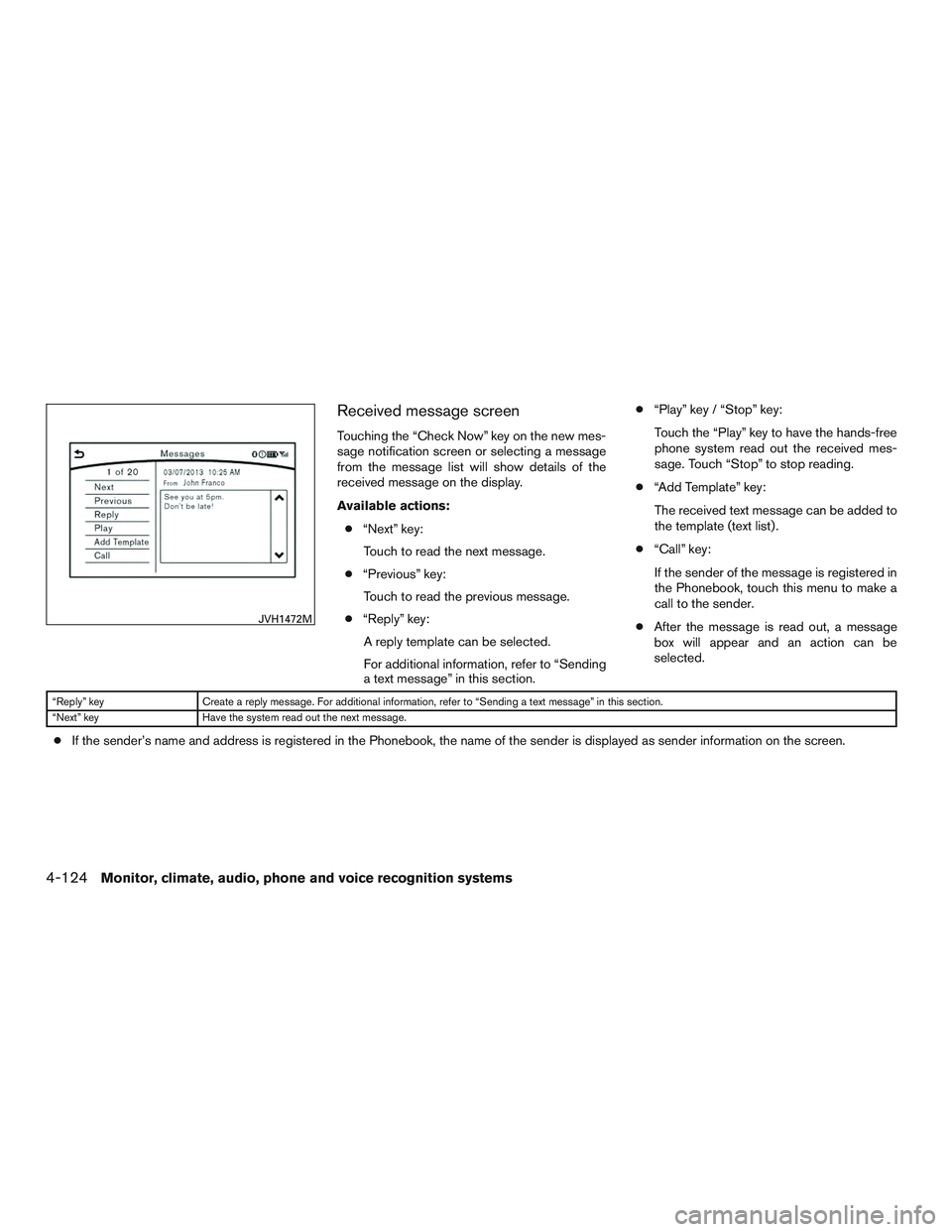
Received message screen
Touching the “Check Now” key on the new mes-
sage notification screen or selecting a message
from the message list will show details of the
received message on the display.
Available actions:● “Next” key:
Touch to read the next message.
● “Previous” key:
Touch to read the previous message.
● “Reply” key:
A reply template can be selected.
For additional information, refer to “Sending
a text message” in this section. ●
“Play” key / “Stop” key:
Touch the “Play” key to have the hands-free
phone system read out the received mes-
sage. Touch “Stop” to stop reading.
● “Add Template” key:
The received text message can be added to
the template (text list) .
● “Call” key:
If the sender of the message is registered in
the Phonebook, touch this menu to make a
call to the sender.
● After the message is read out, a message
box will appear and an action can be
selected.
“Reply” key Create a reply message. For additional information, refer to “Sending a text message” in this section.
“Next” key Have the system read out the next message.
●If the sender’s name and address is registered in the Phonebook, the name of the sender is displayed as sender information on the screen.
JVH1472M
4-124Monitor, climate, audio, phone and voice recognition systems
Page 328 of 629
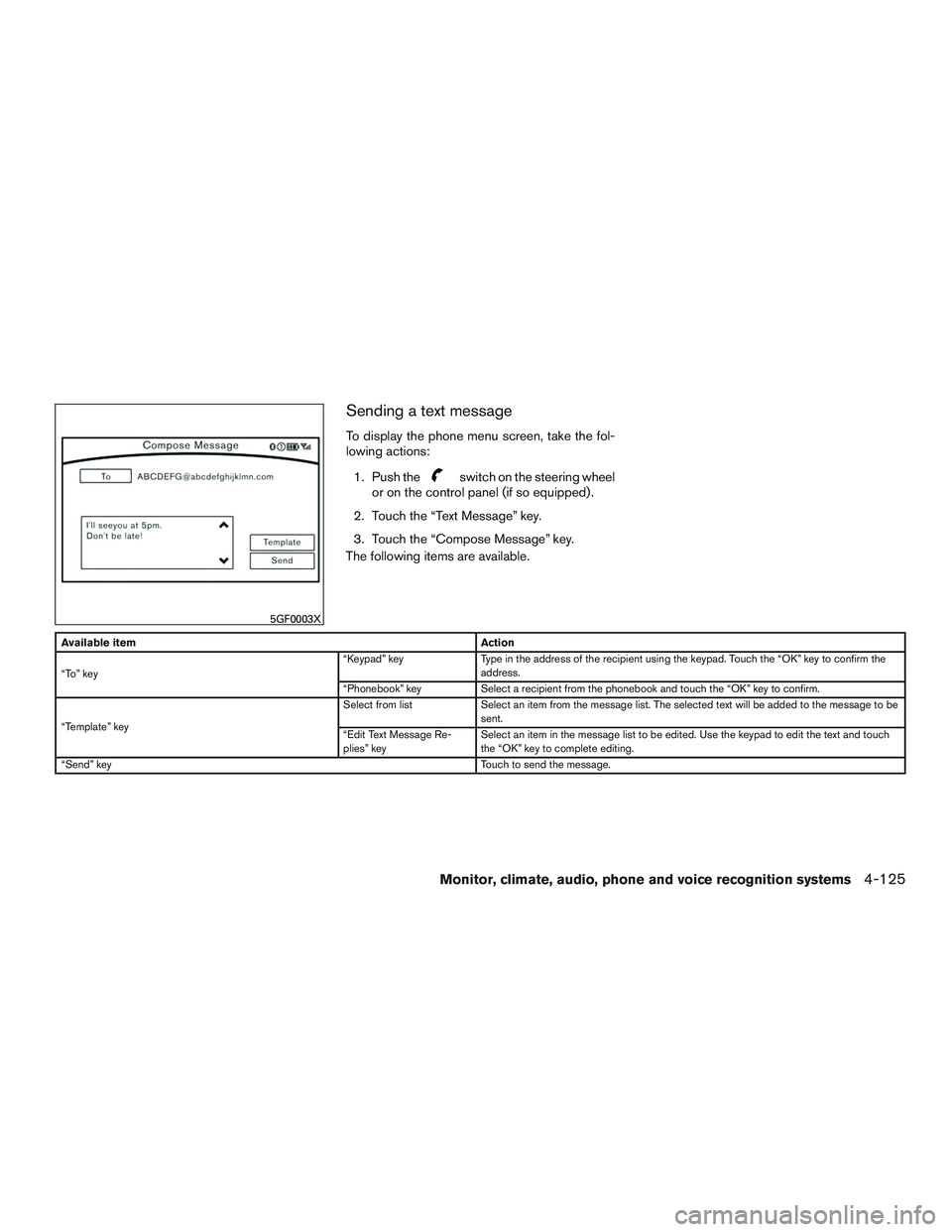
Sending a text message
To display the phone menu screen, take the fol-
lowing actions:1. Push the
switch on the steering wheel
or on the control panel (if so equipped) .
2. Touch the “Text Message” key.
3. Touch the “Compose Message” key.
The following items are available.
Available item Action
“To” key “Keypad” key
Type in the address of the recipient using the keypad. Touch the “OK” key to confirm the
address.
“Phonebook” key Select a recipient from the phonebook and touch the “OK” key to confirm.
“Template” key Select from list
Select an item from the message list. The selected text will be added to the message to be
sent.
“Edit Text Message Re-
plies” key Select an item in the message list to be edited. Use the keypad to edit the text and touch
the “OK” key to complete editing.
“Send” key Touch to send the message.
5GF0003X
Monitor, climate, audio, phone and voice recognition systems4-125
Page 330 of 629
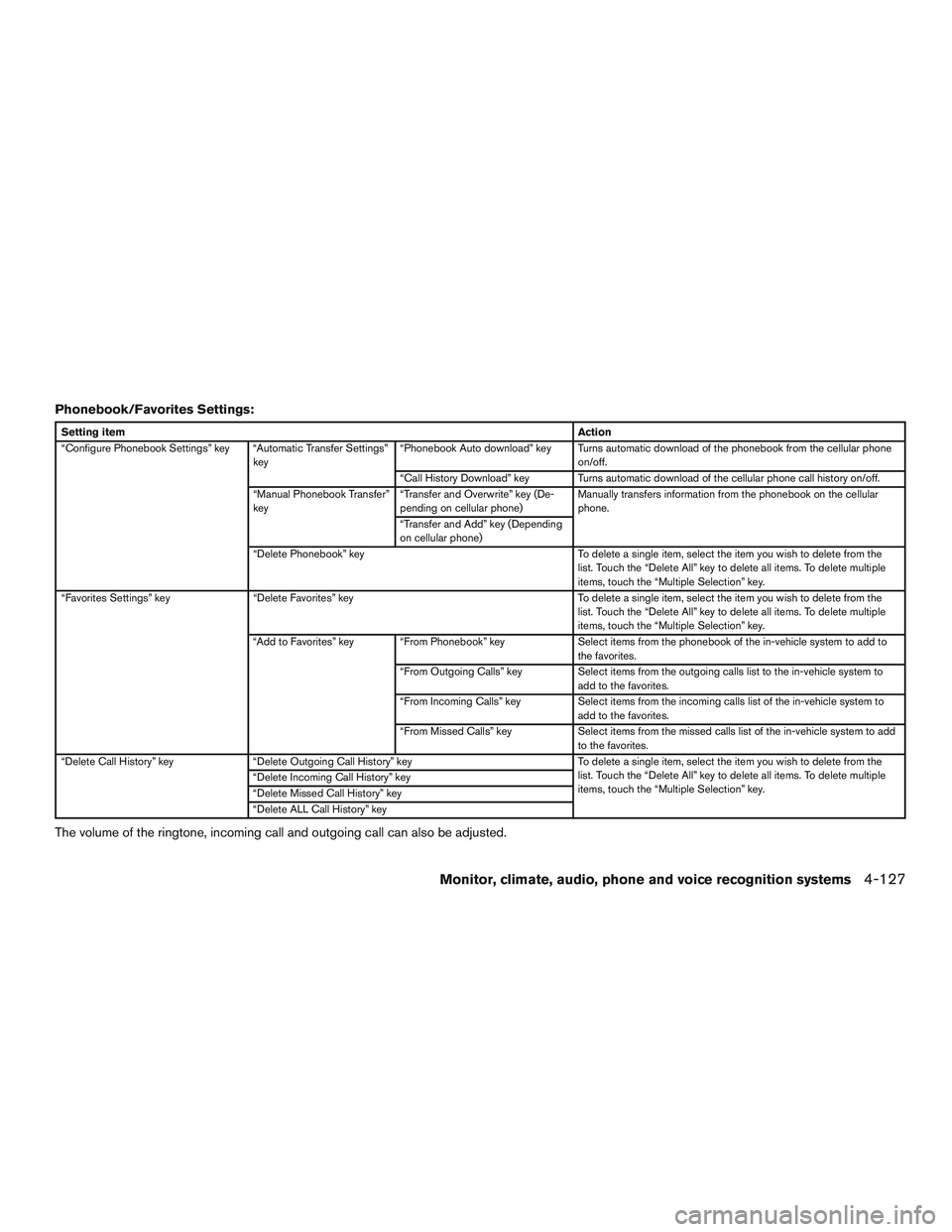
Phonebook/Favorites Settings:
Setting itemAction
“Configure Phonebook Settings” key “Automatic Transfer Settings” key“Phonebook Auto download” key Turns automatic download of the phonebook from the cellular phone
on/off.
“Call History Download” key Turns automatic download of the cellular phone call history on/off.
“Manual Phonebook Transfer”
key “Transfer and Overwrite” key (De-
pending on cellular phone) Manually transfers information from the phonebook on the cellular
phone.
“Transfer and Add” key (Depending
on cellular phone)
“Delete Phonebook” key To delete a single item, select the item you wish to delete from the list. Touch the “Delete All” key to delete all items. To delete multiple
items, touch the “Multiple Selection” key.
“Favorites Settings” key “Delete Favorites” key To delete a single item, select the item you wish to delete from the
list. Touch the “Delete All” key to delete all items. To delete multiple
items, touch the “Multiple Selection” key.
“Add to Favorites” key “From Phonebook” key Select items from the phonebook of the in-vehicle system to add to
the favorites.
“From Outgoing Calls” key Select items from the outgoing calls list to the in-vehicle system to
add to the favorites.
“From Incoming Calls” key Select items from the incoming calls list of the in-vehicle system to
add to the favorites.
“From Missed Calls” key Select items from the missed calls list of the in-vehicle system to add
to the favorites.
“Delete Call History” key “Delete Outgoing Call History” key To delete a single item, select the item you wish to delete from the
list. Touch the “Delete All” key to delete all items. To delete multiple
items, touch the “Multiple Selection” key.
“Delete Incoming Call History” key
“Delete Missed Call History” key
“Delete ALL Call History” key
The volume of the ringtone, incoming call and outgoing call can also be adjusted.
Monitor, climate, audio, phone and voice recognition systems4-127
Page 331 of 629
Mail settings
Various settings can be changed from the Mail
Settings screen.1. Press the SETTING button.
2. Touch the “Phone/Mail” key.
3. Touch the “Mail Settings” key.
The following mail setting items are available.
Settings item Action
“Message Download Set-
tings” key The transfer function can
be turned on/off. When
the transfer function is on,
the phonebook on the cel-
lular phone will be auto-
matically downloaded to
the hands-free messaging
system when connected.
“Attempts for Sending”
key The number of reattempts
after failing to send a text
message can be selected
between 0 and 3.
“New Message Alert” key The type of tone used for the notification sound can
be selected.
“Edit Text Message Re-
plies” key The template (text to se-
lect from when composing
an outgoing message) can
be edited.
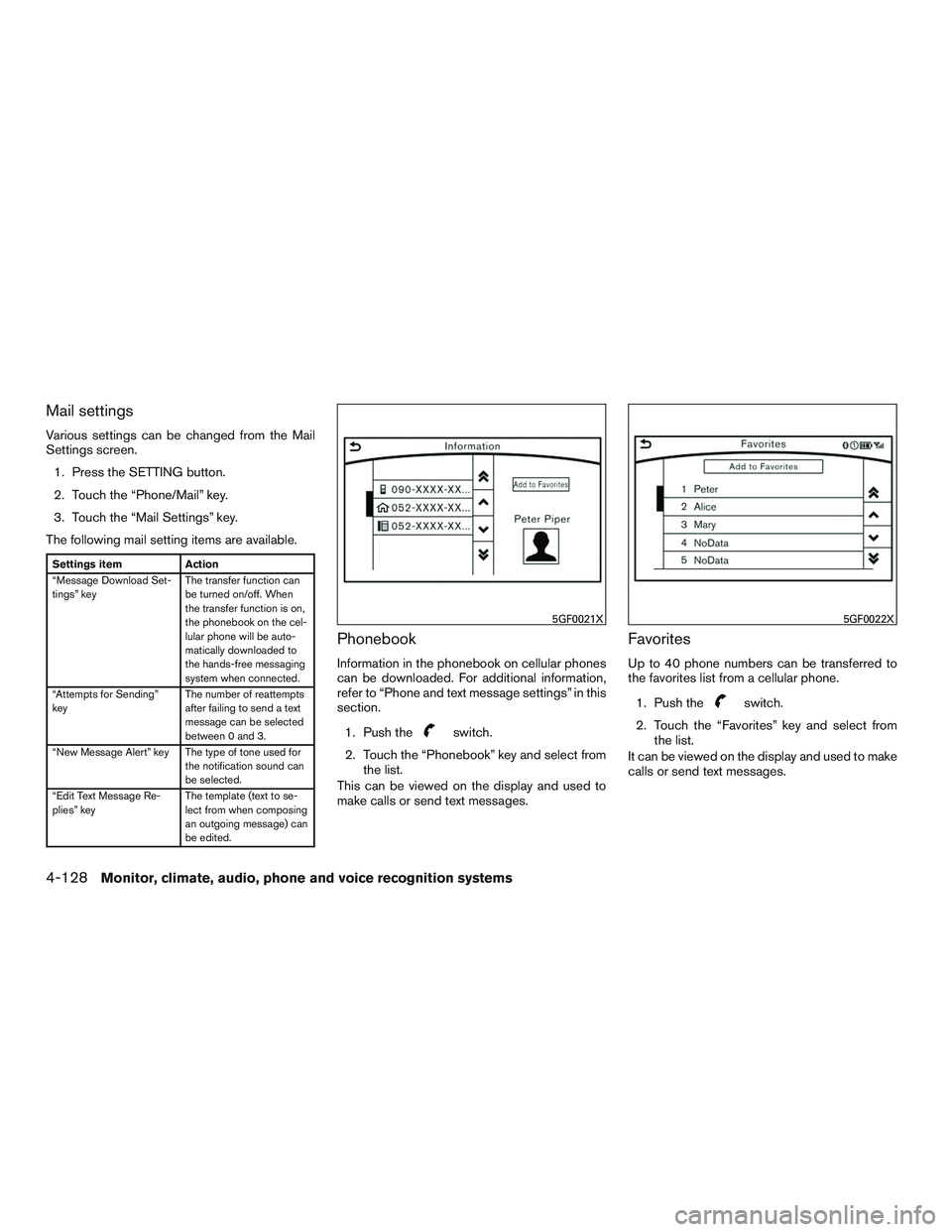
Phonebook
Information in the phonebook on cellular phones
can be downloaded. For additional information,
refer to “Phone and text message settings” in this
section.
1. Push the
switch.
2. Touch the “Phonebook” key and select from the list.
This can be viewed on the display and used to
make calls or send text messages.
Favorites
Up to 40 phone numbers can be transferred to
the favorites list from a cellular phone.
1. Push the
switch.
2. Touch the “Favorites” key and select from the list.
It can be viewed on the display and used to make
calls or send text messages.
5GF0021X5GF0022X
4-128Monitor, climate, audio, phone and voice recognition systems
Page 346 of 629
Examples
1–800–662–6200
“One eight zero zero six six two six two zero zero”
For the best recognition, speak “zero” for the
number “0” and “oh” for the letter “o”.
Voice command examples
As examples, some additional basic operations
that can be performed by voice commands are
described here.
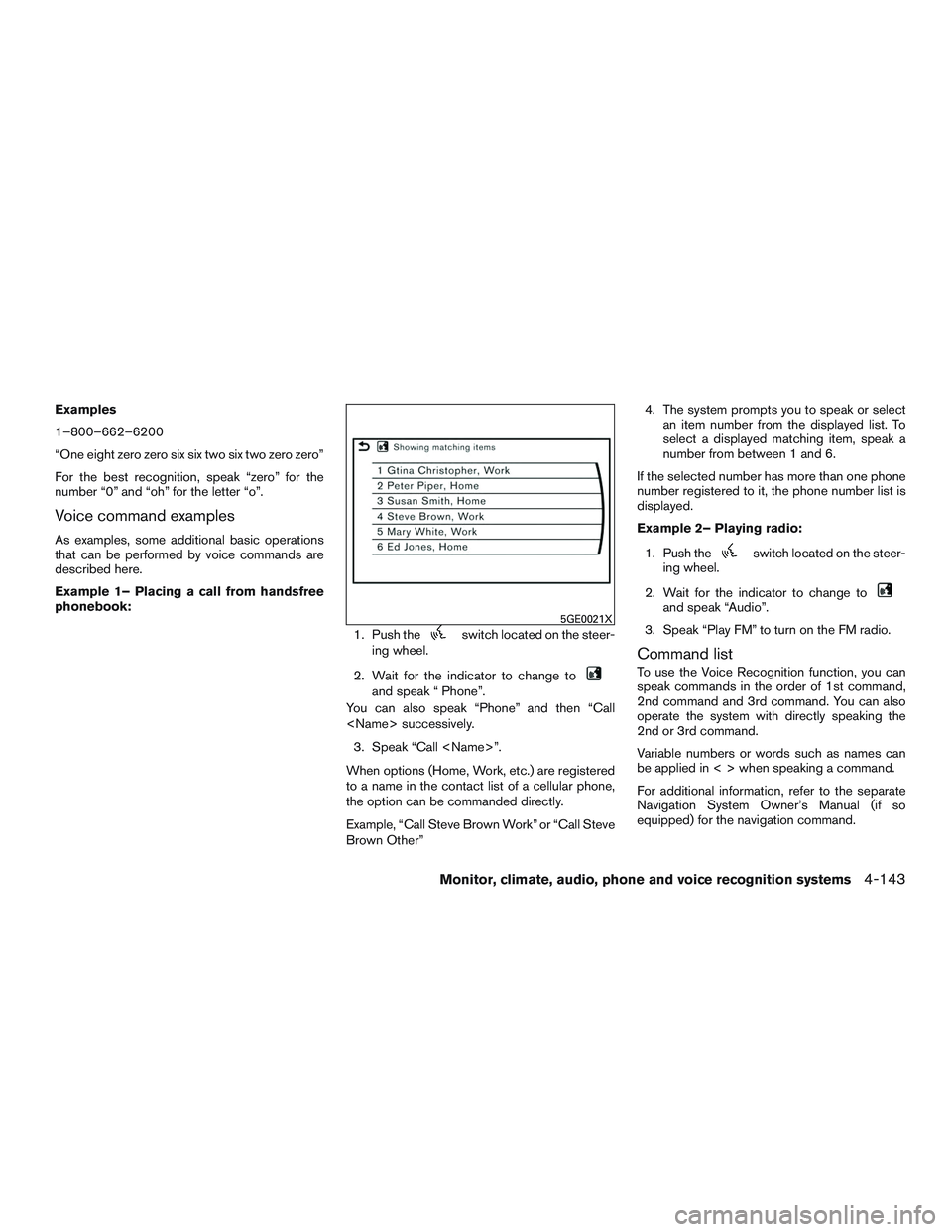
Example 1– Placing a call from handsfree
phonebook:1. Push the
switch located on the steer-
ing wheel.
2. Wait for the indicator to change to
and speak “ Phone”.
You can also speak “Phone” and then “Call
3. Speak “Call
When options (Home, Work, etc.) are registered
to a name in the contact list of a cellular phone,
the option can be commanded directly.
Example, “Call Steve Brown Work” or “Call Steve
Brown Other” 4. The system prompts you to speak or select
an item number from the displayed list. To
select a displayed matching item, speak a
number from between 1 and 6.
If the selected number has more than one phone
number registered to it, the phone number list is
displayed.
Example 2– Playing radio:
1. Push the
switch located on the steer-
ing wheel.
2. Wait for the indicator to change to
and speak “Audio”.
3. Speak “Play FM” to turn on the FM radio.
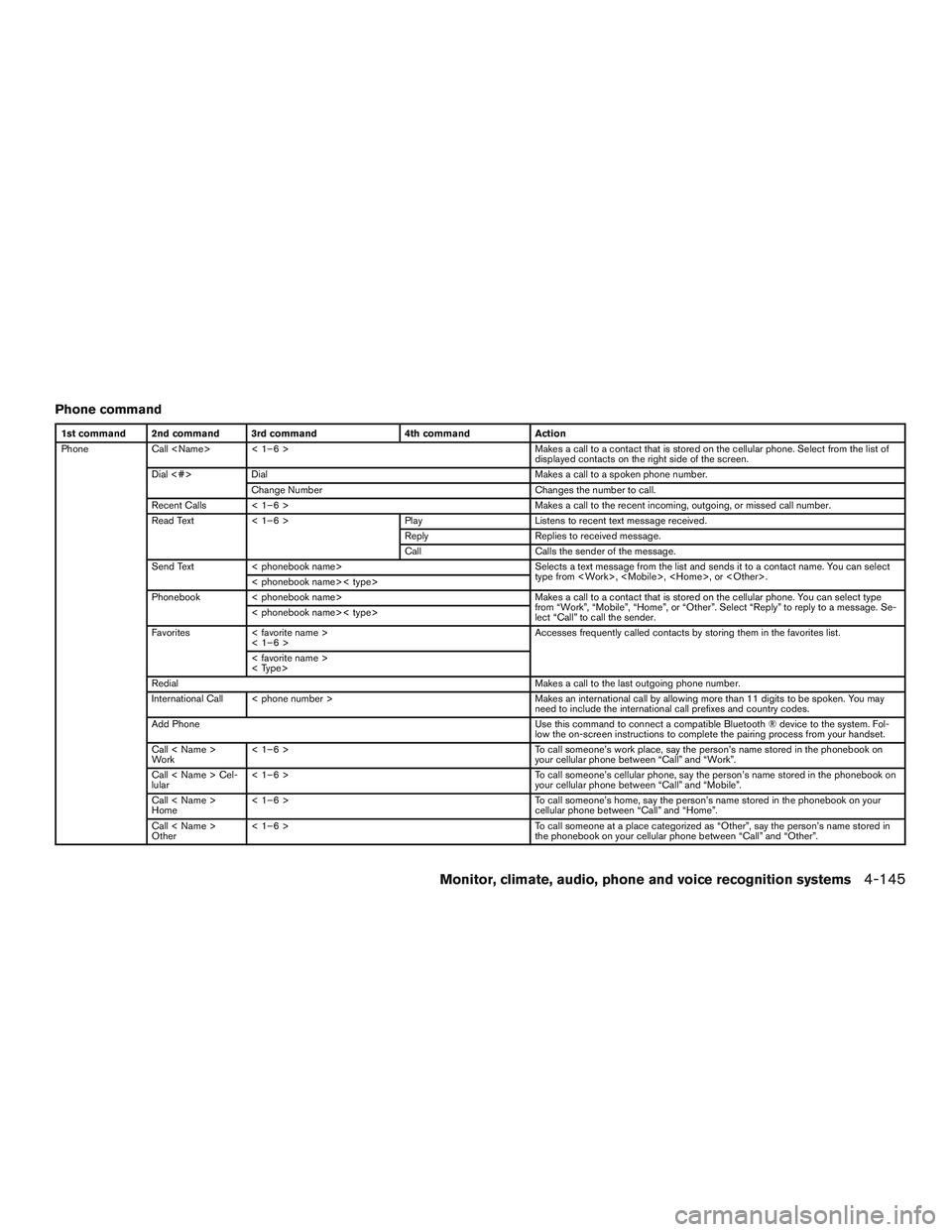
Command list
To use the Voice Recognition function, you can
speak commands in the order of 1st command,
2nd command and 3rd command. You can also
operate the system with directly speaking the
2nd or 3rd command.
Variable numbers or words such as names can
be applied in < > when speaking a command.
For additional information, refer to the separate
Navigation System Owner’s Manual (if so
equipped) for the navigation command.
5GE0021X
Monitor, climate, audio, phone and voice recognition systems4-143
Page 348 of 629
Phone command
1st command 2nd command 3rd command4th commandAction
Phone Call
displayed contacts on the right side of the screen.
Dial <#> Dial Makes a call to a spoken phone number.
Change Number Changes the number to call.
Recent Calls < 1–6 > Makes a call to the recent incoming, outgoing, or missed call number.
Read Text < 1–6 > PlayListens to recent text message received.
Reply Replies to received message.
Call Calls the sender of the message.
Send Text < phonebook name> Selects a text message from the list and sends it to a contact name. You can select
type from
< phonebook name>< type>
Phonebook < phonebook name> Makes a call to a contact that is stored on the cellular phone. You can select type
from “Work”, “Mobile”, “Home”, or “Other”. Select “Reply” to reply to a message. Se-
lect “Call” to call the sender.
< phonebook name>< type>
Favorites < favorite name >
< 1–6 > Accesses frequently called contacts by storing them in the favorites list.
< favorite name >
< Type>
Redial Makes a call to the last outgoing phone number.
International Call < phone number > Makes an international call by allowing more than 11 digits to be spoken. You may
need to include the international call prefixes and country codes.
Add Phone Use this command to connect a compatible Bluetooth ® device to the system. Fol-
low the on-screen instructions to complete the pairing process from your handset.
Call < Name >
Work < 1–6 >
To call someone’s work place, say the person’s name stored in the phonebook on
your cellular phone between “Call” and “Work”.
Call < Name > Cel-
lular < 1–6 >
To call someone’s cellular phone, say the person’s name stored in the phonebook on
your cellular phone between “Call” and “Mobile”.
Call < Name >
Home < 1–6 >
To call someone’s home, say the person’s name stored in the phonebook on your
cellular phone between “Call” and “Home”.
Call < Name >
Other < 1–6 >
To call someone at a place categorized as “Other”, say the person’s name stored in
the phonebook on your cellular phone between “Call” and “Other”.
Monitor, climate, audio, phone and voice recognition systems4-145
Page 361 of 629
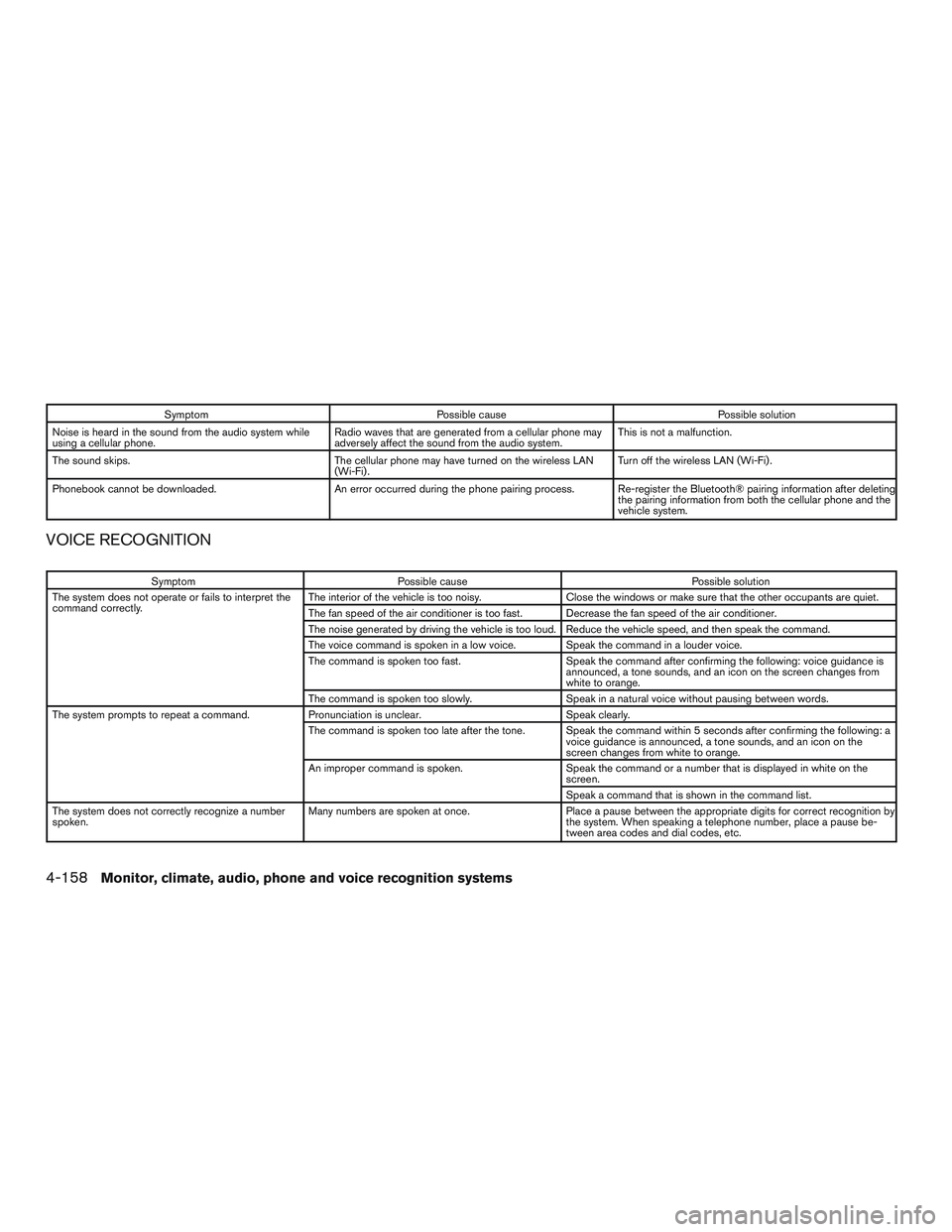
SymptomPossible cause Possible solution
Noise is heard in the sound from the audio system while
using a cellular phone. Radio waves that are generated from a cellular phone may
adversely affect the sound from the audio system. This is not a malfunction.
The sound skips. The cellular phone may have turned on the wireless LAN
(Wi-Fi) . Turn off the wireless LAN (Wi-Fi) .
Phonebook cannot be downloaded. An error occurred during the phone pairing process. Re-register the Bluetooth® pairing information after deleting
the pairing information from both the cellular phone and the
vehicle system.
VOICE RECOGNITION
SymptomPossible cause Possible solution
The system does not operate or fails to interpret the
command correctly. The interior of the vehicle is too noisy.
Close the windows or make sure that the other occupants are quiet.
The fan speed of the air conditioner is too fast. Decrease the fan speed of the air conditioner.
The noise generated by driving the vehicle is too loud. Reduce the vehicle speed, and then speak the command.
The voice command is spoken in a low voice. Speak the command in a louder voice.
The command is spoken too fast. Speak the command after confirming the following: voice guidance is
announced, a tone sounds, and an icon on the screen changes from
white to orange.
The command is spoken too slowly. Speak in a natural voice without pausing between words.
The system prompts to repeat a command. Pronunciation is unclear. Speak clearly.
The command is spoken too late after the tone. Speak the command within 5 seconds after confirming the following: a voice guidance is announced, a tone sounds, and an icon on the
screen changes from white to orange.
An improper command is spoken. Speak the command or a number that is displayed in white on the
screen.
Speak a command that is shown in the command list.
The system does not correctly recognize a number
spoken. Many numbers are spoken at once.
Place a pause between the appropriate digits for correct recognition by
the system. When speaking a telephone number, place a pause be-
tween area codes and dial codes, etc.
4-158Monitor, climate, audio, phone and voice recognition systems