mode JAGUAR XF 2009 1.G Owner's Manual
[x] Cancel search | Manufacturer: JAGUAR, Model Year: 2009, Model line: XF, Model: JAGUAR XF 2009 1.GPages: 391, PDF Size: 19.32 MB
Page 109 of 391
109
Information displays
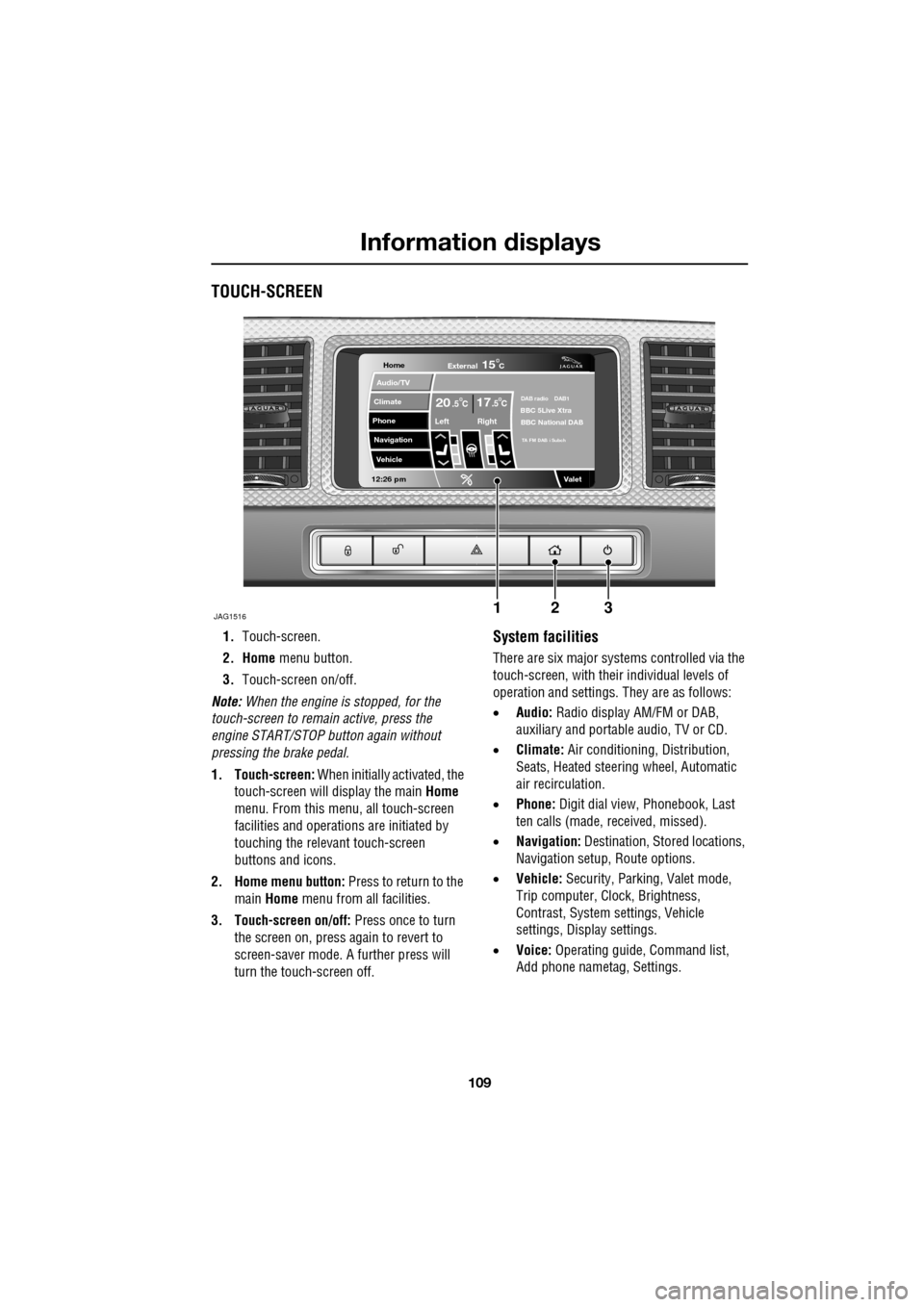
TOUCH-SCREEN
1.Touch-screen.
2. Home menu button.
3. Touch-screen on/off.
Note: When the engine is stopped, for the
touch-screen to remain active, press the
engine START/STOP button again without
pressing the brake pedal.
1. Touch-screen: When initially activated, the
touch-screen will display the main Home
menu. From this menu, all touch-screen
facilities and operati ons are initiated by
touching the relevant touch-screen
buttons and icons.
2. Home menu button: Press to return to the main Home menu from all facilities.
3. Touch-screen on/off: Press once to turn
the screen on, press again to revert to
screen-saver mode. A further press will
turn the touch-screen off.System facilities
There are six major systems controlled via the
touch-screen, with their individual levels of
operation and settings. They are as follows:
• Audio: Radio display AM/FM or DAB,
auxiliary and portable audio, TV or CD.
• Climate: Air conditioning, Distribution,
Seats, Heated steering wheel, Automatic
air recirculation.
• Phone: Digit dial view, Phonebook, Last
ten calls (made, received, missed).
• Navigation: Destination, St ored locations,
Navigation setup, Route options.
• Vehicle: Security, Parking, Valet mode,
Trip computer, Clock, Brightness,
Contrast, System settings, Vehicle
settings, Displa y settings.
• Voice: Operating guide, Command list,
Add phone nametag, Settings.
Home
Audio/TV
Climate
Phone
Navigation
Vehicle
Valet12:26 pm
JAG1516
External15C
Left Right
20 17CC.5 .5DAB radio DAB1BBC 5Live Xtra
BBC National DAB
TA FM DAB i Subch
123
Page 110 of 391
Information displays
110
Touch-screen use
When the engine START/STOP button is
pressed, the touch-screen is activated by the
on/off switch on the centre console.
The buttons on the centre console, below the
touch-screen display, are referred to as hard
buttons and should be pressed firmly. The
touch-screen buttons are soft buttons and only
require short, light pressu re to function. Do not
use excessive pressure.
When operating touch-sc reen buttons, always
extend the tip of one finger, and withhold the
thumb and remaining finge rs from the screen.
Touching the screen with more than one finger
at a time may cause false inputs.
Throughout the handbook, the expression
Select an item (or similar wording) means
touch the on-screen button to select or alter
the required item.
The handbook shows the on-screen menus,
explains how to oper ate the controls and
illustrates how to select or alter settings and
requirements. After becoming familiar with the
controls, follow the on-screen menus and
prompts, to operate th e system as required.
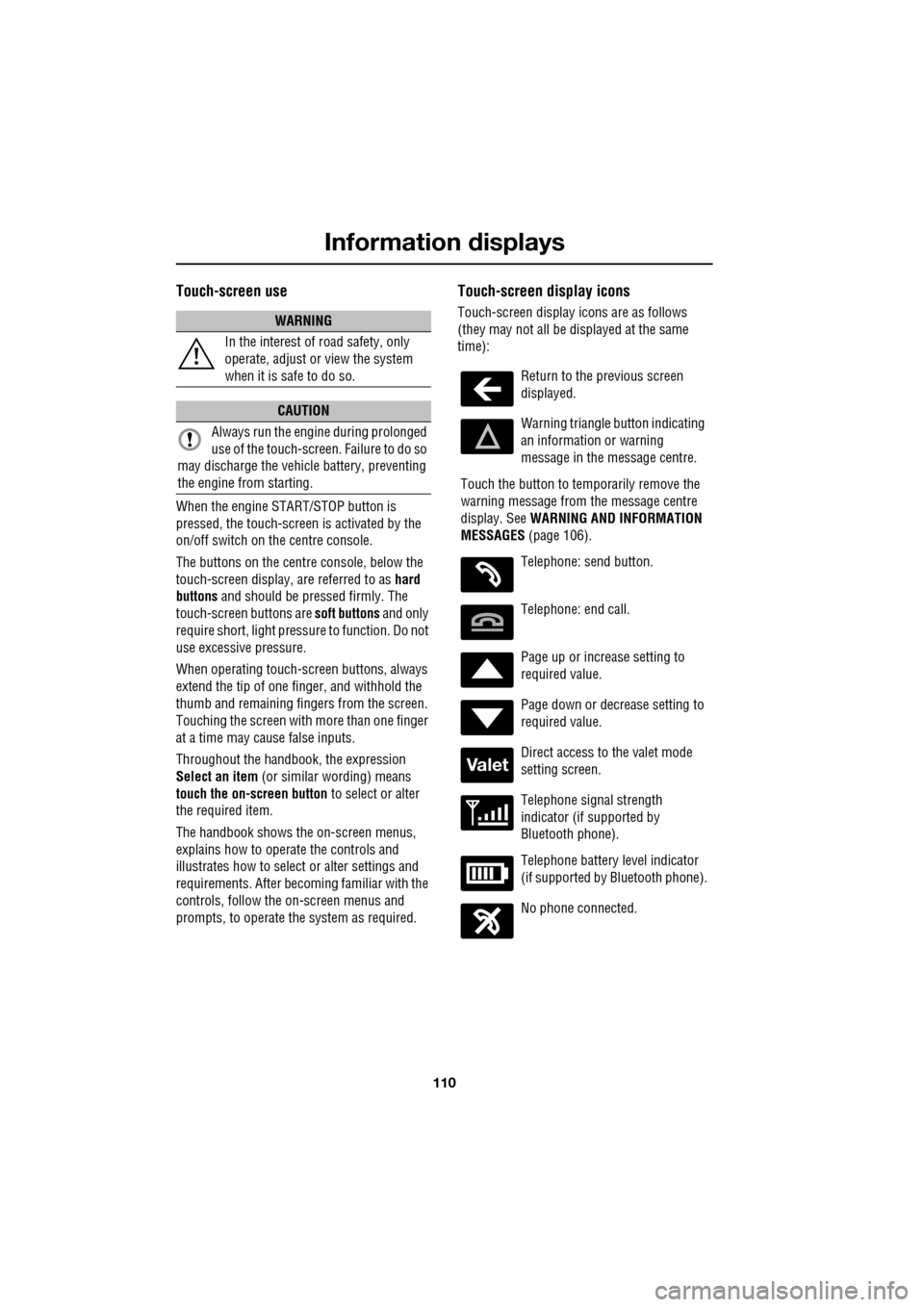
Touch-screen display icons
Touch-screen display icons are as follows
(they may not all be displayed at the same
time):WARNING
In the interest of road safety, only
operate, adjust or view the system
when it is safe to do so.
CAUTION
Always run the engine during prolonged
use of the touch-screen. Failure to do so
may discharge the vehicle battery, preventing
the engine from starting.
Return to the previous screen
displayed.
Warning triangle button indicating
an information or warning
message in the message centre.
Touch the button to temporarily remove the
warning message from the message centre
display. See WARNING AND INFORMATION
MESSAGES (page 106).
Telephone: send button.
Telephone: end call.
Page up or increase setting to
required value.
Page down or decrease setting to
required value.
Direct access to the valet mode
setting screen.
Telephone signal strength
indicator (if supported by
Bluetooth phone).
Telephone battery level indicator
(if supported by Bluetooth phone).
No phone connected.
Valet
Page 111 of 391
111
Information displays
Touch-screen care
Do not use any abrasive cleaners to clean your
touch-screen. For approved screen cleaners,
you should contact your Dealer/Authorised
Repairer.
The touch-screen inner bezel must be kept
clean to maintain optimum performance.
Finger marks and attracted dust should be
regularly removed usi ng a soft cloth and a
Jaguar approved cleaning agent.
Where possible, avoid exposing the
touch-screen to dire ct sunlight for long
periods.
PERSONALISED SETTINGS
General Information
The touch-screen provides touch-control of the
vehicle Audio, Climate, Phone, Navigation and
Vehicle systems, as fitted.
Note: When the engine is stopped, the
touch-screen reverts to the stand-by mode. To
activate the touch-screen press the engine
Start/Stop button again.
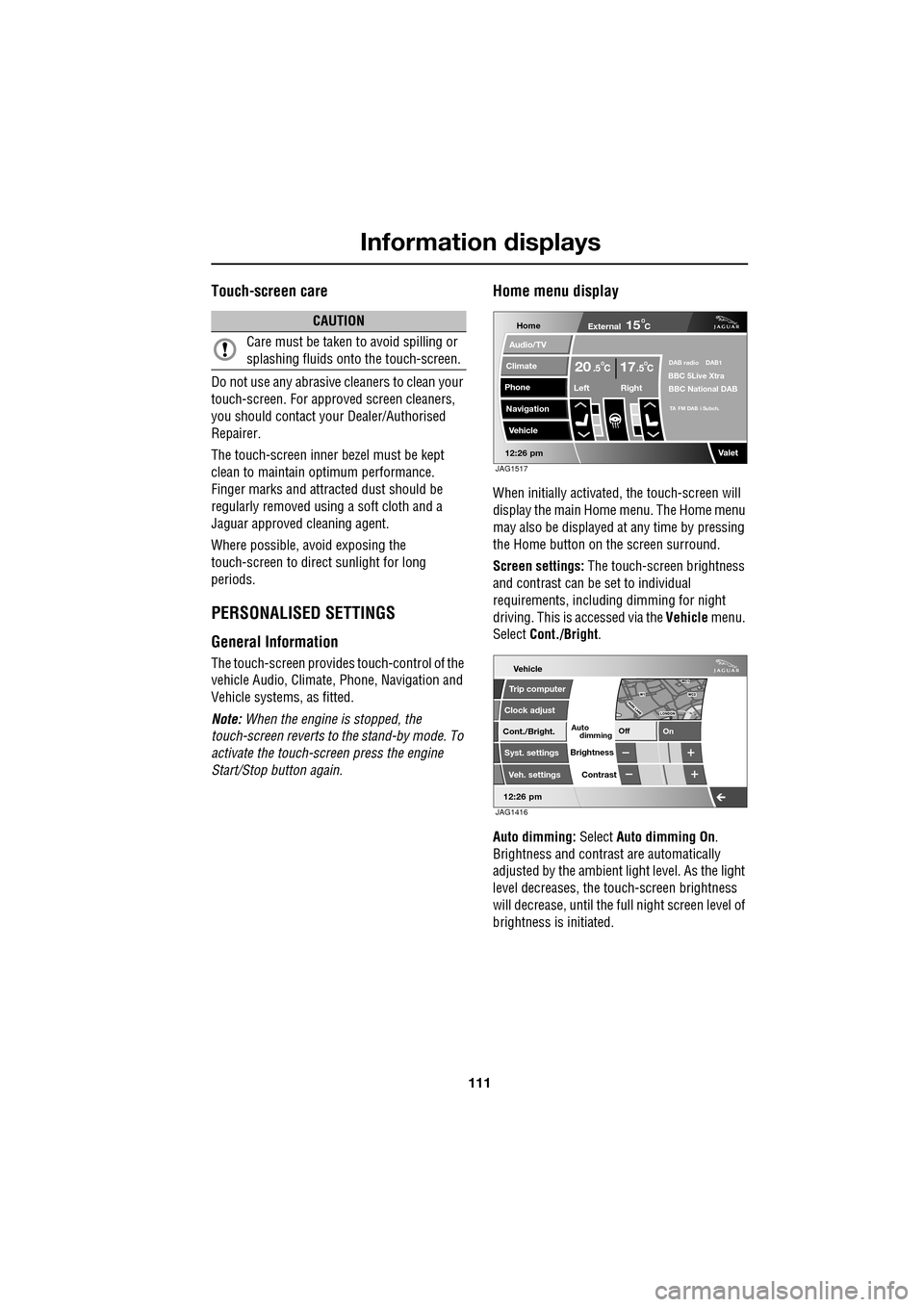
Home menu display
When initially activated, the touch-screen will
display the main Home menu. The Home menu
may also be displayed at any time by pressing
the Home button on the screen surround.
Screen settings: The touch-screen brightness
and contrast can be set to individual
requirements, including dimming for night
driving. This is accessed via the Vehicle menu.
Select Cont./Bright .
Auto dimming: Select Auto dimming On.
Brightness and contra st are automatically
adjusted by the ambient light level. As the light
level decreases, the t ouch-screen brightness
will decrease, until the fu ll night screen level of
brightness is initiated.
CAUTION
Care must be taken to avoid spilling or
splashing fluids onto the touch-screen.Home
Audio/TV
Climate
Phone
Navigation
Vehicle
Valet12:26 pm
External15C
Left Right
20 17CC.5 .5DAB radio DAB1BBC 5Live Xtra
BBC National DAB
TA FM DAB i Subch.
JAG1517
Vehicle
Off On
Auto
Trip computer
Clock adjust
Cont./Bright.
Syst. settings
Veh. settings Contrast
12:26 pm
dimming
Brightness
JAG1416
Page 116 of 391
Climate control
116
AUTOMATIC CLIMATE CONTROL
Automatic climate control provides efficient
regulation of the vehicle environment, without
constant adjustments from the occupant.
Sensors inside the vehicle monitor
temperature, humidity an d direct sunlight. The
electronic control system automatically adjusts
the heat input, blower speed, air intake and
airflow distribution, to maintain the selected
temperature(s) and re duce misting. The air
conditioning system al so incorporates a
pollen/odour filter, to further increase the
comfort of the vehicle environment.
Automatic operation provides optimum
comfort under most driving conditions. It is recommended that automatic control
(AUTO) is selected as the normal operating
mode.
Automatic control can be overridden at any
time.
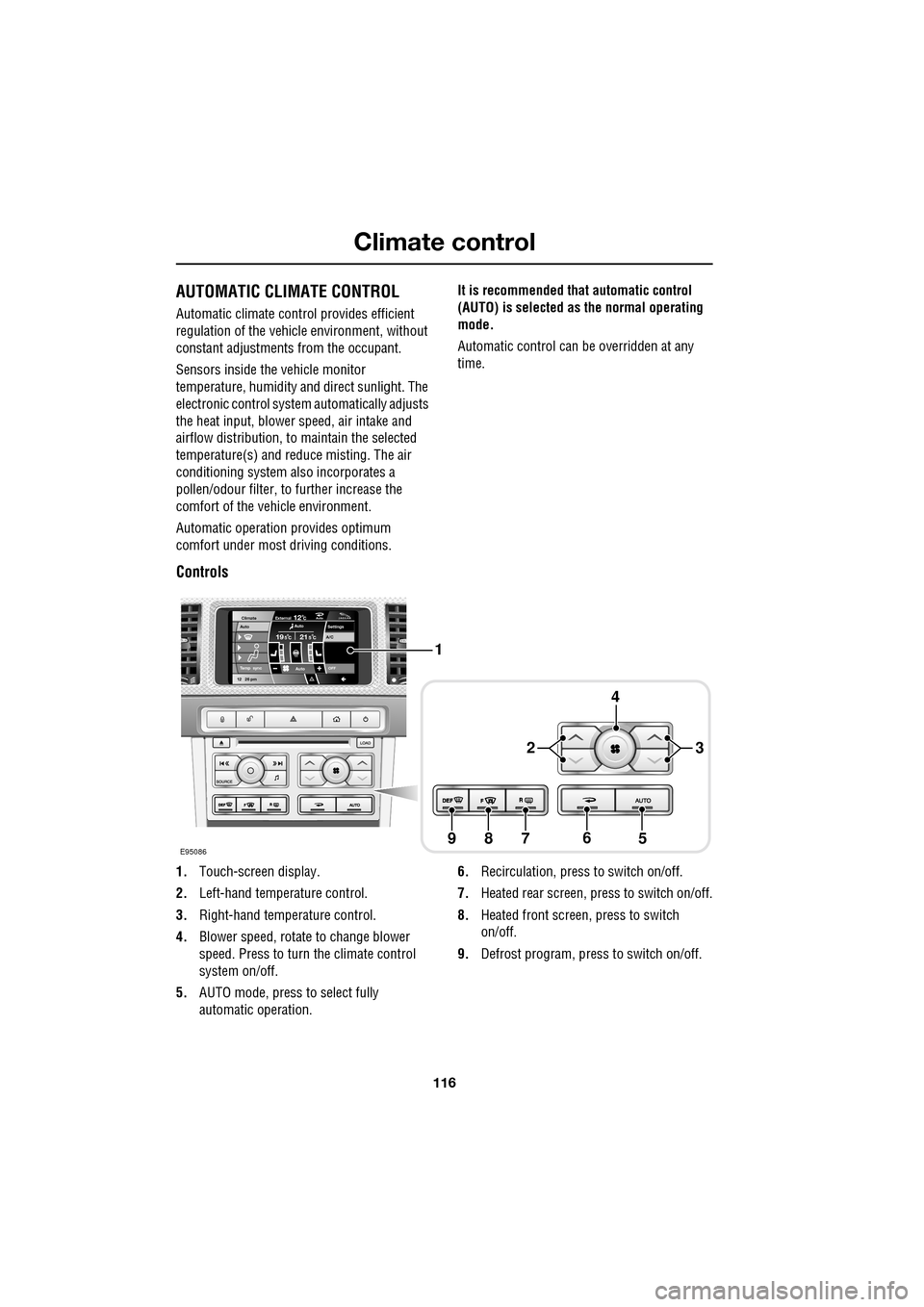
Controls
1.
Touch-screen display.
2. Left-hand temperature control.
3. Right-hand temperature control.
4. Blower speed, rotate to change blower
speed. Press to turn the climate control
system on/off.
5. AUTO mode, press to select fully
automatic operation. 6.
Recirculation, press to switch on/off.
7. Heated rear screen, press to switch on/off.
8. Heated front screen, press to switch
on/off.
9. Defrost program, press to switch on/off.
Settings
Temp sync External12CAuto19 21C5 CAuto
A/C5
Climate
12 26 pmAutoOFF
Auto
E95086
1
4
65789
23
Page 117 of 391
117
Climate control
Temperature controls
Separate controls allow the driver
and front passenger zone
temperatures to be independently
adjusted. Press the upper (red)
button to increase temperature and the lower
(blue) button to decrease temperature.
Both driver and passenger temperatures are
displayed on the touch-screen.
Selecting the maximum or minimum
temperature settings for the driver temperature
zone, causes the disp lay to change to HI or LO
respectively. This cancels AUTO mode.
To quickly change from HI or LO to a
convenient mid-rang e temperature of 22°C
(72°F), press and hold AUTO for a few
seconds.
Note: The maximum possible temperature
differential between the driver and passenger
settings is 3°C (5.4°F)
Windscreen defrost and demist
To remove frost or heavy misting
from the windscreen, press the DEF
button. The following functions will
activate:
• The blower switches on at a high speed
(blower speed can be adjusted manually to
suit).
• The air conditioni ng activates (to
dehumidify the air) and cannot be switched
off.
• Recirculation is canc elled and cannot be
selected.
• The front and rear screen heaters switch
on automatically (if th e engine is running).
To deselect, press the DEF button again or
press AUTO .
Heated screens
The front (F) and rear ( R)
screen heaters, may be
switched on and off in
any mode, including with
the climate control system off. However, they
will only operate when the engine is running.
The front screen heater switches off
automatically after 5 minutes. The rear screen
heater switches off automatically after 21
minutes.
The screen heaters can be manually deselected
using the push buttons.
In cold ambient conditions, the front and rear
screen heaters will switch on automatically for
the timed period when the engine is started.
The front and rear screen heaters will
automatically come on at temperatures below
5°C (41°F).
Auto mode
Automatic operation utilises
the air conditioning and other
climate controls , to provide a
controlled environment over a
temperature range of 16°C to 28°C (59°F to
83°F) and should be rega rded as the normal
operating mode.
To select automatic climate control press the
AUTO button.
Select the required temperature.
Front and rear screen heating and timed air
recirculation may be se lected in AUTO mode,
but selecting any othe r manual control will
cancel AUTO operation.
To resume fully automatic operation at any
time, press the AUTO button.
Page 118 of 391
Climate control
118
Blower speed
Set the blower speed as required by
adjusting the rotary control.
Press to turn the climate control
system on or off.
When operating in AUTO mode, blower speed
is controlled au tomatically and AUTO is
displayed on the touch-screen. Any adjustment
of the knob will cancel AUTO mode.
Note: In AUTO mode, if heating is required, the
blower only operates at low speed, until the
engine reaches normal operating temperature.
Recirculation
Press to turn recirculation on
or off. The button indicator
illuminates when recirculation
is turned on.
When selected, the air is recirculated inside the
vehicle. This helps to ma intain a high or low
temperature, and is useful for preventing
fumes from entering the vehicle.
Recirculation may also be selected in AUTO
mode, if the climate control system detects
high levels of pollution in the atmosphere
outside the vehicle (if a smog sensor is fitted).
Manual operation of the recirculation control
will override the automatic setting. This facility
can be switched off through the Settings menu
on the touch-screen.
Note: Prolonged use at low temperatures may
cause the windows to mist.
Air conditioning
Press the AUTO button to turn
the air conditioning on.
The air conditioning system is
controlled automatically in AUTO mode to
maintain the desired temperature and humidity
(even if higher temperature settings are
selected).
The air conditioning system is also switched on
automatically in defrost mode ( DEF) in order to
dehumidify the air.
Note: Water may collect unde rneath the vehicle
when parked. This is moisture expelled from
the interior of the vehicle by the air
conditioning system a nd is not cause for
concern.
Heated/climate seats and heated
steering wheel
The heated seats, climate seats and heated
steering wheel can be controlled from both the
Home and Climate menus on the touch-screen.
See HEATED SEATS (page 47). See CLIMATE
SEATS (page 48). See HEATED STEERING
WHEEL (page 68).
Page 119 of 391

119
Climate control
Touch-screen operation
Certain functions of the climate control system
are adjusted using the Climate menu on the
touch-screen.
Select Climate from the Home menu.
The climate main menu is displayed, from
which the climate cont rol settings can be
adjusted.
Climate control display icons
The climate control display buttons and icons
are as follows:
Home
Audio/TV
Climate
Phone
Navigation
Vehicle
Valet12:26 pm
External15C
t Right
20 17CC.5 .5DAB radio DAB1BBC 5Live Xtra
BBC National DAB
TA FM DAB i Subch.
JAG1518
Settings
Temp. sync. External
12C
Auto
21 21C.5 C
Auto
A/C
OFF
.5
Climate
12 : 26 pm
Auto
E95094
Auto climate control
on.
Air distribution to
windscreen.
Air distribution to
face.
Air distribution to feet.
Synchronizes the
passenger's climate
control zone to the
driver's settings.
Blower speed control decrease and increase. Access to the Settings
control menu to set
the vent rotation
mode, to adjust
personal climate zone se ttings and also to
access the automatic air recirculation sensor
control setting.Auto
Temp. sync.
Settings
Page 120 of 391
Climate control
120
Note: If the air vents are programmed to rotate,
they will rotate into th e fascia when climate
control is turned off.
External temperature
The external temperature is displayed at the top
of the Climate menu.
Smog/pollution filter
The smog filter operates in conjunction with
the air recirculation feature, to reduce
pollutants entering the vehicle.
When pollution is detected by the smog
sensor, air recirculation is selected
automatically, to help prevent pollution
entering the vehicle.
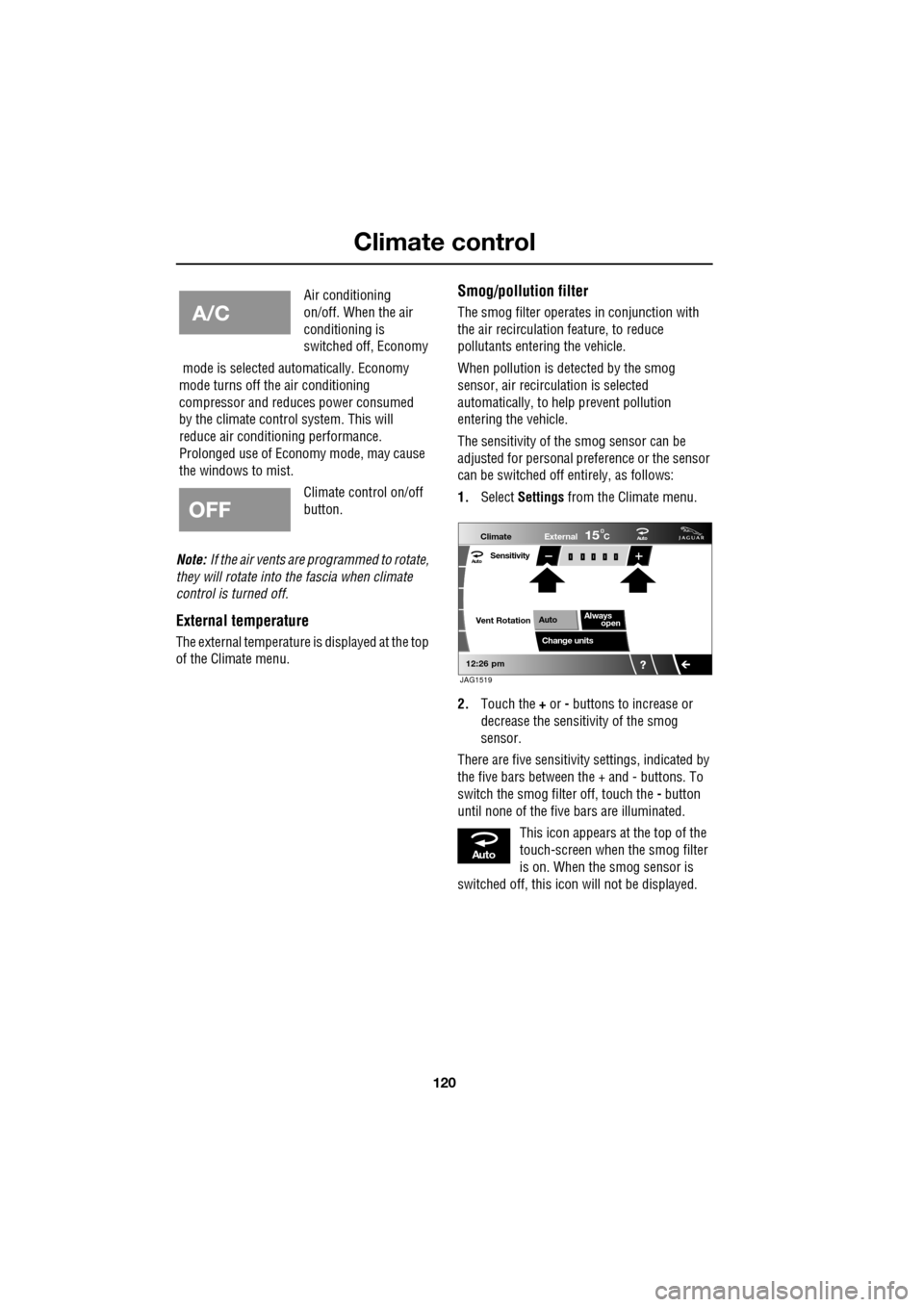
The sensitivity of the smog sensor can be
adjusted for personal preference or the sensor
can be switched off entirely, as follows:
1. Select Settings from the Climate menu.
2. Touch the + or - buttons to increase or
decrease the sensitivity of the smog
sensor.
There are five sensitivit y settings, indicated by
the five bars between the + and - buttons. To
switch the smog filter off, touch the - button
until none of the five bars are illuminated.
This icon appears at the top of the
touch-screen when the smog filter
is on. When the smog sensor is
switched off, this icon will not be displayed.
Air conditioning
on/off. When the air
conditioning is
switched off, Economy
mode is selected automatically. Economy
mode turns off the air conditioning
compressor and redu ces power consumed
by the climate control system. This will
reduce air conditioning performance.
Prolonged use of Econom y mode, may cause
the windows to mist.
Climate control on/off
button.
Aut o
12:26 pm
Aut oClimate
Vent RotationExternal
Sensitivity
Change unitsAlways
open
Auto
15C
JAG1519
Aut o
Page 125 of 391
125
Convenience features
AUXILIARY POWER SOCKETS
The auxiliary power socket is located in the
cubby box.
GLOVE BOX
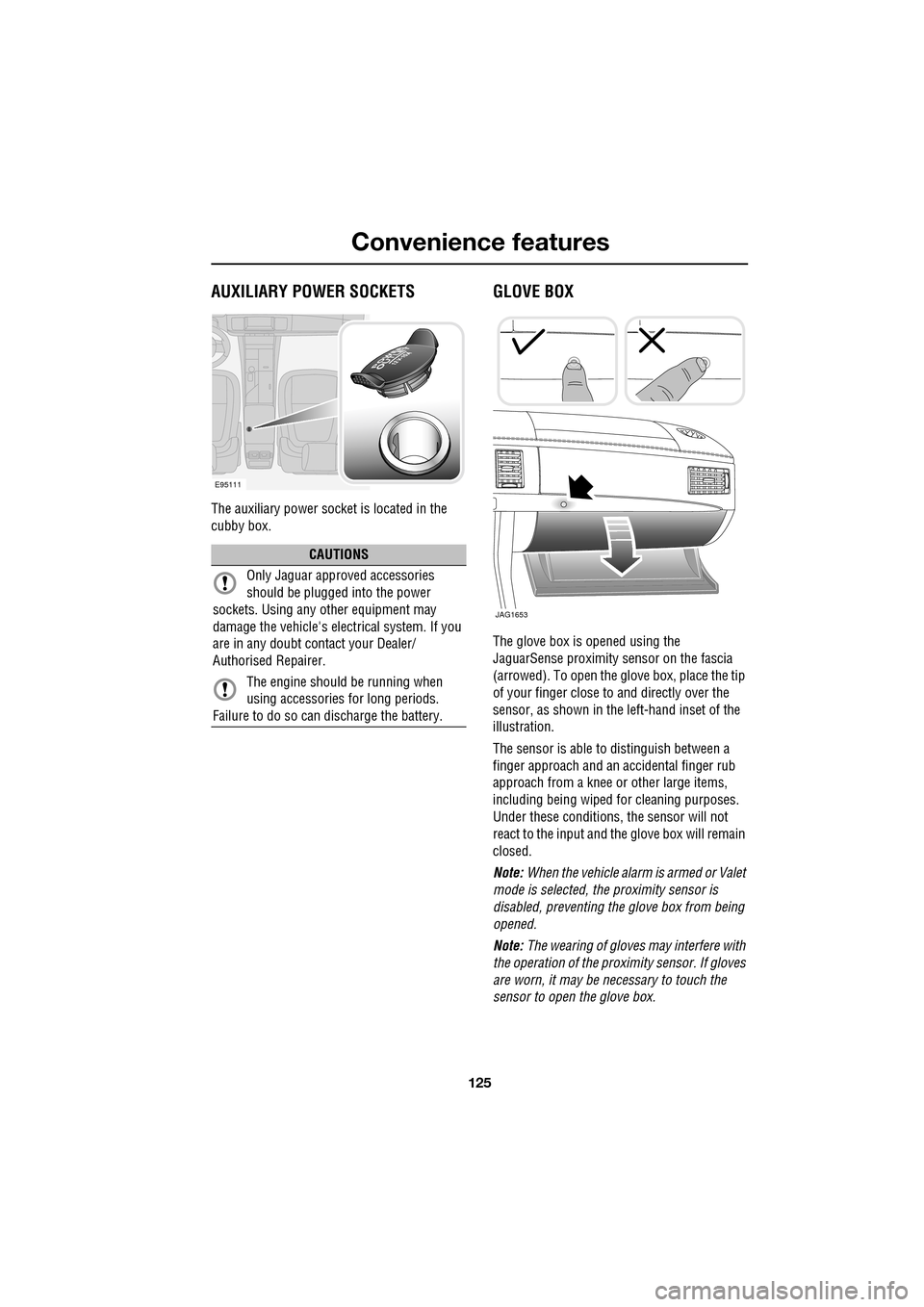
The glove box is opened using the
JaguarSense proximity sensor on the fascia
(arrowed). To open the glove box, place the tip
of your finger close to and directly over the
sensor, as shown in the left-hand inset of the
illustration.
The sensor is able to distinguish between a
finger approach and an accidental finger rub
approach from a knee or other large items,
including being wiped for cleaning purposes.
Under these conditions, the sensor will not
react to the input and th e glove box will remain
closed.
Note: When the vehicle alarm is armed or Valet
mode is selected, the proximity sensor is
disabled, preventing the glove box from being
opened.
Note: The wearing of gloves may interfere with
the operation of the prox imity sensor. If gloves
are worn, it may be necessary to touch the
sensor to open the glove box.
CAUTIONS
Only Jaguar approv ed accessories
should be plugged into the power
sockets. Using any other equipment may
damage the vehicle's electrical system. If you
are in any doubt contact your Dealer/
Authorised Repairer.
The engine should be running when
using accessories for long periods.
Failure to do so can discharge the battery.
E95111
JAG1653
Page 129 of 391
129
Convenience features
To erase all programming
For first time programming, ensure that the
engine is switched off:
1.Ensure that the ignition system is in
convenience mode.
2. Press and hold the two outer buttons on
the transceiver in th e rear-view mirror.
Keep the buttons pressed until the
indicator lamp begins to flash (this will
take approximately 20 seconds), then
release the buttons.
All memories in the gara ge door opener have
now been cleared.
Note: Do not perform this procedure when
programming the addi tional garage door
opener buttons.
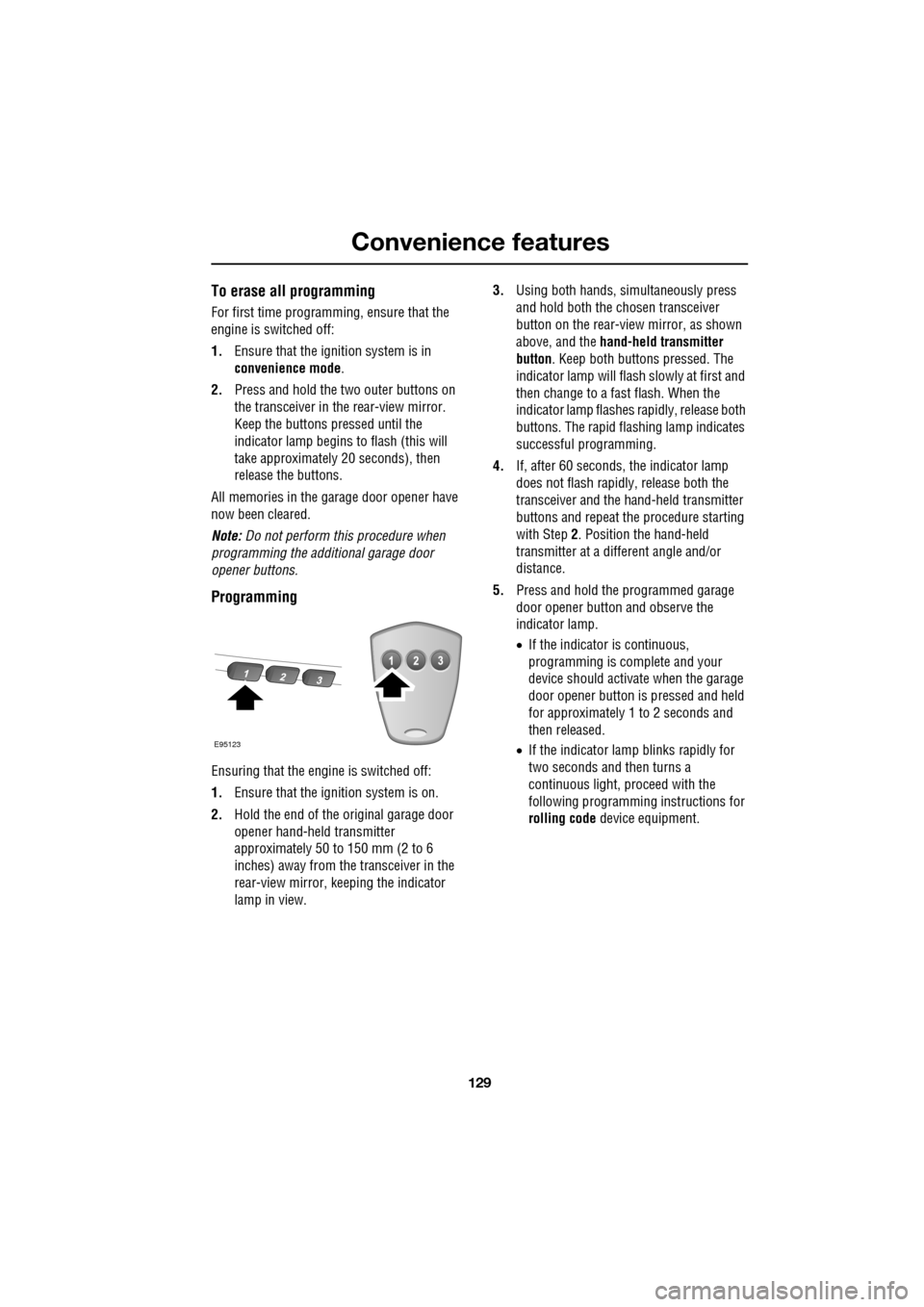
Programming
Ensuring that the engine is switched off:
1. Ensure that the ignition system is on.
2. Hold the end of the original garage door
opener hand-held transmitter
approximately 50 to 150 mm (2 to 6
inches) away from the transceiver in the
rear-view mirror, keeping the indicator
lamp in view. 3.
Using both hands , simultaneously press
and hold both the chosen transceiver
button on the rear-view mirror, as shown
above, and the hand-held transmitter
button. Keep both buttons pressed. The
indicator lamp will flash slowly at first and
then change to a fast flash. When the
indicator lamp flashes rapidly, release both
buttons. The rapid flas hing lamp indicates
successful programming.
4. If, after 60 seconds, the indicator lamp
does not flash rapidl y, release both the
transceiver and the hand-held transmitter
buttons and repeat the procedure starting
with Step 2. Position the hand-held
transmitter at a diffe rent angle and/or
distance.
5. Press and hold the programmed garage
door opener button and observe the
indicator lamp.
•If the indicator is continuous,
programming is complete and your
device should activate when the garage
door opener button is pressed and held
for approximately 1 to 2 seconds and
then released.
• If the indicator lamp blinks rapidly for
two seconds and then turns a
continuous light, pr oceed with the
following programming instructions for
rolling code device equipment.
E95123