Eco JAGUAR XF 2011 1.G Manual PDF
[x] Cancel search | Manufacturer: JAGUAR, Model Year: 2011, Model line: XF, Model: JAGUAR XF 2011 1.GPages: 225, PDF Size: 7.32 MB
Page 124 of 225
L
(FM8) SEMCON JLR OWNER GUIDE VER 1.00 EURO
LANGUAGE: english-en; MARQUE: jaguar; MODEL: XF
Video media player
124
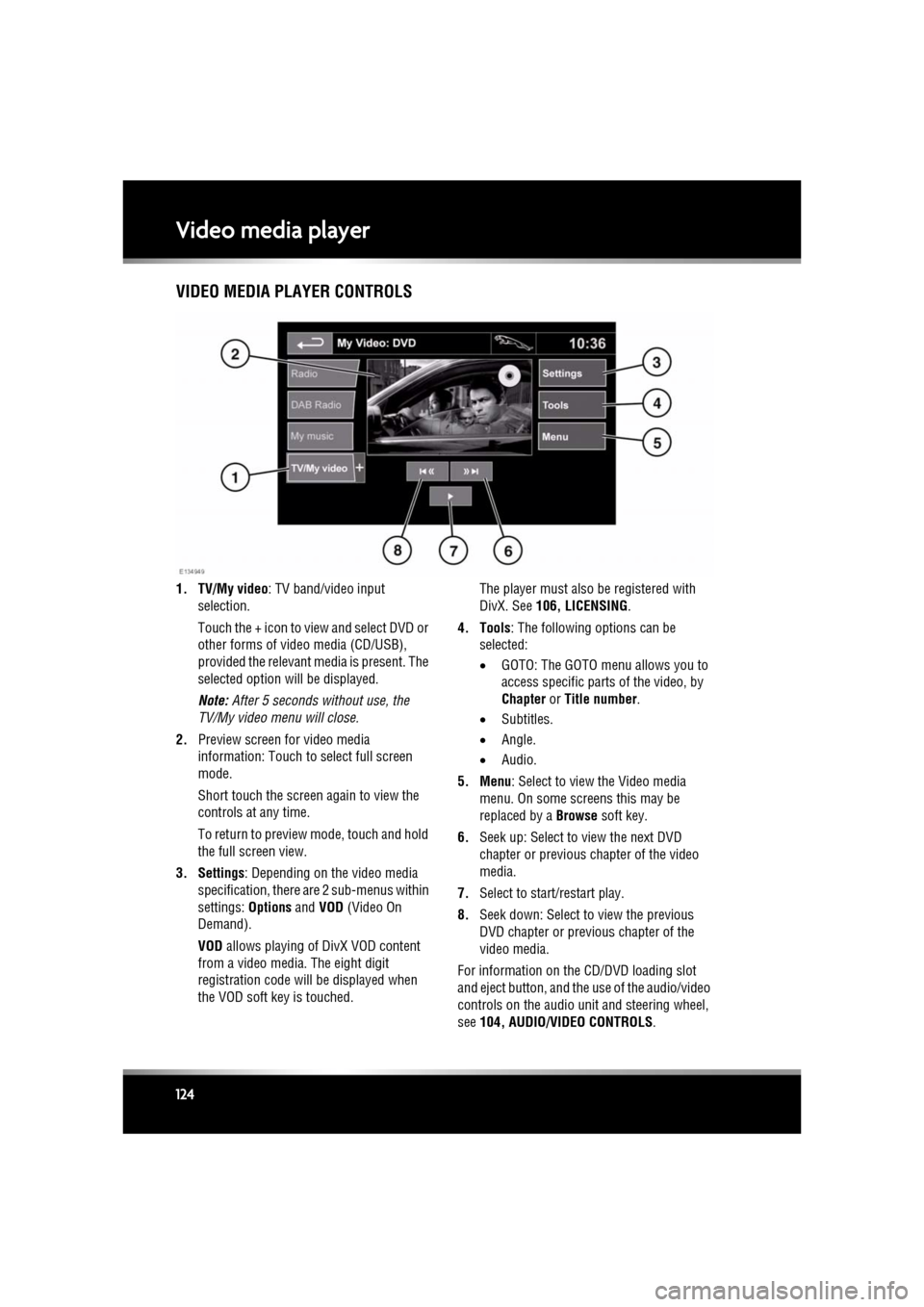
Video media playerVIDEO MEDIA PLAYER CONTROLS
1. TV/My video : TV band/video input
selection.
Touch the + icon to view and select DVD or
other forms of video media (CD/USB),
provided the relevant media is present. The
selected option will be displayed.
Note: After 5 seconds without use, the
TV/My video menu will close.
2. Preview screen for video media
information: Touch to select full screen
mode.
Short touch the screen again to view the
controls at any time.
To return to preview mode, touch and hold
the full screen view.
3. Settings : Depending on the video media
specification, there are 2 sub-menus within
settings: Options and VOD (Video On
Demand).
VOD allows playing of DivX VOD content
from a video media. The eight digit
registration code will be displayed when
the VOD soft key is touched. The player must also be registered with
DivX. See
106, LICENSING .
4. Tools : The following options can be
selected:
• GOTO: The GOTO menu allows you to
access specific part s of the video, by
Chapter or Title number .
• Subtitles.
• Angle.
• Audio.
5. Menu : Select to view the Video media
menu. On some screens this may be
replaced by a Browse soft key.
6. Seek up: Select to view the next DVD
chapter or previous chapter of the video
media.
7. Select to start/restart play.
8. Seek down: Select to view the previous
DVD chapter or previous chapter of the
video media.
For information on the CD/DVD loading slot
and eject button, and the use of the audio/video
controls on the audio unit and steering wheel,
see 104, AUDIO/VIDEO CONTROLS .
Page 125 of 225

R
(FM8) SEMCON JLR OWNER GUIDE VER 1.00 EURO
LANGUAGE: english-en; MARQUE: jaguar; MODEL: XF
Video media player
125
LOADING DVDs
Do not force the disc into the slot.
Do not use irregular shaped DVDs and
DVDs with a scratch protection film or
self-adhesive labels attached.
Recordable (DVD-R or DVD+R) discs
may not function correctly.
Dual format, dual- sided discs (DVD
Plus, CD-DVD format) are thicker than
normal CDs and conse quently playback
cannot be guaranteed, and jamming
may occur.
It is recommended that only high quality 12 cm
(4.7 in.) circular discs are used.
To locate the DVD load slot and the eject
button, see 104, AUDIO/VIDEO CONTROLS .
VIDEO MEDIA INHIBIT WITH VEHICLE
MOVING
When the vehicle is moving the video picture
will automatically be inhibited. The touch
screen will display the TV/My video screen and
the relevant safety message will be displayed.
FULL SCREEN VIEW CONTROLS
When full screen mode is selected, the seek
controls operate in the same manner as they do
in preview mode.
Display format : Use the relevant soft key to
select the 4:3, 16:9 or Zoom option.
Digital TV display format : The picture can be
displayed in either the correct format as
transmitted by the broadcaster (either 4:3 or
16:9 ) or select Zoom to magnify the picture.
Page 127 of 225

R
(FM8) SEMCON JLR OWNER GUIDE VER 1.00 EURO
LANGUAGE: english-en; MARQUE: jaguar; MODEL: XF
Voice control
127
The voice tutorial can be cancelled at any time
by touching the on-screen pop-up or by
pressing and holding the Voice button.
VOICE TRAINING
This is a feature designed to enable the system
to better recognise the vocal characteristics of
a user, once the training has been completed.
To carry out Voice training:
1. Select Setup from the Home menu.
2. Select Voice and from the Setup menu.
3. Select Voice training from the Voice
settings menu.
4. Select User 1 or User 2 , to start the
training.
5. Follow the on-screen and audible
instructions.
The training session can be cancelled at any
time by touching the on-screen pop-up or by
pressing and holding the Voice button.
VOICETAGS
Voicetags enable the user to personalise the
Voice system so that a single name can be used
to call-up a navigation destination, telephone
number or radio channel.
To add a Voicetag:
1. Briefly press the Voice button to start a
Voice session.
2. Wait for the tone to sound then say Phone,
Navigation or Radio .
3. Say Store voicetag .
Alternatively, Voicetag s can be managed via
the touch screen as follows:
1. Select Setup from the Home menu.
2. Select Voice from the Setup menu.
3. Select Voicetags from the Voice settings
menu. 4.
Select the system which the Voicetag is to
activate ( Phone, Navigation or Radio ).
Follow the on-screen and audible instructions.
NAVIGATION POI VOICE COMMANDS
To request the display of POI (Point Of Interest)
identifiers on the navi gation display, say
Navigation , followed by the name of the
desired POI category from the following list:
• Petrol station/Petrol.
• Parking/Car park.
• Jaguar Dealer.
• Hospital.
• Golf course.
• Tourist information.
• Restaurant/I’m hungry.
• Shopping centre.
• Hotel.
• Motorway service.
• Town centre.
Icons will appear on th e navigation display,
indicating the locations of the selected POI. For
further information about POIs, see 141,
CATEGORIES AND SUB-CATEGORIES.
Page 129 of 225

R
(FM8) SEMCON JLR OWNER GUIDE VER 1.00 EURO
LANGUAGE: english-en; MARQUE: jaguar; MODEL: XF
Telephone
129
BLUETOOTH® INFORMATION
The Jaguar Bluetoot h® system supports
Bluetooth® Hands-Fre e Profile (HFP),
Advanced Audio Distribution Profile (A2DP)
and Audio Video Remote Control Profile
(AVRCP).
Note: HFP and A2DP/AVRCP profiles can be
connected independently, so a phone can be
connected via one, while a media device can be
connected via the other, at the same time.
Before making use of the vehicle’s Bluetooth
phone system, your Bl uetooth phone must be
paired and connected to the vehicle system.
This is done using one of two methods; via
your phone to the vehicl e or from the touch
screen to your phone. If one of these methods
is not successful, try the other option.
Each time the ignition is switched on the
system will attempt to connect with the last
connected phone.
As mobile phones have a wide range of audio
and echo characteristics, it may take a few
seconds for the vehicle system to adapt and
deliver optimum audio performance. To
achieve this, it may be necessary to reduce the
in-vehicle volume a nd ventilation fan speed
slightly.
TELEPHONE SAFETY
Switch off your telephone in areas
with a high explos ion risk. This
includes filling stat ions, fuel storage
areas or chemical factories, as well
as places where the air contains fuel
vapour, chemicals or metal dust. Always stow your mobile phone
securely.
The functioning of cardiac
pacemakers or hearing aids may be
impaired when the phone is in use.
Check with a doctor or manufacturer
whether any such devices you or your
passengers are using, are sufficiently
protected against high-frequency
energy.
The Health Industry Manufacturers'
Association recommends that a minimum
separation of 15 centimetres (six inches) is
maintained between a wireless phone antenna
and a pacemaker, to avoid potential
interference with the pacemaker. These
recommendations are consistent with the
independent research by, and
recommendations of, Wi reless Technology
Research.
Bluetooth® is the name for
short-range radio frequency (RF)
technology that allows electronic
devices to communicate
wirelessly with each other.
Page 133 of 225
R
(FM8) SEMCON JLR OWNER GUIDE VER 1.00 EURO
LANGUAGE: english-en; MARQUE: jaguar; MODEL: XF
Telephone
133
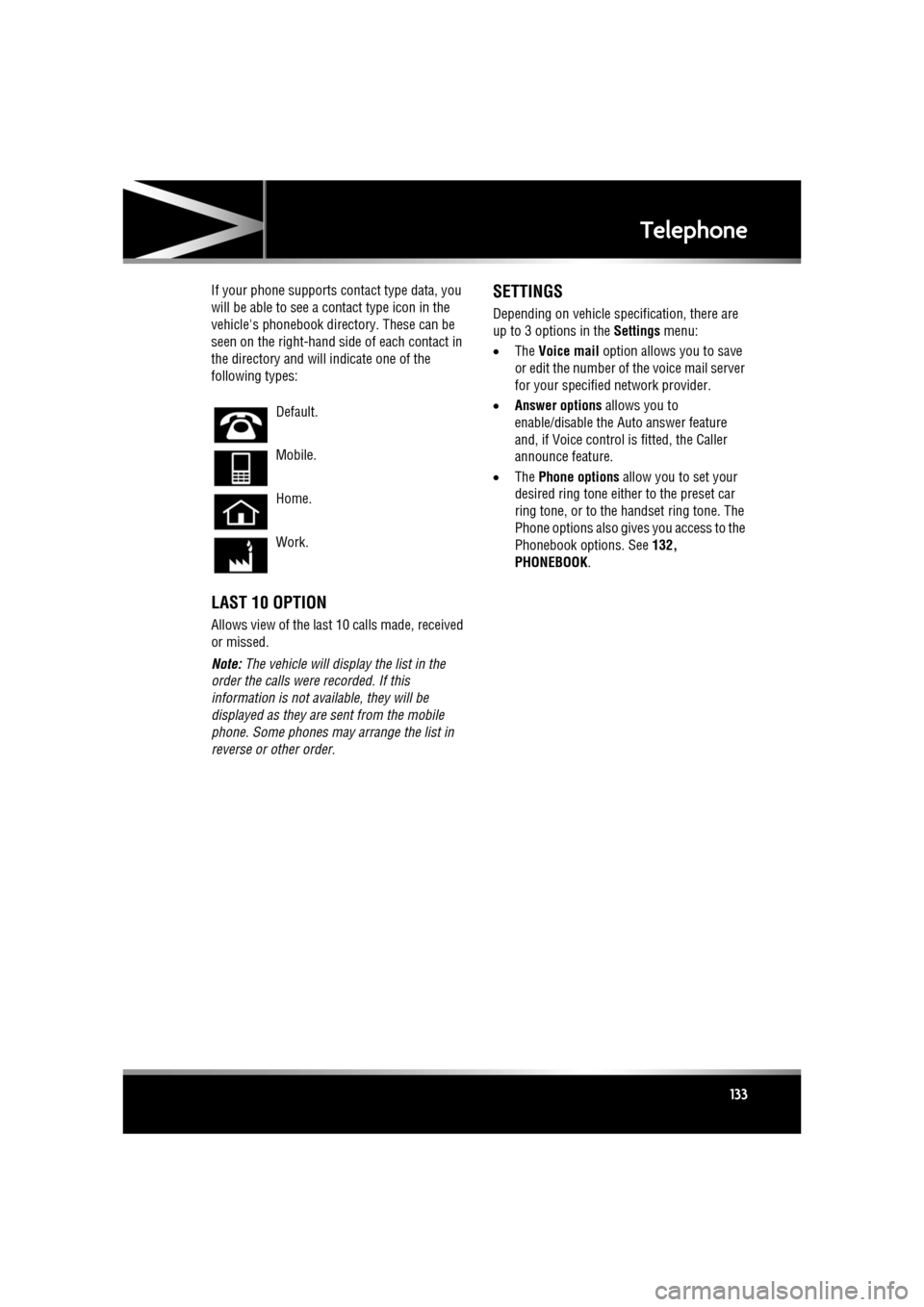
If your phone supports co ntact type data, you
will be able to see a contact type icon in the
vehicle's phonebook dire ctory. These can be
seen on the right-hand side of each contact in
the directory and will indicate one of the
following types:
LAST 10 OPTION
Allows view of the last 10 calls made, received
or missed.
Note: The vehicle will display the list in the
order the calls were recorded. If this
information is not available, they will be
displayed as they are sent from the mobile
phone. Some phones may arrange the list in
reverse or other order.
SETTINGS
Depending on vehicle specification, there are
up to 3 options in the Settings menu:
• The Voice mail option allows you to save
or edit the number of the voice mail server
for your specified network provider.
• Answer options allows you to
enable/disable the Auto answer feature
and, if Voice control is fitted, the Caller
announce feature.
• The Phone options allow you to set your
desired ring tone either to the preset car
ring tone, or to the handset ring tone. The
Phone options also give s you access to the
Phonebook options. See 132,
PHONEBOOK .
Default.
Mobile.
Home.
Work.
Page 135 of 225
R
(FM8) SEMCON JLR OWNER GUIDE VER 1.00 EURO
LANGUAGE: english-en; MARQUE: jaguar; MODEL: XF
Navigation system
135
Note: After approximately 12 seconds, the
menu soft keys will disa ppear and display the
map information only. This will show current
vehicle position. Touch the Nav menu soft key
to display the Main menu screen. At this point, the first
time user should set up
personal preferences in the Nav set-up area.
These settings are applie d whenever navigation
is used.
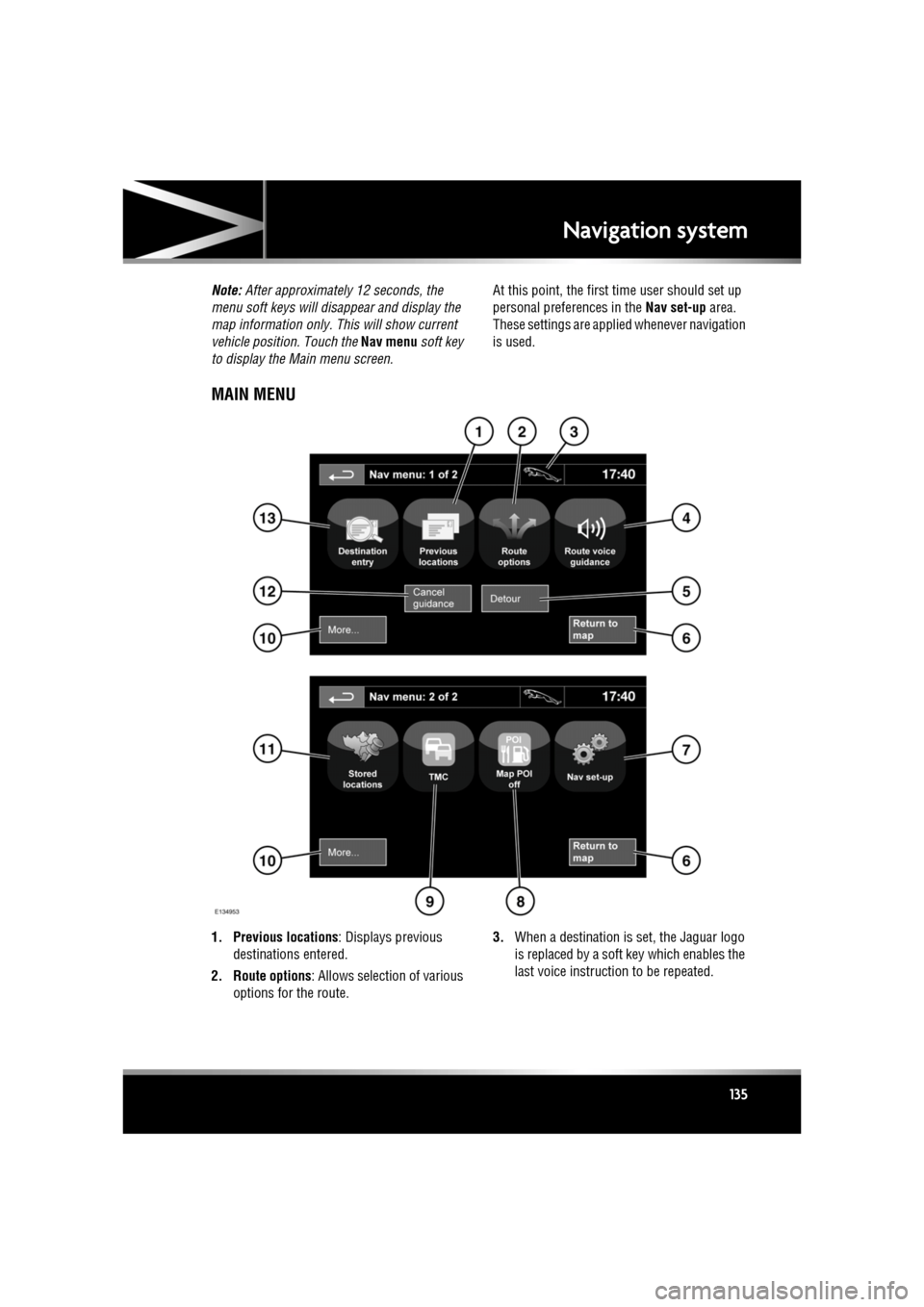
MAIN MENU
1. Previous locations : Displays previous
destinations entered.
2. Route options : Allows selection of various
options for the route. 3.
When a destination is set, the Jaguar logo
is replaced by a soft key which enables the
last voice instruction to be repeated.
Page 139 of 225

R
(FM8) SEMCON JLR OWNER GUIDE VER 1.00 EURO
LANGUAGE: english-en; MARQUE: jaguar; MODEL: XF
Navigation system
139
START GUIDANCE
After selecting a destination, the system will
calculate the route.
There is now a choice to select 3 Routes,
Change route or to Start navigation guidance.
Touch 3 Routes to display a choice of three
different route options on the map.
The roads on the map are drawn in three
different colours to highlight each route.
EcoRoute helps you find the most fuel efficient
route available. A display of three leaves
indicates the most fuel efficient route.
Select route 1, 2 or 3 by touching the
respective box displaye d on the right side of
the map.
Touch Change Route followed by Route prefs.
to change the route setti ngs. If a destination is
already set, touch Waypoint to add a waypoint
in the journey if required.
When you have made your selection, if any,
touch Go.
Note: As you approach a j unction, in addition
to the voice guidance, an inset on the map will
display an enlarged view of the junction.
EASY ROUTE
In Route options , Easy Route can be turned On
or Off .
When On is selected, Easy Route changes the
calculation parameters of Route 3 in order to
reduce:
• Junctions.
• Turns.
• Turns that cross traffic.
• The priority of minor roads.
• Complex junction s and manoeuvres.
LEARN ROUTE
In Route options , Learn Route can be turned
On or Off.
When On is selected, if you make the same
deviation from the proposed route three times,
then the system will memorize the deviation
and offer that as the normal route from then on.
Select Reset all routes to delete any learnt
routes and return to the default settings.
VOICE GUIDANCE
To turn voice guidance on or off but maintain
route guidance, proceed as follows:
1. Touch Nav menu on the navigation screen.
2. Touch the Route voice guidance soft key.
The soft key will be highlighted when voice
guidance is enabled.
CANCEL ROUTE GUIDANCE
To cancel route guidance, proceed as follows:
1. Touch Nav menu on the navigation screen.
2. Touch the Cancel guidance soft key.
QUICK POI SELECTION
Touch the Map screen to display the POI
button. Touch the POI (Point of interest)
button. The screen shows six suggested
categories, five of which can be selected as
quick points of interest.
Note: The POI icons will not be shown if the
map zoom level is greate r than 1 km (½ mile).
Select a Quick POI category, or select More to
see further POIs. Touch OK to confirm a
selection.
The map screen with the POI icon(s) is
displayed. Select the five POIs you wish to see
when the Quick POIs are displayed.
Page 144 of 225

L
(FM8) SEMCON JLR OWNER GUIDE VER 1.00 EURO
LANGUAGE: english-en; MARQUE: jaguar; MODEL: XF
Navigation system
144
USING TMC
Dynamic route guidance will calculate an
alternative route to avoid a traffic event when
the system receives an event warning.The
system calculates a new route for all sections.
However, if any way points are set, the system
calculates for the next way point.If the event on
route is serious (closed road) or if the new
route is shorter than the current one and the
current one was not recalc ulated within the last
5 minutes, then a message to confirm the new
route will be displayed. This pop-up message
will be displayed for 10 minutes and if the new
route is not rejected, th en the vehicle will follow
the new route.
ORDNANCE SURVEY DATA
Please read this agreement carefully before
using the Navi gation System.
This is a licence agreement to use the
Ordnance Survey (OS) Code-Point data
incorporated in the Navigation System. By
using this Code-Point data you accept and
agree to all the term s and conditions below.
OWNERSHIP
The OS Code-Point data is licensed by
Ordnance Survey with permission of Her
Majesty’s Stationery Office. © Crown
Copyright. All rights reserved.
LICENCE GRANT
OS grants you a non-excl usive licence to use
your copy of the OS Code-Point data for your
personal use solely as pa rt of the Navigation
System. You may transfer the licence to a
subsequent purchaser of the vehicle with
which the Navigation Sy stem is supplied,
provided that the purchaser agrees to abide by
each of the terms of this licence.
LICENCE TERMS
These licence terms ar e governed by English
Law and are subject to the exclusive
jurisdiction of the English courts.
LIMITATIONS OF USE
The DATABASE is restricted for use in the
specific system for which it was created.
Except to the extent ex plicitly permitted by
mandatory applicable laws, you may not
extract or re-utilise s ubstantial parts of the
contents of the DATA BASE, not reproduce,
copy, modify, adapt, translate, disassemble,
decompile, or reverse e ngineer any portion of
the DATABASE.
LIMITATION OF LIABILITY
The price of the DATABASE does not include
any consideration for assumption of risk of
consequential, indirect or unlimited direct
damages which may aris e in connection with
your use of the DATABASE.
Accordingly, in no event shall NAVTEQ
Corporation or supplie r of the navigation
system using the DATA BASE (‘Supplier’) be
liable for any consequentia l, special, incidental
or indirect damage s, including without
limitation, loss of re venue, data, or use,
incurred by you or any th ird party arising out of
your use of the DATABASE, whether in an
action in contract or tort or based on a
warranty, even if NAVTEQ Corporation or the
Supplier has been advised of the possibility of
such damages. In any event, NAVTEQ
Corporation’s liability for direct damages is
limited to the price of your copy of the
DATABASE.
Page 145 of 225
R
(FM8) SEMCON JLR OWNER GUIDE VER 1.00 EURO
LANGUAGE: english-en; MARQUE: jaguar; MODEL: XF
Navigation system
145
THE DISCLAIMER OF WARRANTY AND
LIMITATION OF LIABILITY, SET FORTH IN
THIS AGREEMENT, DO NOT AFFECT OR
PREJUDICE YOUR STATUTORY RIGHTS
WHERE YOU HAVE ACQUIRED THE
DATABASE OTHERWISE THAN IN THE
COURSE OF A BUSINESS. Some states and
laws do not allow the exclusion of implied
warranties, so the above disclaimer may not
apply to you.
The DATABASE reflects reality as
existing before you received the
DATABASE and it comprises data and
information from government and
other sources, which may contain
errors and omissions. Accordingly,
the DATABASE may contain inaccurate
or incomplete information due to the
passage of time, changing
circumstances, and due to the nature
of the sources used. The DATABASE
does not include or reflect information
on - inter alia - neighbourhood safety;
law enforcement; emergency
assistance; construction work; road or
lane closures; vehicle or speed
restrictions; road slope or grade;
bridge height, weight or other limits;
road or traffic conditions; special
events; traffic congestion; or travel
time.NAVTEQ CORPORATION
Please read this agreement carefully before
using the Navigation System.
This is a licence agreement for your copy of the
Navigable Map Database , (the ‘DATABASE’)
originally made by NAVTEQ Corporation), used
in the Navigation Sy stem. By using this
DATABASE you accept and agree to all the
terms and conditions below.
OWNERSHIP
The DATABASE and the copyrights and
intellectual property or neighbouring rights
therein are owned by NAVTEQ Corporation or
its licensors.
LICENCE GRANT
NAVTEQ Corporation grants you a
non-exclusive licence to use your copy of the
DATABASE for your personal use or for use in
your business’ internal operations. This license
does not include the right to grant
sub-licenses.
LIMITATIONS OF USE
The DATABASE is restricted for use in the
specific system for which it was created.
Except to the extent ex plicitly permitted by
mandatory applicable laws, you may not
extract or re-utilise s ubstantial parts of the
contents of the DATA BASE, not reproduce,
copy, modify, adapt, translate, disassemble,
decompile, or reverse engineer any portion of
the DATABASE.
Page 150 of 225

L
(FM8) SEMCON JLR OWNER GUIDE VER 1.00 EURO
LANGUAGE: english-en; MARQUE: jaguar; MODEL: XF
Tyre repair kit
150
10. Set the compressor switch to the on ( I)
position.
11. Inflate the tyre to a minimum of 1.9 bar
(26 psi) and a maximum of 3.5 bar
(51 psi).
•When pumping the sealant through the
tyre valve, the pressure may rise up to
6 bar (87 psi). The pressure will drop
again after approx imately 30 seconds.
12. During the inflation, switch the
compressor off briefly, to check the tyre
pressure using the gauge mounted on the
compressor.
•It should not take longer than 7
minutes to inflate the tyre. If, after 7
minutes, the tyre ha s not yet reached
minimum pressure, the tyre should not
be used.
13. Once the tyre has been inflated, switch off
the compressor. If desired, the engine may
be turned off after the compressor has
been turned off.
14. Remove the power connector from the
auxiliary power socket.
15. Remove the inflation hose from the tyre
valve, by unscrewing it as quickly as
possible (anticlockwise).
16. Replace the inflation hose protective cap
and the tyre valve cap.
17. Ensure that the tyre repair kit (including the
bottle and receiver caps) are placed
securely in the vehicle. You will need to use
the kit to check the tyre pressure after
approximately 3 km (2 miles), so ensure
they are easily accessible.
18. Immediately drive the vehicle for
approximately 3 km (2 miles), to allow the
sealant to coat the inner surface of the tyre
and form a seal at the puncture.CHECKING THE TYRE PRESSURE
AFTER A REPAIR
When driving the vehicle, if you
experience vibrations, abnormal
steering, or noises, reduce speed
immediately. Drive with extreme
caution and reduced speed, to the first
safe place to stop the vehicle. Visually
examine the tyre and check its
pressure. If there are any signs of
damage or deformity to the tyre, or the
tyre pressure is below 1.3 bar (19
psi), do not continue driving.
Consult a tyre repair centre or your
Dealer/Authorised Repairer, for
advice concerning the replacement of
a tyre after using a tyre repair kit.
1. Drive the vehicle for 3 km (2 miles) then
stop in a safe place. Carry out a visual
examination of the tyre’s condition.
2. Make sure that the sealant container
section is in its original position.
3. Screw the inflation hos e connector firmly
onto the tyre valve.
4. Read the tyre pressure from the gauge.
5. If the pressure of the sealant filled tyre is
above 1.3 bar (19 psi) adjust the pressure
to the correct value.
6. Ensure that the compressor switch is in the
Off ( O) position and insert the power cable
connector into the au xiliary power socket.
If the vehicle is in a well ventilated area,
start the engine.
7. Switch the compressor to On ( I) and inflate
the tyre to the correct pressure.
8. To check the tyre pressure, turn off the
compressor then read the pressure from
the gauge.