change time JEEP GLADIATOR 2023 User Guide
[x] Cancel search | Manufacturer: JEEP, Model Year: 2023, Model line: GLADIATOR, Model: JEEP GLADIATOR 2023Pages: 448, PDF Size: 17.37 MB
Page 127 of 448
GETTING TO KNOW YOUR INSTRUMENT PANEL125
ACC SET
When ACC is set, the set speed will display in the
instrument cluster.
The ACC screen may display once again if any ACC
activity occurs, which may include any of the
following:
System Cancel
Driver Override
System Off
ACC Proximity Warning
ACC Unavailable Warning
NOTE:The instrument cluster display will return to the last
display selected after five seconds of no ACC
display activity Ú page 175.
Fuel Economy
Push and release the up or down arrow
button until the Fuel Economy icon is highlighted in
the instrument cluster display. Push and hold the
OK button to reset average fuel economy feature.
Toggle left or right to select a display with or
without Current Fuel Economy Information.
Range – The display shows the estimated
distance (mi or km) that can be traveled with the
fuel remaining in the tank. When the Range
value is less than 10 miles (16 km), the Range
display will change to a “LOW” message. Adding a significant amount of fuel to the vehicle will
turn off the “LOW” message and a new Range
value will display. Range cannot be reset
through the
OK button.
NOTE:Significant changes in driving style or vehicle
loading will greatly affect the actual drivable
distance of the vehicle, regardless of the Range
displayed value.
Average – The display shows the average fuel
economy (MPG, L/100km, or km/L) since the
last reset.
Current – The display shows the current fuel
economy (MPG, L/100km, or km/L) while
driving.
Trip
Push and release the up or down arrow
button until the Trip icon/title is highlighted in the
instrument cluster display, then push and release
the left or right arrow button to select Trip A
or Trip B.
The Trip A and Trip B information will display the
following:
Distance
Average Fuel Economy
Elapsed Time
Hold the OK button to reset all the information.
Stop/Start — If Equipped
Push and release the up or down arrow
button until the Stop/Start icon/title is highlighted
in the instrument cluster display. The screen will
display the Stop/Start status.
Audio
Push and release the up or down arrow
button until the Stop/Start icon/title is highlighted
in the instrument cluster display. The screen will
display the Stop/Start status.
Phone Call Status
When a call is incoming, a Phone Call Status
pop-up will display on the screen. The pop-up will
remain until the phone is answered or ignored.
NOTE:The call status will temporarily replace the
previous media source information displayed on
the screen. When the pop-up is no longer
displayed, the display will return to the last used
screen.
Stored Messages
Push and release the up or down arrow
button until the Messages Menu item is
highlighted. This feature shows the number of
stored warning messages. Pushing the right
arrow button will allow you to see what the stored
messages are.
3
23_JT_OM_EN_USC_t.book Page 125
Page 128 of 448

126GETTING TO KNOW YOUR INSTRUMENT PANEL
When no messages are present, main menu icon
will be a closed envelope, and “No Stored
Messages” will display.
Screen Setup
NOTE:The Screen Setup feature can only be used while
the vehicle is not in motion.
Push and release the up or down arrow
button until the Screen Setup Menu Icon/Title is
highlighted in the instrument cluster display. Push
and release the OK button to enter the submenus
and follow the prompts on the screen as needed.
The Screen Setup feature allows you to change
what information is displayed in the instrument
cluster as well as the location in which that
information is displayed.
Screen Setup Driver Selectable Items Gear Display — If Equipped
Full
Single
Current Gear
Off
On
Odometer
Show
Hide
Defaults
Cancel
Restore
Upper Left
None Time Current Econ
Compass Range to
EmptyTrip A Distance
Outside Temp Average Econ Trip B Distance
Upper Right
None Time Current Econ
Compass Range to
EmptyTrip A Distance
Outside Temp Average Econ Trip B Distance
Upper Center
None Time Current Econ
Compass Range to
EmptyTrip A Distance
Audio Average Econ Trip B Distance
Outside Temp Menu Title Speedometer
Favorite Menus
Speedometer Vehicle Info Off Road —
If Equipped
(show/hide)
Driver Assist —
If Equipped
(show/hide) Fuel Economy
(show/hide)
Trip Info
(show/hide)
Stop / Start —
If EquippedAudio
(show/hide)
Messages
Screen Setup Vehicle
Settings —
If Equipped
Favorite Menus
23_JT_OM_EN_USC_t.book Page 126
Page 147 of 448

STARTING AND OPERATING145
however the ignition will remain in the ACC
position (NOT the OFF position). Never leave a
vehicle out of the PARK position, or it could roll.
3. If the gear selector is in NEUTRAL, and the vehicle speed is below 5 mph (8 km/h),
pushing the ENGINE START/STOP button once
will turn the engine off. The ignition will remain
in the ACC position.
4. If the vehicle speed is above 5 mph (8 km/h), the ENGINE START/STOP button must be held
for two seconds (or three short pushes in a
row) to turn the engine off. The ignition will
remain in the ACC position (NOT the OFF
position) if the engine is turned off when the
transmission is not in PARK.
NOTE:The system will automatically time out and the
ignition will cycle to the OFF position after
30 minutes of inactivity if the ignition is left in the
ACC or RUN (engine not running) position and the
transmission is in PARK.
ENGINE START/STOP Button Functions — With
Driver’s Foot Off The Brake Pedal (In PARK Or
NEUTRAL Position)
The ENGINE START/STOP button operates similar
to an ignition switch. It has three modes: OFF, ACC,
and RUN. To change the ignition modes without
starting the vehicle and use the accessories, follow
these steps:
1. Starting with the ignition in the OFF position.
2. Push the ENGINE START/STOP button once to
place the ignition to the ACC position
(instrument cluster will display “ACC”).
3. Push the ENGINE START/STOP button a second time to place the ignition to the RUN
position (instrument cluster will display “ON/
RUN”).
4. Push the ENGINE START/STOP button a third time to return the ignition to the OFF position
(instrument cluster will display “OFF”).
AUTOPARK
AutoPark is a supplemental feature to assist in
placing the vehicle in PARK should the situations
on the following pages occur. It is a back-up system
and should not be relied upon as the primary
method by which the driver shifts the vehicle into
PARK.
The conditions under which AutoPark will engage
are outlined on the following pages. If the vehicle is not in PARK and the driver turns off
the engine, the vehicle may AutoPark.
AutoPark will engage when all of these conditions
are met:
Vehicle is equipped with an 8-speed transmis
-
sion
Driver door is ajar or if the driver door is
removed and the driver is not on the seat (seat
pad sensor detects driver missing)
WARNING!
Driver inattention could lead to failure to place
the vehicle in PARK. ALWAYS DO A VISUAL
CHECK that your vehicle is in PARK by verifying
that a solid (not blinking) “P” is indicated in
the instrument cluster display and on the gear
selector. If the "P" indicator is blinking, your
vehicle is not in PARK. As an added precau -
tion, always apply the parking brake when
exiting the vehicle.
AutoPark is a supplemental feature. It is not
designed to replace the need to shift your
vehicle into PARK. It is a back-up system and
should not be relied upon as the primary
method by which the driver shifts the vehicle
into PARK.
4
23_JT_OM_EN_USC_t.book Page 145
Page 154 of 448
152STARTING AND OPERATING
NOTE:A new engine may consume some oil during its first
few thousand miles (kilometers) of operation. This
should be considered a normal part of the break-in
and not interpreted as a problem.
ENGINE BREAK-IN RECOMMENDATIONS —
DIESEL ENGINE (IF EQUIPPED)
The diesel engine does not require a break-in
period due to its construction. Normal operation is
allowed, providing the following recommendations
are followed:
Warm up the engine before placing it under
load.
Do not operate the engine at idle for prolonged
periods.
Use the appropriate transmission gear to
prevent engine lugging.
Observe vehicle oil pressure and temperature
indicators.
Check the coolant and oil levels frequently.
Vary throttle position at highway speeds when
carrying or towing significant weight.
NOTE:Light duty operation such as light trailer towing or
no load operation will extend the time before the
engine is at full efficiency. Reduced fuel economy
and power may be seen at this time.
The engine oil installed in the engine at the factory
is a high-quality energy conserving type lubricant.
Oil changes should be consistent with anticipated
climate conditions under which vehicle operations
will occur. For recommended viscosity and quality
grades Úpage 424. NON-DETERGENT OR
STRAIGHT MINERAL OILS MUST NEVER BE USED.
PARKING BRAKE
Before exiting the vehicle, make sure that the
parking brake is fully applied. Also, be certain to
leave an automatic transmission in PARK, or
manual transmission in REVERSE or FIRST gear.
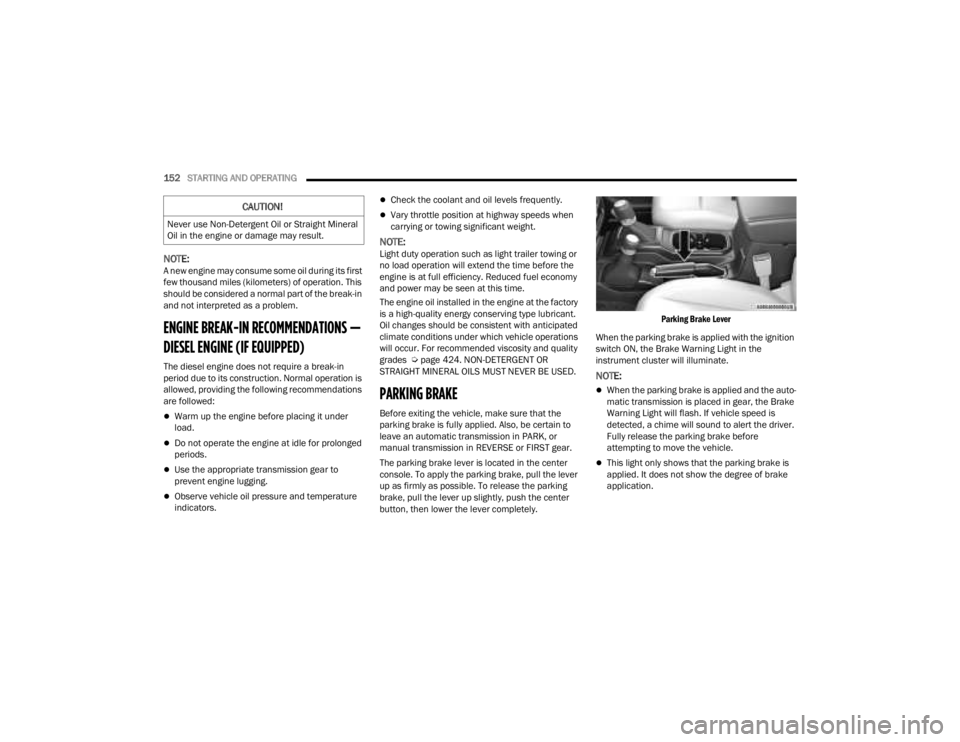
The parking brake lever is located in the center
console. To apply the parking brake, pull the lever
up as firmly as possible. To release the parking
brake, pull the lever up slightly, push the center
button, then lower the lever completely.
Parking Brake Lever
When the parking brake is applied with the ignition
switch ON, the Brake Warning Light in the
instrument cluster will illuminate.
NOTE:
When the parking brake is applied and the auto -
matic transmission is placed in gear, the Brake
Warning Light will flash. If vehicle speed is
detected, a chime will sound to alert the driver.
Fully release the parking brake before
attempting to move the vehicle.
This light only shows that the parking brake is
applied. It does not show the degree of brake
application.
CAUTION!
Never use Non-Detergent Oil or Straight Mineral
Oil in the engine or damage may result.
23_JT_OM_EN_USC_t.book Page 152
Page 179 of 448

STARTING AND OPERATING177
Adaptive Cruise Control Off
When ACC is deactivated, the display will read
“Adaptive Cruise Control Off.”
Adaptive Cruise Control Ready
When ACC is activated, but the vehicle speed
setting has not been selected, the display will read
“Adaptive Cruise Control Ready.”
Adaptive Cruise Control Set
When the SET (+) or the SET (-) button (located on
the steering wheel) is pushed, the display will read
“ACC SET.”
When ACC is set, the set speed will show in the
instrument cluster display.
The ACC screen may display once again if any of
the following ACC activity occurs:
System Cancel
Driver Override
System Off
ACC Proximity Warning
ACC Unavailable Warning
The instrument cluster display will return to the last
display selected after five seconds of no ACC
display activity.
Activating Adaptive Cruise Control (ACC)
The minimum set speed for the ACC system is
20 mph (32 km/h).
When the system is turned on and in the ready
state, the instrument cluster displays “ACC Ready.”
When the system is off, the instrument cluster
displays “Adaptive Cruise Control (ACC) Off.”
NOTE:You cannot engage ACC under the following condi -
tions:
When in 4WD Low
When the brakes are applied
When the parking brake is applied
When the automatic transmission is in PARK,
REVERSE or NEUTRAL
When the manual transmission is in first gear
When the vehicle speed is below 20 mph
(32 km/h) (manual transmission)
When the vehicle speed is below the minimum
speed range
When the brakes are overheated
When the driver’s door is open at low speeds
When the driver’s seat belt is unbuckled at low
speeds
When ESC Full Off mode is active
When Off Road+ (if equipped) is active
To Activate/Deactivate
Push and release the Adaptive Cruise Control
(ACC) on/off button. The ACC menu in the
instrument cluster display will read “ACC Ready.”
To turn the system off, push and release the
Adaptive Cruise Control (ACC) on/off button again.
At this time, the system will turn off and the
instrument cluster display will read “Adaptive
Cruise Control (ACC) Off.”
To Set A Desired Speed
When the vehicle reaches the speed desired, push
the SET (+) button or the SET (-) button and
release. The instrument cluster display will show
the set speed.
NOTE:Fixed Speed Cruise Control can be used without
ACC enabled. To change between the different
modes, push the ACC on/off button which turns
the ACC and the Fixed Speed Cruise Control off.
WARNING!
Leaving the Adaptive Cruise Control (ACC)
system on when not in use is dangerous. You
could accidentally set the system or cause it to
go faster than you want. You could lose control
and have a collision. Always leave the system off
when you are not using it.
4
23_JT_OM_EN_USC_t.book Page 177
Page 182 of 448
180STARTING AND OPERATING
Setting The Following Distance In ACC
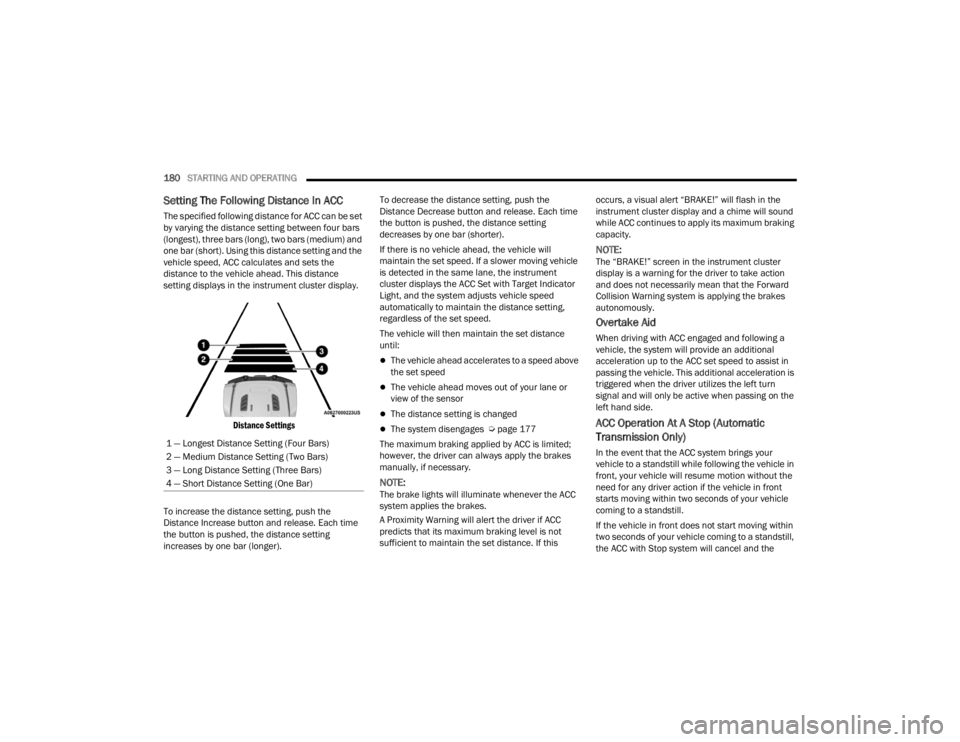
The specified following distance for ACC can be set
by varying the distance setting between four bars
(longest), three bars (long), two bars (medium) and
one bar (short). Using this distance setting and the
vehicle speed, ACC calculates and sets the
distance to the vehicle ahead. This distance
setting displays in the instrument cluster display.
Distance Settings
To increase the distance setting, push the
Distance Increase button and release. Each time
the button is pushed, the distance setting
increases by one bar (longer). To decrease the distance setting, push the
Distance Decrease button and release. Each time
the button is pushed, the distance setting
decreases by one bar (shorter).
If there is no vehicle ahead, the vehicle will
maintain the set speed. If a slower moving vehicle
is detected in the same lane, the instrument
cluster displays the ACC Set with Target Indicator
Light, and the system adjusts vehicle speed
automatically to maintain the distance setting,
regardless of the set speed.
The vehicle will then maintain the set distance
until:
The vehicle ahead accelerates to a speed above
the set speed
The vehicle ahead moves out of your lane or
view of the sensor
The distance setting is changed
The system disengages Ú
page 177
The maximum braking applied by ACC is limited;
however, the driver can always apply the brakes
manually, if necessary.
NOTE:The brake lights will illuminate whenever the ACC
system applies the brakes.
A Proximity Warning will alert the driver if ACC
predicts that its maximum braking level is not
sufficient to maintain the set distance. If this occurs, a visual alert “BRAKE!” will flash in the
instrument cluster display and a chime will sound
while ACC continues to apply its maximum braking
capacity.
NOTE:The “BRAKE!” screen in the instrument cluster
display is a warning for the driver to take action
and does not necessarily mean that the Forward
Collision Warning system is applying the brakes
autonomously.
Overtake Aid
When driving with ACC engaged and following a
vehicle, the system will provide an additional
acceleration up to the ACC set speed to assist in
passing the vehicle. This additional acceleration is
triggered when the driver utilizes the left turn
signal and will only be active when passing on the
left hand side.
ACC Operation At A Stop (Automatic
Transmission Only)
In the event that the ACC system brings your
vehicle to a standstill while following the vehicle in
front, your vehicle will resume motion without the
need for any driver action if the vehicle in front
starts moving within two seconds of your vehicle
coming to a standstill.
If the vehicle in front does not start moving within
two seconds of your vehicle coming to a standstill,
the ACC with Stop system will cancel and the
1 — Longest Distance Setting (Four Bars)
2 — Medium Distance Setting (Two Bars)
3 — Long Distance Setting (Three Bars)
4 — Short Distance Setting (One Bar)
23_JT_OM_EN_USC_t.book Page 180
Page 195 of 448
STARTING AND OPERATING193
2. Remove the diesel fuel filler cap by rotating it counterclockwise.
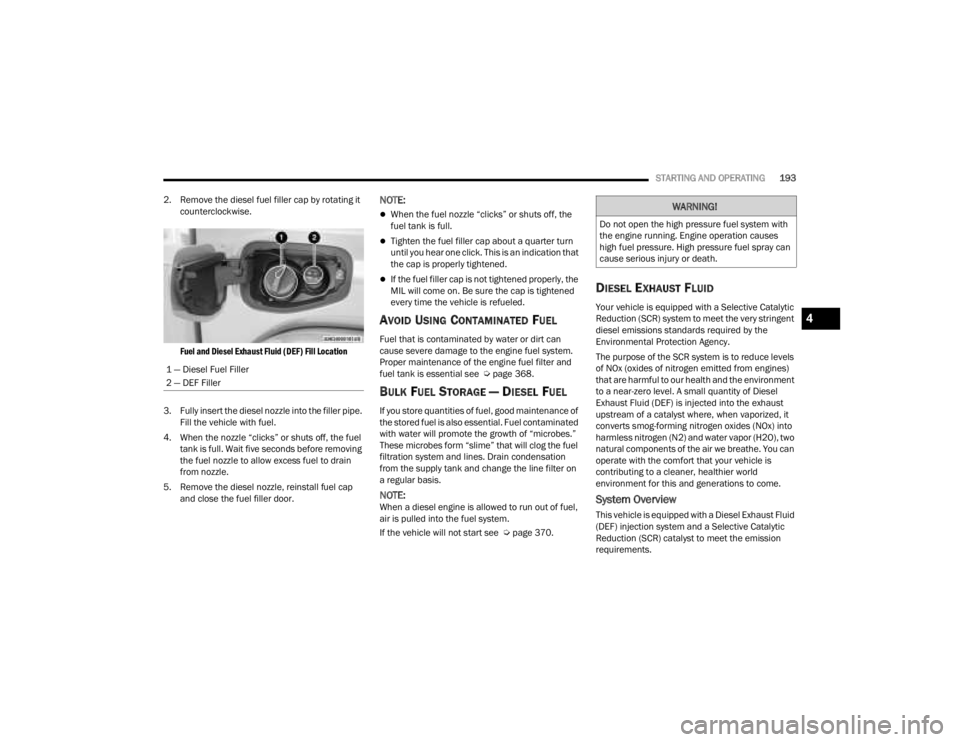
Fuel and Diesel Exhaust Fluid (DEF) Fill Location
3. Fully insert the diesel nozzle into the filler pipe. Fill the vehicle with fuel.
4. When the nozzle “clicks” or shuts off, the fuel tank is full. Wait five seconds before removing
the fuel nozzle to allow excess fuel to drain
from nozzle.
5. Remove the diesel nozzle, reinstall fuel cap and close the fuel filler door.
NOTE:
When the fuel nozzle “clicks” or shuts off, the
fuel tank is full.
Tighten the fuel filler cap about a quarter turn
until you hear one click. This is an indication that
the cap is properly tightened.
If the fuel filler cap is not tightened properly, the
MIL will come on. Be sure the cap is tightened
every time the vehicle is refueled.
AVOID USING CONTAMINATED FUEL
Fuel that is contaminated by water or dirt can
cause severe damage to the engine fuel system.
Proper maintenance of the engine fuel filter and
fuel tank is essential see Ú page 368.
BULK FUEL STORAGE — DIESEL FUEL
If you store quantities of fuel, good maintenance of
the stored fuel is also essential. Fuel contaminated
with water will promote the growth of “microbes.”
These microbes form “slime” that will clog the fuel
filtration system and lines. Drain condensation
from the supply tank and change the line filter on
a regular basis.
NOTE:When a diesel engine is allowed to run out of fuel,
air is pulled into the fuel system.
If the vehicle will not start see Ú page 370.
DIESEL EXHAUST FLUID
Your vehicle is equipped with a Selective Catalytic
Reduction (SCR) system to meet the very stringent
diesel emissions standards required by the
Environmental Protection Agency.
The purpose of the SCR system is to reduce levels
of NOx (oxides of nitrogen emitted from engines)
that are harmful to our health and the environment
to a near-zero level. A small quantity of Diesel
Exhaust Fluid (DEF) is injected into the exhaust
upstream of a catalyst where, when vaporized, it
converts smog-forming nitrogen oxides (NOx) into
harmless nitrogen (N2) and water vapor (H2O), two
natural components of the air we breathe. You can
operate with the comfort that your vehicle is
contributing to a cleaner, healthier world
environment for this and generations to come.
System Overview
This vehicle is equipped with a Diesel Exhaust Fluid
(DEF) injection system and a Selective Catalytic
Reduction (SCR) catalyst to meet the emission
requirements.
1 — Diesel Fuel Filler
2 — DEF Filler
WARNING!
Do not open the high pressure fuel system with
the engine running. Engine operation causes
high fuel pressure. High pressure fuel spray can
cause serious injury or death.
4
23_JT_OM_EN_USC_t.book Page 193
Page 198 of 448
196STARTING AND OPERATING
This label contains the month and year of
manufacture, Gross Vehicle Weight Rating
(GVWR), front and rear Gross Axle Weight Rating
(GAWR), and Vehicle Identification Number (VIN). A
Month-Day-Hour (MDH) number is included on this
label and indicates the Month, Day and Hour of
manufacture. The bar code that appears on the
bottom of the label is your VIN.
Gross Vehicle Weight Rating (GVWR)
The GVWR is the total permissible weight of your
vehicle including driver, passengers, vehicle,
options and cargo. The label also specifies
maximum capacities of front and rear Gross Axle
Weight Rating (GAWR). Total load must be limited
so GVWR on front and rear GAWR are not
exceeded.
Payload
The payload of a vehicle is defined as the allowable
load weight a truck can carry, including the weight
of the driver, all passengers, options and cargo.
Gross Axle Weight Rating (GAWR)
The GAWR is the maximum permissible load on the
front and rear axles. The load must be distributed
in the cargo area so that the GAWR of each axle is
not exceeded.
Each axle GAWR is determined by the components
in the system with the lowest load carrying capacity
(axle, springs, tires or wheels). Heavier axles or
suspension components sometimes specified by purchasers for increased durability does not
necessarily increase the vehicle's GVWR.
Tire Size
The tire size on the Vehicle Certification Label
represents the actual tire size on your vehicle.
Replacement tires must be equal to the load
capacity of this tire size.
Rim Size
This is the rim size that is appropriate for the tire
size listed.
Inflation Pressure
This is the cold tire inflation pressure for your
vehicle for all loading conditions up to full GAWR.
Curb Weight
The curb weight of a vehicle is defined as the total
weight of the vehicle with all fluids, including
vehicle fuel, at full capacity conditions, and with no
occupants or cargo loaded into the vehicle. The
front and rear curb weight values are determined
by weighing your vehicle on a commercial scale
before any occupants or cargo are added.
Loading
The actual total weight and the weight of the front
and rear of your vehicle at the ground can best be
determined by weighing it when it is loaded and
ready for operation.
The entire vehicle should first be weighed on a
commercial scale to ensure that the GVWR has not
been exceeded. The weight on the front and rear of
the vehicle should then be determined separately
to be sure that the load is properly distributed over
the front and rear axle. Weighing the vehicle may
show that the GAWR of either the front or rear axles
has been exceeded but the total load is within the
specified GVWR. If so, weight must be shifted from
front to rear or rear to front as appropriate until the
specified weight limitations are met. Store the
heavier items down low and be sure that the
weight is distributed equally. Stow all loose items
securely before driving.
Improper weight distributions can have an adverse
effect on the way your vehicle steers and handles
and the way the brakes operate.
WARNING!
Do not load your vehicle any heavier than the
GVWR or the maximum front and rear GAWR. If
you do, parts on your vehicle can break, or it can
change the way your vehicle handles. This could
cause you to lose control. Overloading can
shorten the life of your vehicle.
23_JT_OM_EN_USC_t.book Page 196
Page 217 of 448
MULTIMEDIA215
UCONNECT SETTINGS
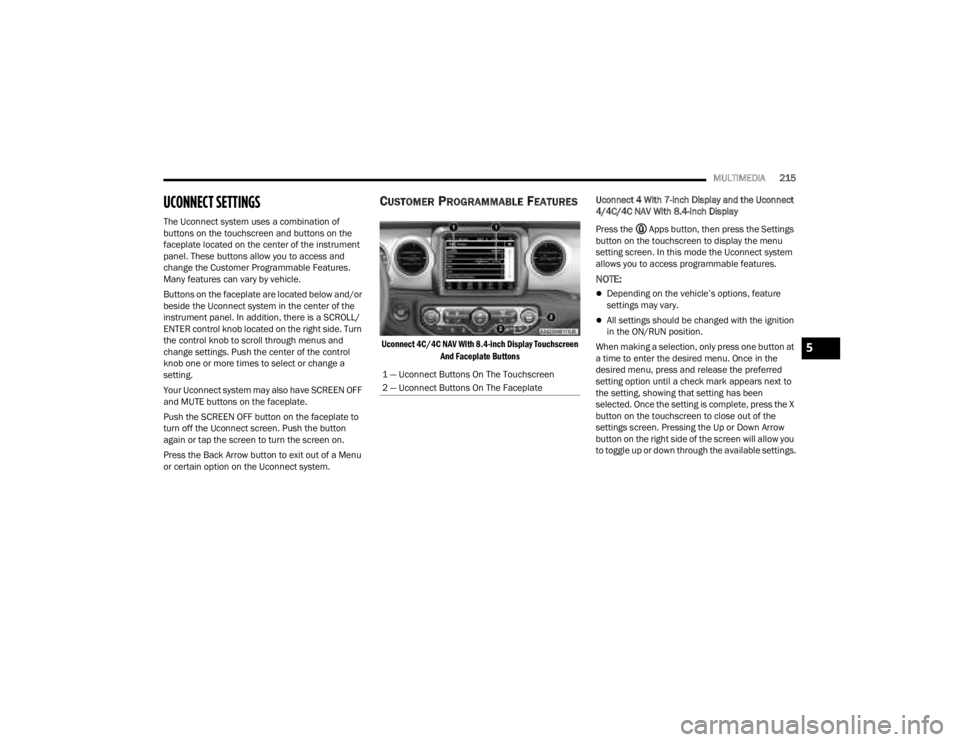
The Uconnect system uses a combination of
buttons on the touchscreen and buttons on the
faceplate located on the center of the instrument
panel. These buttons allow you to access and
change the Customer Programmable Features.
Many features can vary by vehicle.
Buttons on the faceplate are located below and/or
beside the Uconnect system in the center of the
instrument panel. In addition, there is a SCROLL/
ENTER control knob located on the right side. Turn
the control knob to scroll through menus and
change settings. Push the center of the control
knob one or more times to select or change a
setting.
Your Uconnect system may also have SCREEN OFF
and MUTE buttons on the faceplate.
Push the SCREEN OFF button on the faceplate to
turn off the Uconnect screen. Push the button
again or tap the screen to turn the screen on.
Press the Back Arrow button to exit out of a Menu
or certain option on the Uconnect system.
CUSTOMER PROGRAMMABLE FEATURES
Uconnect 4C/4C NAV With 8.4-inch Display Touchscreen
And Faceplate Buttons
Uconnect 4 With 7-inch Display and the Uconnect
4/4C/4C NAV With 8.4-inch Display
Press the Apps button, then press the Settings
button on the touchscreen to display the menu
setting screen. In this mode the Uconnect system
allows you to access programmable features.
NOTE:
Depending on the vehicle’s options, feature
settings may vary.
All settings should be changed with the ignition
in the ON/RUN position.
When making a selection, only press one button at
a time to enter the desired menu. Once in the
desired menu, press and release the preferred
setting option until a check mark appears next to
the setting, showing that setting has been
selected. Once the setting is complete, press the X
button on the touchscreen to close out of the
settings screen. Pressing the Up or Down Arrow
button on the right side of the screen will allow you
to toggle up or down through the available settings.
1 — Uconnect Buttons On The Touchscreen
2 — Uconnect Buttons On The Faceplate
5
23_JT_OM_EN_USC_t.book Page 215
Page 218 of 448

216MULTIMEDIA
Language
Display
When the Language button is pressed on the touchscreen, the system displays the different language options. Once an option is selected, the system will
display in the chosen language. The available setting is:
NOTE:Depending on the vehicle’s options, feature settings may vary.
Setting Name Description
Language
This setting will change the language of the Uconnect system and Instrument
Cluster Display. The available languages are “English”, “Français”, and “Español”.
When the Display button is pressed on the touchscreen, the system will display the options related to the theme (if equipped), brightness, and color of the
touchscreen. The available settings are:
NOTE:Depending on the vehicle’s options, feature settings may vary.
Setting Name
Description
Display Mode This setting will allow you to set the brightness manually or have the system
set it automatically. The “Auto” setting has the system automatically adjust
the display brightness. The “Manual” setting will allow the user to adjust the
brightness of the display.
Display Brightness With Headlights ON/Brightness This setting will allow you to set the brightness when the headlights are on. To
access this setting, Display Mode must be set to Manual. The “+” setting will
increase the brightness; the “-” will decrease the brightness.
Display Brightness With Headlights OFF/Brightness This setting will allow you to set the brightness when the headlights are off. To
access this setting, Display Mode must be set to Manual. The “+” setting will
increase the brightness; the “-” will decrease the brightness.
23_JT_OM_EN_USC_t.book Page 216