change time JEEP GLADIATOR 2023 Owner's Guide
[x] Cancel search | Manufacturer: JEEP, Model Year: 2023, Model line: GLADIATOR, Model: JEEP GLADIATOR 2023Pages: 448, PDF Size: 17.37 MB
Page 246 of 448

244MULTIMEDIA
Info
In USB Mode, press the Info button on the
touchscreen to display the current track
information. Press the Info or X button on the
touchscreen a second time to cancel this feature.
Tracks
In USB Mode, press the Tracks button on the
touchscreen to display a pop-up with the Song List.
The song currently playing is indicated by an arrow
and lines above and below the song title. When in
the Tracks List screen you can rotate the TUNE/
SCROLL knob to highlight a track (indicated by the
line above and below the track name) and then
push the ENTER/BROWSE knob to start playing
that track.
In Bluetooth® Mode, if the Bluetooth® device
supports this feature, press the Tracks button on
the touchscreen to display a pop-up with the Song
List. The currently playing song is indicated by a red
arrow and lines above and below the song title.
Pressing the Tracks button on the touchscreen
while the pop-up is displayed will close the pop-up.
MEDIA VOICE COMMANDS
Uconnect offers connections via USB, Bluetooth®,
and auxiliary (AUX) ports. Voice operation is only
available for connected USB and AUX devices. Push the VR button located on the steering
wheel. After the beep, say one of the following
commands and follow the prompts to switch your
media source or choose an artist:
“
Change source to Bluetooth®”
“Change source to AUX”
“Change source to USB”
“Play artist Beethoven”; “ Play album Greatest
Hits”; “ Play song Moonlight Sonata”; “ Play genre
Classical”
Did You Know: Press the Browse button on the
touchscreen to see all of the music on your USB
device. Your Voice Command must match exactly
how the artist, album, song, and genre information
is displayed.
PHONE MODE
Overview
Uconnect Phone is a voice-activated, hands-free,
in-vehicle communications system. It allows you to
dial a phone number with your mobile phone.
The feature supports the following:
Voice Activated Features
Hands-Free dialing via Voice (“Call John Smith
Mobile” or “Dial 248-555-1212”).
Hands-Free text-to-speech listening of your
incoming SMS messages.
Hands-Free Text Message Replying: Forward
one of 18 predefined SMS messages to
incoming calls/text messages.
Redialing last dialed numbers (“Redial”).
Calling Back the last incoming call number
(“Call Back”).
Viewing call logs on screen (“Show Incoming
Calls,” “Show Outgoing Calls,” “Show Missed
Calls,” or “Show Recent Calls”).
Searching Contacts phone number (“Search for
John Smith Mobile”).
Screen Activated Features
Dialing via Keypad using touchscreen.
Viewing and Calling contacts from Phonebooks
displayed on the touchscreen.
Setting Favorite Contact phone numbers so they
are easily accessible on the Main Phone screen.
Viewing and Calling contacts from Recent Call
logs.
Reviewing your recent Incoming SMS
Messages.
Pairing up to 10 phones/audio devices for easy
access to connect to them quickly.
NOTE:Your phone must be capable of SMS messaging via
Bluetooth® for messaging features to work
properly.
23_JT_OM_EN_USC_t.book Page 244
Page 249 of 448

MULTIMEDIA247
phone is currently connected with the
system, this pop-up will not appear.
3. Select “Yes” to begin the pairing process.
4. Search for available devices on your Bluetooth®-enabled mobile phone.
Press the Settings button on your mobile
phone.
Select “Bluetooth®” and ensure it is
enabled. Once enabled, the mobile phone
will begin to search for Bluetooth® connec -
tions.
NOTE:During the pairing procedure, you may receive a
pop-up on your touchscreen asking you to make
sure the PIN on the touchscreen matches the PIN
from the pop-up on your mobile phone.
5. If “No” is selected, and you still would like to pair a mobile phone, press the Phone Pairing
or Settings button from the Uconnect Phone
main screen.
Press the Paired Phones button or the Add
Device button.
Search for available devices on your
Bluetooth®-enabled mobile phone. When
prompted on the phone, select “Uconnect”
and accept the connection request.
6. Uconnect Phone will display an in-progress screen while the system is connecting. 7. When your mobile phone finds the Uconnect
system, select “Uconnect.”
8. When prompted on the mobile phone, accept the connection request from Uconnect.
9. When the pairing process has successfully completed, the system will prompt you to
choose whether or not this is your favorite
phone. Selecting “Yes” will make this phone
the highest priority. This phone will take
precedence over other paired phones within
range and will connect to the Uconnect system
automatically when entering the vehicle. Only
one mobile phone and/or one Bluetooth®
audio device can be connected to the
Uconnect system at a time. If “No” is selected,
simply select “Uconnect” from the mobile
phone/audio device Bluetooth® screen, and
the Uconnect system will reconnect to the
Bluetooth® device.
NOTE:For phones which are not made a favorite, the
phone priority is determined by the order in which
it was paired. The most recent phone paired will
have the higher priority.
NOTE:During the pairing procedure, you may receive a
pop-up on your mobile phone for the Uconnect
system to access your “messages” and “contacts”.
Selecting “Ok” or “Allow” will sync your contacts
with the Uconnect system. You can also use the following VR command “Show
Paired Phones” to bring up the Paired Phone
screen from any screen on the radio.
NOTE:Software updates on your phone or the Uconnect
system may interfere with the Bluetooth®
connection. If this happens, simply repeat the
pairing process. However, first make sure to delete
the device from the list of phones on your
Uconnect system. Next, be sure to remove
Uconnect from the list of devices in your phone’s
Bluetooth® settings.
PAIR A BLUETOOTH® STREAMING AUDIO
DEVICE
1. Press the Media button on the touchscreen to
begin.
2. Change the source to “Bluetooth®”.
3. Press the Bluetooth® button on the touchscreen to display the Paired Audio
Devices screen.
4. Press the Add Device button on the touchscreen.
NOTE:If there is no device currently connected with the
system, a pop-up will appear.
5
23_JT_OM_EN_USC_t.book Page 247
Page 251 of 448

MULTIMEDIA249
PHONEBOOK DOWNLOAD (AUTOMATIC
PHONEBOOK TRANSFER FROM MOBILE
PHONE) — IF EQUIPPED
If supported by your phone, Uconnect Phone has
the ability to download contact names and number
entries from the mobile phone’s phonebook.
Specific Bluetooth® Phones with Phonebook
Access Profile may support this feature. Your
mobile phone may receive a pop-up asking for
permission for the Uconnect system to access your
messages and contacts. Selecting “Ok” or “Allow”
will sync your contacts with the Uconnect system.
See the Uconnect website, UconnectPhone.com,
for supported phones.
To call a name from a downloaded mobile
phonebook Ú page 253.
Automatic download and update of a phone -
book, if supported, begins as soon as the
Bluetooth® wireless phone connection is made
to the Uconnect Phone, for example, after you
start the vehicle.
A maximum of 5,000 contact names with four
numbers per contact will be downloaded and
updated every time a phone is connected to the
Uconnect Phone.
Depending on the maximum number of entries
downloaded, there may be a short delay before
the latest downloaded names can be used. Until then, if available, the previously downloaded
phonebook is available for use.
Only the phonebook of the currently connected
mobile phone is accessible.
This downloaded phonebook cannot be edited
or deleted on the Uconnect Phone. These can
only be edited on the mobile phone. The
changes are transferred and updated to
Uconnect Phone on the next phone connection.
MANAGING YOUR FAVORITES — IF EQUIPPED
There are two ways you can add an entry to your
favorites:
1. After loading the mobile phonebook, press
the Favorites button on the touchscreen, and
then press one of the +Add Favorite Contact
buttons that appears on the list.
2. After loading the mobile phonebook, select “Contacts” from the Phone main screen, and
then select the appropriate number. Press the
Down Arrow button or the Settings Gear button
next to the selected number to display the
option’s pop-up. In the pop-up, select “Add to
Favorites”.
NOTE:If the Favorites list is full, you will be asked to
remove an existing favorite.
TO REMOVE A FAVORITE — IF EQUIPPED
1. To remove a Favorite, select “Favorites” from the Phone main screen.
2. Next, select the Down Arrow icon or the Settings Gear icon next to the contact you want
to remove from your favorites. This will bring
up the options for that Favorite contact.
3. Deselect the Star icon to delete the Favorite.
Phone Call Features
The following features can be accessed through
the Uconnect Phone if the feature(s) are available
and supported by Bluetooth® on your mobile
service plan. For example, if your mobile service
plan provides three-way calling, this feature can be
accessed through the Uconnect Phone. Check with
your mobile service provider for the features that
you have.
Here are the phone options with Uconnect:
Redial
Dial by pressing in the number
Voice Commands (Dial by Saying a Name, Call by
Saying a Phonebook Name, Redial or Call Back)
Favorites
Mobile Phonebook
Recent Call Log
SMS Message Viewer
5
23_JT_OM_EN_USC_t.book Page 249
Page 256 of 448
254MULTIMEDIA
SIRI® EYES FREE — IF EQUIPPED
When used with your Apple® iPhone® connected
to your vehicle via Bluetooth®, Siri lets you use
your voice to send text messages, select media,
place phone calls and much more. Siri uses your
natural language to understand what you mean
and responds back to confirm your requests. The
system is designed to keep your eyes on the road
and your hands on the wheel by letting Siri help you
perform useful tasks.
To enable Siri, push and hold, then release the
Uconnect Voice Recognition (VR) button on the
steering wheel. After you hear a double beep, you
can ask Siri to play podcasts and music, get
directions, read text messages, and many other
useful requests.
BLUETOOTH® COMMUNICATION LINK
Mobile phones may lose connection to the
Uconnect Phone. When this happens, the
connection can generally be re-established by
restarting the mobile phone. Your mobile phone is
recommended to remain in Bluetooth® ON mode.
POWER-UP
After switching the ignition key from OFF to either
the ON/RUN or ACC position, or after a language
change, you must wait at least 15 seconds prior to
using the system Ú page 432.
ANDROID AUTO™ & APPLE CARPLAY® —
IF EQUIPPED
ANDROID AUTO™
Use this QR code to access your
digital experience.
Android Auto™ is a feature of your
Uconnect system, and your
Android™ 6.0 or higher powered
smartphone with a data plan, that
allows you to project your
smartphone and a number of its apps onto the
touchscreen radio display. Android Auto™ brings
you useful information, and organizes it into simple
cards that appear just when they are needed.
Android Auto™ can be used with speech
technology, the steering wheel controls, the knobs
and buttons on your radio faceplate, and the radio
display’s touchscreen to control many of your
apps. To use Android Auto™, perform the following
procedure:
NOTE:Feature availability depends on your carrier and
mobile phone manufacturer. Some Android Auto™
features may or may not be available in every
region and/or language.
1. Download the Android Auto™ app from the
Google Play store on your Android™-powered
smartphone.
2. Connect your Android™-powered smartphone to one of the media USB ports in your vehicle.
If the Android Auto™ app was not downloaded,
the first time you plug your device in the app
begins to download. Your vehicle should be in
PARK the first time you use the app.
NOTE:Be sure to use the factory-provided USB cable that
came with your phone, as aftermarket cables may
not work.
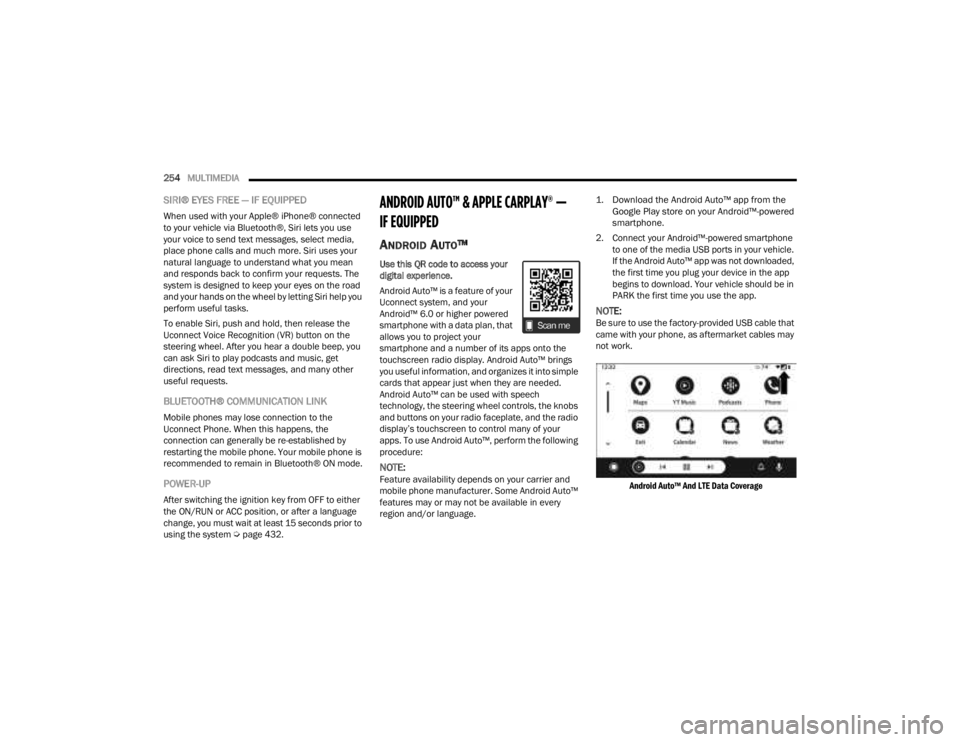
Android Auto™ And LTE Data Coverage
23_JT_OM_EN_USC_t.book Page 254
Page 257 of 448
MULTIMEDIA255
NOTE:To use Android Auto™, make sure you are in an
area with cellular coverage. Android Auto™ may
use cellular data and your cellular coverage is
shown in the upper right corner of the radio screen.
Data plan rates apply.
3. Once the device is connected and recognized,
the Phone icon on the drag & drop menu bar
changes to the Android Auto™ icon.
NOTE:Android Auto™ is set to launch immediately once a
compatible device is connected. You can also
launch it by pressing the Android Auto™ icon on the
touchscreen.
Once Android Auto™ is up and running on your
Uconnect system, the following features can be
utilized using your smartphone’s data plan:
Google Maps™ for navigation
YouTube Music, Spotify, iHeart Radio, etc. for
music
Hands-free calling and texting for communica -
tion
Various compatible apps
Maps
Push and hold the Voice Recognition (VR)
button on the steering wheel until the
beep or tap the Microphone icon to ask
Google to take you to a desired destination by voice. You can also touch the Navigation icon in
Android Auto™ to access other navigation apps.
While using Android Auto™, Google Maps™
provides voice-guided:
Navigation
Live traffic information
Lane guidance
For further information, refer to www.android.com/
auto (US) or https://www.android.com/intl/
en_ca/auto (Canada).
For further information on the navigation function,
please refer to https://support.google.com/
android or https://support.google.com/
androidauto.
Music
Android Auto™ allows you to access and
stream your favorite music with apps like
YouTube Music, iHeartRadio, and Spotify.
Using your smartphone’s data plan, you
can stream endless music on the road.
NOTE:Music apps, playlists, and stations must be set up
on your smartphone prior to using Android Auto™
for them to work with Android Auto™.
NOTE:To see the track details for the music playing
through Android Auto™, select the Uconnect
system’s media screen. For further information, refer to https://
support.google.com/androidauto.
Communication
With Android Auto™ connected, push and
hold the VR button on the steering wheel
to activate voice recognition specific to
Android Auto™. This allows you to send
and reply to text messages, have incoming text
messages read out loud, and place and receive
hands-free calls.
Apps
The Android Auto™ App displays all the compatible
apps that are available to use with Android Auto™,
every time it is launched. You must have the
compatible app downloaded, and you must be
signed in to the app through your mobile device for
it to work with Android Auto™.
Refer to https://play.google.com/store/apps to
see the latest list of available apps for Android
Auto™.
Android Auto™ Voice Command
NOTE:Feature availability depends on your carrier and
mobile phone manufacturer. Some Android Auto™
features may or may not be available in every
region and/or language.
5
23_JT_OM_EN_USC_t.book Page 255
Page 258 of 448
256MULTIMEDIA
Android Auto™ allows you to use your voice to
interact with its best-in-class speech technology
through your vehicle’s voice recognition system,
and use your smartphone’s data plan to project
your Android™-powered smartphone and a
number of its apps onto your Uconnect
touchscreen. Connect your Android™ 6.0 or higher
to one of the media USB ports, using the
factory-provided USB cable, and press the new
Android Auto™ icon that replaces your Phone icon
on the main menu bar to begin Android Auto™.
Push and hold the VR button on the steering wheel,
or press and hold the Microphone icon within
Android Auto™, to activate its VR, which recognizes
natural voice commands, to use a list of your
smartphone’s features:
Maps
Music
Phone
Text Messages
Additional Apps
NOTE:
To use Android Auto™ on your car display, you’ll
need an Android™ phone running Android™ 6.0
or higher, an active data plan, and the Android
Auto™ app.
To wirelessly use Android Auto™ on your car
display, you need a compatible Android™ smart -
phone with an active data plan. You can check which smartphones are compatible at g.co/
androidauto/requirements.
Android™ is a trademark of Google Inc.
APPLE CARPLAY®
Use this QR code to access your
digital experience.
Uconnect works seamlessly with
Apple CarPlay®, the smarter,
more secure way to use your
iPhone® in the car, and stay
focused on the road. Use your
Uconnect Touchscreen display, the vehicle's knobs
and controls, and your voice with Siri to get access
to Apple Music®, Maps, Messages, and more.
NOTE:Feature availability depends on your carrier and
mobile phone manufacturer. Some Apple
CarPlay® features may or may not be available in
every region and/or language.
To use Apple CarPlay®, make sure you are using
iPhone® 5 or later, have Siri enabled in Settings,
ensure your iPhone® is unlocked for the very first
connection only, and then use the following
procedure:
1. Connect your iPhone® to one of the media USB ports in your vehicle.
NOTE:Be sure to use the factory-provided Lightning cable
that came with your phone, as aftermarket cables
may not work.
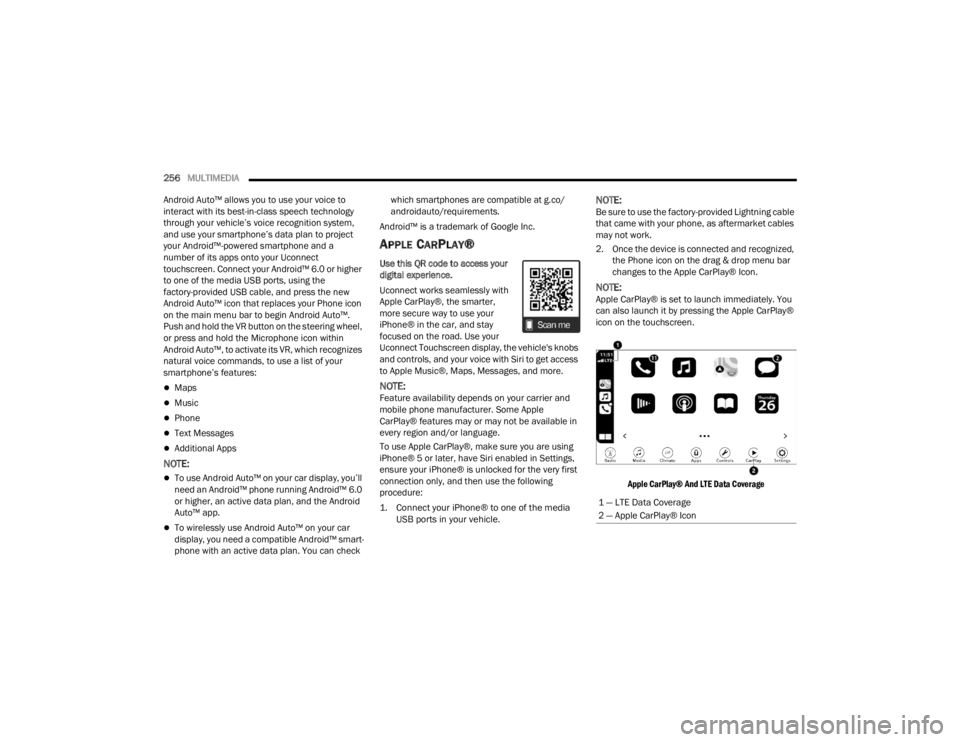
2. Once the device is connected and recognized, the Phone icon on the drag & drop menu bar
changes to the Apple CarPlay® Icon.
NOTE:Apple CarPlay® is set to launch immediately. You
can also launch it by pressing the Apple CarPlay®
icon on the touchscreen.
Apple CarPlay® And LTE Data Coverage
1 — LTE Data Coverage
2 — Apple CarPlay® Icon
23_JT_OM_EN_USC_t.book Page 256
Page 270 of 448
268MULTIMEDIA
After you've made your purchase, turn on your
device’s Wi-Fi and connect your devices.
Enables all your passengers to be simultane -
ously connected to the web.
Connect several devices at one time.
Any Wi-Fi-enabled device — such as a laptop or
any other portable-enabled media — can
connect over your private in-vehicle network.
A high-speed, secured connection lets anyone
on your private network access the Web — great
for working and relaxing.
Create A 4G Wi-Fi Hotspot For Use In Your Vehicle
How It Works The 4G Wi-Fi Hotspot feature provides
the vehicle passengers with an internet
access hotspot in the vehicle, using the
radio as an access point. The hotspot will
allow Wi-Fi-enabled in-vehicle devices (such as a
laptop or any other portable-enabled media device) to wirelessly connect to the internet.
Uconnect offers a complimentary 3-month trial
period that includes 1GB of total data. The trial can
be activated any time within the first year of new
vehicle ownership.
Use one of these three ways to purchase a
subscription to the 4G Wi-Fi Hotspot:
1. From your vehicle’s touchscreen, select the
4G Wi-Fi Hotspot App, and press the How To
Purchase button and follow the instructions.
2. Log onto your Owner’s Site and click the link to the AT&T portal to get set up.
3. For existing Connected Car customers: Push
the ASSIST button to be routed to an AT&T
Customer Care agent who will assist you.
Once the 4G Wi-Fi Hotspot is purchased, you can
change its name and the password by selecting the
Wi-Fi Hotspot App and pressing the Setup Wi-Fi
Hotspot button. You can also view the connected
devices from the app screen by pressing the View
Connected Devices button.
NOTE:A SiriusXM Guardian™ subscription is not required
in order to purchase and use the 4G Wi-Fi Hotspot.
Stolen Vehicle Assistance — If Equipped
Description
If your vehicle is stolen, the SiriusXM Guardian™
Customer Care agent may be able to locate the
stolen vehicle and work with law enforcement to
help recover it.
How It Works
1. If your vehicle is stolen, contact local law enforcement as soon as possible. They will
work with you to file a stolen vehicle report.
2. Next, inform SiriusXM Guardian™ Customer Care that your vehicle has been stolen.
The SiriusXM Guardian™ Customer Care Agent
will ask for the stolen vehicle report number
(as issued by your local law enforcement). If
you have downloaded the Vehicle Branded
App, you can push the Settings menu button WARNING!
The driver should NEVER use the 4G Wi-Fi
Hotspot while driving the vehicle as doing so
may result in an accident involving serious injury
or death.
WARNING!
Always drive safely with your hands on the
steering wheel and obey all applicable laws. You
have full responsibility and assume all risks
related to the use of the features and
applications in this vehicle. Only use the
features and applications in this vehicle when it
is safe to do so. Failure to comply may result in
an accident involving in serious injury or death.
23_JT_OM_EN_USC_t.book Page 268
Page 283 of 448
SAFETY281
power to lessen the chance that wheel lift will
occur. ERM can only reduce the chance of wheel
lift occurring during severe or evasive driving
maneuvers; it cannot prevent wheel lift due to
other factors, such as road conditions, leaving the
roadway, striking objects or other vehicles.
NOTE:ERM is disabled any time the ESC is in “Full Off”
mode (if equipped). See Ú page 281 for a
complete explanation of the available ESC modes.
Electronic Stability Control (ESC)
The ESC system enhances directional control and
stability of the vehicle under various driving
conditions. ESC corrects for oversteering or
understeering of the vehicle by applying the brake of the appropriate wheel(s) to counteract the
above conditions. Engine power may also be
reduced to help the vehicle maintain the desired
path.
Oversteer — when the vehicle is turning more
than appropriate for the steering wheel position.
Understeer — when the vehicle is turning less
than appropriate for the steering wheel position.
ESC uses sensors in the vehicle to determine the
vehicle path intended by the driver and compares
it to the actual path of the vehicle. When the actual
path does not match the intended path, ESC
applies the brake of the appropriate wheel to
assist in counteracting the oversteer or understeer
condition.
The ESC Activation/Malfunction Indicator Light
located in the instrument cluster will start to flash
as soon as the ESC system becomes active. The
ESC Activation/Malfunction Indicator Light also
flashes when the Traction Control System (TCS) is
active. If the ESC Activation/Malfunction Indicator
Light begins to flash during acceleration, ease up
on the accelerator and apply as little throttle as
possible. Be sure to adapt your speed and driving
to the prevailing road conditions.
WARNING!
Many factors, such as vehicle loading, road
conditions and driving conditions, influence the
chance that wheel lift or rollover may occur. ERM
cannot prevent all wheel lift or rollovers,
especially those that involve leaving the roadway
or striking objects or other vehicles. The
capabilities of an ERM-equipped vehicle must
never be exploited in a reckless or dangerous
manner which could jeopardize the user's safety
or the safety of others.
WARNING!
Electronic Stability Control (ESC) cannot
prevent the natural laws of physics from acting
on the vehicle, nor can it increase the traction
afforded by prevailing road conditions. ESC
cannot prevent accidents, including those
resulting from excessive speed in turns, driving
on very slippery surfaces, or hydroplaning. ESC
also cannot prevent accidents resulting from
loss of vehicle control due to inappropriate
driver input for the conditions. Only a safe,
attentive, and skillful driver can prevent acci -
dents. The capabilities of an ESC equipped
vehicle must never be exploited in a reckless or
dangerous manner which could jeopardize the
user’s safety or the safety of others.
Vehicle modifications, or failure to properly
maintain your vehicle, may change the handling
characteristics of your vehicle, and may nega -
tively affect the performance of the ESC system.
Changes to the steering system, suspension,
braking system, tire type and size or wheel size
may adversely affect ESC performance. Improp -
erly inflated and unevenly worn tires may also
degrade ESC performance. Any vehicle modifi-
cation or poor vehicle maintenance that
reduces the effectiveness of the ESC system
can increase the risk of loss of vehicle control,
vehicle rollover, personal injury and death.
6
23_JT_OM_EN_USC_t.book Page 281
Page 286 of 448
284SAFETY
Disabling And Enabling HSA
This feature can be turned on or turned off. To
change the current setting, see Ú page 215 for
further information.
Towing With HSA
HSA will also provide assistance to mitigate roll
back while towing a trailer.
Rain Brake Support (RBS)
RBS may improve braking performance in wet
conditions. It will periodically apply a small amount
of brake pressure to remove any water buildup on
the front brake rotors. It functions when the
windshield wipers are in LO or HI speed. When RBS
is active, there is no notification to the driver and
no driver interaction is required.
Ready Alert Braking (RAB)
RAB may reduce the time required to reach full
braking during emergency braking situations. It
anticipates when an emergency braking situation
may occur by monitoring how fast the throttle is
released by the driver. The Electronic Brake
Control will prepare the brake system for a panic
stop.
Rear Seat Reminder Alert (RSRA)
RSRA alerts you through a visual and auditory
notification of the possible presence of an object,
passenger, or pet in the rear seats if a rear door
was opened up to 10 minutes before the ignition
was placed in the ON/RUN position. RSRA does not
directly detect objects, passengers, or pets in the
rear seats. When the previous conditions are met,
RSRA displays the message “Check Rear Seat” on
the instrument cluster display and sounds an
auditory alert upon the driver placing the ignition in
the OFF position to exit the vehicle.
To enable or disable RSRA, see Ú page 215.
WARNING!
If you use a trailer brake controller with your
trailer, the trailer brakes may be activated and
deactivated with the brake switch. If so, there
may not be enough brake pressure to hold
both the vehicle and the trailer on a hill when
the brake pedal is released. In order to avoid
rolling down an incline while resuming accel -
eration, manually activate the trailer brake or
apply more vehicle brake pressure prior to
releasing the brake pedal.
HSA is not a parking brake. Always apply the
parking brake fully when exiting your vehicle.
Also, be certain to place the transmission in
PARK.
Failure to follow these warnings can result in a
collision or serious personal injury.
WARNING!
Before exiting a vehicle, always come to a
complete stop, then shift the automatic trans -
mission into PARK and apply the parking
brake.
Always make sure the keyless ignition node is
in the OFF position, key fob is removed from
the vehicle and vehicle is locked.
Never leave children alone in a vehicle, or with
access to an unlocked vehicle. Leaving chil -
dren in a vehicle unattended is dangerous for
a number of reasons. A child or others could
be seriously or fatally injured. Children should
be warned not to touch the parking brake,
brake pedal or the gear selector.
Do not leave the key fob in or near the vehicle,
or in a location accessible to children, and do
not leave the ignition of a vehicle equipped
with Keyless Enter ‘n Go™ in the ACC or ON/
RUN position. A child could operate power
windows, other controls, or move the vehicle.
Do not leave children or animals inside parked
vehicles in hot weather. Interior heat build-up
may cause serious injury or death.
23_JT_OM_EN_USC_t.book Page 284
Page 289 of 448
SAFETY287
NOTE:TSC cannot stop all trailers from swaying. Always
use caution when towing a trailer and follow the
trailer tongue weight recommendations. See
Úpage 197 for further information.
When TSC is functioning, the ESC Activation/
Malfunction Indicator Light will flash, the engine
power may be reduced, and you may feel the
brakes being applied to individual wheels to
attempt to stop the trailer from swaying. TSC is
disabled when the ESC system is in the “Partial
Off” or “Full Off” modes.
AUXILIARY DRIVING SYSTEMS
BLIND SPOT MONITORING (BSM) —
I
F EQUIPPED
The BSM system uses two radar sensors, located
inside the taillights, to detect highway licensable
vehicles (automobiles, trucks, motorcycles, etc.)
that enter the blind spot zones from the rear/front/
side of the vehicle.
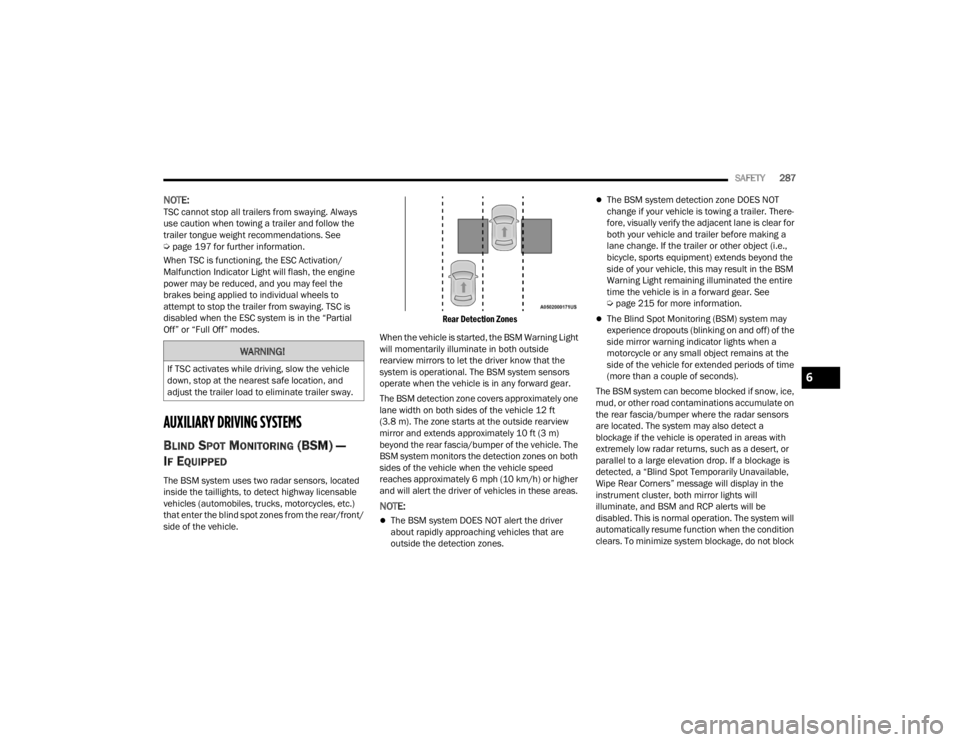
Rear Detection Zones
When the vehicle is started, the BSM Warning Light
will momentarily illuminate in both outside
rearview mirrors to let the driver know that the
system is operational. The BSM system sensors
operate when the vehicle is in any forward gear.
The BSM detection zone covers approximately one
lane width on both sides of the vehicle 12 ft
(3.8 m). The zone starts at the outside rearview
mirror and extends approximately 10 ft (3 m)
beyond the rear fascia/bumper of the vehicle. The
BSM system monitors the detection zones on both
sides of the vehicle when the vehicle speed
reaches approximately 6 mph (10 km/h) or higher
and will alert the driver of vehicles in these areas.
NOTE:
The BSM system DOES NOT alert the driver
about rapidly approaching vehicles that are
outside the detection zones.
The BSM system detection zone DOES NOT
change if your vehicle is towing a trailer. There -
fore, visually verify the adjacent lane is clear for
both your vehicle and trailer before making a
lane change. If the trailer or other object (i.e.,
bicycle, sports equipment) extends beyond the
side of your vehicle, this may result in the BSM
Warning Light remaining illuminated the entire
time the vehicle is in a forward gear. See
Ú page 215 for more information.
The Blind Spot Monitoring (BSM) system may
experience dropouts (blinking on and off) of the
side mirror warning indicator lights when a
motorcycle or any small object remains at the
side of the vehicle for extended periods of time
(more than a couple of seconds).
The BSM system can become blocked if snow, ice,
mud, or other road contaminations accumulate on
the rear fascia/bumper where the radar sensors
are located. The system may also detect a
blockage if the vehicle is operated in areas with
extremely low radar returns, such as a desert, or
parallel to a large elevation drop. If a blockage is
detected, a “Blind Spot Temporarily Unavailable,
Wipe Rear Corners” message will display in the
instrument cluster, both mirror lights will
illuminate, and BSM and RCP alerts will be
disabled. This is normal operation. The system will
automatically resume function when the condition
clears. To minimize system blockage, do not block
WARNING!
If TSC activates while driving, slow the vehicle
down, stop at the nearest safe location, and
adjust the trailer load to eliminate trailer sway.6
23_JT_OM_EN_USC_t.book Page 287