ECU JEEP GLADIATOR 2023 Workshop Manual
[x] Cancel search | Manufacturer: JEEP, Model Year: 2023, Model line: GLADIATOR, Model: JEEP GLADIATOR 2023Pages: 448, PDF Size: 17.37 MB
Page 160 of 448
158STARTING AND OPERATING
(Continued)
(Continued)
PARK (P)
This range supplements the parking brake by
locking the transmission. The engine can be
started in this range. Never attempt to use PARK
while the vehicle is in motion. Apply the parking
brake when exiting the vehicle in this range.
When parking on a hill, apply the parking brake
before shifting the transmission to PARK. As an
added precaution, turn the front wheels toward the
curb on a downhill grade and away from the curb
on an uphill grade.
When exiting the vehicle, always:
Apply the parking brake
Shift the transmission into PARK
Turn the ignition off
Remove the key fob from the vehicle
NOTE:On four-wheel drive vehicles, be sure that the
transfer case is in a drive position.
WARNING!
Never use the PARK position as a substitute
for the parking brake. Always apply the
parking brake fully when exiting the vehicle to
guard against vehicle movement and possible
injury or damage.
Your vehicle could move and injure you and
others if it is not in PARK. Check by trying to
move the transmission gear selector out of
PARK with the brake pedal released. Make
sure the transmission is in PARK before
exiting the vehicle.
The transmission may not engage PARK if the
vehicle is moving. Always bring the vehicle to a
complete stop before shifting to PARK, and
verify that the transmission gear position indi
-
cator solidly indicates PARK (P) without
blinking. Ensure that the vehicle is completely
stopped, and the PARK position is properly
indicated, before exiting the vehicle.
It is dangerous to shift out of PARK or
NEUTRAL if the engine speed is higher than
idle speed. If your foot is not firmly pressing
the brake pedal, the vehicle could accelerate
quickly forward or in reverse. You could lose
control of the vehicle and hit someone or
something. Only shift into gear when the
engine is idling normally and your foot is firmly
pressing the brake pedal.
WARNING!
Unintended movement of a vehicle could
injure those in or near the vehicle. As with all
vehicles, you should never exit a vehicle while
the engine is running. Before exiting a vehicle,
always come to a complete stop, then apply
the parking brake, shift the transmission into
PARK, and turn the ignition OFF. When the
ignition is in the OFF position, the transmis -
sion is locked in PARK, securing the vehicle
against unwanted movement.
When exiting the vehicle, always make sure
the ignition is in the OFF position, remove the
key fob from the vehicle, and lock the vehicle.
Never leave children alone in a vehicle, or with
access to an unlocked vehicle. Allowing chil -
dren to be in a vehicle unattended is
dangerous for a number of reasons. A child or
others could be seriously or fatally injured.
Children should be warned not to touch the
parking brake, brake pedal or the transmis -
sion gear selector.
Do not leave the key fob in or near the vehicle
(or in a location accessible to children), and do
not leave the ignition in the ACC or ON/RUN
position. A child could operate power
windows, other controls, or move the vehicle.
WARNING!
23_JT_OM_EN_USC_t.book Page 158
Page 198 of 448
196STARTING AND OPERATING
This label contains the month and year of
manufacture, Gross Vehicle Weight Rating
(GVWR), front and rear Gross Axle Weight Rating
(GAWR), and Vehicle Identification Number (VIN). A
Month-Day-Hour (MDH) number is included on this
label and indicates the Month, Day and Hour of
manufacture. The bar code that appears on the
bottom of the label is your VIN.
Gross Vehicle Weight Rating (GVWR)
The GVWR is the total permissible weight of your
vehicle including driver, passengers, vehicle,
options and cargo. The label also specifies
maximum capacities of front and rear Gross Axle
Weight Rating (GAWR). Total load must be limited
so GVWR on front and rear GAWR are not
exceeded.
Payload
The payload of a vehicle is defined as the allowable
load weight a truck can carry, including the weight
of the driver, all passengers, options and cargo.
Gross Axle Weight Rating (GAWR)
The GAWR is the maximum permissible load on the
front and rear axles. The load must be distributed
in the cargo area so that the GAWR of each axle is
not exceeded.
Each axle GAWR is determined by the components
in the system with the lowest load carrying capacity
(axle, springs, tires or wheels). Heavier axles or
suspension components sometimes specified by purchasers for increased durability does not
necessarily increase the vehicle's GVWR.
Tire Size
The tire size on the Vehicle Certification Label
represents the actual tire size on your vehicle.
Replacement tires must be equal to the load
capacity of this tire size.
Rim Size
This is the rim size that is appropriate for the tire
size listed.
Inflation Pressure
This is the cold tire inflation pressure for your
vehicle for all loading conditions up to full GAWR.
Curb Weight
The curb weight of a vehicle is defined as the total
weight of the vehicle with all fluids, including
vehicle fuel, at full capacity conditions, and with no
occupants or cargo loaded into the vehicle. The
front and rear curb weight values are determined
by weighing your vehicle on a commercial scale
before any occupants or cargo are added.
Loading
The actual total weight and the weight of the front
and rear of your vehicle at the ground can best be
determined by weighing it when it is loaded and
ready for operation.
The entire vehicle should first be weighed on a
commercial scale to ensure that the GVWR has not
been exceeded. The weight on the front and rear of
the vehicle should then be determined separately
to be sure that the load is properly distributed over
the front and rear axle. Weighing the vehicle may
show that the GAWR of either the front or rear axles
has been exceeded but the total load is within the
specified GVWR. If so, weight must be shifted from
front to rear or rear to front as appropriate until the
specified weight limitations are met. Store the
heavier items down low and be sure that the
weight is distributed equally. Stow all loose items
securely before driving.
Improper weight distributions can have an adverse
effect on the way your vehicle steers and handles
and the way the brakes operate.
WARNING!
Do not load your vehicle any heavier than the
GVWR or the maximum front and rear GAWR. If
you do, parts on your vehicle can break, or it can
change the way your vehicle handles. This could
cause you to lose control. Overloading can
shorten the life of your vehicle.
23_JT_OM_EN_USC_t.book Page 196
Page 204 of 448
202STARTING AND OPERATING
(Continued)
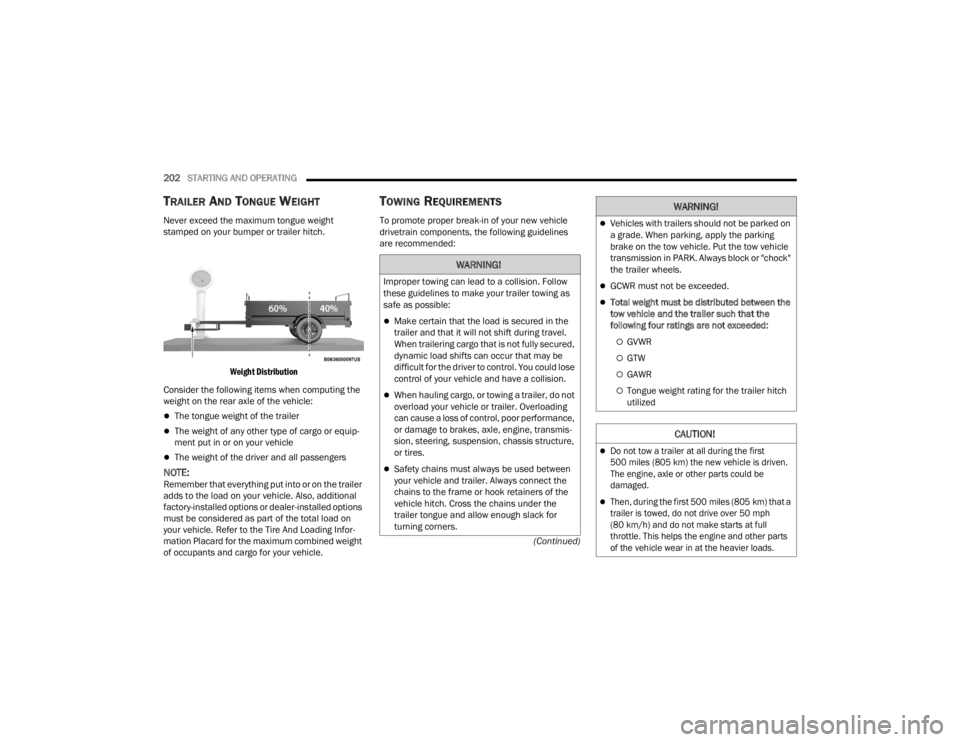
TRAILER AND TONGUE WEIGHT
Never exceed the maximum tongue weight
stamped on your bumper or trailer hitch.
Weight Distribution
Consider the following items when computing the
weight on the rear axle of the vehicle:
The tongue weight of the trailer
The weight of any other type of cargo or equip -
ment put in or on your vehicle
The weight of the driver and all passengers
NOTE:Remember that everything put into or on the trailer
adds to the load on your vehicle. Also, additional
factory-installed options or dealer-installed options
must be considered as part of the total load on
your vehicle. Refer to the Tire And Loading Infor -
mation Placard for the maximum combined weight
of occupants and cargo for your vehicle.
TOWING REQUIREMENTS
To promote proper break-in of your new vehicle
drivetrain components, the following guidelines
are recommended:
WARNING!
Improper towing can lead to a collision. Follow
these guidelines to make your trailer towing as
safe as possible:
Make certain that the load is secured in the
trailer and that it will not shift during travel.
When trailering cargo that is not fully secured,
dynamic load shifts can occur that may be
difficult for the driver to control. You could lose
control of your vehicle and have a collision.
When hauling cargo, or towing a trailer, do not
overload your vehicle or trailer. Overloading
can cause a loss of control, poor performance,
or damage to brakes, axle, engine, transmis -
sion, steering, suspension, chassis structure,
or tires.
Safety chains must always be used between
your vehicle and trailer. Always connect the
chains to the frame or hook retainers of the
vehicle hitch. Cross the chains under the
trailer tongue and allow enough slack for
turning corners.
Vehicles with trailers should not be parked on
a grade. When parking, apply the parking
brake on the tow vehicle. Put the tow vehicle
transmission in PARK. Always block or "chock"
the trailer wheels.
GCWR must not be exceeded.
Total weight must be distributed between the
tow vehicle and the trailer such that the
following four ratings are not exceeded:
GVWR
GTW
GAWR
Tongue weight rating for the trailer hitch
utilized
CAUTION!
Do not tow a trailer at all during the first
500 miles (805 km) the new vehicle is driven.
The engine, axle or other parts could be
damaged.
Then, during the first 500 miles (805 km) that a
trailer is towed, do not drive over 50 mph
(80 km/h) and do not make starts at full
throttle. This helps the engine and other parts
of the vehicle wear in at the heavier loads.
WARNING!
23_JT_OM_EN_USC_t.book Page 202
Page 210 of 448
208STARTING AND OPERATING
3. After all bolts and nuts have been removed, pull the side step assembly off of the vehicle.
4. To reinstall the side steps align the studs to the body side holes and fasten all nuts on all four
brackets. Then secure all four bolts to the
underbody. Repeat the reassembly procedure
for the other side.
Bumper End Cap Removal — If Equipped
The end caps on your vehicle’s front bumper can
be removed by following the steps below:
NOTE:Bumper end caps are removable on steel bumpers
only.
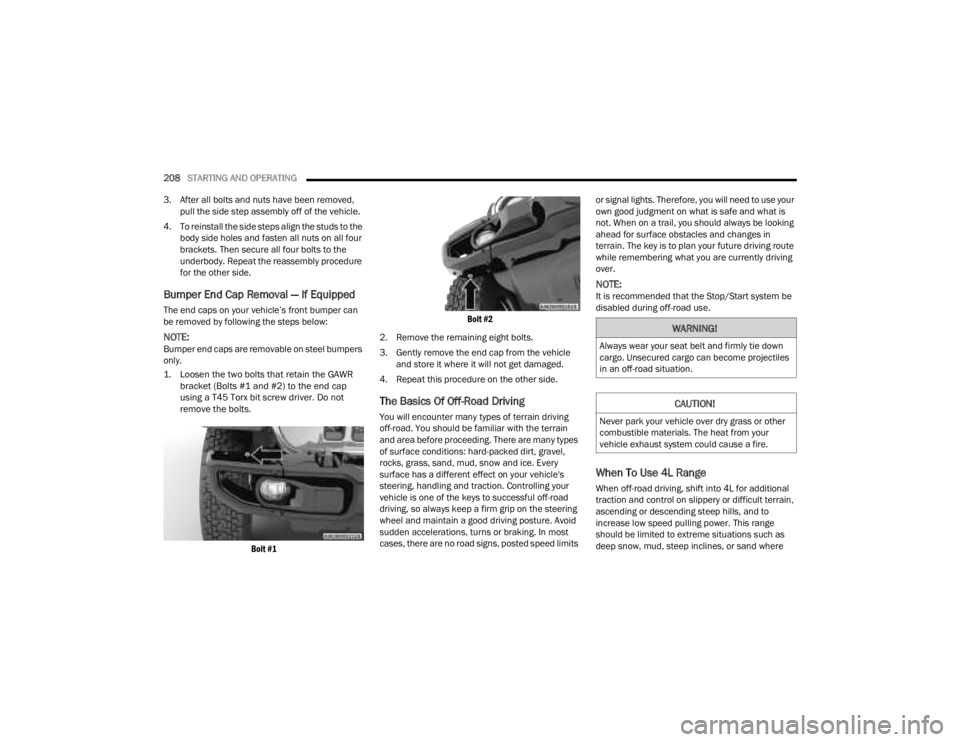
1. Loosen the two bolts that retain the GAWR bracket (Bolts #1 and #2) to the end cap
using a T45 Torx bit screw driver. Do not
remove the bolts.
Bolt #1 Bolt #2
2. Remove the remaining eight bolts.
3. Gently remove the end cap from the vehicle and store it where it will not get damaged.
4. Repeat this procedure on the other side.
The Basics Of Off-Road Driving
You will encounter many types of terrain driving
off-road. You should be familiar with the terrain
and area before proceeding. There are many types
of surface conditions: hard-packed dirt, gravel,
rocks, grass, sand, mud, snow and ice. Every
surface has a different effect on your vehicle's
steering, handling and traction. Controlling your
vehicle is one of the keys to successful off-road
driving, so always keep a firm grip on the steering
wheel and maintain a good driving posture. Avoid
sudden accelerations, turns or braking. In most
cases, there are no road signs, posted speed limits or signal lights. Therefore, you will need to use your
own good judgment on what is safe and what is
not. When on a trail, you should always be looking
ahead for surface obstacles and changes in
terrain. The key is to plan your future driving route
while remembering what you are currently driving
over.
NOTE:It is recommended that the Stop/Start system be
disabled during off-road use.
When To Use 4L Range
When off-road driving, shift into 4L for additional
traction and control on slippery or difficult terrain,
ascending or descending steep hills, and to
increase low speed pulling power. This range
should be limited to extreme situations such as
deep snow, mud, steep inclines, or sand where
WARNING!
Always wear your seat belt and firmly tie down
cargo. Unsecured cargo can become projectiles
in an off-road situation.
CAUTION!
Never park your vehicle over dry grass or other
combustible materials. The heat from your
vehicle exhaust system could cause a fire.
23_JT_OM_EN_USC_t.book Page 208
Page 216 of 448
214
MULTIMEDIA
UCONNECT SYSTEMS
For detailed information about your Uconnect
4C/4C NAV With 8.4-inch Display system, refer to
your Uconnect Owner’s Manual Supplement.
NOTE:Uconnect screen images are for illustration
purposes only and may not reflect exact software
for your vehicle.
CYBERSECURITY
Depending on applicability, your vehicle may be
able to send or receive information from a wired or
wireless network. This information allows systems
and features in your vehicle to function properly.Your vehicle may be equipped with certain security
features to reduce the risk of unauthorized and
unlawful access to vehicle systems and wireless
communications. Vehicle software technology
continues to evolve over time and FCA US LLC,
working with its suppliers, evaluates and takes
appropriate steps as needed. As always, if you
experience unusual behavior, contact an
authorized dealer immediately, Ú
page 428, or
refer to your Uconnect Owner’s Manual
Supplement for additional contact information.
The risk of unauthorized and unlawful access to
your vehicle systems may still exist, even if the
most recent version of vehicle software (such as
Uconnect software) is installed.
NOTE:To help further improve user experience, features,
stability, etc., and minimize the potential risk of a
security breach, vehicle owners should routinely
check www.driveuconnect.com (US Residents) or
www.driveuconnect.ca (Canadian Residents) to
learn about available Uconnect software updates.
WARNING!
ONLY insert trusted media devices/compo -
nents into your vehicle. Media of unknown
origin could possibly contain malicious soft -
ware, and if installed in your vehicle, it may
increase the possibility for vehicle systems to
be breached.
As always, if you experience unusual vehicle
behavior, contact an authorized dealer imme -
diately.
23_JT_OM_EN_USC_t.book Page 214
Page 234 of 448
232MULTIMEDIA
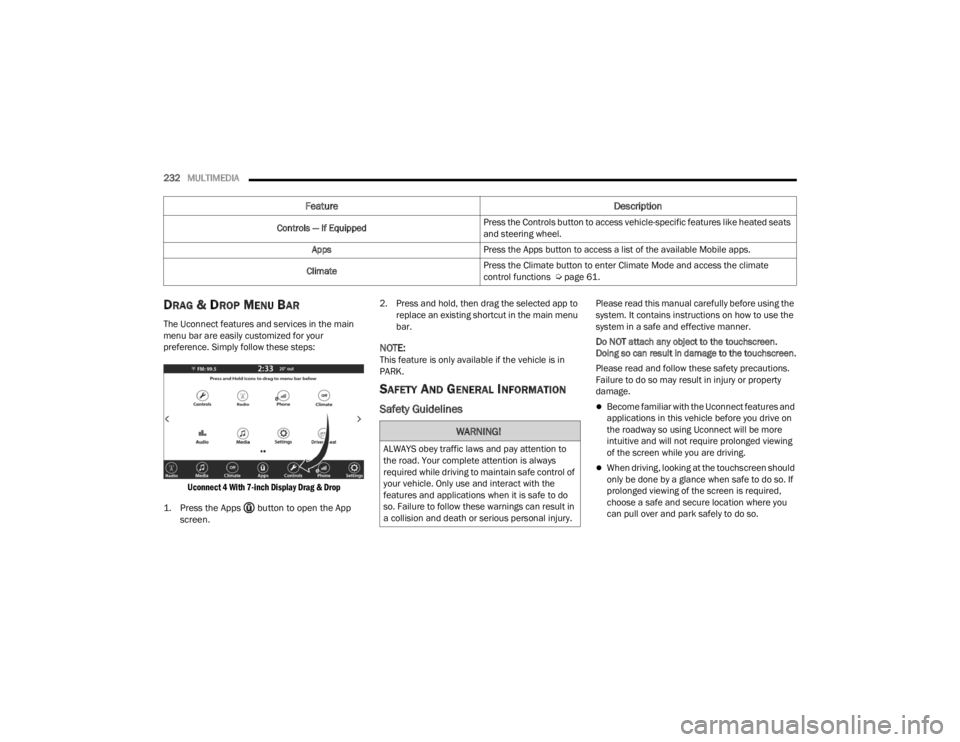
DRAG & DROP MENU BAR
The Uconnect features and services in the main
menu bar are easily customized for your
preference. Simply follow these steps:
Uconnect 4 With 7-inch Display Drag & Drop
1. Press the Apps button to open the App screen.
2. Press and hold, then drag the selected app to
replace an existing shortcut in the main menu
bar.
NOTE:This feature is only available if the vehicle is in
PARK.
SAFETY AND GENERAL INFORMATION
Safety Guidelines
Please read this manual carefully before using the
system. It contains instructions on how to use the
system in a safe and effective manner.
Do NOT attach any object to the touchscreen.
Doing so can result in damage to the touchscreen.
Please read and follow these safety precautions.
Failure to do so may result in injury or property
damage.
Become familiar with the Uconnect features and
applications in this vehicle before you drive on
the roadway so using Uconnect will be more
intuitive and will not require prolonged viewing
of the screen while you are driving.
When driving, looking at the touchscreen should
only be done by a glance when safe to do so. If
prolonged viewing of the screen is required,
choose a safe and secure location where you
can pull over and park safely to do so.
Feature Description
Controls — If EquippedPress the Controls button to access vehicle-specific features like heated seats
and steering wheel.
Apps Press the Apps button to access a list of the available Mobile apps.
Climate Press the Climate button to enter Climate Mode and access the climate
control functions Ú
page 61.
WARNING!
ALWAYS obey traffic laws and pay attention to
the road. Your complete attention is always
required while driving to maintain safe control of
your vehicle. Only use and interact with the
features and applications when it is safe to do
so. Failure to follow these warnings can result in
a collision and death or serious personal injury.
23_JT_OM_EN_USC_t.book Page 232
Page 258 of 448
256MULTIMEDIA
Android Auto™ allows you to use your voice to
interact with its best-in-class speech technology
through your vehicle’s voice recognition system,
and use your smartphone’s data plan to project
your Android™-powered smartphone and a
number of its apps onto your Uconnect
touchscreen. Connect your Android™ 6.0 or higher
to one of the media USB ports, using the
factory-provided USB cable, and press the new
Android Auto™ icon that replaces your Phone icon
on the main menu bar to begin Android Auto™.
Push and hold the VR button on the steering wheel,
or press and hold the Microphone icon within
Android Auto™, to activate its VR, which recognizes
natural voice commands, to use a list of your
smartphone’s features:
Maps
Music
Phone
Text Messages
Additional Apps
NOTE:
To use Android Auto™ on your car display, you’ll
need an Android™ phone running Android™ 6.0
or higher, an active data plan, and the Android
Auto™ app.
To wirelessly use Android Auto™ on your car
display, you need a compatible Android™ smart -
phone with an active data plan. You can check which smartphones are compatible at g.co/
androidauto/requirements.
Android™ is a trademark of Google Inc.
APPLE CARPLAY®
Use this QR code to access your
digital experience.
Uconnect works seamlessly with
Apple CarPlay®, the smarter,
more secure way to use your
iPhone® in the car, and stay
focused on the road. Use your
Uconnect Touchscreen display, the vehicle's knobs
and controls, and your voice with Siri to get access
to Apple Music®, Maps, Messages, and more.
NOTE:Feature availability depends on your carrier and
mobile phone manufacturer. Some Apple
CarPlay® features may or may not be available in
every region and/or language.
To use Apple CarPlay®, make sure you are using
iPhone® 5 or later, have Siri enabled in Settings,
ensure your iPhone® is unlocked for the very first
connection only, and then use the following
procedure:
1. Connect your iPhone® to one of the media USB ports in your vehicle.
NOTE:Be sure to use the factory-provided Lightning cable
that came with your phone, as aftermarket cables
may not work.
2. Once the device is connected and recognized, the Phone icon on the drag & drop menu bar
changes to the Apple CarPlay® Icon.
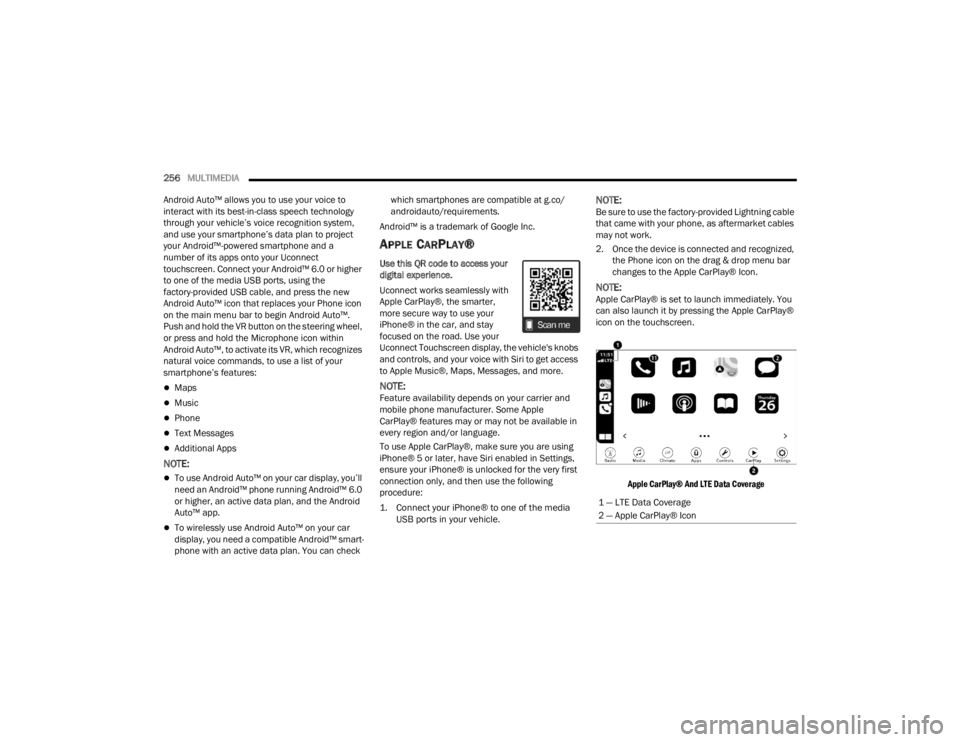
NOTE:Apple CarPlay® is set to launch immediately. You
can also launch it by pressing the Apple CarPlay®
icon on the touchscreen.
Apple CarPlay® And LTE Data Coverage
1 — LTE Data Coverage
2 — Apple CarPlay® Icon
23_JT_OM_EN_USC_t.book Page 256
Page 263 of 448
MULTIMEDIA261
Edit/Edit Profile:
To manage the details of your SiriusXM
Guardian™ account, such as your contact infor -
mation, password and SiriusXM Guardian™ PIN,
click on the Edit/Edit Profile button to access
the details of your account.
Connected Services Status:
This statement will indicate your SiriusXM
Guardian™-equipped vehicle.
Remote Commands:
For vehicles with an active SiriusXM Guardian™
subscription, press one of these icons and enter
your four-digit SiriusXM Guardian™ Security PIN
to remotely start (if equipped), lock/unlock
doors or sound the horn and flash the lights.
Editing Your Notifications
Notifications are an important element of your
SiriusXM Guardian™ account. For example, any
time you use your remote services (such as
Remote Door Unlock), you can elect to receive a
text message, push notification, and/or E-mail to
notify you of the event. To set up the notifications,
please follow these instructions.
1. Log on to your Owner’s Account at
https:// www.mopar.com/en-us.html (US Residents)
and select “Dashboard”, or www.mopar.ca
(Canadian Residents), select “My Vehicle”
and then “Dashboard”.
2. Click the Edit/Edit Profile button.
3. Once there, select “SiriusXM Guardian™”
where you can edit Notification Preferences.
4. You can enter a mobile phone and/or email address to notify you, and you can customize
the types of messages.
USING SIRIUSXM GUARDIAN™
SOS Call — If Equipped
Access To Emergency Services At The Push Of A
Button SiriusXM Guardian™ In-Vehicle Assistance
Features
With SiriusXM Guardian™, your vehicle has
onboard assistance features located on the
rearview mirror or overhead console designed to
enhance your driving experience if you should ever
need assistance or support.
Description
SOS Call offers a convenient way to get in contact
with a SiriusXM Guardian™ Customer Care agent
in the event of an emergency. When the
connection between the vehicle and the live agent
is made, your vehicle will automatically transmit
location information. In the event of a minor
collision, medical or any other emergency, press
the SOS button to be connected to a call center
agent who can send emergency assistance to your
vehicle’s location.
NOTE:Certain SiriusXM Guardian™ connected services
are dependent on an operational Uconnect
system, cellular network availability that is
compatible with the device in your vehicle, and
GPS network availability. Not all features of
SiriusXM Guardian™ are available everywhere at
all times, particularly in remote or enclosed areas.
WARNING!
Some SiriusXM Guardian™ connected services,
including SOS Call and Roadside Assistance
Call, will NOT work without a network connection
compatible with your device.
Center Light Status Description
Off
No call activated
Green Active call in progress Red System error
5
23_JT_OM_EN_USC_t.book Page 261
Page 266 of 448

264MULTIMEDIA
In the event vehicle occupants are unable to
speak, emergency services will be dispatched
based on the last known GPS coordinates.
SiriusXM Guardian™ connected services are
dependent upon an operative telematics
device, a cellular connection, navigation map
data, and GPS satellite reception, which can
limit the ability to reach the response center or
reach emergency support.
Terms of service of the Uconnect and the
SiriusXM Guardian™ subscriber agreement
apply. See terms of services for complete
service limitation.
Remote Commands
On the Remote Commands screen, you have
access to several vehicle features that can be
controlled remotely from your mobile device. These
features include locking/unlocking, remote
starting, and activating the horn and lights of the
vehicle. Remote Commands lets you send a request to your
vehicle in one of three ways:
Anywhere using your mobile device and Vehicle
Branded App
From your computer on the Owner’s Site (not
available on all functions)
Contacting SiriusXM Guardian™ Customer Care
(not available on all functions)
Using A Remote Command Through Your Mobile
Device And The Vehicle Branded App
1. Press the desired Remote Command icon on your mobile device.
2. A pop-up screen will appear asking for your SiriusXM Guardian™ Security PIN (this is the
same four-digit code established when you
activated your SiriusXM Guardian™ connected
services). Enter the SiriusXM Guardian™
Security PIN on the keypad.
3. It may take 30 seconds or more for the command to go through to your vehicle.
4. A message will let you know if the command was received by your vehicle. Using A Remote Command Through Your Owner’s
Site
1. Log on to your Owner’s Site using the username and password you used when
activating your SiriusXM Guardian™
connected services in your vehicle.
NOTE:If you forgot your username or password, links are
provided on the website to help you retrieve them.
2. If you have more than one vehicle registered into your Owner’s Site, select the vehicle you
want to send the command to by clicking on its
image along the top.
3. On your dashboard, you will see remote commands. Press the desired icon to activate
that feature.
4. You will then be asked to enter your SiriusXM Guardian™ Security PIN (this is the same
four-digit code established when you activated
your SiriusXM Guardian™ connected services).
Please enter your SiriusXM Guardian™
Security PIN.
5. A message will appear on the screen to let you know if the command was received by your
vehicle.
Lock
Press this button to
lock your vehicle.
Vehicle Start Press this button to
start your vehicle.
Horn & Lights Press this button to
sound the horn and activate your lights.
Unlock Press this button to
unlock your vehicle.
Cancel Vehicle Start Press this button to
cancel remote start.
23_JT_OM_EN_USC_t.book Page 264
Page 267 of 448

MULTIMEDIA265
Contacting SiriusXM Guardian™ Customer Care
(for example, in case of an accidental lock-out):
1. Contact SiriusXM Guardian™ Customer Care if you are unable to lock your vehicle through
the Vehicle Branded App or your key fob.
2. For security purposes, the SiriusXM Guardian™ Customer Care agent will verify
your identity by asking for your four-digit
SiriusXM Guardian™ Security PIN.
3. After providing your SiriusXM Guardian™ Security PIN, you can ask them to perform a
remote command.
NOTE:Anyone with access to your PIN may request
Remote Door Lock/Unlock. It is your responsibility
to protect your PIN appropriately.
Remote Door Lock/Unlock
Description
The Remote Door Lock/Unlock feature provides you
the ability to lock or unlock the door on your vehicle
without the keys and from virtually any distance.
Working Vehicle Conditions
The vehicle must in PARK or at a standstill.
The vehicle must be in an open area with cell
tower reception.
Your mobile device must have a cellular or Wi-Fi
connection. Requirements
Vehicle must be properly equipped with
SiriusXM Guardian™.
Vehicle must have an operable LTE (voice/data)
or 4G (data) network connection. If using the
Vehicle Branded App to command your vehicle,
your device must be compatible and be
connected to an operable LTE (voice/data) or
4G (data) network connection.
Vehicle must be registered with SiriusXM
Guardian™ and have an active subscription that
includes the applicable feature.
An ignition cycle is required for some remote
commands, such as Remote Vehicle Start and
Remote Door Lock/Unlock if following a Remote
Horn & Lights activation.
Your Remote Door Lock/Unlock request will not
be processed if the vehicle is in motion, the igni
-
tion key is on or during an emergency call.
NOTE:All other remote services should be performed via
your Owner’s Site or through the Vehicle Branded
App on your compatible device.
Remote Vehicle Start
Description
The Remote Vehicle Start feature provides you with
the ability to start the engine on your vehicle
without the keys and from virtually any distance.
Once started, the preset climate controls in your
vehicle can warm up or cool down the interior.
You can also send a command to turn off an
engine that has been started using Remote Vehicle
Start. After 15 minutes, if you have not entered
your vehicle with the key, the engine will shut off
automatically.
This remote function requires your vehicle to be
equipped with a factory-installed Remote Start
system.
You can set up push notifications every time a
command is sent to activate or cancel Remote
Start.
Working Vehicle Conditions
The vehicle must be off or in ACC mode.
The vehicle has been started with the key fob
within the last 14 days.
The vehicle must be in PARK or at a standstill.
The vehicle’s security system has been armed
and not triggered since the last vehicle start.
5
23_JT_OM_EN_USC_t.book Page 265