radio JEEP GRAND CHEROKEE 2013 Owner handbook (in English)
[x] Cancel search | Manufacturer: JEEP, Model Year: 2013, Model line: GRAND CHEROKEE, Model: JEEP GRAND CHEROKEE 2013Pages: 408, PDF Size: 3.21 MB
Page 95 of 408
PrimaryAlternate (s)
send
set up phone settings or
phone set up
transfer call
Uconnect® Tutorial
voice training
work
yes
VOICE COMMAND — IF
EQUIPPED
Voice Command System Operation
The Uconnect® Voice Command sys-
tem allows you to control your AM,
FM radio, disc player, USB Mass
Storage Class device, iPod® family of
devices, Bluetooth® Streaming Audio
device, and a memo recorder.
NOTE:
Take care to speak into the Voice Interface
System as calmly and normally as possible.
The ability of the Voice Interface System to
recognize user voice commands may be
negatively affected by rapid speaking or a
raised voice level.
WARNING!
Any voice commanded system should be
used only in safe driving conditions following
all applicable laws. Your attention should be
focused on safely operating the vehicle. Fail-
ure to do so may result in a collision causing
serious injury or death.
When you press the Voice Command
but-
ton, you will hear a beep. The beep is your
signal to give a command.
NOTE:
If you do not say a command within a few
seconds, the system will present you with a
list of options. If you ever wish to interrupt the system while it
lists options, press the Voice Command
button, listen for the beep, and say your
command.
Pressing the Voice Command
button while
the system is speaking is known as “barging in.”
The system will be interrupted, and after the
beep, you can add or change commands. This
will become helpful once you start to learn the
options.
NOTE:
At any time, you can say the words “Can-
cel”, “Help” or “Main Menu”.
These commands are universal and can be
used from any menu. All other commands can
be used depending upon the active application.
When using this system, you should speak
clearly and at a normal speaking volume.
The system will best recognize your speech if
the windows are closed, and the heater/air
conditioning fan is set to low.
At any point, if the system does not recognize
one of your commands, you will be prompted to
repeat it.
91
Page 96 of 408
To hear the first available Menu, press the Voice
Commandbutton and say “Help” or “Main
Menu”.
CommandsThe Voice Command system understands two
types of commands. Universal commands are
available at all times. Local commands are
available if the supported radio mode is active.
Changing The Volume
1. Start a dialogue by pressing the Voice Com-
mand
button.
2. Say a command (e.g., “Help”).
3. Use the ON/OFF VOLUME rotary knob to
adjust the volume to a comfortable level while
the Voice Command system is speaking.
Please note the volume setting for Voice Com-
mand is different than the audio system.
Main Menu
Start a dialogue by pressing the Voice Com-
mand
button. You may say “Main Menu” to
switch to the main menu. In this mode, you can say the following com-
mands:
•
“Radio AM” (to switch to the radio AM mode)
• “Radio FM” (to switch to radio FM mode)
• “Disc” (to switch to the disc mode)
• “USB” (to switch to USB mode)
•
“Bluetooth Streaming” (to switch to Bluetooth®
Streaming mode)
• “Memo” (to switch to the memo recorder)
• “System Setup” (to switch to system setup)
Radio AM (Or Radio Long Wave Or Radio
Medium Wave — If Equipped)
To switch to the AM band, say “AM” or “Radio
AM”. In this mode, you may say the following
commands:
• “Frequency #” (to change the frequency)
• “Next Station” (to select the next station)
• “Previous Station” (to select the previous
station)
• “Menu Radio” (to switch to the radio menu)
• “Main Menu” (to switch to the main menu) Radio FM
To switch to the FM band, say “FM” or “Radio
FM”. In this mode, you may say the following
commands:
•
“Frequency #” (to change the frequency)
• “Next Station” (to select the next station)
• “Previous Station” (to select the previous
station)
• “Menu Radio” (to switch to the radio menu)
• “Main Menu” (to switch to the main menu)
Disc Mode
To switch to the disc mode, say “Disc”. In this
mode, you may say the following commands:
• “Track” (#) (to change the track)
• “Next Track” (to play the next track)
• “Previous Track” (to play the previous track)
• “Main Menu” (to switch to the main menu)
92
Page 102 of 408
NOTE:
Once a heat setting is selected, heat will be
felt within two to five minutes.
When the HIGH-level setting is selected, the
heater will provide a boosted heat level during
the first four minutes of operation. Then, the
heat output will drop to the normal HIGH-level. If
the HIGH-level setting is selected, the system
will automatically switch to LOW-level after ap-
proximately 60 minutes of continuous opera-
tion. At that time, the number of illuminated
LEDs changes from two to one, indicating the
change. The LOW-level setting will turn OFF
automatically after approximately 45 minutes.
Ventilated Seats — If EquippedOn some models, both the driver and passen-
ger seats are ventilated. Located in the seat
cushion and seatback are small fans that draw
the air from the passenger compartment and
pull air through fine perforations in the seat
cover to help keep the driver and front passen-
ger cooler in higher ambient temperatures.There are two ventilated seat soft—keys that
allow the driver and passenger to operate the
seats independently. The ventilated seat soft—
keys are located in the radio screen.
The ventilated seat soft—keys are used to
control the speed of the fans located in the seat.
Press the soft—keys once to choose HIGH,
press it a second time to choose LOW. Pressing
the soft—key a third time will turn the ventilated
seat OFF.
NOTE:
The engine must be running for the venti-
lated seats to operate.
Vehicles Equipped With Remote Start
On models that are equipped with remote start,
the driver’s ventilated seat can be programmed
to come on during a remote start. Refer to
“Remote Starting System — If Equipped” in
“Things To Know Before Starting Your Vehicle”
for further information.
Head RestraintsHead restraints are designed to reduce the risk
of injury by restricting head movement in the
event of a rear-impact. Head restraints should
be adjusted so that the top of the head restraint
is located above the top of your ear.
WARNING!
The head restraints for all occupants must be
properly adjusted prior to operating the ve-
hicle or occupying a seat. Head restraints
should never be adjusted while the vehicle is
in motion. Driving a vehicle with the head
restraints improperly adjusted or removed
could cause serious injury or death in the
event of a collision.
Active Head Restraints — Front Seats
Active Head Restraints are passive, deployable
components, and vehicles with this equipment
cannot be readily identified by any markings, only
through visual inspection of the head restraint.
The head restraint will be split in two halves, with
the front half being soft foam and trim, the back
half being decorative plastic.
98
Page 106 of 408
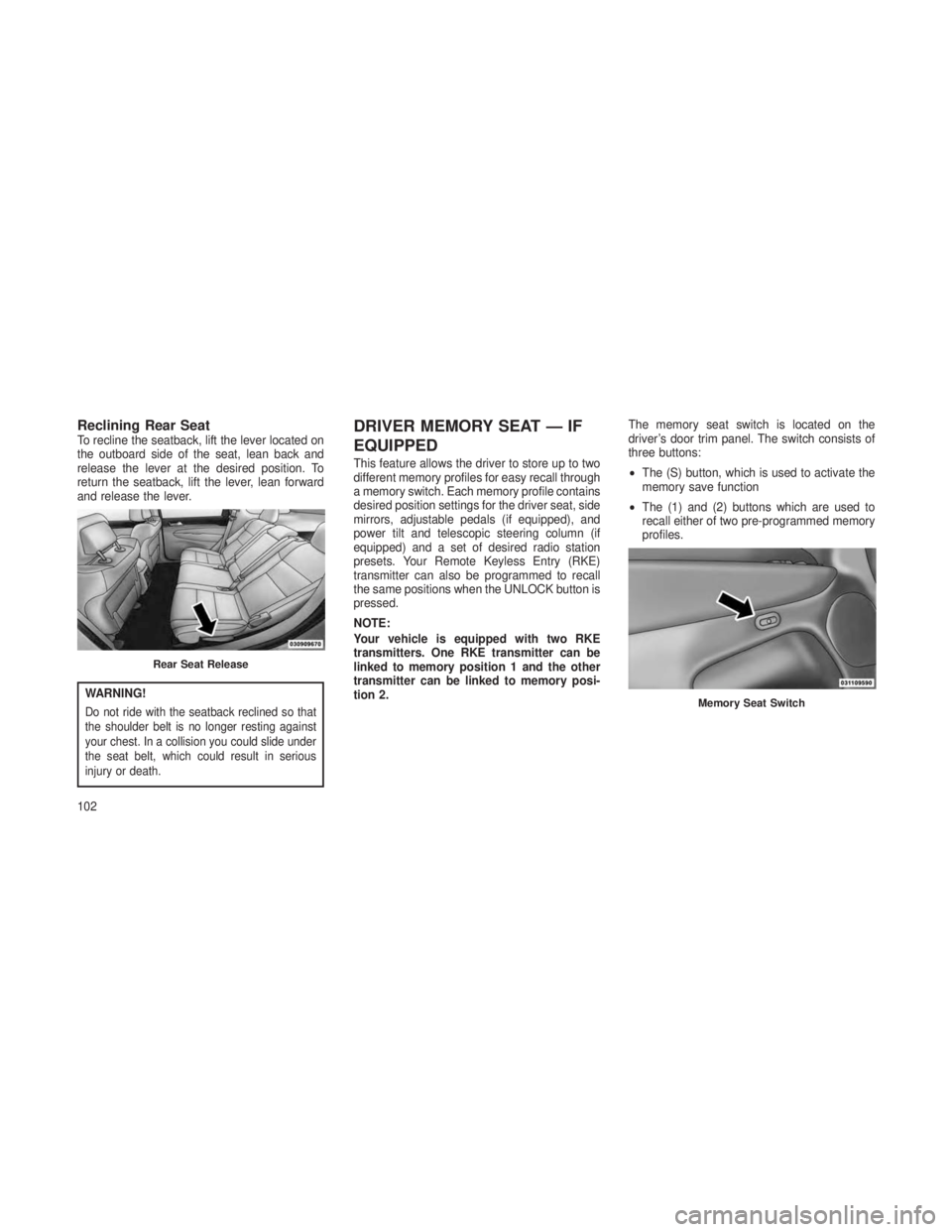
Reclining Rear SeatTo recline the seatback, lift the lever located on
the outboard side of the seat, lean back and
release the lever at the desired position. To
return the seatback, lift the lever, lean forward
and release the lever.
WARNING!
Do not ride with the seatback reclined so that
the shoulder belt is no longer resting against
your chest. In a collision you could slide under
the seat belt, which could result in serious
injury or death.
DRIVER MEMORY SEAT — IF
EQUIPPED
This feature allows the driver to store up to two
different memory profiles for easy recall through
a memory switch. Each memory profile contains
desired position settings for the driver seat, side
mirrors, adjustable pedals (if equipped), and
power tilt and telescopic steering column (if
equipped) and a set of desired radio station
presets. Your Remote Keyless Entry (RKE)
transmitter can also be programmed to recall
the same positions when the UNLOCK button is
pressed.
NOTE:
Your vehicle is equipped with two RKE
transmitters. One RKE transmitter can be
linked to memory position 1 and the other
transmitter can be linked to memory posi-
tion 2.The memory seat switch is located on the
driver’s door trim panel. The switch consists of
three buttons:
•
The (S) button, which is used to activate the
memory save function
• The (1) and (2) buttons which are used to
recall either of two pre-programmed memory
profiles.
Rear Seat Release
Memory Seat Switch
102
Page 107 of 408
Programming The Memory Feature
NOTE:
To create a new memory profile, perform the
following:
Vehicles Equipped With Keyless Enter-N-Go
1. Without pressing the brake pedal, push the
ENGINE START/STOP button and cycle the
ignition to the ON/RUN position (Do not start the
engine).
2. Adjust all memory profile settings to desired
preferences (i.e., seat, side mirror, adjustable
pedals [if equipped], power tilt and telescopic
steering column [if equipped], and radio station
presets).
3. Press and release the S (Set) button on the
memory switch.
4. Within 5 seconds, press and release either
of the memory buttons (1) or (2). The Electronic
Vehicle Information Center (EVIC) will display
which memory position has been set.Vehicles Not Equipped With Keyless
Enter-N-Go
1.
Insert the ignition key fob, and turn the ignition
switch to the ON/RUN position.
2. Adjust all memory profile settings to desired
preferences (i.e., seat, side mirror, adjustable
pedals [if equipped], power tilt and telescopic
steering column [if equipped], and radio station
presets).
3. Press and release the S (Set) button on the
memory switch.
4. Within 5 seconds, press and release either
of the memory buttons (1) or (2). The Electronic
Vehicle Information Center (EVIC) will display
which memory position has been set.
NOTE:
• Memory profiles can be set without the
vehicle in PARK, but the vehicle must be
in PARK to recall a memory profile. •
The Recall Memory with Remote Linked to
Memory feature can be enabled through the
Electronic Vehicle Information Center (EVIC),
refer to “Electronic Vehicle Information Cen-
ter (EVIC)/Customer-Programmable Fea-
tures” in “Understanding Your Instrument
Panel” for further information.
Linking And Unlinking The Remote
Keyless Entry Transmitter To Memory
Your RKE transmitters can be programmed to
recall one of two pre-programmed memory pro-
files by pressing the UNLOCK button on the
RKE transmitter.
NOTE:
Before programming your RKE transmitters
you must select the “Remote Linked to
Memory” feature through the Electronic Vehicle
Information Center (EVIC), refer to “Electronic
Vehicle Information Center (EVIC)/Customer-
Programmable Features” in “Understanding
Your Instrument Panel” for further information.
103
Page 114 of 408
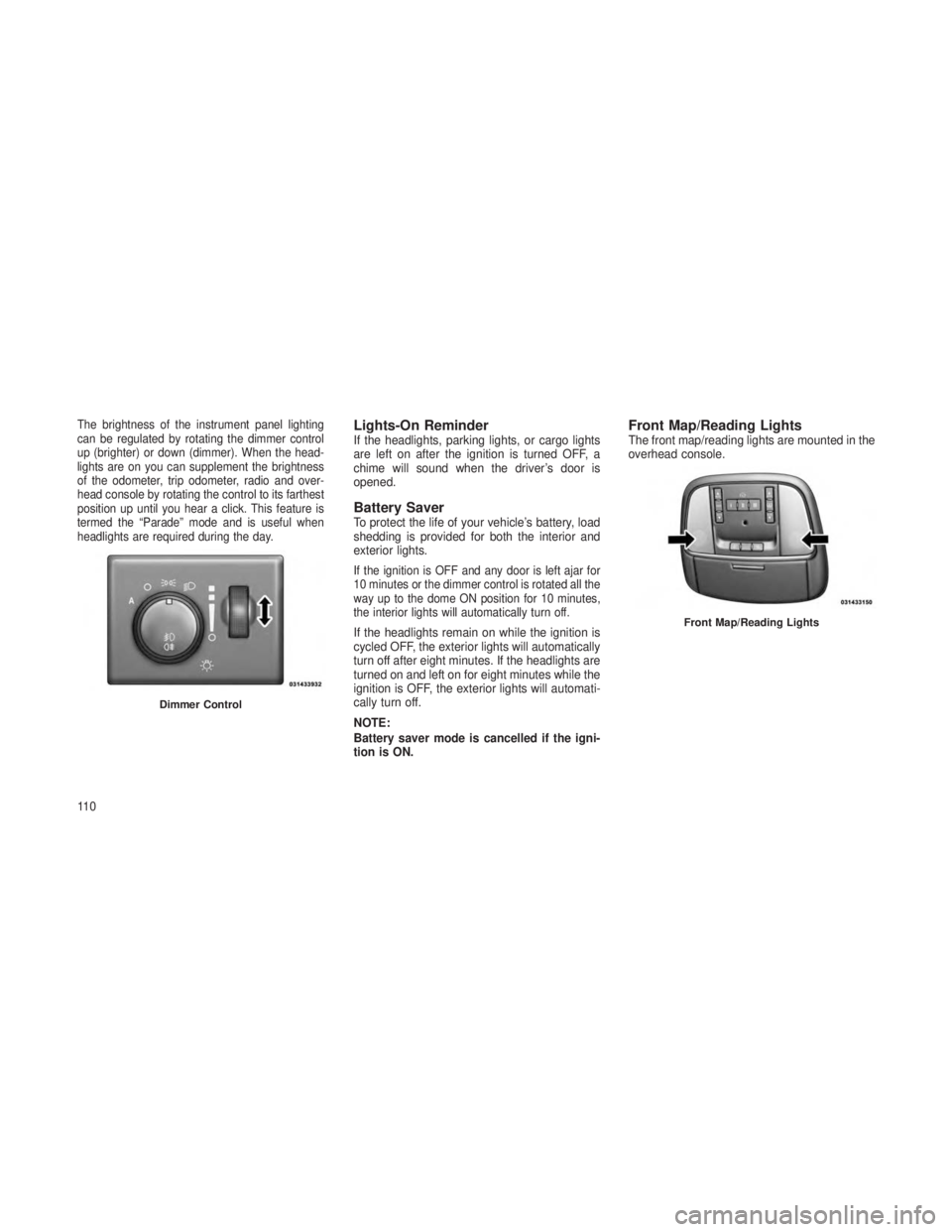
The brightness of the instrument panel lighting
can be regulated by rotating the dimmer control
up (brighter) or down (dimmer). When the head-
lights are on you can supplement the brightness
of the odometer, trip odometer, radio and over-
head console by rotating the control to its farthest
position up until you hear a click. This feature is
termed the “Parade” mode and is useful when
headlights are required during the day.Lights-On ReminderIf the headlights, parking lights, or cargo lights
are left on after the ignition is turned OFF, a
chime will sound when the driver’s door is
opened.
Battery SaverTo protect the life of your vehicle’s battery, load
shedding is provided for both the interior and
exterior lights.
If the ignition is OFF and any door is left ajar for
10 minutes or the dimmer control is rotated all the
way up to the dome ON position for 10 minutes,
the interior lights will automatically turn off.
If the headlights remain on while the ignition is
cycled OFF, the exterior lights will automatically
turn off after eight minutes. If the headlights are
turned on and left on for eight minutes while the
ignition is OFF, the exterior lights will automati-
cally turn off.
NOTE:
Battery saver mode is cancelled if the igni-
tion is ON.
Front Map/Reading LightsThe front map/reading lights are mounted in the
overhead console.
Dimmer Control
Front Map/Reading Lights
11 0
Page 120 of 408
POWER TILT/TELESCOPING
STEERING COLUMN — IF
EQUIPPED
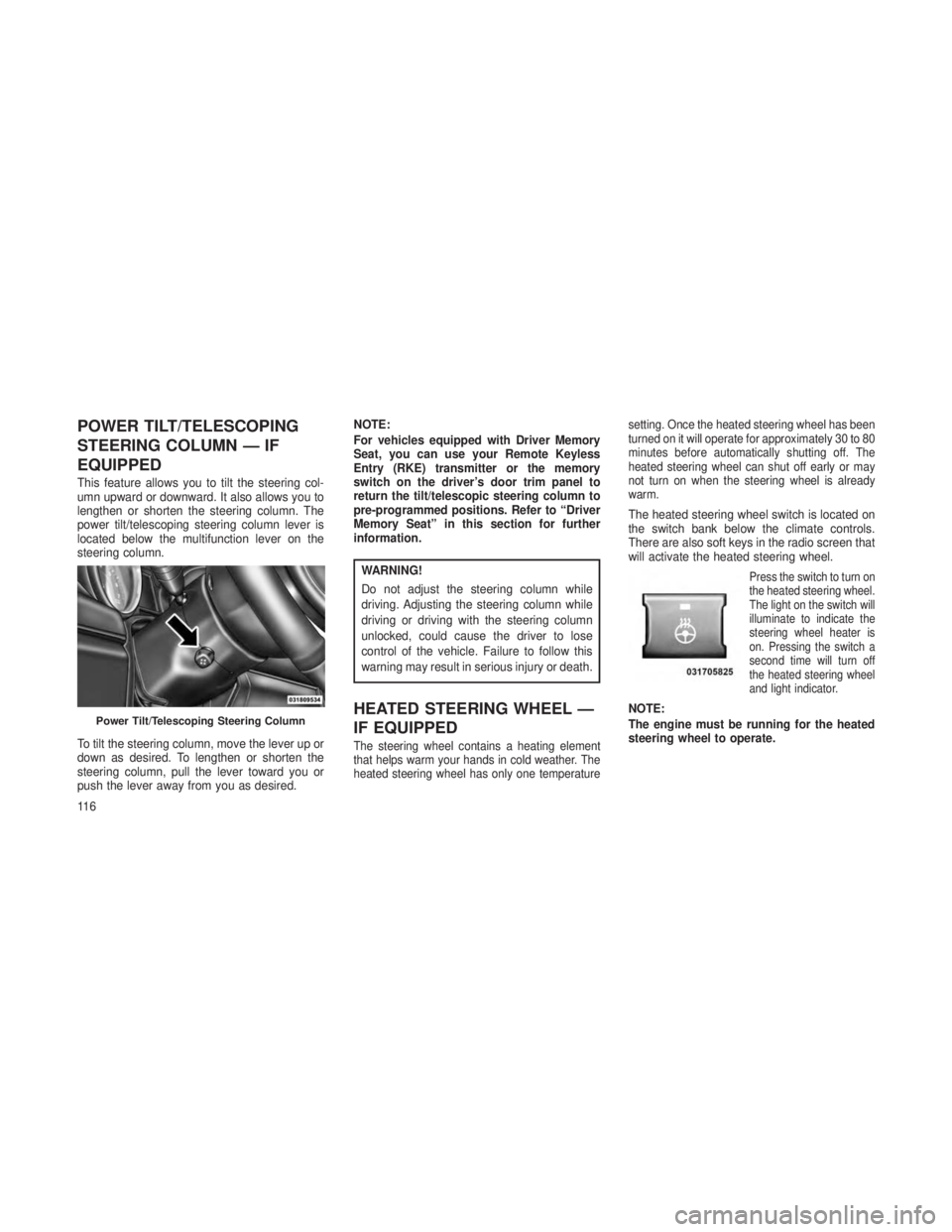
This feature allows you to tilt the steering col-
umn upward or downward. It also allows you to
lengthen or shorten the steering column. The
power tilt/telescoping steering column lever is
located below the multifunction lever on the
steering column.
To tilt the steering column, move the lever up or
down as desired. To lengthen or shorten the
steering column, pull the lever toward you or
push the lever away from you as desired.NOTE:
For vehicles equipped with Driver Memory
Seat, you can use your Remote Keyless
Entry (RKE) transmitter or the memory
switch on the driver’s door trim panel to
return the tilt/telescopic steering column to
pre-programmed positions. Refer to “Driver
Memory Seat” in this section for further
information.
WARNING!
Do not adjust the steering column while
driving. Adjusting the steering column while
driving or driving with the steering column
unlocked, could cause the driver to lose
control of the vehicle. Failure to follow this
warning may result in serious injury or death.
HEATED STEERING WHEEL —
IF EQUIPPED
The steering wheel contains a heating element
that helps warm your hands in cold weather. The
heated steering wheel has only one temperature
setting. Once the heated steering wheel has been
turned on it will operate for approximately 30 to 80
minutes before automatically shutting off. The
heated steering wheel can shut off early or may
not turn on when the steering wheel is already
warm.
The heated steering wheel switch is located on
the switch bank below the climate controls.
There are also soft keys in the radio screen that
will activate the heated steering wheel.
Press the switch to turn on
the heated steering wheel.
The light on the switch will
illuminate to indicate the
steering wheel heater is
on. Pressing the switch a
second time will turn off
the heated steering wheel
and light indicator.
NOTE:
The engine must be running for the heated
steering wheel to operate.Power Tilt/Telescoping Steering Column
11 6
Page 140 of 408
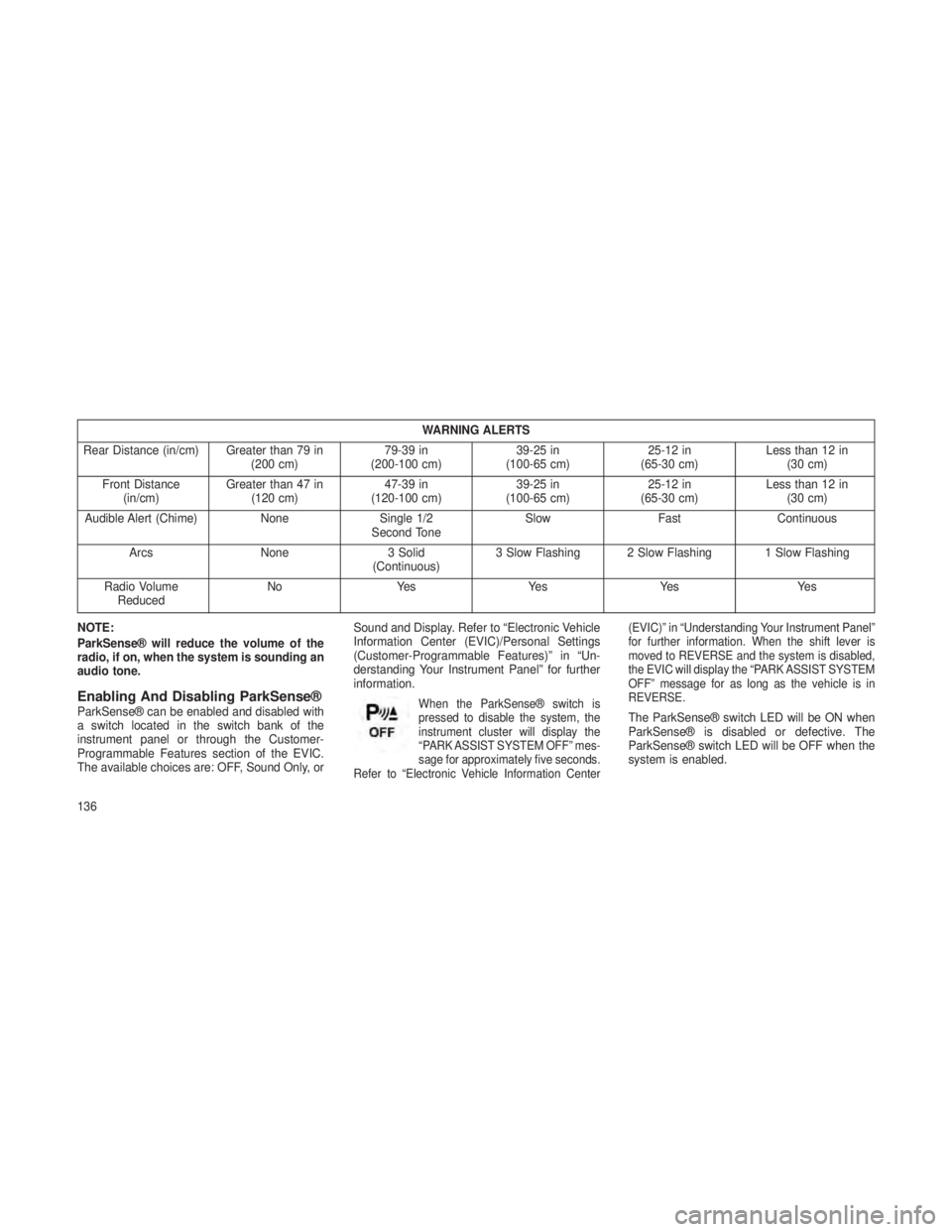
WARNING ALERTS
Rear Distance (in/cm) Greater than 79 in (200 cm)79-39 in
(200-100 cm) 39-25 in
(100-65 cm) 25-12 in
(65-30 cm) Less than 12 in
(30 cm)
Front Distance (in/cm) Greater than 47 in
(120 cm) 47-39 in
(120-100 cm) 39-25 in
(100-65 cm) 25-12 in
(65-30 cm) Less than 12 in
(30 cm)
Audible Alert (Chime) NoneSingle 1/2
Second Tone Slow
FastContinuous
Arcs None3 Solid
(Continuous) 3 Slow Flashing 2 Slow Flashing 1 Slow Flashing
Radio Volume Reduced No
Yes YesYes Yes
NOTE:
ParkSense® will reduce the volume of the
radio, if on, when the system is sounding an
audio tone.
Enabling And Disabling ParkSense®ParkSense® can be enabled and disabled with
a switch located in the switch bank of the
instrument panel or through the Customer-
Programmable Features section of the EVIC.
The available choices are: OFF, Sound Only, or Sound and Display. Refer to “Electronic Vehicle
Information Center (EVIC)/Personal Settings
(Customer-Programmable Features)” in “Un-
derstanding Your Instrument Panel” for further
information.When the ParkSense® switch is
pressed to disable the system, the
instrument cluster will display the
“PARK ASSIST SYSTEM OFF” mes-
sage for approximately five seconds.
Refer to “Electronic Vehicle Information Center (EVIC)” in “Understanding Your Instrument Panel”
for further information. When the shift lever is
moved to REVERSE and the system is disabled,
the EVIC will display the “PARK ASSIST SYSTEM
OFF” message for as long as the vehicle is in
REVERSE.The ParkSense® switch LED will be ON when
ParkSense® is disabled or defective. The
ParkSense® switch LED will be OFF when the
system is enabled.
136
Page 143 of 408
WARNING!(Continued)
detect the ball mount and hitch ball assem-
bly, depending on its size and shape,
giving a false indication that an obstacle is
behind the vehicle.
PARKVIEW® REAR BACK UP
CAMERA — IF EQUIPPED
Your vehicle may be equipped with the
ParkView® Rear Back Up Camera that allows you
to see an on-screen image of the rear surround-
ings of your vehicle whenever the shift lever is put
into REVERSE. The image will be displayed on
the Navigation/Multimedia radio display screen
along with a caution note to “check entire sur-
roundings” across the top of the screen. After five
seconds this note will disappear. The ParkView®
camera is located on the rear of the vehicle above
the rear License plate.
When the vehicle is shifted out of REVERSE,
the rear camera mode is exited and the naviga-
tion or audio screen appears again.
When displayed, static grid lines will illustrate
the width of the vehicle while a dashed center-
line will indicate the center of the vehicle to
assist with aligning to a hitch/receiver. The static
grid lines will show separate zones that will help
indicate the distance to the rear of the vehicle.
The following table shows the approximate dis-
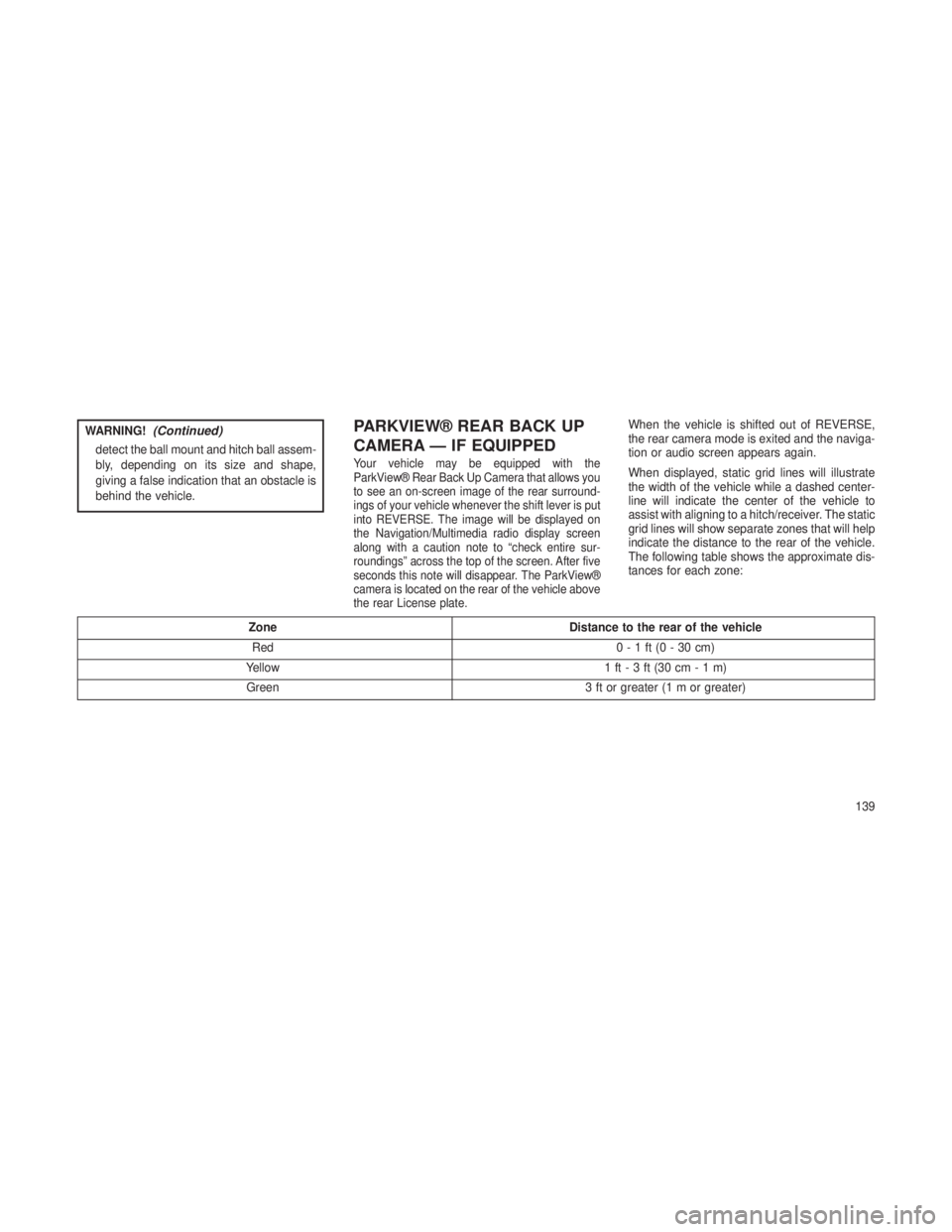
tances for each zone:
ZoneDistance to the rear of the vehicle
Red 0-1ft(0-30cm)
Yellow 1 ft-3ft(30cm-1m)
Green 3 ft or greater (1 m or greater)
139
Page 144 of 408
WARNING!
Drivers must be careful when backing up
even when using the ParkView® Rear Back
Up Camera. Always check carefully behind
your vehicle, and be sure to check for pedes-
trians, animals, other vehicles, obstructions,
or blind spots before backing up. You are
responsible for the safety of your surround-
ings and must continue to pay attention while
backing up. Failure to do so can result in
serious injury or death.
CAUTION!
•To avoid vehicle damage, ParkView®
should only be used as a parking aid. The
ParkView® camera is unable to view every
obstacle or object in your drive path.
(Continued)
CAUTION!(Continued)
•To avoid vehicle damage, the vehicle must
be driven slowly when using ParkView® to
be able to stop in time when an obstacle is
seen. It is recommended that the driver
look frequently over his/her shoulder when
using ParkView®.
NOTE:
If snow, ice, mud, or any foreign substance
builds up on the camera lens, clean the lens,
rinse with water, and dry with a soft cloth. Do
not cover the lens.
Turning ParkView® On Or Off —
With Navigation/Multimedia Radio
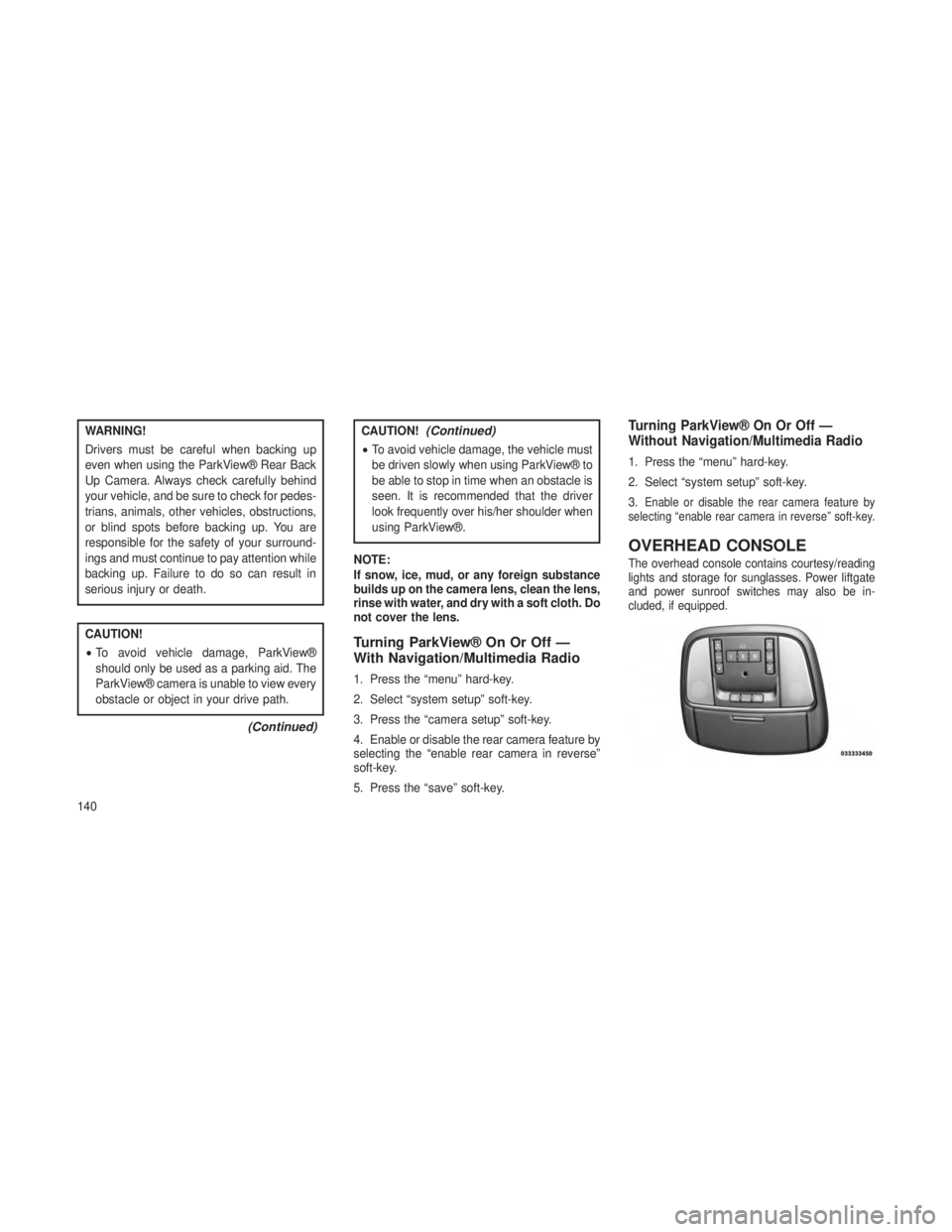
1. Press the “menu” hard-key.
2. Select “system setup” soft-key.
3. Press the “camera setup” soft-key.
4. Enable or disable the rear camera feature by
selecting the “enable rear camera in reverse”
soft-key.
5. Press the “save” soft-key.
Turning ParkView® On Or Off —
Without Navigation/Multimedia Radio
1. Press the “menu” hard-key.
2. Select “system setup” soft-key.
3.
Enable or disable the rear camera feature by
selecting “enable rear camera in reverse” soft-key.
OVERHEAD CONSOLE
The overhead console contains courtesy/reading
lights and storage for sunglasses. Power liftgate
and power sunroof switches may also be in-
cluded, if equipped.
140