radio JEEP RENEGADE 2018 Owner handbook (in English)
[x] Cancel search | Manufacturer: JEEP, Model Year: 2018, Model line: RENEGADE, Model: JEEP RENEGADE 2018Pages: 356, PDF Size: 6.11 MB
Page 114 of 356
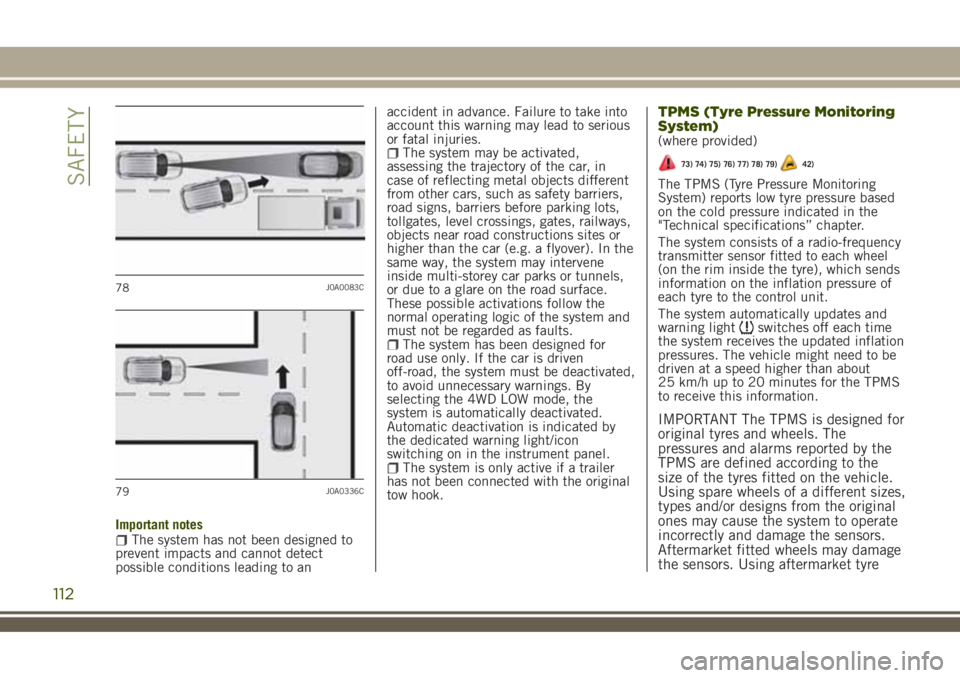
Important notesThe system has not been designed to
prevent impacts and cannot detect
possible conditions leading to anaccident in advance. Failure to take into
account this warning may lead to serious
or fatal injuries.
The system may be activated,
assessing the trajectory of the car, in
case of reflecting metal objects different
from other cars, such as safety barriers,
road signs, barriers before parking lots,
tollgates, level crossings, gates, railways,
objects near road constructions sites or
higher than the car (e.g. a flyover). In the
same way, the system may intervene
inside multi-storey car parks or tunnels,
or due to a glare on the road surface.
These possible activations follow the
normal operating logic of the system and
must not be regarded as faults.
The system has been designed for
road use only. If the car is driven
off-road, the system must be deactivated,
to avoid unnecessary warnings. By
selecting the 4WD LOW mode, the
system is automatically deactivated.
Automatic deactivation is indicated by
the dedicated warning light/icon
switching on in the instrument panel.
The system is only active if a trailer
has not been connected with the original
tow hook.
TPMS (Tyre Pressure Monitoring
System)
(where provided)
73) 74) 75) 76) 77) 78) 79)42)
The TPMS (Tyre Pressure Monitoring
System) reports low tyre pressure based
on the cold pressure indicated in the
"Technical specifications” chapter.
The system consists of a radio-frequency
transmitter sensor fitted to each wheel
(on the rim inside the tyre), which sends
information on the inflation pressure of
each tyre to the control unit.
The system automatically updates and
warning light
switches off each time
the system receives the updated inflation
pressures. The vehicle might need to be
driven at a speed higher than about
25 km/h up to 20 minutes for the TPMS
to receive this information.
IMPORTANT The TPMS is designed for
original tyres and wheels. The
pressures and alarms reported by the
TPMS are defined according to the
size of the tyres fitted on the vehicle.
Using spare wheels of a different sizes,
types and/or designs from the original
ones may cause the system to operate
incorrectly and damage the sensors.
Aftermarket fitted wheels may damage
the sensors. Using aftermarket tyre
78J0A0083C
79J0A0336C
112
SAFETY
Page 253 of 356
88)Incorrect installation of electric and
electronic devices may cause severe
damage to your car. After purchasing your
vehicle, if you wish to install any
accessories (e.g. anti-theft, radio phone,
etc.), go to a Jeep Dealership, which will
suggest the most suitable devices and
advise you whether a higher capacity
battery needs to be installed.
IMPORTANT
4)Used engine oil and oil filters contain
substances which are harmful to the
environment. To change the oil and filters,
it is advisable to contact a Jeep Dealership
5)Used transmission oil contains
substances that may be dangerous for the
environment. It is advisable to contact a
Jeep Dealership to have the fluid changed.
6)Batteries contain substances which are
very dangerous for the environment. For
battery replacement, contact a Jeep
Dealership.
BATTERY RECHARGING
IMPORTANT
IMPORTANT After placing the ignition
device to STOP and having closed the
driver side door, wait at least one
minute before disconnecting the
electrical supply from the battery.
When reconnecting the electrical
supply to the battery, make sure that
the ignition device is in the STOP
position and the driver side door is
closed.
IMPORTANT Charging should be slow
at a low ampere rating for
approximately 24 hours. Charging for a
longer time may damage the battery.
IMPORTANT The cables of the
electrical system must be correctly
reconnected to the battery, i.e. the
positive cable (+) to the positive
terminal and the negative cable (–) to
the negative terminal. The battery
terminals are marked with the positive
(+) and negative (–) symbols, and are
shown on the battery cover. The battery
terminals must also be corrosion-free
and firmly secured to the terminals. If
a "quick-type" battery charger is used
with the battery fitted on the vehicle,before connecting it disconnect both
cables of the battery itself. Do not use
a "quick-type" battery charger to
provide the starting voltage.
VERSIONS WITHOUT
STOP/START SYSTEM
To recharge, proceed as follows:disconnect the terminal from the
negative battery pole;
connect the charger cables to the
battery terminals, observing the polarity;
turn on the charger;when it is recharged, turn the charger
off before disconnecting it from the
battery;
reconnect the negative battery
terminal.
VERSIONS WITH STOP/START
SYSTEM
To recharge, proceed as follows:disconnect the connector A
fig. 202 (pressing the button B) from the
sensor C monitoring the battery
conditions, on the negative pole (–) D of
the battery;
connect the positive cable (+) of the
battery charger to the positive battery
terminal E and the negative cable (–) to
sensor terminal D as shown;
turn on the battery charger. At the end
of the charging process, switch the
251
Page 296 of 356
TIPS, CONTROLS AND
GENERAL INFORMATION
196) 197)
105) 106)
ROAD SAFETY
Learn how to use the various system
functions before setting off.
Read the instructions for the system
carefully before setting off.
RECEPTION CONDITIONS
Reception conditions change constantly
while driving. Reception may be
interfered with by the presence of
mountains, buildings or bridges,
especially when you are far away from
the broadcaster.
IMPORTANT The volume may be
increased when receiving traffic
information and news.
CARE AND MAINTENANCE
Observe the following precautions to
ensure the system is fully operational:
the display lens should not come into
contact with pointed or rigid objects
which could damage its surface; use a
soft, dry anti-static cloth to clean and do
not press.
never use alcohol, petrols and
derivatives to clean the display lens.
Prevent any liquid from entering the
system: this could damage it beyond
repair.
MULTIMEDIA DEVICES
IMPORTANT Some multimedia player
devices may not be compatible with the
Uconnect™system.
Only use devices (e.g. USB flash drives)
from safe sources on the car. Devices
from unknown sources could contain
software infected by viruses which, if
installed on the car, could increase the
vulnerability of the car's electric/
electronic systems to hacking.
ANTITHEFT PROTECTION
The system is equipped with an
anti-theft protection system based on the
exchange of information with the
electronic control unit (Body Computer)
on the vehicle.
This guarantees maximum safety and
prevents the secret code from being
entered after the power supply has been
disconnected.
If the check has a positive outcome, the
system will start to operate, whereas if
the comparison codes are not the same
or if the electronic control unit (Body
Computer) is replaced, the system willask the user to enter the secret code
according to the procedure described in
the paragraph below.
Entering the secret code
(excluding the versions with a Uconnect
7” HD Nav LIVE system)
When the system is switched on, if the
code is requested, the display will show
“Please enter Anti-Theft Code” followed
by the screen showing a keypad to enter
the secret code.
The secret code has four numbers from
0 to 9: to insert the code numbers, rotate
the BROWSE/ENTER dial and press to
confirm.
After entering the fourth digit, the system
begins operating.
If an incorrect code is entered, the
system displays “Incorrect Code” to
notify the user of the need to enter the
correct code.
After the 3 available attempts to enter
the code, the system displays “Incorrect
Code. Radio locked. Wait for
30 minutes”. After the text has
disappeared it is possible to start the
code entering procedure again.
Vehicle radio passport
(excluding the versions with a Uconnect
7” HD Nav LIVE system)
This document certifies ownership of the
294
MULTIMEDIA
Page 297 of 356
system. The vehicle radio passport shows
the system model, serial number and
secret code.
In case you lose the radio passport,
please go to Jeep Assistance Network
with an ID and the car papers.
IMPORTANT Keep the vehicle radio
passport in a safe place so that you
can give the information to the
relevant authorities if the system is
stolen.
IMPORTANT
In the event of a fault, the system must
only be checked and repaired by a Jeep
Dealership.
If the temperature is particularly low, the
display may take a while to reach
optimum brightness.
If the vehicle is stopped for a while and
the external temperature is very high, the
system may go into “thermal protection”
mode, suspending operation until the
radio temperature returns to acceptable
levels.Look at the screen only when it is
necessary and safe. If you need to look at
the screen for a long time, pull over to a
safe place so as not to be distracted
while driving.
Immediately stop using the system in the
event of a fault. Otherwise the system
might be damaged. Contact a Jeep
Dealership as soon as possible to have
the system repaired.
WARNING
196)Follow the safety rules here below:
otherwise serious injuries may occur to the
occupants or the system may be damaged.
197)If the volume is too loud this can be
dangerous. Adjust the volume so that you
can still hear background noises (e.g.
horns, ambulances, police vehicles, etc.).
IMPORTANT
105)Only clean the front panel and the
display with a soft, clean, dry, anti-static
cloth. Cleaning and polishing products
may damage the surface. Do not use
alcohol or similar products to clean the
panel or the display.106)Do not use the display as a base for
supports with suction pads or adhesives
for external navigators or smartphones or
similar devices.
295
Page 299 of 356
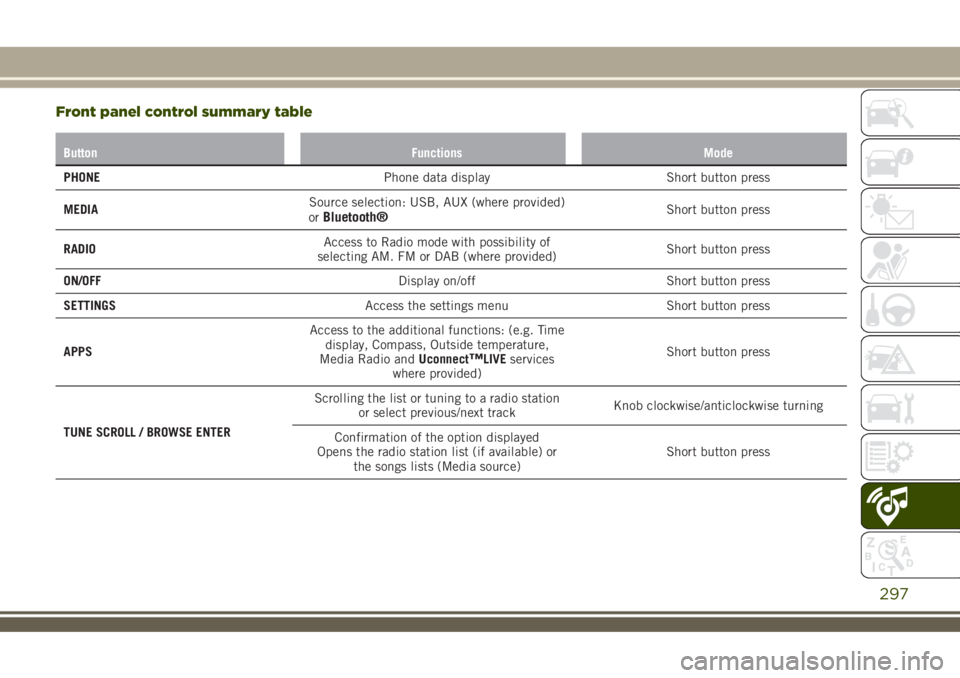
Front panel control summary table
Button Functions Mode
PHONEPhone data display Short button press
MEDIASource selection: USB, AUX (where provided)
or
Bluetooth®Short button press
RADIOAccess to Radio mode with possibility of
selecting AM. FM or DAB (where provided)Short button press
ON/OFFDisplay on/off Short button press
SETTINGSAccess the settings menu Short button press
APPSAccess to the additional functions: (e.g. Time
display, Compass, Outside temperature,
Media Radio andUconnect
™LIVEservices
where provided)Short button press
TUNE SCROLL / BROWSE ENTERScrolling the list or tuning to a radio station
or select previous/next trackKnob clockwise/anticlockwise turning
Confirmation of the option displayed
Opens the radio station list (if available) or
the songs lists (Media source)Short button press
297
Page 303 of 356
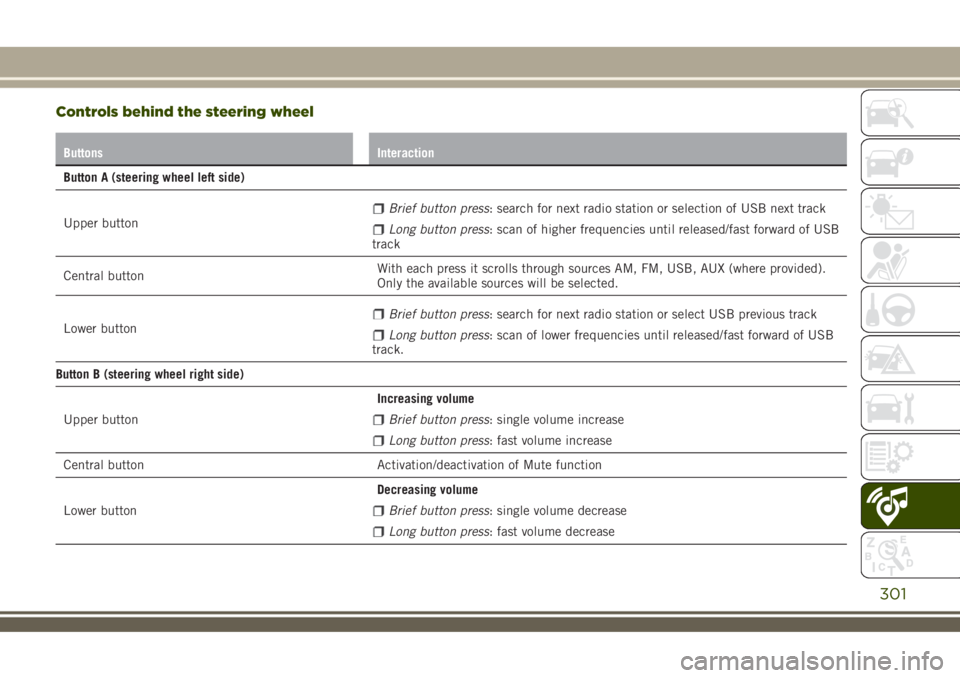
Controls behind the steering wheel
Buttons Interaction
Button A (steering wheel left side)
Upper button
Brief button press: search for next radio station or selection of USB next track
Long button press: scan of higher frequencies until released/fast forward of USB
track
Central buttonWith each press it scrolls through sources AM, FM, USB, AUX (where provided).
Only the available sources will be selected.
Lower button
Brief button press: search for next radio station or select USB previous track
Long button press: scan of lower frequencies until released/fast forward of USB
track.
Button B (steering wheel right side)
Upper buttonIncreasing volume
Brief button press: single volume increase
Long button press: fast volume increase
Central button Activation/deactivation of Mute function
Lower buttonDecreasing volume
Brief button press: single volume decrease
Long button press: fast volume decrease
301
Page 304 of 356
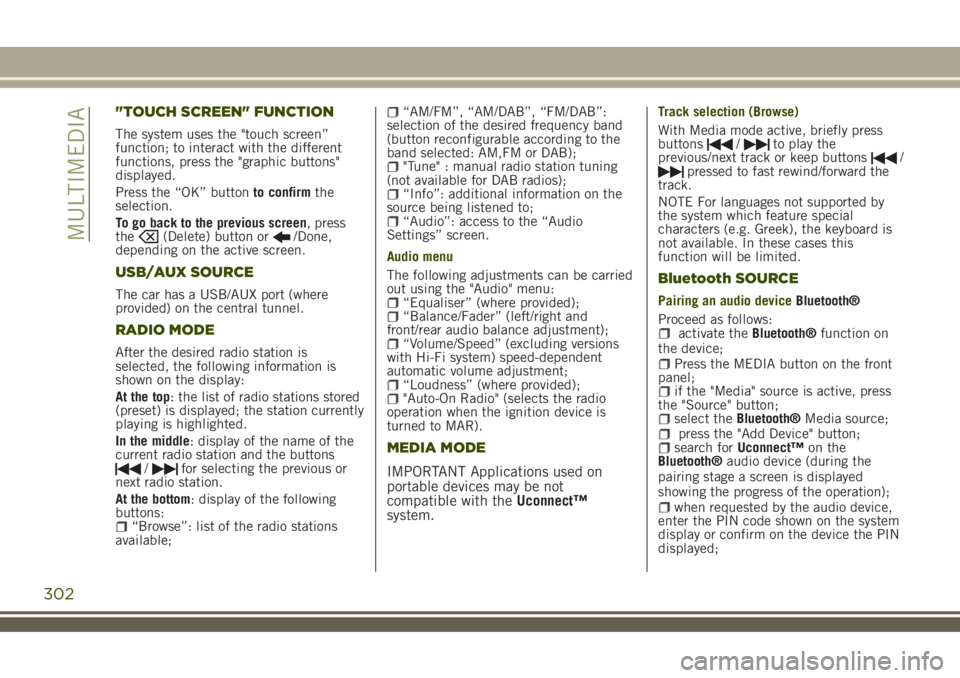
"TOUCH SCREEN" FUNCTION
The system uses the "touch screen”
function; to interact with the different
functions, press the "graphic buttons"
displayed.
Press the “OK” buttonto confirmthe
selection.
To go back to the previous screen, press
the
(Delete) button or/Done,
depending on the active screen.
USB/AUX SOURCE
The car has a USB/AUX port (where
provided) on the central tunnel.
RADIO MODE
After the desired radio station is
selected, the following information is
shown on the display:
At the top: the list of radio stations stored
(preset) is displayed; the station currently
playing is highlighted.
In the middle: display of the name of the
current radio station and the buttons
/for selecting the previous or
next radio station.
At the bottom: display of the following
buttons:
“Browse”: list of the radio stations
available;
“AM/FM”, “AM/DAB”, “FM/DAB”:
selection of the desired frequency band
(button reconfigurable according to the
band selected: AM,FM or DAB);
"Tune" : manual radio station tuning
(not available for DAB radios);
“Info”: additional information on the
source being listened to;
“Audio”: access to the “Audio
Settings” screen.
Audio menu
The following adjustments can be carried
out using the "Audio" menu:
“Equaliser” (where provided);“Balance/Fader” (left/right and
front/rear audio balance adjustment);
“Volume/Speed” (excluding versions
with Hi-Fi system) speed-dependent
automatic volume adjustment;
“Loudness” (where provided);"Auto-On Radio" (selects the radio
operation when the ignition device is
turned to MAR).
MEDIA MODE
IMPORTANT Applications used on
portable devices may be not
compatible with theUconnect™
system.
Track selection (Browse)
With Media mode active, briefly press
buttons
/to play the
previous/next track or keep buttons/pressed to fast rewind/forward the
track.
NOTE For languages not supported by
the system which feature special
characters (e.g. Greek), the keyboard is
not available. In these cases this
function will be limited.
Bluetooth SOURCE
Pairing an audio deviceBluetooth®
Proceed as follows:
activate theBluetooth®function on
the device;
Press the MEDIA button on the front
panel;
if the "Media" source is active, press
the "Source" button;
select theBluetooth®Media source;press the "Add Device" button;search forUconnect™on the
Bluetooth®audio device (during the
pairing stage a screen is displayed
showing the progress of the operation);
when requested by the audio device,
enter the PIN code shown on the system
display or confirm on the device the PIN
displayed;
302
MULTIMEDIA
Page 305 of 356
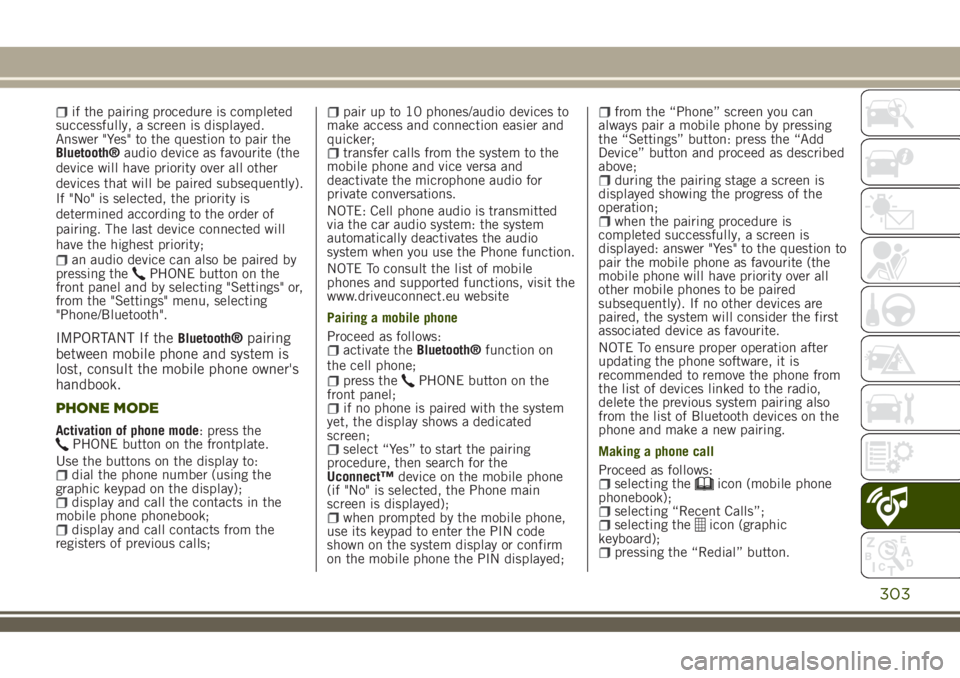
if the pairing procedure is completed
successfully, a screen is displayed.
Answer "Yes" to the question to pair the
Bluetooth®audio device as favourite (the
device will have priority over all other
devices that will be paired subsequently).
If "No" is selected, the priority is
determined according to the order of
pairing. The last device connected will
have the highest priority;
an audio device can also be paired by
pressing thePHONE button on the
front panel and by selecting "Settings" or,
from the "Settings" menu, selecting
"Phone/Bluetooth".
IMPORTANT If theBluetooth®pairing
between mobile phone and system is
lost, consult the mobile phone owner's
handbook.
PHONE MODE
Activation of phone mode: press thePHONE button on the frontplate.
Use the buttons on the display to:
dial the phone number (using the
graphic keypad on the display);
display and call the contacts in the
mobile phone phonebook;
display and call contacts from the
registers of previous calls;
pair up to 10 phones/audio devices to
make access and connection easier and
quicker;
transfer calls from the system to the
mobile phone and vice versa and
deactivate the microphone audio for
private conversations.
NOTE: Cell phone audio is transmitted
via the car audio system: the system
automatically deactivates the audio
system when you use the Phone function.
NOTE To consult the list of mobile
phones and supported functions, visit the
www.driveuconnect.eu website
Pairing a mobile phone
Proceed as follows:
activate theBluetooth®function on
the cell phone;
press thePHONE button on the
front panel;
if no phone is paired with the system
yet, the display shows a dedicated
screen;
select “Yes” to start the pairing
procedure, then search for the
Uconnect™device on the mobile phone
(if "No" is selected, the Phone main
screen is displayed);
when prompted by the mobile phone,
use its keypad to enter the PIN code
shown on the system display or confirm
on the mobile phone the PIN displayed;
from the “Phone” screen you can
always pair a mobile phone by pressing
the “Settings” button: press the “Add
Device” button and proceed as described
above;
during the pairing stage a screen is
displayed showing the progress of the
operation;
when the pairing procedure is
completed successfully, a screen is
displayed: answer "Yes" to the question to
pair the mobile phone as favourite (the
mobile phone will have priority over all
other mobile phones to be paired
subsequently). If no other devices are
paired, the system will consider the first
associated device as favourite.
NOTE To ensure proper operation after
updating the phone software, it is
recommended to remove the phone from
the list of devices linked to the radio,
delete the previous system pairing also
from the list of Bluetooth devices on the
phone and make a new pairing.
Making a phone call
Proceed as follows:
selecting theicon (mobile phone
phonebook);
selecting “Recent Calls”;selecting theicon (graphic
keyboard);
pressing the “Redial” button.
303
Page 307 of 356
Uconnect™LIVE SERVICES(where fitted)
Pressing the APPS button you get to the
menu where all the system's application
functions are, such as: Settings,
Compass (if available in the navigation
system),Uconnect™LIVEapplications.
If theUconnect™icon is there, the
system is prepared for services linked to
the use of applications for more efficient
and evolved use of the car, directly from
the radio. The application functions are
present according to the vehicle
configuration and to the market.
To use theUconnect™LIVEservices, you
need to:
download theApp Uconnect™LIVE
from: The "App Store" or "Google play" on
your compatible smart phone, making
sure you have the enabled information
register using theApp Uconnect™LIVE,
from the www.driveuconnect.eu site or
the www.jeep-official.it site.
startApp Uconnect™LIVEon your
smart phone and enter your credentials.
For more information relating to the
services available on the market, consult
the www.driveucoinnect.eu site.
First access to the vehicle
After startingApp Uconnect™LIVEand
entering your credentials, to access the
App Uconnect™LIVEservices in the caryou needBluetooth®coupling between
your smart phone and the system as
described in the "Registering your cell
phone" chapter. The list of supported
mobile phones is available on
www.driveuconnect.eu.
Once coupling is done, press the
Uconnect™icon on the screen will let
you access the connected services.
A dedicated message will appear on the
display when the activation process has
been completed. In the case of services
that require a personal profile, you can
connect your own account throughApp
Uconnect™LIVEor in the reserved area on
the www.driveuconnect.eu site.
The presence of the application my:Car
does not replace the information
described in the car's Use and
Maintenance Handbook.
User not connected
If theBluetooth®coupling has not been
effected, by pressing theUconnect™
button, the system menu shows the
disabled icons, with the exception of the
eco:Drive™. Further information about
theeco:Drive™functions is available in
the dedicated chapter.Settings for Uconnect LIVE managed
through the radio.
Through the Radio menu dedicated for
theUconnect™LIVEservices you can
access the "Settings" section by pressing
the
icon. In this section you can check
the system options and change them
according to your preferences.
System updating
In case a system update is available for
Uconnect™during use of the
Uconnect™LIVEservices, a message to
this effect will appear on the screen.
The update provides downloading the
new software version forUconnect™LIVE
services management. Updating is
effected when using the traffic data from
the coupled smart phone: the amount of
traffic generated will be communicated
to the driver.
In order not to compromise the proper
functioning of theUconnect™during
installation, do not carry out any other
operations but wait until it is finished.
305
Page 308 of 356
App Uconnect™LIVE
To access services linked to onboard the
car, you need to have installedApp
Uconnect™LIVE on your smart phone
through which you can manage your profile
and personalise your own Uconnect™LIVE
experience.
The App can be downloaded by: The
"App Store" or "Google play". For safety
reasons, the App cannot be accessed
when the phone is paired with the radio.
Access toUconnect™LIVEservices via
radio requires the entry of personal
credentials (email and password), so the
contents of your own personal account
are protected and accessible only by the
real user.
Connected services that can be accessed
on the vehicle
TheUconnect™LIVEservices available in
the radio menu can vary according to the
market.
Theeco:Drive™and my:Car have been
developed for the customer's greater
driving experience and therefore are
usable in all markets where the
Uconnect™LIVEare accessible. For
further information visit the
www.driveuconnect.eu website.
If the radio has installed the navigation
system, access toUconnect™LIVEservices facilitates use of the TomTom
"LIVE" services. Further details of the
"LIVE" operations are available on the
dedicated section
eco:Drive™
Theeco:Drive™system lets you view your
driving behaviour in real time, with the
aim of helping you achieve more efficient
driving from the point of view of
consumption and emissions.
In addition, you can also save the data
on a USB key or thanks toApp
Uconnect™LIVE and effect data processing
on your own computer thanks to the
desktop application eco:Drive™ available
on www.jeep-official.it or
www.driveuconnect.eu.
Evaluation of the driving style is linked to
four indexes that monitor the following
parameters: acceleration/deceleration/
gear shift/speed.
Viewing eco:Drive
To interact with the function, press the
graphiceco:Drive™button.
A screen will be displayed showing the
4 indices described above. These indices
are grey until the system has enough
data to evaluate the driving style.
Once sufficient data are available, the
indices will have 5 colours depending onthe evaluation: dark green (very good),
light green, yellow, orange and red (very
bad).
"Current route index" refers to the entire
value calculated in real time based on
the average of the described indices. It
represents eco-friendliness of the driving
style: from 0 (low) to 100 (high).
In case of prolonged stops, the screen
will show the average indexes obtained
up to that moment (the "Average Index")
to later start recolouring the indexes in
real time when the car starts moving
again.
If you want to confirm the data averages
from the previous trip (by "trip" a cycle of
positioning the starting device in MAR
and later in STOP is meant), select the
graphic button "Previous Route".
The details of the previous trip can also
be displayed by pressing the "Details"
button, in which journey duration (time
and mileage) and average speed will be
reported.
Trip data storage and transfer
The travel data can be saved in the
system memory and transferred via a
USB key that has been purposefully
configured or thanks to theApp
Uconnect™LIVE.This allows you to
display the history of the collected data,
showing the complete analysis of the trip
306
MULTIMEDIA