change time JEEP RENEGADE 2023 Owner's Guide
[x] Cancel search | Manufacturer: JEEP, Model Year: 2023, Model line: RENEGADE, Model: JEEP RENEGADE 2023Pages: 364, PDF Size: 18.65 MB
Page 166 of 364

164 MULTIMEDIA
Audio
Audio settings can be accessed by pressing the
Audio b
utton Ú page 151.
Info
In USB Mode, press the Info button on the
t ouchs c
reen to display the current track
information. Press the Info or X button on the
touchscreen a second time to cancel this feature.
Tracks
In USB Mode, press the Tracks button on the
touchs c
reen to display a pop-up with the Song List.
The song currently playing is indicated by an arrow
and lines above and below the song title. When in
the Tracks List screen you can rotate the TUNE/
SCROLL knob to highlight a track (indicated by the
line above and below the track name) and then
push the ENTER/BROWSE knob to start playing
that track.
In Bluetooth® Mode, if the Bluetooth® device
suppor t
s this feature, press the Tracks button on
the touchscreen to display a pop-up with the Song
List. The currently playing song is indicated by a red
arrow and lines above and below the song title.
Pressing the Tracks button on the touchscreen
while
the pop-up is displayed will close the pop-up.
MEDIA VOICE COMMANDS
Uconnect offers connections via USB, Bluetooth®,
and auxiliary (AUX) ports. Voice operation is only
available for connected USB and AUX devices.
Push the VR button located on the steering
wheel. After the beep, say one of the following
c ommand
s and follow the prompts to switch your
media source or choose an artist:
“ Change source to Bluetooth®”
“Change source to AUX”
“Change source to USB”
“Play artist Beethoven”; “ Play album Greatest
Hits”; “ Play song Moonlight Sonata”; “ Play genre
Classical”
Did You Know: Press
the Browse button on the
touchscreen to see all of the music on your USB
device. Your Voice Command must match exactly
how the artist, album, song, and genre information
is displayed.
PHONE MODE
Overview
Uconnect Phone is a voice-activated, hands-free,
in-vehicle communications system. It allows you to
dial a phone number with your mobile phone. The feature supports the following:
Voice Activated Features
Hands-Free dialing via Voice (“Call John Smith
Mobile” or “Dial 248-555-1212”).
Hands-Free text-to-speech listening of your
incoming SMS messages.
Hands-Free Text Message Replying: Forward
one of 18 predefined SMS messages to
incoming calls/text messages.
Redialing last dialed numbers (“Redial”).
Calling Back the last incoming call number
(“Call Back”).
Viewing call logs on screen (“Show Incoming
Calls,” “Show Outgoing Calls,” “Show Missed
Calls,” or “Show Recent Calls”).
Searching Contacts phone number (“Search for
John Smith Mobile”).
Screen Activated Features
Dialing via Keypad using touchscreen.
Viewing and Calling contacts from Phonebooks
displayed on the touchscreen.
Setting Favorite Contact phone numbers so they
are easily accessible on the Main Phone screen.
Viewing and Calling contacts from Recent Call
logs.
Page 170 of 364
168 MULTIMEDIA
the device from the list of phones on your
Uconnect system. Next, be sure to remove
Uconnect from the list of devices in your phone’s
Bluetooth® settings.
PAIR A BLUETOOTH® STREAMING AUDIO
DEVICE
1. Press the Media button on the touchscreen to
begin.
2. Change the source to “Bluetooth®”.
3. Pre
ss the Bluetooth® button on the
touch s
creen to display the Paired Audio
Devices screen.
4. Press the Add Device button on the touch s
creen.
NOTE:
If there is no device currently connected with the
syste m
, a pop-up will appear.
5. Search for available devices on your Bluet
ooth®-enabled audio device. When
prompted on the device, confirm the PIN
shown on the Uconnect screen.
6. Uconnect Phone will display an in-process scree
n while the system is connecting.
7. When the pairing process has successfully comple
ted, the system will prompt you to
choose whether or not this is your favorite
device. Selecting “Yes” will make this device the highest priority. This device will take
precedence over other paired devices within
range.
NOTE:
For devices which are not made a favorite, the
devic e
priority is determined by the order in which
it was paired. The most recent device paired will
have the higher priority.
You can also use a following VR command to bring
up a l
ist of paired audio devices:
“Show Paired Phones”
CONNECTING TO A PARTICULAR MOBILE
PHONE OR AUDIO DEVICE AFTER PAIRING
Uconnect Phone will automatically connect to the
highest priority paired phone and/or Audio Device
within range. If you need to choose a particular
phone or audio device follow these steps:
1. Press the
Phone
Pairing
button on the
touchscreen.
2. Press the Paired Phones and Audio Devices button
and then press the Paired Phones or
Audio Sources button.
3. Press to select the particular phone or the parti
cular audio device. A pop-up menu will
appear; press “Connect Phone”.
4. Press the X to exit out of the Settings screen.
DISCONNECTING OR DELETING A PHONE OR
AUDIO DEVICE
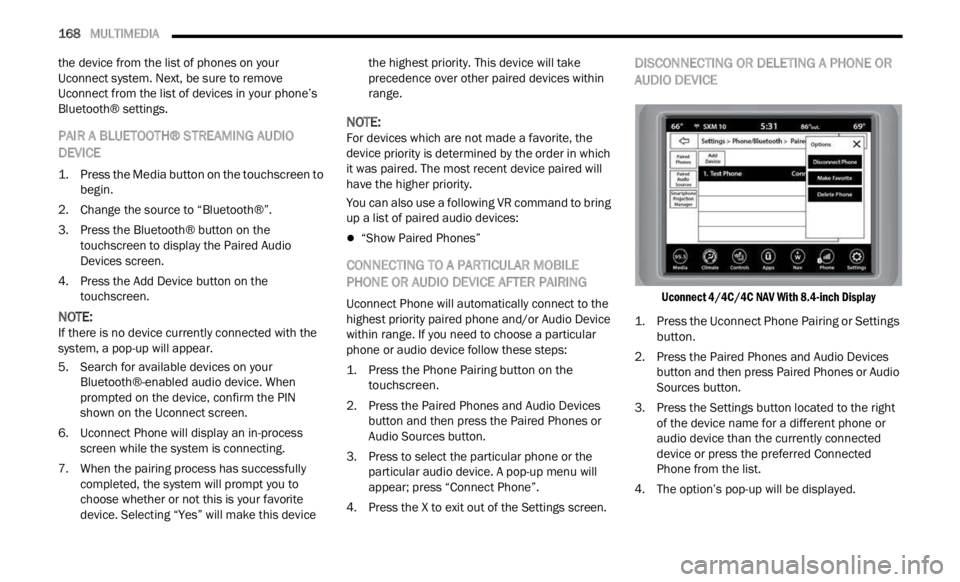
Uconnect 4/4C/4C NAV With 8.4-inch Display
1. Press the Uconnect Phone Pairing or Settings butto
n.
2. Press the Paired Phones and Audio Devices button
and then press Paired Phones or Audio
Sources button.
3. Press the Settings button located to the right of th e
device name for a different phone or
audio device than the currently connected
device or press the preferred Connected
Phone from the list.
4. The option’s pop-up will be displayed.
Page 171 of 364

MULTIMEDIA 169
5. Press the Disconnect Device or the Delete
Device button on the touchscreen.
6. Press the X to exit out of the Settings screen.
MAKING A PHONE OR AUDIO DEVICE A
FAVORITE
1. On the Paired Phone/Audio Sources screen, press the Settings button located to the right
of the device name for a different phone or
audio device than the currently connected
device or press the preferred “Connected
Phone” from the list.
2. The option’s pop-up will be displayed.
3. Pr e
ss the Make Favorite button on the
touch s
creen; you will see the chosen device
move to the top of the list.
4. Press the X to exit out of the Settings screen.
PHONEBOOK DOWNLOAD (AUTOMATIC
PHONEBOOK TRANSFER FROM MOBILE
PHONE) — IF EQUIPPED
If supported by your phone, Uconnect Phone has
the ability to download contact names and number
entries from the mobile phone’s phonebook.
Specific Bluetooth® Phones with Phonebook
Access Profile may support this feature. Your
mobile phone may receive a pop-up asking for
permission for the Uconnect system to access your messages and contacts. Selecting “Ok” or “Allow”
will sync your contacts with the Uconnect system.
See the Uconnect website,
UconnectPhone.com,
for supported phones.
To call a name from a downloaded mobile
phonebook, Ú page 173.
Automatic download and update of a phone -
book, if supported, begins as soon as the
Bluet oot
h® wireless phone connection is made
to the Uconnect Phone, for example, after you
start the vehicle.
A maximum of 5,000 contact names with four
numbers per contact will be downloaded and
updated every time a phone is connected to the
Uconnect Phone.
Depending on the maximum number of entries
downloaded, there may be a short delay before
the latest downloaded names can be used. Until
then, if available, the previously downloaded
phonebook is available for use.
Only the phonebook of the currently connected
mobile phone is accessible.
This downloaded phonebook cannot be edited
or deleted on the Uconnect Phone. These can
only be edited on the mobile phone. The
changes are transferred and updated to
Uconnect Phone on the next phone connection.
MANAGING YOUR FAVORITES — IF EQUIPPED
There are two ways you can add an entry to your
favorites:
1. After loading the mobile phonebook, press the Fa
vorites button on the touchscreen, and
then press one of the +Add Favorite Contact
buttons that appears on the list.
2. After loading the mobile phonebook, select “Conta
cts” from the Phone main screen, and
then select the appropriate number. Press the
Down Arrow button or the Settings Gear button
next to the selected number to display the
option’s pop-up. In the pop-up, select “Add to
Favorites”.
NOTE:
If the Favorites list is full, you will be asked to
remove
an existing favorite.
TO REMOVE A FAVORITE — IF EQUIPPED
1. To remove a Favorite, select “Favorites” from the Phone main screen.
2. Next, select the Down Arrow icon or the Setti
ngs Gear icon next to the contact you want
to remove from your favorites. This will bring
up the options for that Favorite contact.
3. Deselect the Star icon to delete the Favorite.
5
Page 176 of 364

174 MULTIMEDIA
NOTE:
Only use the numbering listed in the provided
table .
Otherwise, the system will not transpose the
message.
Did You Know: Your m
obile phone must have the
full implementation of the Message Access Profile
(MAP) to take advantage of this feature. For details
about MAP, visit UconnectPhone.com .
Apple® iPhone® iOS 5 or later supports reading
i ncomin
g text messages only. For further
information on how to enable this feature on your
Apple® iPhone®, refer to your iPhone® “User
Manual”.
Did You Know: Voice
Text Reply is not compatible
with iPhone®, but if your vehicle is equipped with
Siri® Eyes Free, you can use your voice to send a
text message.
SIRI® EYES FREE — IF EQUIPPED
When used with your Apple® iPhone® connected
to your vehicle via Bluetooth®, Siri lets you use
your voice to send text messages, select media,
place phone calls and much more. Siri uses your
natural language to understand what you mean
and responds back to confirm your requests. The
system is designed to keep your eyes on the road
and your hands on the wheel by letting Siri help you
perform useful tasks.
To enable Siri, push and hold, then release the
Uconne c
t Voice Recognition (VR) button on the
steering wheel. After you hear a double beep, you
can ask Siri to play podcasts and music, get
directions, read text messages, and many other
useful requests.
BLUETOOTH® COMMUNICATION LINK
Mobile phones may lose connection to the
Uconnect Phone. When this happens, the
connection can generally be re-established by
restarting the mobile phone. Your mobile phone is
recommended to remain in Bluetooth® ON mode.
POWER-UP
After switching the ignition key from OFF to either
the ON/RUN or ACC position, or after a language
change, you must wait at least 15 seconds prior to
using the system Ú page 349.
ANDROID AUTO™ & APPLE CARPLAY® —
IF EQUIPPED
ANDROID AUTO™
Use this QR code to access your
digital experience.
Android Auto™ is a feature of your
U connec
t system, and your
Android™ 6.0 or higher powered
smartphone with a data plan, that
allows you to project your
smartphone and a number of its apps onto the
touchscreen radio display. Android Auto™ brings
you useful information, and organizes it into simple
cards that appear just when they are needed.
Android Auto™ can be used with speech
technology, the steering wheel controls, the knobs
and buttons on your radio faceplate, and the radio
display’s touchscreen to control many of your
apps. To use Android Auto™, perform the following
procedure:
NOTE:
Feature availability depends on your carrier and
mobile
phone manufacturer. Some Android Auto™
features may or may not be available in every
region and/or language.
I’ll call you
later . I
need
direct ions. See you in 5
minutes.
I’m on my way.
Can’t talk right
now.
I’m
lost. Thanks.
PRE-DEFINED VOICE TEXT REPLY
RESPONSES
Page 177 of 364
MULTIMEDIA 175
1. Download the Android Auto™ app from the
Google Play store on your Android™-powered
smartphone.
2. Connect your Android™-powered smartphone to one
of the media USB ports in your vehicle.
If the Android Auto™ app was not downloaded,
the first time you plug your device in the app
begins to download. Your vehicle should be in
PARK the first time you use the app.
NOTE:
Be sure to use the factory-provided USB cable that
came w
ith your phone, as aftermarket cables may
not work.
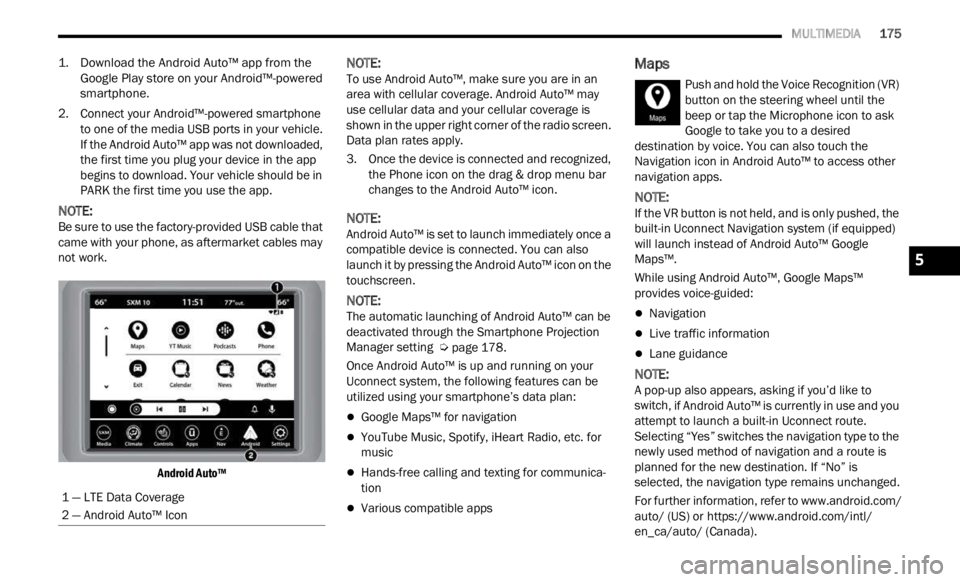
Android Auto™
NOTE:
To use Android Auto™, make sure you are in an
area w
ith cellular coverage. Android Auto™ may
use cellular data and your cellular coverage is
shown in the upper right corner of the radio screen.
Data plan rates apply.
3. Once the device is connected and recognized, the P
hone icon on the drag & drop menu bar
changes to the Android Auto™ icon.
NOTE:
Android Auto™ is set to launch immediately once a
compat i
ble device is connected. You can also
launch it by pressing the Android Auto™ icon on the
touchscreen.
NOTE:
The automatic launching of Android Auto™ can be
deact i
vated through the Smartphone Projection
Manager setting Ú page 178.
Once Android Auto™ is up and running on your
Uconne c
t system, the following features can be
utilized using your smartphone’s data plan:
Google Maps™ for navigation
YouTube Music, Spotify, iHeart Radio, etc. for
music
Hands-free calling and texting for communica -
tion
Various compatible apps
Maps
Push and hold the Voice Recognition (VR)
button on the steering wheel until the
beep or
tap the Microphone icon to ask
Google to take you to a desired
destination by voice. You can also touch the
Navigation icon in Android Auto™ to access other
navigation apps.
NOTE:
If the VR button is not held, and is only pushed, the
built -
in Uconnect Navigation system (if equipped)
will launch instead of Android Auto™ Google
Maps™.
While using Android Auto™, Google Maps™
provide
s voice-guided:
Navigation
Live traffic information
Lane guidance
NOTE:
A pop-up also appears, asking if you’d like to
switc h
, if Android Auto™ is currently in use and you
attempt to launch a built-in Uconnect route.
Selecting “Yes” switches the navigation type to the
newly used method of navigation and a route is
planned for the new destination. If “No” is
selected, the navigation type remains unchanged.
For further information, refer to www.android.com/
auto/ (US) or https://www.android.com/intl/
en_ca/auto/ (Canada).
1 — LTE Data Coverage
2 — Android Auto™ Icon
5
Page 179 of 364
MULTIMEDIA 177
Uconnect Touchscreen display, the vehicle's knobs
and controls, and your voice with Siri to get access
to Apple Music®, Maps, Messages, and more.
NOTE:
Feature availability depends on your carrier and
mobile
phone manufacturer. Some Apple
CarPlay® features may or may not be available in
every region and/or language.
To use Apple CarPlay®, make sure you are using
iPhone®
5 or later, have Siri enabled in Settings,
ensure your iPhone® is unlocked for the very first
connection only, and then use the following
procedure:
1. Connect your iPhone® to one of the media USB p
orts in your vehicle.
NOTE:
Be sure to use the factory-provided Lightning cable
that c
ame with your phone, as aftermarket cables
may not work.
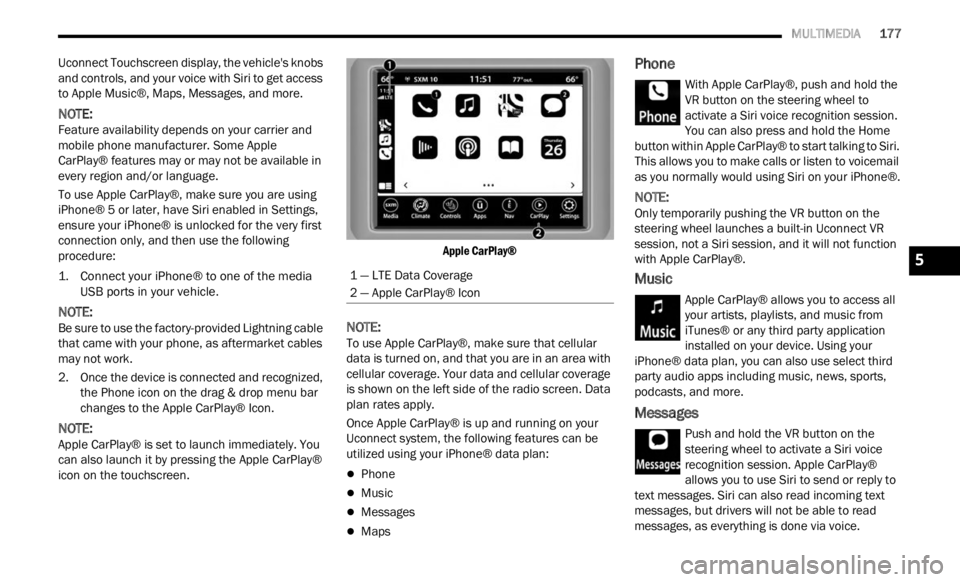
2. Once the device is connected and recognized, the P
hone icon on the drag & drop menu bar
changes to the Apple CarPlay® Icon.
NOTE:
Apple CarPlay® is set to launch immediately. You
can a l
so launch it by pressing the Apple CarPlay®
icon on the touchscreen.
Apple CarPlay®
NOTE:
To use Apple CarPlay®, make sure that cellular
data i
s turned on, and that you are in an area with
cellular coverage. Your data and cellular coverage
is shown on the left side of the radio screen. Data
plan rates apply.
Once Apple CarPlay® is up and running on your
Uconne c
t system, the following features can be
utilized using your iPhone® data plan:
Phone
Music
Messages
Maps
Phone
With Apple CarPlay®, push and hold the
VR button on the steering wheel to
activ a
te a Siri voice recognition session.
You can also press and hold the Home
button within Apple CarPlay® to start talking to Siri.
This allows you to make calls or listen to voicemail
as you normally would using Siri on your iPhone®.
NOTE:
Only temporarily pushing the VR button on the
steer i
ng wheel launches a built-in Uconnect VR
session, not a Siri session, and it will not function
with Apple CarPlay®.
Music
Apple CarPlay® allows you to access all
your artists, playlists, and music from
i T u
n e
s
® or any third party application
installed on your device. Using your
iPhone® data plan, you can also use select third
party audio apps including music, news, sports,
podcasts, and more.
Messages
Push and hold the VR button on the
steering wheel to activate a Siri voice
recogn i
tion session. Apple CarPlay®
allows you to use Siri to send or reply to
text messages. Siri can also read incoming text
messages, but drivers will not be able to read
messages, as everything is done via voice.
1 — LTE Data Coverage
2 — Apple CarPlay® Icon
5
Page 180 of 364
178 MULTIMEDIA
Maps
Push and hold the VR button on the
steering wheel until the beep or tap the
Microph
one icon to ask Apple® Siri to
take you to a desired destination by
voice. You can also touch the Navigation icon in
Apple CarPlay® to access Apple® Maps.
If the VR button is not held, and is only pushed, the
built -
in Uconnect Navigation system (if equipped)
will launch instead of Apple CarPlay® Apple®
Maps.
NOTE:
A pop-up also appears, asking if you’d like to
switc h
, if an Apple CarPlay® navigation is currently
in use and you attempt to launch a built-in
Uconnect route. Selecting “Yes” switches the navi -
gation type to the newly used method of navigation
a nd a
route is planned for the new destination. If
“No” is selected, the navigation type remains
unchanged.
Apps
The Apple CarPlay® App plays all compatible apps
that are available to use, every time it is launched.
You must have the compatible app downloaded,
and you must be signed in to the app through your
mobile device for it to work with Apple CarPlay®.
Refer to http://www.apple.com/ios/carplay/ (US)
or https://www.apple.com/ca/ios/carplay/ (Canada) to see the latest list of available apps for
A
pple
CarPlay®.
Apple CarPlay® Voice Command
NOTE:
Feature availability depends on your carrier and
mobile
phone maker. Some Apple CarPlay®
features may not be available in every region and/
or language.
Apple CarPlay® allows you to use your voice to
intera
ct with Siri through your vehicle’s voice
recognition system, and use your smartphone’s
data plan to project your iPhone® and a number of
its apps onto your Uconnect touchscreen. Connect
your iPhone® 5 or higher to one of the media USB
ports, using the factory-provided Lightning cable,
and press the new Apple CarPlay® icon that
replaces your Phone icon on the main menu bar to
begin Apple CarPlay®. Push and hold the VR
button on the steering wheel, or press and hold the
Home button within Apple CarPlay®, to activate
Siri, which recognizes natural voice commands to
use a list of your iPhone® features:
Phone
Music
Messages
Maps — If Equipped
Additional Apps — If Equipped
NOTE:
Apple CarPlay® is a trademark of Apple® Inc.
iPhone ®
is a trademark of Apple® Inc., registered
in the US and other countries. Apple® terms of use
and privacy statements apply.
ANDROID AUTO™ AND APPLE
C
ARPLAY® TIPS AND TRICKS
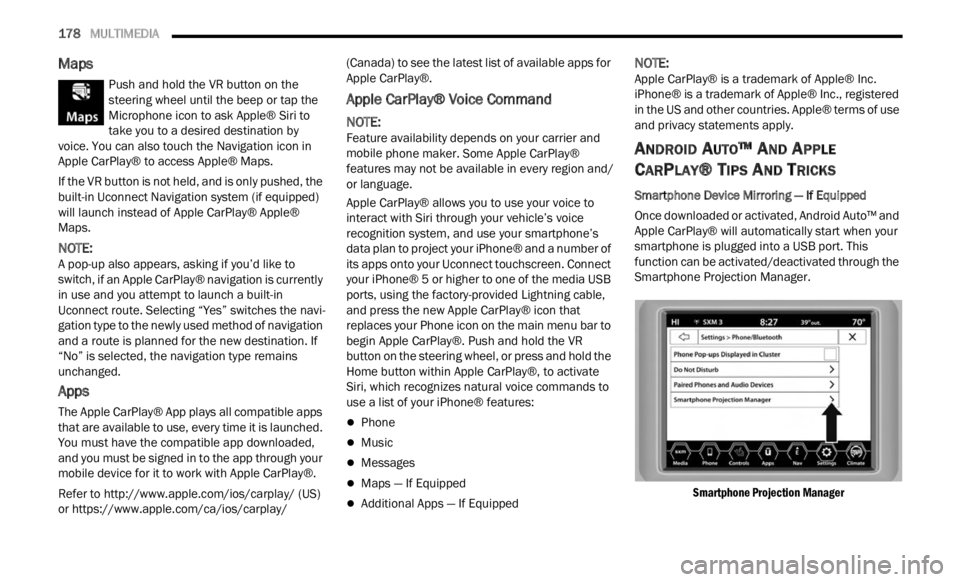
Smartphone Device Mirroring — If Equipped
Once downloaded or activated, Android Auto™ and
A p p
le
CarPlay® will automatically start when your
smartphone is plugged into a USB port. This
function can be activated/deactivated through the
Smartphone Projection Manager.
Smartphone Projection Manager
Page 185 of 364
MULTIMEDIA 183
Where To? — Search All, Address, Recent,
And Favorite Destinations
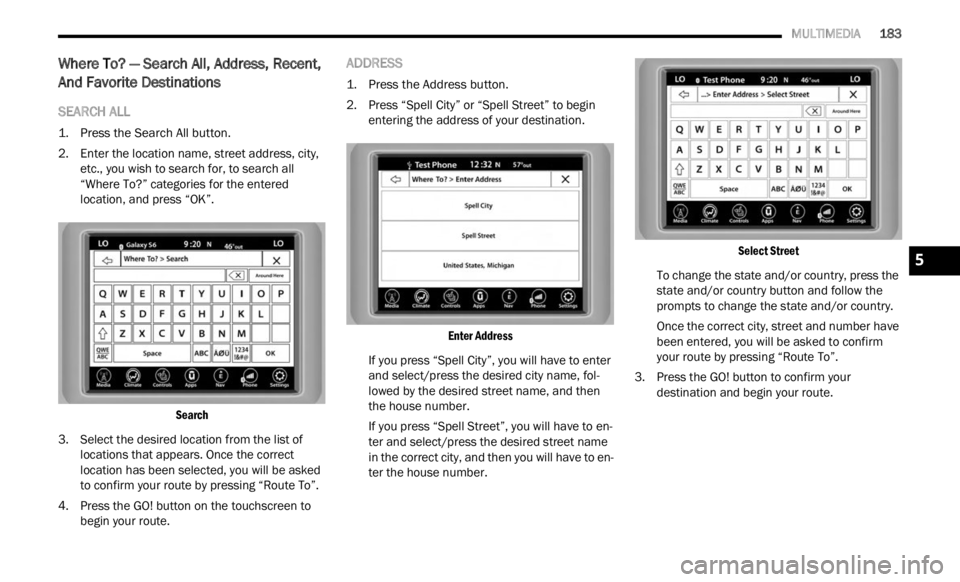
SEARCH ALL
1. Press the Search All button.
2. Enter the location name, street address, city,
etc.,
you wish to search for, to search all
“Where To?” categories for the entered
location, and press “OK”.
Search
3. Select the desired location from the list of loca t
ions that appears. Once the correct
location has been selected, you will be asked
to confirm your route by pressing “Route To”.
4. Press the GO! button on the touchscreen to begin
your route.
ADDRESS
1. Press the Address button.
2. Press “Spell City” or “Spell Street” to begin ente r
ing the address of your destination.
Enter Address
If you press “Spell City”, you will have to enter
and s e
lect/press the desired city name, fol -
lowed by the desired street name, and then
t he hou
se number.
If you press “Spell Street”, you will have to en -
ter and select/press the desired street name
in th e
correct city, and then you will have to en -
ter the house number.
Select Street
To change the state and/or country, press the
s tate
and/or country button and follow the
prompts to change the state and/or country.
Once the correct city, street and number have
been e
ntered, you will be asked to confirm
your route by pressing “Route To”.
3. Press the GO! button to confirm your dest i
nation and begin your route.
5
Page 187 of 364
MULTIMEDIA 185
5. To display the options for a favorite
destination, press the Options icon that looks
like a gear.
The following options are available for each fa -
vorite destination:
Edit Name
Phone Number
Move Up
Move Down
Delete
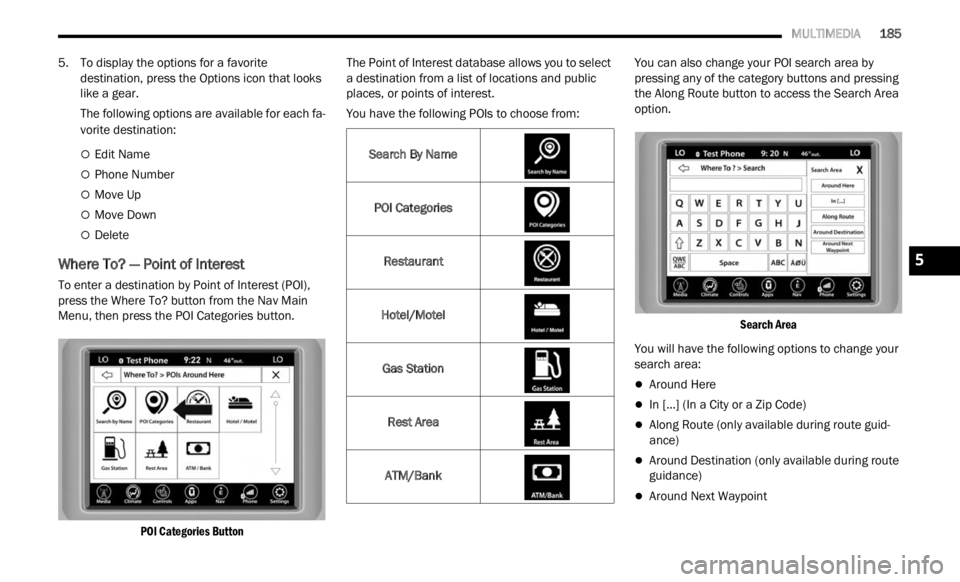
Where To? — Point of Interest
To enter a destination by Point of Interest (POI),
press the Where To? button from the Nav Main
Menu, then press the POI Categories button.
POI Categories Button
The Point of Interest database allows you to select
a des
t
ination from a list of locations and public
places, or points of interest.
You have the following POIs to choose from: You can also change your POI search area by
pressi
ng any of the category buttons and pressing
the Along Route button to access the Search Area
option.
Search Area
You will have the following options to change your
searc h
area:
Around Here
In [...] (In a City or a Zip Code)
Along Route (only available during route guid -
ance)
Around Destination (only available during route
guidance)
Around Next Waypoint
Search By Name
POI Categories
Restaurant
Hotel/Motel Gas Station Rest Area
ATM/Bank
5
Page 194 of 364
192 MULTIMEDIA
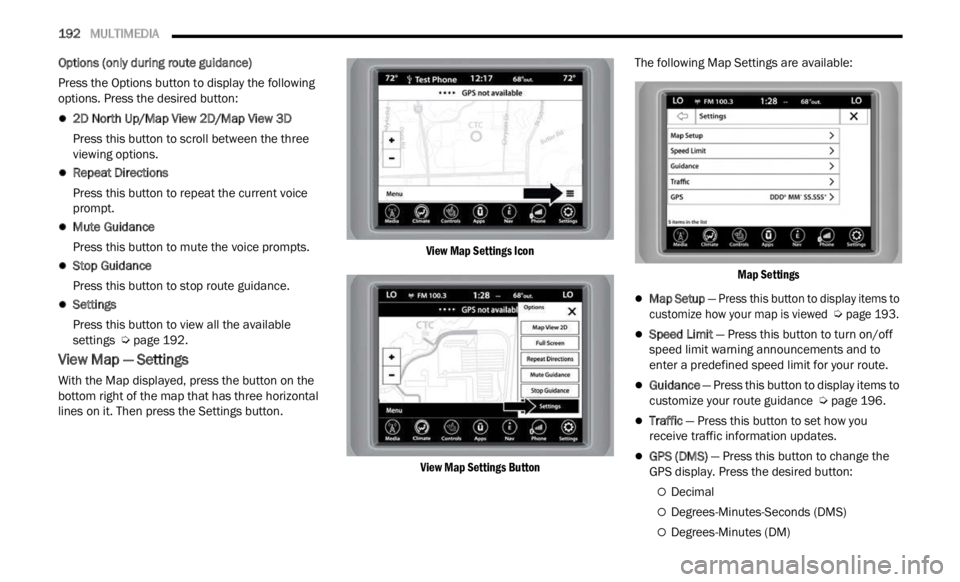
Options (only during route guidance)
Press the Options button to display the following
options.
Press the desired button:
2D North Up/Map View 2D/Map View 3D
Press this button to scroll between the three
viewin
g options.
Repeat Directions
Press this button to repeat the current voice
prompt .
Mute Guidance
Press this button to mute the voice prompts.
Stop Guidance
Press this button to stop route guidance.
Settings
Press this button to view all the available
s
e t
ti
n
gs Ú page 192.
View Map — Settings
With the Map displayed, press the button on the
bottom right of the map that has three horizontal
lines on it. Then press the Settings button.
View Map Settings Icon
View Map Settings Button
The following Map Settings are available:
Map Settings
Map Setup — Press this button to display items to
customize how your map is viewed
Ú
page 193.
Speed Limit — Press this button to turn on/off
speed limit warning announcements and to
enter a predefined speed limit for your route.
Guidance — Press this button to display items to
customize your route guidance Ú page 196.
Traffic — Press this button to set how you
receive traffic information updates.
GPS (DMS) — Press this button to change the
GPS display. Press the desired button:
Decimal
Degrees-Minutes-Seconds (DMS)
Degrees-Minutes (DM)