change time JEEP RENEGADE 2023 Owner's Manual
[x] Cancel search | Manufacturer: JEEP, Model Year: 2023, Model line: RENEGADE, Model: JEEP RENEGADE 2023Pages: 364, PDF Size: 18.65 MB
Page 138 of 364

136 MULTIMEDIA
Units
Display Brightness With Headlights OFF This setting will allow you to set the brightness when the headlights are off. To
acces
s
this setting, Display Mode must be set to Manual. The “+” setting will
increase the brightness; the “-” will decrease the brightness.
Touchscreen Beep This setting will allow you to turn the touchscreen beep on or off.
Control Screen Timeout This setting will allow you to set the Control Screen to turn off automatically
after
five seconds or stay open until manually closed.
Navigation Next Turn Pop-ups Displayed in Cluster This setting will display navigation prompts in the Instrument Cluster Display.
Setting NameDescription
When the Units button is pressed on the touchscreen, the system displays the different measurement options. The selected unit of measurement will display in
the instrument cluster display and Navigation system (if equipped). The available settings are:
NOTE:
Depending on the vehicle’s options, feature settings may vary.
Setting Name Description
US This setting will change the unit of measurement on the display to US.
Metric This setting will change the unit of measurement on the display to Metric.
Custom This setting will change the “Speed” (MPH or km/h), “Distance” (mi or km),
“Fuel
Consumption” (MPG [US], MPG [UK], L/100 km, or km/L), “Pressure”
(psi,
kPa, or bar), and “Temperature” (°C or °F) units of measurement
independently.
Page 139 of 364

MULTIMEDIA 137
Voice
Clock & Date
When the Voice button is pressed on the touchscreen, the system displays the options related to the vehicle’s Voice Recognition feature.
NOTE:
Depending on the vehicle’s options, feature settings may vary.
Setting Name Description
Voice Response Length This setting will change the response length for the Voice Recognition system.
The “
B
rief” setting provides a shortened audio description from the system.
The “Detailed” setting provides the full audio description from the system.
Show Command List This setting will allow you to turn the Command List on or off. The “Always”
settin
g will always show the Command List. The “With Help” setting will show
the Command List and provide a brief description of what the command does.
The “Never” setting will turn the Command List off.
When the Clock & Date button is pressed on the touchscreen, the system displays the different options related to the vehicle’s internal clock.
NOTE:
Depending on the vehicle’s options, feature settings may vary.
Setting Name Description
Sync Time With GPS This setting will sync the time to the GPS receiver in the system. The system
will
c
ontrol the time via the GPS location.
Time Format This setting will allow you to set the time format (AM/PM). Sync Time With GPS
m
ust
b
e off for this setting to be available. The “12 hrs” setting will set the
time to a 12-hour format. The “24 hrs” setting will set the time to a 24-hour
format.
5
Page 140 of 364

138 MULTIMEDIA
Safety/Driving Assistance
Set Time Hours This setting will allow you to set the hours. Sync Time With GPS must be off for
this
s
etting to be available. The “+” setting will increase the hours. The “-”
setting will decrease the hours.
Set Time Minutes This setting will allow you to set the minutes. Sync Time With GPS must be off
for thi
s setting to be available. The “+” setting will increase the minutes. The
“-” setting will decrease the minutes.
Show Time in Status Bar This setting will place the time in the radio’s status bar.
Set Date This setting will allow you to set the day, month and year. Using “+” or “-”, you
can sc
roll through the available days, months, or years.
Setting Name Description
When the Safety/Driving Assistance button is pressed on the touchscreen, the system displays the options related to the vehicle’s safety settings. These options
will differ depending on the features equipped on the vehicle. The settings may display in list form or within subfolders on the screen. To access a subfolder,
select the desired folder; the available options related to that feature will then display on the screen.
NOTE:
Depending on the vehicle’s options, feature settings may vary.
Setting Name Description
Forward Collision Warning This setting will change the distance at which the Forward Collision Warning
(FCW)
alert sounds. The “Medium” setting will have the FCW system signal
when an object is in view, and the possibility of a collision is detected. The
“Near” setting will have the FCW system signal when the object is closer to the
vehicle. The “Far” setting will have the FCW system signal when an object is at
a far distance from the vehicle.
Page 141 of 364

MULTIMEDIA 139
Forward Collision Warning-Plus (FCW+) This setting will turn the Forward Collision Warning-Plus system on or off. The
“Off”
setting will deactivate the FCW+ system. The “Warning Only” setting will
provide only an audible chime when a collision is detected. The “Warning +
Active Braking” setting will provide an audible chime and apply brake
pressure when a collision is detected.
LaneSense Warning
This setting will change the distance at which the steering wheel will provide
lane d
eparture feedback. The available settings are “Early”, “Medium”, and
“Late”.
LaneSense Strength This setting will change the strength of the steering wheel feedback during a
lane d
eparture. The available settings are “Low”, “Medium”, and “High”.
Side Distance Warning This setting will adjust the warning for side distance. The available options are
“Off”
,
“Sound Only”, and “Sound & Display”.
Side Distance Warning Volume This setting will adjust the volume for side distance warning. The available
options
are “Low”, “Med”, and “High”.
Drowsy Driver Alert This setting will monitor the driver’s driving habits and warn you of any
c
hang
e
s, indicating that the driver may be drowsy. The available options are
“On” and “Off”.
ParkSense This setting will change the type of ParkSense alert when a close object is
detect
ed and provide both an audible chime and a visual display.
Front ParkSense Volume This setting will adjust the volume of the Front ParkSense system. The
avail
a
ble settings are “Low”, “Medium”, and “High”.
Setting Name Description
5
Page 142 of 364

140 MULTIMEDIA
Mirrors & Wipers
Brakes
Blind Spot Alert This setting will change the type of alert provided when an object is detected
in a v
ehicle’s blind spot. The “Off” setting will turn off Blind Spot Alert. The
“Lights” setting will activate the Blind Spot Alert lights on the outside mirrors.
The “Lights & Chime” setting will activate both the lights on the outside
mirrors and an audible chime.
ParkView Backup Camera Active Guidelines This setting will turn the ParkView Backup Camera Active Guidelines on or off.
Setting NameDescription
When the Mirrors & Wipers button is pressed on the touchscreen, the system displays the options related to the vehicle’s mirrors and wipers.
NOTE:
Depending on the vehicle’s options, feature settings may vary.
Setting Name Description
Rain Sensing Auto Wipers This setting will turn the Rain Sensing Auto Wipers on or off.
Auto Folding Side Mirrors This setting will automatically fold and unfold the side-view mirrors when the
vehicl
e is turned on and off. The available options are “On” and “Off”.
After pressing the Brakes button on the touchscreen, the following settings will be available:
NOTE:
Depending on the vehicle’s options, feature settings may vary.
Setting Name Description
Auto Park Brake This setting will turn the Auto Park Brake on or off.
Brake Service This setting will allow you to set the brakes for service. When the setting is
select
ed, a pop-up will display with “Yes” and “No” options.
Page 146 of 364

144 MULTIMEDIA
Audio
When the Audio button is pressed on the touchscreen, the system displays options related to the vehicle’s sound system. These settings can change the audio
location within the vehicle, adjust the bass or treble levels, and auto-play settings from an audio device or smartphone.
NOTE:
Depending on the vehicle’s options, feature settings may vary.
Setting Name Description
Balance/Fade This setting will adjust audio levels from specific speakers in the front/back
and l
e
ft/right of the vehicle. The Speaker icon can be moved to set audio
location.
Equalizer This setting will adjust the “Bass”, “Mid”, and “Treble” ranges of the audio.
Speed Adjusted Volume This setting will adjust audio volume as speeds increase. At a higher setting,
the vol
ume will increase more as the vehicle speeds up. The available settings
are “Off”, “1”, “2”, and “3”.
Surround Sound This setting will turn the Surround Sound system on or off.
AUX Volume Offset This setting will tune the audio levels from a device connected through the
AUX port
. The available settings are “+” and “-”.
Auto Play This setting will automatically begin playing audio from a connected device.
Loudness This setting will improve audio quality at lower volumes.
Auto-On Radio This setting will automatically turn the radio on when the vehicle is started.
The a
v
ailable settings are “Off”, “On”, and “Recall Last”. With Recall Last, the
system resumes the previous task before vehicle shut off.
Page 148 of 364

146 MULTIMEDIA
Reset
Channel Skip This setting will allow you to set channels that you wish to skip. A channel list
will
d
isplay of the skipped channels.
Subscription Information This menu provides SiriusXM® subscription information. SiriusXM® Travel
Link i
s
a separate subscription.
Setting Name Description
When the Reset button is pressed on the touchscreen, the system displays the options related to resetting the Uconnect system back to its default settings.
These settings can clear personal data and reset selected settings from other menus.
NOTE:
Depending on the vehicle’s options, feature settings may vary.
Setting Name Description
Restore Settings This setting will return all the previously changed settings to their factory
defau
l
t.
Restore Apps This setting will reset the apps to their factory default.
Clear Personal Data This setting will display a pop-up that gives you the option to clear all personal
data
f
rom the system, including Bluetooth® devices and presets.
Page 155 of 364

MULTIMEDIA 153
When HD Radio™ broadcasts are active, you can
access the following functions:
Seek Up And Down: Press to seek to the next
strong radio station. If the current station has
multiple digital broadcasts, the multicast indi -
cator numbers will display. Press “Seek” repeat -
edly to advance through all available
b roadc
asts. If you are on the last multicast
channel, press “Seek Up” to advance to the next
strong station.
Saving A Multicast Station As A Preset: When
the channel is active on-screen, press and hold
a Preset button; it will save the station to the
available slot. When recalling an HD2, HD3, etc.
memory preset, there will be a momentary mute
before the digital audio is played as the system
acquires the digital signal. If you have turned
this feature off, this will automatically turn on
HD Radio™ broadcasts and will tune to the
selected frequency. As with any saved radio
station, you will not be able to access the saved
station if your vehicle is outside the station’s
reception area.
“LIVE” Ballgame Mode Broadcasts: If a station
has a live broadcast (such as a baseball game),
“LIVE” may appear on screen beside the multi -
cast numbers. These are analog broadcasts
with d
igital components (i.e. artist, title). If HD1
is in a live broadcast mode, the HD Radio™ logo
will be gray. You will hear analog audio; the user
will still be able to tune to the multicast chan -
nels.
Reception Area:
If y ou
are listening to a multicast
(HD2, HD3, etc.) station and you are on the fringe
of the reception area, the station may mute due to
weak signal strength. If you are listening to HD1,
the system will simply switch to the analog
broadcast until the digital broadcast is available
again.
However, if you are listening to any of the possible
multi c
ast (HD2, HD3, etc.) channels, the station
will mute and stay muted unless it is able to
connect to the digital signal again. While in this
state, the text “buffering” will appear for 30 sec-
onds. If it is not able to reconnect to the digital
signal, the screen will be cleared and “HD Radio™
Signal Unavailable” will appear in artist and title
field area. Station Blending:
When
an HD1 station is received,
the system will play the analog audio broadcast
from the station for a few seconds and then, if the
receiver verifies the station is an HD Radio™
station, it will transition to play the digital audio
broadcast. Depending on the station quality, you
may hear a slight sound change when the station
transitions from analog to the digital broadcast.
The shift from analog to digital or digital back to
analog sound is known as “blending”.
Station Issues: In ord
er to provide the best
possible experience, a contact form has been
developed to report any station issues found while
listening to a station broadcasting with HD Radio™
technology. Every station is independently owned
and operated. These stations are responsible for
ensuring all audio streams and data fields are
accurate. This form can be found at https://
hdradio.com/stations/feedback/ .
5
Page 157 of 364
MULTIMEDIA 155
SiriusXM® Satellite Radio Mode —
If Equipped
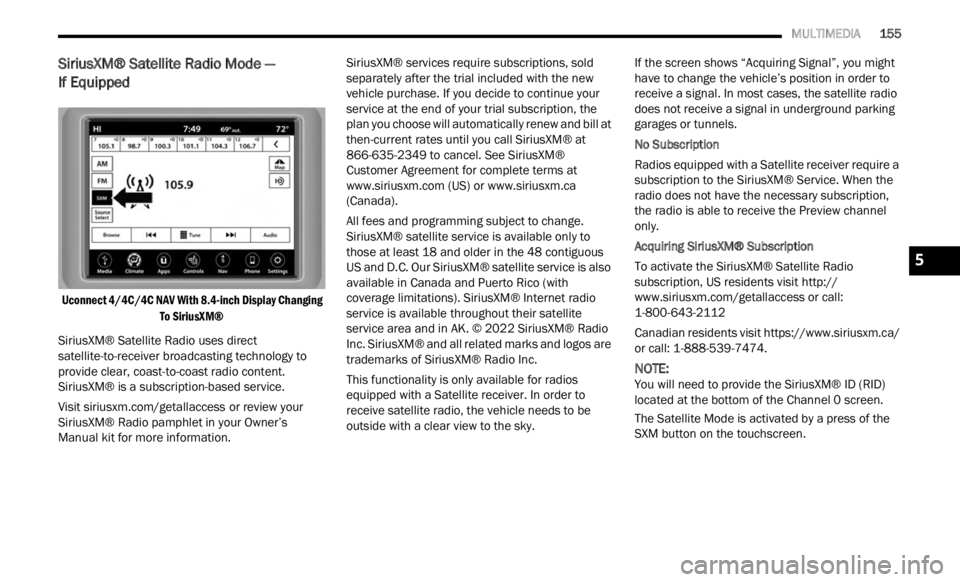
Uconnect 4/4C/4C NAV With 8.4-inch Display Changing
To SiriusXM®
SiriusXM® Satellite Radio uses direct
satell
ite-to-receiver broadcasting technology to
provide clear, coast-to-coast radio content.
SiriusXM® is a subscription-based service.
Visit siriusxm.com/getallaccess or review your
SiriusXM® Radio pamphlet in your Owner’s
Manua l
kit for more information. SiriusXM® services require subscriptions, sold
separ
a
tely after the trial included with the new
vehicle purchase. If you decide to continue your
service at the end of your trial subscription, the
plan you choose will automatically renew and bill at
then-current rates until you call SiriusXM® at
866-635-2349 to cancel. See SiriusXM®
Customer Agreement for complete terms at
www.siriusxm.com (US) or www.siriusxm.ca
(Canada).
All fees and programming subject to change.
S iriu s
XM® satellite service is available only to
those at least 18 and older in the 48 contiguous
US and D.C. Our SiriusXM® satellite service is also
available in Canada and Puerto Rico (with
coverage limitations). SiriusXM® Internet radio
service is available throughout their satellite
service area and in AK. © 2022 SiriusXM® Radio
Inc. SiriusXM® and all related marks and logos are
trademarks of SiriusXM® Radio Inc.
This functionality is only available for radios
equip p
ed with a Satellite receiver. In order to
receive satellite radio, the vehicle needs to be
outside with a clear view to the sky. If the screen shows “Acquiring Signal”, you might
have
t
o change the vehicle’s position in order to
receive a signal. In most cases, the satellite radio
does not receive a signal in underground parking
garages or tunnels.
No Subscription
Radios equipped with a Satellite receiver require a
s ubsc r
iption to the SiriusXM® Service. When the
radio does not have the necessary subscription,
the radio is able to receive the Preview channel
only.
Acquiring SiriusXM® Subscription
To activate the SiriusXM® Satellite Radio
s ubsc r
iption, US residents visit http://
www.siriusxm.com/getallaccess or call:
1-800-643-2112
Canadian residents visit https://www.siriusxm.ca/
or call: 1-888-539-7474.
NOTE:
You will need to provide the SiriusXM® ID (RID)
locate d
at the bottom of the Channel 0 screen.
The Satellite Mode is activated by a press of the
SXM but
ton on the touchscreen.
5
Page 165 of 364

MULTIMEDIA 163
AUX MODE
Overview
Auxiliary Mode (AUX) is entered by inserting an AUX
device
using a cable with a 3.5 mm audio jack into
t h
e
A U
X port, or by pressing the AUX button on the
left side of the touchscreen, or under the Source
Select button (if equipped).
To insert an Auxiliary device, gently insert the
Auxili
ary device cable into the AUX port. If you
insert an Auxiliary device with the ignition and the
radio on, the unit will switch to AUX Mode and
begin to play.
Controlling The Auxiliary Device
The control of the Auxiliary device (e.g., selecting
p layl i
sts, play, fast forward, etc.) cannot be
provided by the radio; use the device controls
instead. Adjust the volume with the Volume button,
VOLUME/MUTE rotary knob, or the On/Off rotary
knob, or with the volume of the attached device.
NOTE:
The radio unit is acting as the amplifier for audio
output
from the Auxiliary device. Therefore, if the
volume control on the Auxiliary device is set too
low, there will be insufficient audio signal for the
radio unit to play the music on the device. Seek Up
/Seek Down
In USB Mode, press the Seek Up button on the
t ouchs c
reen for the next selection on the USB
device. Press and release the Seek Down button
on the touchscreen to return to the beginning of
the current selection, or to return to the beginning
of the previous selection if the USB device is within
the first three seconds of the current selection.
In Bluetooth® Mode, press and release the Seek
Up bu t
ton on the touchscreen for the next
selection on the Bluetooth® device. Press and
release the Seek Down button on the touchscreen
to return to the beginning of the current selection,
or return to the beginning of the previous selection
if the Bluetooth® device is within the first second
of the current selection.
Browse
In USB Mode, press the Browse button on the
touchs c
reen to display the browse window. In USB
Mode, the left side of the browse window displays
a list of ways you can browse through the contents
of the USB device. If supported by the device, you
can browse by Folder, Artist, Playlist, Album, Song,
etc. Press the desired button on the touchscreen
on the left side of the screen. The center of the
browse window shows items and their
sub-functions, which can be scrolled through by
pressing the Up and Down buttons to the right. The
TUNE/SCROLL knob can also be used to scroll. Media Mode
In USB Mode, press the Media button on the
touchs
c
reen to select the desired audio source:
USB.
In Bluetooth® Mode, press the Media button on
the t ou
chscreen to select the desired audio
source: Bluetooth®.
In AUX Mode, press the Media button on the
touchs c
reen to select the desired audio source:
AUX.
Repeat
In USB Mode, press the Repeat button on the
t ouchsc
reen to toggle the repeat functionality. The
Repeat button on the touchscreen is highlighted
when active. The Radio will continue to play the
current track, repeatedly, as long as the repeat is
active. Press the Repeat button again to enter
Repeat All. The radio will continue to play all the
current tracks, repeatedly, as long as the repeat
function is active. To cancel Repeat, press the
Repeat button a third time.
Shuffle
In USB Mode, press the Shuffle button on the
touchs c
reen to play the selections on the USB
device in random order to provide an interesting
change of pace. Press the Shuffle button on the
touchscreen a second time to turn this feature off.
5