change time JEEP RENEGADE 2023 User Guide
[x] Cancel search | Manufacturer: JEEP, Model Year: 2023, Model line: RENEGADE, Model: JEEP RENEGADE 2023Pages: 364, PDF Size: 18.65 MB
Page 84 of 364

82 STARTING AND OPERATING
NOTE:
If the vehicle fails to shut off using the ignition
Ú page 64.
Opening the driver side door with the ignition in
R UN w i
ll sound a short chime that reminds the
driver to place the ignition to OFF.
When the ignition is in the OFF position, the
window
switches remain active for three minutes.
Opening a front door will cancel this function.
After severe driving, idle the engine to allow the
tempe r
ature inside the engine compartment to
cool before shutting off the engine.
TURBOCHARGER “COOL DOWN” —
I
F EQUIPPED
This vehicle is equipped with an after-run pump to
cool the turbocharger after the engine is shut off.
Depending on the type of driving and the amount
of cargo, the pump will run for up to 10 minutes
after
the engine has been shut off to circulate
coolant through the turbocharger. Although the
pump is rubber-mounted for quiet operation, it is
normal to hear it running during this time.
ENGINE BREAK-IN RECOMMENDATIONS
A long break-in period is not required for the engine
and drivetrain (transmission and axle) in your
vehicle.
Drive moderately during the first 300 miles
(500 km
). After the initial 60 miles (100 km),
s p e
ed
s
up to 50 or 55 mph (80 or 90 km/h) are
desir a
ble.
While cruising, brief full-throttle acceleration within
the li
mits of local traffic laws contributes to a good
break-in. Wide-open throttle acceleration in low
gear can be detrimental and should be avoided.
The engine oil installed in the engine at the factory
is a h
igh-quality energy conserving type lubricant.
Oil changes should be consistent with anticipated
climate conditions under which vehicle operations
will occur. For the recommended viscosity and
quality grades Ú page 345.
NOTE:
A new engine may consume some oil during its first
few t h
ousand miles (kilometers) of operation. This
should be considered a normal part of the break-in
and not interpreted as a problem.
ELECTRIC PARK BRAKE (EPB)
Your vehicle is equipped with an EPB that offers
simple operation, and some additional features
that make the parking brake more convenient and
useful.
The parking brake is primarily intended to prevent
the ve
hicle from rolling while parked. Before
leaving the vehicle, make sure that the parking
brake is applied. Also, be certain to leave the
transmission in PARK.
The EPB switch is located in the center console.
You can engage the EPB in two ways:
Manually, by applying the parking brake switch.
Automatically, by enabling the Auto Park Brake
feature in the customer programmable features
section of the Uconnect settings or in “Safe
Hold” conditions.CAUTION!
Never use Non-Detergent Oil or Straight Mineral
Oil in the engine or damage may result.
Page 98 of 364
96 STARTING AND OPERATING
NOTE:
The Cruise Control function will not work in 4WD
Low.
Activation
Push the on/off button to activate the Cruise
Control. The Cruise Indicator Light in the
instrument cluster display will illuminate. To turn
the system off, push the on/off button a second
time. The Cruise Indicator Light will turn off. The
system should be turned off when not in use.
Setting A Desired Speed
Turn the Cruise Control on. When the vehicle has
reached the desired speed, push and release the
SET (+) or SET (-) button. Release the accelerator
and the vehicle will operate at the selected speed.
The Cruise Indicator Light, along with set speed will
also appear and stay on in the instrument cluster
when the speed is set.
To Vary The Speed Setting
To Increase Or Decrease The Set Speed
When the Cruise Control is set, you can increase
s p e
ed
by pushing the SET (+) button, or decrease
speed by pushing the SET (-) button.
U.S. Speed (mph)
Pushing the SET (+) , or SET (-) button once will
result in a 1 mph speed adjustment. Each
s u
bs
e q
uent tap of the button results in an
adjustment of 1 mph.
If the button is continually pushed, the set
speed will continue to adjust until the button is
released, then the new set speed will be estab -
lished.
Metric Speed (km/h)
Pushing the SET (+), or SET (-) button once will
result in a 1 km/h speed adjustment. Each
subse q
uent tap of the button results in an
adjustment of 1 km/h.
If the button is continually pushed, the set
speed will continue to adjust until the button is
released, then the new set speed will be estab -
lished.
Accelerating For Passing
While the Cruise Control is set, press the
accelerator to pass as you would normally. When
the pedal is released, the vehicle will return to the
set speed.
USING CRUISE CONTROL ON HILLS
The transmission may downshift on hills to
maintain the vehicle set speed.
The Cruise Control system maintains speed up and
down hi
lls. A slight speed change on moderate hills
is normal. On steep hills, a greater speed loss or
gain may occur so it may be preferable to drive
without Cruise Control.
WARNING!
Cruise Control can be dangerous where the
system cannot maintain a constant speed. Your
vehicle could go too fast for the conditions, and
you could lose control and have an accident. Do
not use Cruise Control in heavy traffic or on
roads that are winding, icy, snow-covered or
slippery.
WARNING!
Leaving the Cruise Control system on when not
in use is dangerous. You could accidentally set
the system or cause it to go faster than you
want. You could lose control and have an
accident. Always leave the system OFF when you
are not using it.
WARNING!
Cruise Control can be dangerous where the
system cannot maintain a constant speed. Your
vehicle could go too fast for the conditions, and
you could lose control and have an accident. Do
not use Cruise Control in heavy traffic or on
roads that are winding, icy, snow-covered or
slippery.
Page 101 of 364
STARTING AND OPERATING 99
To Activate/Deactivate
Push and release the Adaptive Cruise Control
(ACC) on/off button. The ACC menu in the
instrument cluster display will read “ACC Ready.”
To turn the system off, push and release the
Adapt i
ve Cruise Control (ACC) on/off button again.
At this time, the system will turn off and the
instrument cluster display will read “Adaptive
Cruise Control (ACC) Off.”
To Set A Desired Speed
When the vehicle reaches the speed desired, push
the SET (+) button or the SET (-) button and
release. The instrument cluster display will show
the set speed.
NOTE:
Fixed Speed Cruise Control can be used without
ACC e n
abled. To change between the different
modes, push the ACC on/off button which turns
the ACC and the Fixed Speed Cruise Control off. Pushing the Fixed Speed Cruise Control on/off
button will result in turning on (changing to) Fixed
Speed Cruise Control mode.
ACC or Fixed Speed Cruise Control is set when the
vehic
l
e speed is above 20 mph (32 km/h), the set
s p
ee
d
shall be the current speed of the vehicle.
Neither system cannot be set below 20 mph
(32 km/
h).
NOTE:
Keeping your foot on the accelerator pedal can
cause the vehicle to continue to accelerate
beyond the set speed. If this occurs, the
message “DRIVER OVERRIDE” will display in the
instrument cluster display.
If you continue to accelerate beyond the set
speed while ACC is enabled, the system will not
be controlling the distance between your vehicle and the vehicle ahead. The vehicle speed will
only be determined by the position of the accel
-
erator pedal.
To Cancel
The following conditions cancel the system:
The brake pedal is applied.
The CANC button is pushed.
An Anti-Lock Brake System (ABS) event occurs.
The gear selector is removed from the DRIVE
position.
The braking temperature exceeds normal range
(overheated).
The Electronic Stability Control/Traction Control
System (ESC/TCS) activates.
The vehicle parking brake is applied.
The driver switches ESC to Full Off mode.
To Turn Off
The system will turn off and clear the set speed in
memory if:
The Adaptive Cruise Control (ACC) on/off button
is pushed
The Fixed Speed Cruise Control on/off button is
pushed
The ignition is placed in the OFF position
4WD Low is engaged
WARNING!
Leaving the Adaptive Cruise Control (ACC)
system on when not in use is dangerous. You
could accidentally set the system or cause it to
go faster than you want. You could lose control
and have a collision. Always ensure that the
system is off when you are not using it.
WARNING!
In Fixed Speed Cruise Control mode, the system
will not react to vehicles ahead. In addition, the
proximity warning does not activate and no
alarm will sound even if you are too close to the
vehicle ahead since neither the presence of the
vehicle ahead nor the vehicle-to-vehicle distance
is detected. Be sure to maintain a safe distance
between your vehicle and the vehicle ahead.
Always be aware which mode is selected.
4
Page 103 of 364
STARTING AND OPERATING 101
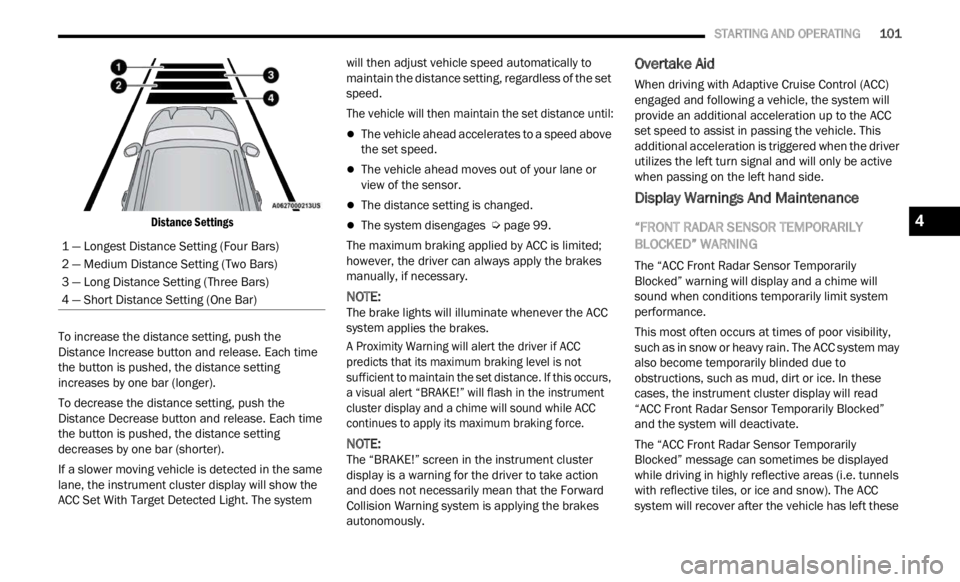
Distance Settings
To increase the distance setting, push the
Distan
ce Increase button and release. Each time
the button is pushed, the distance setting
increases by one bar (longer).
To decrease the distance setting, push the
Distan
ce Decrease button and release. Each time
the button is pushed, the distance setting
decreases by one bar (shorter).
If a slower moving vehicle is detected in the same
lane,
the instrument cluster display will show the
ACC Set With Target Detected Light. The system will then adjust vehicle speed automatically to
maintain the distance setting, regardless of the set
speed.
The vehicle will then maintain the set distance until:
The vehicle ahead accelerates to a speed above
the set speed.
The vehicle ahead moves out of your lane or
view of the sensor.
The distance setting is changed.
The system disengages
Ú page 99.
The maximum braking applied by ACC is limited;
howeve r
, the driver can always apply the brakes
manually, if necessary.
NOTE:
The brake lights will illuminate whenever the ACC
syste m
applies the brakes.
A Proximity Warning will alert the driver if ACC
predic
ts that its maximum braking level is not
sufficient to maintain the set distance. If this occurs,
a visual alert “BRAKE!” will flash in the instrument
cluster display and a chime will sound while ACC
continues to apply its maximum braking force.
NOTE:
The “BRAKE!” screen in the instrument cluster
displ a
y is a warning for the driver to take action
and does not necessarily mean that the Forward
Collision Warning system is applying the brakes
autonomously.
Overtake Aid
When driving with Adaptive Cruise Control (ACC)
engaged and following a vehicle, the system will
provide an additional acceleration up to the ACC
set speed to assist in passing the vehicle. This
additional acceleration is triggered when the driver
utilizes the left turn signal and will only be active
when passing on the left hand side.
Display Warnings And Maintenance
“FRONT RADAR SENSOR TEMPORARILY
BLOCKED” WARNING
The “ACC Front Radar Sensor Temporarily
Blocked” warning will display and a chime will
sound when conditions temporarily limit system
performance.
This most often occurs at times of poor visibility,
such a
s in snow or heavy rain. The ACC system may
also become temporarily blinded due to
obstructions, such as mud, dirt or ice. In these
cases, the instrument cluster display will read
“ACC Front Radar Sensor Temporarily Blocked”
and the system will deactivate.
The “ACC Front Radar Sensor Temporarily
Blocke d
” message can sometimes be displayed
while driving in highly reflective areas (i.e. tunnels
with reflective tiles, or ice and snow). The ACC
system will recover after the vehicle has left these
1 — Longest Distance Setting (Four Bars)
2 — Medium Distance Setting (Two Bars)
3 — Long Distance Setting (Three Bars)
4 — Short Distance Setting (One Bar)
4
Page 119 of 364
STARTING AND OPERATING 117
LANESENSE — IF EQUIPPED
LANESENSE OPERATION
The LaneSense system is operational at speeds
above 37 mph (60 km/h) and below 112 mph
(180 km
/h). The LaneSense system uses a
f or
wa
rd
looking camera to detect lane markings
and measure vehicle position within the lane
boundaries.
When both lane markings are detected and the
driver
unintentionally drifts out of the lane (no turn
signal applied), the LaneSense system provides a
haptic warning in the form of torque applied to the
steering wheel to prompt the driver to remain within
the lane boundaries. If the driver continues to
unintentionally drift out of the lane, the LaneSense
system provides a visual warning through the
instrument cluster display to prompt the driver to
remain within the lane boundaries.
The driver may manually override the haptic warning
by app l
ying torque to the steering wheel at any time.
When only a single lane marking is detected and
the dr
iver unintentionally drifts across the lane
marking (no turn signal applied), the LaneSense
system provides a visual warning through the
instrument cluster display to prompt the driver to
remain within the lane. When only a single lane
marking is detected, a haptic (torque) warning will
not be provided.
NOTE:
When operating conditions have been met, the
LaneSe n
se system will monitor if the driver’s
hands are on the steering wheel and provides an
audible warning to the driver when the driver’s
hands are not detected on the steering wheel. The
system will cancel if the driver does not return their
hands to the wheel.
TURNING LANESENSE ON OR OFF
The LaneSense button is located on the
center stack.
To turn the LaneSense system on, push the
La neSen
se button (LED turns off). A “Lane Sense
On” message is shown in the instrument cluster
display.
To turn the LaneSense system off, push the
LaneSen
se button once (LED turns on).
NOTE:
The LaneSense system will retain the last system
state
on or off from the last ignition cycle when the
ignition is changed to the ON/RUN position.
LANESENSE WARNING MESSAGE
The LaneSense system will indicate the current
lane drift condition through the instrument cluster
display.
Base Instrument Cluster Display — If Equipped
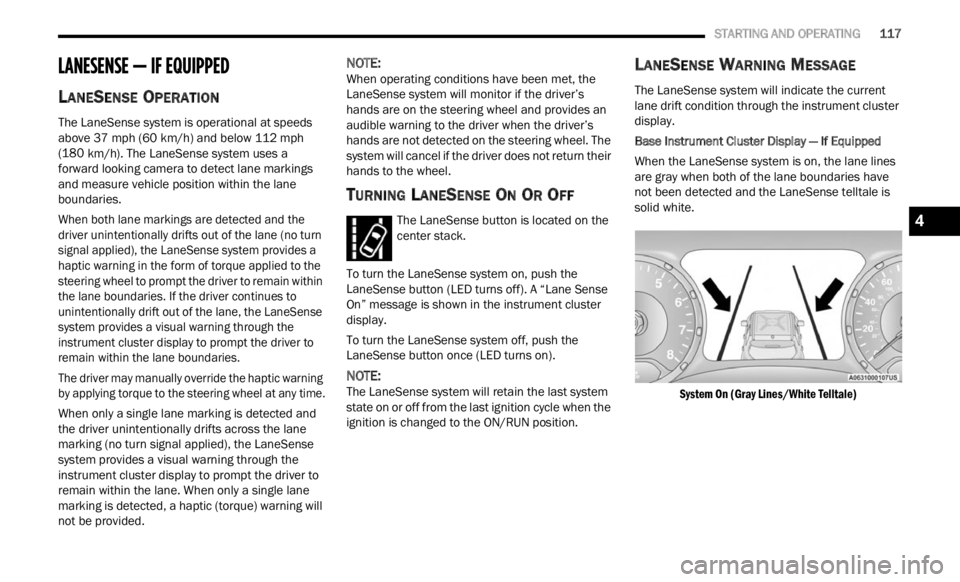
When the LaneSense system is on, the lane lines
a re gr
ay when both of the lane boundaries have
not been detected and the LaneSense telltale is
solid white.
System On (Gray Lines/White Telltale)
4
Page 120 of 364
118 STARTING AND OPERATING
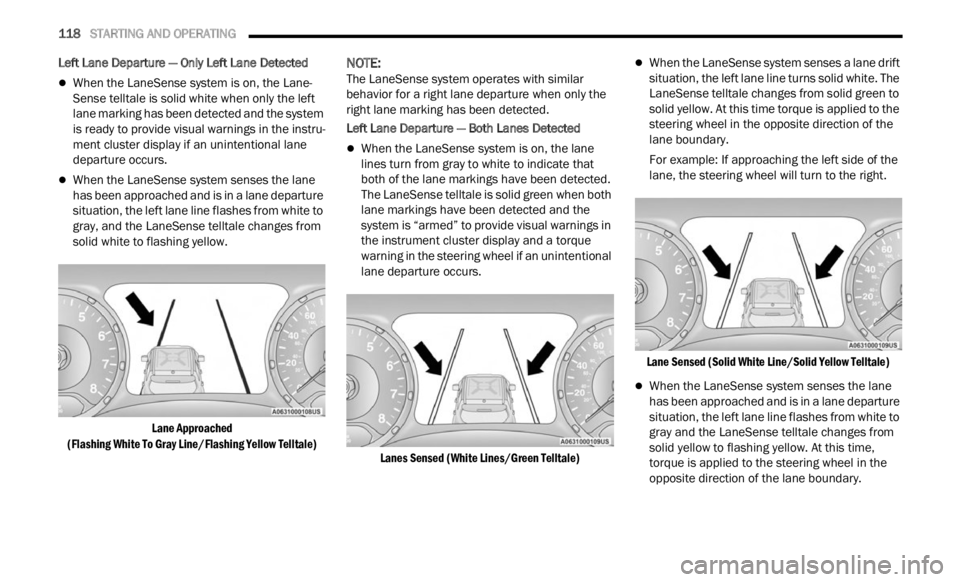
Left Lane Departure — Only Left Lane Detected
When the LaneSense system is on, the Lane-
Sense telltale is solid white when only the left
lane m
arking has been detected and the system
is ready to provide visual warnings in the instru -
ment cluster display if an unintentional lane
depar t
ure occurs.
When the LaneSense system senses the lane
has been approached and is in a lane departure
situation, the left lane line flashes from white to
gray, and the LaneSense telltale changes from
solid white to flashing yellow.
Lane Approached
(Flash
ing White To Gray Line/Flashing Yellow Telltale)
NOTE:
The LaneSense system operates with similar
behav i
or for a right lane departure when only the
right lane marking has been detected.
Left Lane Departure — Both Lanes Detected
When the LaneSense system is on, the lane
lines turn from gray to white to indicate that
both of the lane markings have been detected.
The LaneSense telltale is solid green when both
lane markings have been detected and the
system is “armed” to provide visual warnings in
the instrument cluster display and a torque
warning in the steering wheel if an unintentional
lane departure occurs.
Lanes Sensed (White Lines/Green Telltale)
When the LaneSense system senses a lane drift
situation, the left lane line turns solid white. The
LaneSense telltale changes from solid green to
solid yellow. At this time torque is applied to the
steering wheel in the opposite direction of the
lane boundary.
For example: If approaching the left side of the
lane,
the steering wheel will turn to the right.
Lane Sensed (Solid White Line/Solid Yellow Telltale)
When the LaneSense system senses the lane
has been approached and is in a lane departure
situation, the left lane line flashes from white to
gray and the LaneSense telltale changes from
solid yellow to flashing yellow. At this time,
torque is applied to the steering wheel in the
opposite direction of the lane boundary.
Page 122 of 364
120 STARTING AND OPERATING
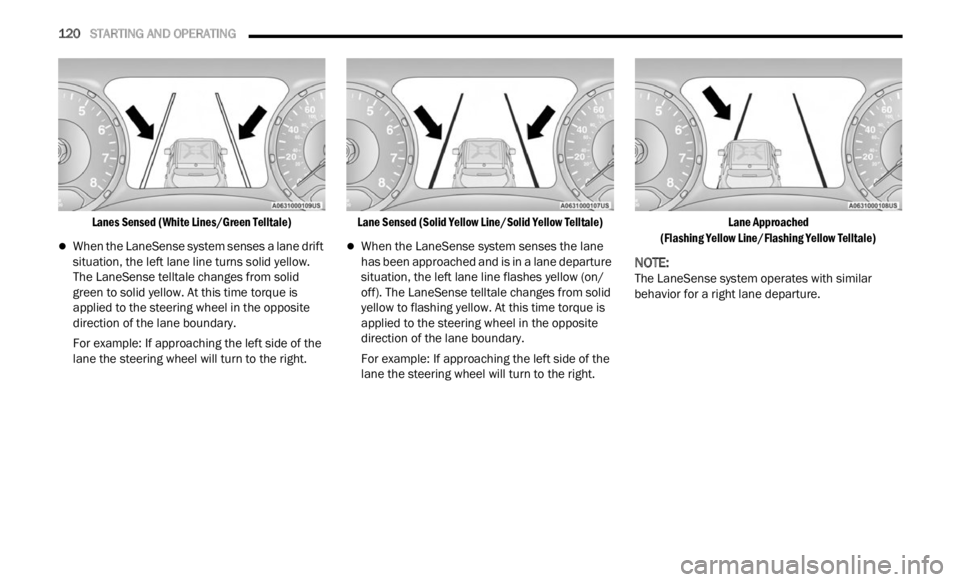
Lanes Sensed (White Lines/Green Telltale)
When the LaneSense system senses a lane drift
situation, the left lane line turns solid yellow.
The LaneSense telltale changes from solid
green to solid yellow. At this time torque is
applied to the steering wheel in the opposite
direction of the lane boundary.
For example: If approaching the left side of the
lane t
he steering wheel will turn to the right.
Lane Sensed (Solid Yellow Line/Solid Yellow Telltale)
When the LaneSense system senses the lane
has been approached and is in a lane departure
situation, the left lane line flashes yellow (on/
off). The LaneSense telltale changes from solid
yellow to flashing yellow. At this time torque is
applied to the steering wheel in the opposite
direction of the lane boundary.
For example: If approaching the left side of the
lane
t
he steering wheel will turn to the right.
Lane Approached
(Flas h
ing Yellow Line/Flashing Yellow Telltale)
NOTE:
The LaneSense system operates with similar
behav i
or for a right lane departure.
Page 135 of 364
133
MULTIMEDIA
UCONNECT SYSTEMS
Uconnect screen images are for illustration
purposes only and may not reflect exact software
for your vehicle.
CYBERSECURITY
Your vehicle may be a connected vehicle and may
be equipped with both wired and wireless
networks. These networks allow your vehicle to
send and receive information. This information
allows systems and features in your vehicle to
function properly.
Your vehicle may be equipped with certain security
featur
es to reduce the risk of unauthorized and
unlawful access to vehicle systems and wireless
communications. Vehicle software technology
continues to evolve over time and FCA US LLC,
working with its suppliers, evaluates and takes
appropriate steps as needed. Similar to a computer or other devices, your vehicle may
requi
r
e software updates to improve the usability
and performance of your systems or to reduce the
potential risk of unauthorized and unlawful access
to your vehicle systems.
The risk of unauthorized and unlawful access to
your v e
hicle systems may still exist, even if the
most recent version of vehicle software (such as
Uconnect software) is installed.
NOTE:
FCA US LLC or your dealer may contact you
directly regarding software updates.
To help further improve vehicle security and
minimize the potential risk of a security breach,
vehicle owners should:
Routinely check www.driveuconnect.com
(US Residents) or www.driveuconnect.ca
(Canadian Residents) to learn about avail -
able Uconnect software updates.
Only connect and use trusted media
devices (e.g. personal mobile phones,
USBs, CDs).
UCONNECT SETTINGS
The Uconnect system uses a combination of
buttons on the touchscreen and buttons on the
faceplate located on the center of the instrument
panel. These buttons allow you to access and
change the Customer Programmable Features.
Many features can vary by vehicle.
WARNING!
ONLY insert trusted devices/components into
your vehicle. Media of unknown origin could
possibly contain malicious software, and if
installed in your vehicle, it may increase the
possibility for vehicle systems to be breached.
As always, if you experience unusual vehicle
behavior, take your vehicle to your nearest
authorized dealer immediately.
5
Page 136 of 364
134 MULTIMEDIA
Buttons on the faceplate are located below and/or
beside the Uconnect system in the center of the
instrument panel. In addition, there is a SCROLL/
ENTER control knob located on the right side. Turn
the control knob to scroll through menus and
change settings. Push the center of the control
knob one or more times to select or change a
setting.
Your Uconnect system may also have SCREEN OFF
and MU
TE buttons on the faceplate.
Push the SCREEN OFF button on the faceplate to
turn of
f the Uconnect screen. Push the button
again or tap the screen to turn the screen on.
Press the Back Arrow button to exit out of a Menu
or cer t
ain option on the Uconnect system.
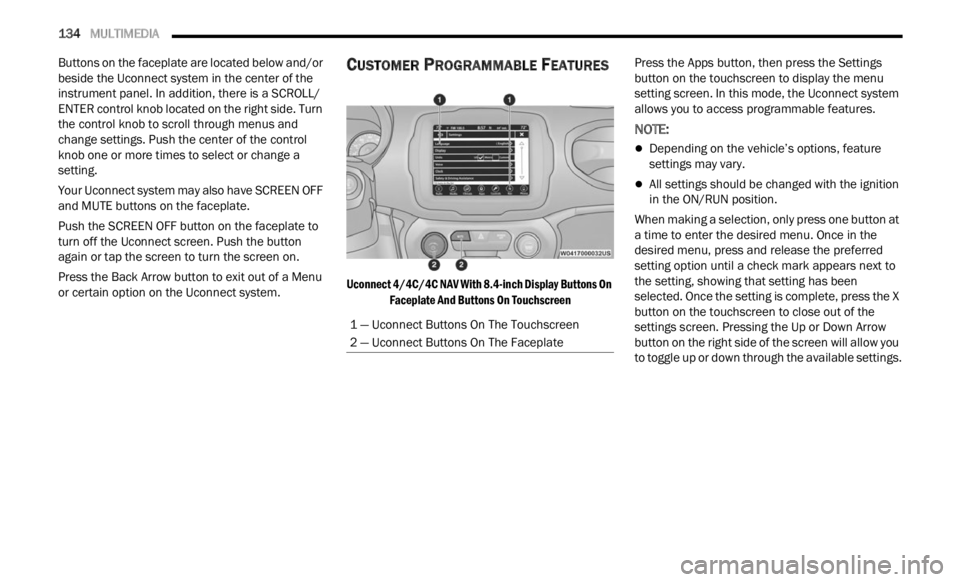
CUSTOMER PROGRAMMABLE FEATURES
Uconnect 4/4C/4C NAV With 8.4-inch Display Buttons On
Faceplate And Buttons On Touchscreen
Press the Apps button, then press the Settings
button
on the touchscreen to display the menu
setting screen. In this mode, the Uconnect system
allows you to access programmable features.
NOTE:
Depending on the vehicle’s options, feature
settings may vary.
All settings should be changed with the ignition
in the ON/RUN position.
When making a selection, only press one button at
a time
to enter the desired menu. Once in the
desired menu, press and release the preferred
setting option until a check mark appears next to
the setting, showing that setting has been
selected. Once the setting is complete, press the X
button on the touchscreen to close out of the
settings screen. Pressing the Up or Down Arrow
button on the right side of the screen will allow you
to toggle up or down through the available settings.
1 — Uconnect Buttons On The Touchscreen
2 — Uconnect Buttons On The Faceplate
Page 137 of 364

MULTIMEDIA 135
Language
Display
When the Language button is pressed on the touchscreen, the system displays the different language options. Once an option is selected, the system will
display in the chosen language. The available setting is:
NOTE:
Depending on the vehicle’s options, feature settings may vary.
Setting Name Description
Language This setting will change the language of the Uconnect system and the
Instr
u
ment Cluster Display. The available languages are English, Français, and
Español.
When the Display button is pressed on the touchscreen, the system will display the options related to the theme (if equipped), brightness, and color of the
touchscreen. The available settings are:
NOTE:
Depending on the vehicle’s options, feature settings may vary.
Setting Name Description
Display Mode This setting will allow you to set the brightness manually or have the system
set i
t
automatically. The “Auto” setting has the system automatically adjust
the display brightness. The “Manual” setting will allow the user to adjust the
brightness of the display.
Display Brightness With Headlights ON This setting will allow you to set the brightness when the headlights are on. To
a
cces
s
this setting, Display Mode must be set to Manual. The “+” setting will
increase the brightness; the “-” will decrease the brightness.
5