reset KIA BORREGO 2017 User Guide
[x] Cancel search | Manufacturer: KIA, Model Year: 2017, Model line: BORREGO, Model: KIA BORREGO 2017Pages: 548, PDF Size: 36.78 MB
Page 155 of 548
Features of your vehicle
66
4
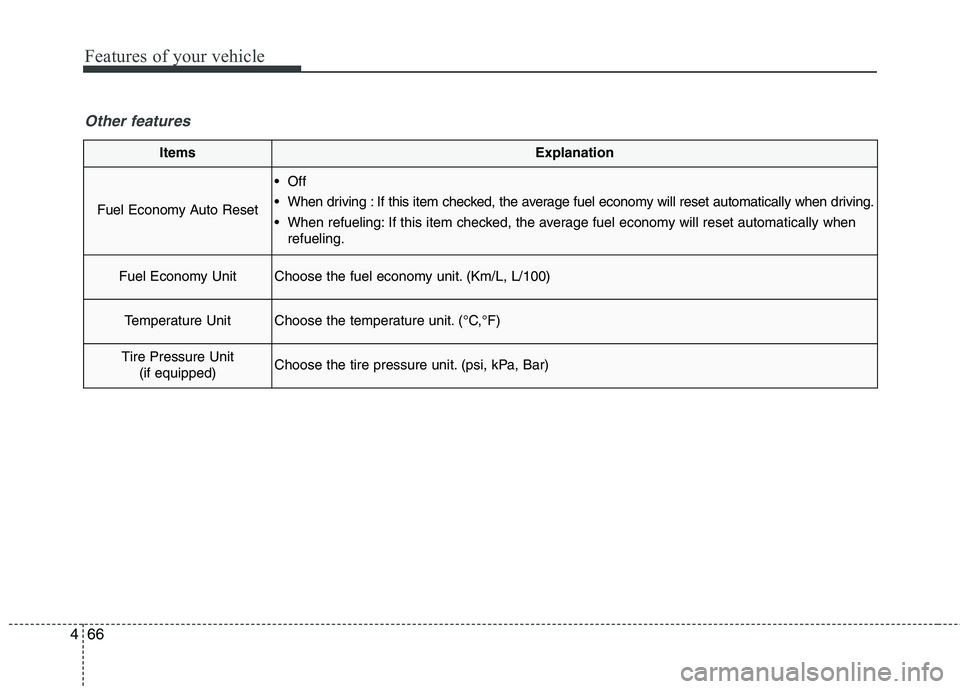
ItemsExplanation
Fuel Economy Auto Reset
Off
When driving : If this item checked, the average fuel economy will reset automatically when driving.
When refueling: If this item checked, the average fuel economy will reset automatically when
refueling.
Fuel Economy UnitChoose the fuel economy unit. (Km/L, L/100)
Temperature UnitChoose the temperature unit. (°C,°F)
Tire Pressure Unit
(if equipped)Choose the tire pressure unit. (psi, kPa, Bar)
Other features
Page 226 of 548
4137
Features of your vehicle
Automatic climate control system
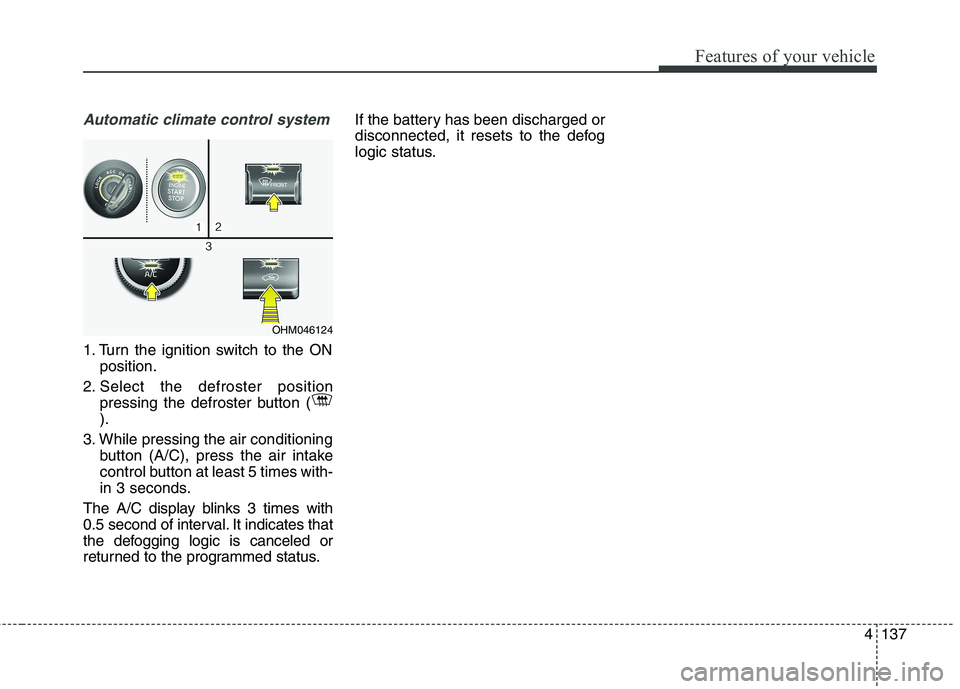
1. Turn the ignition switch to the ONposition.
2. Select the defroster position pressing the defroster button ( ).
3. While pressing the air conditioning button (A/C), press the air intake
control button at least 5 times with-
in 3 seconds.
The A/C display blinks 3 times with
0.5 second of interval. It indicates that
the defogging logic is canceled or
returned to the programmed status. If the battery has been discharged or
disconnected, it resets to the defog
logic status.
OHM046124
Page 245 of 548
Audio system
35
Steering wheel audio controls (if equipped)
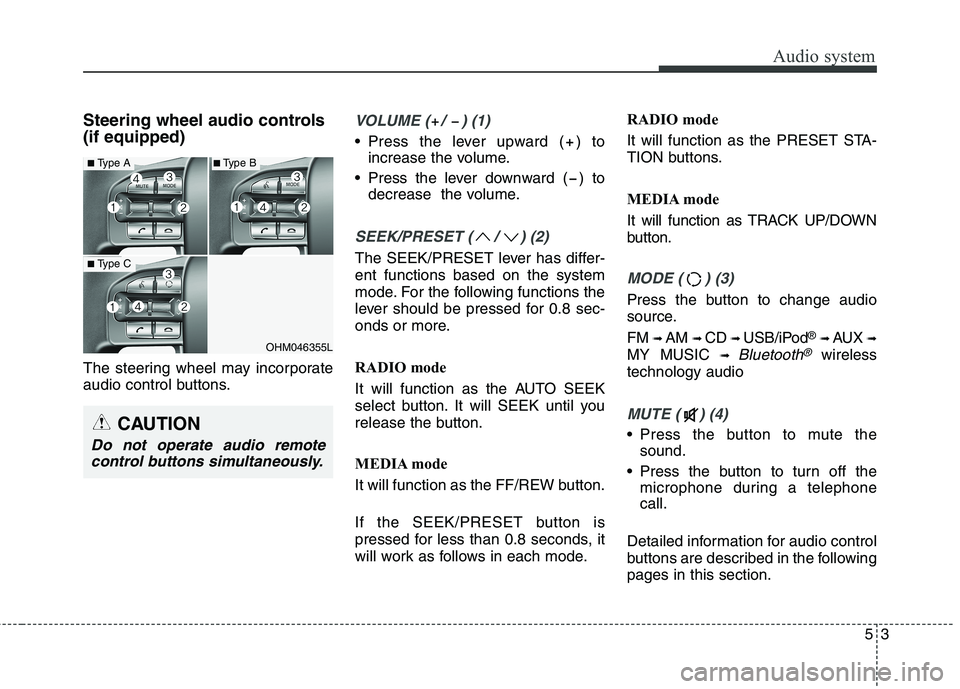
The steering wheel may incorporate
audio control buttons.VOLUME ( / ) (1)
• Press the lever upward ( ) toincrease the volume.
Press the lever downward ( ) to decrease the volume.
SEEK/PRESET ( / ) (2)
The SEEK/PRESET lever has differ- ent functions based on the system
mode. For the following functions the
lever should be pressed for 0.8 sec-
onds or more.
RADIO mode
It will function as the AUTO SEEK
select button. It will SEEK until you
release the button.
MEDIA mode
It will function as the FF/REW button.
If the SEEK/PRESET button is
pressed for less than 0.8 seconds, it
will work as follows in each mode. RADIO mode
It will function as the PRESET STA-
TION buttons.
MEDIA mode
It will function as TRACK UP/DOWN
button.
MODE ( ) (3)
Press the button to change audio
source. FM
➟ AM ➟ CD ➟ USB/iPod ®
➟ AUX ➟
MY MUSIC ➟
Bluetooth®wireless
technology audio
MUTE ( ) (4)
Press the button to mute the sound.
Press the button to turn off the microphone during a telephone call.
Detailed information for audio control
buttons are described in the followingpages in this section.
OHM046355L
■ Type A
■Type C
■Type B
CAUTION
Do not operate audio remote
control buttons simultaneously.
Page 257 of 548
Audio system
15
5
(Continued)
When the EQ features of an exter-
nal device, such as the iPod ®
, and
the audio system are both active,
EQ effects could overlap and
cause sound deterioration and dis-
tortion. Whenever possible, turn
off the EQ feature within the
external device when it is connect-
ed to the audio system.
Noise may occur when an iPod ®
or
AUX device is connected. When
such devices are not being used,
disconnect the device for storage.
When the iPod ®
or AUX device
power is connected to the power
jack, playing the external device
may result in noise. In such cases,
disconnect the power connection
before use.
Skipping or improper operation may occur depending on the char-
acteristics of your iPod ®
/iPhone ®
device. (Continued)(Continued)
If your iPhone is connected to both
the Bluetooth ®
Wireless Technology
and USB, the sound may not be
properly played. In your iPhone,
select the Dock connector or
Bluetooth ®
Wireless Technology to
change the sound output (source).
iPod ®
mode cannot be operated
when the iPod ®
cannot be recog-
nized due to the playing of ver-
sions that do not support commu-
nication protocols, cases of iPod ®
abnormalities and defects.
For fifth generation iPod ®
Nano
devices, the iPod ®
may not be recog-
nized when the battery level is low.
Please charge the iPod ®
for use.
The search/play orders shown with- in the iPod ®
device may differ from
the orders shown within the audio
system.
If the iPod ®
malfunctions due to
an iPod ®
device defect, reset the
iPod ®
and try again. (To learn
more, refer to your iPod ®
manual)
(Continued) (Continued)
Some iPod
®
s may not sync with
the System depending on the ver-
sion. If the Media is removed
before the Media is recognized,
then the system may not properly
restore the previously operated
mode. (iPad charging is not sup-
ported.)
Use an iPod ®
cable shorter than 1
meter in length such as the one
originally supplied with a new
iPod ®
, longer cables may lead to
the audio system not recognizing
the iPod ®
.
Page 262 of 548
Audio system
520Radio Mode
(Type-1)
Radio Mode Display Controls
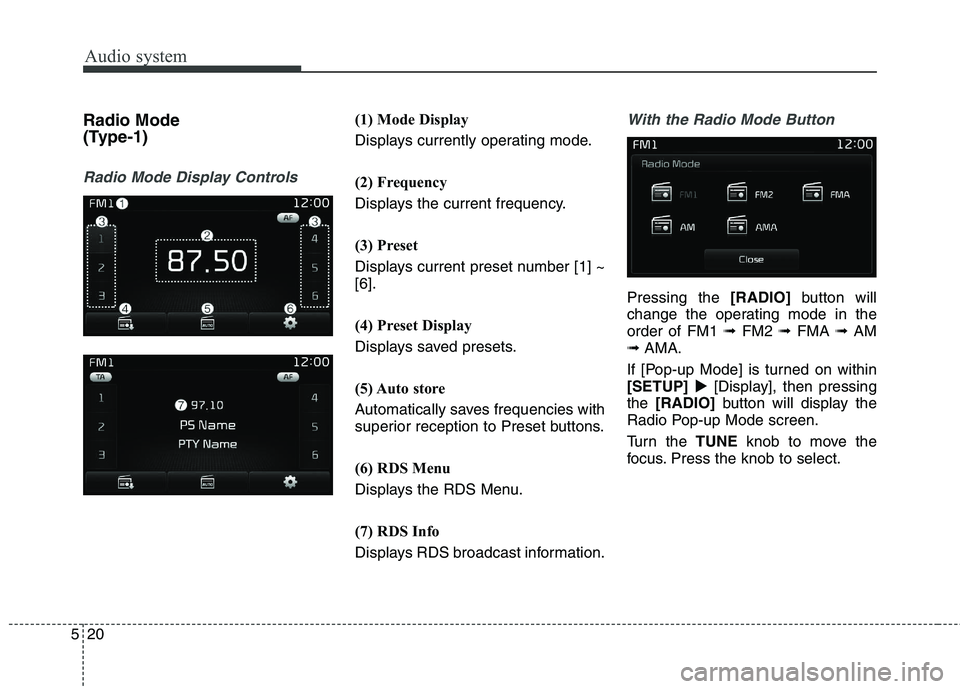
(1) Mode Display
Displays currently operating mode.
(2) Frequency
Displays the current frequency.
(3) Preset
Displays current preset number [1] ~ [6].
(4) Preset Display
Displays saved presets.
(5) Auto store
Automatically saves frequencies with
superior reception to Preset buttons.
(6) RDS Menu
Displays the RDS Menu.
(7) RDS Info
Displays RDS broadcast information.With the Radio Mode Button
Pressing the
[RADIO]button will
change the operating mode in the order of FM1 ➟FM2 ➟FMA ➟AM
➟ AMA.
If [Pop-up Mode] is turned on within[SETUP] [Display], then pressing
the [RADIO] button will display the
Radio Pop-up Mode screen.
Turn the TUNEknob to move the
focus. Press the knob to select.
Page 263 of 548
![KIA BORREGO 2017 User Guide Audio system
21
5
Seek Press the [SEEK TRACK] button to
play the previous/next frequency.
Tu n e
Turn the TUNEknob to select the
desired frequency.
Selecting/Saving Presets
Press the [1] ~ [6] but](/img/2/57934/w960_57934-262.png "KIA BORREGO 2017 User Guide Audio system
21
5
Seek Press the [SEEK TRACK] button to
play the previous/next frequency.
Tu n e
Turn the TUNEknob to select the
desired frequency.
Selecting/Saving Presets
Press the [1] ~ [6] but")
Audio system
21
5
Seek Press the [SEEK TRACK] button to
play the previous/next frequency.
Tu n e
Turn the TUNEknob to select the
desired frequency.
Selecting/Saving Presets
Press the [1] ~ [6] buttons to play the desired preset.
Press the [Preset] button to display
the broadcast information for the fre-
quency saved to each button.While listening to a frequency you
want to save as a preset, press and
hold one of the [1] ~ [6] preset but-
tons to save the current frequency tothe selected preset.
Auto Store
Press the [Auto store] button to auto-
matically save receivable frequen-
cies to Preset buttons.
While Auto Store is operating, press-
ing the [Auto store] button again will
cancel Auto Store and restore the
previous frequency.
Page 265 of 548
Audio system
23
5
Radio Mode
(Type-2)
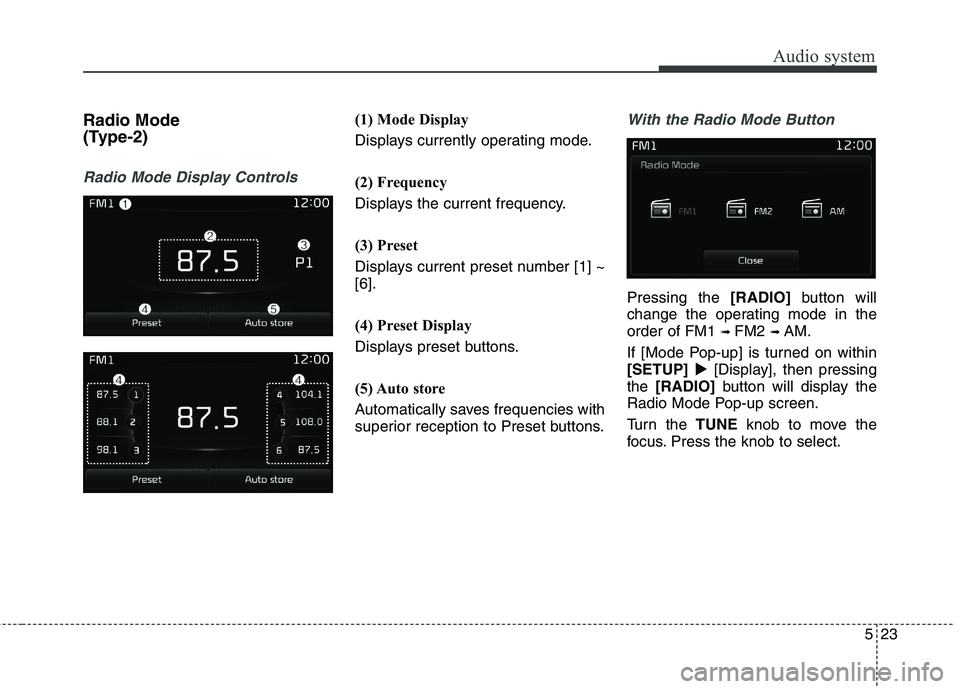
Radio Mode Display Controls
(1) Mode Display
Displays currently operating mode.
(2) Frequency
Displays the current frequency.
(3) Preset
Displays current preset number [1] ~ [6].
(4) Preset Display
Displays preset buttons.
(5) Auto store
Automatically saves frequencies with
superior reception to Preset buttons.With the Radio Mode Button
Pressing the [RADIO]button will
change the operating mode in the order of FM1 ➟ FM2 ➟ AM.
If [Mode Pop-up] is turned on within[SETUP] [Display], then pressing
the [RADIO] button will display the
Radio Mode Pop-up screen.
Turn the TUNEknob to move the
focus. Press the knob to select.
Page 266 of 548
![KIA BORREGO 2017 User Guide Audio system
524Seek Press the
[SEEK TRACK] button to
play the previous/next frequency.
Tu n e
Turn the TUNEknob to select the
desired frequency.
Selecting /Saving Presets
Press the [Preset] butto](/img/2/57934/w960_57934-265.png "KIA BORREGO 2017 User Guide Audio system
524Seek Press the
[SEEK TRACK] button to
play the previous/next frequency.
Tu n e
Turn the TUNEknob to select the
desired frequency.
Selecting /Saving Presets
Press the [Preset] butto")
Audio system
524Seek Press the
[SEEK TRACK] button to
play the previous/next frequency.
Tu n e
Turn the TUNEknob to select the
desired frequency.
Selecting /Saving Presets
Press the [Preset] button to display
the broadcast information for the fre-
quency saved to each button.
Press the [1] ~ [6] buttons to play the desired preset.
While listening to a frequency you
want to save as a preset, press and
hold one of the [1] ~ [6] preset but-
tons to save the current frequency tothe selected preset.Auto Store
Press the [Auto store] button to auto-
matically save receivable frequen-
cies to Preset buttons.
Scan Press the
[SCAN]button to preview
frequencies with superior reception
for 5 seconds each. Press and hold the [SCAN]button to
preview presets for 5 seconds each.
Once scan is complete, the previous frequency will be restored.
While Scan is operating, pressing the [SCAN] button will cancel scan-
ning.
Page 300 of 548
Audio system
558
Voice Command List
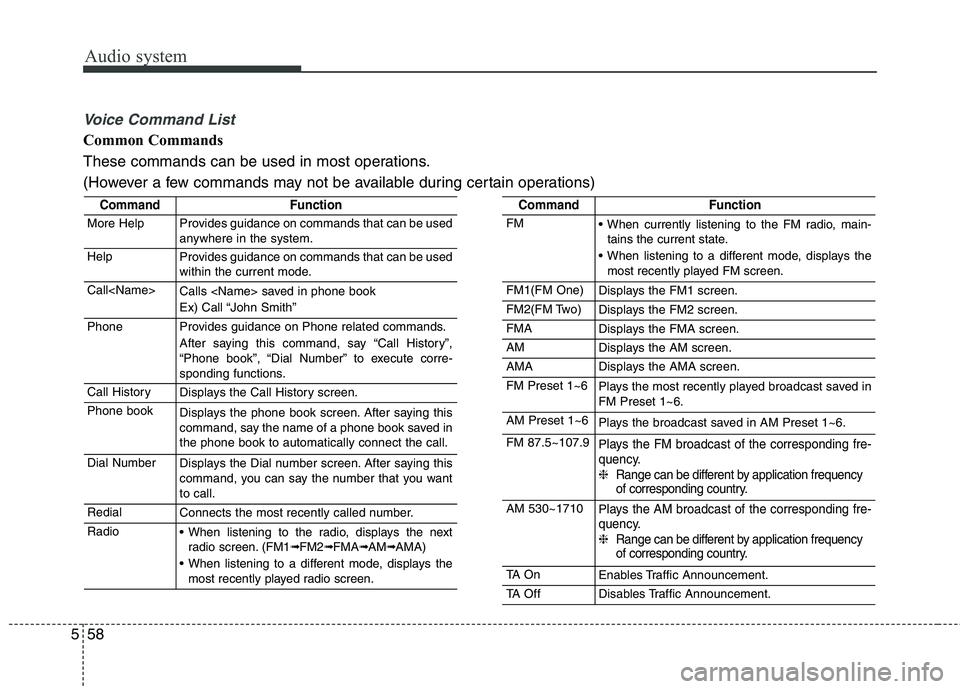
Common Commands
These commands can be used in most operations.
(However a few commands may not be available during certain operations)
CommandFunction
More HelpProvides guidance on commands that can be used
anywhere in the system.
HelpProvides guidance on commands that can be used
within the current mode.
Call
Ex) Call “John Smith”
PhoneProvides guidance on Phone related commands.
After saying this command, say “Call History”,
“Phone book”, “Dial Number” to execute corre-
sponding functions.
Call HistoryDisplays the Call History screen.
Phone bookDisplays the phone book screen. After saying this
command, say the name of a phone book saved inthe phone book to automatically connect the call.
Dial NumberDisplays the Dial number screen. After saying this
command, you can say the number that you wantto call.
RedialConnects the most recently called number.
Radio When listening to the radio, displays the nextradio screen. (FM1➟FM2➟FMA➟AM➟AMA)
When listening to a different mode, displays the most recently played radio screen.
CommandFunction
FM When currently listening to the FM radio, main-tains the current state.
When listening to a different mode, displays the most recently played FM screen.
FM1(FM One)Displays the FM1 screen.
FM2(FM Two)Displays the FM2 screen.
FMADisplays the FMA screen.
AMDisplays the AM screen.
AMADisplays the AMA screen.
FM Preset 1~6Plays the most recently played broadcast saved in FM Preset 1~6.
AM Preset 1~6Plays the broadcast saved in AM Preset 1~6.
FM 87.5~107.9Plays the FM broadcast of the corresponding fre-
quency. ❈ Range can be different by application frequency
of corresponding country.
AM 530~1710Plays the AM broadcast of the corresponding fre-
quency. ❈ Range can be different by application frequency
of corresponding country.
TA O nEnables Traffic Announcement.
TA OffDisables Traffic Announcement.
Page 302 of 548
Audio system
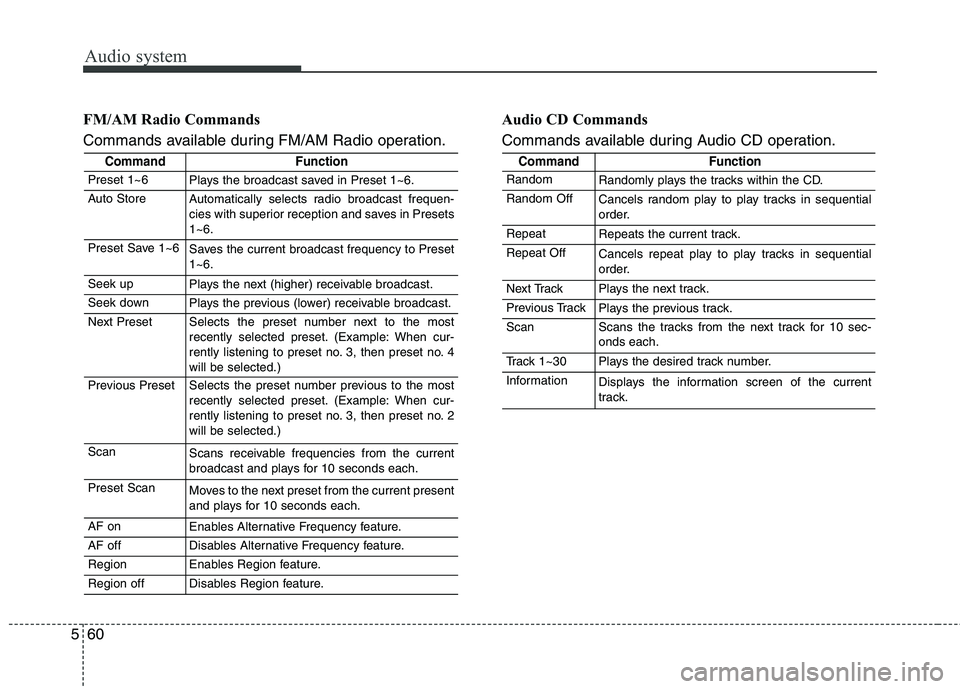
560FM/AM Radio Commands
Commands available during FM/AM Radio operation.
Audio CD Commands
Commands available during Audio CD operation.
CommandFunction
Preset 1~6Plays the broadcast saved in Preset 1~6.
Auto StoreAutomatically selects radio broadcast frequen-
cies with superior reception and saves in Presets1~6.
Preset Save 1~6Saves the current broadcast frequency to Preset 1~6.
Seek upPlays the next (higher) receivable broadcast.
Seek downPlays the previous (lower) receivable broadcast.
Next PresetSelects the preset number next to the most
recently selected preset. (Example: When cur-
rently listening to preset no. 3, then preset no. 4will be selected.)
Previous PresetSelects the preset number previous to the most
recently selected preset. (Example: When cur-
rently listening to preset no. 3, then preset no. 2will be selected.)
ScanScans receivable frequencies from the current
broadcast and plays for 10 seconds each.
Preset ScanMoves to the next preset from the current present
and plays for 10 seconds each.
AF onEnables Alternative Frequency feature.
AF offDisables Alternative Frequency feature.
RegionEnables Region feature.
Region offDisables Region feature.
CommandFunction
RandomRandomly plays the tracks within the CD.
Random OffCancels random play to play tracks in sequential
order.
RepeatRepeats the current track.
Repeat OffCancels repeat play to play tracks in sequential
order.
Next TrackPlays the next track.
Previous TrackPlays the previous track.
ScanScans the tracks from the next track for 10 sec- onds each.
Track 1~30Plays the desired track number.
InformationDisplays the information screen of the current
track.