ECO mode KIA CADENZA 2011 User Guide
[x] Cancel search | Manufacturer: KIA, Model Year: 2011, Model line: CADENZA, Model: KIA CADENZA 2011Pages: 352, PDF Size: 28.17 MB
Page 163 of 352
Features of your vehicle
102
4
Manual heating and air condition- ing The heating and cooling system can be
controlled manually by pushing buttons
other than the AUTO button. In this case,
the system works sequentially according
to the order of buttons selected.
When pressing any button except the
AUTO button while using automatic oper-ation, the functions not selected will be
controlled automatically.
1. Start the engine.
2. Set the mode to the desired position.
To improve the effectiveness of heat-ing and cooling:
- Heating:- Cooling:
3. Set the temperature control to the desired position.
4. Set the air intake control to the outside (fresh) air position.
5. Set the fan speed control to the desired speed.
6. If air conditioning is desired, turn the air conditioning system on.
Press the AUTO button in order to con-
vert to full automatic control of the sys-tem.
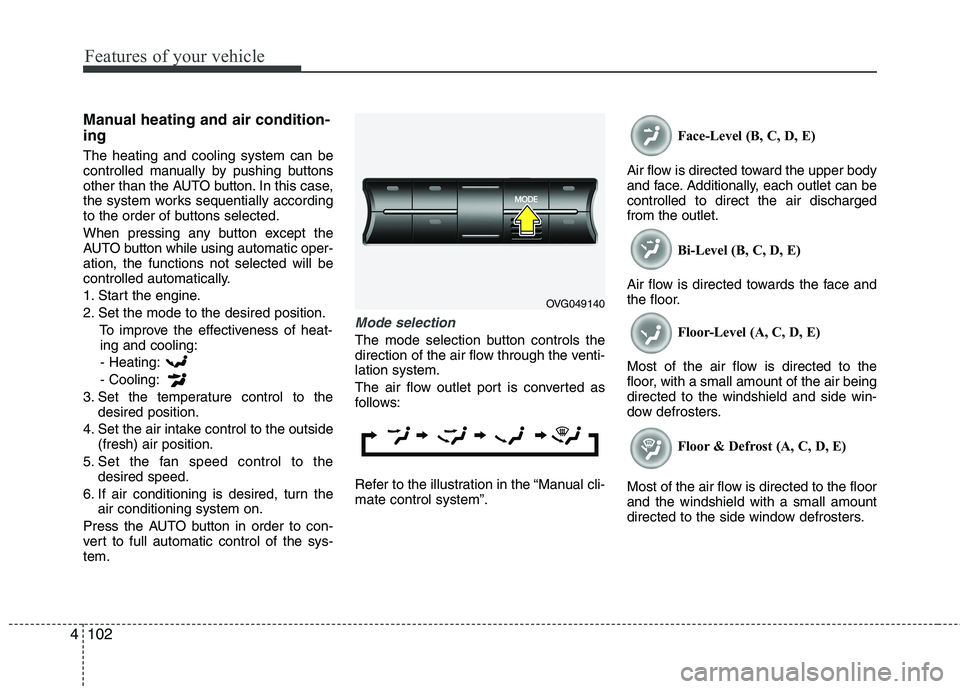
Mode selection
The mode selection button controls the
direction of the air flow through the venti-lation system.
The air flow outlet port is converted as
follows:
Refer to the illustration in the “Manual cli- mate control system”. Face-Level (B, C, D, E)
Air flow is directed toward the upper body
and face. Additionally, each outlet can becontrolled to direct the air dischargedfrom the outlet. Bi-Level (B, C, D, E)
Air flow is directed towards the face and
the floor. Floor-Level (A, C, D, E)
Most of the air flow is directed to the
floor, with a small amount of the air beingdirected to the windshield and side win-
dow defrosters. Floor & Defrost (A, C, D, E)
Most of the air flow is directed to the floorand the windshield with a small amount
directed to the side window defrosters.
OVG049140
Page 178 of 352
4117
Features of your vehicle
■■
Type B
Hour (1)
Pressing the H button will advance the
time displayed by one hour.
Minute (2)
Pressing the M button will advance the
time displayed by one minute.
Display conversion
To change the 12 hour format to the 24
hour format, press the “H” and “M” but-
tons at the same time for more than 3
seconds.
For example, if the “H” and “M” buttons
are pressed for more than 3 seconds
while the time is 10:15 p.m., the displaywill change to 22:15.
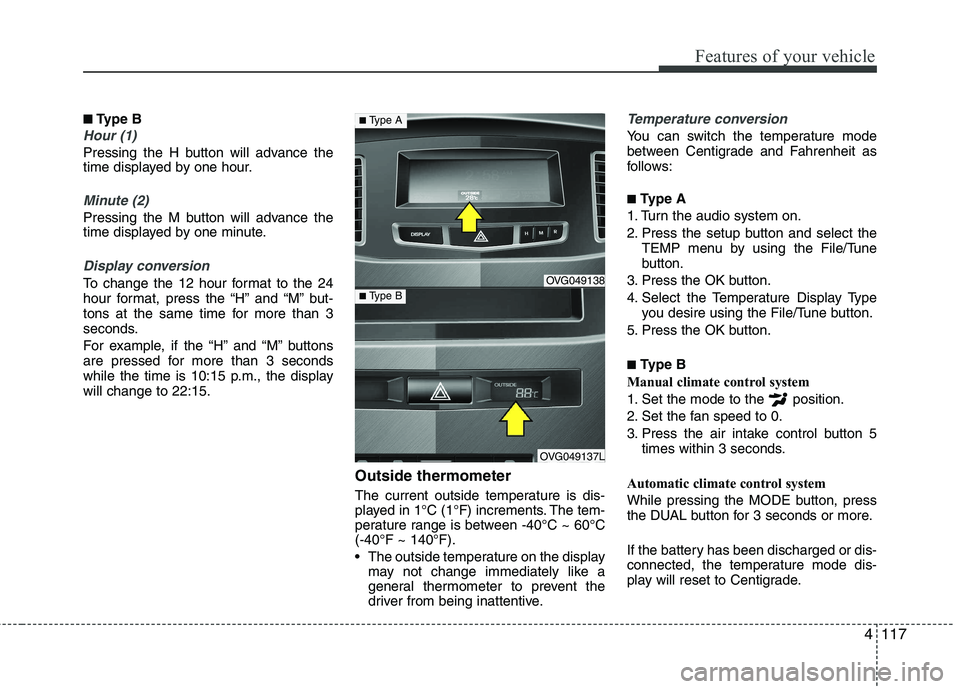
Outside thermometer
The current outside temperature is dis-
played in 1°C (1°F) increments. The tem-
perature range is between -40°C ~ 60°C(-40°F ~ 140°F).
The outside temperature on the displaymay not change immediately like a
general thermometer to prevent the
driver from being inattentive.
Temperature conversion
You can switch the temperature mode
between Centigrade and Fahrenheit as
follows: ■ Type A
1. Turn the audio system on.
2. Press the setup button and select the TEMP menu by using the File/Tune
button.
3. Press the OK button.
4. Select the Temperature Display Type you desire using the File/Tune button.
5. Press the OK button. ■ Type B
Manual climate control system
1. Set the mode to the position.
2. Set the fan speed to 0.
3. Press the air intake control button 5 times within 3 seconds.
Automatic climate control system
While pressing the MODE button, press
the DUAL button for 3 seconds or more.
If the battery has been discharged or dis-
connected, the temperature mode dis-
play will reset to Centigrade.
OVG049138
OVG049137L
■ Type A
■Type B
Page 182 of 352
4121
Features of your vehicle
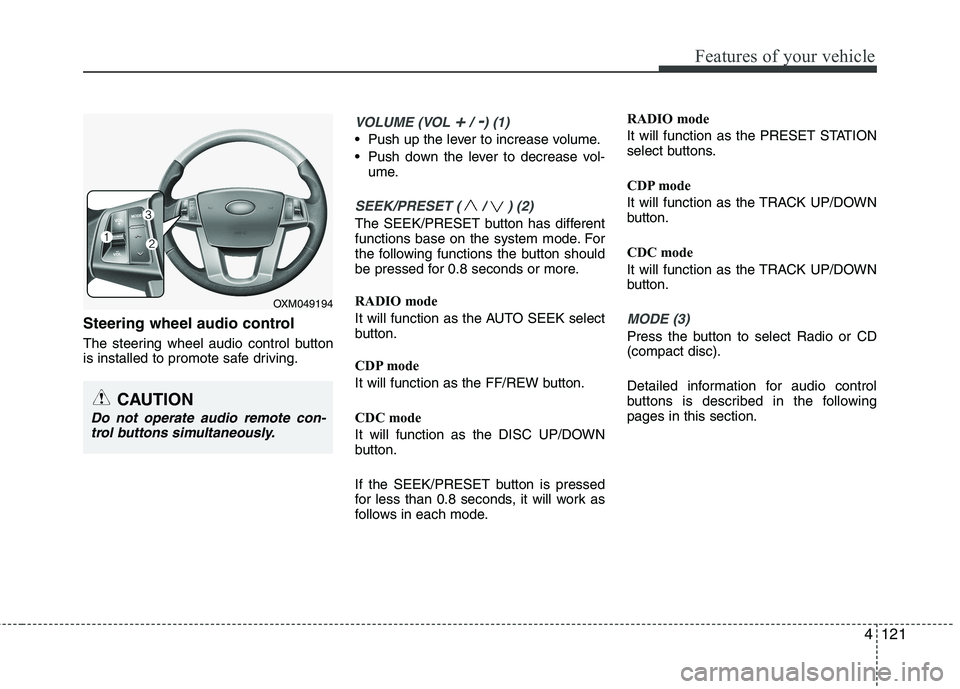
Steering wheel audio control
The steering wheel audio control button
is installed to promote safe driving.
VOLUME (VOL +/ -) (1)
Push up the lever to increase volume.
Push down the lever to decrease vol-ume.
SEEK/PRESET ( / ) (2)
The SEEK/PRESET button has different
functions base on the system mode. For
the following functions the button should
be pressed for 0.8 seconds or more.
RADIO mode
It will function as the AUTO SEEK select
button.
CDP mode
It will function as the FF/REW button.
CDC mode
It will function as the DISC UP/DOWN
button.
If the SEEK/PRESET button is pressed
for less than 0.8 seconds, it will work as
follows in each mode. RADIO mode
It will function as the PRESET STATION
select buttons.
CDP mode
It will function as the TRACK UP/DOWN
button.
CDC mode
It will function as the TRACK UP/DOWN
button.
MODE (3)
Press the button to select Radio or CD (compact disc).
Detailed information for audio control
buttons is described in the followingpages in this section.
CAUTION
Do not operate audio remote con-
trol buttons simultaneously.
OXM049194
Page 187 of 352
![KIA CADENZA 2011 User Guide Knowing your vehicle
126
4
Using RADIO, SETUP, VOLUME
and AUDIO CONTROL
1. AM Button
Pressing the [AM] button selects the AM
band. AM Mode is displayed on the LCD.
2. FM Button
Turns to FM mode a](/img/2/57935/w960_57935-186.png "KIA CADENZA 2011 User Guide Knowing your vehicle
126
4
Using RADIO, SETUP, VOLUME
and AUDIO CONTROL
1. AM Button
Pressing the [AM] button selects the AM
band. AM Mode is displayed on the LCD.
2. FM Button
Turns to FM mode a")
Knowing your vehicle
126
4
Using RADIO, SETUP, VOLUME
and AUDIO CONTROL
1. AM Button
Pressing the [AM] button selects the AM
band. AM Mode is displayed on the LCD.
2. FM Button
Turns to FM mode and toggles FM1and
FM2 when the button is pressed each time.
3. SEEK Button
When the [SEEK ] button is pressed,
it increases the band frequency to auto-
matically select channel. Stops at the
previous frequency if no channel is
found.
When the [TRACK ] button is press- ed, it reduces the band frequency to
automatically select channel. Stops at
the previous frequency if no channel is
found. 4. POWER ON/OFF Button
Turns on/off the set when the IGNITION
SWITCH is on ACC or ON.
5. PRESET Buttons
Push [1]~[6] buttons less than 0.8 sec-
onds to play the channel saved in each
button. Push Preset button for 0.8 sec-
onds or longer to save current channel to
the respective button with a beep.
6. AST(AUTO STORE Button)
When the button is pressed, it automati-
cally selects and saves channels with
high reception rate to PRESET buttons
[1]~[6] and plays the channel saved in
PRESET1. If no channel is saved after
AST, it will play the previous channel.
7. SETUP Button ■
PA710VG
Press this button to turn to the SCROLL
option and the other adjustment mode. If
no action is taken for 5 seconds after
pressing the button, it will return to the
play mode. (After entering SETUP mode,
select Manual tune Button and push OK
Button. )The setup change in the order ofSOUND ↔SDVC ↔CLOCK ↔TEMP ↔
SCROLL ↔RETURN
■ PA760VG
The setup change in the order ofSOUND ↔V-EQ ↔SDVC ↔CLOCK ↔
TEMP ↔SCROLL ↔PHONE ↔RETURN
In the case of JBL AMP SOUND ↔SDVC ↔CLOCK ↔TEMP ↔SCR
OLL ↔PHONE
Page 190 of 352
4129
Knowing your vehicle
Using CD Player
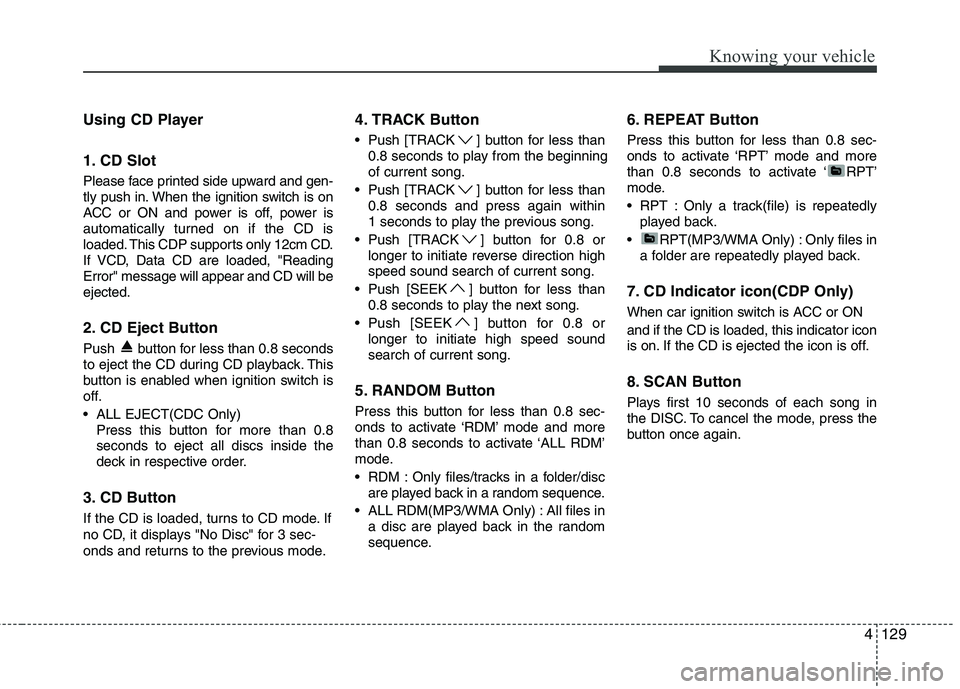
1. CD Slot
Please face printed side upward and gen-
tly push in. When the ignition switch is on
ACC or ON and power is off, power is
automatically turned on if the CD is
loaded. This CDP supports only 12cm CD.
If VCD, Data CD are loaded, "ReadingError" message will appear and CD will beejected.
2. CD Eject Button
Push button for less than 0.8 seconds
to eject the CD during CD playback. This
button is enabled when ignition switch is
off.
ALL EJECT(CDC Only)Press this button for more than 0.8 seconds to eject all discs inside the
deck in respective order.
3. CD Button
If the CD is loaded, turns to CD mode. If
no CD, it displays "No Disc" for 3 sec-
onds and returns to the previous mode. 4. TRACK Button
Push [TRACK ] button for less than
0.8 seconds to play from the beginning of current song.
Push [TRACK ] button for less than 0.8 seconds and press again within
1 seconds to play the previous song.
Push [TRACK ] button for 0.8 or longer to initiate reverse direction highspeed sound search of current song.
Push [SEEK ] button for less than 0.8 seconds to play the next song.
Push [SEEK ] button for 0.8 or longer to initiate high speed soundsearch of current song.
5. RANDOM Button
Press this button for less than 0.8 sec-
onds to activate ‘RDM’ mode and more
than 0.8 seconds to activate ‘ALL RDM’
mode.
RDM : Only files/tracks in a folder/disc are played back in a random sequence.
ALL RDM(MP3/WMA Only) : All files in a disc are played back in the random
sequence. 6. REPEAT Button
Press this button for less than 0.8 sec-
onds to activate ‘RPT’ mode and more
than 0.8 seconds to activate ‘ RPT’
mode.
RPT : Only a track(file) is repeatedly
played back.
RPT(MP3/WMA Only) : Only files in a folder are repeatedly played back.
7. CD Indicator icon(CDP Only)
When car ignition switch is ACC or ON and if the CD is loaded, this indicator icon
is on. If the CD is ejected the icon is off.
8. SCAN Button
Plays first 10 seconds of each song in
the DISC. To cancel the mode, press the
button once again.
Page 193 of 352
Knowing your vehicle
132
4
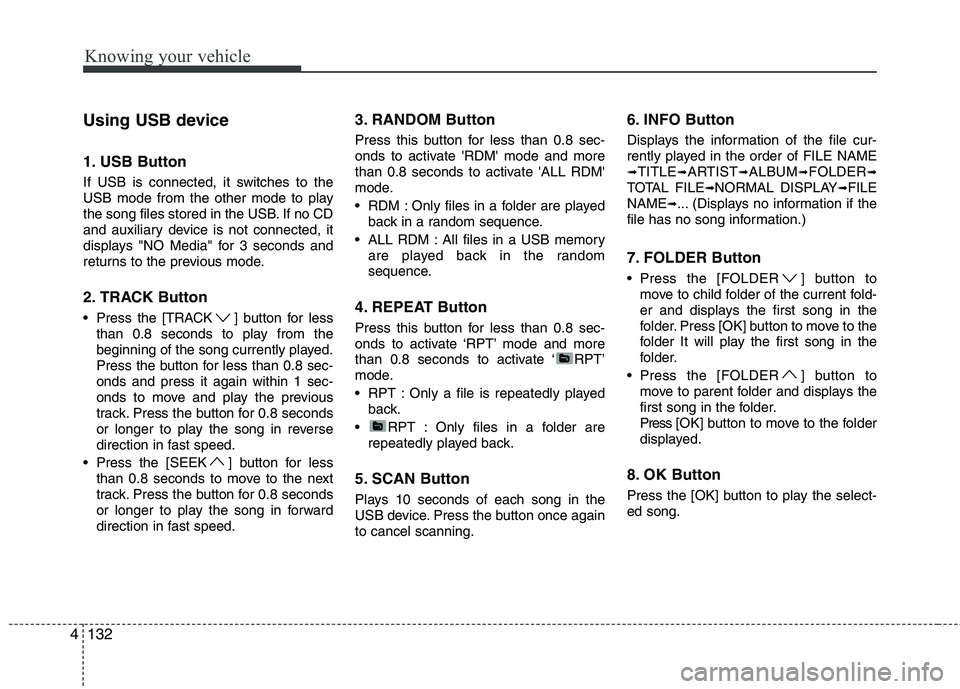
Using USB device
1. USB Button
If USB is connected, it switches to the
USB mode from the other mode to play
the song files stored in the USB. If no CD
and auxiliary device is not connected, it
displays "NO Media" for 3 seconds and
returns to the previous mode.
2. TRACK Button
Press the [TRACK ] button for less
than 0.8 seconds to play from the
beginning of the song currently played.
Press the button for less than 0.8 sec-onds and press it again within 1 sec-
onds to move and play the previous
track. Press the button for 0.8 seconds
or longer to play the song in reverse
direction in fast speed.
Press the [SEEK ] button for less than 0.8 seconds to move to the next
track. Press the button for 0.8 seconds
or longer to play the song in forward
direction in fast speed. 3. RANDOM Button
Press this button for less than 0.8 sec-
onds to activate 'RDM' mode and more
than 0.8 seconds to activate 'ALL RDM'
mode.
RDM : Only files in a folder are played
back in a random sequence.
ALL RDM : All files in a USB memory are played back in the random
sequence.
4. REPEAT Button
Press this button for less than 0.8 sec-
onds to activate ‘RPT’ mode and more
than 0.8 seconds to activate ‘ RPT’
mode.
RPT : Only a file is repeatedly played back.
RPT : Only files in a folder are repeatedly played back.
5. SCAN Button
Plays 10 seconds of each song in the
USB device. Press the button once againto cancel scanning. 6. INFO Button
Displays the information of the file cur-
rently played in the order of FILE NAME ➟
TITLE ➟ARTIST ➟ALBUM ➟FOLDER ➟
TOTAL FILE ➟NORMAL DISPLAY ➟FILE
NAME ➟... (Displays no information if the
file has no song information.)
7. FOLDER Button
Press the [FOLDER ] button to move to child folder of the current fold-
er and displays the first song in the
folder. Press [OK] button to move to the
folder It will play the first song in the
folder.
Press the [FOLDER ] button to move to parent folder and displays the
first song in the folder.
Press [ O K ] bu tton to move to the folder
displayed.
8. OK Button
Press the [OK] button to play the select- ed song.
Page 195 of 352
Knowing your vehicle
134
4
(Continued)
If the USB device is divided by logical drives, only the music fileson the highest-priority drive arerecognized by car audio.
Devices such as MP3 Player/ Cellular phone/Digital camera canbe unrecognizable by standardUSB I/F can be unrecognizable.
Some non-standard USB devices (METAL COVER TYPE USB) can beunrecognizable.
Some USB flash memory readers (such as CF, SD, microSD, etc.) orexternal-HDD type devices can be unrecognizable.
Music files protected by DRM (DIGITAL RIGHTS MANAGEMENT)are not recognizable.
The data in the USB memory may be lost while using this audio.
Always back up important data ona personal storage device.
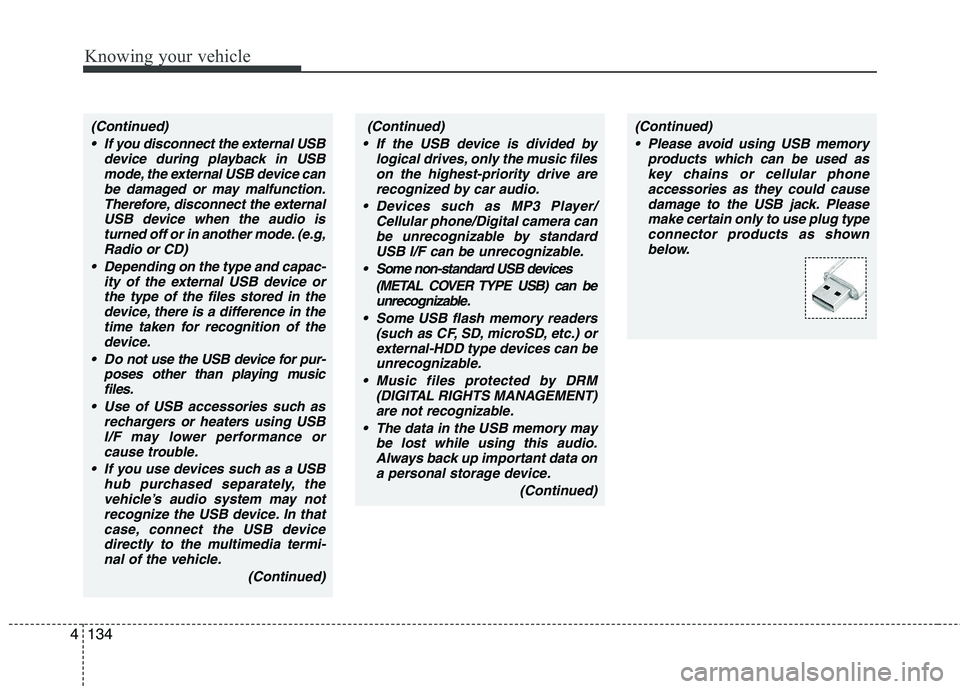
(Continued)(Continued) Please avoid using USB memory products which can be used askey chains or cellular phone
accessories as they could causedamage to the USB jack. Pleasemake certain only to use plug type
connector products as shownbelow.(Continued)
If you disconnect the external USB device during playback in USBmode, the external USB device canbe damaged or may malfunction.
Therefore, disconnect the externalUSB device when the audio isturned off or in another mode. (e.g,
Radio or CD)
Depending on the type and capac- ity of the external USB device orthe type of the files stored in the device, there is a difference in the
time taken for recognition of thedevice.
Do not use the USB device for pur- poses other than playing musicfiles.
Use of USB accessories such as rechargers or heaters using USBI/F may lower performance orcause trouble.
If you use devices such as a USB hub purchased separately, thevehicle’s audio system may notrecognize the USB device. In thatcase, connect the USB device
directly to the multimedia termi-nal of the vehicle.
(Continued)
Page 197 of 352
Knowing your vehicle
136
4
Using iPod
1. iPod Button
If iPod is connected, it switches to
iPod
mode from the CD mode to play the song
files stored in iPod. If no CD and auxiliary
device is not connected, it displays "NO
Media" for 3 seconds and returns to the
previous mode.
2. TRACK Button
Press the [TRACK ] button for less
than 0.8 seconds to play from the
beginning of the song currently played.
Press the button for less than 0.8 sec-onds and press it again within 1 sec-
onds to move and play the previous
track. Press the button for 0.8 seconds
or longer to play the song in reverse
direction in fast speed.
Press the [SEEK ] button for less than 0.8 seconds to move to the next
track. Press the button for 0.8 seconds
or longer to play the song in forward
direction in fast speed. 3. RANDOM Button
Press the button for less than 0.8 sec-
onds to activate or deactivate the random
playback of the songs within the current
category. Press the button for longer than
0.8 seconds to randomly play all songs in
the entire album of iPod.
Press the button once again to cancel
the mode.
4. REPEAT Button
Repeats the song currently played.
5. INFO Button
Displays the information of the file cur-
rently played in the order of TITLE
➟
ARTIST ➟ALBUM ➟NORMAL DISPLAY ➟
TITLE ➟... (Displays no information if the
file has no song information.)
6. CATEGORY Button
Move to the upper category from current-
ly played category of iPod. 7. FILE Button
Press the [ TUNE ] button to display
the songs(category) next to the song
currently played (category in the same
level). Press the [ FILE ] button to dis-
play the songs(category) before to the
song currently played(category in the
same level).
8. OK Button
Press the [OK] button to play the select- ed song.
Page 199 of 352
Knowing your vehicle
138
4
BLUETOOTH PHONE OPERATION
(IF EQUIPPED)
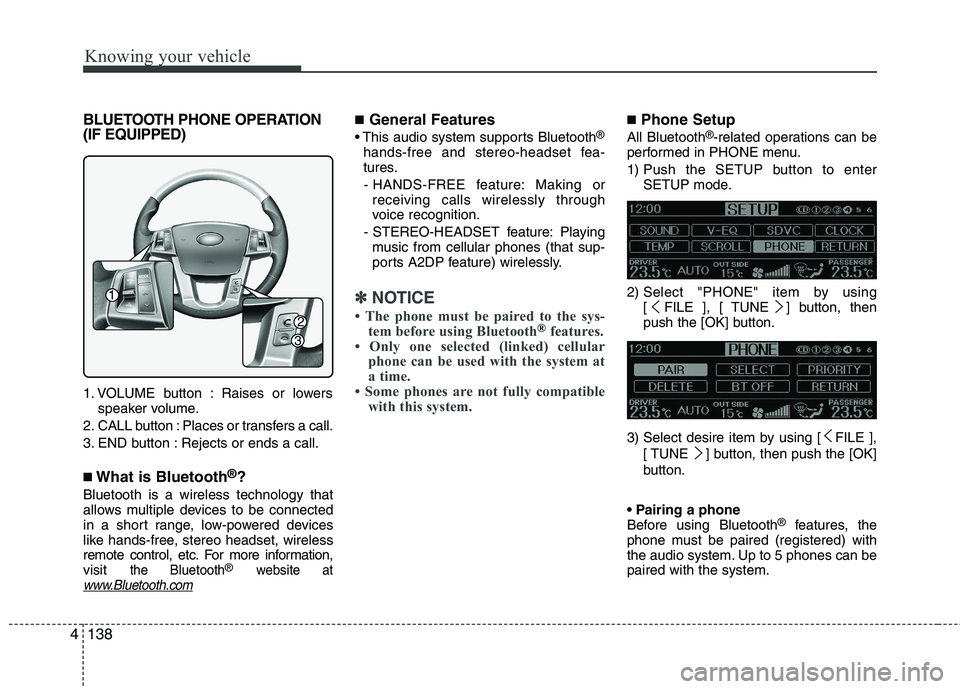
1. VOLUME button : Raises or lowers
speaker volume.
2. CALL button : Places or transfers a call.
3. END button : Rejects or ends a call. ■ What is Bluetooth ®
?
Bluetooth is a wireless technology that
allows multiple devices to be connected
in a short range, low-powered devices
like hands-free, stereo headset, wireless
remote control, etc. For more information,visit
the Bluetooth®website atwww.Bluetooth.com
■ General Features
®
hands-free and stereo-headset fea-
tures. - HANDS-FREE feature: Making or receiving calls wirelessly through
voice recognition.
- STEREO-HEADSET feature: Playing music from cellular phones (that sup-
ports A2DP feature) wirelessly.
✽✽ NOTICE
The phone must be paired to the sys- tem before using Bluetooth
®features.
Only one selected (linked) cellular
phone can be used with the system at
a time.
Some phones are not fully compatible with this system.
■ Phone Setup
All Bluetooth ®
-related operations can be
performed in PHONE menu.
1) Push the SETUP button to enter SETUP mode.
2) Select "PHONE" item by using [ FILE ], [ TUNE ] button, then
push the [OK] button.
3) Select desire item by using [ FILE ], [ TUNE ] button, then push the [OK]
button.
Before using Bluetooth ®
features, the
phone must be paired (registered) with
the audio system. Up to 5 phones can bepaired with the system.
1
2
3
Page 217 of 352
Driving your vehicle
14
5
R (Reverse)
Use this position to drive the vehicle
backward. N (Neutral)
The wheels and transaxle are not
engaged. The vehicle will roll freely even
on the slightest incline unless the parking
brake or service brakes are applied.
D (Drive)
This is the normal forward driving posi-
tion. The transaxle will automatically shift
through a 6-gear sequence, providing the
best fuel economy and power.
For extra power when passing another
vehicle or climbing grades, depress the
accelerator fully, at which time the
transaxle will automatically downshift to
the lower gear.
✽✽
NOTICE
Always come to a complete stop before
shifting into D (Drive).
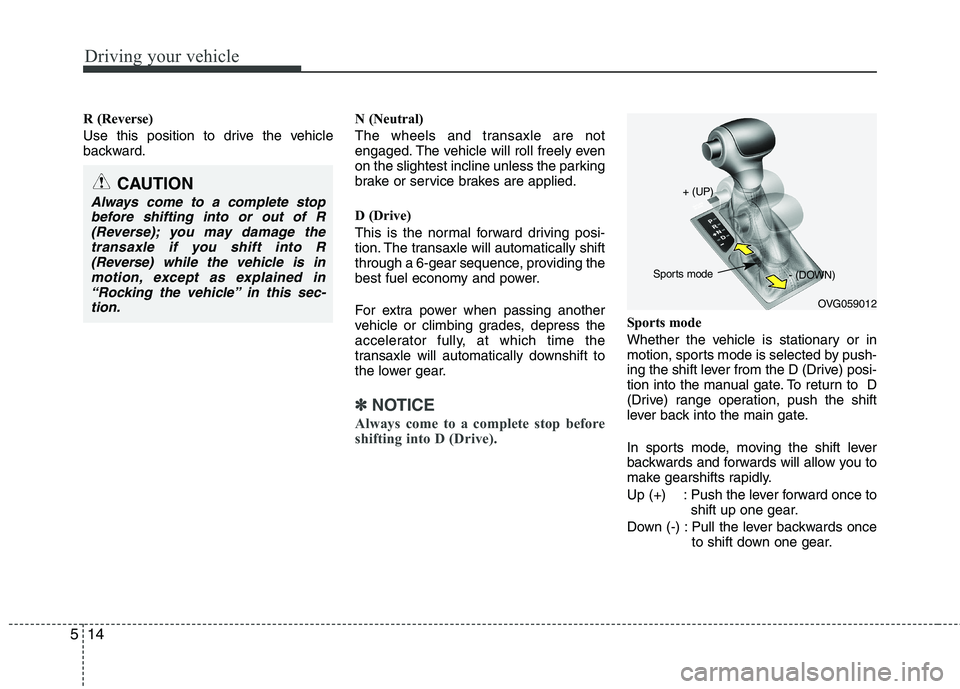
Sports mode
Whether the vehicle is stationary or in
motion, sports mode is selected by push-
ing the shift lever from the D (Drive) posi-
tion into the manual gate. To return to D
(Drive) range operation, push the shift
lever back into the main gate.
In sports mode, moving the shift lever
backwards and forwards will allow you to
make gearshifts rapidly.
Up (+) : Push the lever forward once to shift up one gear.
Down (-) : Pull the lever backwards once to shift down one gear.
CAUTION
Always come to a complete stop
before shifting into or out of R(Reverse); you may damage thetransaxle if you shift into R(Reverse) while the vehicle is in
motion, except as explained in“Rocking the vehicle” in this sec- tion.
OVG059012
+ (UP)
- (DOWN)
Sports mode