stop KIA FORTE 2021 Navigation System Quick Reference Guide
[x] Cancel search | Manufacturer: KIA, Model Year: 2021, Model line: FORTE, Model: KIA FORTE 2021Pages: 300, PDF Size: 10.06 MB
Page 4 of 300
2
Safety Warnings
Be sure to keep the following instructions. Otherwise, it may cause serious injury or accident.
\335Driving
Obey all traffic laws while driving.
\225
Relying solely on the navigation system may cause violation of traffic rules and regulations, resulting in an
accident.
In order to check the vehicle speed, see the speedometer first, not the speed on the
navigation system.
\225The speed on the navigation system may differ from actual vehicle speed.
While driving, refrain from watching the screen.
\225An accident may occur by negligence in keeping your eyes forward.
\225To manipulate the screen or buttons requiring multiple steps, be sure to stop your vehicle.
To use your mobile phone, first stop your vehicle.
\225When you use your mobile phone while driving, it may disperse your atten\
tion, resulting in an accident.
\225When making a call while driving, use the Bluetooth Hands-free function and if possible, minimise the call
time.
Make sure that the volume of the phone is sufficiently low so that the external sound is
audible.
\225When you drive with no external sound present may cause a traffic accident.
\225When you drive for a long time with a loud audio volume, it may affect your hearing.
For emergency services (e.g. hospital, fire station), do not rely solely on the navigation
system.
\225Some emergency services may not be included in the navigation map. Check relevant information in advance
to stay prepared for an emergency.
\335System handling
Do NOT arbitrarily disassemble or modify the system.
\225It may cause an accident, fire, or electric shock.
Exercise caution to make sure that no liquid or foreign materials enter the system.
\225It may cause smoke generation, fire ignition, or system failure.
When the screen is not displayed, the volume is muted, or other system failures occur,
immediately stop using the system.
\225Otherwise, it may cause fire, electric shock, or fatal system failure.
0000
A
If you experience any problems with the system, contact your place of purchase or dealer.
Page 5 of 300
3
Safety Precautions
Be sure to keep the following instructions. Otherwise, it may cause minor injury or system
damage.
\334\334Operation
Use the system with the vehicle started.
\225
When you use the system for a long time with the vehicle stopped, it may\
cause battery discharge.
Do NOT arbitrarily install an unauthorised aftermarket product in your vehicle.
\225Using unapproved products may cause an error while using the system.
\225System errors caused by installing unapproved products are not covered under the warranty.
\334\334System handling
Do NOT apply excessive force to the system.
\225When you apply excessive pressure to the screen, the LCD panel or touch panel may get damaged.
To clean the screen or button panel, first turn off the vehicle and then use a dry, soft
cloth to wipe it.
\225Do not wipe using a rough or hard cloth, chemical fibre, organic solvent (e.g. alcohol, benzene, thinner), or air
freshener. The panel surface may become scratched or damaged due to a chemical reaction.
When you install an air freshener on the air conditioner vent, the surface may be
deformed due to leakage.
0000
A
If you experience any problems with the system, contact your place of purchase or dealer.
Page 9 of 300
7
Turning the system on or off
Turning on the system
1 Turn on the vehicle.
2 When a safety warning message appears, read it and press Confirm.
0000
A
To change the display language, press Language.
Turning off the system
To turn off the system while driving, press and hold the Power button on
the panel.
The screen and sound will be turned off.
0000
A
To use the system again, press the Power button.
0000
A
When a specified period of time elapses after turning off the vehicle, the system
automatically shuts down. When you open the driver's door, the system immediately
shuts down.
\335Warning
\225Driving while distracted can result in a loss of vehicle control that may lead to an accident,
severe bodily injury, or death. The driver's primary responsibility is the safe and legal
operation of the vehicle, and the use of any vehicle systems, including the \
touch screen
and steering wheel controls, which take the driver's eyes, attention, and focus away from
the safe operation of the vehicle, or which are not permissible by law, should never be
used during the operation of the vehicle.
\225Some functions may not be active while driving to ensure safety. Those functions run only
when the vehicle is stationary. In order to use them, first stop the vehicle.
\225When the screen is not displayed, the volume is muted, or other system failures occur,
immediately stop using the system. When you use the faulty system contin\
uously, it may
cause fire, electric shock, or fatal system failure.
\334\334Caution
\225The system can be turned on even when the ignition switch is in "ACC" or "ON." However,
when you use the system without turning on the vehicle for a long time, \
it may cause
battery discharge. To use the system for a long time, be sure to turn on the vehicle.
\225When you use the system with the vehicle turned off, the battery warning message
appears. The warning message disappears as soon as you turn on the vehic\
le.
Page 17 of 300
5
Be sure to keep the following instructions. Otherwise, it may cause serious injury or accident.
\335Driving
Obey all traffic laws while driving.
\225 Relying solely on the navigation system may cause violation of traffic rules and regulations, resulting in an
accident.
In order to check the vehicle speed, see the speedometer first, not the speed on the
navigation system.
\225The speed on the navigation system may differ from actual vehicle speed.
While driving, refrain from watching the screen.
\225An accident may occur by negligence in keeping your eyes forward.
\225To manipulate the screen or buttons requiring multiple steps, be sure to stop your vehicle.
To use your mobile phone, first stop your vehicle.
\225When you use your mobile phone while driving, it may disperse your attention, resulting in an accident.
\225If necessary, use handsfree (Bluetooth) calling when driving and minimize the call time.
Make sure that the volume of the phone is sufficiently low so that the external sound is
audible.
\225When you drive with no external sound present may cause a traffic accident.
\225When you drive for a long time with a loud audio volume, it may affect your hearing.
For emergency services (e.g. hospital, fire station), do not rely solely on the navigation
system.
\225Some emergency services may not be included in the navigation map. Check relevant information in advance
to stay prepared for an emergency.
\335System handling
Do NOT arbitrarily disassemble or modify the system.
\225 It may cause an accident, fire, or electric shock.
Exercise caution to make sure that no liquid or foreign materials enter the system.
\225It may cause smoke generation, fire ignition, or system failure.
When the screen is not displayed, the volume is muted, or other system failures occur,
immediately stop using the system.
\225Otherwise, it may cause fire, electric shock, or fatal system failure.
0000
A
If you experience any problems with the system, contact your place of purchase or dealer.
Safety Warnings
Page 18 of 300

6
Safety Precautions
Be sure to keep the following instructions. Otherwise, it may cause minor injury or system
damage.
\334\334Operation
Use the system with the vehicle started.
\225 When you use the system for a long time with the vehicle stopped, it may cause battery discharge.
Do NOT arbitrarily install an unauthorized aftermarket product in your vehicle.
\225Using unapproved products may cause an error while using the system.
\225System errors caused by installing unapproved products are not covered under the warranty.
\334\334System handling
Do NOT apply excessive force to the system.
\225 When you apply excessive pressure to the screen, the LCD panel or touch panel may get damaged.
To clean the screen or button panel, first turn off the vehicle and then use a dry, soft
cloth to wipe it.
\225Do not wipe using a rough or hard cloth, chemical fiber, organic solvent (e.g. alcohol, benzene, thinner), or air
freshener. The panel surface may become scratched or damaged due to a chemical reaction.
When you install an air freshener on the air conditioner vent, the surface may be
deformed due to leakage.
0000
A
If you experience any problems with the system, contact your place of purchase or dealer.
Page 28 of 300

1-6
\335Warning
\225Driving while distracted can result in a loss of vehicle control that may lead to an accident,
severe bodily injury, or death. The driver's primary responsibility is the safe and legal
operation of the vehicle, and the use of any vehicle systems, including the \
touch screen
and steering wheel controls, which take the driver's eyes, attention, and focus away from
the safe operation of the vehicle, or which are not permissible by law, should never be
used during the operation of the vehicle.
\225Some functions may not be active while driving to ensure safety. Those functions run only
when the vehicle is stationary. In order to use them, first stop the vehicle.
\225When the screen is not displayed, the volume is muted, or other system failures occur,
immediately stop using the system. When you use the faulty system contin\
uously, it may
cause fire, electric shock, or fatal system failure.
\334\334Caution
\225The system can be turned on even when the ignition switch is in "ACC" or "ON." However,
when you use the system without turning on the vehicle for a long time, \
it may cause
battery discharge. To use the system for a long time, be sure to turn on the vehicle.
\225When you use the system with the vehicle turned off, the battery warning message
appears. The warning message disappears as soon as you turn on the vehic\
le.
0000A
The screen may differ depending on the vehicle model and specifications.
0000
A
When you turn off and on the vehicle, the system is turned on with the mode and settings
used when the vehicle was turned off.
0000
A
To prevent audio from playing loud when you turn on the vehicle, adjust the system
volume to an adequate level.
0000
A
To automatically decrease the system volume, move to the All Menus screen and press
Setup >
Sound >
System Volumes >
Start-up Volume Limit to set the function.
Page 47 of 300
2-9
Using the driving assist display
You can see the view around the vehicle through the system screen.0000
A
The displayed screen may differ depending on the vehicle model.
\335Warning
When backing up, make sure to follow the guidelines below:
\225Before entering your vehicle, always check the area behind your vehicle.
\225Do not solely rely on the rear view camera when backing up. Always ensure that it is safe
to back up by checking behind you and looking in the rearview mirrors.
\225Always back up slowly and stop immediately if you suspect that a person, especially a
child, might be behind you.
\334\334Caution
Objects on the screen may not be as close or far as they appear. Be sure to check the rear,
left, and right sides with your own eyes for safety.
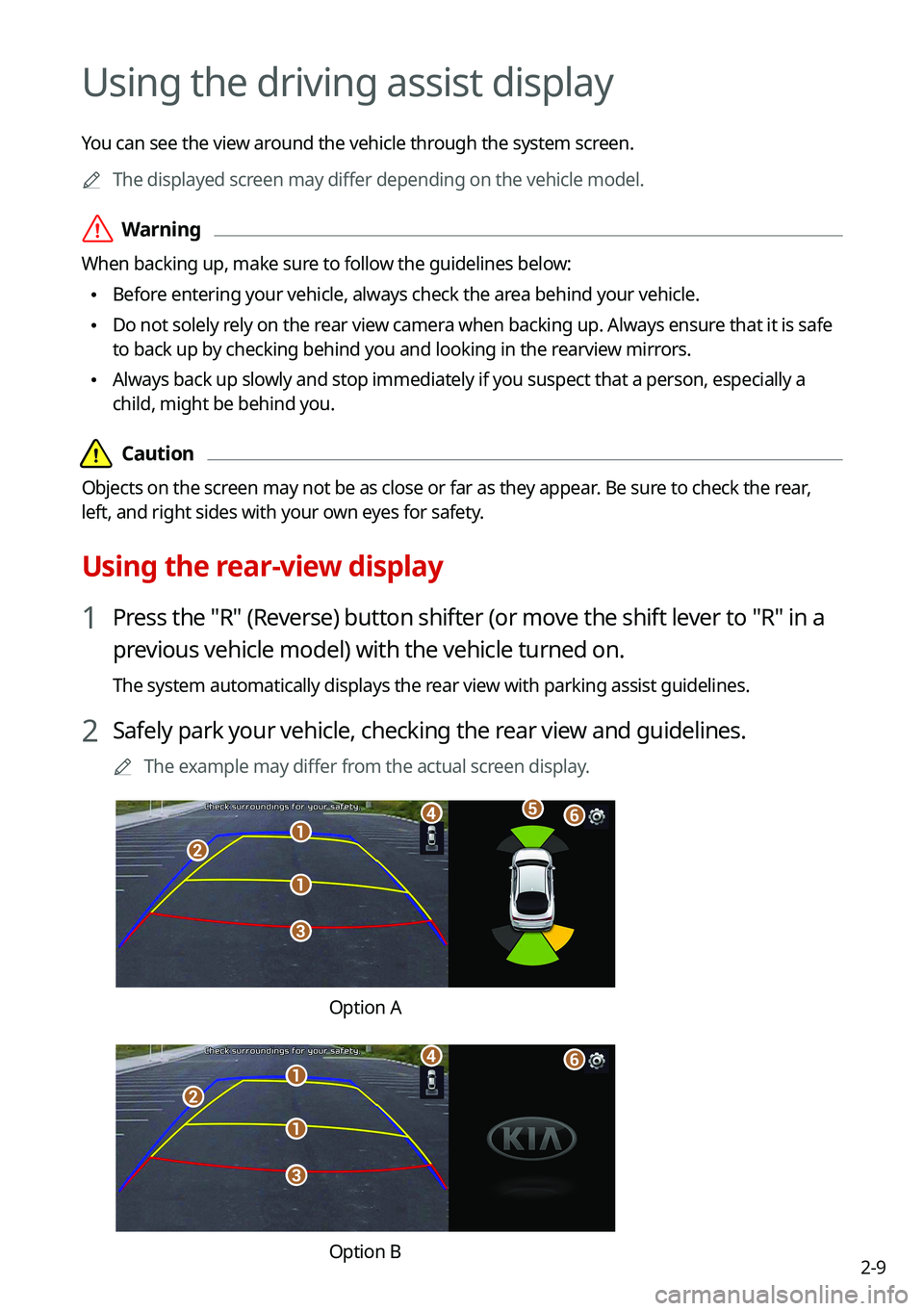
Using the rear-view display
1 Press the "R" (Reverse) button shifter (or move the shift lever to "R" in a
previous vehicle model) with the vehicle turned on.
The system automatically displays the rear view with parking assist guidelines.
2 Safely park your vehicle, checking the rear view and guidelines.
0000
A
The example may differ from the actual screen display.
\037
\037
\036
\035
\034\033\032
Option A
\037
\037
\036
\035
\034\033
Option B
Page 48 of 300

2-10
a a Moving direction lines (yellow)
Displays the vehicle's moving direction based on the steering angle.
b b Neutral steering lines (blue)
Displays the moving direction if you reverse the vehicle in neutral. Noting these
lines, you can determine whether the vehicle is stopped in correct direction and the
distances to the neighboring vehicles are adequate.
c c Collision warning lines (red)
Used to prevent collision.
d d Rear top view button (if equipped)
Press the button to display the rear top view.
e e Parking distance warning (if equipped)
Depending on the distance to obstacles, the warning color and alert sound change
along with the level (1/2/3) to notify of the distance.
f f Camera image adjustment (if equipped)
Used to adjust the brightness and contrast of camera images.
0000
A
Available settings may differ depending on the vehicle model and specifications.
0000
A
You can set to display the rear camera display even when you change the shift position
other than "R" (Reverse) after reversing. To change rear camera operation settings, On
the All Menus screen, press Setup >
Display >
Extend Rear Camera Use and select the
Extend Rear Camera Use checkbox to turn on or off the function (if equipped).
0000
A
Noting the parking assist guide lines based on the steering, you can see\
the moving
direction.
0000AA warning sound is heard when the vehicle approaches obstacles while parking. When
you set to automatically lower the audio volume while parking, it can prevent accidents
caused by failure to hear the warning sound. On the All Menus screen, press Setup >
Sound >
Driving Guidance >
Parking Safety Priority.
0000
A
When you press the [
] button with the shift position in "P" (Park), you can see the rear
view (if equipped).
Page 57 of 300
2-19
Playing Sounds of Nature
Listen to the calming sound of rain, waves, and more to relax while driving by turning on a
Sounds of Nature.
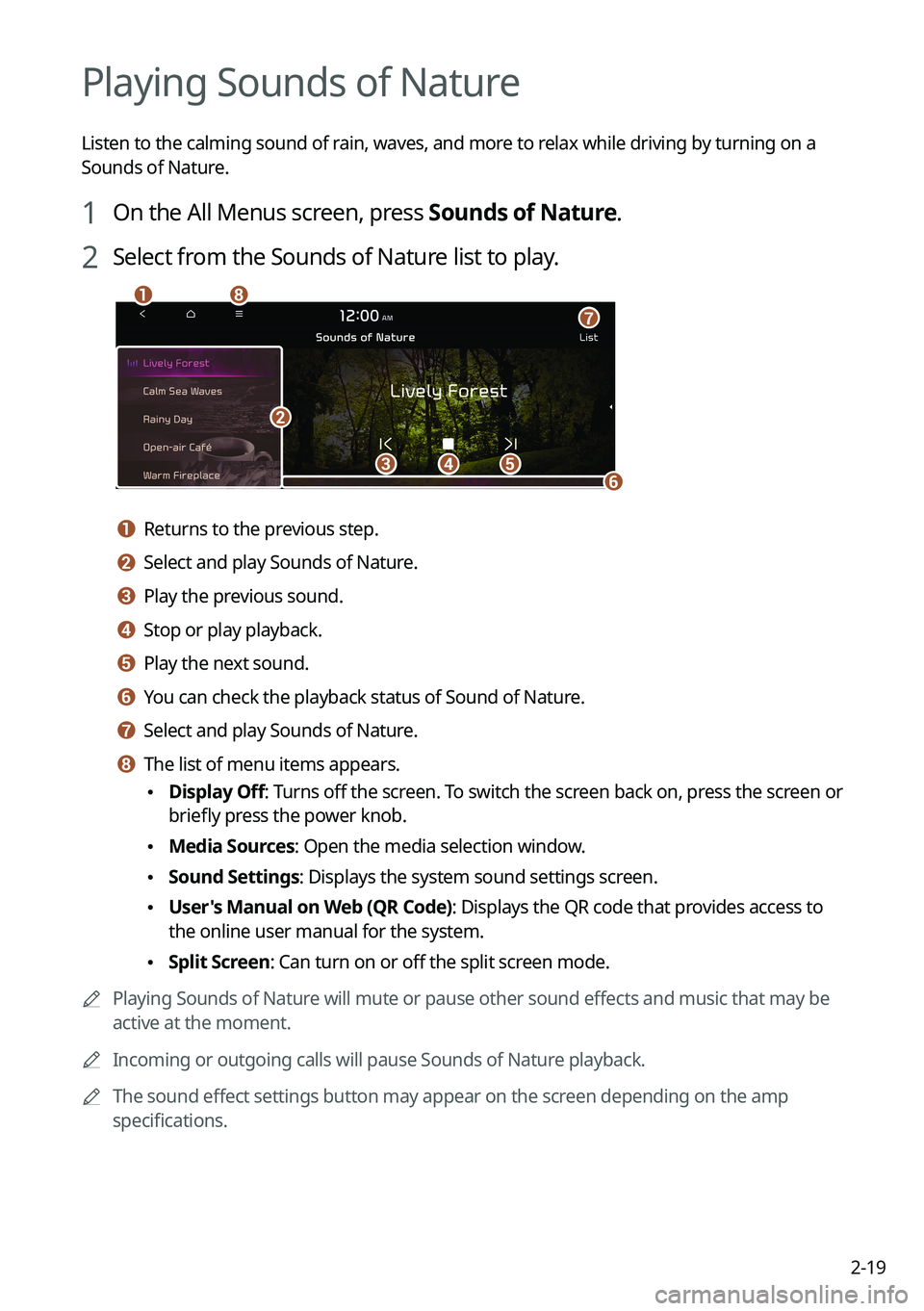
1 On the All Menus screen, press Sounds of Nature.
2 Select from the Sounds of Nature list to play.
\037\036\035
\034\033
\032
\031
\030
a a Returns to the previous step.
b b Select and play Sounds of Nature.
c c Play the previous sound.
d d Stop or play playback.
e e Play the next sound.
f f You can check the playback status of Sound of Nature.
g g Select and play Sounds of Nature.
h h The list of menu items appears.
\225Display Off
: Turns off the screen. To switch the screen back on, press the screen or
briefly press the power knob.
\225 Media Sources: Open the media selection window.
\225Sound Settings: Displays the system sound settings screen.
\225User's Manual on Web (QR Code): Displays the QR code that provides access to
the online user manual for the system.
\225Split Screen: Can turn on or off the split screen mode.
0000
A
Playing Sounds of Nature will mute or pause other sound effects and music that may be
active at the moment.
0000
A
Incoming or outgoing calls will pause Sounds of Nature playback.
0000
A
The sound effect settings button may appear on the screen depending on the amp
specifications.
Page 62 of 300
2-24
Seeing notifications (if equipped)
You can view UVO notifications including the navigation and map update information.0000
A
Subscribe to UVO to check the function.
> See "Subscribing to the service."
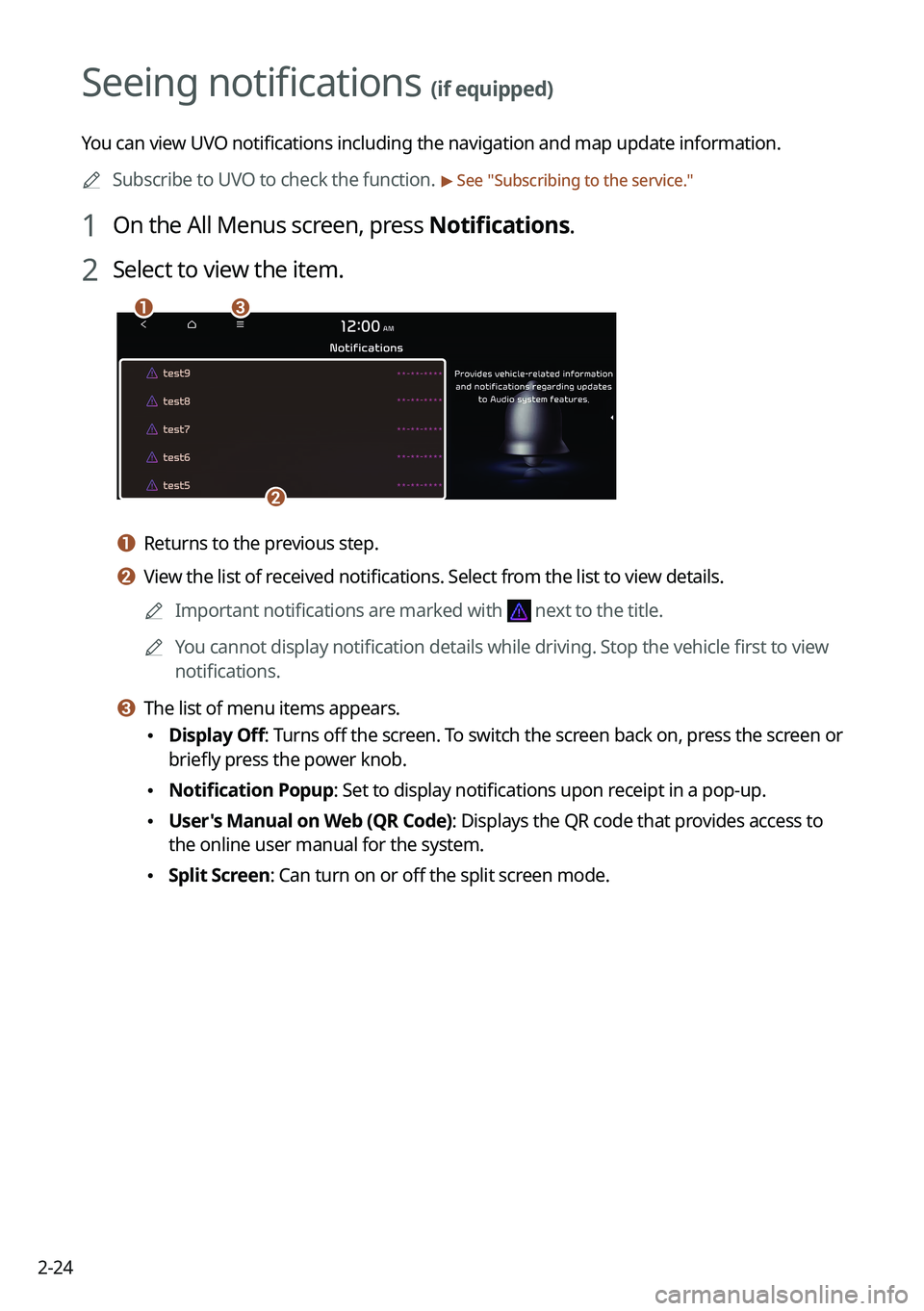
1 On the All Menus screen, press Notifications.
2 Select to view the item.
\037\036
\035
a a Returns to the previous step.
b b View the list of received notifications. Select from the list to view details.
0000
A
Important notifications are marked with
next to the title.
0000
A
You cannot display notification details while driving. Stop the vehicle first to view
notifications.
c c The list of menu items appears.
\225Display Off
: Turns off the screen. To switch the screen back on, press the screen or
briefly press the power knob.
\225 Notification Popup: Set to display notifications upon receipt in a pop-up.
\225User's Manual on Web (QR Code): Displays the QR code that provides access to
the online user manual for the system.
\225Split Screen: Can turn on or off the split screen mode.