stop KIA FORTE 2021 Navigation System Quick Reference Guide
[x] Cancel search | Manufacturer: KIA, Model Year: 2021, Model line: FORTE, Model: KIA FORTE 2021Pages: 300, PDF Size: 10.06 MB
Page 85 of 300
4-5
Playing the previous file
You can play the previous file during playback in the USB device.
Perform any of the following methods:
\225On the USB music playback screen, press within 3 seconds during playback.
\225On the control panel, press the [
SEEK] button within 3 seconds during playback.
0000
A
To play the previous music during playback, press
twice or pressing the [ SEEK]
button on the control panel twice after 3 seconds from the start of the playback.
0000
A
You can also run the function by using the Move lever/button on the steering wheel.
0000
A
If any [TUNE/FILE] knob on the control panel, you can search for the desired music by
turning the knob. When you press the knob within 5 seconds, music is played. However,
if no input within 5 seconds, the search stops and the system displays the information of
the current file.
Playing the next file
You can play the next file in the USB device during playback.
Perform any of the following methods:
\225On the USB music playback screen, press .
\225On the control panel, press the [
TRACK ] button.
0000
A
You can also run the function by using the Move lever/button on the steering wheel.
0000
A
If any [TUNE/FILE] knob on the control panel, you can search for the desired music by
turning the knob. When you press the knob within 5 seconds, music is played. However,
if no input within 5 seconds, the search stops and the system displays the information of
the current file.
Changing the repeated playback mode for USB music
You can change the repeated playback mode for USB music: Repeat One, Repeat Folder, and
Repeat All.
On the USB music playback screen, press repeatedly.
Each time the icon is pressed, the playback repetition modes are toggled and the activated
mode icon appears on the screen.
Turning on/off the shuffle playback mode for USB music
You can turn on or off the shuffle playback mode for USB music.
On the USB music playback screen, press repeatedly.
Each time the icon is pressed, the shuffle playback mode is turned on and off. When the
shuffle playback is active, the files are played randomly with no sequence.
Page 89 of 300
4-9
Pause/Resume
You can pause or resume playback of a Bluetooth audio file.
On the Bluetooth audio playback screen, press or .
Resuming playback of the current Bluetooth audio file
You can play the current Bluetooth audio file from the beginning.
Perform any of the following methods:
\225On the Bluetooth audio playback screen, press .
\225On the control panel, press the [
SEEK] button.
0000
A
The actions required may differ depending on the connected device.
0000
A
You can also run the function by using the Move lever/button on the steering wheel.
Resuming playback of the previous Bluetooth audio file
You can play the previous Bluetooth audio file during playback.
Perform any of the following methods:
\225On the Bluetooth audio playback screen, press twice.
\225On the control panel, press the [
SEEK] button twice.
0000
A
The actions required may differ depending on the connected device.
0000
A
You can also run the function by using the Move lever/button on the steering wheel.
0000
A
If any [TUNE/FILE] knob on the control panel, you can search for the desired music by
turning the knob. When you press the knob within 5 seconds, music is played. However,
if no input within 5 seconds, the search stops and the system displays the information of
the current file.
Resuming playback of the next Bluetooth audio file
You can play the next Bluetooth audio file during playback.
Perform any of the following methods:
\225On the Bluetooth audio playback screen, press .
\225On the control panel, press the [
TRACK ] button.
0000
A
The actions required may differ depending on the connected device.
0000
A
You can also run the function by using the Move lever/button on the steering wheel.
0000
A
If any [TUNE/FILE] knob on the control panel, you can search for the desired music by
turning the knob. When you press the knob within 5 seconds, music is played. However,
if no input within 5 seconds, the search stops and the system displays the information of
the current file.
Page 92 of 300
5-2
Navigation functions
Navigation Menu overview
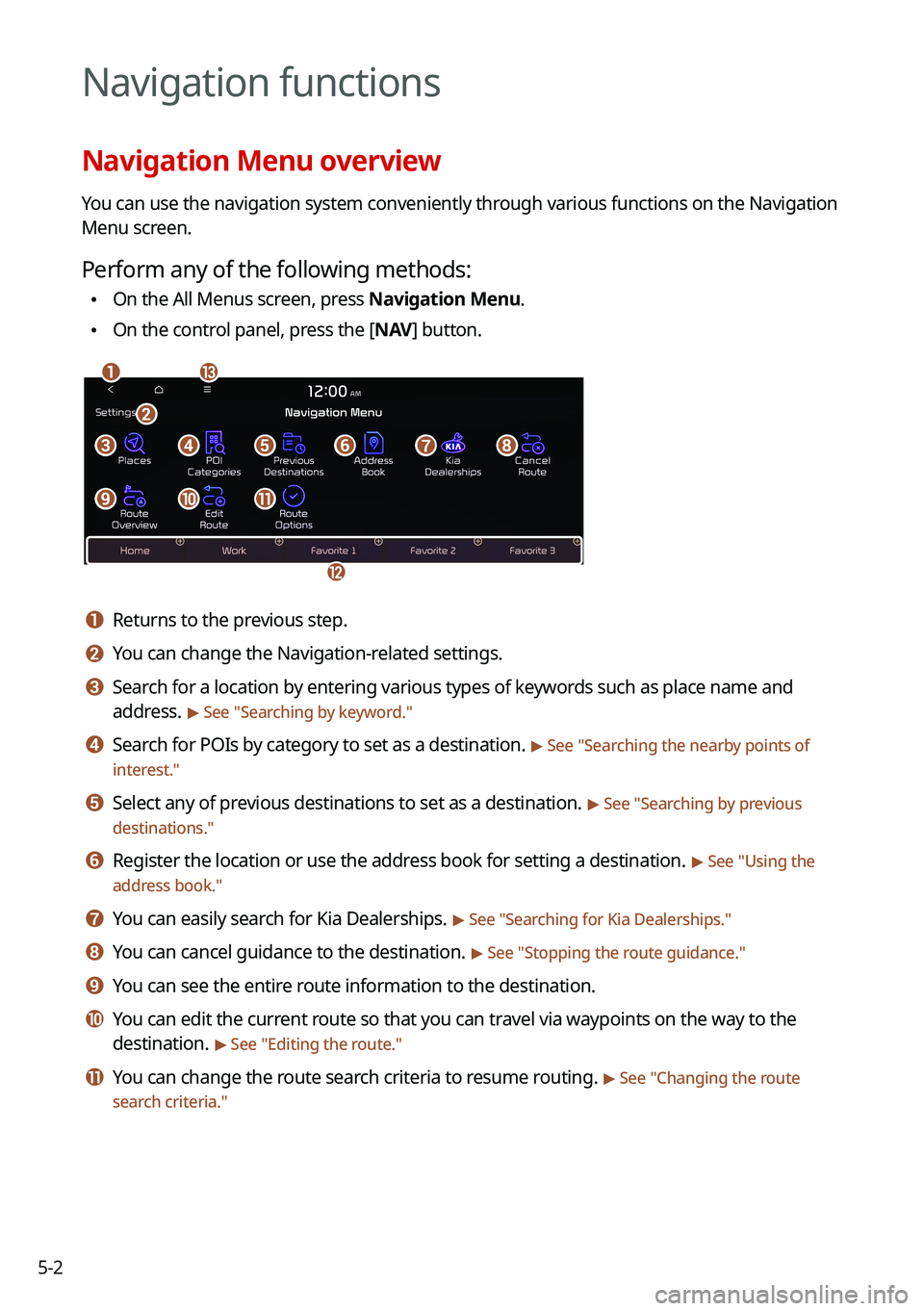
You can use the navigation system conveniently through various functions on the Navigation
Menu screen.
Perform any of the following methods:
\225On the All Menus screen, press Navigation Menu.
\225On the control panel, press the [
NAV] button.
\037\036
\035
\034
\033\032\031\030\027
\026\025\024
\023
a a Returns to the previous step.
b b You can change the Navigation-related settings.
c c Search for a location by entering various types of keywords such as place name and
address.
> See " Searching by keyword."
d d Search for POIs by category to set as a destination. > See "Searching the nearby points of
interest."
e e Select any of previous destinations to set as a destination. > See " Searching by previous
destinations."
f f Register the location or use the address book for setting a destination. > See " Using the
address book."
g g You can easily search for Kia Dealerships. > See "Searching for Kia Dealerships."
h h You can cancel guidance to the destination. > See " Stopping the route guidance."
i i You can see the entire route information to the destination.
j j You can edit the current route so that you can travel via waypoints on the way to the
destination.
> See "Editing the route."
k k You can change the route search criteria to resume routing. > See "Changing the route
search criteria."
Page 95 of 300
5-5
0000
A
Vehicle location may not be displayed correctly if:
000DThe vehicle is driving on a Y-shaped or winding road with narrow angles.
000DThe vehicle is driving closely to another road.
000DThe vehicle is driving on a road where there are many tall buildings in the vicinity.
000DThe vehicle is driving on a new road or a road under construction.
000DThe vehicle is transported by a ferry or heavy-duty transport vehicle.
000DThe vehicle is driving in a rugged mountain area or on a steep curve road.
000DThe vehicle is entering a public road after making a turn through the turntable in an
underground parking lot or multi-story parking lot.
000DThe vehicle stops and starts repeatedly or moves slowly in front of an intersection.
000DThe system reboots after the vehicle battery has been recharged or replaced.
000DThe vehicle is driving on a slippery road due to heavy snow, etc.
000DThe tires have been replaced recently or spare tires (or studless tires) are used.
000DImproper-sized tires are used or the pressure of each tire is different.
000DThe replaced tire is worn out or the studless tires have been used for over two seasons.
000DA roof carrier is installed on the vehicle.
000DOn a highway. continued driving causes the system to perform map matching or apply
the updated GPS data.
0000
A
Navigation service may not be provided correctly under the following conditions:
000DWhen the vehicle drives on a straight road continuously, the system may guide you to
drive straight. It is not a malfunction.
000DGuidance may not be followed immediately after the vehicle makes a turn at an
intersection or drives through an intersection.
000DThe system may guide you to make a U-turn in a prohibited area.
000DThe system may guide you to a traffic-blocked road (e.g. no-entry road or road under
construction).
000DThe system may guide you to a road away from the destination when there is no road
to the destination or there are only narrow roads on the way.
000DGuidance may not be proper when the vehicle is off the route.
000DGuidance may not match the actual distance on an overpass or underpass due to the
difference of the start point.
000DWhen you are driving at high speeds, route recalculations may take longer.
0000
A
Because the navigation system is used for information purposes only, Kia does not
assume responsibility of the accuracy of the information.
0000
A
When the traffic information is not received, the status icon appears at the top of the map
screen.
000DHD Radio: The system is using the HD radio data. If no traffic information is available,
the status icon (
) will be displayed instead.
Page 97 of 300

5-7
i i Displays the lanes in different colors.
\225Orange: Recommended lane
\225White: Available lane
\225Gray: Unavailable lane
j j Displays quick menu items that can be used during guidance.
k k Can pause or cancel the route guidance. > See "
Stopping the route guidance."
l l Displays the remaining distance to the destination and the estimated time of arrival. For
more details, press the information item.
m m Displays or hides the detailed guidance.
n n Displays the system information on the map. (It can display up to two items.)
\225 Traffic information (with an icon if there is no HD data reception)
\225Bluetooth connection status
o o Check the range you can drive with the current amount of battery (EV only).
0000
A
To see only the map with no destination, press the map area on the Home screen or on
the All menu screen, press Map. Or press the [ MAP] button on the control panel.
0000
A
The screen may differ depending on the vehicle model and specifications.
\335Warning
Be sure to check the road conditions while driving, because the camera information may get
changed occasionally after a map update to the latest version. Relying solely on the driving
assist system may cause violation of traffic rules and regulations, resulting in an accident.
Page 99 of 300
5-9
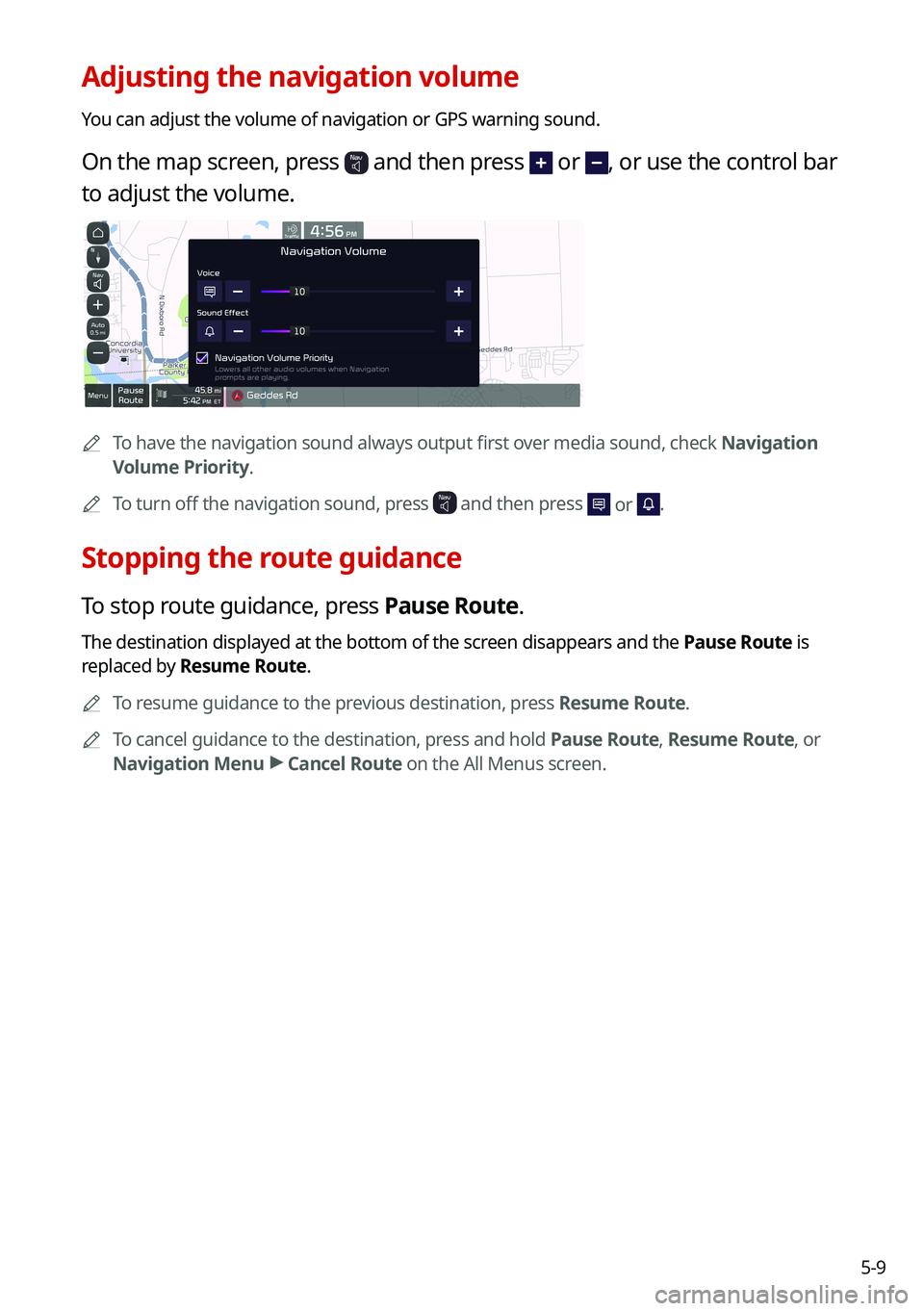
Adjusting the navigation volume
You can adjust the volume of navigation or GPS warning sound.
On the map screen, press and then press or , or use the control bar
to adjust the volume.
0000
A
To have the navigation sound always output first over media sound, check Navigation
Volume Priority.
0000
A
To turn off the navigation sound, press
and then press or .
Stopping the route guidance
To stop route guidance, press Pause Route.
The destination displayed at the bottom of the screen disappears and the Pause Route is
replaced by Resume Route.
0000
A
To resume guidance to the previous destination, press Resume Route.
0000
A
To cancel guidance to the destination, press and hold Pause Route, Resume Route, or
Navigation Menu >
Cancel Route on the All Menus screen.
Page 125 of 300
5-35
The HERE Data for Mexico includes certain data from Instituto Nacional de Estadística y
Geografía.
Austria: © Bundesamt für Eich- und Vermessungswesen
Croatia, Cyprus, Estonia, Latvia, Lithuania, Moldova, Poland, Slovenia and/or Ukraine: ©
EuroGeographics
France: source: © IGN 2009 – BD TOPO
®
Germany: Die Grundlagendaten wurden mit Genehmigung der zustaendigen Behoerden
entnommen
Great Britain: Contains Ordinance Survey data © Crown copyright and database right 2010,
and Royal Mail data © Royal Mail copyright and database right 2010.
Greece: Copyright Geomatics Ltd.
Italy: La Banca Dati Italiana è stata prodotta usando quale riferimento anche cartografia
numerica ed al tratto prodotta e fornita dalla Regione Toscana.
Norway: Copyright © 2000; Norwegian Mapping Authority
Portugal: Source: IgeoE – Portugal
Spain: Información geográfica propiedad del CNIG
Sweden: Based upon electronic data Ó National Land Survey Sweden
Switzerland: Topografische Grundlage: Ó Bundesamt für Landestopographie
United Kingdom: Contains public sector information licensed under the Open Government
Licence v1.0 (see for the license http://www.nationalarchives.gov.uk/doc/open-government-
licence/) and is adapted from data from the office for National Statistics licensed under the
Open Government Licence v.1.0.
Israel: © Survey of Israel data source
Jordan: © Royal Jordanian Geographic Centre. The foregoing notice requirement for Jordan
Data is a material term of the Agreement. If Client or any of its permitted sublicensees (if any)
fail to meet such requirement, HERE shall have the right to terminate Client's license with
respect to the Jordan Data.
Mozambique: Certain Data for Mozambique provided by Cenacarta © 20XX by Cenacarta
Réunion: source: © IGN 2009 - BD TOPO
®
Page 153 of 300
7-7
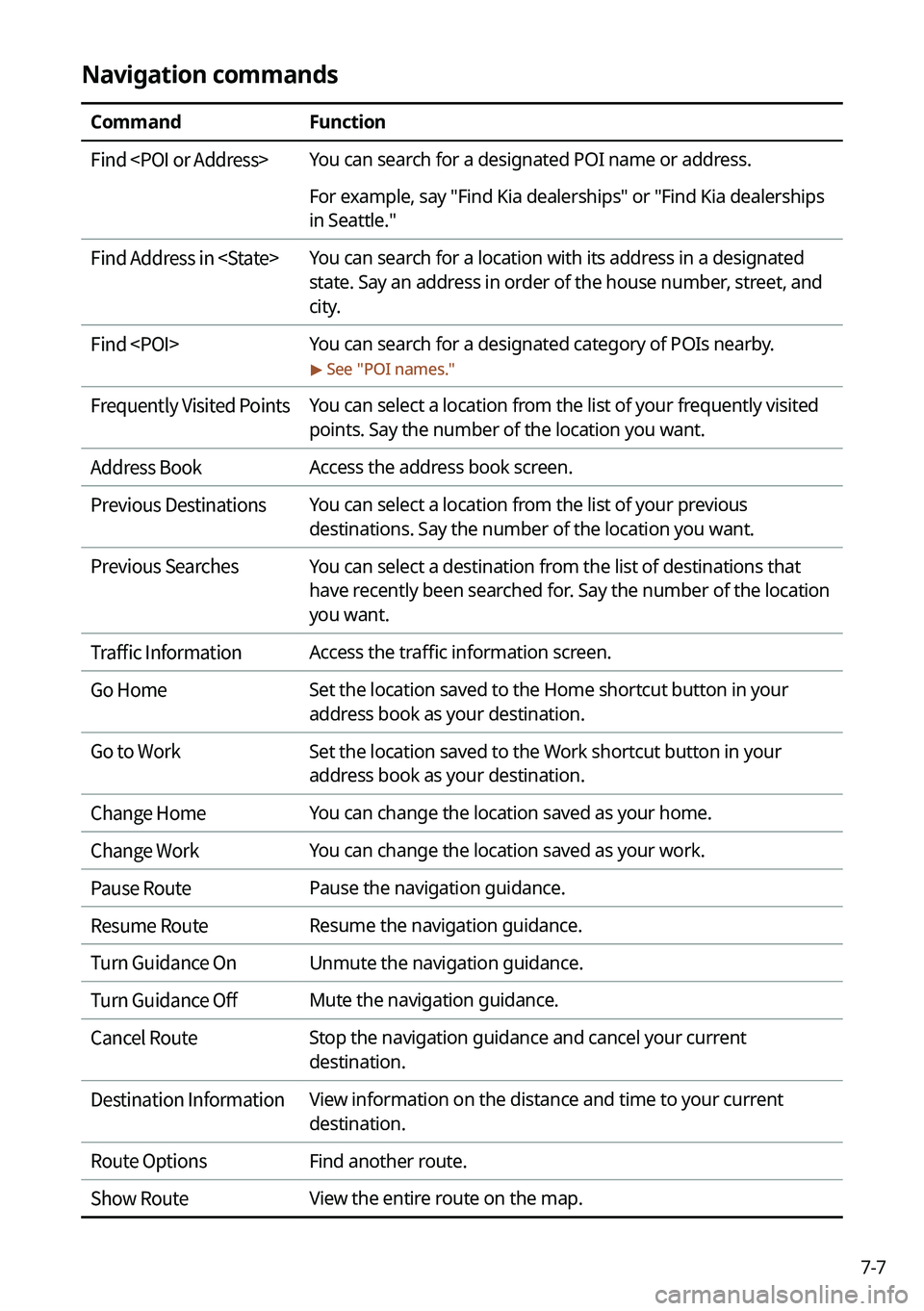
Navigation commands
CommandFunction
Find
For example, say "Find Kia dealerships" or "Find Kia dealerships
in Seattle."
Find Address in
state. Say an address in order of the house number, street, and
city.
Find
> See "
POI names."
Frequently Visited Points You can select a location from the list of your frequently visited
points. Say the number of the location you want.
Address Book Access the address book screen.
Previous Destinations You can select a location from the list of your previous
destinations. Say the number of the location you want.
Previous Searches You can select a destination from the list of destinations that
have recently been searched for. Say the number of the location
you want.
Traffic Information Access the traffic information screen.
Go Home Set the location saved to the Home shortcut button in your
address book as your destination.
Go to Work Set the location saved to the Work shortcut button in your
address book as your destination.
Change Home You can change the location saved as your home.
Change Work You can change the location saved as your work.
Pause Route Pause the navigation guidance.
Resume Route Resume the navigation guidance.
Turn Guidance On Unmute the navigation guidance.
Turn Guidance Off Mute the navigation guidance.
Cancel Route Stop the navigation guidance and cancel your current
destination.
Destination Information View information on the distance and time to your current
destination.
Route Options Find another route.
Show Route View the entire route on the map.
Page 158 of 300
7-12
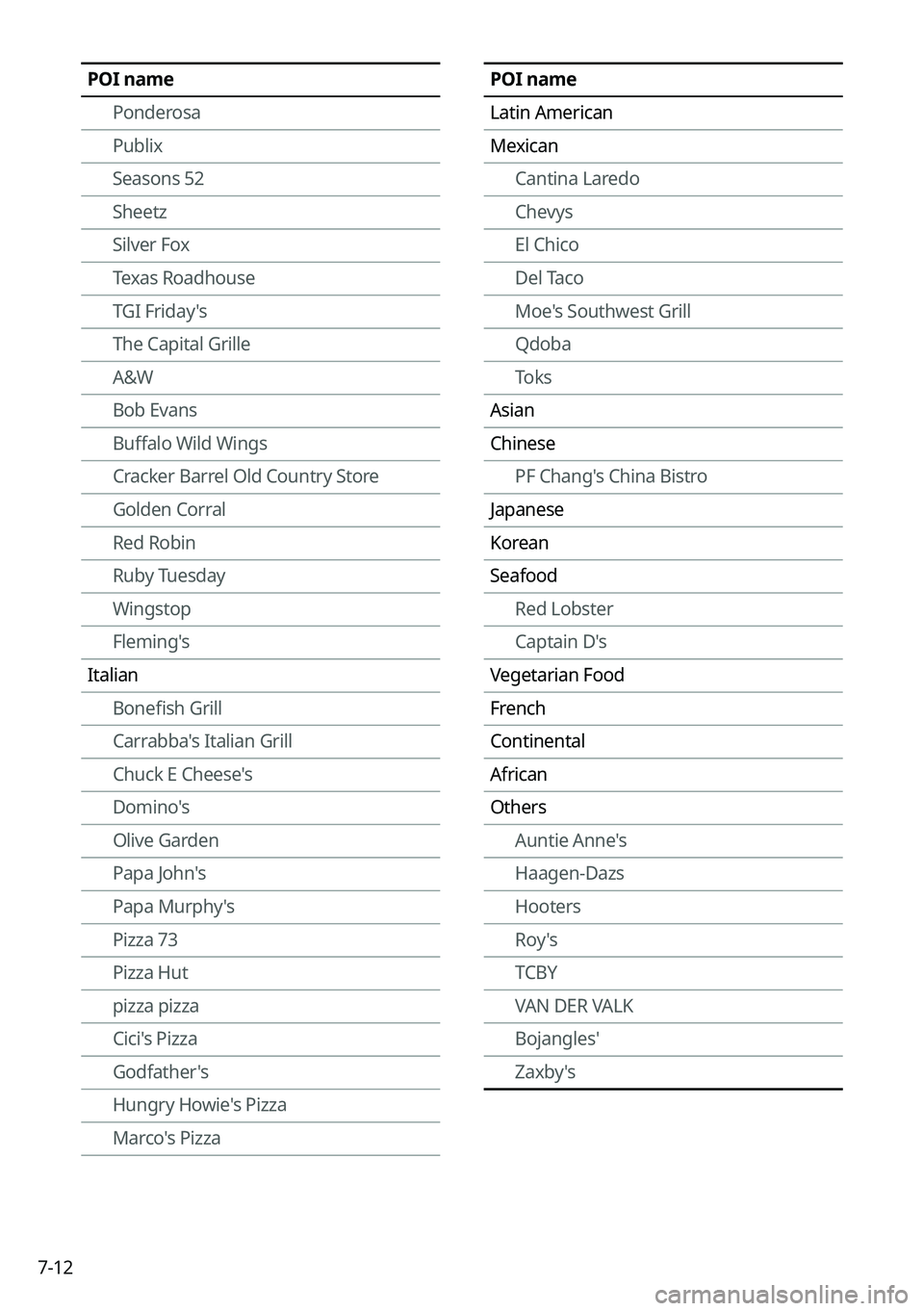
POI namePonderosa
Publix
Seasons 52
Sheetz
Silver Fox
Texas Roadhouse
TGI Friday's
The Capital Grille
A&W
Bob Evans
Buffalo Wild Wings
Cracker Barrel Old Country Store
Golden Corral
Red Robin
Ruby Tuesday
Wingstop
Fleming's
Italian Bonefish Grill
Carrabba's Italian Grill
Chuck E Cheese's
Domino's
Olive Garden
Papa John's
Papa Murphy's
Pizza 73
Pizza Hut
pizza pizza
Cici's Pizza
Godfather's
Hungry Howie's Pizza
Marco's PizzaPOI name
Latin American
MexicanCantina Laredo
Chevys
El Chico
Del Taco
Moe's Southwest Grill
Qdoba
Toks
Asian
Chinese PF Chang's China Bistro
Japanese
Korean
Seafood Red Lobster
Captain D's
Vegetarian Food
French
Continental
African
Others Auntie Anne's
Haagen-Dazs
Hooters
Roy 's
TCBY
VAN DER VALK
Bojangles'
Zaxby's
Page 159 of 300

7-13
POI nameSheetz
Shell
Sinclair
Speedway
Sunoco
TEXACO
TravelCenters of America
Ultramar
Valero
Wawa
Hess Express
Irving
Pemex
7-Eleven
Costco
Parking
Auto Services AAA
Advance Auto Parts
America's Tire
AutoZone
BOSCH Car Service
Canadian Tire
Certigard
Chevron
CITGO
Discount Tire
Exxon
Firestone
GOODYEAR
Gulf
Jiffy Lube
Kal TireAutomotive
POI name
KIA Dealerships
Gas Stations76
ampm
ARCO
BP
Gas+
Casey's General Store
Cenex
Chevron
CITGO
Conoco
Esso
Exxon
Fleetfuels
GetGo
Giant Gasoline
Gulf
Husky
Ingles Gas Express
Marathon
Martin's Gasoline
Meijer Gas Station
Mobil
Murphy Express
Murphy USA
Petro Stopping Centers
PETRO-CANADA
Phillips 66
Pioneer
QuikTrip
Rutter's