phone KIA NIRO EV 2020 Navigation System Quick Reference Guide
[x] Cancel search | Manufacturer: KIA, Model Year: 2020, Model line: NIRO EV, Model: KIA NIRO EV 2020Pages: 244, PDF Size: 5.65 MB
Page 191 of 244

9-9
Custom Button ☆
You can set the frequently used functions by pressing the custom
button on the control panel. Set the frequently used functions as
custom buttons to access them easily.
0000AThe screen may differ depending on the vehicle model and
specifications.
Steering Wheel MODE Button
You can select the media mode to run when the [ MODE] button
on the steering wheel is pressed.
0000
A
You can add AM or Phone Projection function on each
MODE button to perform easily.
Home Screen
You can change the layout of the Home screen.
Edit Home Widgets
You can edit the types and arrangement of home widgets.
0000
A
For more information:
> see “Editing widgets on the Home
screen.”
Edit Home Icons
You can edit the arrangement of home icons.
0000
A
For more information:
> see “Editing icons on the Home screen.”
Page 194 of 244

9-12
Volume
You can adjust the volume for each system function including
phone projection.
System Sound
You can adjust the volume for each system function and initialize
all volume settings.0000
A
To initialize all system sound settings, touch Reset.
Phone Projection
You can adjust the volume of the phone projection and initialize
all volume settings.
0000
A
To initialize all system sound settings of the phone projection,
touch Reset.
Advanced
You can change the system sound settings and apply various
sound effects.
0000AAvailable sound effects may differ depending on the
specifications of the amplifier.
Speed Dependent Volume Control
Automatically adjusts Audio volume according to vehicle speed.
Live Dynamic (if equipped)
Provides natural and vivid sound like real performance.
Bass Boost (if equipped)
Provides magnificent and dynamic sound by amplifying the bass.
Page 200 of 244
9-18
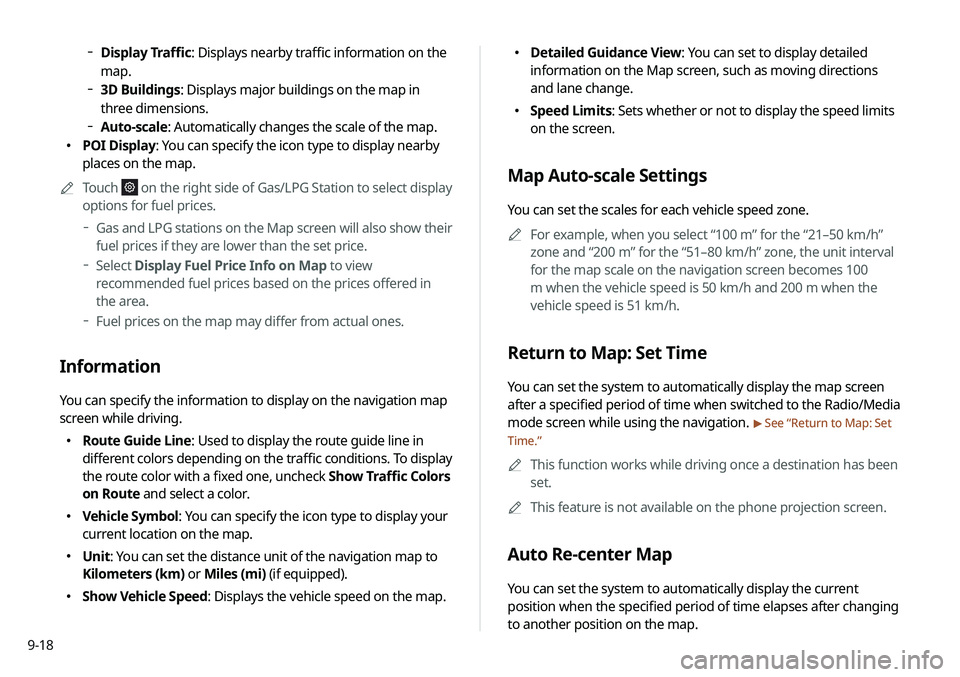
000EDetailed Guidance View: You can set to display detailed
information on the Map screen, such as moving directions
and lane change.
000ESpeed Limits: Sets whether or not to display the speed limits
on the screen.
Map Auto-scale Settings
You can set the scales for each vehicle speed zone.
0000
A
For example, when you select “100 m” for the “21–50 km/h”
zone and “200 m” for the “51–80 km/h” zone, the unit interval
for the map scale on the navigation screen becomes 100
m when the vehicle speed is 50 km/h and 200 m when the
vehicle speed is 51 km/h.
Return to Map: Set Time
You can set the system to automatically display the map screen
after a specified period of time when switched to the Radio/Media
mode screen while using the navigation.
> See “Return to Map: Set
Time.”
0000
A
This function works while driving once a destination has been
set.
0000
A
This feature is not available on the phone projection screen.
Auto Re-center Map
You can set the system to automatically display the current
position when the specified period of time elapses after changing
to another position on the map.
000DDisplay Traffic: Displays nearby traffic information on the
map.
000D3D Buildings: Displays major buildings on the map in
three dimensions.
000DAuto-scale: Automatically changes the scale of the map.
000E POI Display: You can specify the icon type to display nearby
places on the map.
0000
A
Touch
on the right side of Gas/LPG Station to select display
options for fuel prices.
000DGas and LPG stations on the Map screen will also show their
fuel prices if they are lower than the set price.
000DSelect Display Fuel Price Info on Map to view
recommended fuel prices based on the prices offered in
the area.
000DFuel prices on the map may differ from actual ones.
Information
You can specify the information to display on the navigation map
screen while driving.
000E Route Guide Line: Used to display the route guide line in
different colors depending on the traffic conditions. To display
the route color with a fixed one, uncheck Show Traffic Colors
on Route and select a color.
000EVehicle Symbol: You can specify the icon type to display your
current location on the map.
000EUnit: You can set the distance unit of the navigation map to
Kilometers (km) or Miles (mi) (if equipped).
000EShow Vehicle Speed: Displays the vehicle speed on the map.
Page 207 of 244
9-25
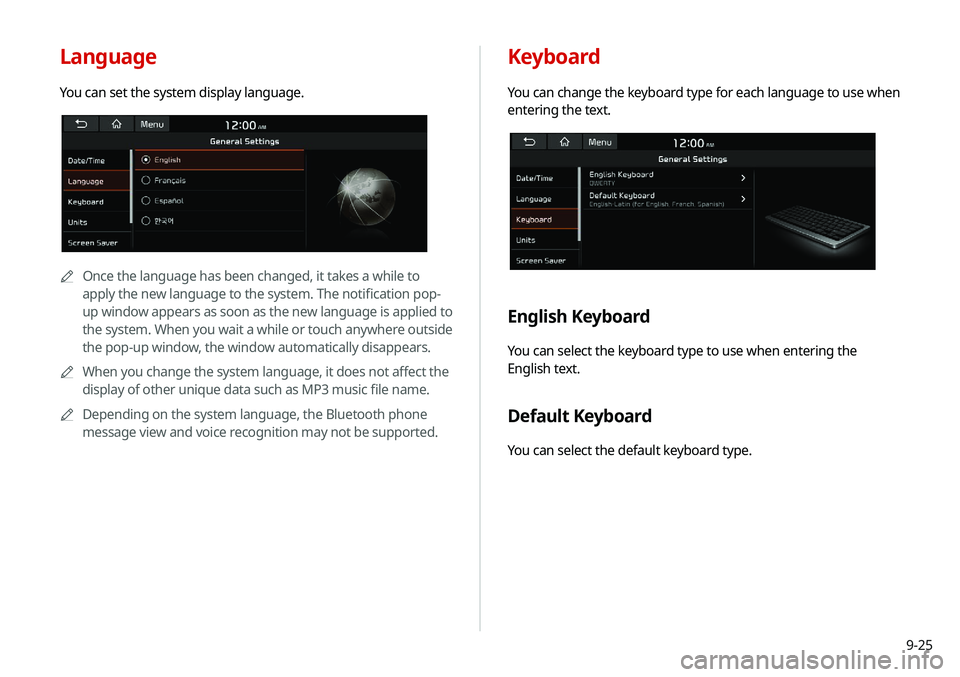
Keyboard
You can change the keyboard type for each language to use when
entering the text.
English Keyboard
You can select the keyboard type to use when entering the
English text.
Default Keyboard
You can select the default keyboard type.
Language
You can set the system display language.
0000AOnce the language has been changed, it takes a while to
apply the new language to the system. The notification pop-
up window appears as soon as the new language is applied to
the system. When you wait a while or touch anywhere outside
the pop-up window, the window automatically disappears.
0000
A
When you change the system language, it does not affect the
display of other unique data such as MP3 music file name.
0000
A
Depending on the system language, the Bluetooth phone
message view and voice recognition may not be supported.
Page 210 of 244
9-28
Storage
You can check the storage space of the system memory where
voice memos can be saved.
User's Manual on Web (QR Code)
You can access the online user’s manual of the system by
scanning the QR code with your smartphone.
Reset
You can initialize all system settings including general settings
and navigation settings.
\334Caution
000EWhen initialization is performed, all user data in the system
including the location data is deleted.
000EWhen phone projection is active, you cannot reset the system
settings. To reset the settings, remove the USB cable from
your system.
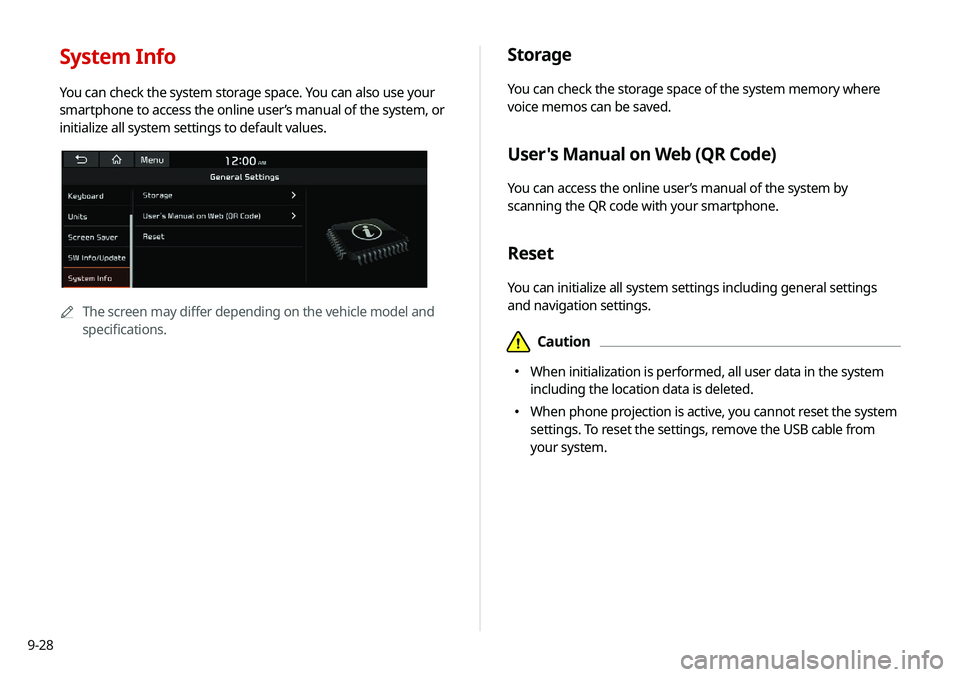
System Info
You can check the system storage space. You can also use your
smartphone to access the online user’s manual of the system, or
initialize all system settings to default values.
0000A
The screen may differ depending on the vehicle model and
specifications.
Page 220 of 244
10-6
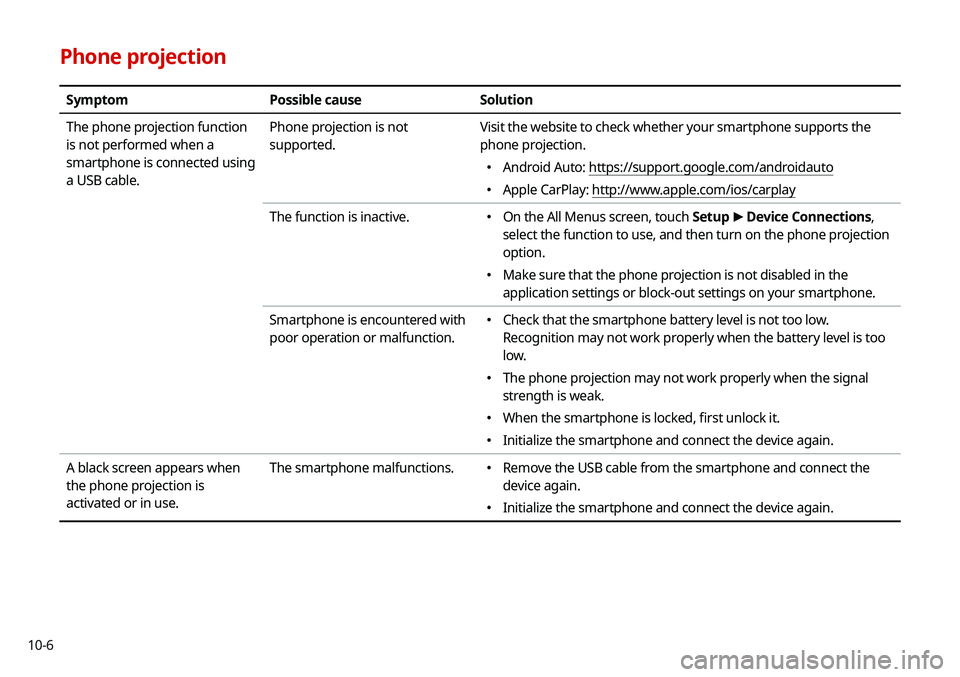
Phone projection
SymptomPossible cause Solution
The phone projection function
is not performed when a
smartphone is connected using
a USB cable. Phone projection is not
supported.
Visit the website to check whether your smartphone supports the
phone projection.
000E
Android Auto: https://support.google.com/androidauto
000EApple CarPlay: http://www.apple.com/ios/carplay
The function is inactive.
000E On the All Menus screen, touch Setup
>
Device Connections,
select the function to use, and then turn on the phone projection
option.
000E Make sure that the phone projection is not disabled in the
application settings or block-out settings on your smartphone.
Smartphone is encountered with
poor operation or malfunction.
000E Check that the smartphone battery level is not too low.
Recognition may not work properly when the battery level is too
low.
000EThe phone projection may not work properly when the signal
strength is weak.
000EWhen the smartphone is locked, first unlock it.
000EInitialize the smartphone and connect the device again.
A black screen appears when
the phone projection is
activated or in use. The smartphone malfunctions.
000E
Remove the USB cable from the smartphone and connect the
device again.
000EInitialize the smartphone and connect the device again.
Page 223 of 244
10-9
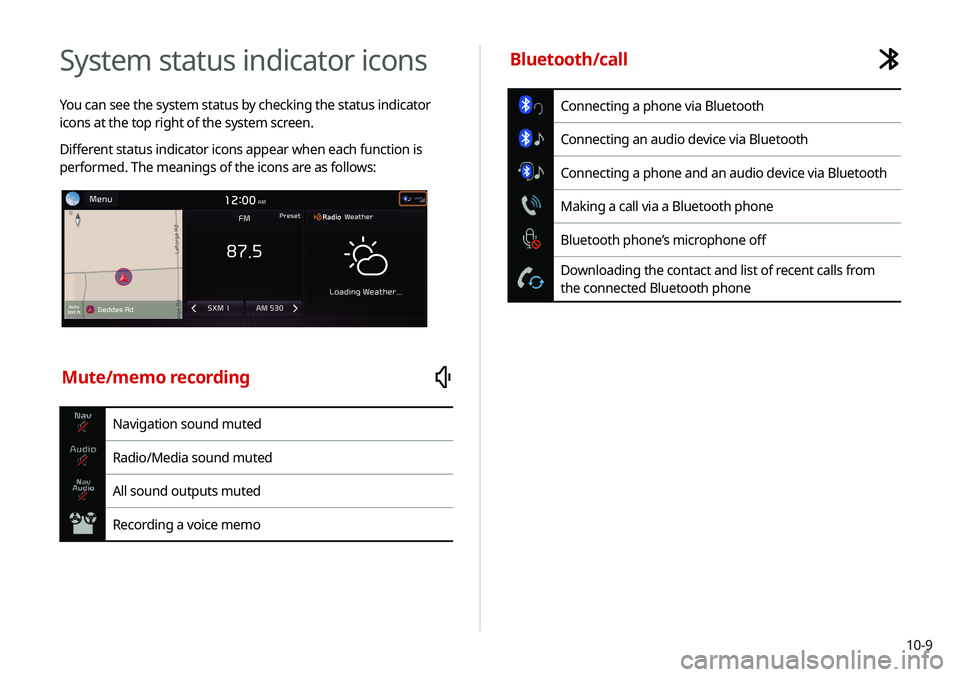
System status indicator icons
You can see the system status by checking the status indicator
icons at the top right of the system screen.
Different status indicator icons appear when each function is
performed. The meanings of the icons are as follows:
Mute/memo recording
Navigation sound muted
Radio/Media sound muted
All sound outputs muted
Recording a voice memo
Bluetooth/call
Connecting a phone via Bluetooth
Connecting an audio device via Bluetooth
Connecting a phone and an audio device via Bluetooth
Making a call via a Bluetooth phone
Bluetooth phone’s microphone off
Downloading the contact and list of recent calls from
the connected Bluetooth phone
Page 224 of 244
10-10
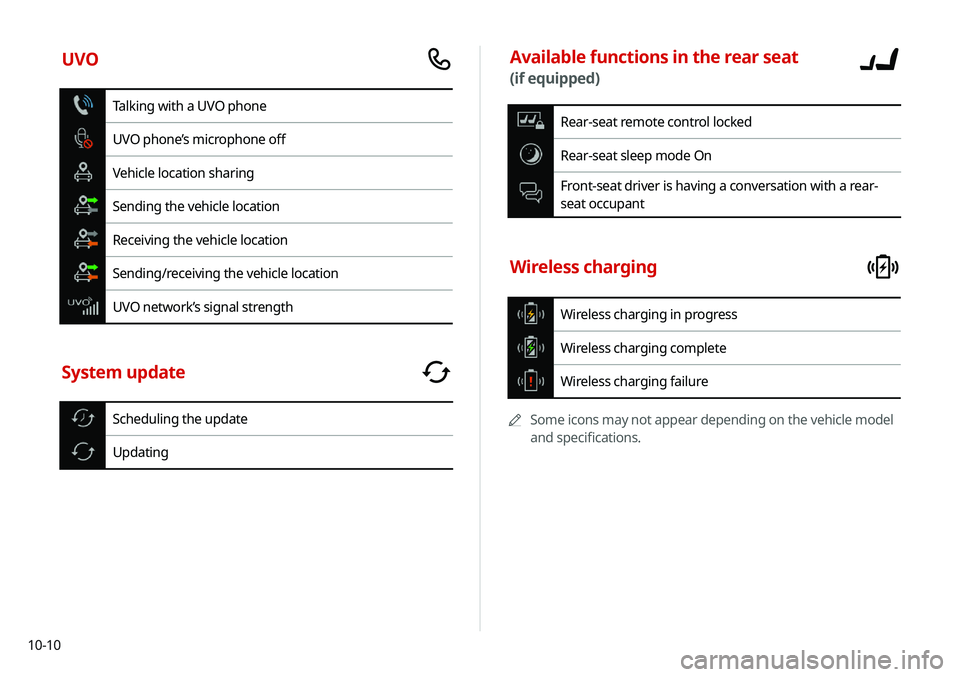
Available functions in the rear seat
(if equipped)
Rear-seat remote control locked
Rear-seat sleep mode On
Front-seat driver is having a conversation with a rear-
seat occupant
Wireless charging
Wireless charging in progress
Wireless charging complete
Wireless charging failure
0000
A
Some icons may not appear depending on the vehicle model
and specifications.
UVO
Talking with a UVO phone
UVO phone’s microphone off
Vehicle location sharing
Sending the vehicle location
Receiving the vehicle location
Sending/receiving the vehicle location
UVO network’s signal strength
System update
Scheduling the update
Updating
Page 225 of 244
10-11
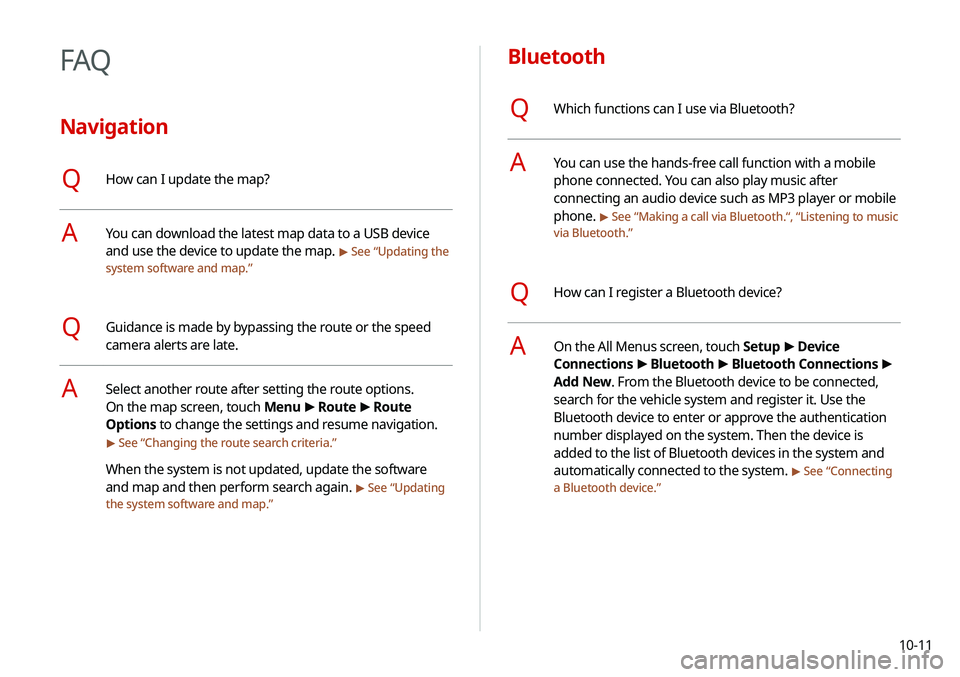
Bluetooth
QWhich functions can I use via Bluetooth?
AYou can use the hands-free call function with a mobile
phone connected. You can also play music after
connecting an audio device such as MP3 player or mobile
phone.
> See “Making a call via Bluetooth .“, “Listening to music
via Bluetooth.”
QHow can I register a Bluetooth device?
AOn the All Menus screen, touch Setup >
Device
Connections >
Bluetooth >
Bluetooth Connections >
Add New. From the Bluetooth device to be connected,
search for the vehicle system and register it. Use the
Bluetooth device to enter or approve the authentication
number displayed on the system. Then the device is
added to the list of Bluetooth devices in the system and
automatically connected to the system.
> See “ Connecting
a Bluetooth device.”
FAQ
Navigation
QHow can I update the map?
AYou can download the latest map data to a USB device
and use the device to update the map.
> See “ Updating the
system software and map.”
QGuidance is made by bypassing the route or the speed
camera alerts are late.
ASelect another route after setting the route options.
On the map screen, touch Menu >
Route >
Route
Options to change the settings and resume navigation.
> See “ Changing the route search criteria.”
When the system is not updated, update the software
and map and then perform search again.
> See “Updating
the system software and map.”
Page 226 of 244
10-12
Broadcast reception
QI turned on the radio while driving but I heard no sound
but noise.
ADepending on the location, obstacles may cause
reception to deteriorate.
Radio reception rate may also drop when an on-glass
antenna is mounted on the rear window and the window
is tinted with metallic window films.
QI bought a new mobile phone and want to replace my old
phone with the new one to connect the system. How can
I register the new phone to the system?
AAn additional device can be registered in the same way
as in registration of a new device. You can register up
to 6 devices in the list of Bluetooth devices. To delete a
previously registered device, touch Delete Devices from
the list of Bluetooth devices, select the device to delete,
and then touch Delete.
> See “Deleting a registered device.”
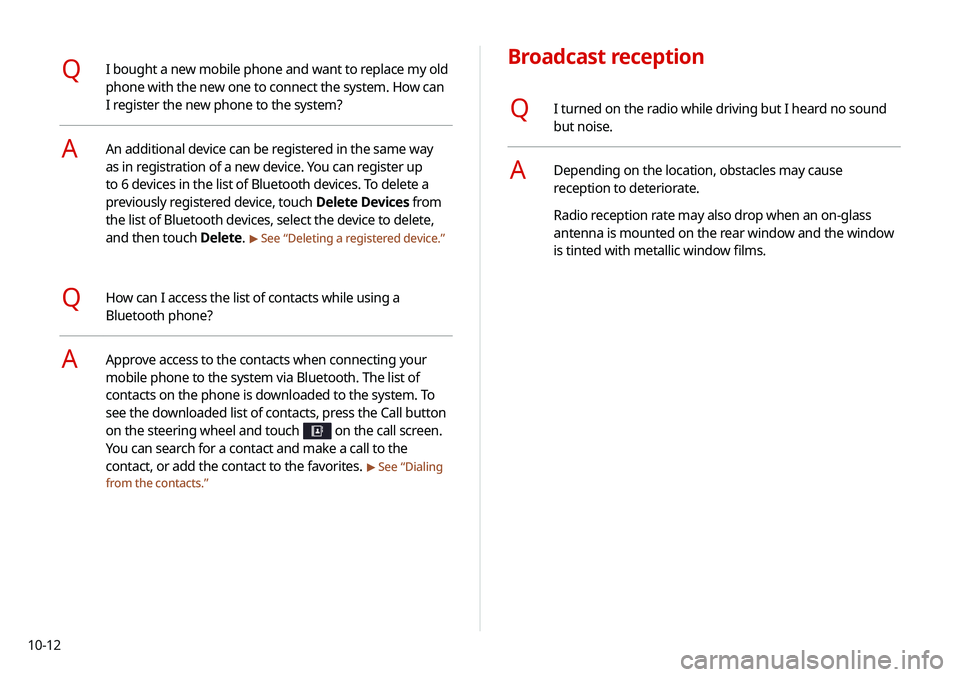
QHow can I access the list of contacts while using a
Bluetooth phone?
AApprove access to the contacts when connecting your
mobile phone to the system via Bluetooth. The list of
contacts on the phone is downloaded to the system. To
see the downloaded list of contacts, press the Call button
on the steering wheel and touch
on the call screen.
You can search for a contact and make a call to the
contact, or add the contact to the favorites.
> See “Dialing
from the contacts.”