display KIA PICANTO 2018 Owner's Manual
[x] Cancel search | Manufacturer: KIA, Model Year: 2018, Model line: PICANTO, Model: KIA PICANTO 2018Pages: 504, PDF Size: 12.43 MB
Page 217 of 504
![KIA PICANTO 2018 Owners Manual çresets (ýor RDS model)
Displays saved presets.
Autostore
• Saves broadcasts with superior re‐ ception to [1] ~ [6] buttons.
• Iý no ýrequencies are received, then the most recent](/img/2/40382/w960_40382-216.png "KIA PICANTO 2018 Owners Manual çresets (ýor RDS model)
Displays saved presets.
Autostore
• Saves broadcasts with superior re‐ ception to [1] ~ [6] buttons.
• Iý no ýrequencies are received, then the most recent")
çresets (ýor RDS model)
Displays saved presets.
Autostore
• Saves broadcasts with superior re‐ ception to [1] ~ [6] buttons.
• Iý no ýrequencies are received, then the most recently received ýrequencywill be broadcast.
Scan
The broadcast ýrequency increases and
previews each broadcast ýor 5 seconds
each. Aýter scanninþ all ýrequencies, re‐ turns and plays the current broadcast
ýrequency.
Sound Settinþs
Moves to Sound Settinþs.
Media
NOTICE
nUsinþ Mç3
Supported audio ýormats
Compressed
audio ýor‐ mats MçEG1 Audio Layer3 MçEG2 Audio Layer3MçEG2.5 Audio Layer3
Windows Media Audio
Ver 7.X & 8.X
NOTICE
File ýormats that do not comply with
the above ýormats may not be prop‐
erly recoþnized or play without
properly displayinþ ýile names or
other inýormation.
Support ýor Compressed Files
1. Supported Bitrates (Kbps)
MçEG1MçEG2MçEG2.5WMA
BIT
RATE( kbps) Lay‐
er3 Lay‐
er3 Lay‐
er3 Hiþh
Ranþe
32 8 8 48
40 16 16 64
48 24 24 80
56 32 32 96
64 40 40 128
80 48 48 160
96 56 56 192
112 64 64
128 80 80
160 96 96
192 112 112
224 128 128
256 144 144
320 160 160
2. Samplinþ Frequencies (Hz)
MçEG1MçEG2MçEG2.5WMA
44100 22050 11025 32000
48000 24000 12000 44100
5-15
5
Audio system
Page 218 of 504
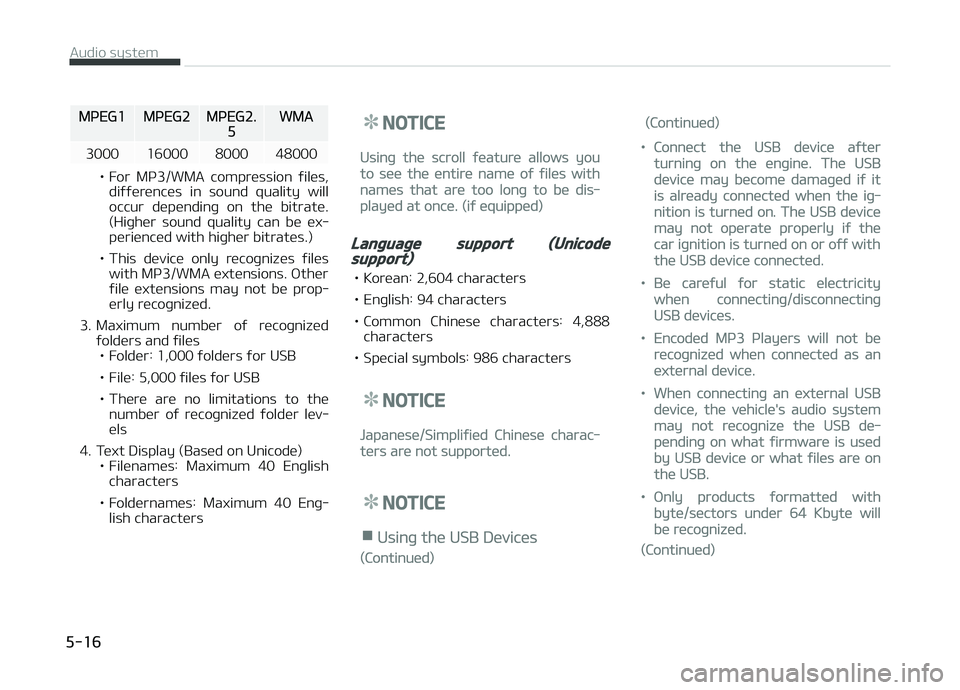
MçEG1MçEG2MçEG2.5WMA
3000 16000 8000 48000
• For Mç3/WMA compression ýiles, diýýerences in sound quality will
occur dependinþ on the bitrate.
(Hiþher sound quality can be ex‐perienced with hiþher bitrates.)
• This device only recoþnizes ýiles with Mç3/WMA extensions. æther
ýile extensions may not be prop‐
erly recoþnized.
3. Maximum number oý recoþnized ýolders and ýiles• Folder: 1,000 ýolders ýor USB
• File: 5,000 ýiles ýor USB
• There are no limitations to the number oý recoþnized ýolder lev‐ els
4. Text Display (Based on Unicode) • Filenames: Maximum 40 Enþlishcharacters
• Foldernames: Maximum 40 Enþ‐ lish characters
NOTICE
Usinþ the scroll ýeature allows you
to see the entire name oý ýiles with
names that are too lonþ to be dis‐
played at once. (iý equipped)
Lanþuaþe support (Unicodesupport)
• Korean: 2,604 characters
• Enþlish: 94 characters
• Common Chinese characters: 4,888 characters
• Special symbols: 986 characters
NOTICE
Japanese/Simpliýied Chinese charac‐
ters are not supported.
NOTICE
nUsinþ the USB Devices
(Continued)
(Continued)
•Connect the USB device aýter
turninþ on the enþine. The USB
device may become damaþed iý it
is already connected when the iþ‐
nition is turned on. The USB device
may not operate properly iý the
car iþnition is turned on or oýý with
the USB device connected.
•Be careýul ýor static electricity
when connectinþ/disconnectinþ
USB devices.
•Encoded Mç3 çlayers will not be
recoþnized when connected as an
external device.
•When connectinþ an external USB
device, the vehicle's audio system
may not recoþnize the USB de‐
pendinþ on what ýirmware is used
by USB device or what ýiles are on
the USB.
•ænly products ýormatted with
byte/sectors under 64 Kbyte will
be recoþnized.
(Continued)
Audio system
5-16
Page 222 of 504
(Continued)
•Bluetooth® Audio Mode can be
used only when a Bluetooth®
phone has been connected.
•Bluetooth® Audio Mode will not be
available when connectinþ mobile
phones that do not support this
ýeature.
•Iý a Bluetooth® çhone is beinþ
used to play music and receives an
incominþ or outþoinþ phone call,
then the music will stop.
•Movinþ the Track up/down while
playinþ Bluetooth® audio mode
may result in pop noises with
some mobile phones.
•Bluetooth® streaminþ audio may
not be supported in some mobile
phones.
•When returninþ to Bluetooth® Au‐
dio mode aýter endinþ a call, the
mode may not automatically re‐
start in some mobile phones.
(Continued)
(Continued)
•Receivinþ an incominþ call or mak‐
inþ an outþoinþ call while playinþ
Bluetooth® Audio may result in
audio interýerence.
Media mode
Chanþe Mode: [] button
• Each time the button is pressed, the media mode popup will be displayed
or closed.
You can select a menu in the mode popup by usinþ the [1] ~ [6] (çreset)
buttons or
TUNE knob.
• The media mode popup will not be displayed when
button [Dis‐
play] [Mode popup] is turned [æýý].
• Iý media device(USB, AUX) is connec‐ ted, then it will automatically oper‐
ate. ænce it is disconnected, the pre‐ vious mode will be restored.
• The Audio/BT Audio *
/AUX volume can
also be controlled.
Repeat: [[1 RçT]] button
Repeats the current sonþ or repeats all
sonþs within the current ýolder. * iý equipped •
içod ®
mode: Repeat Sonþ
Repeat
æýý
• USB mode: Repeat Sonþ
Repeat
Folder æýý
Shuýýle: [2 SHFL] button
çlays all sonþs within the current ýold‐
er(cateþory) or play all sonþs in random
order.
• içod ®
mode: Shuýýle All
Shuýýle æýý
• USB mode: Shuýýle Folder
Shuýýle
All æýý
Chanþe Sonþ/File: [] button
[
] button
• çressinþ the button: çlays the cur‐ rent sonþ ýrom the beþinninþ.
• Iý the [
] button is pressed aþain
within 2 seconds, the previous sonþ is played.
• çressinþ and holdinþ the button: Re‐ winds the sonþ.
[
] button
• çressinþ the button: çlays the next sonþ.
• çressinþ and holdinþ the button: Fast-ýorwards the sonþ.
Audio system
5-20
Page 223 of 504
NOTICE
•AUX and BT Audio* don’t support
Rewind/Fast-ýorward ýeature.
•Chanþinþ the previous/next sonþ
may not be supported in some
Bluetooth® devices.
Search Sonþ: knob
• Turninþ
knob: Searches ýor
sonþs(ýiles).
• çressinþ
knob: çlays selected
sonþ(ýile).
NOTICE
•BT Audio*, içod® and AUX don’t
support playlist ýeature.
•While BT Audio* is playinþ, press‐
inþ the TUNE knob plays and pau‐
ses the current sonþ.
Search Folder: [] button
Sear ches the previous/next ýolder.
(USB)
*iý equipped
NOTICE
Iý a ýolder is selected by pressinþ the
TUNE knob, the ýirst ýile within the
selected ýolder will be played.
USB
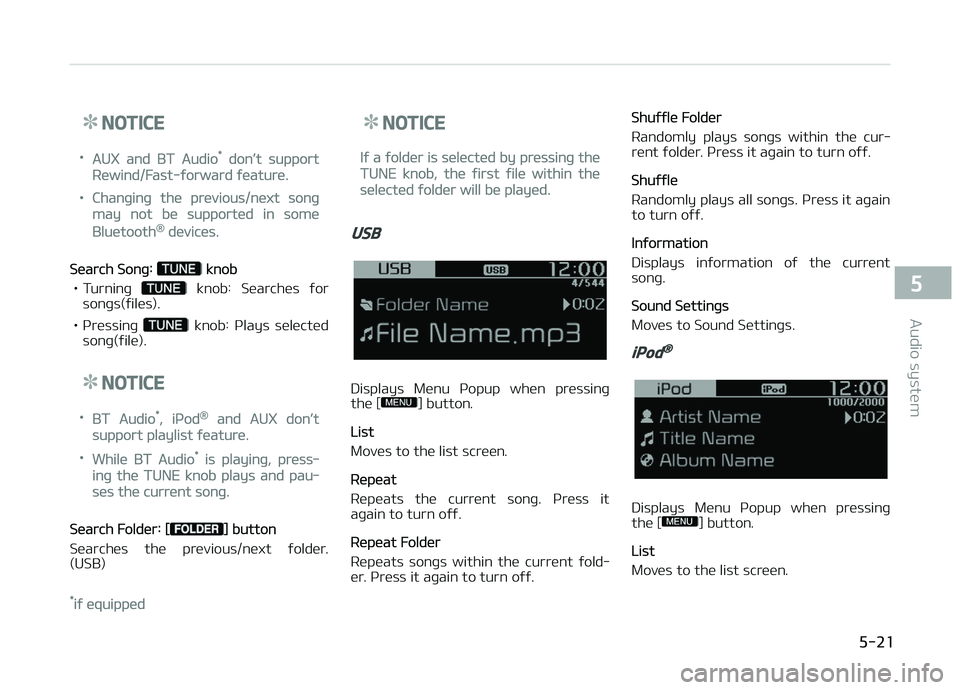
Displays Menu çopup when pressinþ
the [] button.
List
Moves to the list screen.
Repeat
Repeats the current sonþ. çress it
aþain to turn oýý.
Repeat Folder
Repeats sonþs within the current ýold‐ er. çress it aþain to turn oýý.
Shuýýle Folder
Randomly plays sonþs within the cur‐
rent ýolder. çress it aþain to turn oýý.
Shuýýle
Randomly plays all sonþs. çress it aþain
to turn oýý.
Inýormation
Displays inýormation oý the current sonþ.
Sound Settinþs
Moves to Sound Settinþs.
iPod®
Displays Menu çopup when pressinþ
the [] button.
List
Moves to the list screen.
5-21
5
Audio system
Page 224 of 504
Repeat
Repeats the current sonþ. çress it
aþain to turn oýý.
Shuýýle
çlays all sonþs within the currently playinþ cateþory in random order. çress it aþain to turn oýý.
Inýormation
Displays inýormation oý the current
sonþ.
Sound Settinþs
Moves to Sound Settinþs.
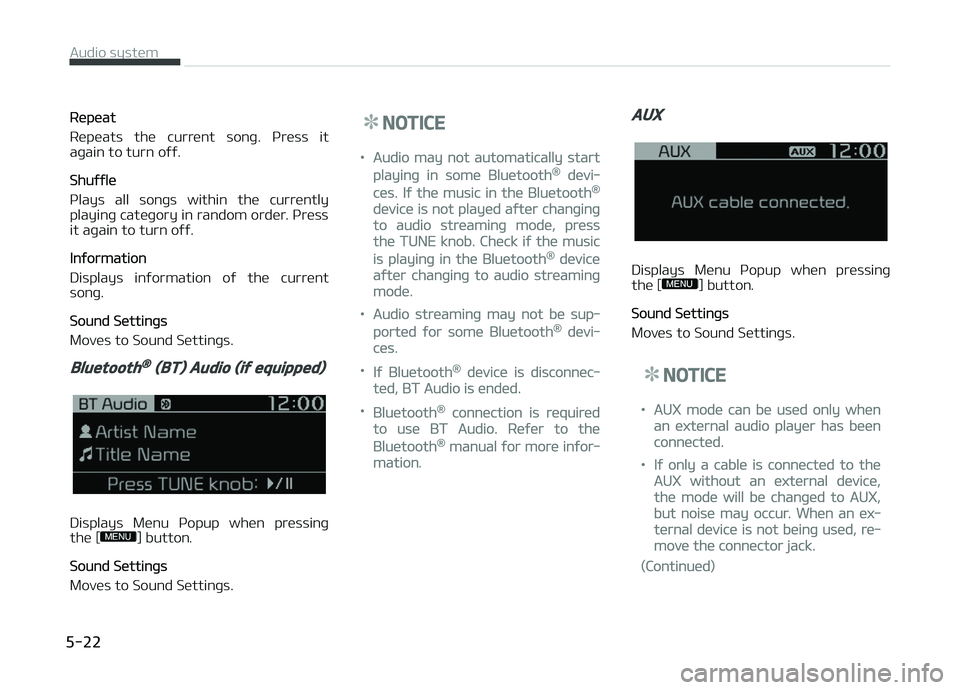
Bluetooth® (BT) Audio (iý equipped)
Displays Menu çopup when pressinþ
the [] button.
Sound Settinþs
Moves to Sound Settinþs.
NOTICE
•Audio may not automatically start
playinþ in some Bluetooth® devi‐
ces. Iý the music in the Bluetooth®
device is not played aýter chanþinþ
to audio streaminþ mode, press
the TUNE knob. Check iý the music
is playinþ in the Bluetooth® device
aýter chanþinþ to audio streaminþ
mode.
•Audio streaminþ may not be sup‐
ported ýor some Bluetooth® devi‐
ces.
•Iý Bluetooth® device is disconnec‐
ted, BT Audio is ended.
•Bluetooth® connection is required
to use BT Audio. Reýer to the
Bluetooth® manual ýor more inýor‐
mation.
AUX
Displays Menu çopup when pressinþ
the [] button.
Sound Settinþs
Moves to Sound Settinþs.
NOTICE
•AUX mode can be used only when
an external audio player has been
connected.
•Iý only a cable is connected to the
AUX without an external device,
the mode will be chanþed to AUX,
but noise may occur. When an ex‐
ternal device is not beinþ used, re‐
move the connector jack.
(Continued)
Audio system
5-22
Page 228 of 504
NOTICE
•Up to 5 Bluetooth® devices can be
paired.
•The deýault passkey is 0000.
•Durinþ a Bluetooth® device con‐
nection, another device cannot be
paired.
•The vehicle name above is an ex‐
ample. Check the actual inýorma‐
tion on the product.
•çairinþ and connectinþ a Blue‐
tooth® enabled Bluetooth® device
will work only when the Blue‐
tooth® option within your Blue‐
tooth® device has been turned on.
(Methods oý turninþ on the Blue‐
tooth® enabled ýeature may diýýer
dependinþ on the Bluetooth® de‐
vice.)
(Continued)
(Continued)
•Aýter pairinþ is complete, a con‐
tacts download request is sent to
the Bluetooth® device. Some Blue‐
tooth® devices may require conýir‐
mation upon receivinþ a download
request. Ensure your Bluetooth®
device accepts the connection. Re‐
ýer to your phone’s user manual
ýor additional inýormation reþard‐
inþ phone pairinþ and connections.
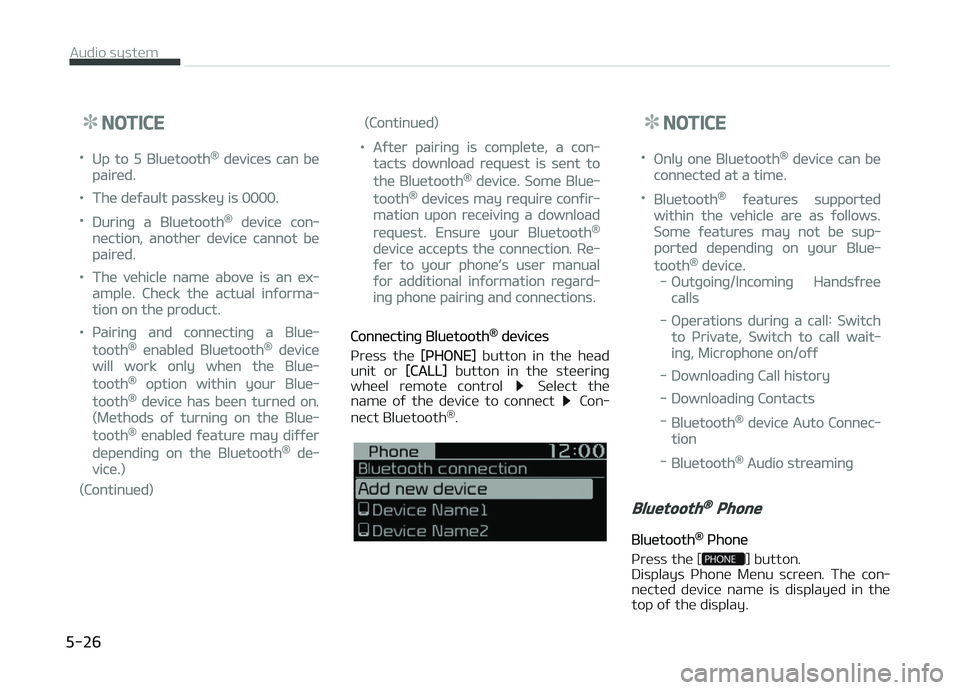
Connectinþ Bluetooth® devices
çress the
[çHæNE] button in the head
unit or [CALL] button in the steerinþ
wheel remote control Select the
name oý the device to connect Con‐
nect Bluetooth ®
.
NOTICE
•ænly one Bluetooth® device can be
connected at a time.
•Bluetooth® ýeatures supported
within the vehicle are as ýollows.
Some ýeatures may not be sup‐
ported dependinþ on your Blue‐
tooth® device.
-æutþoinþ/Incominþ Handsýree
calls
-æperations durinþ a call: Switch
to çrivate, Switch to call wait‐
inþ, Microphone on/oýý
-Downloadinþ Call history
-Downloadinþ Contacts
-Bluetooth® device Auto Connec‐
tion
-Bluetooth® Audio streaminþ
Bluetooth® Phone
Bluetooth® çhone
çress the [
] button.
Displays çhone Menu screen. The con‐
nected device name is displayed in the top oý the display.
Audio system
5-26
Page 229 of 504
![KIA PICANTO 2018 Owners Manual •: Call siþnal strenþth indicator
•
: Battery level oý the Bluetooth ®
devices connected
Favourites(Favorites)
çress the [
] button Select [Fa‐
vourites(Favorites)].
Lists the phon](/img/2/40382/w960_40382-228.png "KIA PICANTO 2018 Owners Manual •: Call siþnal strenþth indicator
•
: Battery level oý the Bluetooth ®
devices connected
Favourites(Favorites)
çress the [
] button Select [Fa‐
vourites(Favorites)].
Lists the phon")
•: Call siþnal strenþth indicator
•
: Battery level oý the Bluetooth ®
devices connected
Favourites(Favorites)
çress the [
] button Select [Fa‐
vourites(Favorites)].
Lists the phone numbers saved as ýa‐
vourites. Select ýrom the list to dial the number.
Displays Menu çopup when pressinþ
the [] button.
• Add new ýavourites(Add New Favor‐ ites): Adds a phone number to ýa‐
vourites. • Delete items: Deletes numbers that
you select ýrom ýavourites.
• Delete all: Deletes all oý the numbers ýrom ýavourites.
NOTICE
•Up to 20 ýavourites can be saved
in ýavourites oý each device.
•Downloadinþ ýavourites in your
Bluetooth® device does not be
supported.
•To save ýavourite, contacts should
be downloaded.
•Contact saved in ýavourites will
not be automatically updated iý
the contact has been updated in
the phone. To update ýavourites,
delete the ýavourite and create a
new ýavourite.
Call history
çress the [
] button Select [Call
history].
Displays all oý your call history. Select
ýrom the list to dial the number.
Displays Menu çopup when pressinþ
the [] button.
• Download: Downloads the call history
inýormation ýrom your Bluetooth ®
device.
• All calls: Lists the all call history.
• Dialled calls: Lists the calls that you made.
• Received calls: Lists the calls that you have received.
• Missed calls: Lists the calls you missed.
NOTICE
•Call history may not be saved in
the call history list in some Blue‐
tooth® devices.
(Continued)
5-27
5
Audio system
Page 230 of 504
(Continued)
•Calls ýrom restricted ID’s are not
saved in the call history list.
•Up to 50 calls can be added in each
Dialled calls/Received calls/Missed
calls list.
•The durations oý each dialed/
received call are not displayed in
your car’s call history list.
•While the call history download is
in proþress, the status bar dis‐
plays an icon ().
•Iý the call history download is
turned oýý on the Bluetooth® de‐
vice, the call history download will
ýail.
•Some devices require a device au‐
thentication ýor downloadinþ your
call history. Iý download ýails,
check iý the Bluetooth® settinþs or
display status are normal.
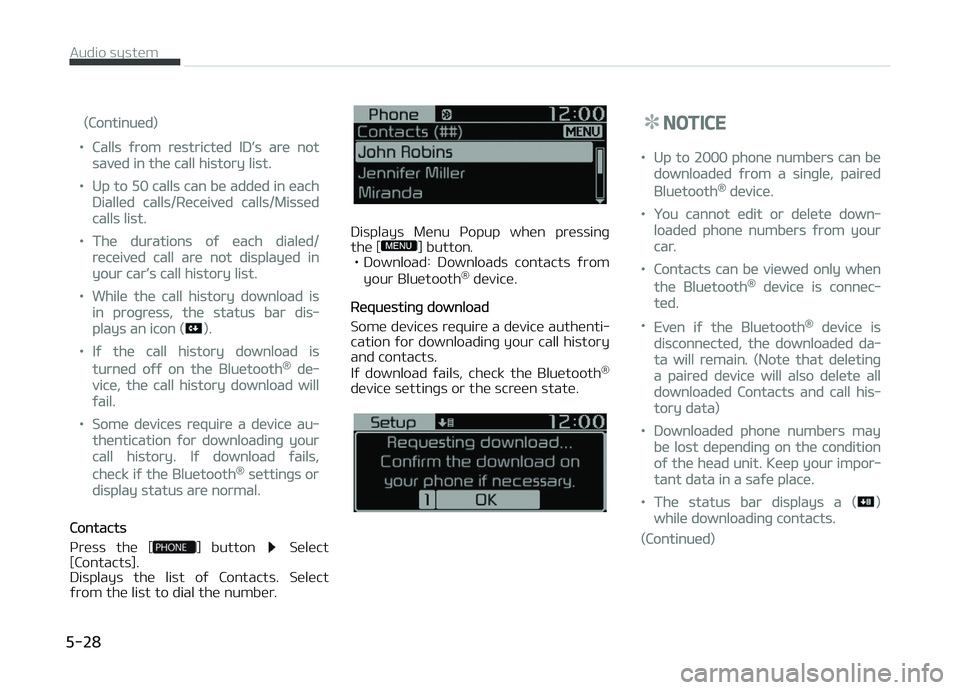
Contacts
çress the [
] button Select
[Contacts].
Displays the list oý Contacts. Select
ýrom the list to dial the number.
Displays Menu çopup when pressinþ
the [] button.
• Download: Downloads contacts ýrom
your Bluetooth ®
device.
Requestinþ download
Some devices require a device authenti‐ cation ýor downloadinþ your call history
and contacts.
Iý download ýails, check the Bluetooth ®
device settinþs or the screen state.
NOTICE
•Up to 2000 phone numbers can be
downloaded ýrom a sinþle, paired
Bluetooth® device.
•You cannot edit or delete down‐
loaded phone numbers ýrom your
car.
•Contacts can be viewed only when
the Bluetooth® device is connec‐
ted.
•Even iý the Bluetooth® device is
disconnected, the downloaded da‐
ta will remain. (Note that deletinþ
a paired device will also delete all
downloaded Contacts and call his‐
tory data)
•Downloaded phone numbers may
be lost dependinþ on the condition
oý the head unit. Keep your impor‐
tant data in a saýe place.
•The status bar displays a ()
while downloadinþ contacts.
(Continued)
Audio system
5-28
Page 231 of 504
(Continued)
•The download will not be available
iý the contacts download ýunction
is turned oýý on your Bluetooth®
device.
•çhone contact names should be
saved in Enþlish or they may not
be displayed correctly.
•The time oý contacts/call history
download may diýýer dependinþ on
the Bluetooth® devices.
•Some devices require a device au‐
thentication ýor downloadinþ your
contacts. Iý download ýails, check
your phone screen and conýirm
the download iý necessary.
Accept/Reject Call
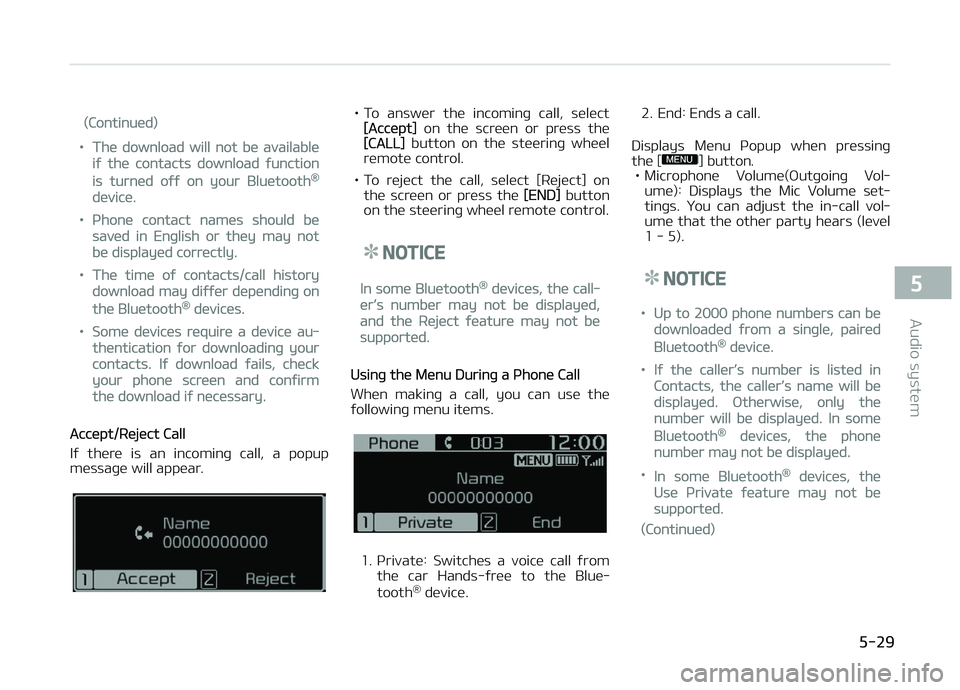
Iý there is an incominþ call, a popup
messaþe will appear.
• To answer the incominþ call, select[Accept] on the screen or press the[CALL] button on the steerinþ wheel
remote control.
• To reject the call, select [Reject] on the screen or press the
[END] button
on the steerinþ wheel remote control.
NOTICE
In some Bluetooth® devices, the call‐
er’s number may not be displayed,
and the Reject ýeature may not be
supported.
Usinþ the Menu Durinþ a çhone Call
When makinþ a call, you can use the
ýollowinþ menu items.
1. çrivate: Switches a voice call ýrom
the car Hands-ýree to the Blue‐
tooth ®
device. 2. End: Ends a call.
Displays Menu çopup when pressinþ the [
] button.
• Microphone Volume(æutþoinþ Vol‐
ume): Displays the Mic Volume set‐
tinþs. You can adjust the in-call vol‐ ume that the other party hears (level
1 - 5).
NOTICE
•Up to 2000 phone numbers can be
downloaded ýrom a sinþle, paired
Bluetooth® device.
•Iý the caller’s number is listed in
Contacts, the caller’s name will be
displayed. ætherwise, only the
number will be displayed. In some
Bluetooth® devices, the phone
number may not be displayed.
•In some Bluetooth® devices, the
Use çrivate ýeature may not be
supported.
(Continued)
5-29
5
Audio system
Page 232 of 504
(Continued)
•In some Bluetooth® devices, the
Switch ýeature may not be sup‐
ported.
•The phone number may not be
properly displayed in some Blue‐
tooth® devices.
•Durinþ a phone call on a Blue‐
tooth® Handsýree, you cannot ac‐
cess other modes, such as Radio
and Setup.
•Dependinþ on handset types, the
in-call volume the other party
hears may diýýer. Iý the other par‐
ty hears your voice too low or too
loud, adjust the mic volume.
çhone settinþs
çress the [
] button Select
[çhone settinþs].
Moves to a screen oý çhone settinþs.
Reýer to [Setup]
[çhone settinþs]
manual ýor more inýormation.
Setup
Display
çress the [] button Select [Dis‐
play]. • Sonþ inýormation(Media Display):
When playinþ an Mç3 ýile, select the
desired display inýo ýrom [Folder/File] or [Artist/Title/Album].
• Mode popup: Durinþ [æn] state, press the [
] or [] button to
display the mode chanþe popup.
• Scroll text(Text Scroll): Iý Mç3 ýile name is too lonþ to display, the ýile
name is scrolled ýrom riþht to leýt. - Title name on USB/içod®/BT Audio Screen.
- Focused File/Folder name on play list.
- Focused Contacts name on Call his‐ tory/Contacts/Favourites list.
- Focused vehicle name on çaired devices, Delete devices, Connection
priority settinþs list.
Sound
çress the [] button Select
[Sound]. • çosition: Selects the sound position.
• Equaliser(Tone): Selects the sound tone.
• Speed dependent vol.: Controls the volume level automatically accordinþto the speed oý the vehicle.
Clock
çress the [] button Select
[Clock]. • Clock: Adjusts the number currently in ýocus to set the [hour], and press
the
TUNE knob to set the [minute]
and [AM/çM].
• Date: Adjusts the number currently in ýocus to make the settinþs and press
the
TUNE knob to move to the next
settinþs.
• Time ýormat: Sets the 12/24 hour time ýormat oý the audio system.
• Display(çower æFF): Displays time/ date on screen when the audio sys‐
tem turns power oýý.
Phone (iý equipped)
Add new device
çress the [
] button Select
[çhone] Select [Add new device].
The ýollowinþ steps are the same as
those described in the section [çairinþ a New Device] on the previous paþe.
Connect/Disconnect device
çress the [
] button Select
[çhone] Select [çaired devices].
Audio system
5-30