ECO KIA SELTOS 2022 Navigation System Quick Reference Guide
[x] Cancel search | Manufacturer: KIA, Model Year: 2022, Model line: SELTOS, Model: KIA SELTOS 2022Pages: 316, PDF Size: 10.48 MB
Page 45 of 316
2-7
Pairing to an iPhone via Apple CarPlay
After you connect an iPhone to the vehicle with Apple CarPlay, you can run and control Apps
on the phone through the system screen.
1 To use Apple CarPlay, first check the following:
\225For iPhone models that support Apple CarPlay, visit the Apple website at
https://www.
apple.com/ios/carplay .
\225Make sure Apple CarPlay and Siri are enabled in your iPhone settings. If you do not
see options for Apple CarPlay or Siri, update to the latest iOS version.\
2 On the All Menus screen, press Setup >
Device Connections >
Apple
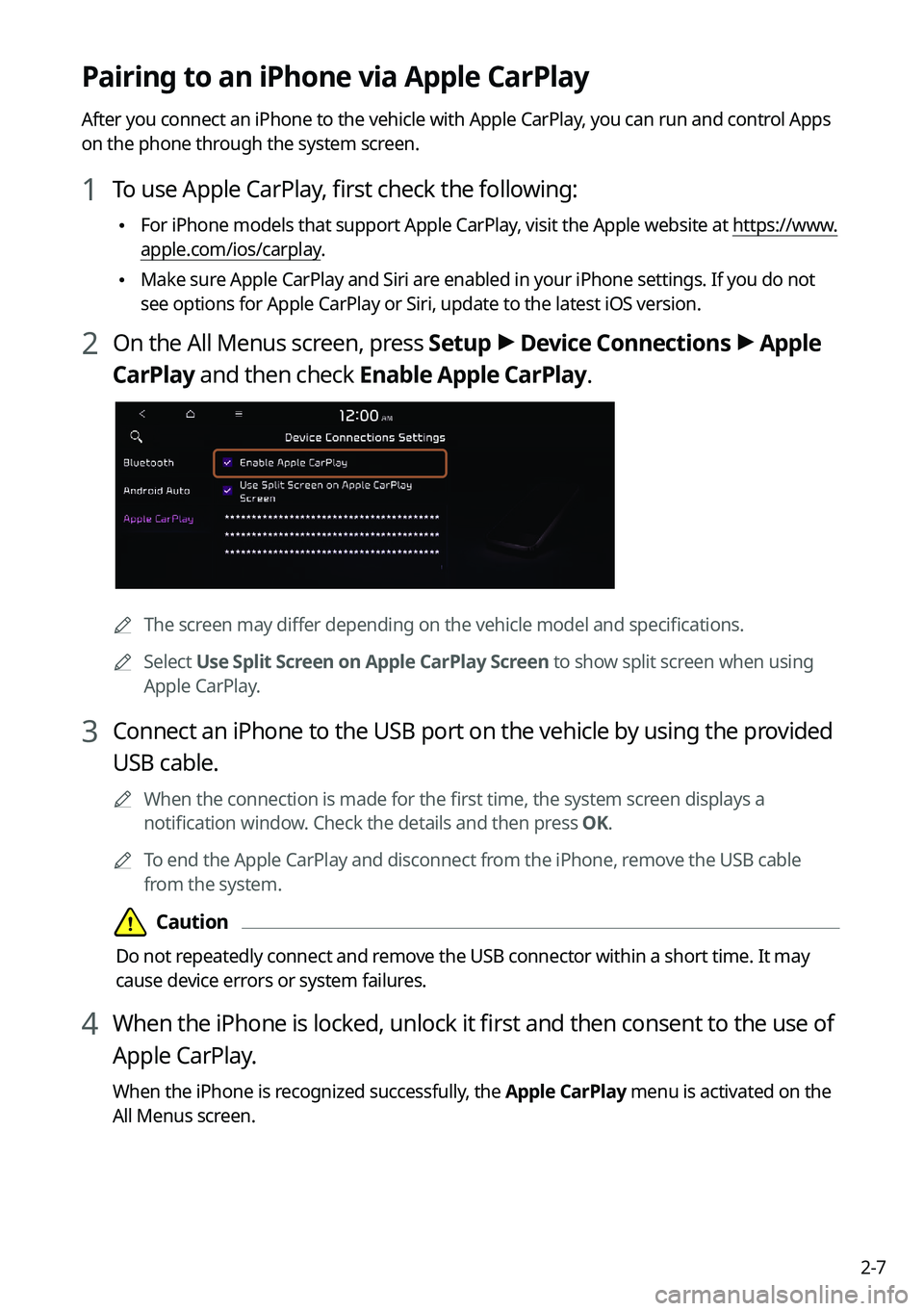
CarPlay and then check Enable Apple CarPlay.
0000A The screen may differ depending on the vehicle model and specifications.
0000
A
Select Use Split Screen on Apple CarPlay Screen to show split screen when using
Apple CarPlay.
3 Connect an iPhone to the USB port on the vehicle by using the provided
USB cable.
0000
A
When the connection is made for the first time, the system screen displays a
notification window. Check the details and then press OK.
0000
A
To end the Apple CarPlay and disconnect from the iPhone, remove the USB cable
from the system.
\334\334Caution
Do not repeatedly connect and remove the USB connector within a short time. It may
cause device errors or system failures.
4 When the iPhone is locked, unlock it first and then consent to the use of
Apple CarPlay.
When the iPhone is recognized successfully, the Apple CarPlay menu is activated on the
All Menus screen.
Page 46 of 316
 on your iP\
hone, press th")
2-8
Using the Apple CarPlay
1 On the All Menus screen, press Apple CarPlay.
2 Perform the desired function.
\225To run any of functions (phone, messaging, navigation, etc.) on your iP\
hone, press the
corresponding function icon.
0000
A
When you are using your smartphone′s navigation via phone projection, sounds
from both the system′s radio/media function and the navigation will be output
through your vehicle′s speakers. When you use the Volume knob while both
sounds are being output, the navigation volume is adjusted first.
\225To run the Siri voice recognition, press and hold the Voice Recognition button on the
steering wheel.
0000
A
By pressing the [ MODE] button on the steering wheel, you can run the media App on
your smartphone as well as the Radio/Media mode of the system.
0000
A
To specify which functions to run when the [ MODE] button on the steering wheel is
pressed, press and hold the [ MODE] button to display the settings screen.
0000
A
When you receive a call, press the Call button on the steering wheel to answer it.
0000
A
When phone projection is active, you cannot change the phone projection settings. To
change the settings, remove the USB cable from your system.
0000
A
Apps or functions used through Apple CarPlay are subject to change according to the
policy of Apple Corporation. For supportable functions, visit the Apple Corporation
website at http://www.apple.com/ios/carplay .
0000
A
To use the functions on your smartphone with the minimized system setting\
s, update the
smartphone OS to the latest version.
0000
A
The recognition time may differ depending on the device type, firmware, and OS version.
0000
A
Charges may apply for any mobile data used while Apple CarPlay is running.
0000
A
Some functions may not work properly depending on the network signal strength.
0000
A
Avoid interacting with the smartphone while using Apple CarPlay.
0000
A
You cannot use the following functions when Apple CarPlay is in use.
000DBluetooth phone
000DUSB mode
000DAndroid Auto
000DBrowsing using the Search knob on the control panel (if equipped)
Page 63 of 316
2-25
Seeing the driving information (if equipped)
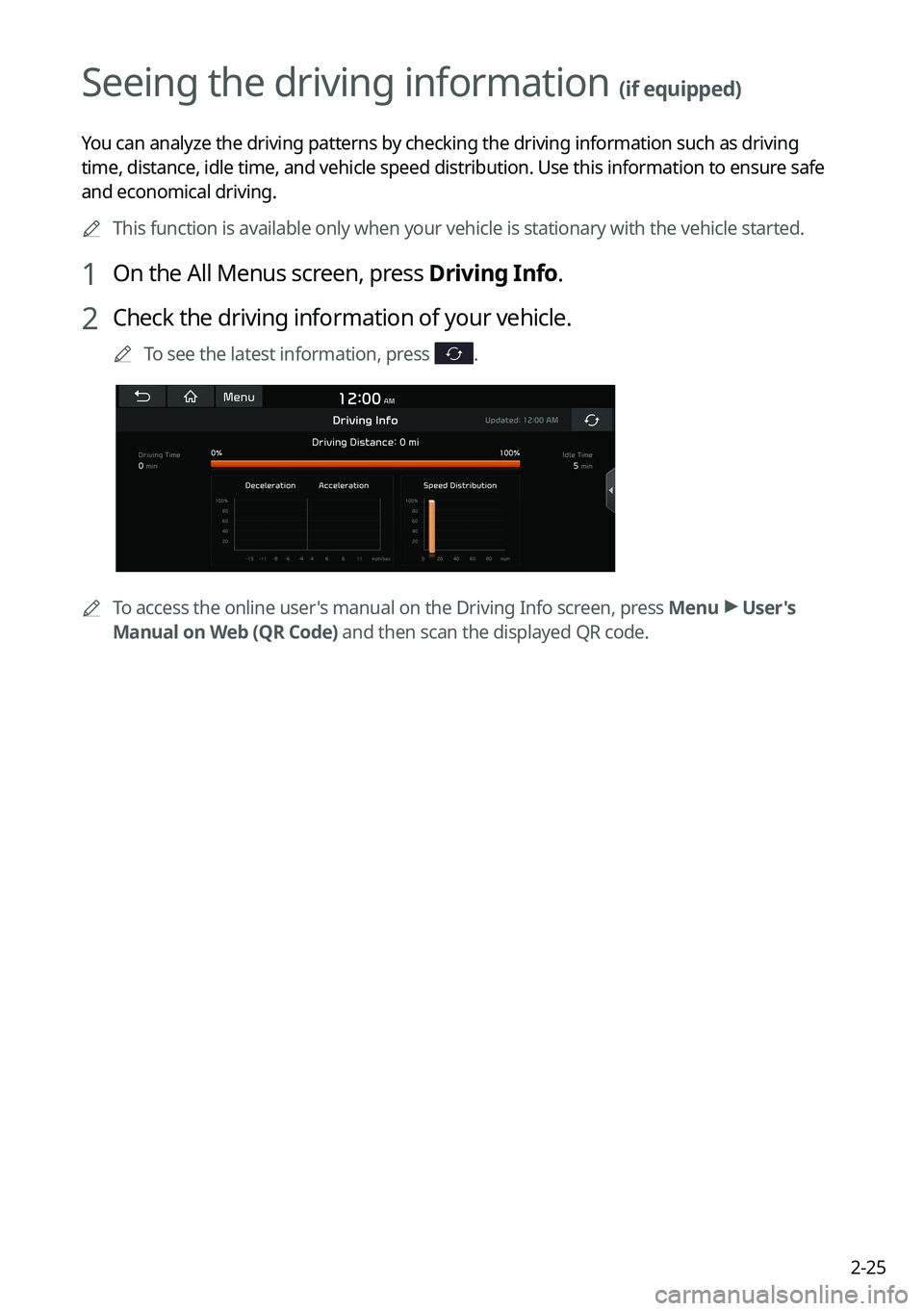
You can analyze the driving patterns by checking the driving information such as driving
time, distance, idle time, and vehicle speed distribution. Use this info\
rmation to ensure safe
and economical driving.0000
A
This function is available only when your vehicle is stationary with the\
vehicle started.
1 On the All Menus screen, press Driving Info.
2 Check the driving information of your vehicle.
0000
A
To see the latest information, press .
0000
A
To access the online user's manual on the Driving Info screen, press Menu >
User's
Manual on Web (QR Code) and then scan the displayed QR code.
Page 73 of 316
3-7
Using the scan function
You can listen to each broadcast briefly and select a desired one.
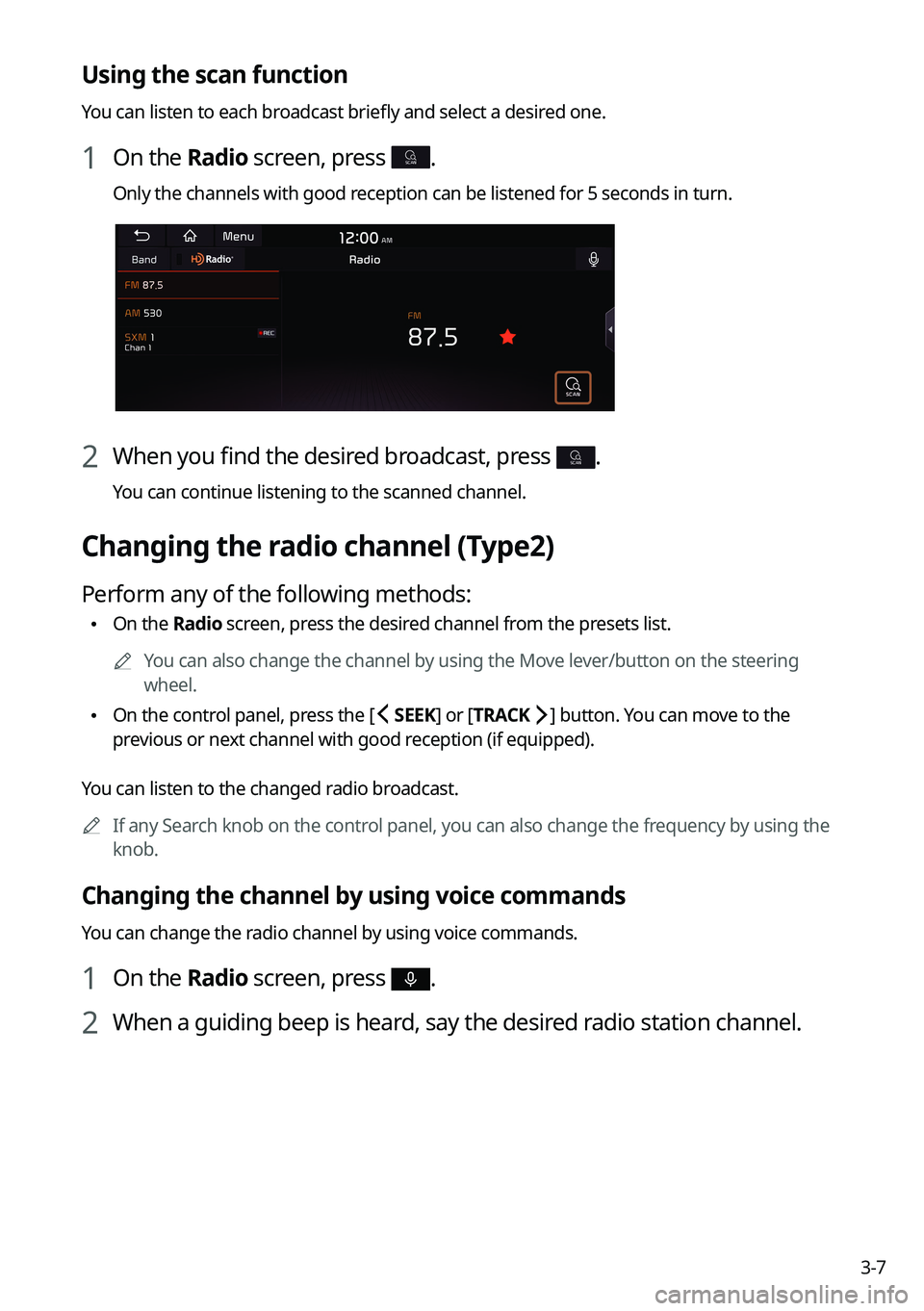
1 On the Radio screen, press SCAN.
Only the channels with good reception can be listened for 5 seconds in turn.
2 When you find the desired broadcast, press SCAN.
You can continue listening to the scanned channel.
Changing the radio channel (Type2)
Perform any of the following methods:
\225On the Radio screen, press the desired channel from the presets list.
0000
A
You can also change the channel by using the Move lever/button on the steering
wheel.
\225On the control panel, press the [
SEEK] or [TRACK ] button. You can move to the
previous or next channel with good reception (if equipped).
You can listen to the changed radio broadcast. 0000
A
If any Search knob on the control panel, you can also change the frequency by using the
knob.
Changing the channel by using voice commands
You can change the radio channel by using voice commands.
1 On the Radio screen, press .
2 When a guiding beep is heard, say the desired radio station channel.
Page 74 of 316
3-8
Using the scan function
You can listen to each broadcast briefly and select a desired one.
1 On the Radio screen, press >
Scan FM/Scan AM.
Only the channels with good reception can be listened for 5 seconds in turn.
2 When you find the desired broadcast, press the radio screen.
You can continue listening to the scanned channel.
Saving radio channels (Type1)
You can save a specific radio station's channel and easily access the channel.
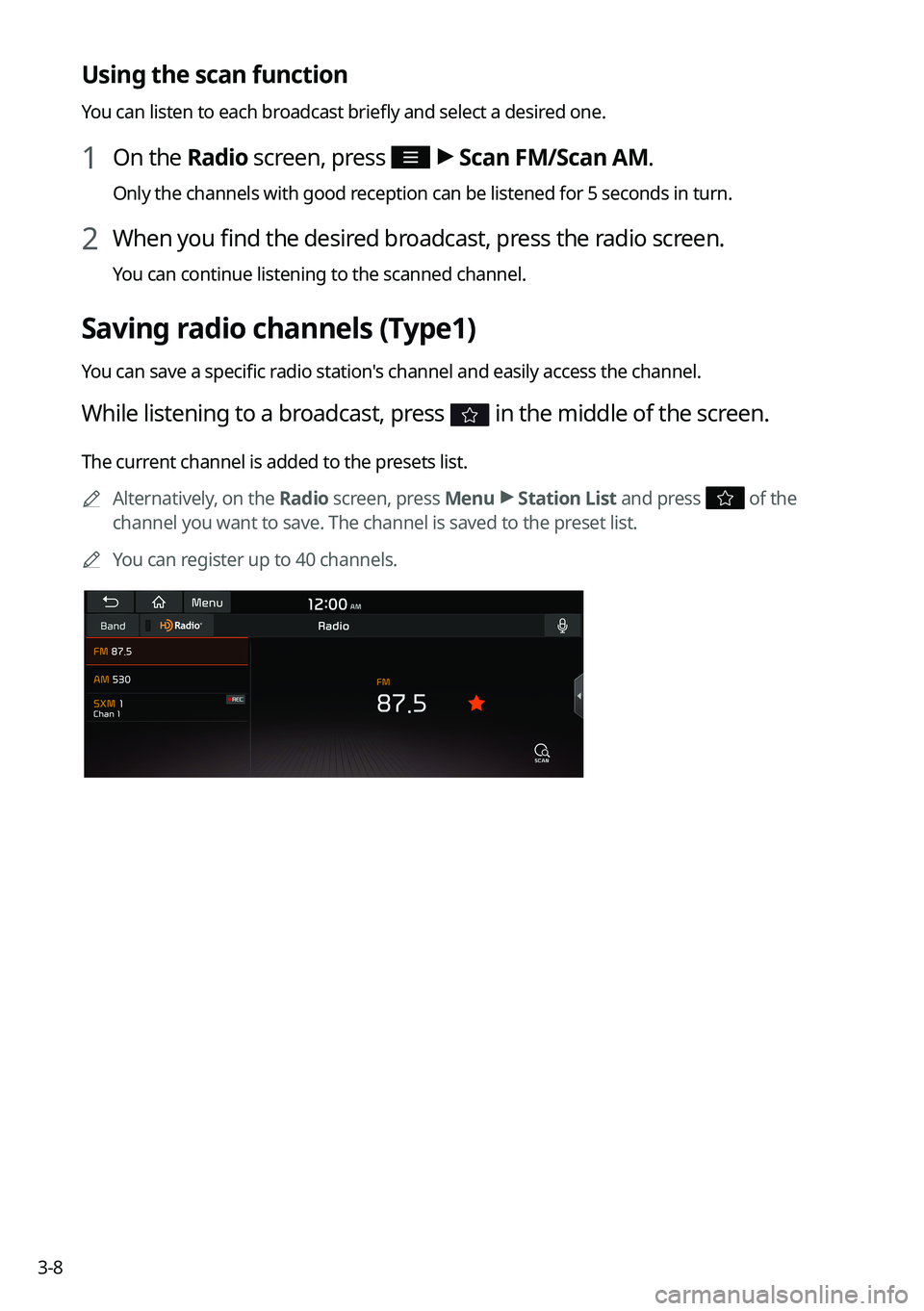
While listening to a broadcast, press in the middle of the screen.
The current channel is added to the presets list.
0000
A
Alternatively, on the Radio screen, press Menu >
Station List and press
of the
channel you want to save. The channel is saved to the preset list.
0000
A
You can register up to 40 channels.
Page 80 of 316
3-14
c c Moves to the previous segment. Press and hold to rewind the broadcast.
d d Pauses or restarts the broadcast.
e e Moves to the next segment. Press and hold to fast-forward the broadcast.
f f Can change the radio mode.
g g You can go to the previous or next channel.
h h Can enter channel number to select the channel directly.
i i You can delete or save the current frequency to the presets list.
j j Presets list
k k Can see the list of available SiriusXM channels (if equipped).
l l You can change radio channels by using voice commands. > See "Changing the channel by
using voice commands."
m m Displays the options list.
\225 Display Off: Turns off the screen. To switch the screen back on, press the screen or
briefly press the power button.
\225Channel List: Can see the list of available SiriusXM channels.
\225Scan SXM Channels: Scan and play each SiriusXM channel for 5 seconds.
\225Delete Presets: Can delete a registered channel from the presets list.
\225What is on My Presets?: Displays the broadcast schedule.
\225Featured Favorites: Can listen to groups of channels provided by SiriusXM.
\225Sound Settings: Displays the system sound settings screen.
\225User's Manual on Web (QR Code): Displays the QR code that provides access to the
online user manual for the system.
\225Split Screen: Can turn on or off the split screen mode.
0000
A
The screen may differ depending on the vehicle model and specifications.
0000
A
The
icon appears next to the first 10 SiriusXM channels saved. Once preset
channels have been saved, the broadcasts from them are buffered automatically for your
convenience each time you start the vehicle.
Page 88 of 316
4-4
Pause/Resume
You can pause or resume playback of a USB music file.
On the USB music playback screen, press or .
Rewind
By using the rewind function, you can listen to music in the USB device from the desired point
during playback.
Perform any of the following methods:
\225On the USB music playback screen, press and hold .
\225On the control panel, press and hold the [
SEEK] button (if equipped).
0000
A
You can also run the function by using the Move lever/button on the steering wheel.
Fast forward
By using the fast forward function, you can listen to music in the USB device from the desired
point during playback.
Perform any of the following methods:
\225On the USB music playback screen, press and hold .
\225On the control panel, press and hold the [
TRACK ] button (if equipped).
0000
A
You can also run the function by using the Move lever/button on the steering wheel.
Resuming playback of the current music
You can play the current music in the USB device from the beginning.
Perform any of the following methods:
\225On the USB music playback screen, press after 3 seconds during playback.
\225On the control panel, press the [
SEEK] button after 3 seconds during playback (if
equipped).
0000
A
You can also run the function by using the Move lever/button on the steering wheel.
Page 89 of 316
4-5
Playing the previous file
You can play the previous file during playback in the USB device.
Perform any of the following methods:
\225On the USB music playback screen, press within 3 seconds during playback.
\225On the control panel, press the [
SEEK] button within 3 seconds during playback (if
equipped).
0000
A
To play the previous music during playback, press
twice or pressing the [ SEEK]
button on the control panel twice after 3 seconds from the start of the playback (if
equipped).
0000
A
You can also run the function by using the Move lever/button on the steering wheel.
0000
A
If any Search knob on the control panel, you can search for the desired music by using
the knob. When you press the knob within 5 seconds, music is played. However, if no
input within 5 seconds, the search stops and the system displays the information of the
current file.
Playing the next file
You can play the next file in the USB device during playback.
Perform any of the following methods:
\225On the USB music playback screen, press .
\225On the control panel, press the [
TRACK ] button (if equipped).
0000
A
You can also run the function by using the Move lever/button on the steering wheel.
0000
A
If any Search knob on the control panel, you can search for the desired music by using
the knob. When you press the knob within 5 seconds, music is played. However, if no
input within 5 seconds, the search stops and the system displays the information of the
current file.
Changing the repeated playback mode for USB music
You can change the repeated playback mode for USB music: Repeat One, Repeat Folder, and
Repeat All.
On the USB music playback screen, press repeatedly.
Each time the icon is pressed, the playback repetition modes are toggled and the activated
mode icon appears on the screen.
Turning on/off the shuffle playback mode for USB music
You can turn on or off the shuffle playback mode for USB music.
On the USB music playback screen, press repeatedly.
Each time the icon is pressed, the shuffle playback mode is turned on and off. When the
shuffle playback is active, the files are played randomly with no sequence.
Page 91 of 316
4-7
0000
A
When connecting a USB storage, do not use a separate extension cable and directly
connect to the USB port. When you connect a USB storage via a USB hub or extension
cable, the device may not be recognized.
0000
A
Push the USB connector fully into the USB port. When the connector is not fully inserted,
a communication problem may occur.
0000
A
Noise may occur when removing a USB device from the system.
0000
A
You can play only the files that have been encoded in the standard format.
0000
A
The following USB devices may not be recognized or may not work properly.
000DEncrypted MP3 players
000DUSB devices that are not recognized as removable disks
0000
A
USB devices may not be recognized depending on the device status.
0000
A
Some USB devices may not be supported due to compatibility issues.
0000
A
USB device recognition may take longer than usual depending on the device type,
capacity, and file formats on the device.
0000
A
Some devices may not be charged through USB connection. It depends on the USB
specifications.
0000
A
You can hide files only in the USB device formatted in exFAT/NTFS/FAT16/32. The hidden
files can be found in the "Hidden_" folder.
Listening to music via Bluetooth
To use a Bluetooth device for audio playback, connect a device that supports Bluetooth
communication such as mobile phone and MP3 player.
For more information about Bluetooth connection:
> see "Connecting a Bluetooth device."
0000
A
The controls or display screens may differ depending on the connected Bluetooth device,
phone model, and music player App.
0000
A
The streaming may not be supported in some music player Apps.
0000
A
Some functions may not be available depending on the connected Bluetooth device or
phone model.
0000
A
When a media device or mobile phone is connected by both the Bluetooth and USB cable
at the same time, the device or system may not work properly. To use the Bluetooth
connection, remove all cables from the device.
Page 93 of 316
4-9
Pause/Resume
You can pause or resume playback of a Bluetooth audio file.
On the Bluetooth audio playback screen, press or .
Resuming playback of the current Bluetooth audio file
You can play the current Bluetooth audio file from the beginning.
Perform any of the following methods:
\225On the Bluetooth audio playback screen, press .
\225On the control panel, press the [
SEEK] button (if equipped).
0000
A
The actions required may differ depending on the connected device.
0000
A
You can also run the function by using the Move lever/button on the steering wheel.
Resuming playback of the previous Bluetooth audio file
You can play the previous Bluetooth audio file during playback.
Perform any of the following methods:
\225On the Bluetooth audio playback screen, press twice.
\225On the control panel, press the [
SEEK] button twice (if equipped).
0000
A
The actions required may differ depending on the connected device.
0000
A
You can also run the function by using the Move lever/button on the steering wheel.
0000
A
If any Search knob on the control panel, you can search for the desired music by using
the knob. When you press the knob within 5 seconds, music is played. However, if no
input within 5 seconds, the search stops and the system displays the information of the
current file.
Resuming playback of the next Bluetooth audio file
You can play the next Bluetooth audio file during playback.
Perform any of the following methods:
\225On the Bluetooth audio playback screen, press .
\225On the control panel, press the [
TRACK ] button (if equipped).
0000
A
The actions required may differ depending on the connected device.
0000
A
You can also run the function by using the Move lever/button on the steering wheel.
0000
A
If any Search knob on the control panel, you can search for the desired music by using
the knob. When you press the knob within 5 seconds, music is played. However, if no
input within 5 seconds, the search stops and the system displays the information of the
current file.