ECO KIA SELTOS 2022 Navigation System Quick Reference Guide
[x] Cancel search | Manufacturer: KIA, Model Year: 2022, Model line: SELTOS, Model: KIA SELTOS 2022Pages: 316, PDF Size: 10.48 MB
Page 5 of 316
3
Safety Precautions
Be sure to keep the following instructions. Otherwise, it may cause minor injury or system
damage.
\334\334Operation
Use the system with the vehicle started.
\225
When you use the system for a long time with the vehicle stopped, it may\
cause battery discharge.
Do NOT arbitrarily install an unauthorised aftermarket product in your vehicle.
\225Using unapproved products may cause an error while using the system.
\225System errors caused by installing unapproved products are not covered under the warranty.
\334\334System handling
Do NOT apply excessive force to the system.
\225When you apply excessive pressure to the screen, the LCD panel or touch panel may get damaged.
To clean the screen or button panel, first turn off the vehicle and then use a dry, soft
cloth to wipe it.
\225Do not wipe using a rough or hard cloth, chemical fibre, organic solvent (e.g. alcohol, benzene, thinner), or air
freshener. The panel surface may become scratched or damaged due to a chemical reaction.
When you install an air freshener on the air conditioner vent, the surface may be
deformed due to leakage.
0000
A
If you experience any problems with the system, contact your place of purchase or dealer.
Page 8 of 316
6
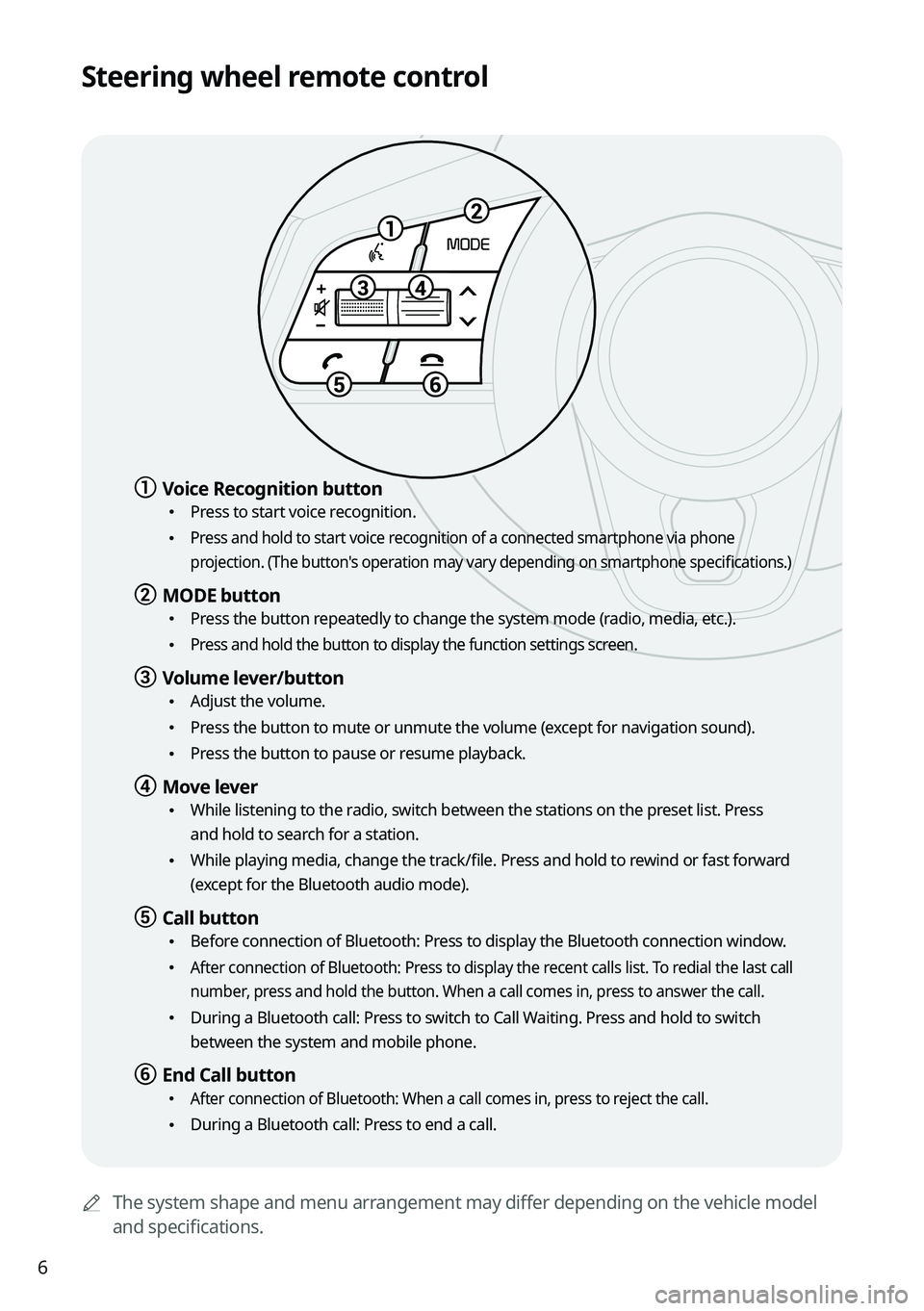
Steering wheel remote control
0000AThe system shape and menu arrangement may differ depending on the vehicle model
and specifications.
a a Voice Recognition button
\225Press to start voice recognition.
\225 Press and hold to start voice recognition of a connected smartphone via phone
projection. (The button's operation may vary depending on smartphone specifications.)
b b MODE button
\225
Press the button repeatedly to change the system mode (radio, media, etc.).
\225 Press and hold the button to display the function settings screen.
c c Volume lever/button
\225Adjust the volume.
\225Press the button to mute or unmute the volume (except for navigation sound).
\225Press the button to pause or resume playback.
d d Move lever
\225While listening to the radio, switch between the stations on the preset list. Press
and hold to search for a station.
\225While playing media, change the track/file. Press and hold to rewind or fast forward
(except for the Bluetooth audio mode).
e e Call button
\225Before connection of Bluetooth: Press to display the Bluetooth connection window.
\225 After connection of Bluetooth: Press to display the recent calls list. To redial the last call
number, press and hold the button. When a call comes in, press to answer the call.
\225During a Bluetooth call: Press to switch to Call Waiting. Press and hold to switch
between the system and mobile phone.
f f End Call button
\225 After connection of Bluetooth: When a call comes in, press to reject the call.
\225During a Bluetooth call: Press to end a call.
Page 12 of 316

10
FCC Certification
This equipment has been tested and found to comply with the limits for a\
Class B digital
device, pursuant to part 15 of the FCC Rules. These limits are designed to provide reasonable
protection against harmful interference in a residential installation.
This equipment generates, uses and can radiate radio frequency energy and, if not
installed and used in accordance with the instructions, may cause harmful interference
to radio communications. However, there is no guarantee that interference will not occur
in a particular installation. If this equipment does cause harmful inter\
ference to radio or
television reception, which can be determined by turning the equipment off and on, the user
is encouraged to try to correct the interference by one or more of the following measures:
000EReorient or relocate the receiving antenna.
000EIncrease the separation between the equipment and receiver.
000EConnect the equipment into an outlet on a circuit different from that to which the receiver
is connected.
000EConsult the dealer or an experienced radio/TV technician for help.
Caution: Any changes or modifications to this device not explicitly approved by manufacturer
could void your authority to operate this equipment.
This device complies with part 15 of the FCC Rules. Operation is subject to the following
two conditions: (1) This device may not cause harmful interference, and (2) this device must
accept any interference received, including interference that may cause undesired operation.
This equipment complies with FCC radiation exposure limits set forth for an uncontrolled
environment.
This equipment should be installed and operated with minimum 20 cm between the radiator
and your body. This transmitter must not be co-located or operating in conjunction with any
other antenna or transmitter unless authorized to do so by the FCC.
Page 18 of 316

6
Safety Precautions
Be sure to keep the following instructions. Otherwise, it may cause minor injury or system
damage.
\334\334Operation
Use the system with the vehicle started.
\225 When you use the system for a long time with the vehicle stopped, it may cause battery discharge.
Do NOT arbitrarily install an unauthorized aftermarket product in your vehicle.
\225Using unapproved products may cause an error while using the system.
\225System errors caused by installing unapproved products are not covered under the warranty.
\334\334System handling
Do NOT apply excessive force to the system.
\225 When you apply excessive pressure to the screen, the LCD panel or touch panel may get damaged.
To clean the screen or button panel, first turn off the vehicle and then use a dry, soft
cloth to wipe it.
\225Do not wipe using a rough or hard cloth, chemical fiber, organic solvent (e.g. alcohol, benzene, thinner), or air
freshener. The panel surface may become scratched or damaged due to a chemical reaction.
When you install an air freshener on the air conditioner vent, the surface may be
deformed due to leakage.
0000
A
If you experience any problems with the system, contact your place of purchase or dealer.
Page 21 of 316
9
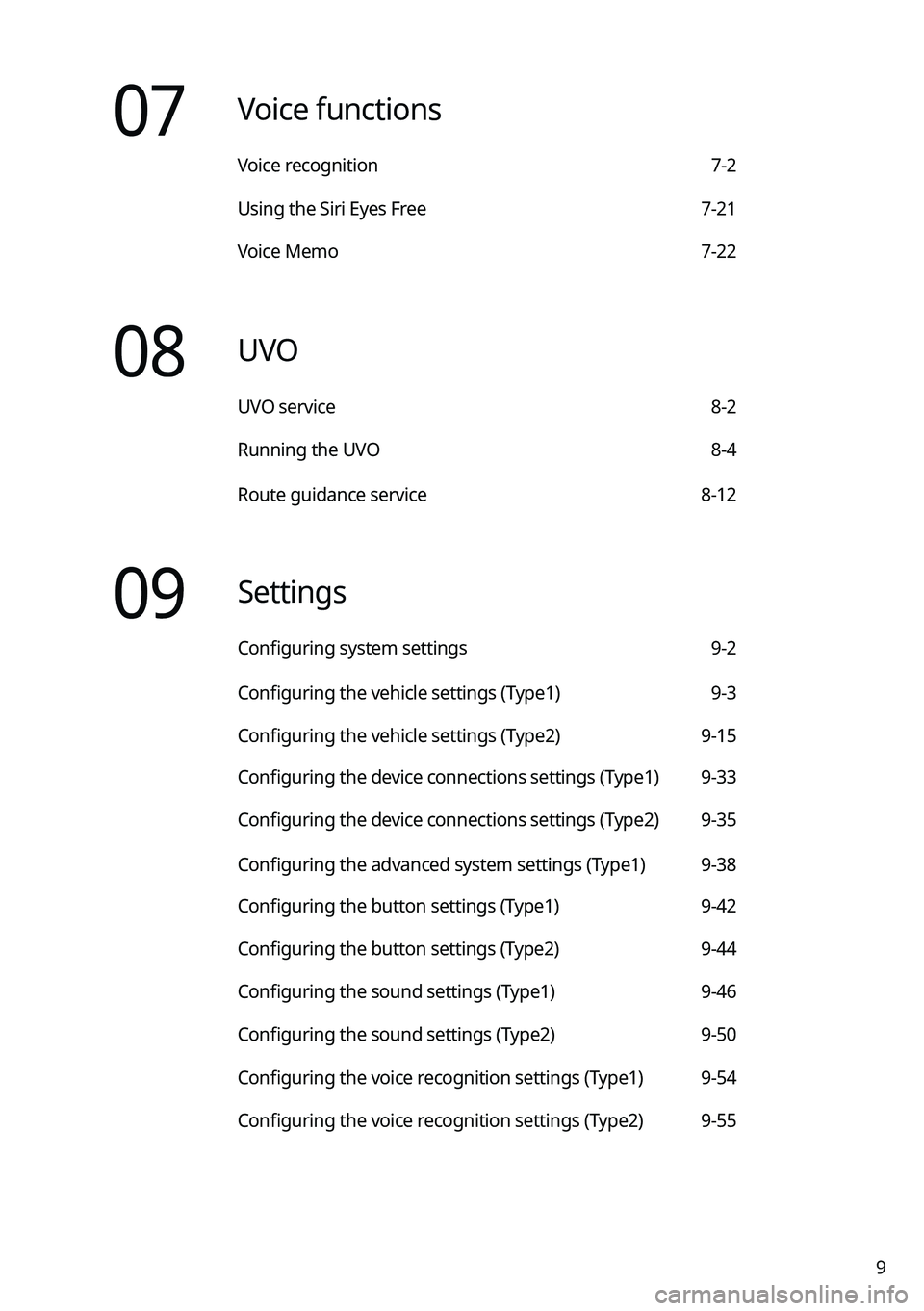
07 Voice functions
Voice recognition 7-2
Using the Siri Eyes Free 7-21
Voice Memo 7-22
08 UVO
UVO service 8-2
Running the UVO 8-4
Route guidance service 8-12
09 Settings
Configuring system settings 9-2
Configuring the vehicle settings (Type1) 9-3
Configuring the vehicle settings (Type2) 9-15
Configuring the device connections settings (Type1) 9-33
Configuring the device connections settings (Type2) 9-35
Configuring the advanced system settings (Type1) 9-38
Configuring the button settings (Type1) 9-42
Configuring the button settings (Type2) 9-44
Configuring the sound settings (Type1) 9-46
Configuring the sound settings (Type2) 9-50
Configuring the voice recognition settings (Type1) 9-54
Configuring the voice recognition settings (Type2) 9-55
Page 26 of 316
1-4
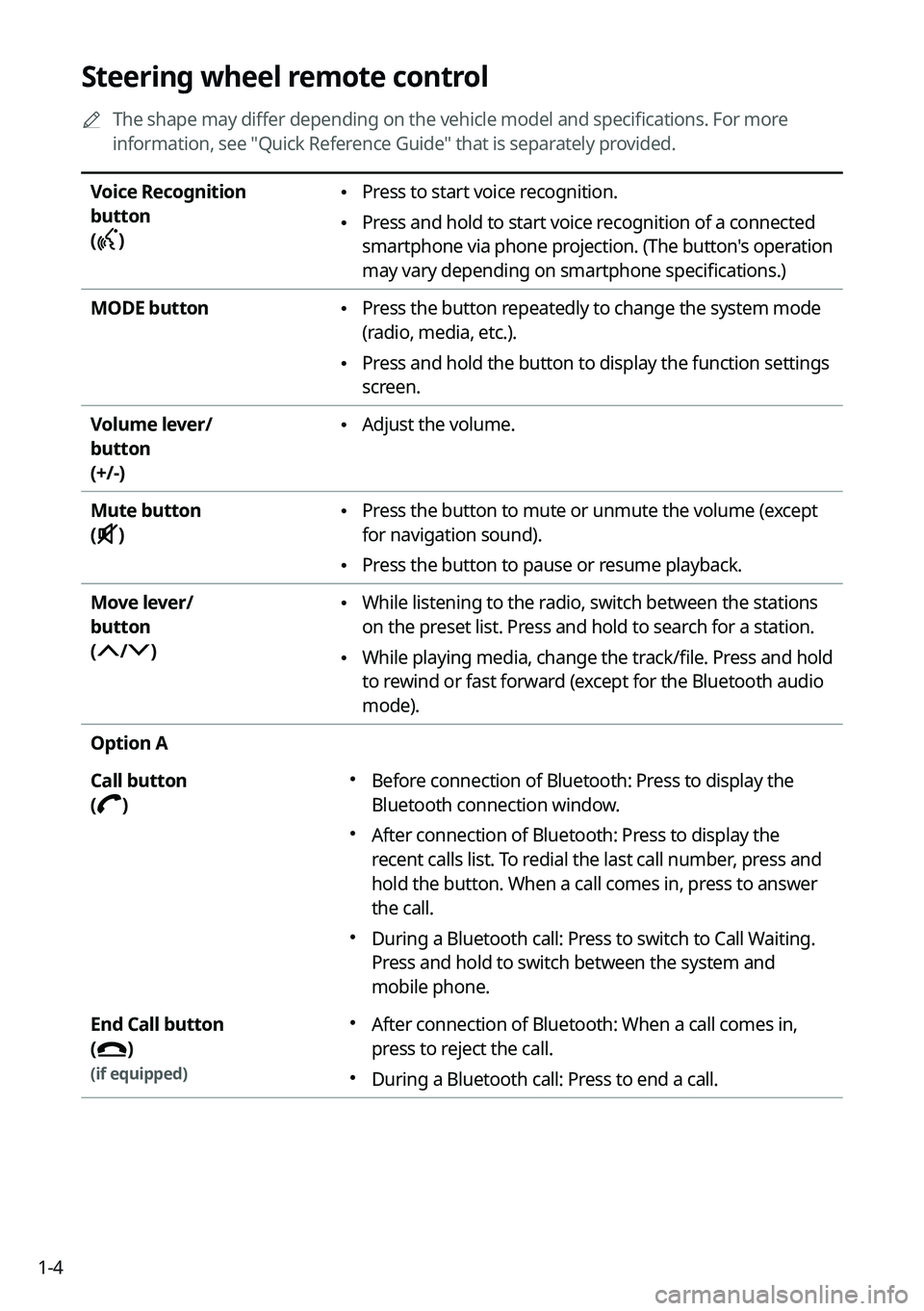
Steering wheel remote control
0000
A
The shape may differ depending on the vehicle model and specifications. For more
information, see "Quick Reference Guide" that is separately provided.
Voice Recognition
button
(
)
\225 Press to start voice recognition.
\225Press and hold to start voice recognition of a connected
smartphone via phone projection. (The button's operation
may vary depending on smartphone specifications.)
MODE button
\225 Press the button repeatedly to change the system mode
(radio, media, etc.).
\225Press and hold the button to display the function settings
screen.
Volume lever/
button
(+/-)
\225 Adjust the volume.
Mute button
(
)
\225 Press the button to mute or unmute the volume (except
for navigation sound).
\225Press the button to pause or resume playback.
Move lever/
button
(
/)
\225 While listening to the radio, switch between the stations
on the preset list. Press and hold to search for a station.
\225While playing media, change the track/file. Press and hold
to rewind or fast forward (except for the Bluetooth audio
mode).
Option A
Call button
(
)
000E Before connection of Bluetooth: Press to display the
Bluetooth connection window.
000EAfter connection of Bluetooth: Press to display the
recent calls list. To redial the last call number, press and
hold the button. When a call comes in, press to answer
the call.
000EDuring a Bluetooth call: Press to switch to Call Waiting.
Press and hold to switch between the system and
mobile phone.
End Call button
(
)
(if equipped)
000E After connection of Bluetooth: When a call comes in,
press to reject the call.
000EDuring a Bluetooth call: Press to end a call.
Page 30 of 316
1-8
Using the touch screen
This system is equipped with a touch-enabled screen. You can use various practices by using
this feature.
\335Warning
Do not use the touch screen while driving as this will divert your attention away from the safe
operation of the vehicle. You may lose your steering control which could cause an accident
and severe bodily injuries.
\334\334Caution
\225Do not press the touch screen with excessive force or a sharp object. The touch screen
may become damaged.
\225Do not let any electrically conductive material contact the touch screen, and do not place
any objects that generate electromagnetic waves, such as wireless chargers or electronic
devices, near the touch screen. The system may work incorrectly due to electromagnetic
effects, which may cause the touch screen to malfunction.
0000
A
The touch screen does not respond when you are wearing gloves. Take off the gloves or
wear electrostatic touch gloves.
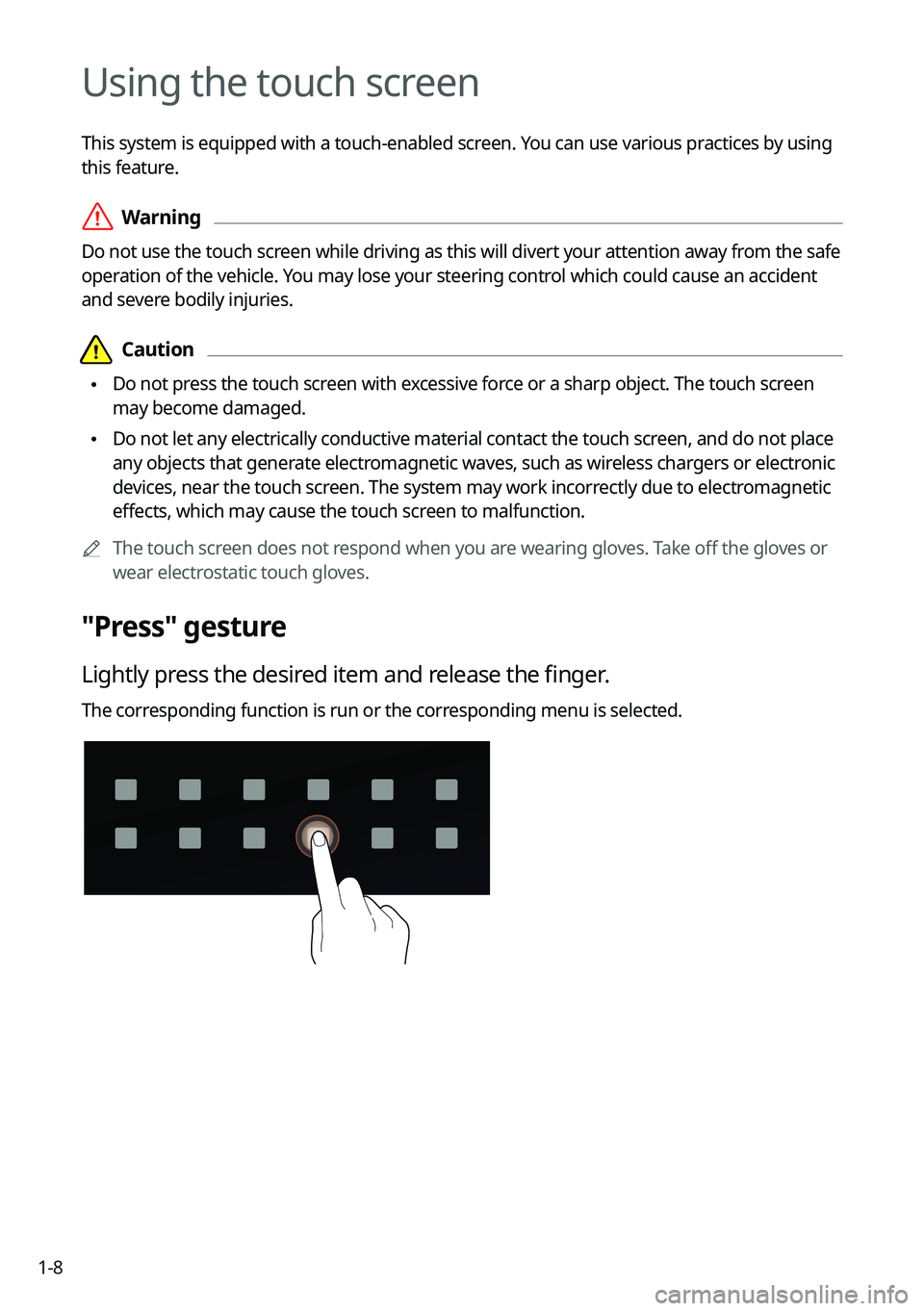
"Press" gesture
Lightly press the desired item and release the finger.
The corresponding function is run or the corresponding menu is selected.
Page 42 of 316
2-4
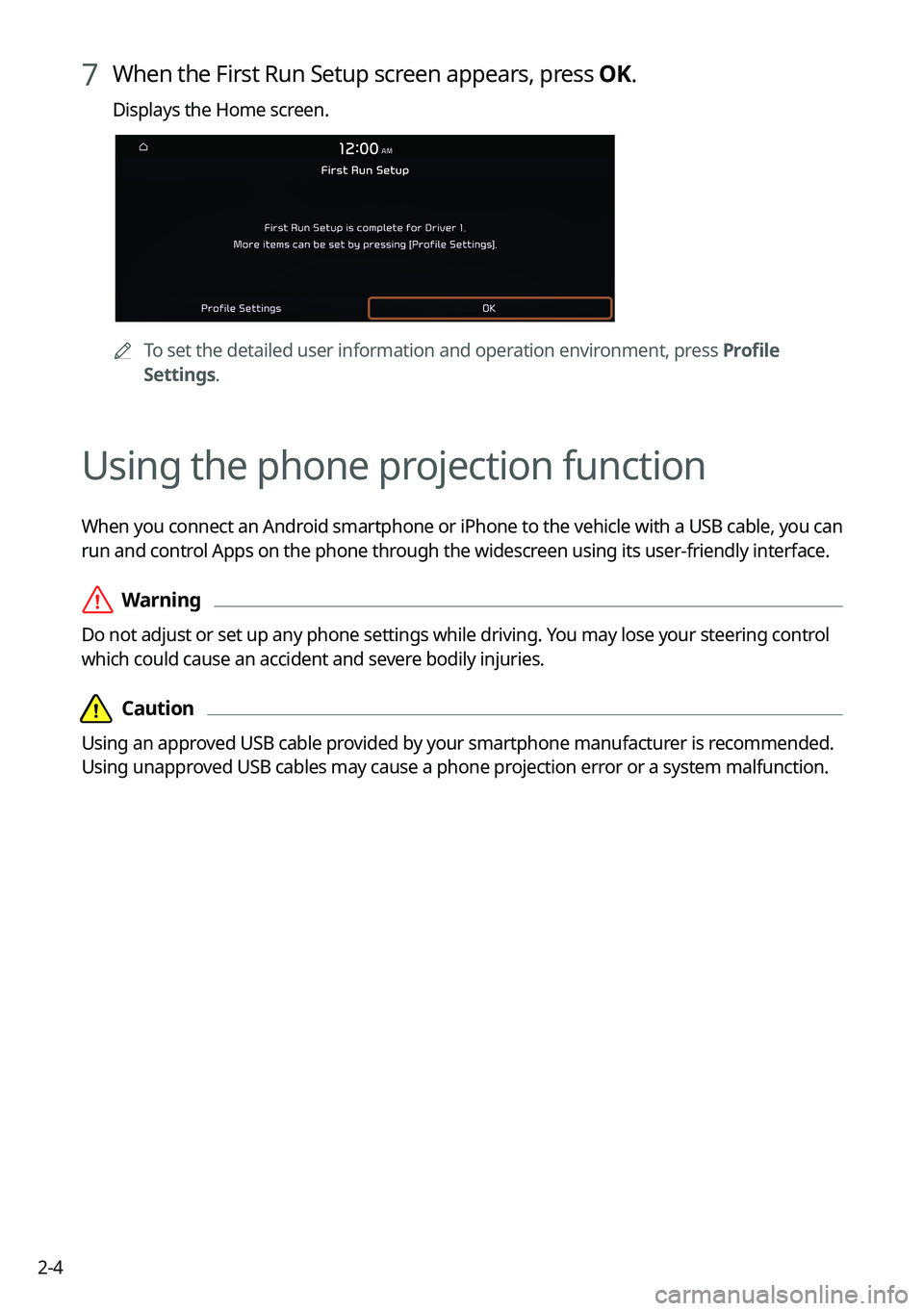
7 When the First Run Setup screen appears, press OK.
Displays the Home screen.
0000ATo set the detailed user information and operation environment, press Profile
Settings.
Using the phone projection function
When you connect an Android smartphone or iPhone to the vehicle with a USB cable, you can
run and control Apps on the phone through the widescreen using its user-friendly interface.
\335Warning
Do not adjust or set up any phone settings while driving. You may lose your steering control
which could cause an accident and severe bodily injuries.
\334\334Caution
Using an approved USB cable provided by your smartphone manufacturer is recommended.
Using unapproved USB cables may cause a phone projection error or a system malfunction.
Page 43 of 316
2-5
Pairing to an Android smartphone via Android Auto
When you connect an Android smartphone to the vehicle with Android Auto, you can run and
control Apps on the phone through the widescreen using its user-friendly interface.
1 To use Android Auto, first check the following.
\225Visit the Android Auto website at https://www.android.com/auto to check the list of
countries, device types, and models that support Android Auto.
\225Download and install the Android Auto App from Google Play Store. It is not possible
to install Android Auto in countries that do not support the feature.
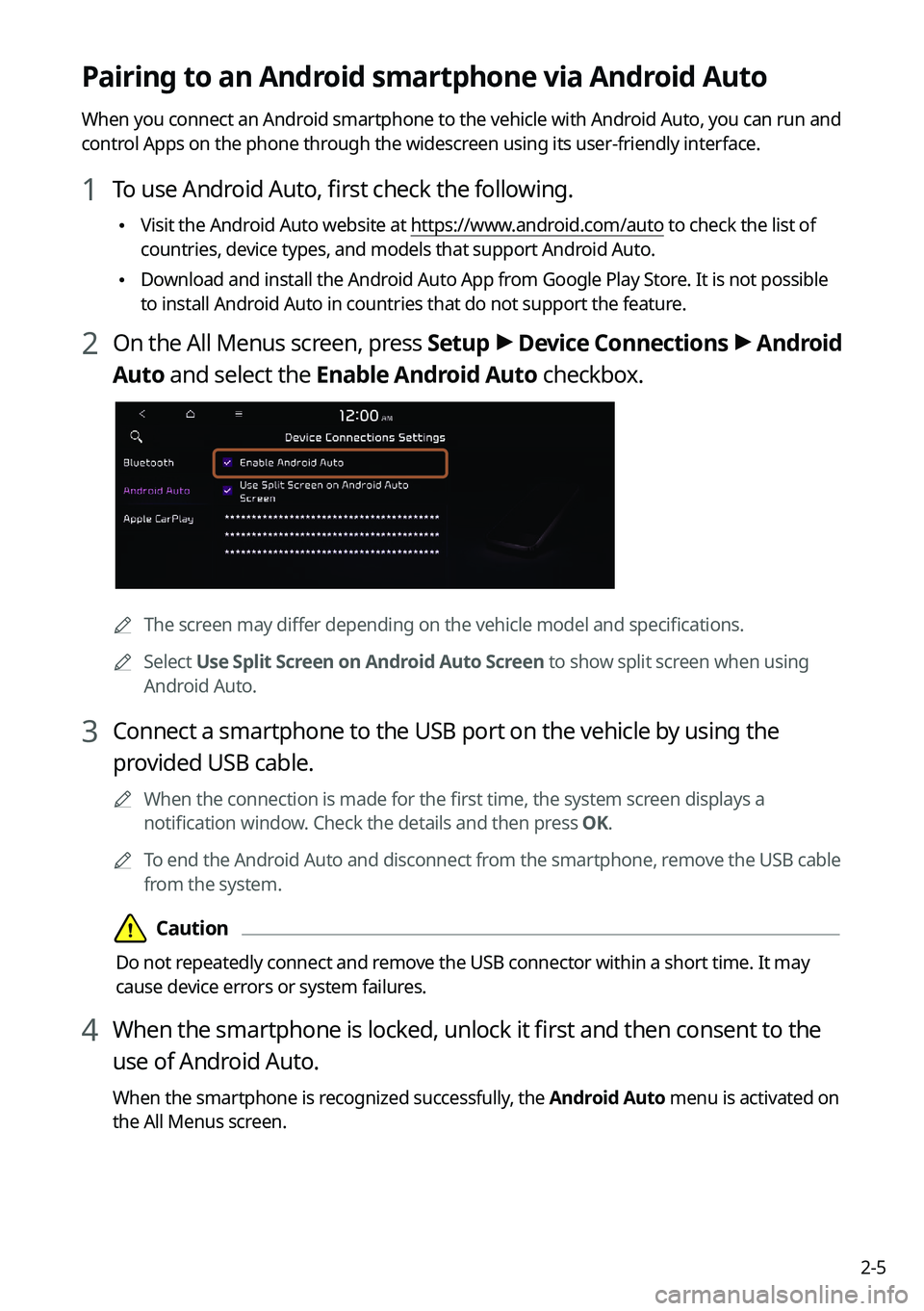
2 On the All Menus screen, press
Setup >
Device Connections >
Android
Auto and select the Enable Android Auto checkbox.
0000A The screen may differ depending on the vehicle model and specifications.
0000
A
Select Use Split Screen on Android Auto Screen to show split screen when using
Android Auto.
3 Connect a smartphone to the USB port on the vehicle by using the
provided USB cable.
0000
A
When the connection is made for the first time, the system screen displays a
notification window. Check the details and then press OK.
0000
A
To end the Android Auto and disconnect from the smartphone, remove the USB cable
from the system.
\334\334Caution
Do not repeatedly connect and remove the USB connector within a short time. It may
cause device errors or system failures.
4 When the smartphone is locked, unlock it first and then consent to the
use of Android Auto.
When the smartphone is recognized successfully, the Android Auto menu is activated on
the All Menus screen.
Page 44 of 316

2-6
Using the Android Auto
1 On the All Menus screen, press Android Auto.
2 Perform the desired function.
\225To run the functions for phone, music, or navigation on the smartphone, p\
ress the
corresponding app icon.
0000
A
When you are using your smartphone′s navigation via phone projection, sounds
from both the system′s radio/media function and the navigation will be output
through your vehicle′s speakers. When you use the Volume knob while both
sounds are being output, the navigation volume is adjusted first.
\225To use the Google voice recognition, press and hold the Voice Recognition button on
the steering wheel.
0000
A
By pressing the [ MODE] button on the steering wheel, you can run the media App on
your smartphone as well as the Radio/Media mode of the system.
0000
A
To specify which functions to run when the [ MODE] button on the steering wheel is
pressed, press and hold the [ MODE] button to display the settings screen.
0000
A
By pressing the Call button on the steering wheel, you can make a call via Bl\
uetooth
connection.
0000
A
When phone projection is active, you cannot change the phone projection settings. To
change the settings, remove the USB cable from your system.
0000
A
The icons on the screen are subject to change according to the policy of Google
Corporation.
0000
A
Apps or functions used through Android Auto are subject to change according to the
policy of Google Corporation. For supportable functions, visit the Android website at
https://www.android.com/auto.
0000
A
To use the functions on your smartphone with the minimized system setting\
s, update the
smartphone OS to the latest version.
0000
A
The recognition time may differ depending on the device type, firmware, and OS version.
0000
A
Charges may apply for any mobile data used while Android Auto is running.
0000
A
Some functions may not work properly depending on the network signal strength.
0000
A
Avoid interacting with the smartphone while using Android Auto.
0000
A
You cannot use the following functions when Android Auto is in use.
000DUSB mode
000DApple CarPlay
000DSearches using the control panel or the steering wheel remote control