ECO KIA SORENTO 2014 Navigation System Quick Reference Guide
[x] Cancel search | Manufacturer: KIA, Model Year: 2014, Model line: SORENTO, Model: KIA SORENTO 2014Pages: 236, PDF Size: 7.61 MB
Page 157 of 236

Voice Command Lists
Voice Recognition l
5-15
Map
Command Operation
Map Current Location Displays the current position of the vehicle
Voice Guidance On Turns the Voice Guidance On
Voice Guidance Off Turns the Voice Guidance Off
Voice Guidance Louder Increases the Voice Guidance volume by 1 level
Voice Guidance Softer Decreases the Voice Guidance volume by 1 level
Repeat Voice Guidance Repeats the route guidance
Cancel Route Deletes the designated destination and termi-
nates the route guidance
Detour <1, 2, 5, 10>
mile(s) Searches detour routes within a <1, 2, 5, 10>
mile(s) radius
Detour <1, 2, 5, 10>
kilometer(s) Searches detour routes within a <1, 2, 5, 10>
kilometer(s) radius
Distance to Destina-
tion Reports the remaining distance until destination
by voice
Time to Destination Reports the remaining time until destination by voice
Store Marked Loca-
tion to
(ex : Store Marked
Location to "User 1")Registers the selected location into the selected
Address book
Replan Faster Time
Route
Recalculates the route with faster time route
Command
Operation
Replan Shorter
Distance RouteRecalculates the route with shorter distance
route
Zoom In/Zoom Out Decreases/Increases the map zoom by one level
Zoom
mile/2, 4, 8, 16, 32, 64, 130, 250 miles
50, 100, 200, 400, 800 meters/1.6, 3.2, 6.4, 12,
25, 50, 100, 200, 400 kilometers
Zoom MaximumDisplays the map screen in the maximum zoom level
Zoom MinimumDisplays the map screen in the minimum zoom level
View Route
If the destination has been set, displays the en-
tire route on the screen until the destination
Auto Zoom On Turns the Auto Zoom feature on
Auto Zoom Off Turns the Auto Zoom feature off
Auto Mode Automatically converts the map display between
daylight and night mode
Daylight Mode Converts the map display into daylight mode
Night Mode Converts the map display into night mode
North Up
Displays the map in North Up mode
Heading Up Displays the map in Heading Up mode
Page 160 of 236
UVO eServices(Optional)
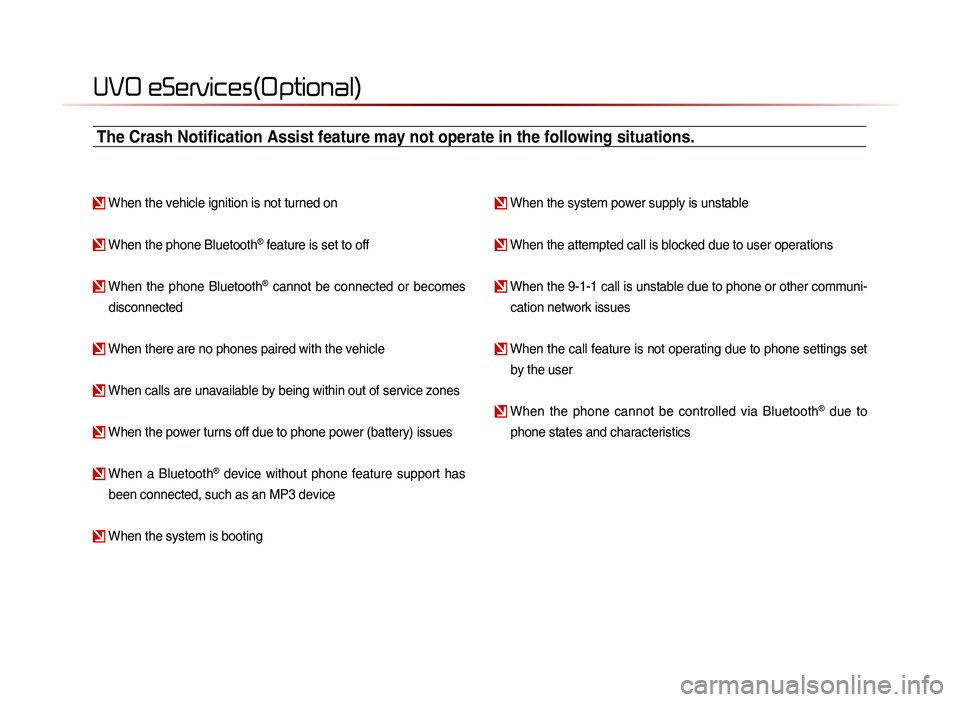
When the vehicle ignition is not turned on
When the phone Bluetooth® feature is set to off
When the phone Bluetooth® cannot be connected or becomes
disconnected
When there are no phones paired with the vehicle
When calls are unavailable by being within out of service zones
When the power turns off due to phone power (battery) issues
When a Bluetooth® device without phone feature support has
been connected, such as an MP3 device
When the system is booting
When the system power supply is unstable
When the attempted call is blocked due to user operations
When the 9-1-1 call is unstable due to phone or other communi- cation network issues
When the call feature is not operating due to phone settings set by the user
When the phone cannot be controlled via Bluetooth® due to
phone states and characteristics
The Crash Notification Assist feature may not operate in the following situations.
Page 161 of 236
UVO eServices
Using UVO eServices and Cautions
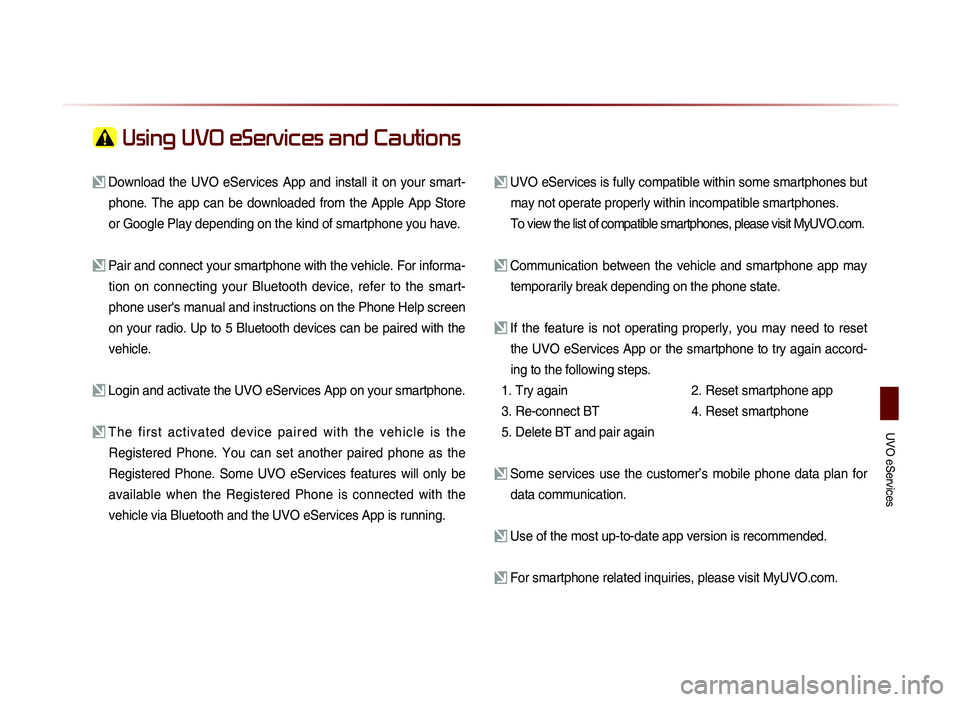
Download the UVO eServices App and install it on your smart-phone. The app can be downloaded from the Apple App Store
or Google Play depending on the kind of smartphone you have.
Pair and connect your smartphone with the vehicle. For informa-tion on connecting your Bluetooth device, refer to the smart-
phone user's manual and instructions on the Phone Help screen
on your radio. Up to 5 Bluetooth devices can be paired with the
vehicle.
Login and activate the UVO eServices App on your smartphone.
The first activated device paired with the vehicle is the Registered Phone. You can set another paired phone as the
Registered Phone. Some UVO eServices features will only be
available when the Registered Phone is connected with the
vehicle via Bluetooth and the UVO eServices App is running.
UVO eServices is fully compatible within some smartphones but may not operate properly within incompatible smartphones.
To view the list of compatible smartphones, please visit MyUVO.com.
Communication between the vehicle and smartphone app may temporarily break depending on the phone state.
If the feature is not operating properly, you may need to reset the UVO eServices App or the smartphone to try again accord-
ing to the following steps.
1. Try again
2.
Reset smartphone app
3. Re-connect BT
4.
Reset smartphone
5. Delete BT and pair again
Some services use the customer’s mobile phone data plan for data communication.
Use of the most up-to-date app version is recommended.
For smartphone related inquiries, please visit MyUVO.com.
Page 167 of 236
UVO eServices
Information l
6-7
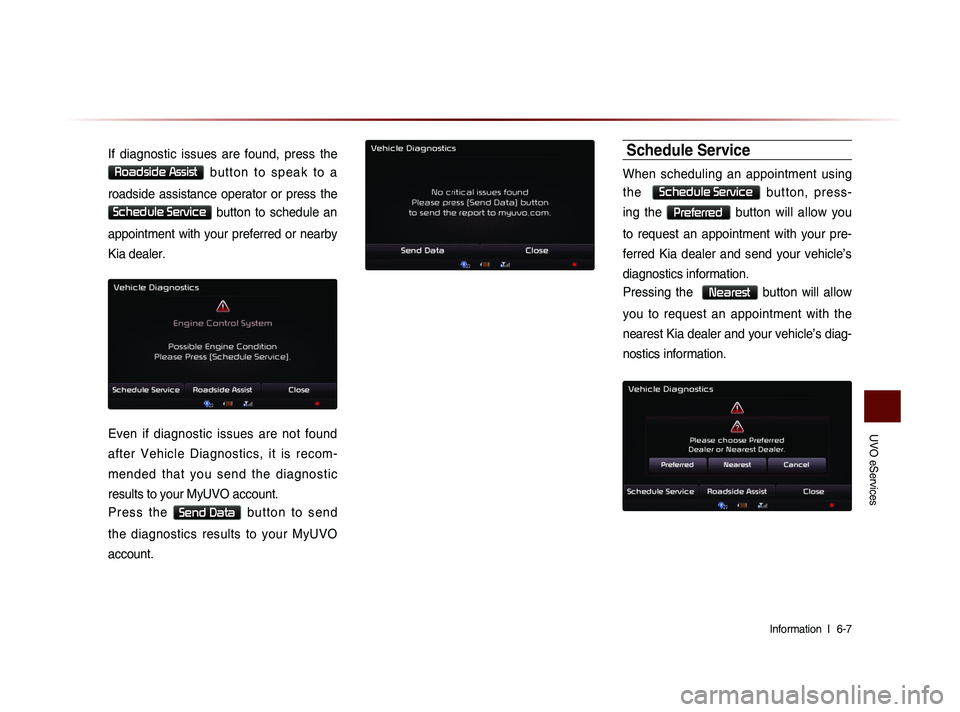
If diagnostic issues are found, press the
Roadside Assist b u t t o n t o s p e a k t o a
roadside assistance operator or press the
Schedule Service button to schedule an
appointment with your preferred or nearby
Kia dealer.
Even if diagnostic issues are not found
after Vehicle Diagnostics, it is recom-
mended that you send the diagnostic
results to your MyUVO account.
P r e s s t h e
Send Data b u t t o n t o s e n d
the diagnostics results to your MyUVO
account.
Schedule Service
When scheduling an appointment using
t h e
Schedule Service b u t t o n , p r e s s -
ing the
Preferred button will allow you
to request an appointment with your pre-
ferred Kia dealer and send your vehicle’s
diagnostics information.
Pressing the
Nearest button will allow
you to request an appointment with the
nearest Kia dealer and your vehicle’s diag-
nostics information.
Page 174 of 236
6-14
UVO eServices(Optional)
Crash Notification Assist
Crash Notification Assist
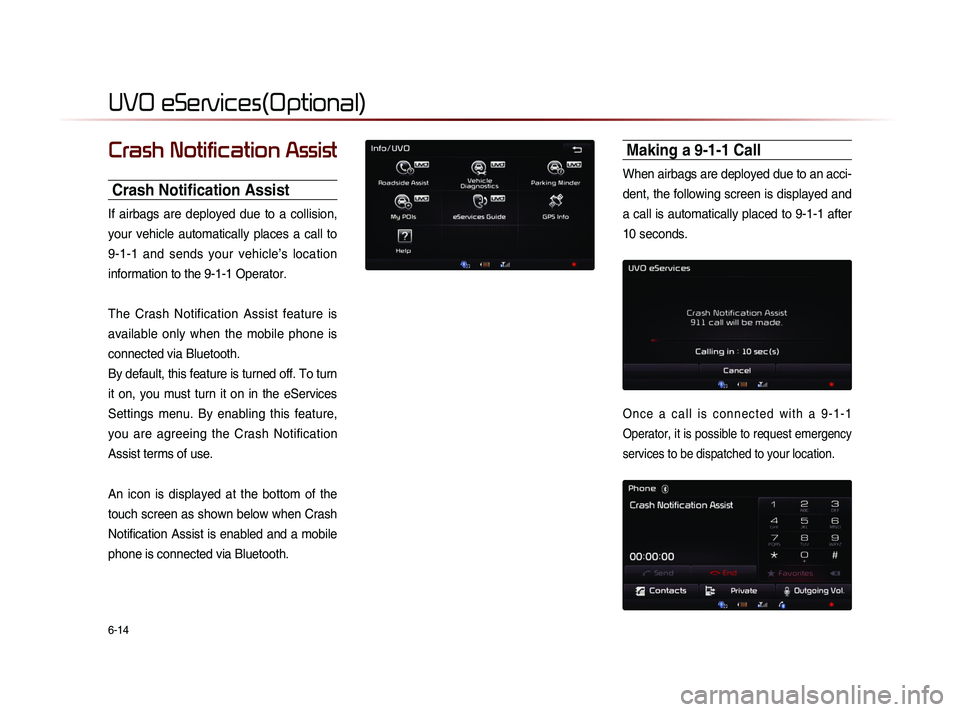
If airbags are deployed due to a collision,
your vehicle automatically places a call to
9-1-1 and sends your vehicle’s location
information to the 9-1-1 Operator.
The Crash Notification Assist feature is
available only when the mobile phone is
connected via Bluetooth.
By default, this feature is turned off. To turn
it on, you must turn it on in the eServices
Settings menu. By enabling this feature,
you are agreeing the Crash Notification
Assist terms of use.
An icon is displayed at the bottom of the
touch screen as shown below when Crash
Notification Assist is enabled and a mobile
phone is connected via Bluetooth.
Making a 9-1-1 Call
When airbags are deployed due to an acci-
dent, the following screen is displayed and
a call is automatically placed to 9-1-1 after
10 seconds.
O n c e a c a l l i s c o n n e c t e d w i t h a 9 - 1 - 1
Operator, it is possible to request emergency
services to be dispatched to your location.
Page 178 of 236
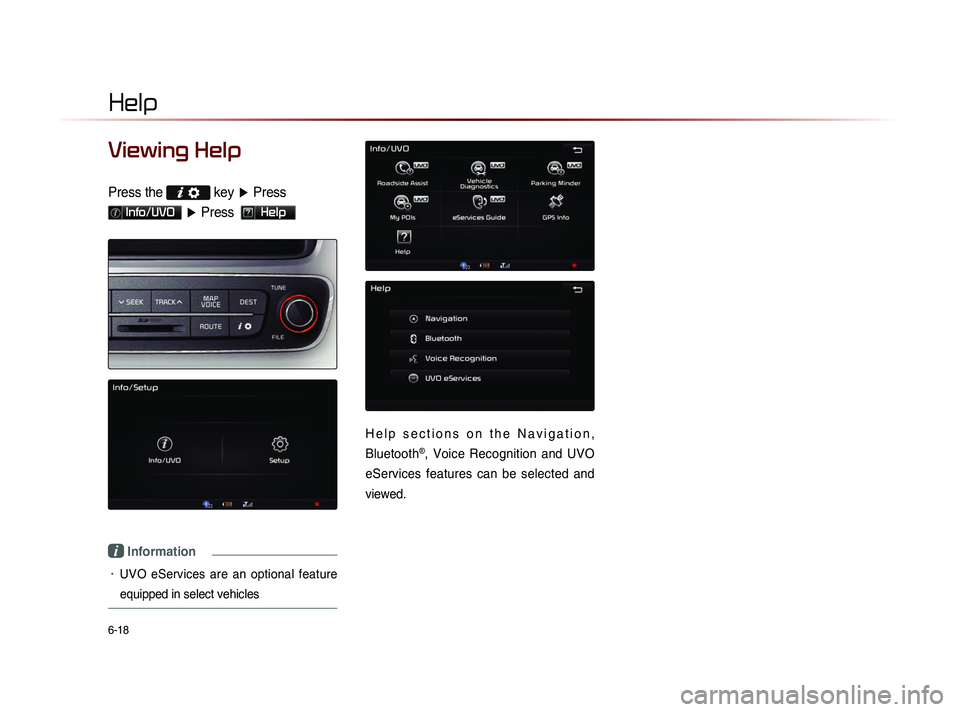
6-18
Help
Viewing Help
Press the key
▶ Press
Info/UVO ▶ Press Help
i Information
• UVO eServices are an optional feature
equipped in select vehicles
H e l p s e c t i o n s o n t h e N a v i g a t i o n ,
Bluetooth
®, Voice Recognition and UVO
eServices features can be selected and
viewed.
Page 188 of 236
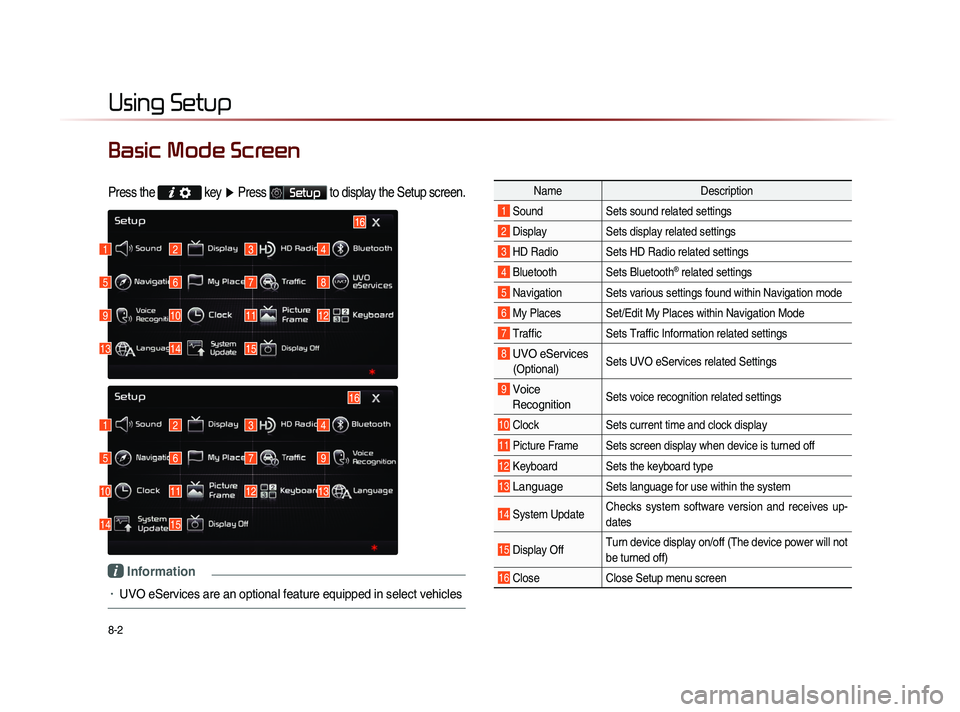
8-2
Using Setup
Basic Mode Screen
Press the key
▶ Press Setup to display the Setup screen.
Name Description
1 Sound Sets sound related settings
2 Display Sets display related settings
3 HD Radio Sets HD Radio related settings
4 Bluetooth Sets Bluetooth® related settings
5 Navigation Sets various settings found within Navigation mode
6 My Places Set/Edit My Places within Navigation Mode
7 Traffic Sets Traffic Information related settings
8 UVO eServices
(Optional)Sets UVO eServices related Settings
9 Voice
Recognition Sets voice recognition related settings
10 Clock Sets current time and clock display
11 Picture Frame Sets screen display when device is turned off
12 Keyboard Sets the keyboard type
13 Language Sets language for use within the system
14 System Update Checks system software version and receives up-
dates
15 Display Off Turn device display on/off (The device power will not
be turned off)
16 Close
Close Setup menu screen
1
1
5
5
9
10
13
14
2
2
6
6
10
11
14
15
3
3
7
7
11
12
4
4
8
9
12
13
16
15
16
i Information
• UVO eServices are an optional feature equipped in select vehicles
Page 201 of 236
Using Setup
Setup l
8-15
i Information
• If the settings of an option are reset, then
all settings will be restored to the default
factory state.
• Heed caution as Home, Office and other
user locations may become deleted.
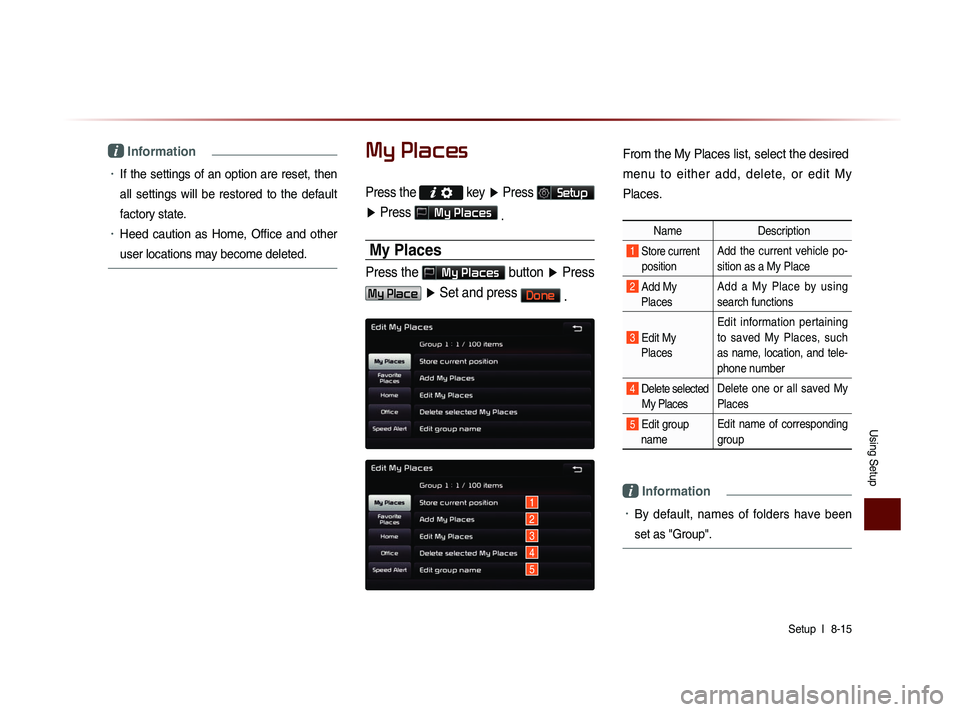
My Places
Press the key ▶ Press Setup
▶ Press
My Places
.
My Places
Press the My Places button ▶ Press
My Place ▶ Set and press Done
.
1
2
3
4
5
From the My Places list, select the desired
menu to either add, delete, or edit My
Places.
Name Description
1 Store current
position Add the current vehicle po-
sition as a My Place
2 Add My Places Add a My Place by using
search functions
3 Edit My
Places Edit information pertaining
to saved My Places, such
as name, location, and tele-
phone number
4 Delete selected
My Places Delete one or all saved My
Places
5 Edit group
name Edit name of corresponding
group
i Information
• By default, names of folders have been
set as "Group".
Page 207 of 236
Using Setup
Setup l
8-21
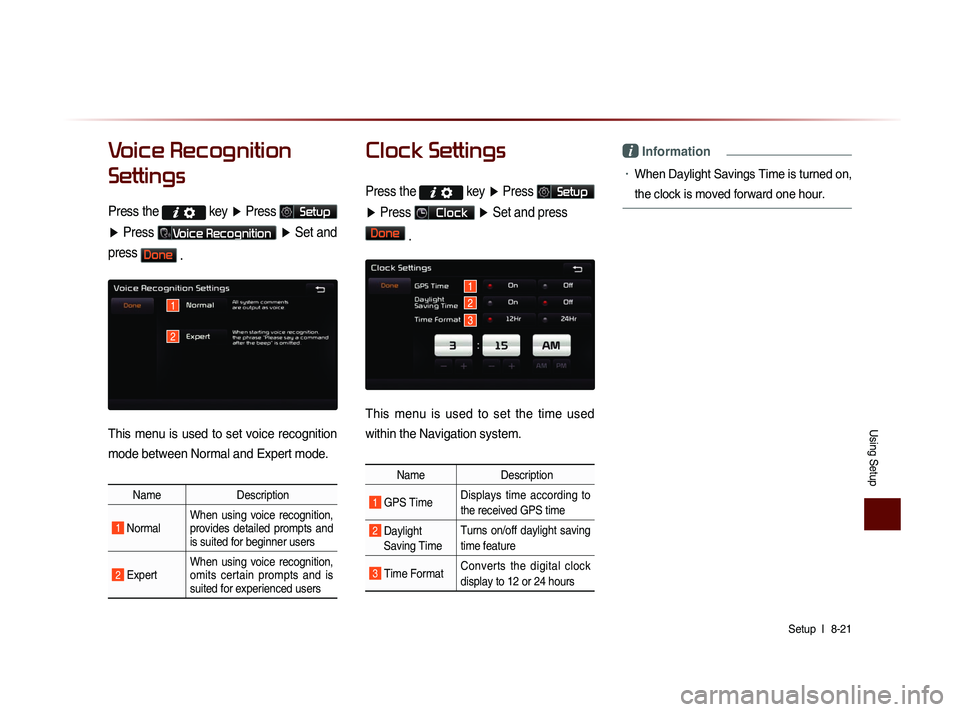
Voice Recognition
Settings
Press the key
▶ Press Setup
▶ Press
Voice Recognition ▶ Set and
press
Done .
This menu is used to set voice recognition
mode between Normal and Expert mode.
Name Description
1 Normal When using voice recognition,
provides detailed prompts and
is suited for beginner users
2 Expert When using voice recognition,
omits certain prompts and is
suited for experienced users
Clock Settings
Press the key
▶ Press Setup
▶ Press
Clock ▶ Set and press
Done
.
This menu is used to set the time used
within the Navigation system.
Name Description
1 GPS Time Displays time according to
the received GPS time
2 Daylight
Saving Time Turns on/off daylight saving
time feature
3 Time Format
Converts the digital clock
display to 12 or 24 hours
i Information
• When Daylight Savings Time is turned on,
the clock is moved forward one hour.
1
2
1
2
3
Page 214 of 236
9-4
Appendix
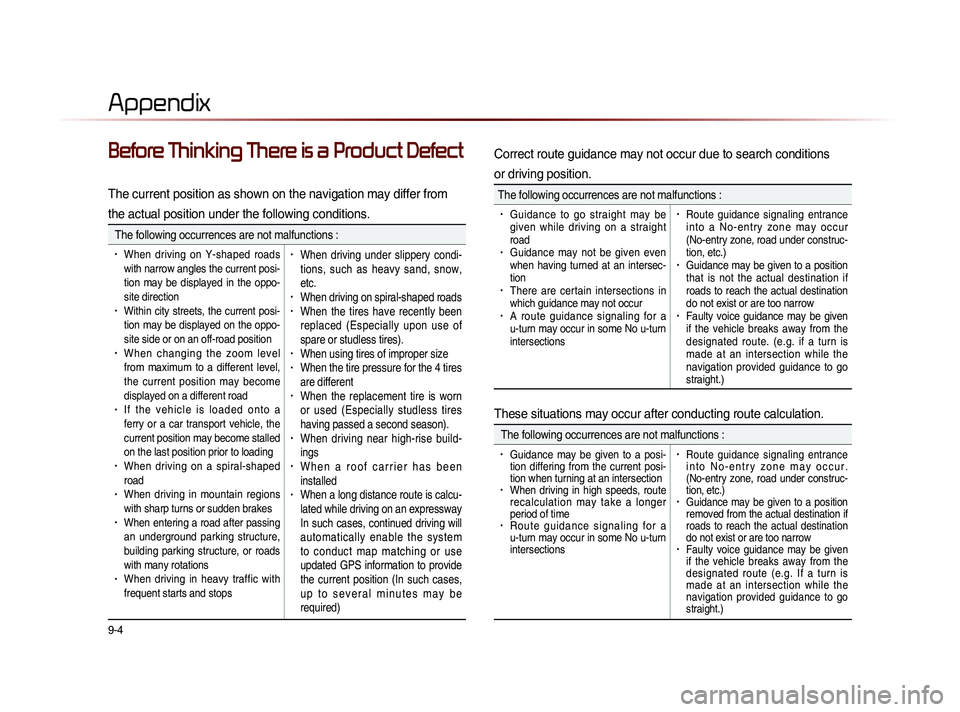
Before Thinking There is a Product Defect
The current position as shown on the navigation may differ from
the actual position under the following conditions.
The following occurrences are not malfunctions :
• When driving on Y-shaped roads
with narrow angles the current posi-
tion may be displayed in the oppo-
site direction
• Within city streets, the current posi-
tion may be displayed on the oppo-
site side or on an off-road position
• When changing the zoom level
from maximum to a different level,
the current position may become
displayed on a different road
• I f t h e v e h i c l e i s l o a d e d o n t o a
ferry or a car transport vehicle, the
current position may become stalled
on the last position prior to loading
• When driving on a spiral-shaped
road
• When driving in mountain regions
with sharp turns or sudden brakes
• When entering a road after passing
an underground parking structure,
building parking structure, or roads
with many rotations
• When driving in heavy traffic with
frequent starts and stops
• When driving under slippery condi-
tions, such as heavy sand, snow,
etc.
• When driving on spiral-shaped roads• When the tires have recently been
replaced (Especially upon use of
spare or studless tires).
• When using tires of improper size• When the tire pressure for the 4 tires
are different
• When the replacement tire is worn
or used (Especially studless tires
having passed a second season).
• When driving near high-rise build-
ings
• W h e n a r o o f c a r r i e r h a s b e e n
installed
• When a long distance route is calcu-
lated while driving on an expressway
In such cases, continued driving will
automatically enable the system
to conduct map matching or use
updated GPS information to provide
the current position (In such cases,
u p t o s e v e r a l m i n u t e s m a y b e
required)
Correct route guidance may not occur due to search conditions
or driving position.
The following occurrences are not malfunctions :
• Guidance to go straight may be
given while driving on a straight
road
• Guidance may not be given even
when having turned at an intersec-
tion
• There are certain intersections in
which guidance may not occur
• A route guidance signaling for a
u-turn may occur in some No u-turn
intersections
• Route guidance signaling entrance
i n t o a N o - e n t r y z o n e m a y o c c u r
(No-entry zone, road under construc-
tion, etc.)
• Guidance may be given to a position
that is not the actual destination if
roads to reach the actual destination
do not exist or are too narrow
• Faulty voice guidance may be given
if the vehicle breaks away from the
designated route. (e.g. if a turn is
made at an intersection while the
navigation provided guidance to go
straight.)
These situations may occur after conducting route calculation.
The following occurrences are not malfunctions :
• Guidance may be given to a posi-
tion differing from the current posi-
tion when turning at an intersection
• When driving in high speeds, route
recalculation may take a longer
period of time
• R o u t e g u i d a n c e s i g n a l i n g f o r a
u-turn may occur in some No u-turn
intersections
• Route guidance signaling entrance
i n t o N o - e n t r y z o n e m a y o c c u r .
(No-entry zone, road under construc-
tion, etc.)
• Guidance may be given to a position
removed from the actual destination if
roads to reach the actual destination
do not exist or are too narrow
• Faulty voice guidance may be given
if the vehicle breaks away from the
designated route (e.g. If a turn is
made at an intersection while the
navigation provided guidance to go
straight.)