ECO KIA SORENTO 2014 Navigation System Quick Reference Guide
[x] Cancel search | Manufacturer: KIA, Model Year: 2014, Model line: SORENTO, Model: KIA SORENTO 2014Pages: 236, PDF Size: 7.61 MB
Page 146 of 236
5-4
Using Voice Recognition
Re-starting Voice Recognition
While system waits ▶ Shortly press the
key on the steering remote controller.
(under 0.8 seconds)
The command wait state will end and the
beep tone will sound. After the "beep", say
the voice command.
Ending Voice Recognition
While Voice Recognition is operating
▶ Press and hold the
key on the
steering remote controller. (over 0.8
seconds)
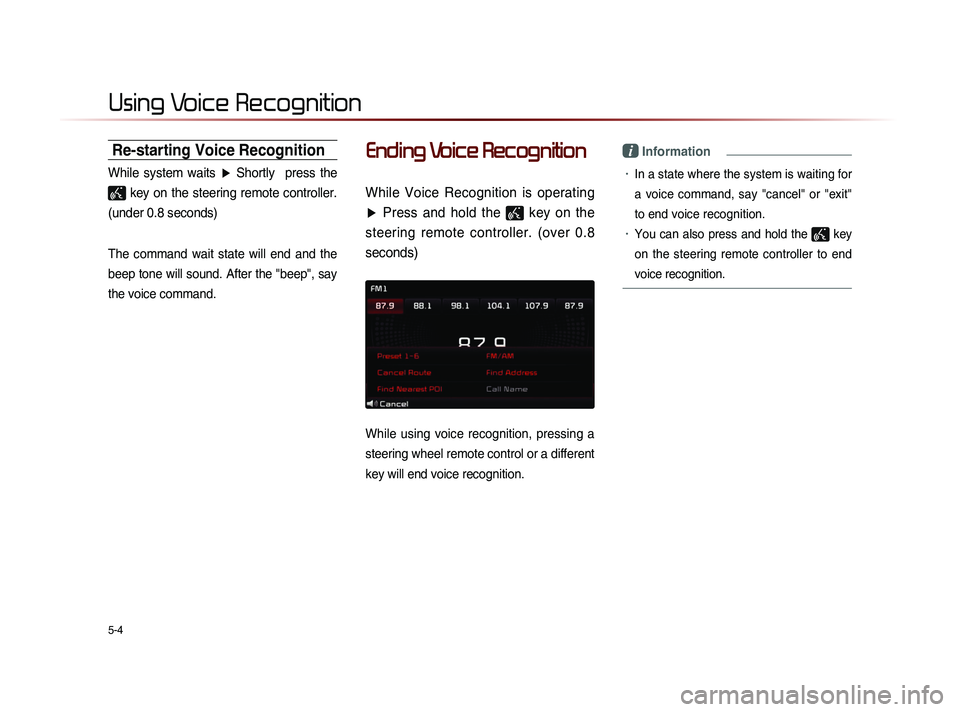
While using voice recognition, pressing a
steering wheel remote control or a different
key will end voice recognition.
i Information
• In a state where the system is waiting for
a voice command, say "cancel" or "exit"
to end voice recognition.
• You can also press and hold the key
on the steering remote controller to end
voice recognition.
Page 147 of 236
Using Voice Recognition
Voice Recognition l
5-5
Using Voice Recognition
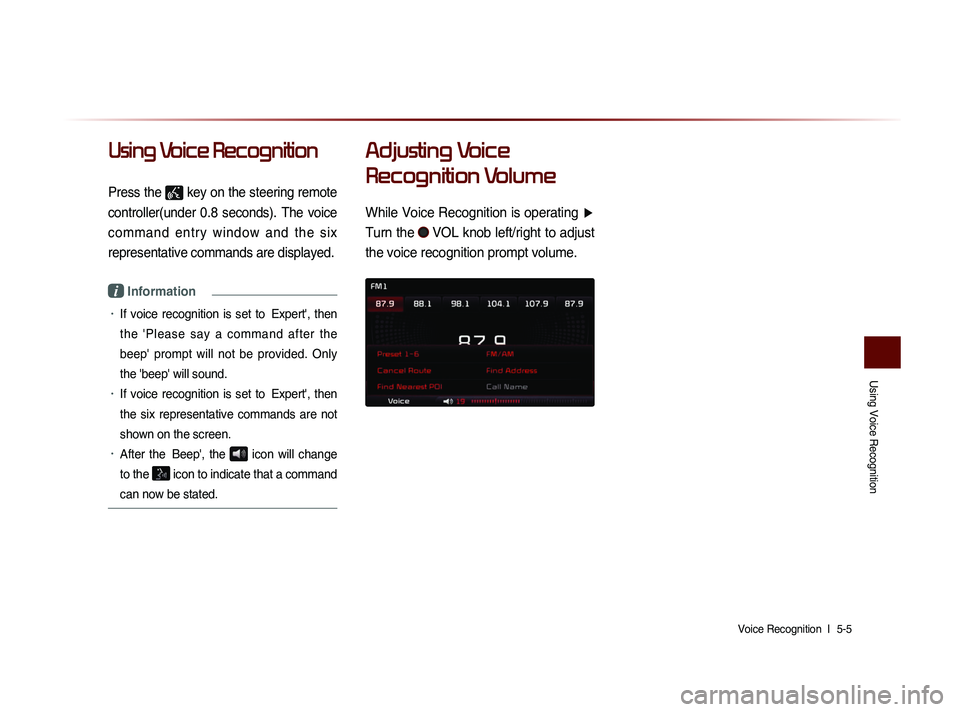
Press the key on the steering remote
controller(under 0.8 seconds). The voice
command entry window and the six
representative commands are displayed.
i Information
• If voice recognition is set to Expert', then
the 'Please say a command after the
beep' prompt will not be provided. Only
the 'beep' will sound.
• If voice recognition is set to Expert', then
the six representative commands are not
shown on the screen.
• After the Beep', the icon will change
to the
icon to indicate that a command
can now be stated.
Adjusting Voice
Recognition Volume
While Voice Recognition is operating ▶
Turn the
VOL knob left/right to adjust
the voice recognition prompt volume.
Page 148 of 236

5-6
Using Voice Recognition
Illustration on Using
Voice Recognition
(Setting Home as the Destination)
Press the key (under 0.8 seconds).
The system awaits for your command
and display a list of accessible commands
on the screen.
Go Home
Beep
Destination
Please say a command after the beep
DestinationPlease say a command after the beep
Beep
Page 149 of 236
Voice Command Lists
Voice Recognition l
5-7
Voice Command List
Voice commands within this system are categorized into "Common
Commands" and "Mode Commands."
• Common Commands ( ) : commands that can be used in all
situations.
• Mode Commands ( ) : commands that can be used in spe-
cific multimedia/navigation/Bluetooth
® mode states.
i Information
• Some commands will operate properly only when a USB, iPod,
Bluetooth
® or other device has been connected.
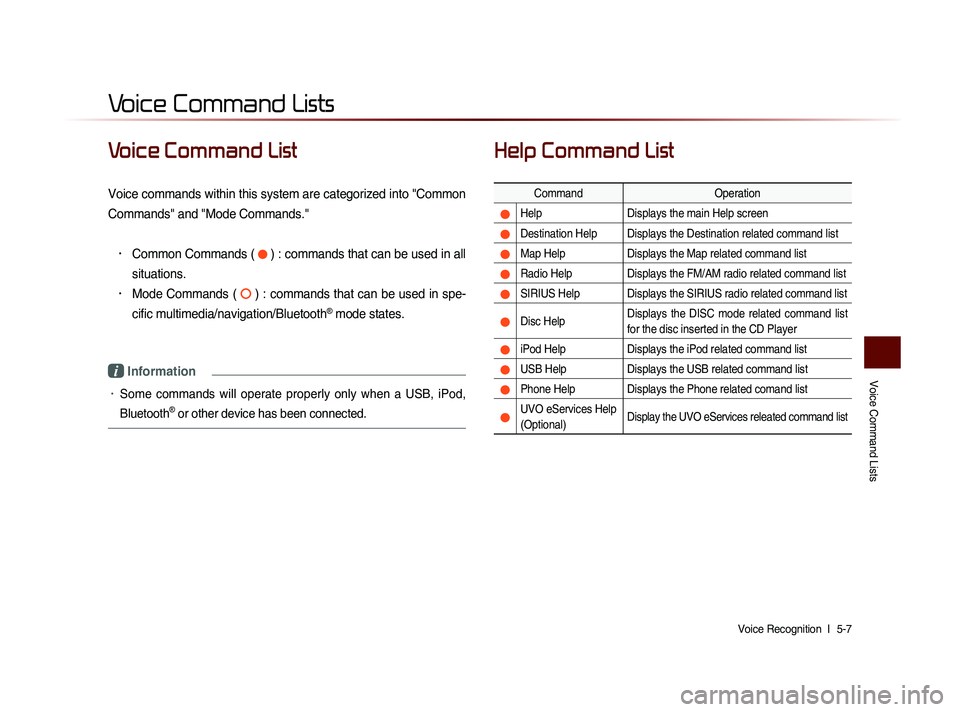
Help Command List
Command Operation
Help Displays the main Help screen
Destination Help Displays the Destination related command list
Map Help Displays the Map related command list
Radio Help Displays the FM/AM radio related command list
SIRIUS Help Displays the SIRIUS radio related command list
Disc Help Displays the DISC mode related command list
for the disc inserted in the CD Player
iPod Help
Displays the iPod related command list
USB HelpDisplays the USB related command list
Phone Help Displays the Phone related comand list
UVO eServices Help
(Optional)Display the UVO eServices releated command list
Voice Command Lists
Page 150 of 236
5-8
Voice Command Lists
Audio System Command List
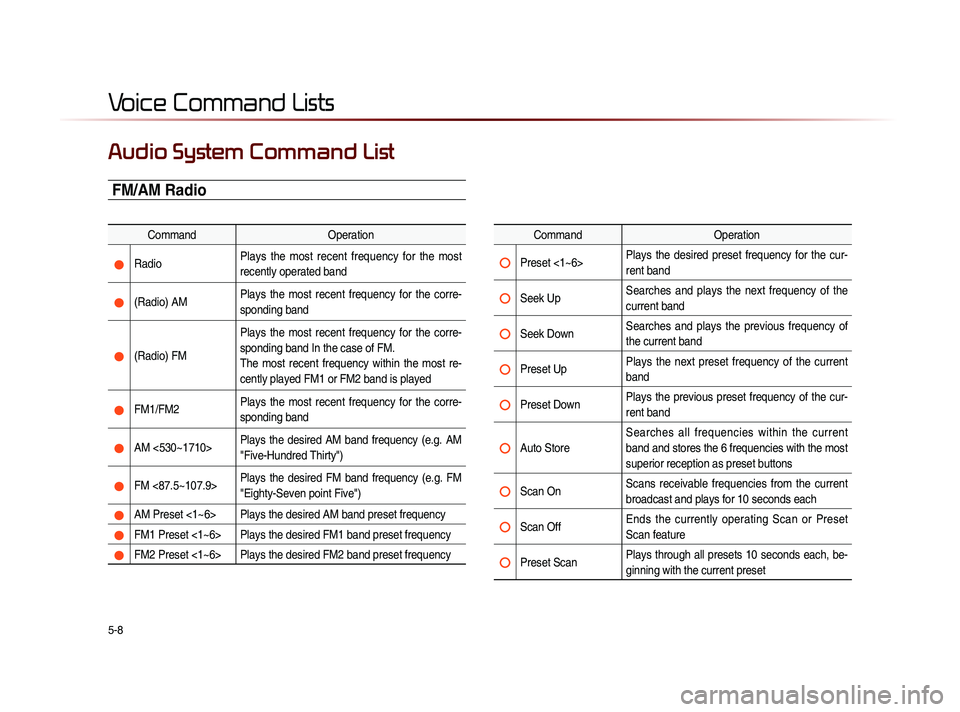
FM/AM Radio
CommandOperation
Radio Plays the most recent frequency for the most
recently operated band
(Radio) AM Plays the most recent frequency for the corre-
sponding band
(Radio) FM Plays the most recent frequency for the corre-
sponding band In the case of FM.
The most recent frequency within the most re-
cently played FM1 or FM2 band is played
FM1/FM2
Plays the most recent frequency for the corre-
sponding band
AM <530~1710> Plays the desired AM band frequency (e.g. AM
"Five-Hundred Thirty")
FM <87.5~107.9> Plays the desired FM band frequency (e.g. FM
"Eighty-Seven point Five")
AM Preset <1~6> Plays the desired AM band preset frequency
FM1 Preset <1~6> Plays the desired FM1 band preset frequency
FM2 Preset <1~6> Plays the desired FM2 band preset frequency
Command
Operation
Preset <1~6> Plays the desired preset frequency for the cur-
rent band
Seek Up Searches and plays the next frequency of the
current band
Seek Down Searches and plays the previous frequency of
the current band
Preset Up Plays the next preset frequency of the current
band
Preset Down Plays the previous preset frequency of the cur-
rent band
Auto Store Searches all frequencies within the current
band and stores the 6 frequencies with the most
superior reception as preset buttons
Scan On
Scans receivable frequencies from the current
broadcast and plays for 10 seconds each
Scan Off Ends the currently operating Scan or Preset
Scan feature
Preset Scan Plays through all presets 10 seconds each, be-
ginning with the current preset
Page 151 of 236
Voice Command Lists
Voice Recognition l
5-9
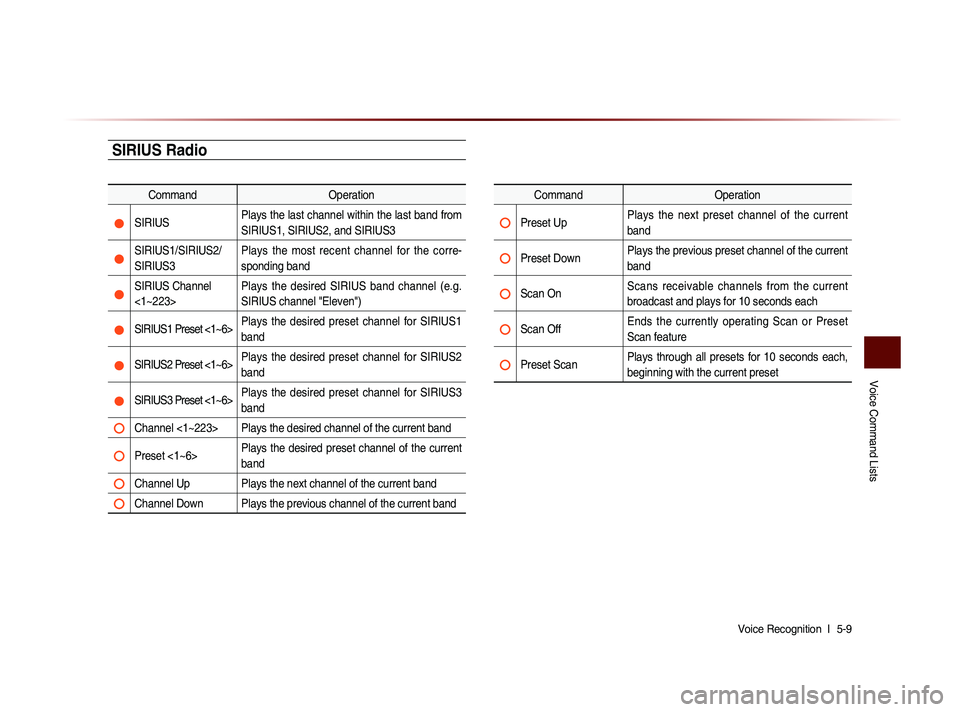
SIRIUS Radio
Command Operation
SIRIUSPlays the last channel within the last band from
SIRIUS1, SIRIUS2, and SIRIUS3
SIRIUS1/SIRIUS2/
SIRIUS3 Plays the most recent channel for the corre-
sponding band
SIRIUS Channel
<1~223> Plays the desired SIRIUS band channel (e.g.
SIRIUS channel "Eleven")
SIRIUS1 Preset <1~6>
Plays the desired preset channel for SIRIUS1
band
SIRIUS2 Preset <1~6> Plays the desired preset channel for SIRIUS2
band
SIRIUS3 Preset <1~6> Plays the desired preset channel for SIRIUS3
band
Channel <1~223> Plays the desired channel of the current band
Preset <1~6> Plays the desired preset channel of the current
band
Channel Up Plays the next channel of the current band
Channel Down Plays the previous channel of the current band
Command
Operation
Preset Up Plays the next preset channel of the current
band
Preset Down Plays the previous preset channel of the current
band
Scan On Scans receivable channels from the current
broadcast and plays for 10 seconds each
Scan Off Ends the currently operating Scan or Preset
Scan feature
Preset Scan Plays through all presets for 10 seconds each,
beginning with the current preset
Page 152 of 236
5-10
Voice Command Lists
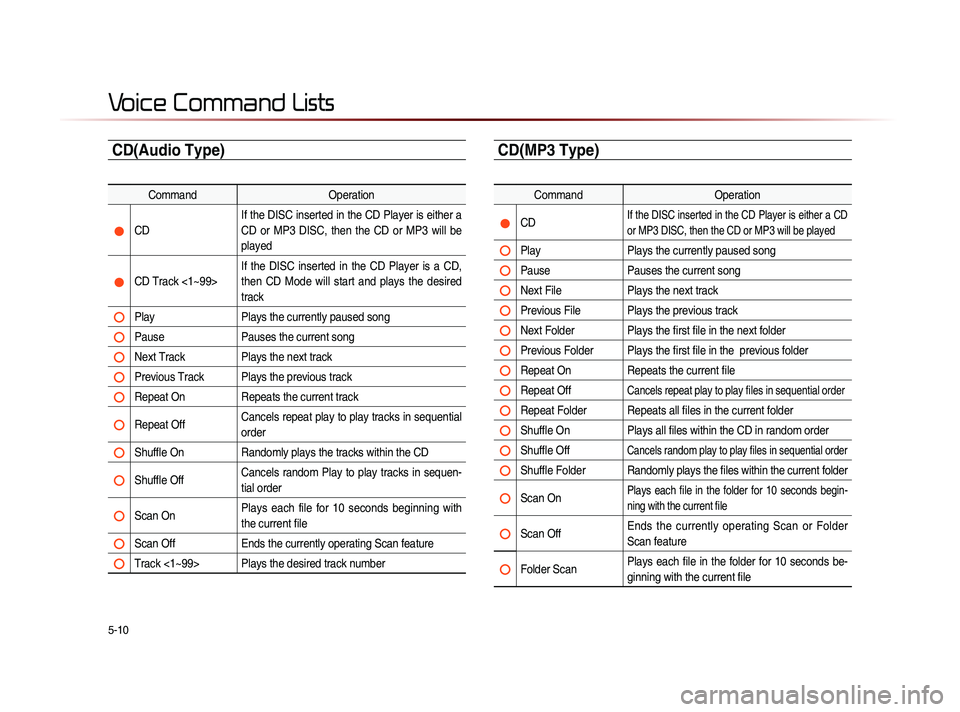
CD(Audio Type)
CommandOperation
CD If the DISC inserted in the CD Player is either a
CD or MP3 DISC, then the CD or MP3 will be
played
CD Track <1~99> If the DISC inserted in the CD Player is a CD,
then CD Mode will start and plays the desired
track
Play
Plays the currently paused song
Pause Pauses the current song
Next Track Plays the next track
Previous Track Plays the previous track
Repeat On Repeats the current track
Repeat Off Cancels repeat play to play tracks in sequential
order
Shuffle On
Randomly plays the tracks within the CD
Shuffle Off Cancels random Play to play tracks in sequen-
tial order
Scan On Plays each file for 10 seconds beginning with
the current file
Scan Off
Ends the currently operating Scan feature
Track <1~99> Plays the desired track number
CD(MP3 Type)
Command Operation
CD If the DISC inserted in the CD Player is either a CD
or MP3 DISC, then the CD or MP3 will be played
Play Plays the currently paused song
Pause Pauses the current song
Next File Plays the next track
Previous File Plays the previous track
Next Folder Plays the first file in the next folder
Previous Folder Plays the first file in the previous folder
Repeat On Repeats the current file
Repeat Off Cancels repeat play to play files in sequential order
Repeat Folder Repeats all files in the current folder
Shuffle On Plays all files within the CD in random order
Shuffle Off Cancels random play to play files in sequential order
Shuffle Folder Randomly plays the files within the current folder
Scan On Plays each file in the folder for 10 seconds begin-
ning with the current file
Scan Off Ends the currently operating Scan or Folder
Scan feature
Folder Scan Plays each file in the folder for 10 seconds be-
ginning with the current file
Page 153 of 236
Voice Command Lists
Voice Recognition l
5-11
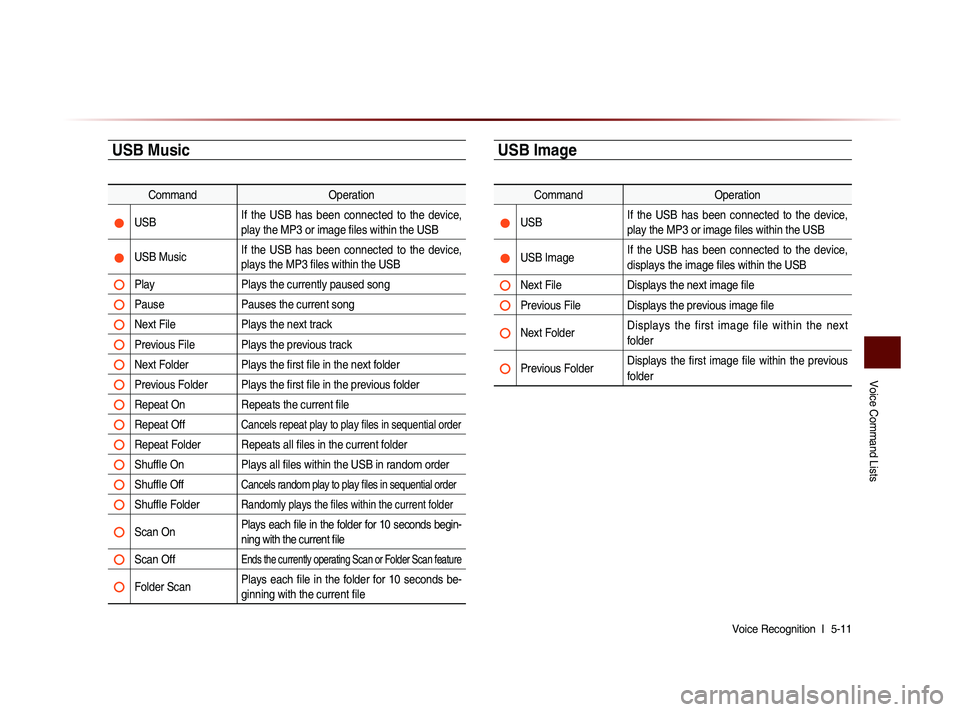
USB Music
Command Operation
USB If the USB has been connected to the device,
play the MP3 or image files within the USB
USB Music If the USB has been connected to the device,
plays the MP3 files within the USB
Play
Plays the currently paused song
Pause Pauses the current song
Next File Plays the next track
Previous File Plays the previous track
Next Folder Plays the first file in the next folder
Previous Folder Plays the first file in the previous folder
Repeat On Repeats the current file
Repeat Off Cancels repeat play to play files in sequential order
Repeat Folder Repeats all files in the current folder
Shuffle On Plays all files within the USB in random order
Shuffle Off Cancels random play to play files in sequential order
Shuffle Folder Randomly plays the files within the current folder
Scan On Plays each file in the folder for 10 seconds begin-
ning with the current file
Scan Off Ends the currently operating Scan or Folder Scan feature
Folder Scan Plays each file in the folder for 10 seconds be-
ginning with the current file
USB Image
Command
Operation
USB If the USB has been connected to the device,
play the MP3 or image files within the USB
USB Image If the USB has been connected to the device,
displays the image files within the USB
Next File
Displays the next image file
Previous File Displays the previous image file
Next Folder Displays the first image file within the next
folder
Previous Folder Displays the first image file within the previous
folder
Page 154 of 236
5-12
Voice Command Lists
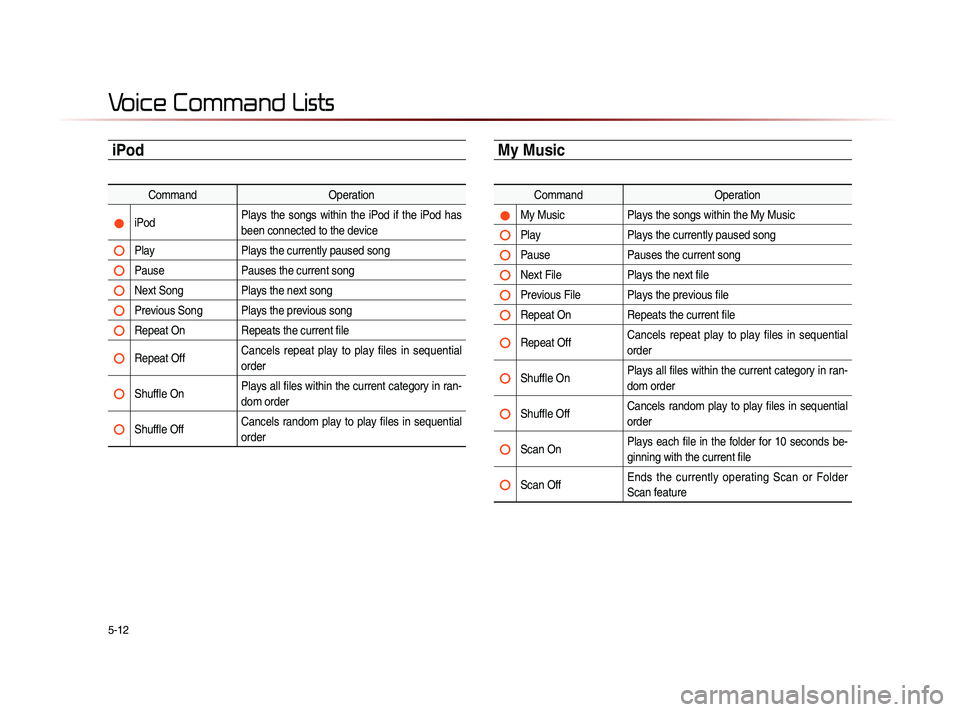
iPod
CommandOperation
iPod Plays the songs within the iPod if the iPod has
been connected to the device
Play
Plays the currently paused song
Pause Pauses the current song
Next Song Plays the next song
Previous Song Plays the previous song
Repeat On Repeats the current file
Repeat Off Cancels repeat play to play files in sequential
order
Shuffle On Plays all files within the current category in ran-
dom order
Shuffle Off Cancels random play to play files in sequential
order
My Music
Command
Operation
My Music Plays the songs within the My Music
Play Plays the currently paused song
Pause Pauses the current song
Next File Plays the next file
Previous File Plays the previous file
Repeat On Repeats the current file
Repeat Off Cancels repeat play to play files in sequential
order
Shuffle On Plays all files within the current category in ran-
dom order
Shuffle Off Cancels random play to play files in sequential
order
Scan On Plays each file in the folder for 10 seconds be-
ginning with the current file
Scan Off Ends the currently operating Scan or Folder
Scan feature
Page 155 of 236
Voice Command Lists
Voice Recognition l
5-13
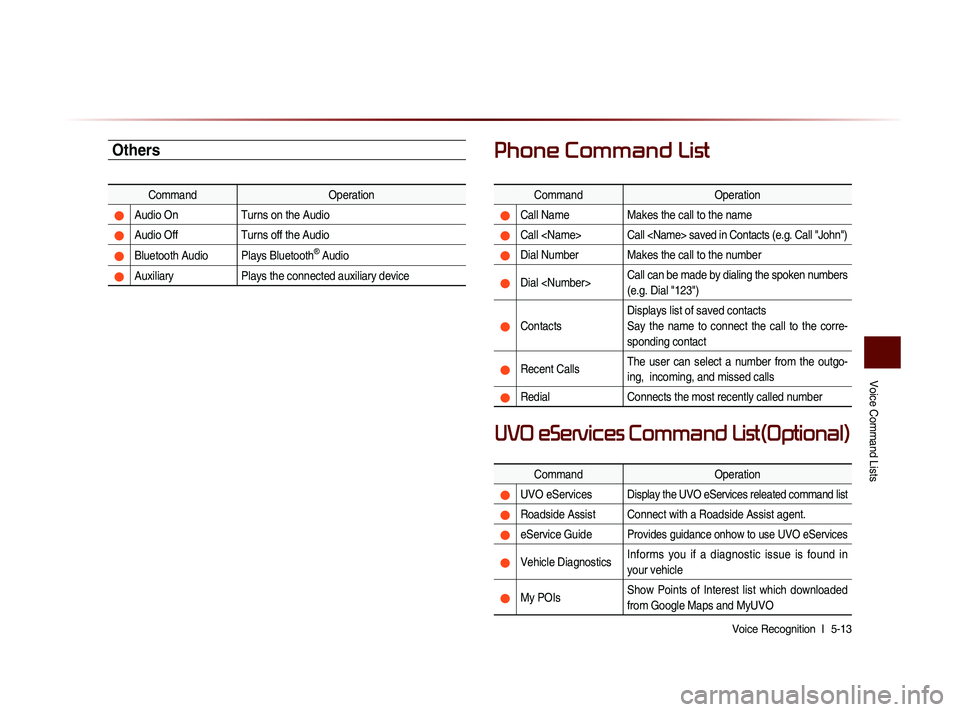
Others
Command Operation
Audio On Turns on the Audio
Audio Off Turns off the Audio
Bluetooth Audio Plays Bluetooth® Audio
Auxiliary Plays the connected auxiliary device
Phone Command List
Command Operation
Call NameMakes the call to the name
Call
Dial Number Makes the call to the number
Dial
(e.g. Dial "123")
ContactsDisplays list of saved contacts
Say the name to connect the call to the corre-
sponding contact
Recent Calls
The user can select a number from the outgo-
ing, incoming, and missed calls
Redial
Connects the most recently called number
Command Operation
UVO eServicesDisplay the UVO eServices releated command list
Roadside Assist Connect with a Roadside Assist agent.
eService GuideProvides guidance onhow to use UVO eServices
Vehicle DiagnosticsInforms you if a diagnostic issue is found in
your vehicle
My POIsShow Points of Interest list which downloaded
from Google Maps and MyUVO
UVO eServices Command List(Optional)