ECO KIA SORENTO PHEV 2022 Navigation System Quick Reference Guide
[x] Cancel search | Manufacturer: KIA, Model Year: 2022, Model line: SORENTO PHEV, Model: KIA SORENTO PHEV 2022Pages: 332, PDF Size: 11.11 MB
Page 166 of 332

7-2
Voice recognition
With the voice recognition function, you can access various functions of the infotainmen\
t
system without manipulating the screen or buttons. This function prevents driver distraction
and dangerous situations.
Use voice commands to access various functions easily.0000
A
The system can recognize the specified voice commands.
> See "Available voice commands"
or " Viewing the voice recognition help."
0000
A
Note the following for accurate delivery of command when saying it.
000DPronounce a command accurately and naturally like a conversation.
000DKeep the correct posture and say commands toward the direction of the microphone.
0000
A
Voice recognition is automatically ended when:
000DYou make or receive a call.
000DThe front or rear cameras operate (if equipped).
000DThe
[RADIO] or [MEDIA] button is pressed to perform another function.
000DRerouting or other unexpected action is made due to deviation from the route during
guidance.
0000
A
Voice recognition may not work properly when:
000DThe sunroof or windows are open so the wind is strong.
000DThe fan speed of the air conditioner or heater is high (level 3 or below is
recommended).
000DThe vehicle is passing through a tunnel.
000DThe vehicle is driving on an unpaved road and its noise and vibration are loud.
000DNoise is loud due to a heavy rain or storm.
Using the voice recognition function
1 On the steering wheel, press the Voice Recognition button.
Voice recognition starts along with voice guidance.
0000
A
To skip the voice guidance, press the Voice Recognition button on the steering wheel.
Page 167 of 332

7-3
2 When a beep sound is heard, say a command to perform (e.g.
navigation, music, call).
> See "Available voice commands" or " Viewing the voice
recognition help."
The recognized command appears in text at the top of the screen and the corresponding
function is performed.
0000
A
When an additional command is required to perform, the commands that can be
followed in the next step appear on the screen. Say a command or press a command.
0000
A
When there are several similar commands, say a command number to perform.
3 To end the voice recognition, perform one of the following methods:
\225In standby mode for voice recognition, say "Exit"
\225On the voice recognition screen, press Exit.
\225On the steering wheel, press and hold the Voice Recognition button.
0000
A
When the Voice Recognition button is pressed in standby mode for voice recognition,
the standby time is extended.
0000
A
When the voice recognition is not available, press the Voice Recognition button on
the steering wheel and use the voice recognition on your smartphone via phone
projection.
> See "Using the phone projection function."
Voice recognition screen
\037
\036
\035\034
\033
\032
a a According to voice recognition, the icons for voice recognition, voice guidance, and
command process appear.
b b The recognized voice command appears in text.
c c Shows the representative voice command.
Page 168 of 332
7-4
d d Ends the voice recognition.
e e Displays the voice recognition help.
f f The list of menu items appears.
\225Split Screen: Can turn on or off the split screen mode.
Adjusting the voice guidance volume
Adjust the voice guidance volume when the system volume is so low or high and it interferes
with your driving.
When the voice recognition is active, use the Volume knob on the control
panel.
Viewing the voice recognition help
You can see more details on how to perform various functions by voice commands.
\334\334Caution
Park the vehicle at a safe place and see the help.
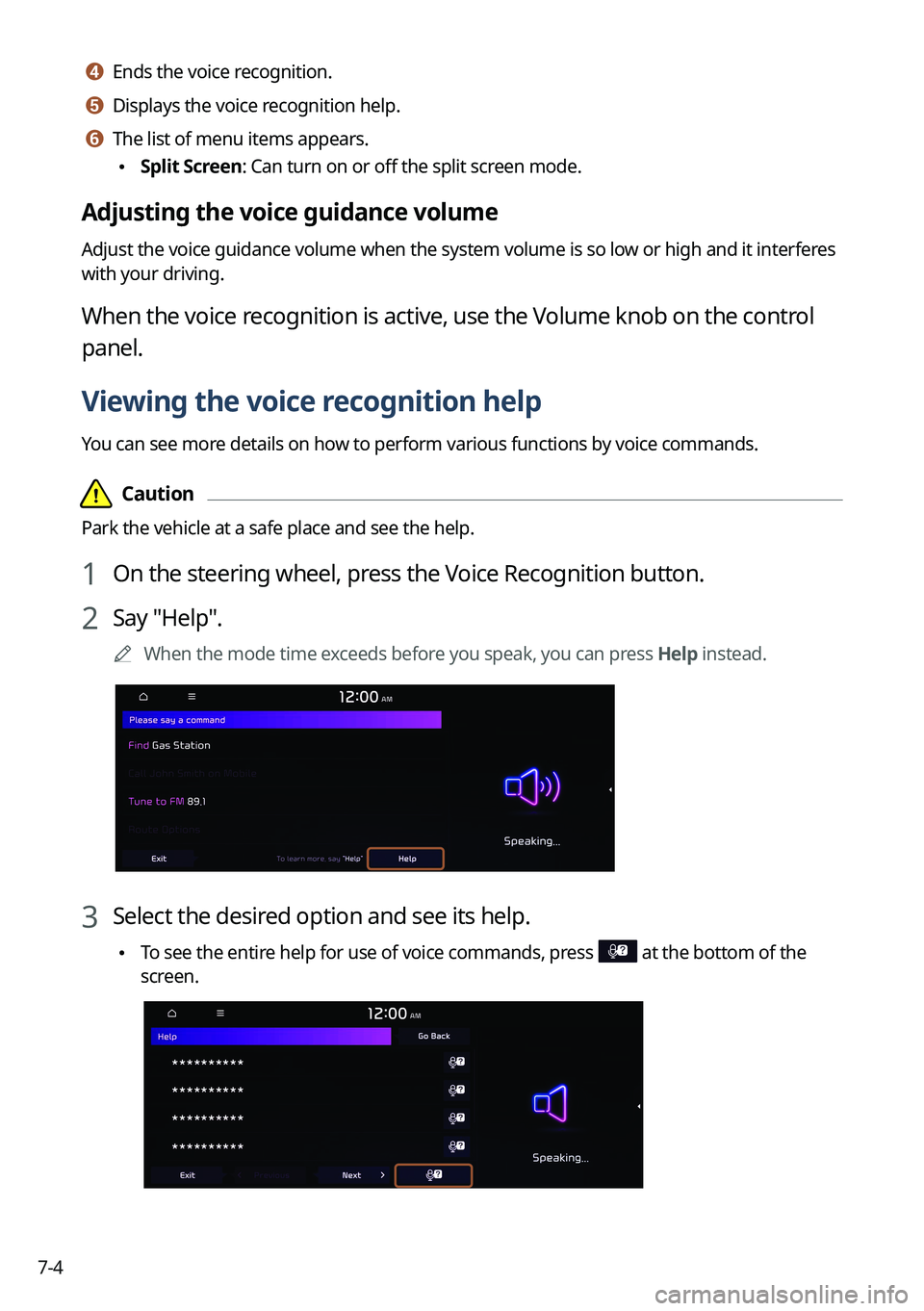
1 On the steering wheel, press the Voice Recognition button.
2 Say "Help".
0000
A
When the mode time exceeds before you speak, you can press Help instead.
3 Select the desired option and see its help.
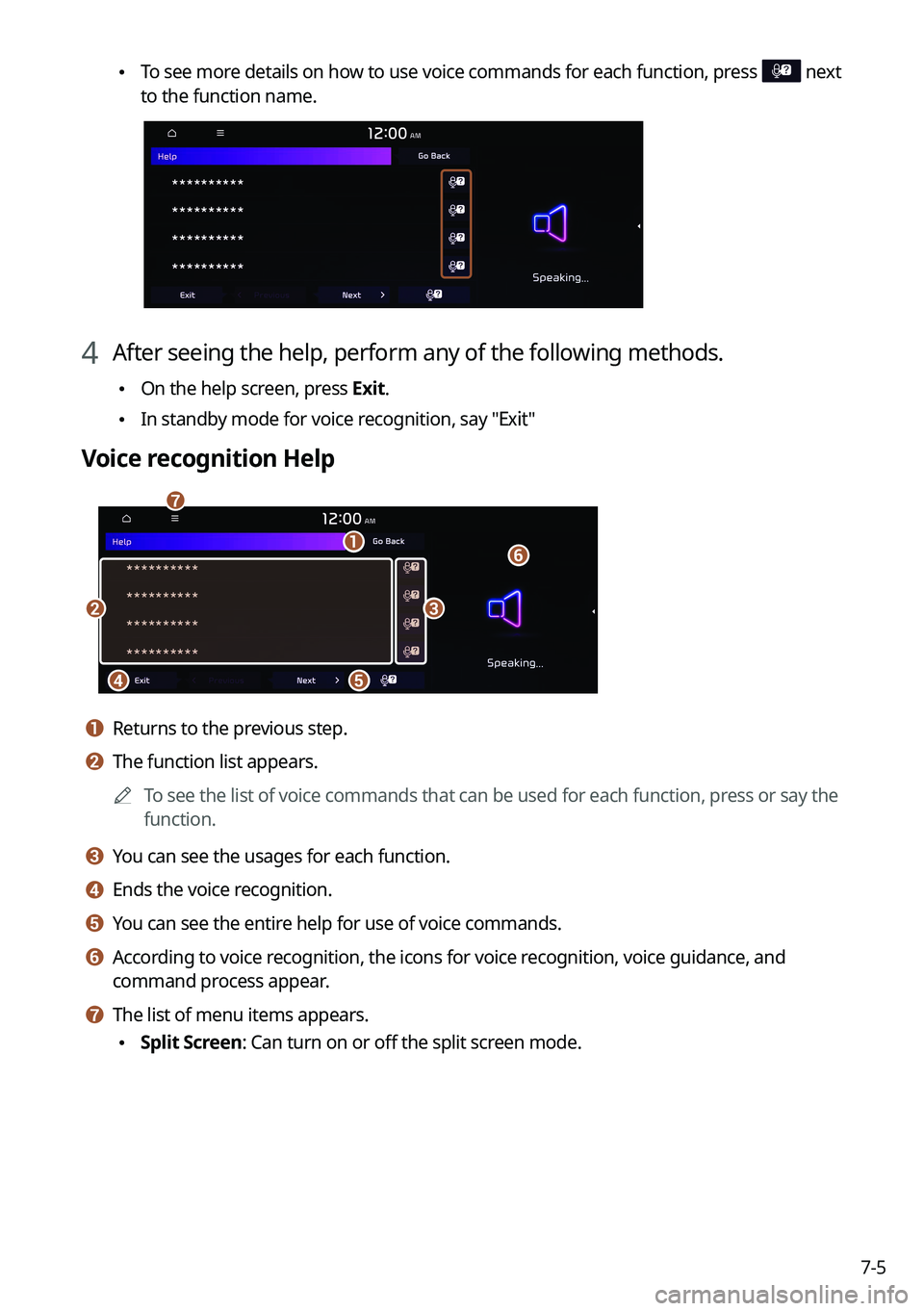
\225To see the entire help for use of voice commands, press at the bottom of the
screen.
Page 169 of 332
7-5
\225To see more details on how to use voice commands for each function, press next
to the function name.
4 After seeing the help, perform any of the following methods.
\225On the help screen, press Exit.
\225In standby mode for voice recognition, say "Exit"
Voice recognition Help
\037
\036
\035
\034\033
\032
\031
a a Returns to the previous step.
b b The function list appears.
0000
A
To see the list of voice commands that can be used for each function, press or say the
function.
c c You can see the usages for each function.
d d Ends the voice recognition.
e e You can see the entire help for use of voice commands.
f f According to voice recognition, the icons for voice recognition, voice guidance, and
command process appear.
g g The list of menu items appears.
\225Split Screen: Can turn on or off the split screen mode.
Page 172 of 332

7-80000
A
When you use a command starting with "Find," the system searches for locations within
the state or province where your vehicle is currently located. To search for locations in
another state or province, say the state or province name first and then say the location
you want.
0000
A
Some commands, such as "Cancel Route " or "Show Route," are available only when a
destination is set.
Radio commands
Command Function
FM <87.5 to 107.9> Turn on the FM radio with that frequency.
AM <530 to 1710> Turn on the AM radio with that frequency.
SiriusXM <0 to 999> Turn on the SiriusXM radio with that channel number.
Tune to SiriusXM
<0 to 999> Tune on the SiriusXM radio with that channel number.
Tune to
0000
A
Some commands are recognizable in English only.
0000
A
Some commands may not be supported, depending on the vehicle model and f\
unctions.
Vehicle control commands (if equipped)
Command Function
Climate On/Off Turn on or off the climate control.
Air Conditioner
On/Off Can turn on or off the air conditioner.
Heat On/Off Can turn on or off the heater.
Fan High/Low Used to set the fan level.
Set Fan to windshield/
Face/Feet Used to set the air direction.
Warmer/Cooler Set the climate control temperature.
Open/Close all windows Open or close all windows.
Open/Close the
windows Open or close the driver-side window.
Open/Close the
passenger's window Open or close the passenger-side window.
Page 174 of 332

7-100000
A
Vehicle control commands are recognizable in English only.
0000
A
Some commands may not be supported, depending on the vehicle model and f\
unctions.
Rear-seat function commands (if equipped)
Command Function
Passenger Talk Turn on the Passenger Talk.
Quiet Mode
Turn off Quiet Mode Turn on or off the Quiet Mode.
0000
A
Some commands may not be supported, depending on the vehicle model and f\
unctions.
Search commands
Command Function
Search settings for
For example, say "Search settings for Bluetooth" or "Search
settings for Display."
> See "Configuring system settings."
Other commands
Command
Function
Help Move to the help screen.
Line <1 to 4>* Select an item with the designated number on a list. Simple
numbers, such as "One" or "Two," can be recognized.
Yes * Accept a notification asking for your confirmation in an
exceptional situation.
No * Deny a notification asking for your confirmation in an
exceptional situation.
Next * If there are more than five items on a list, scroll to the next page.
Previous * If you scroll to the next page of a list, scroll back to the previous
page.
Manual Input* When using the Dial Number command, open the keypad to
enter a phone number manually.
Go Back * Returns to the previous step.
Exit End voice recognition.
* These commands are available only in certain situations.
Page 178 of 332

7-14
Travel
POI name
Airports
HotelsAmericas Best Value Inn
AmericInn
Andaz
Ascend Collection
Baymont Inn & Suites
Best Western
Cambria Suites
Canadas Best Value Inn
Candlewood Suites
Clarion Hotel
Comfort INN
Comfort Suites
CONRAD
Country Inn & Suites by Carlson
COURTYARD by Marriott
Crowne Plaza
Days Inn
DELTA
Doubletree
Econo Lodge
Embassy Suites
Grand Residences by Marriott
Hampton Inn
Hawthorn Suites
Hilton
Hilton Garden Inn
Hilton Grand Vacations
Holiday Inn
Holiday Inn Express Hotel & Suites
POI name
Midas
Mobil
Napa
O'Reilly Auto Parts
PETRO-CANADA
Sears Auto Center
Shell
TEXACO
AAMCO Transmissions
ACDelco
Big O Tires
CARQUEST
Meineke Car Care Center
Monro Muffler Brake & Service
Napa Autocare Center
Pep Boys
Quick Lane
Safelite AutoGlass
Tires Plus
Valvoline Instant Oil Change
Roadside Assistance
Auto Parts
Car Washes
Automobile Dealerships
Motorcycle Dealerships
EV Charging Stations ChargePoint
EVgo
Blink
SemaConnect
Greenlots
Electrify America
FLO
Kia Auto Service
Page 185 of 332
7-21
Using the Siri Eyes Free
When you connect an Apple device that is compatible with Siri to your system via Bluetooth,
you can use the Siri Eyes Free. This allows you to perform the functions on your system and
Apple device with voice commands so that you can devote your attention to driving.
First, make sure that your Apple device supports Siri and that you have activated Siri.
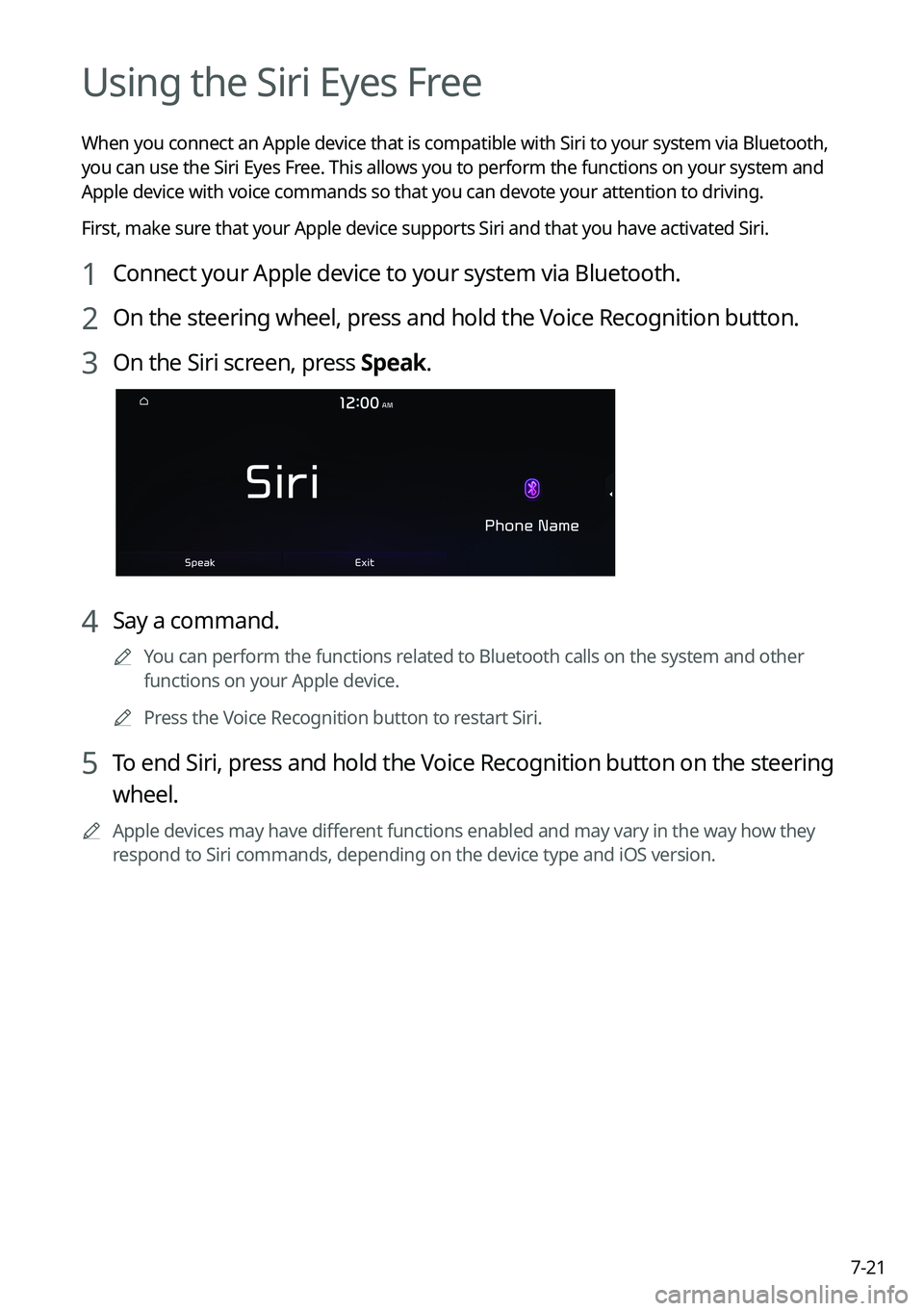
1 Connect your Apple device to your system via Bluetooth.
2 On the steering wheel, press and hold the Voice Recognition button.
3 On the Siri screen, press Speak.
4 Say a command.
0000
A
You can perform the functions related to Bluetooth calls on the system and other
functions on your Apple device.
0000
A
Press the Voice Recognition button to restart Siri.
5 To end Siri, press and hold the Voice Recognition button on the steering
wheel.
0000
A
Apple devices may have different functions enabled and may vary in the way how they
respond to Siri commands, depending on the device type and iOS version.
Page 186 of 332
7-22
Voice Memo
You can use the microphone on the vehicle to record and play voice memos.
Running the voice memo
On the All Menus screen, press Voice Memo.
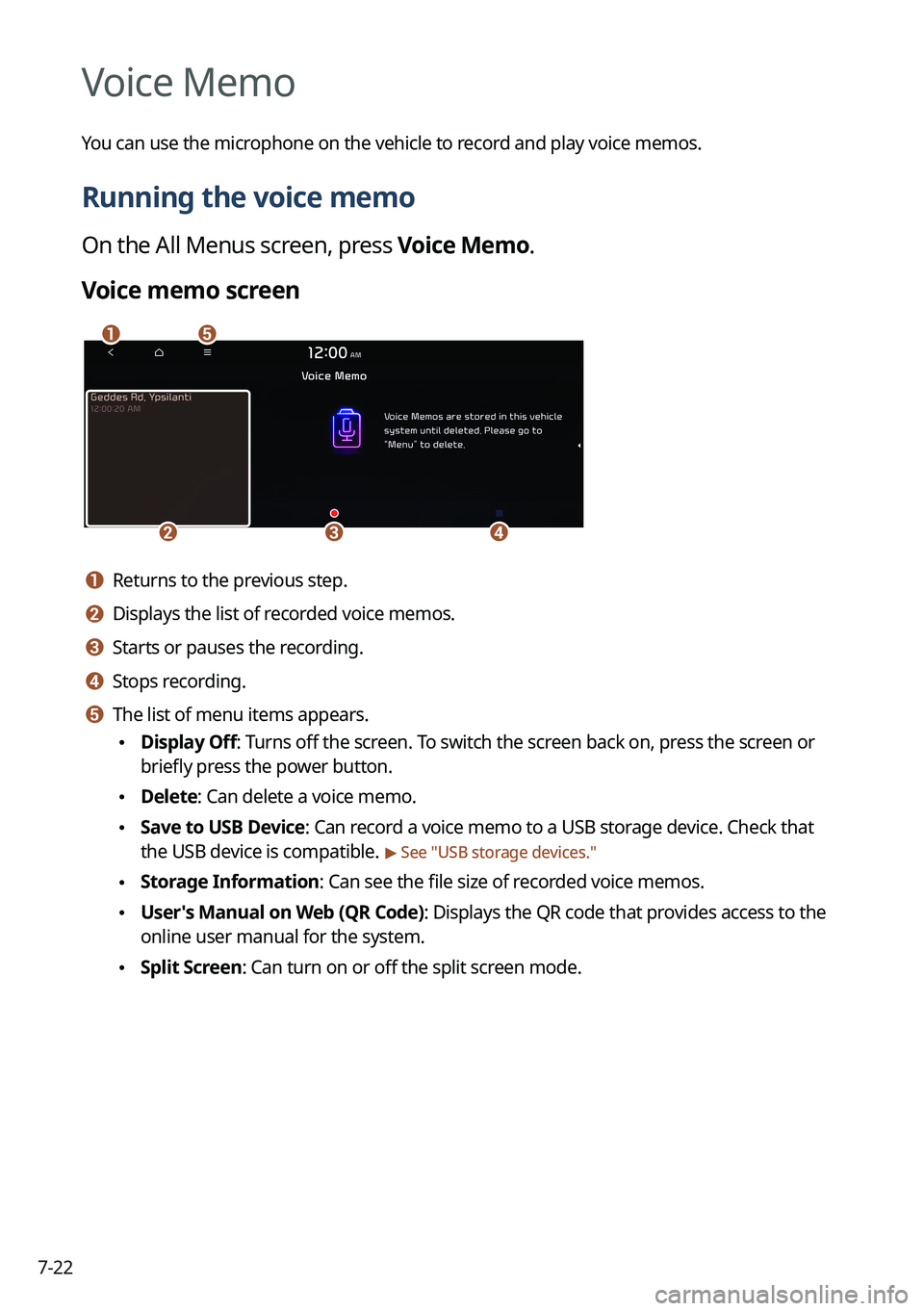
Voice memo screen
\037\036
\035\034\033
a a Returns to the previous step.
b b Displays the list of recorded voice memos.
c c Starts or pauses the recording.
d d Stops recording.
e e The list of menu items appears.
\225Display Off: Turns off the screen. To switch the screen back on, press the screen or
briefly press the power button.
\225Delete: Can delete a voice memo.
\225Save to USB Device: Can record a voice memo to a USB storage device. Check that
the USB device is compatible.
> See "USB storage devices."
\225Storage Information: Can see the file size of recorded voice memos.
\225User's Manual on Web (QR Code): Displays the QR code that provides access to the
online user manual for the system.
\225Split Screen: Can turn on or off the split screen mode.
Page 187 of 332

7-23
Recording a voice memo
1 On the Voice Memo screen, press .
It starts recording a voice memo.
2 When recording is finished, press on the screen or press the End
Call button on the steering wheel.
The voice memo is automatically saved.
0000
A
To adjust the recording sound volume during voice recording, drag the control bar.
0000
A
To temporarily stop recording, press
.
0000
A
When recording starts, the other audio functions are muted or playback is paused.
0000
A
When you make or receive a call while recording, the recording is paused.
0000
A
When you make an emergency call or you are connected to an emergency call
after airbag deployment, the recording is stopped and the recorded voice memo is
automatically saved.
Playing a voice memo
You can select and play a recorded voice memo.
From the list of Voice Memos, press the desired voice memo.