Eco KIA SOUL 2019 Owners Manual
[x] Cancel search | Manufacturer: KIA, Model Year: 2019, Model line: SOUL, Model: KIA SOUL 2019Pages: 564, PDF Size: 14.2 MB
Page 229 of 564
4143
Features of your vehicle
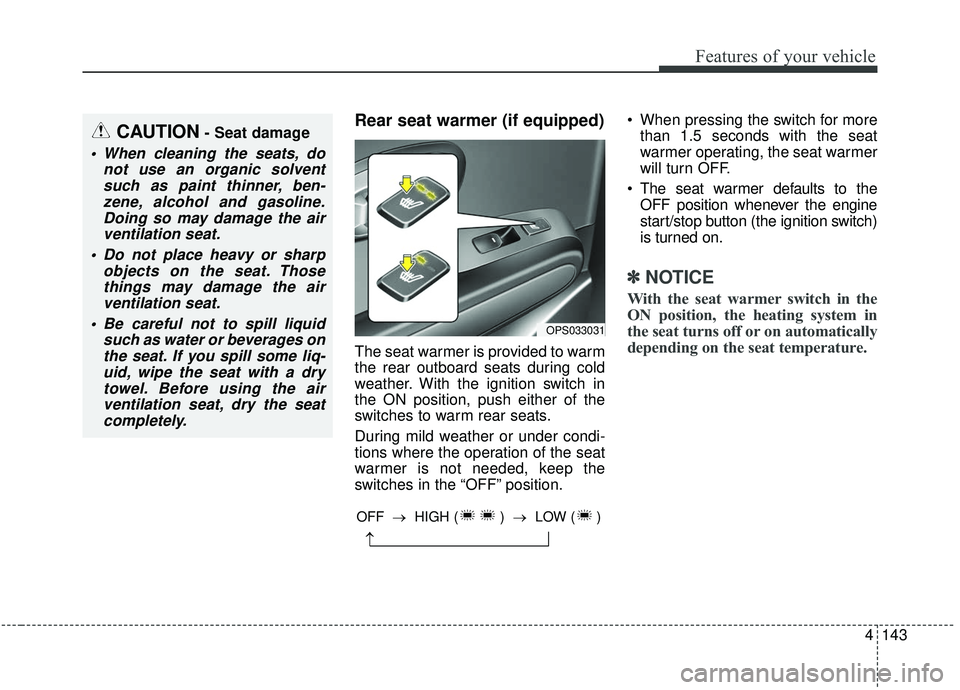
Rear seat warmer (if equipped)
The seat warmer is provided to warm
the rear outboard seats during cold
weather. With the ignition switch in
the ON position, push either of the
switches to warm rear seats.
During mild weather or under condi-
tions where the operation of the seat
warmer is not needed, keep the
switches in the “OFF” position. When pressing the switch for more
than 1.5 seconds with the seat
warmer operating, the seat warmer
will turn OFF.
The seat warmer defaults to the OFF position whenever the engine
start/stop button (the ignition switch)
is turned on.
✽ ✽ NOTICE
With the seat warmer switch in the
ON position, the heating system in
the seat turns off or on automatically
depending on the seat temperature.
CAUTION- Seat damage
When cleaning the seats, do
not use an organic solventsuch as paint thinner, ben-zene, alcohol and gasoline.Doing so may damage the airventilation seat.
Do not place heavy or sharp objects on the seat. Thosethings may damage the airventilation seat.
Be careful not to spill liquid such as water or beverages onthe seat. If you spill some liq-uid, wipe the seat with a drytowel. Before using the airventilation seat, dry the seatcompletely.
OPS033031
→
OFF → HIGH ( ) →LOW ( )
Page 232 of 564
Features of your vehicle
146
4
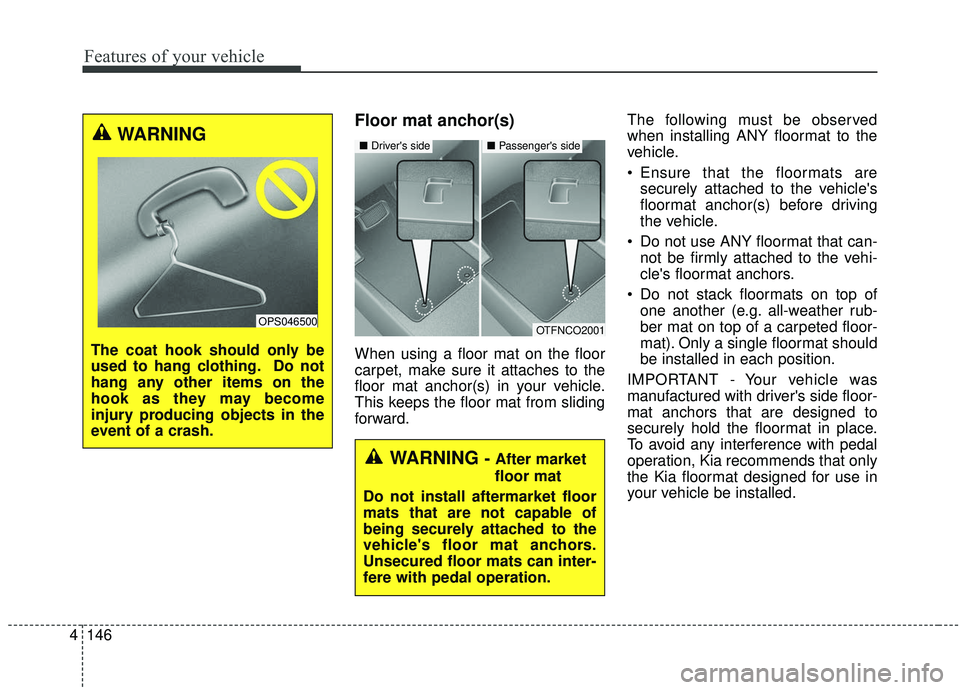
Floor mat anchor(s)
When using a floor mat on the floor
carpet, make sure it attaches to the
floor mat anchor(s) in your vehicle.
This keeps the floor mat from sliding
forward. The following must be observed
when installing ANY floormat to the
vehicle.
Ensure that the floormats are
securely attached to the vehicle's
floormat anchor(s) before driving
the vehicle.
Do not use ANY floormat that can- not be firmly attached to the vehi-
cle's floormat anchors.
Do not stack floormats on top of one another (e.g. all-weather rub-
ber mat on top of a carpeted floor-
mat). Only a single floormat should
be installed in each position.
IMPORTANT - Your vehicle was
manufactured with driver's side floor-
mat anchors that are designed to
securely hold the floormat in place.
To avoid any interference with pedal
operation, Kia recommends that only
the Kia floormat designed for use in
your vehicle be installed.
OTFNCO2001
■ Driver's side■ Passenger's side
WARNING - After market
floor mat
Do not install aftermarket floor
mats that are not capable of
being securely attached to the
vehicle's floor mat anchors.
Unsecured floor mats can inter-
fere with pedal operation.
WARNING
The coat hook should only be
used to hang clothing. Do not
hang any other items on the
hook as they may become
injury producing objects in the
event of a crash.
OPS046500
Page 233 of 564
4147
Features of your vehicle
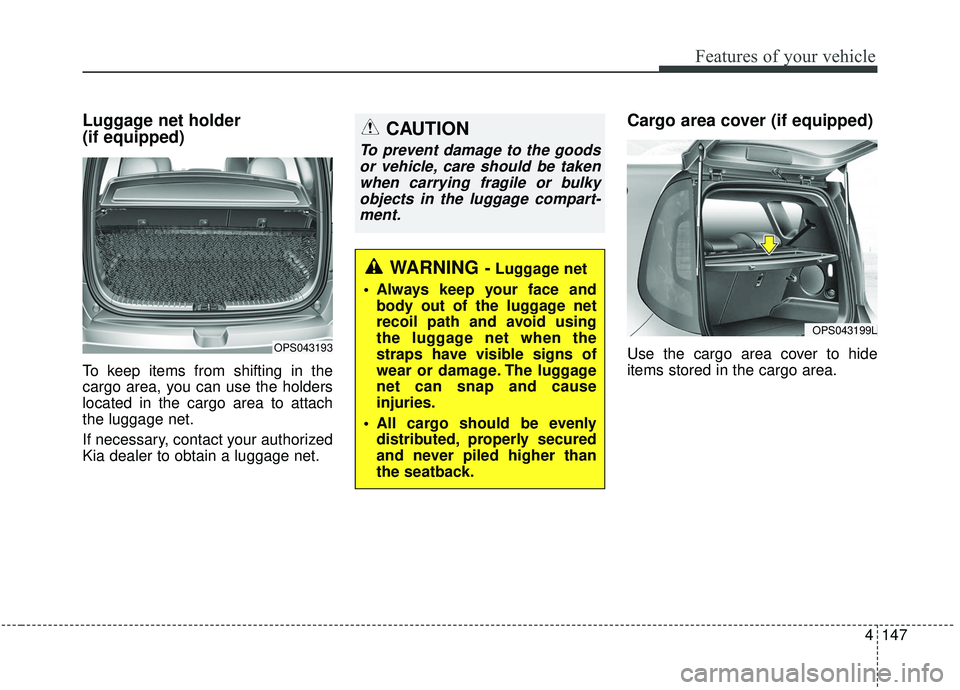
Luggage net holder
(if equipped)
To keep items from shifting in the
cargo area, you can use the holders
located in the cargo area to attach
the luggage net.
If necessary, contact your authorized
Kia dealer to obtain a luggage net.
Cargo area cover (if equipped)
Use the cargo area cover to hide
items stored in the cargo area.OPS043193
WARNING - Luggage net
Always keep your face and body out of the luggage net
recoil path and avoid using
the luggage net when the
straps have visible signs of
wear or damage. The luggage
net can snap and cause
injuries.
All cargo should be evenly distributed, properly secured
and never piled higher than
the seatback.
CAUTION
To prevent damage to the goodsor vehicle, care should be takenwhen carrying fragile or bulkyobjects in the luggage compart-ment.
OPS043199L
Page 236 of 564
Features of your vehicle
150
4
EXTERIOR FEATURES
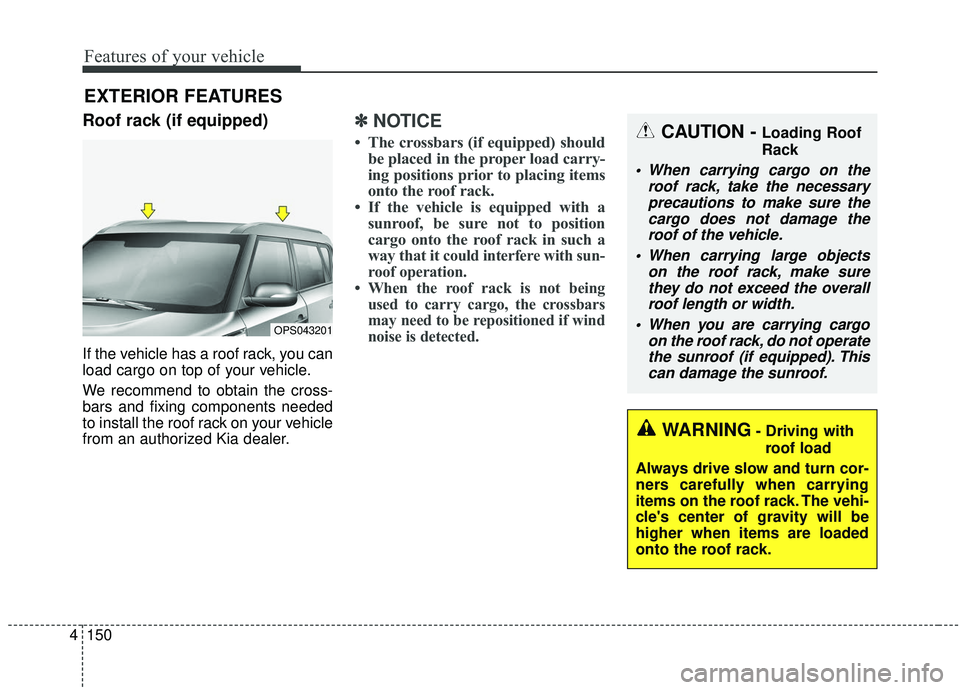
Roof rack (if equipped)
If the vehicle has a roof rack, you can
load cargo on top of your vehicle.
We recommend to obtain the cross-
bars and fixing components needed
to install the roof rack on your vehicle
from an authorized Kia dealer.
✽ ✽
NOTICE
• The crossbars (if equipped) should
be placed in the proper load carry-
ing positions prior to placing items
onto the roof rack.
• If the vehicle is equipped with a sunroof, be sure not to position
cargo onto the roof rack in such a
way that it
could interfere with sun-
roof operation.
• When the roof rack is not being used to carry cargo, the crossbars
may need to be repositioned if wind
noise is detected.
OPS043201
CAUTION - Loading Roof
Rack
When carrying cargo on the
roof rack, take the necessaryprecautions to make sure thecargo does not damage theroof of the vehicle.
When carrying large objects on the roof rack, make surethey do not exceed the overallroof length or width.
When you are carrying cargo on the roof rack, do not operatethe sunroof (if equipped). Thiscan damage the sunroof.
WARNING- Driving with
roof load
Always drive slow and turn cor-
ners carefully when carrying
items on the roof rack. The vehi-
cle's center of gravity will be
higher when items are loaded
onto the roof rack.
Page 239 of 564

Audio system
Audio System . . . . . . . . . . . . . . . . . . . . . . . . . . . . . . 5-2
• Antenna . . . . . . . . . . . . . . . . . . . . . . . . . . . . . . . . . . . . \
. 5-2
• Audio remote control . . . . . . . . . . . . . . . . . . . . . . . . . . 5-3
• AUX and USB port . . . . . . . . . . . . . . . . . . . . . . . . . . . . 5-4
• Speaker lights. . . . . . . . . . . . . . . . . . . . . . . . . . . . . . . . . 5-4
• How vehicle audio works . . . . . . . . . . . . . . . . . . . . . . . 5-6
Audio (With Touch Screen) . . . . . . . . . . . . . . . . . . 5-10
• Feature of Your Audio . . . . . . . . . . . . . . . . . . . . . . . . . 5-11
• Radio . . . . . . . . . . . . . . . . . . . . . . . . . . . . . . . . . . . . \
. . . 5-17
• SiriusXM . . . . . . . . . . . . . . . . . . . . . . . . . . . . . . . . . . . 5-\
19
• Media . . . . . . . . . . . . . . . . . . . . . . . . . . . . . . . . . . . . \
. . 5-21
• Phone . . . . . . . . . . . . . . . . . . . . . . . . . . . . . . . . . . . . \
. . 5-32
• Voice Recognition . . . . . . . . . . . . . . . . . . . . . . . . . . . . 5-41
• Siri . . . . . . . . . . . . . . . . . . . . . . . . . . . . . . . . . . . . \
. . . . . 5-49
• Setup . . . . . . . . . . . . . . . . . . . . . . . . . . . . . . . . . . . . \
. . . 5-50
Declaration of Conformity . . . . . . . . . . . . . . . . . . 5-52
• IC . . . . . . . . . . . . . . . . . . . . . . . . . . . . . . . . . . . . \
. . . . . 5-52
5
Page 241 of 564
Audio system
35
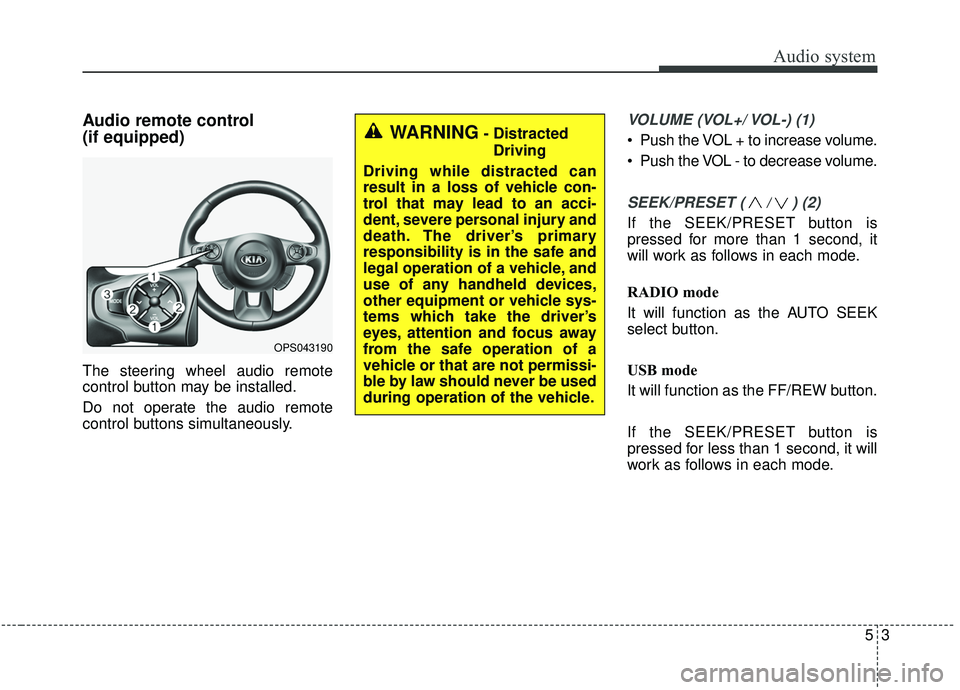
Audio remote control
(if equipped)
The steering wheel audio remote
control button may be installed.
Do not operate the audio remote
control buttons simultaneously.
VOLUME (VOL+/ VOL-) (1)
Push the VOL + to increase volume.
Push the VOL - to decrease volume.
SEEK/PRESET ( / ) (2)
If the SEEK/PRESET button is
pressed for more than 1 second, it
will work as follows in each mode.
RADIO mode
It will function as the AUTO SEEK
select button.
USB mode
It will function as the FF/REW button.
If the SEEK/PRESET button is
pressed for less than 1 second, it will
work as follows in each mode.
OPS043190
WARNING- DistractedDriving
Driving while distracted can
result in a loss of vehicle con-
trol that may lead to an acci-
dent, severe personal injury and
death. The driver’s primary
responsibility is in the safe and
legal operation of a vehicle, and
use of any handheld devices,
other equipment or vehicle sys-
tems which take the driver’s
eyes, attention and focus away
from the safe operation of a
vehicle or that are not permissi-
ble by law should never be used
during operation of the vehicle.
Page 251 of 564
Audio system
13
5
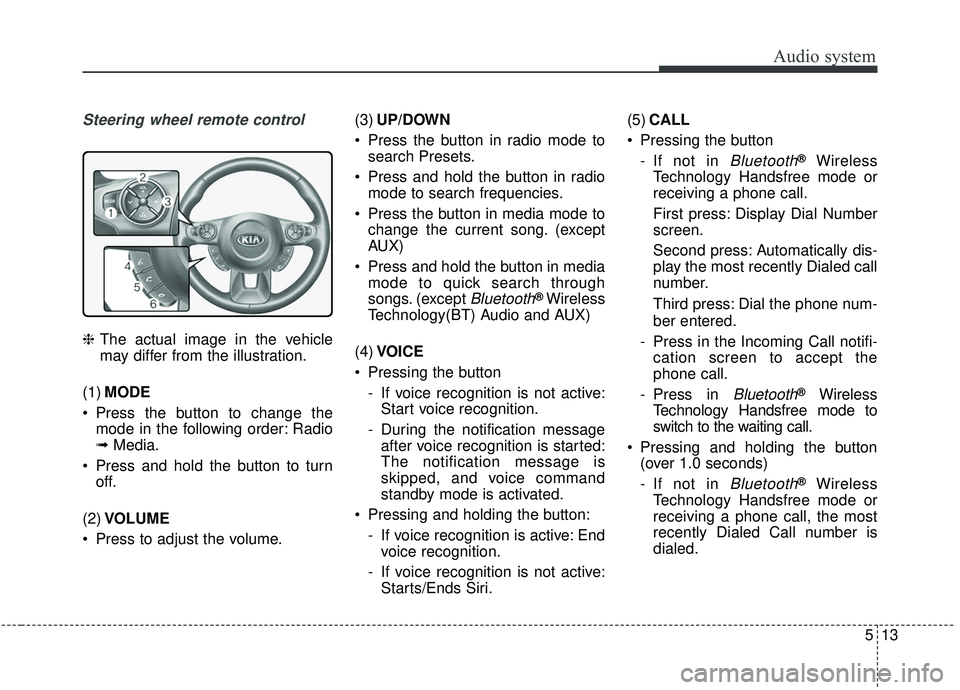
Steering wheel remote control
❈ The actual image in the vehicle
may differ from the illustration.
(1) MODE
Press the button to change the mode in the following order: Radio
➟ Media.
Press and hold the button to turn off.
(2) VOLUME
Press to adjust the volume. (3)
UP/DOWN
Press the button in radio mode to search Presets.
Press and hold the button in radio mode to search frequencies.
Press the button in media mode to change the current song. (except
AUX)
Press and hold the button in media mode to quick search through
songs. (except
Bluetooth®Wireless
Technology(BT) Audio and AUX)
(4) VOICE
Pressing the button - If voice recognition is not active:Start voice recognition.
- During the notification message after voice recognition is started:
The notification message is
skipped, and voice command
standby mode is activated.
Pressing and holding the button: - If voice recognition is active: Endvoice recognition.
- If voice recognition is not active: Starts/Ends Siri. (5)
CALL
Pressing the button - If not in
Bluetooth®Wireless
Technology Handsfree mode or
receiving a phone call.
First press: Display Dial Number
screen.
Second press: Automatically dis-
play the most recently Dialed call
number.
Third press: Dial the phone num-
ber entered.
- Press in the Incoming Call notifi- cation screen to accept the
phone call.
- Press in
Bluetooth®Wireless
Technology Handsfree mode to
switch to the waiting call.
Pressing and holding the button (over 1.0 seconds)
- If not in
Bluetooth®Wireless
Technology Handsfree mode or
receiving a phone call, the most
recently Dialed Call number is
dialed.
Page 255 of 564
Audio system
17
5
Radio
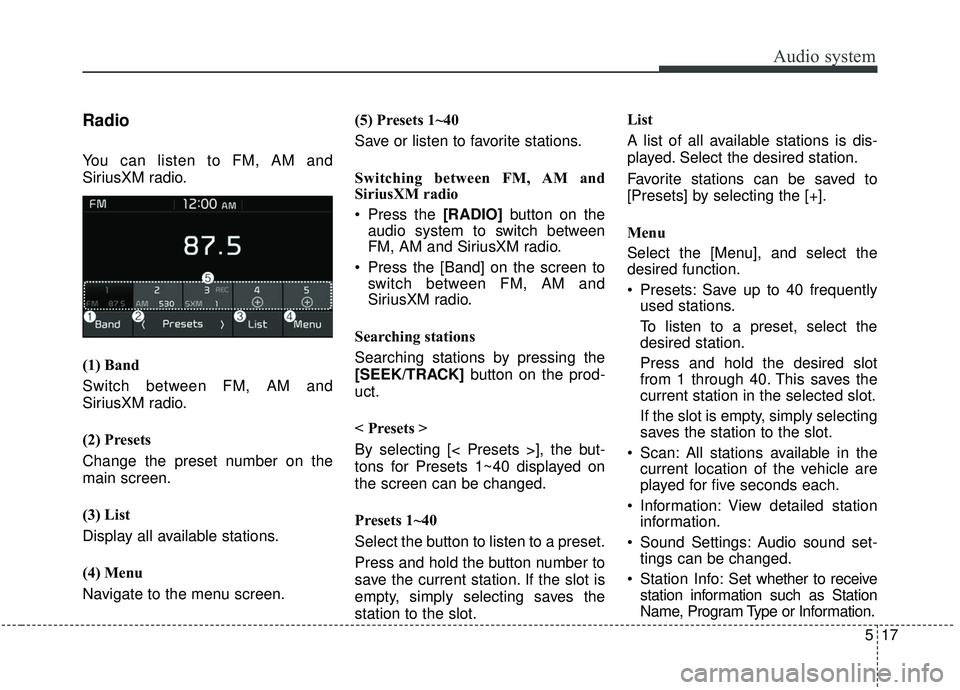
You can listen to FM, AM and
SiriusXM radio.
(1) Band
Switch between FM, AM and
SiriusXM radio.
(2) Presets
Change the preset number on the
main screen.
(3) List
Display all available stations.
(4) Menu
Navigate to the menu screen. (5) Presets 1~40
Save or listen to favorite stations.
Switching between FM, AM and
SiriusXM radio
Press the [RADIO]
button on the
audio system to switch between
FM, AM and SiriusXM radio.
Press the [Band] on the screen to switch between FM, AM and
SiriusXM radio.
Searching stations
Searching stations by pressing the
[SEEK/TRACK] button on the prod-
uct.
< Presets >
By selecting [< Presets >], the but-
tons for Presets 1~40 displayed on
the screen can be changed.
Presets 1~40
Select the button to listen to a preset.
Press and hold the button number to
save the current station. If the slot is
empty, simply selecting saves the
station to the slot. List
A list of all available stations is dis-
played. Select the desired station.
Favorite stations can be saved to
[Presets] by selecting the [+].
Menu
Select the [Menu], and select the
desired function.
Presets: Save up to 40 frequently
used stations.
To listen to a preset, select the
desired station.
Press and hold the desired slot
from 1 through 40. This saves the
current station in the selected slot.
If the slot is empty, simply selecting
saves the station to the slot.
Scan: All stations available in the current location of the vehicle are
played for five seconds each.
Information: View detailed station information.
Sound Settings: Audio sound set- tings can be changed.
Station Info: Set whether to receive
station information such as Station
Name, Program Type or Information.
Page 257 of 564
Audio system
19
5
SiriusXM Radio
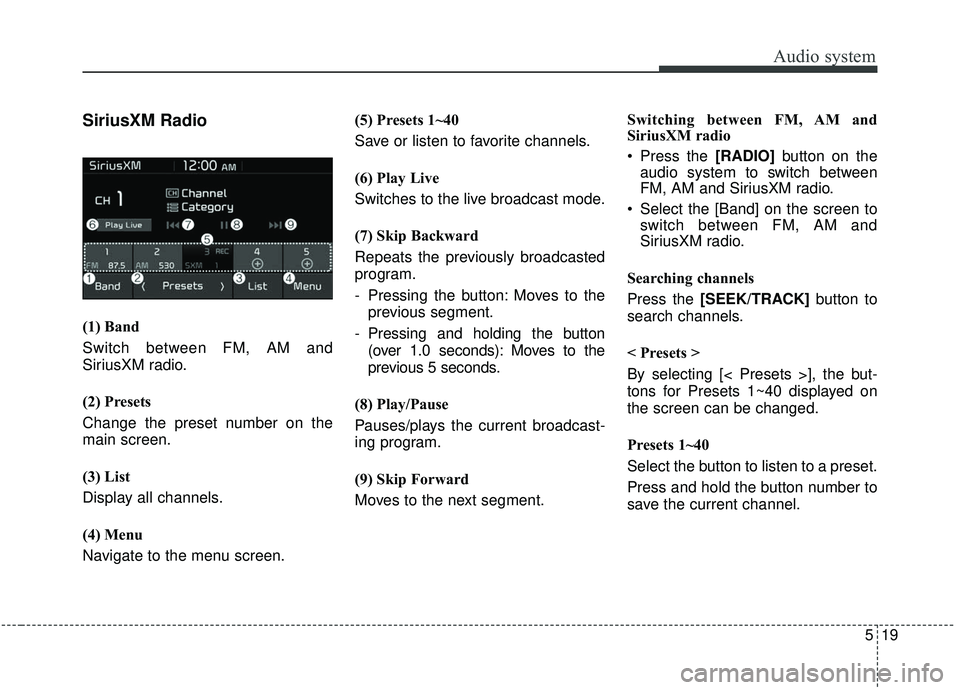
(1) Band
Switch between FM, AM and
SiriusXM radio.
(2) Presets
Change the preset number on the
main screen.
(3) List
Display all channels.
(4) Menu
Navigate to the menu screen. (5) Presets 1~40
Save or listen to favorite channels.
(6) Play Live
Switches to the live broadcast mode.
(7) Skip Backward
Repeats the previously broadcasted
program.
- Pressing the button: Moves to the
previous segment.
- Pressing and holding the button (over 1.0 seconds): Moves to the
previous 5 seconds.
(8) Play/Pause
Pauses/plays the current broadcast-
ing program.
(9) Skip Forward
Moves to the next segment. Switching between FM, AM and
SiriusXM radio
Press the [RADIO]
button on the
audio system to switch between
FM, AM and SiriusXM radio.
Select the [Band] on the screen to switch between FM, AM and
SiriusXM radio.
Searching channels
Press the [SEEK/TRACK] button to
search channels.
< Presets >
By selecting [< Presets >], the but-
tons for Presets 1~40 displayed on
the screen can be changed.
Presets 1~40
Select the button to listen to a preset.
Press and hold the button number to
save the current channel.
Page 258 of 564
![KIA SOUL 2019 Owners Manual Audio system
520List
A list of all channels is displayed.
Select the desired channel.
Favorite channels can be saved to
[Presets] by selecting the [+].
Menu
Select the [Menu], and select the
desired f](/img/2/40387/w960_40387-257.png "KIA SOUL 2019 Owners Manual Audio system
520List
A list of all channels is displayed.
Select the desired channel.
Favorite channels can be saved to
[Presets] by selecting the [+].
Menu
Select the [Menu], and select the
desired f")
Audio system
520List
A list of all channels is displayed.
Select the desired channel.
Favorite channels can be saved to
[Presets] by selecting the [+].
Menu
Select the [Menu], and select the
desired function.
Presets: Save up to 40 frequently
used channels.
To listen to a preset, select the
desired channel.
Press and hold the desired slot
from 1 through 40. This saves the
current channel in the selected
slot.
If the slot is empty, simply selecting
saves the channel to the slot.
Categories: Channels can be searched by category.
Direct Tune: The desired channel can be selected by entering num-
bers.
Sound Settings: Audio sound set- tings can be changed. Tag Song: Tag the current song
information.
When an Apple device (iPhone
®,
iPod®) is connected, tagged song
information is sent automatically to
the connected device.
✽ ✽ NOTICE
Up to 50 songs can be tagged.
Scan: All channels available in the
vehicle's current location are
played for ten seconds each.
Program Schedule: View the pro- gram schedule.
Featured Favorites: The Featured Favorites feature allows SiriusXM™
to broadcast additional presets.
- Example 1: During holidays,“Holiday Music” might include all
SiriusXM™ channels that are
playing holiday music for easy
access by users.
Multiple sets of Featured Favorites
data can be broadcast by
SiriusXM™ and can change from
time to time. Information: View detailed channel
information.
Category Lock: Search or scan channels in the current category
only.