bluetooth KIA SOUL 2019 User Guide
[x] Cancel search | Manufacturer: KIA, Model Year: 2019, Model line: SOUL, Model: KIA SOUL 2019Pages: 564, PDF Size: 14.2 MB
Page 268 of 564
![KIA SOUL 2019 User Guide Audio system
530Repeat play
Select the [Repeat] to enable or dis-
able ‘Repeat all’, ‘Repeat current
song’ or ‘Repeat category’ play.
Repeat all: All songs in the
playlist are repeated.](/img/2/40387/w960_40387-267.png "KIA SOUL 2019 User Guide Audio system
530Repeat play
Select the [Repeat] to enable or dis-
able ‘Repeat all’, ‘Repeat current
song’ or ‘Repeat category’ play.
Repeat all: All songs in the
playlist are repeated.")
Audio system
530Repeat play
Select the [Repeat] to enable or dis-
able ‘Repeat all’, ‘Repeat current
song’ or ‘Repeat category’ play.
Repeat all: All songs in the
playlist are repeated.
Repeat current song: The cur- rently playing song is repeated.
Repeat category: Repeat all songs in the current category.
✽ ✽ NOTICE
The repeat play function is engaged,
depending on the operation of the
connected Bluetooth
®Wireless
Technology device.
Shuffle play
Select the [Shuffle] to enable/disable
‘Shuffle’, ‘Shuffle category’ play.
Shuffle: Songs are played in random order.
Shuffle category: Songs within the current category are played in
random order.
✽ ✽ NOTICE
The shuffle function is engaged,
depending on the operation of the
connected Bluetooth
®Wireless
Technology device.
Menu
Select the [Menu], and select the
desired function.
Connections: The currently con-
nected
Bluetooth®Wireless
Technology device can be changed.
Information: Detailed information on the currently playing song is dis-
played.
Sound Settings: Audio sound set- tings can be changed.
✽ ✽ NOTICE
• Depending on the connected
Bluetooth device, mobile phone, or
the music player you are using,
playback controls may differ.
• Depending on the music player you are using, streaming may not
be supported.
AUX
Running AUX
Press the [MEDIA] button, and
select [AUX].
Connect the external device con- nection jack to the AUX terminal to
run AUX.
(1) Sound Settings: Audio sound set- tings can be changed.
Page 270 of 564
![KIA SOUL 2019 User Guide Audio system
532Shuffle play
Select the [Shuffle] to enable/disable
‘Shuffle’, ‘Shuffle category’ play.
Shuffle: Songs are played in
random order.
Shuffle category: Songs within the current](/img/2/40387/w960_40387-269.png "KIA SOUL 2019 User Guide Audio system
532Shuffle play
Select the [Shuffle] to enable/disable
‘Shuffle’, ‘Shuffle category’ play.
Shuffle: Songs are played in
random order.
Shuffle category: Songs within the current")
Audio system
532Shuffle play
Select the [Shuffle] to enable/disable
‘Shuffle’, ‘Shuffle category’ play.
Shuffle: Songs are played in
random order.
Shuffle category: Songs within the current category are played in
random order.
Menu
Select the [Menu], and select the
desired function.
Delete Files: You can delete files from My Music.
(1) File: Select saved file
.
(2) Mark All: Select all Files.
(3) Unmark All: Deselect all files.
(4) Delete: Delete the selected file(s).
- Select the file to delete, then select the [Delete] to delete it.
- If voice recognition or Siri is acti- vated, phone calls are received
or made during delete, delete will
be canceled.
Add to Playlist: Frequently played songs can be paired in a [Playlist].
- Songs can be played from the[Playlist].
Information: Detailed info on the currently playing song is displayed.
Sound Settings: Audio sound set- tings can be changed.
Delete from Playlist
When a song in the playlist is play-
ing, select the [Menu] and select
[Delete from Playlist].
Select the song to delete, then select
[Delete].
Phone
✽ ✽ NOTICE
-
Using Bluetooth®Wireless
Technology(BT) Cellular Phone
• Bluetooth®Wireless Technology is
a near-field wireless networking
technology that uses the 2.4 GHz
frequency to connect various
devices within a certain distance
wirelessly.
• The technology is used in PCs, peripherals, Bluetooth
®Wireless
Technology phones, tablet PCs,
household appliances and automo-
biles. Devices supporting
Bluetooth
®Wireless Technology
can exchange data at high speeds
without physical cable connec-
tions.
• Bluetooth
®Wireless Technology
Handsfree devices enable conven-
ient access to phone functions
through cell phones equipped with
Bluetooth
®Wireless Technology.
• Some Bluetooth®Wireless Technology
devices may not be supported by
the Bluetooth
®Wireless Technology
Handsfree function. (Continued)
Page 271 of 564
Audio system
33
5
(Continued)
• When Bluetooth®Wireless
Technology is connected and calls
are attempted through a connect-
ed cell phone from outside the
vehicle, the call is connected
through the Bluetooth
®Wireless
Technology Handsfree function of
the vehicle.
• Please be sure to disconnect the Bluetooth
®Wireless Technology
Handsfree function through your
Bluetooth
®Wireless Technology
device or the audio screen.
• See http://www.kia.com for a list of supported Bluetooth
®devices.
Safety precautions
The
Bluetooth®Wireless Technology
Handsfree function helps drivers to
drive safely. By connecting a
Bluetooth®Wireless Technology-
enabled phone to the vehicle’s
audio system, phone calls can be
made and received through the
audio system and contacts can be
managed. Consult the user manual
before use. Excessive manipulation of controls
while driving, making it difficult to
pay attention to the road ahead,
can lead to accidents. Do not oper-
ate the device excessively while
driving.
Looking at the screen for a pro- longed time increases the risk of
accidents. Keep time spent looking
at the screen to a minimum.
Precautions when connecting Bluetooth
®
Wireless Technology devices
The vehicle supports the following
Bluetooth®Wireless Technology
functions. Some
Bluetooth®
Wireless Technology devices may
not support some functions.
1)
Bluetooth®Wireless Technology
Handsfree phone calls
2) Operations during a call (Private, Switch, Out Vol. controls)
3) Download call history saved to the
Bluetooth®Wireless Technology
device
4) Download contacts saved to the
Bluetooth®Wireless Technology
device 5) Automatic contacts/call history
download when
Bluetooth®
Wireless Technology is connected
6) Automatic
Bluetooth®Wireless
Technology device connection
when the vehicle is started
7)
Bluetooth®Wireless Technology
audio streaming playback
Before connecting the audio sys- tem to your device, make sure your
device supports
Bluetooth®
Wireless Technology.
Even if your device supports
Bluetooth®Wireless Technology, a
Bluetooth®Wireless Technology
connection cannot be established
if the device’s
Bluetooth®Wireless
Technology function is switched
off. Search and connect with the
Bluetooth®Wireless Technology
function enabled.
Pairing
Bluetooth®Wireless
Technology devices and use of
other
Bluetooth®Wireless
Technology features are not sup-
ported when the vehicle is in
motion. For safety, please first park
your vehicle.
Page 272 of 564
Audio system
534 If a
Bluetooth®Wireless Technology
connection is lost due to abnormal
conditions while a
Bluetooth®
Wireless Technology device is con-
nected (communication range
exceeded, device power OFF,
communication errors, etc.), the
disconnected
Bluetooth®Wireless
Technology device is searched for
and automatically reconnected.
If you want to disable the
Bluetooth®
Wireless Technology device auto-
connect function, turn the
Bluetooth®Wireless Technology
function OFF on your device.
Consult the user manuals for indi-
vidual devices to see whether
Bluetooth®Wireless Technology is
supported.
Handsfree call quality and volume may vary depending on the type of
Bluetooth®Wireless Technology
device.
Some
Bluetooth®Wireless Technology
devices are subject to intermittent
Bluetooth®Wireless Technology
connection failures. In this case,
use the following method. 1) Turn the
Bluetooth®Wireless
Technology function off on your
Bluetooth®Wireless Technology
device ➟Turn it on and try
again.
2) Delete the paired device from both the audio system and
Bluetooth®Wireless Technology
device, then pair again.
3) Power down your
Bluetooth®
Wireless Technology device ➟
Turn it on and try again.
4) Completely remove the battery from your
Bluetooth®Wireless
Technology device; reinsert it,
reboot, and attempt connection.
5) Restart the vehicle and reat- tempt connection.
✽ ✽NOTICE
-Bluetooth®Wireless Technology
specifications
• Power Class 2: -6 to 4 dBm
• Aerial power: Max 3 mW
• Frequency range: 2400 to 2483.5 MHz.
Pairing a Bluetooth®Wireless
Technology device
Information on pairing Bluetooth®
Wireless Technology devices
Pairing refers to the process of pair-
ing
Bluetooth®Wireless Technology
cell phones or devices with the
system prior to connection. This is
a necessary procedure for
Bluetooth®
Wireless Technology connection
and usage.
Up to five devices can be paired.
Pairing
Bluetooth®Wireless
Technology device is not allowed
while vehicle is moving.
Pairing the first Bluetooth
®Wireless
Technology device
Press the [PHONE] button on the
audio system or the [CALL] button
on the steering wheel remote control
➟ Search for the vehicle from the
Bluetooth®Wireless Technology
device, and pair ➟ Enter the passkey
on the
Bluetooth®Wireless Technology
device or approve passkey ➟
Bluetooth®Wireless Technology pair-
ing completed.
Page 273 of 564
![KIA SOUL 2019 User Guide Audio system
35
5
1. When the [PHONE] button on the
audio system or the [CALL] button
on the steering wheel remote con-
trol is pressed, the following screen
is displayed. Devices can now be
paired.
(](/img/2/40387/w960_40387-272.png "KIA SOUL 2019 User Guide Audio system
35
5
1. When the [PHONE] button on the
audio system or the [CALL] button
on the steering wheel remote con-
trol is pressed, the following screen
is displayed. Devices can now be
paired.
(")
Audio system
35
5
1. When the [PHONE] button on the
audio system or the [CALL] button
on the steering wheel remote con-
trol is pressed, the following screen
is displayed. Devices can now be
paired.
(1) Vehicle Name: Searched name in
Bluetooth®Wireless Technology
device
.
✽ ✽ NOTICE
The vehicle name in the image above
is an example. Refer to your device
for the actual name of your device.
2. Search for available Bluetooth®
Wireless Technology devices in
the
Bluetooth®Wireless Technology
menu of your
Bluetooth®Wireless
Technology device (cell phone,
etc.). 3. Confirm that the vehicle name in
your
Bluetooth®Wireless Technology
device matches the vehicle name
shown on the audio screen, then
select it.
4-1. For devices that require passkey entry, a passkey entry screen is
shown on your
Bluetooth®
Wireless Technology device.
- Enter the passkey ‘0000’, inyour
Bluetooth®Wireless
Technology device.
4-2. For devices that require passkey confirmation, the following
screen is shown on the audio
system. A 6-digit passkey input
screen is shown in the
Bluetooth®Wireless Technology
device. - After confirming that the 6-
digit passkey on the audio
screen and the
Bluetooth®
Wireless Technology de vice are
identical, select [OK] in your
Bluetooth®Wireless Technology
device.
✽ ✽ NOTICE
The 6-digit passkey in the image
above is an example. Refer to your
vehicle for the actual passkey.
Page 274 of 564
![KIA SOUL 2019 User Guide Audio system
536Pairing a second Bluetooth
®Wireless
Technology device
Press the [SETUP] button on the
audio system ➟ Select [Bluetooth] ➟
Select [Connections] ➟ Select [Add
New].
- The pairing](/img/2/40387/w960_40387-273.png "KIA SOUL 2019 User Guide Audio system
536Pairing a second Bluetooth
®Wireless
Technology device
Press the [SETUP] button on the
audio system ➟ Select [Bluetooth] ➟
Select [Connections] ➟ Select [Add
New].
- The pairing")
Audio system
536Pairing a second Bluetooth
®Wireless
Technology device
Press the [SETUP] button on the
audio system ➟ Select [Bluetooth] ➟
Select [Connections] ➟ Select [Add
New].
- The pairing procedure from this point is identical to [Pairing the first
Bluetooth device].✽ ✽ NOTICE
•Bluetooth®Wireless Technology
standby mode lasts for three min-
utes. If a device is not paired with-
in three minutes, pairing is can-
celed. Start over from the begin-
ning.
• For most Bluetooth
®Wireless
Technology devices, a connection
is established automatically after
pairing. Some devices, however,
require separate confirmation
when connecting after pairing. Be
sure to check your Bluetooth
®
Wireless Technology device after
pairing to confirm that it has con-
nected.
Connecting Bluetooth®Wireless
Technology devices
If there are no connected devices
Press the [PHONE] button on the
audio system or the [CALL] button in
the steering wheel remote control ➟
List of paired
Bluetooth®Wireless
Technology devices ➟Select the
desired
Bluetooth®Wireless Technology
device from the list ➟ Connect
Bluetooth®
Wireless Technology.
Page 275 of 564
![KIA SOUL 2019 User Guide Audio system
37
5
If there are connected devices
Press the [PHONE] button on the
audio system ➟ Select [Settings] ➟
Select [Connections] ➟Select
Bluetooth®Wireless Technology device
to connect](/img/2/40387/w960_40387-274.png "KIA SOUL 2019 User Guide Audio system
37
5
If there are connected devices
Press the [PHONE] button on the
audio system ➟ Select [Settings] ➟
Select [Connections] ➟Select
Bluetooth®Wireless Technology device
to connect")
Audio system
37
5
If there are connected devices
Press the [PHONE] button on the
audio system ➟ Select [Settings] ➟
Select [Connections] ➟Select
Bluetooth®Wireless Technology device
to connect ➟ Select [Connect] ➟
Connect
Bluetooth®Wireless Technology.
✽ ✽ NOTICE
• Only one Bluetooth®Wireless
Technology device can be connect-
ed at a time.
• When a Bluetooth
®Wireless
Technology device is connected,
other devices cannot be paired.
Accepting/rejecting phone calls
Receiving phone calls with
Bluetooth®Wireless Technology con-
nected.
(1) Caller name: If the caller number is in your contacts, the correspon-
ding name is displayed.
(2) Incoming phone number: Incoming phone number is displayed.
(3) Accept: Accept call.
(4) Reject: Reject call.
✽ ✽ NOTICE
• When the incoming call screen is
displayed, audio mode and the set-
tings screen cannot be shown.
Only call volume control is sup-
ported.
• Some Bluetooth
®Wireless Technology
devices may not support the call
reject function.
• Some Bluetooth
®Wireless Technology
devices may not support the phone
number display function.
Page 276 of 564
![KIA SOUL 2019 User Guide Audio system
538
Operation during calls
Incoming call with Bluetooth®
Wireless Technology connected ➟
Select [Accept].
(1) Display Call duration: Call duration display.
(2) Caller name: If the cal](/img/2/40387/w960_40387-275.png "KIA SOUL 2019 User Guide Audio system
538
Operation during calls
Incoming call with Bluetooth®
Wireless Technology connected ➟
Select [Accept].
(1) Display Call duration: Call duration display.
(2) Caller name: If the cal")
Audio system
538
Operation during calls
Incoming call with Bluetooth®
Wireless Technology connected ➟
Select [Accept].
(1) Display Call duration: Call duration display.
(2) Caller name: If the caller number is in your contacts, the corresponding
name is displayed.
(3) Incoming phone number: Incoming phone number is displayed.
(4) Keypad: Number keypad for Automatic Response Service input
is displayed.
(5) Private: Call is transferred to a cell phone.
(6) Outgoing Volume: Adjust outgo- ing voice volume.
(7) End: End call.
✽ ✽ NOTICE
• Some Bluetooth®Wireless Technology
devices may not support the
Private function.
• The outgoing voice volume may vary depending on the type of
Bluetooth
®Wireless Technology
device. If the outgoing voice vol-
ume is too high or low, adjust the
Microphone Outgoing Volume.
Favorites
Press the [PHONE] button on the
audio system ➟ Select [Favorites] ➟
Favorites list displayed.
(1) Favorites list: A list of paired favorites is displayed.
Connect a call when selected.
(2) Add to Favorites: Add a down- loaded phone number to favorites.
(3) Delete: Delete a saved favorites.
Page 277 of 564
Audio system
39
5
✽ ✽
NOTICE
• Up to 20 favorites can be saved for
each connected Bluetooth®
Wireless Technology device.
• Favorites can be accessed when the Bluetooth
®Wireless Technology
device they were paired from is
connected.
• The audio system does not down- load favorites from Bluetooth
®
Wireless Technology devices.
Favorites must be newly saved
before use.
• To add to favorites, contacts must be downloaded first.
• Saved favorites are not updated even if the contacts of the connected
Bluetooth
®Wireless Technology
device are changed. In this case,
favorites need to be deleted and
added again.
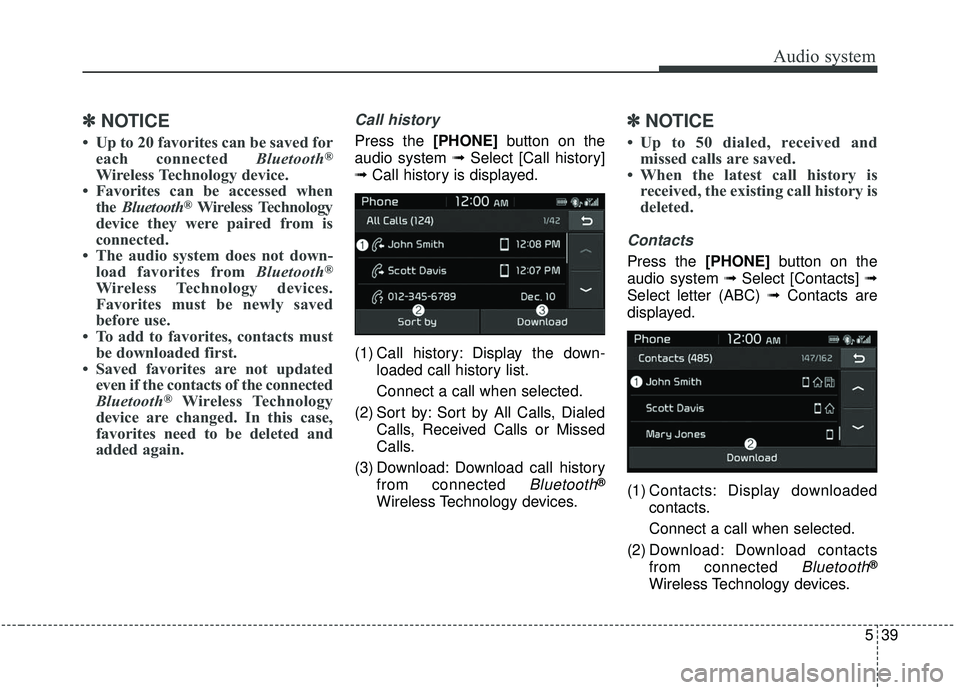
Call history
Press the [PHONE] button on the
audio system ➟ Select [Call history]
➟ Call history is displayed.
(1) Call history: Display the down- loaded call history list.
Connect a call when selected.
(2) Sort by: Sort by All Calls, Dialed Calls, Received Calls or Missed
Calls.
(3) Download: Download call history from connected
Bluetooth®
Wireless Technology devices.
✽ ✽NOTICE
• Up to 50 dialed, received and
missed calls are saved.
• When the latest call history is received, the existing call history is
deleted.
Contacts
Press the [PHONE] button on the
audio system ➟ Select [Contacts] ➟
Select letter (ABC) ➟ Contacts are
displayed.
(1) Contacts: Display downloaded contacts.
Connect a call when selected.
(2) Download: Download contacts from connected
Bluetooth®
Wireless Technology devices.
Page 278 of 564
Audio system
540
✽ ✽NOTICE
• Only supported contacts format
can be downloaded and displayed
from the Bluetooth
®Wireless
device, contacts from some appli-
cations will not be included.
• Up to 2,000 contacts can be saved.
• In some cases, additional confir- mation from your Bluetooth
®
Wireless Technology device is nec-
essary when downloading con-
tacts. If downloading of contacts is
unsuccessful, consult your
Bluetooth
®Wireless Technology
device's settings or the audio
screen to approve the download.
• Contacts without phone numbers are not displayed.
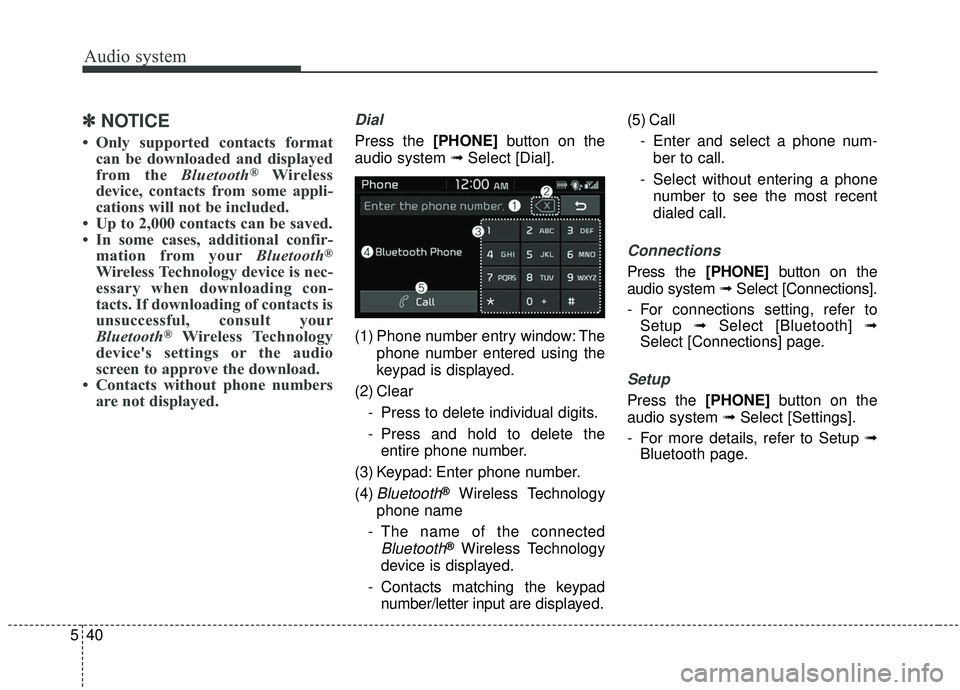
Dial
Press the [PHONE] button on the
audio system ➟ Select [Dial].
(1) Phone number entry window: The phone number entered using the
keypad is displayed.
(2) Clear - Press to delete individual digits.
- Press and hold to delete theentire phone number.
(3) Keypad: Enter phone number.
(4)
Bluetooth®Wireless Technology
phone name
- The name of the connected
Bluetooth®Wireless Technology
device is displayed.
- Contacts matching the keypad number/letter input are displayed.(5) Call
- Enter and select a phone num-ber to call.
- Select without entering a phone number to see the most recent
dialed call.
Connections
Press the [PHONE] button on the
audio system ➟ Select [Connections].
- For connections setting, refer to Setup ➟Select [Bluetooth] ➟
Select [Connections] page.
Setup
Press the [PHONE] button on the
audio system ➟ Select [Settings].
- For more details, refer to Setup ➟ Bluetooth page.