bluetooth KIA SOUL 2019 Owners Manual
[x] Cancel search | Manufacturer: KIA, Model Year: 2019, Model line: SOUL, Model: KIA SOUL 2019Pages: 564, PDF Size: 14.2 MB
Page 247 of 564
Audio system
95
iPod®
iPod®is a registered trademark of Apple Inc.
Bluetooth®Wireless Technology
The Bluetooth®word mark and logos are registered
trademarks owned by Bluetooth SIG, Inc. and any use of
such marks by Kia is under license.
Other trademarks and trade names are those of their
respective owners.
A Bluetooth
®enabled cell phone is required to use
Bluetooth®Wireless Technology.
Page 248 of 564
Audio system
510
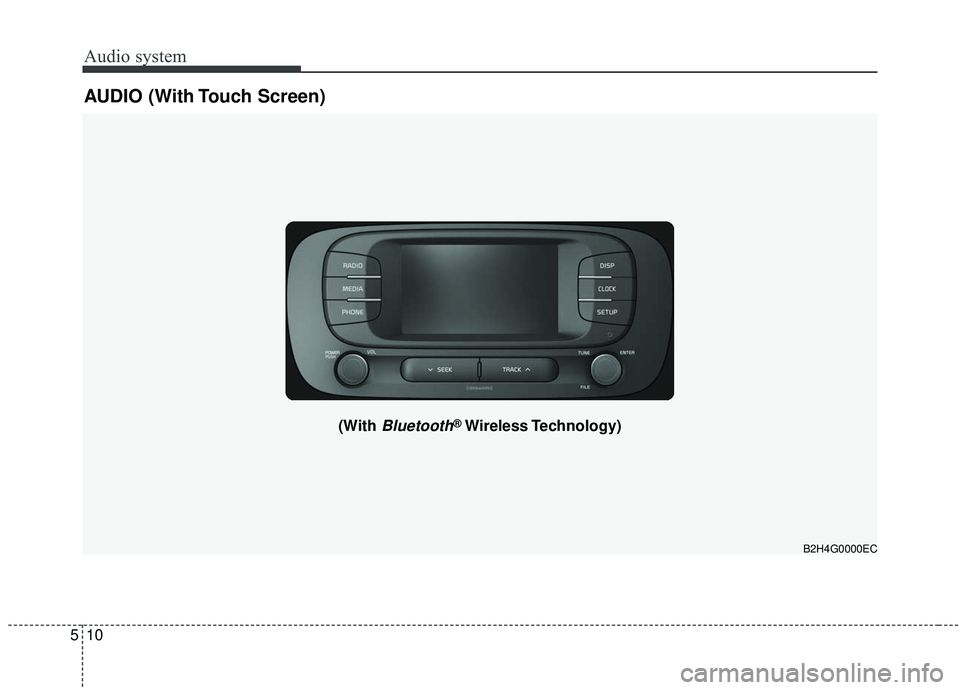
AUDIO (With Touch Screen)
B2H4G0000EC
(With Bluetooth®Wireless Technology)
Page 249 of 564
Audio system
11
5
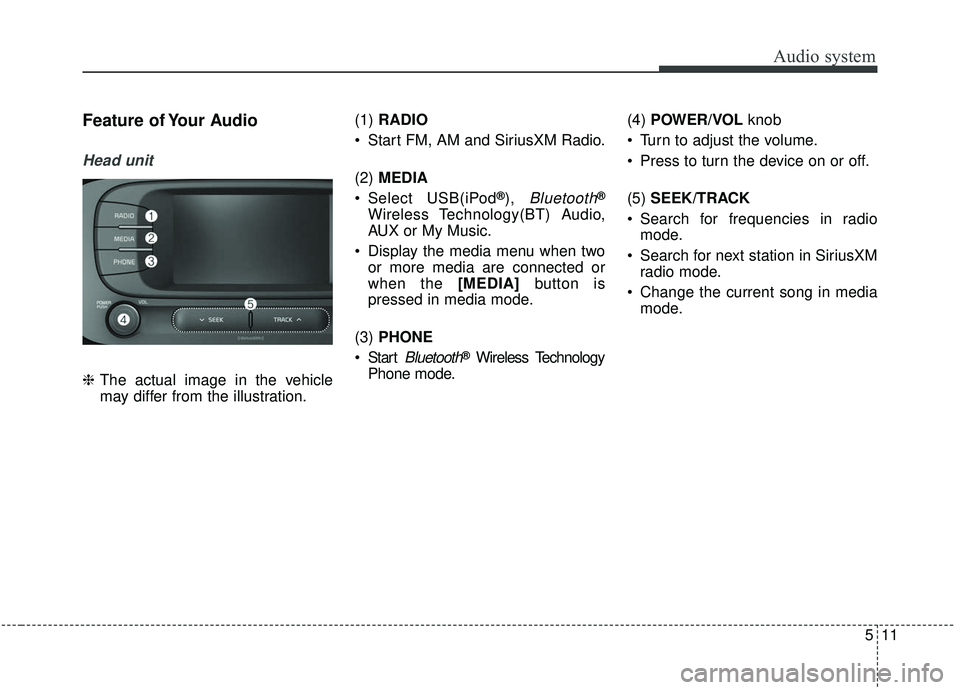
Feature of Your Audio
Head unit
❈ The actual image in the vehicle
may differ from the illustration. (1)
RADIO
Start FM, AM and SiriusXM Radio.
(2) MEDIA
Select USB(iPod
®), Bluetooth®
Wireless Technology(BT) Audio,
AUX or My Music.
Display the media menu when two or more media are connected or
when the [MEDIA] button is
pressed in media mode.
(3) PHONE
Start
Bluetooth®Wireless Technology
Phone mode. (4)
POWER/VOL knob
Turn to adjust the volume.
Press to turn the device on or off.
(5) SEEK/TRACK
Search for frequencies in radio mode.
Search for next station in SiriusXM radio mode.
Change the current song in media mode.
Page 250 of 564
Audio system
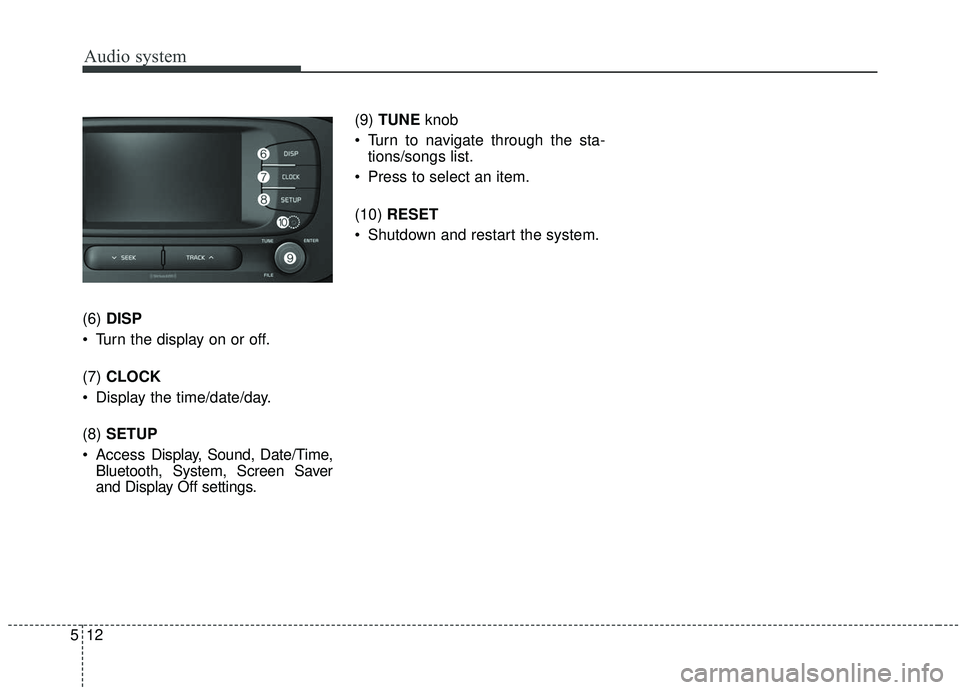
512(6)
DISP
Turn the display on or off.
(7) CLOCK
Display the time/date/day.
(8) SETUP
Access Display, Sound, Date/Time,
Bluetooth, System, Screen Saver
and Display Off settings. (9)
TUNE knob
Turn to navigate through the sta- tions/songs list.
Press to select an item.
(10) RESET
Shutdown and restart the system.
Page 251 of 564
Audio system
13
5
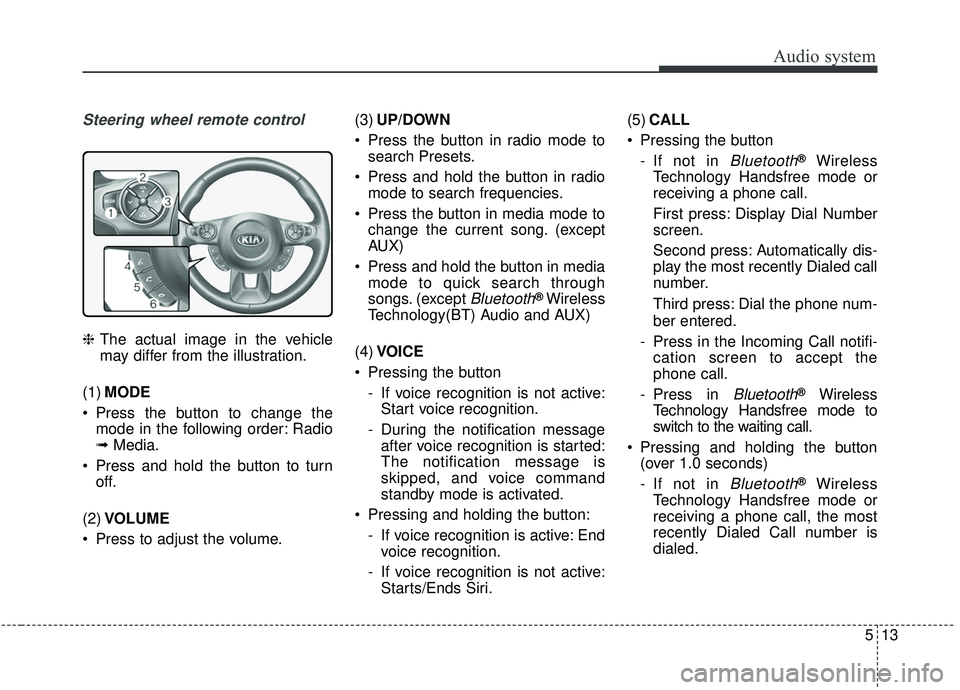
Steering wheel remote control
❈ The actual image in the vehicle
may differ from the illustration.
(1) MODE
Press the button to change the mode in the following order: Radio
➟ Media.
Press and hold the button to turn off.
(2) VOLUME
Press to adjust the volume. (3)
UP/DOWN
Press the button in radio mode to search Presets.
Press and hold the button in radio mode to search frequencies.
Press the button in media mode to change the current song. (except
AUX)
Press and hold the button in media mode to quick search through
songs. (except
Bluetooth®Wireless
Technology(BT) Audio and AUX)
(4) VOICE
Pressing the button - If voice recognition is not active:Start voice recognition.
- During the notification message after voice recognition is started:
The notification message is
skipped, and voice command
standby mode is activated.
Pressing and holding the button: - If voice recognition is active: Endvoice recognition.
- If voice recognition is not active: Starts/Ends Siri. (5)
CALL
Pressing the button - If not in
Bluetooth®Wireless
Technology Handsfree mode or
receiving a phone call.
First press: Display Dial Number
screen.
Second press: Automatically dis-
play the most recently Dialed call
number.
Third press: Dial the phone num-
ber entered.
- Press in the Incoming Call notifi- cation screen to accept the
phone call.
- Press in
Bluetooth®Wireless
Technology Handsfree mode to
switch to the waiting call.
Pressing and holding the button (over 1.0 seconds)
- If not in
Bluetooth®Wireless
Technology Handsfree mode or
receiving a phone call, the most
recently Dialed Call number is
dialed.
Page 252 of 564
- Press in Bluetooth®Wireless
Technology Handsfree mode to
transfer the call to your cell
phone.
- Press in cell phone mode to switch to
Bluetooth®Wireless
Technology Handsfree mode.
(6) END
Press in
Bluetooth®Wireless
Technology Handsfree mode to
end the phone call.
Press in the incoming call screen to reject the call.
WARNING- Driver
Distraction
Do not stare at the screen while driving. Staring at the
screen for prolonged periods
of time could lead to traffic
accidents.
Using the phone while driving may lead to a lack of attention
of traffic conditions and
increase the likelihood of acci-
dents. Use the phone feature
after parking the vehicle.
WARNING- Audio System
Do not disassemble, assem- ble, or modify the audio sys-
tem. Such acts could result
accidents, fire or electric
shock.
Exercise caution not to spill water or introduce foreign
objects into the device. Such
acts could lead to smoke, fire,
or product malfunction.
WARNING
Do not use a cellular phone
while driving. Stop at a safe
location to use a cellular phone.
Audio system
514
WARNING- Distracted
Driving
Driving while distracted can
result in a loss of vehicle con-
trol that may lead to an acci-
dent, severe personal injury,
and death. The driver’s primary
responsibility is in the safe and
legal operation of a vehicle, and
use of any handheld devices,
other equipment, or vehicle sys-
tems which take the driver’s
eyes, attention and focus away
from the safe operation of a
vehicle or which are not permis-
sible by law should never be
used during operation of the
vehicle.
Page 254 of 564
Audio system
516
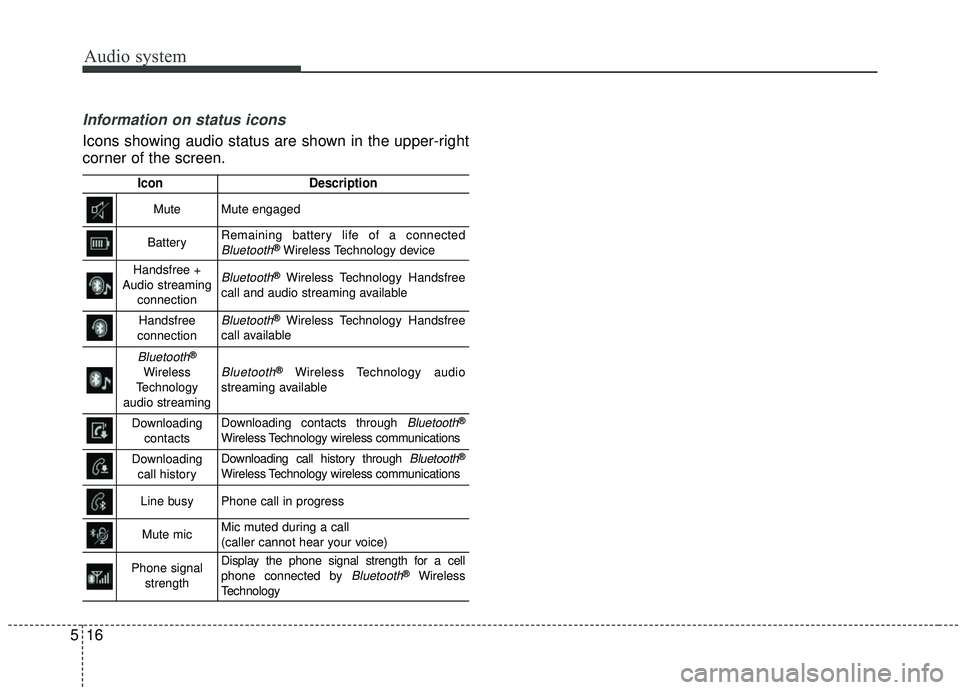
Information on status icons
Icons showing audio status are shown in the upper-right
corner of the screen.
IconDescription
MuteMute engaged
BatteryRemaining battery life of a connectedBluetooth®Wireless Technology device
Handsfree +
Audio streaming connectionBluetooth®Wireless Technology Handsfree
call and audio streaming available
Handsfree
connectionBluetooth®Wireless Technology Handsfree
call available
Bluetooth®
Wireless
Technology
audio streamingBluetooth®Wireless Technology audio
streaming available
Downloading contactsDownloading contacts through Bluetooth®
Wireless Technology wireless communications
Downloading call historyDownloading call history through Bluetooth®
Wireless Technology wireless communications
Line busyPhone call in progress
Mute micMic muted during a call
(caller cannot hear your voice)
Phone signal strengthDisplay the phone signal strength for a cell
phone connected by Bluetooth®Wireless
Technology
Page 264 of 564
Audio system
526
(Continued)
• There may be noise if the audiosystem is used with an iPod
®or
AUX external device connected to
the power jack. In these cases, dis-
connect the iPod
®or external
device from the power jack.
• Play may be interrupted, or device malfunctions may occur depend-
ing on the characteristics of your
iPod
®/iPhone®/iPad®.
• Play may fail if your iPhone®is
connected through both
Bluetooth
®Wireless Technology
and USB. In this case, select Dock
connector or Bluetooth
®Wireless
Technology on your iPhone®to
change the sound output settings.
• If your software version does not support the communication proto-
col or your iPod
®is not recognized
due to device failure, anomalies or
defects, iPod
®mode cannot be
used.
• iPod
®nano (5th generation)
devices may not be recognized if
the battery is low. Charge suffi-
ciently before use. (Continued)(Continued)
• The search and song play order in
the iPod
®device may be different
from the search order in the audio
system.
• If the iPod
®has failed due to an
internal defect, please reset the
iPod
®(consult your iPod®manu-
al).
• Depending on the software ver- sion, the iPod
®may fail to sync
with the system. If the media is
removed or disconnected before
recognition, the previous mode
may not be restored (iPad
®cannot
be charged).
• Cables other than the 1-meter cable provided with iPod
®/iPhone®/iPad®
products may not be recognized.
• When other music apps are used on your iPod
®, the system sync
function may fail due to malfunc-
tion of the iPod
®application.
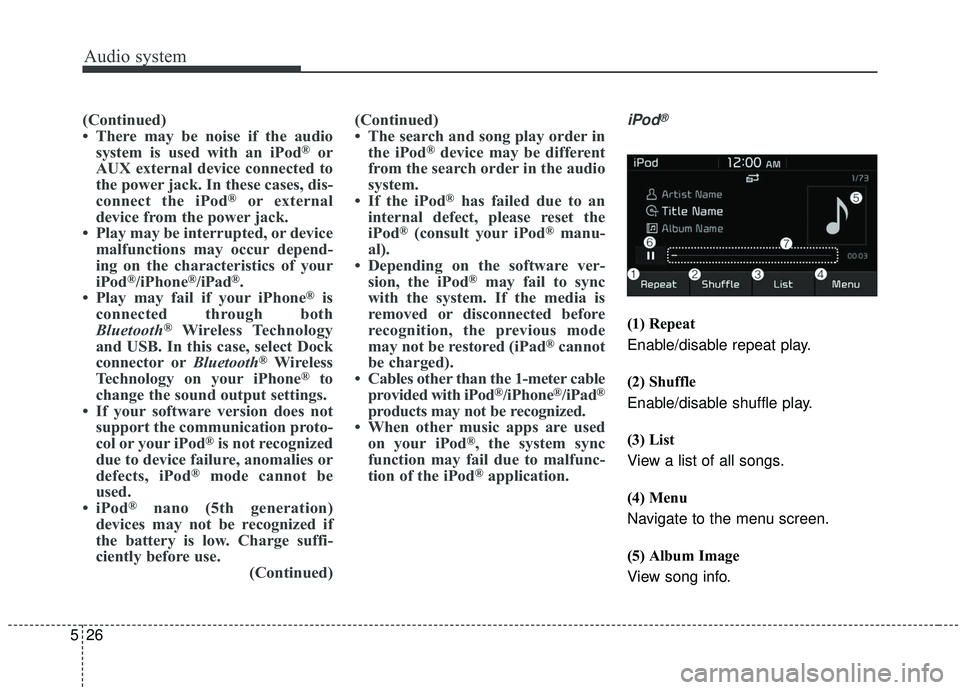
iPod®
(1) Repeat
Enable/disable repeat play.
(2) Shuffle
Enable/disable shuffle play.
(3) List
View a list of all songs.
(4) Menu
Navigate to the menu screen.
(5) Album Image
View song info.
Page 266 of 564
![KIA SOUL 2019 Owners Manual Audio system
528
✽ ✽NOTICE
Operation cannot be carried out
correctly due to iPod®application
malfunction.
Playing iPod files
Select [Play iPod Files] to play songs
saved on your iPod
®.
If there](/img/2/40387/w960_40387-265.png "KIA SOUL 2019 Owners Manual Audio system
528
✽ ✽NOTICE
Operation cannot be carried out
correctly due to iPod®application
malfunction.
Playing iPod files
Select [Play iPod Files] to play songs
saved on your iPod
®.
If there")
Audio system
528
✽ ✽NOTICE
Operation cannot be carried out
correctly due to iPod®application
malfunction.
Playing iPod files
Select [Play iPod Files] to play songs
saved on your iPod
®.
If there are no songs saved on your
iPod
®, the [Play iPod Files] is dis-
abled.
✽ ✽ NOTICE
-
Using Bluetooth®Wireless
Technology Audio
• Bluetooth®Wireless Technology
Audio mode can only be used if a
Bluetooth
®Wireless Technology-
enabled phone is connected. Only
devices that support Bluetooth
®
Wireless Technology audio can be
used.
• If the Bluetooth
®Wireless
Technology-enabled phone is dis-
connected during play, the music
stops.
• When the TRACK UP/DOWN buttons are used during
Bluetooth
®Wireless Technology
audio streaming, a popping noise
or sound interruptions may occur,
depending on the cell phone
device.
• Depending on the cell phone model, the audio streaming func-
tion may not be supported. (Continued)(Continued)
• If a phone call is made or received
when music is playing in
Bluetooth
®Wireless Technology
Audio mode, the call may mix with
the music.
• When returning to Bluetooth
®
Wireless Technology Audio mode
after ending a call, play might not
resume automatically for some cell
phone models.
Page 267 of 564
Audio system
29
5
Precautions for Safe Driving
Bluetooth®Wireless Technology
Handsfree is a feature that enables
drivers to practice safe driving.
Connecting the car audio system
with a
Bluetooth®Wireless
Technology phone allows the user
to conveniently make calls, receive
calls, and manage the phone book.
Before using the
Bluetooth®
Wireless Technology, carefully
read the contents of this user’s
manual.
Excessive use or operations while driving may lead to negligent driv-
ing practices and be the cause of
accidents.
Do not operate the device exces- sively while driving.
Viewing the screen for prolonged periods of time is dangerous and
may lead to accidents.
When driving, view the screen only for short periods of time.
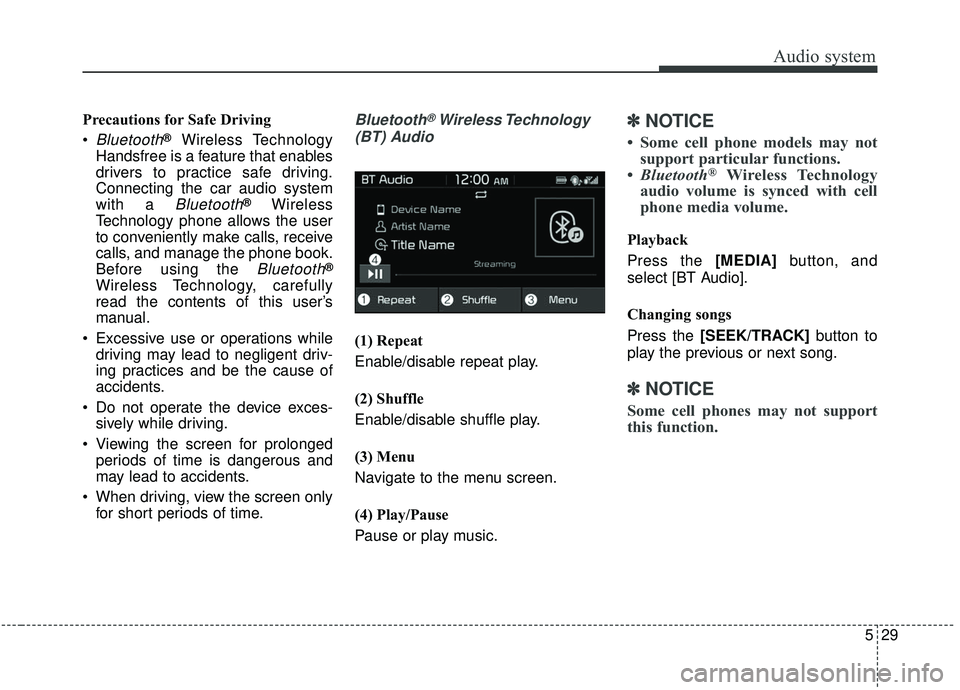
Bluetooth®Wireless Technology
(BT) Audio
(1) Repeat
Enable/disable repeat play.
(2) Shuffle
Enable/disable shuffle play.
(3) Menu
Navigate to the menu screen.
(4) Play/Pause
Pause or play music.
✽ ✽ NOTICE
• Some cell phone models may not
support particular functions.
• Bluetooth
®Wireless Technology
audio volume is synced with cell
phone media volume.
Playback
Press the [MEDIA] button, and
select [BT Audio].
Changing songs
Press the [SEEK/TRACK] button to
play the previous or next song.
✽ ✽ NOTICE
Some cell phones may not support
this function.