radio KIA SOUL 2019 User Guide
[x] Cancel search | Manufacturer: KIA, Model Year: 2019, Model line: SOUL, Model: KIA SOUL 2019Pages: 564, PDF Size: 14.2 MB
Page 255 of 564
Audio system
17
5
Radio
You can listen to FM, AM and
SiriusXM radio.
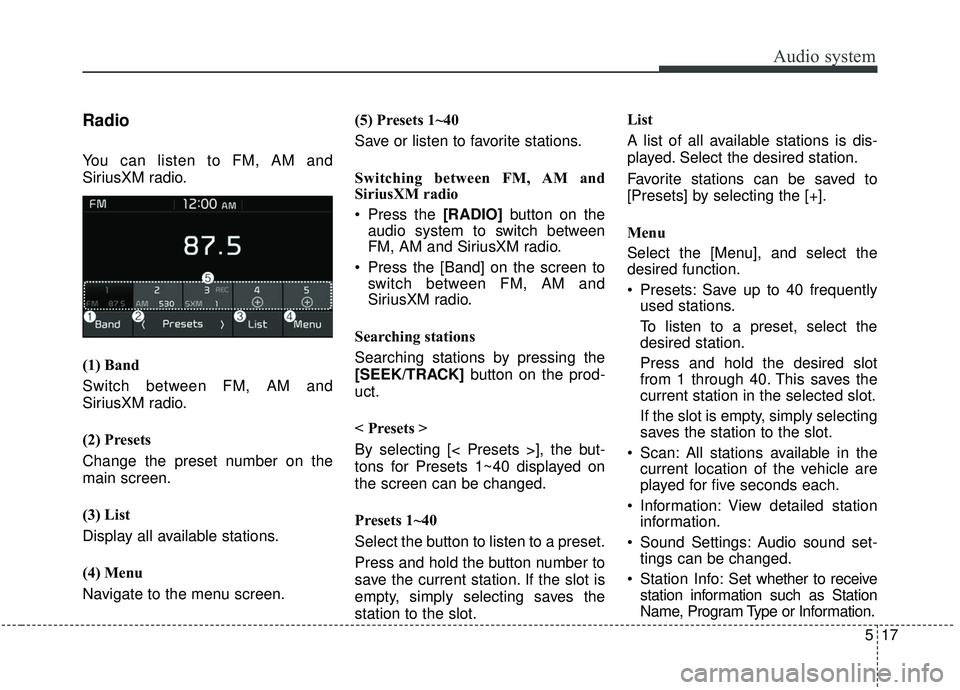
(1) Band
Switch between FM, AM and
SiriusXM radio.
(2) Presets
Change the preset number on the
main screen.
(3) List
Display all available stations.
(4) Menu
Navigate to the menu screen. (5) Presets 1~40
Save or listen to favorite stations.
Switching between FM, AM and
SiriusXM radio
Press the [RADIO]
button on the
audio system to switch between
FM, AM and SiriusXM radio.
Press the [Band] on the screen to switch between FM, AM and
SiriusXM radio.
Searching stations
Searching stations by pressing the
[SEEK/TRACK] button on the prod-
uct.
< Presets >
By selecting [< Presets >], the but-
tons for Presets 1~40 displayed on
the screen can be changed.
Presets 1~40
Select the button to listen to a preset.
Press and hold the button number to
save the current station. If the slot is
empty, simply selecting saves the
station to the slot. List
A list of all available stations is dis-
played. Select the desired station.
Favorite stations can be saved to
[Presets] by selecting the [+].
Menu
Select the [Menu], and select the
desired function.
Presets: Save up to 40 frequently
used stations.
To listen to a preset, select the
desired station.
Press and hold the desired slot
from 1 through 40. This saves the
current station in the selected slot.
If the slot is empty, simply selecting
saves the station to the slot.
Scan: All stations available in the current location of the vehicle are
played for five seconds each.
Information: View detailed station information.
Sound Settings: Audio sound set- tings can be changed.
Station Info: Set whether to receive
station information such as Station
Name, Program Type or Information.
Page 256 of 564
Audio system
518
✽ ✽NOTICE
-
SiriusXM®Satellite Radio
information
• Satellite Radio channels: Enjoy SiriusXM Satellite Radio
with a 3-month trial subscription
to the Sirius Select package. You’ll
get over variable channels, includ-
ing commercial-free music, plus
all your favorite sports, exclusive
talk, entertainment, and a selec-
tion of premium programming.
For more information and a com-
plete list of SiriusXM channels,
visit siriusxm.com in the United
States, siriusxm.ca in Canada, or
call SiriusXM at 1-888-539-7474.
• Satellite Radio reception factors: To receive the satellite signal, your
vehicle has been equipped with a
satellite radio antenna located on
the roof of your vehicle. The vehi-
cle roof provides the best location
for an unobstructed, open view of
the sky, a requirement of a satellite
radio system. Like AM/FM, there
are several factors that can affect
satellite radio reception perform-
ance: (Continued)(Continued)
- Antenna obstructions: For opti-mal reception performance, keep
the antenna clear of snow and
ice build-up and keep luggage
and other material as far away
from the antenna as possible.
• SiriusXM Satellite Radio service: SiriusXM is a subscription-based
satellite radio service that broad-
casts music, sports, news and
entertainment programming to
radio receivers, which are avail-
able for installation in motor vehi-
cles or factory installed, as well as
for the home, portable and wire-
less devices, and through an Internet
connection on a personal computer.
Vehicles that are equipped with a
factory installed SiriusXM Satellite
Radio system include:
- Hardware and an introductorytrial subscription term, which
begins on the date of sale or lease
of the vehicle.
- For a small upgrade fee, access to SiriusXM music channels, and
other select channels over the
Internet using any computer con-
nected to the Internet (U.S. cus-
tomers only).
(Continued)(Continued)
• SiriusXM services require a sub-
scription sold separately, or as a
package, by Sirius XM Radio Inc.
If you decide to continue service
after your trial, the subscription
plan you choose will automatically
renew thereafter and you will be
charged according to your chosen
payment method at then-current
rates. Fees and taxes apply. To
cancel you must call SiriusXM at
1-866-635-2349. See SiriusXM
Customer Agreement for complete
terms at www.siriusxm.com.
SiriusXM U.S. satellite and data
services are available only in the
48 contiguous states, DC and
Puerto Rico (with coverage limita-
tions). SiriusXM satellite service is
also available in Canada; see
www.siriusxm. ca. All fees and
programming subject to change.
Sirius, XM and all related marks
and logos are trademarks of Sirius
XM Radio Inc.
Page 257 of 564
Audio system
19
5
SiriusXM Radio
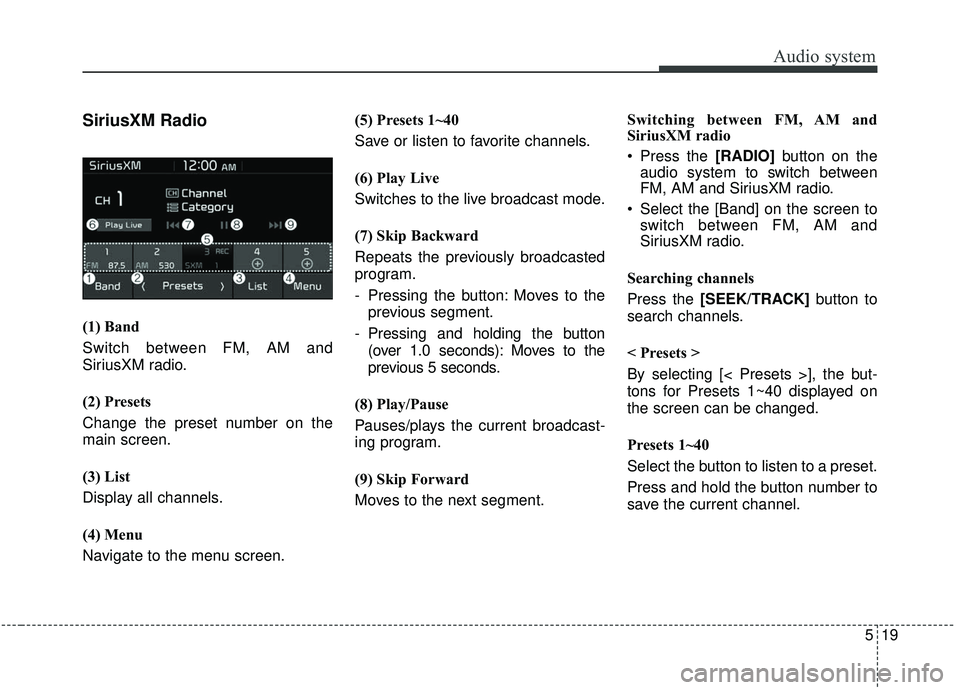
(1) Band
Switch between FM, AM and
SiriusXM radio.
(2) Presets
Change the preset number on the
main screen.
(3) List
Display all channels.
(4) Menu
Navigate to the menu screen. (5) Presets 1~40
Save or listen to favorite channels.
(6) Play Live
Switches to the live broadcast mode.
(7) Skip Backward
Repeats the previously broadcasted
program.
- Pressing the button: Moves to the
previous segment.
- Pressing and holding the button (over 1.0 seconds): Moves to the
previous 5 seconds.
(8) Play/Pause
Pauses/plays the current broadcast-
ing program.
(9) Skip Forward
Moves to the next segment. Switching between FM, AM and
SiriusXM radio
Press the [RADIO]
button on the
audio system to switch between
FM, AM and SiriusXM radio.
Select the [Band] on the screen to switch between FM, AM and
SiriusXM radio.
Searching channels
Press the [SEEK/TRACK] button to
search channels.
< Presets >
By selecting [< Presets >], the but-
tons for Presets 1~40 displayed on
the screen can be changed.
Presets 1~40
Select the button to listen to a preset.
Press and hold the button number to
save the current channel.
Page 279 of 564
Audio system
41
5
Voice Recognition
✽ ✽
NOTICE
-
Using the Voice Recognition
• Voice recognition is a safety tech-
nology that recognizes user voice
commands and executes multime-
dia functions during driving.
• Unfortunately, due to technical limitations, the system is unable to
recognize all voice commands. To
address these limitations, the voice
commands that the system recog-
nizes are displayed on the screen.
Use the displayed commands.
• Because human speech varies, voice recognition is sometimes
unable to properly recognize user
voice commands. In these cases,
repeat the voice command dis-
played on the screen, or use the
button on the screen to execute the
desired function.
Precautions to ensure smooth voice
recognition
If the language setting is Korean,
voice recognition is not supported.
Voice recognition only supports voice commands indicated on-
screen or in the user manual.
For proper voice recognition, speak after the beep, which
sounds after voice notification.
Voice recognition automatically stops in the following events.
1) Outgoing and incoming phone calls.
2) Media (USB, etc.) is connected (voice recognition mode is main-
tained when iPod
®s are connected).
3) Rear camera is activated
(if
equipped)
.
4) Vehicle is started or engine is turned off.
5) Screen transition buttons, such as [RADIO] or [MEDIA], are
selected.
6) When a pop-up message is dis- played on the screen due to
accidental execution of the voice
recognition function. The voice recognition microphone
is located above the driver’s seat.
To ensure proper voice recogni-
tion, state voice commands while
maintaining proper driving posture.
Better voice recognition is possible if you speak naturally and clearly,
as you would in normal conversa-
tion.
In the following situations, outdoor noise may prevent proper voice
recognition.
1) Wind noise from an open win- dow or sunroof may disrupt
voice recognition.
2) Operating the climate blower at a high level may cause wind
noise that disrupts voice recog-
nition. The recommended set-
ting is 3 or below.
3) When passing through tunnels, vehicle echoes may disrupt
voice recognition.
4) When passing over uneven ter- rain, vehicle noise may disrupt
voice recognition.
5) Noise from rain in heavy storms may disrupt voice recognition.
Page 283 of 564
Audio system
45
5
(6) Help: Available voice commands
displayed in stages.
(7) Exit: End voice recognition.
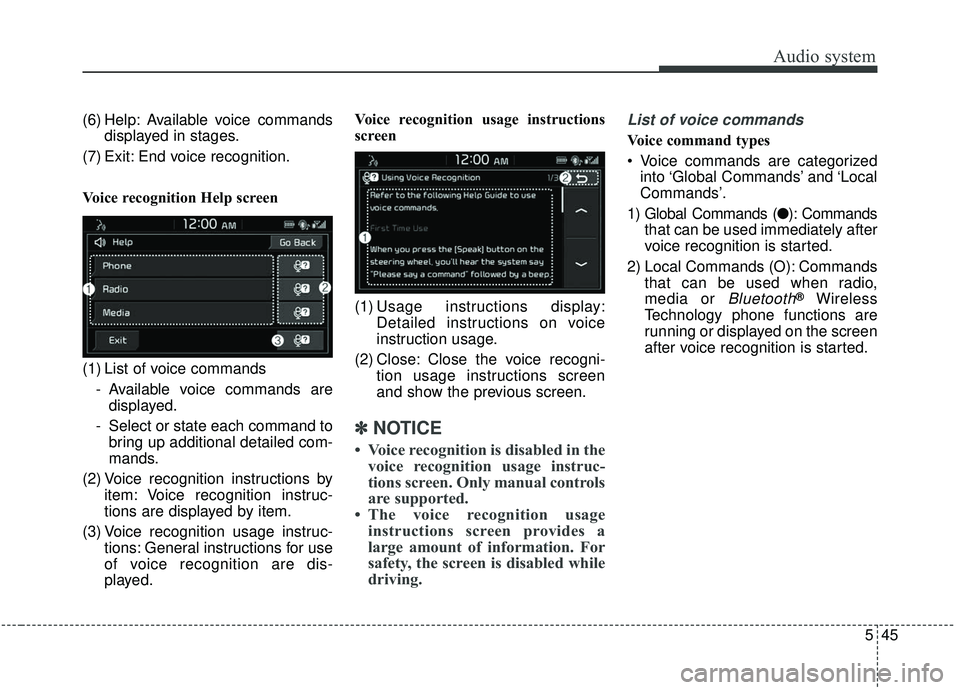
Voice recognition Help screen
(1) List of voice commands - Available voice commands aredisplayed.
- Select or state each command to bring up additional detailed com-
mands.
(2) Voice recognition instructions by item: Voice recognition instruc-
tions are displayed by item.
(3) Voice recognition usage instruc- tions: General instructions for use
of voice recognition are dis-
played. Voice recognition usage instructions
screen
(1) Usage instructions display:
Detailed instructions on voice
instruction usage.
(2) Close: Close the voice recogni- tion usage instructions screen
and show the previous screen.
✽ ✽NOTICE
• Voice recognition is disabled in the
voice recognition usage instruc-
tions screen. Only manual controls
are supported.
• The voice recognition usage instructions screen provides a
large amount of information. For
safety, the screen is disabled while
driving.
List of voice commands
Voice command types
Voice commands are categorized
into ‘Global Commands’ and ‘Local
Commands’.
1) Global Commands (● ): Commands
that can be used immediately after
voice recognition is started.
2) Local Commands (O): Commands that can be used when radio,
media or
Bluetooth®Wireless
Technology phone functions are
running or displayed on the screen
after voice recognition is started.
Page 285 of 564
Audio system
47
5
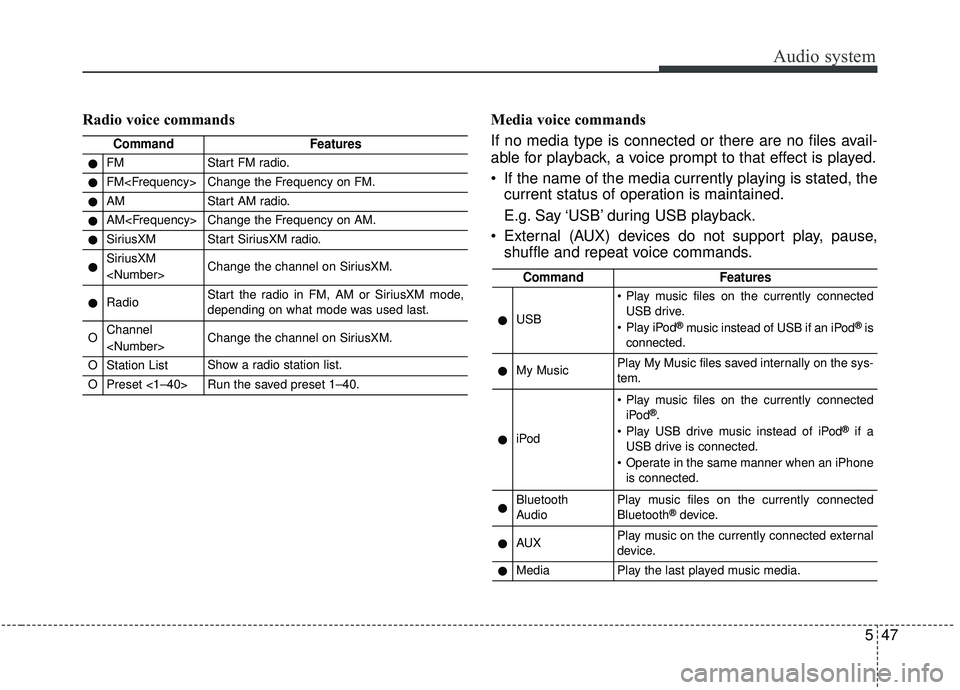
Radio voice commands Media voice commands
If no media type is connected or there are no files avail-
able for playback, a voice prompt to that effect is played.
If the name of the media currently playing is stated, the current status of operation is maintained.
E.g. Say ‘USB’ during USB playback.
External (AUX) devices do not support play, pause, shuffle and repeat voice commands.
CommandFeatures
●FMStart FM radio.
●FM
●AMStart AM radio.
●AM
●SiriusXMStart SiriusXM radio.
●SiriusXM
●RadioStart the radio in FM, AM or SiriusXM mode,
depending on what mode was used last.
OChannel
OStation ListShow a radio station list.
OPreset <1–40>Run the saved preset 1–40.
CommandFeatures
●USB
Play music files on the currently connected
USB drive.
Play iPod
®music instead of USB if an iPod®is
connected.
●My MusicPlay My Music files saved internally on the sys-
tem.
●iPod
Play music files on the currently connected iPod®.
Play USB drive music instead of iPod®if a
USB drive is connected.
Operate in the same manner when an iPhone is connected.
●Bluetooth
AudioPlay music files on the currently connected
Bluetooth®device.
●AUXPlay music on the currently connected external
device.
●MediaPlay the last played music media.
Page 287 of 564
Audio system
49
5
Siri
✽ ✽
NOTICE - Using Siri
• Android device is not supported to
use Siri.
• If you want to use Siri, you have to connect your iOS device to the
multimedia system through
Bluetooth
®Wireless Technology.
(Please check whether your iOS
device supports Siri and turning
Siri On)
• If the iOS version is changed, the functions and response may be dif-
ferent according to the iOS device
and the latest version.
• Siri automatically stops in the fol- lowing events.
1) Outgoing and incoming phone calls.
2) Media (USB, etc.) is connected. (Siri mode is maintained when
iPod
®s are connected)
3) Rear camera is activated
(if
equipped).
4) Vehicle is started or engine is
turned off. (Continued)(Continued)
5) Screen transition buttons, such as RADIO or MEDIA, are
selected.
6) When a pop-up message is dis- played on the screen due to
accidental execution of Siri.
• The microphone is located above the driver’s seat. To ensure proper
Siri, state your voice while main-
taining proper driving posture.
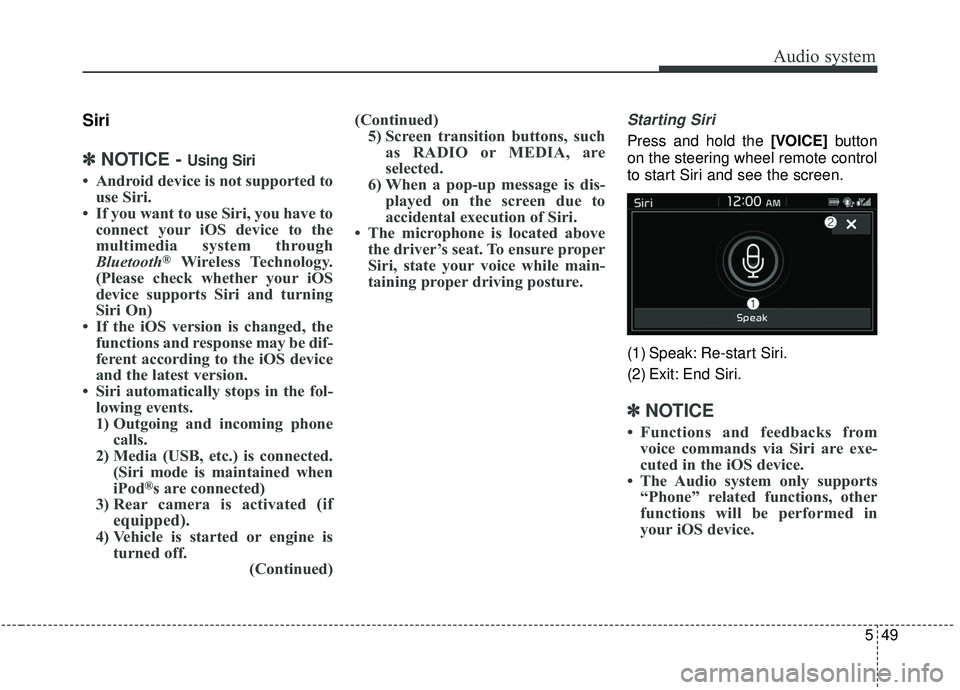
Starting Siri
Press and hold the [VOICE] button
on the steering wheel remote control
to start Siri and see the screen.
(1) Speak: Re-start Siri.
(2) Exit: End Siri.
✽ ✽ NOTICE
• Functions and feedbacks from
voice commands via Siri are exe-
cuted in the iOS device.
• The Audio system only supports “Phone” related functions, other
functions will be performed in
your iOS device.
Page 290 of 564
Audio system
552
IC
This device complies with Industry Canada license-exempt RSS standard(s). Operation is subject to the following two
conditions: (1) This device may not cause interference; and (2) This device must accept any interference, including
interference that may cause undesired operation of the device.
Le présent appareil est conforme aux CNR d'Industrie Canada applicables aux appareils radio exempts de licence.
L'exploitation est autorisée aux deux conditions suivantes : (1) l'appareil ne doit pas produire de brouillage, et (2) l'u-
tilisateur de l'appareil doit accepter tout brouillage radioélectrique subi, même si le brouillage est susceptible d'en
compromettre le fonctionnement.
RF Exposure
The antenna (or antennas) must be installed so as to maintain at all times a distance minimum of at least 20 cm
between the radiation source (antenna) and any individual. This device may not be installed or used in conjunction
with any other antenna or transmitter.
l'exposition aux RF
L’antenne (ou les antennes) doit tre install e de fa on maintenir tout instant une distance minimum de au moins 20 cm
entre la source de radiation (l’antenne) et toute personne physique.
Declaration of Conformity
Page 556 of 564
Index
2I
Air bag - advanced supplemental restraint system . . . . 3-42Adding equipment to or modifying your air bag-equipped vehicle . . . . . . . . . . . . . . . . . . . . 3-68
Air bag warning label. . . . . . . . . . . . . . . . . . . . . . . . 3-68
Air bag warning light . . . . . . . . . . . . . . . . . . . . . . . . 3-45
Curtain air bag . . . . . . . . . . . . . . . . . . . . . . . . . . . . . 3-61
Driver's and passenger's front air bag . . . . . . . . . . . 3-56
How does the air bag system operate. . . . . . . . . . . . 3-43
Occupant Detection System (ODS) . . . . . . . . . . . . . 3-49
Side air bag. . . . . . . . . . . . . . . . . . . . . . . . . . . . . . . . 3-59
SRS Care . . . . . . . . . . . . . . . . . . . . . . . . . . . . . . . . . 3-67
SRS components and functions . . . . . . . . . . . . . . . . 3-46
Air cleaner . . . . . . . . . . . . . . . . . . . . . . . . . . . . . . . . . . 8-36\
Filter replacement. . . . . . . . . . . . . . . . . . . . . . . . . . . 8-36
Air conditioning system . . . . . . . . . . . . . . . . . . . . . . . 9-6
Appearance care . . . . . . . . . . . . . . . . . . . . . . . . . . . . . . 8-94 Exterior care . . . . . . . . . . . . . . . . . . . . . . . . . . . . . . . 8-94
Interior care . . . . . . . . . . . . . . . . . . . . . . . . . . . . . . . 8-99
Audio (with Touch Screen). . . . . . . . . . . . . . . . . . . . . . 5-10 Feature of Your Audio . . . . . . . . . . . . . . . . . . . . . . . 5-11
Media . . . . . . . . . . . . . . . . . . . . . . . . . . . . . . . . . . . . \
5-21
Phone . . . . . . . . . . . . . . . . . . . . . . . . . . . . . . . . . . . . \
5-32
Radio . . . . . . . . . . . . . . . . . . . . . . . . . . . . . . . . . . . . \
5-17
Setup . . . . . . . . . . . . . . . . . . . . . . . . . . . . . . . . . . . . \
. 5-50
Siri . . . . . . . . . . . . . . . . . . . . . . . . . . . . . . . . . . . . \
. . 5-49 SiriusXM . . . . . . . . . . . . . . . . . . . . . . . . . . . . . . . . . 5-19
Voice Recognition . . . . . . . . . . . . . . . . . . . . . . . . . . 5-41
Audio System . . . . . . . . . . . . . . . . . . . . . . . . . . . . . . . . . 5-2 Antenna . . . . . . . . . . . . . . . . . . . . . . . . . . . . . . . . . . . 5-\
2
Audio remote control . . . . . . . . . . . . . . . . . . . . . . . . . 5-3
AUX and USB port . . . . . . . . . . . . . . . . . . . . . . . . . . 5-4
How vehicle audio works . . . . . . . . . . . . . . . . . . . . . . 5-6
Speaker lights . . . . . . . . . . . . . . . . . . . . . . . . . . . . . . . 5-4
Automatic climate control system . . . . . . . . . . . . . . . 4-117 Automatic heating and air conditioning. . . . . . . . . 4-118
Checking the amount of air conditioner refrigerant and compressor lubricant . . . . . . . . . . . . . . . . . . . . . . 4-129
Climate control air filter. . . . . . . . . . . . . . . . . . . . . 4-129
Manual heating and air conditioning . . . . . . . . . . . 4-119
System operation . . . . . . . . . . . . . . . . . . . . . . . . . . 4-127
Automatic transaxle . . . . . . . . . . . . . . . . . . . . . . . . . . . 6-19 Automatic transaxle operation . . . . . . . . . . . . . . . . . 6-19
Good driving practices . . . . . . . . . . . . . . . . . . . . . . . 6-25
Autonomous Emergency Braking (AEB) . . . . . . . . . . . 6-50 Brake operation . . . . . . . . . . . . . . . . . . . . . . . . . . . . 6-54
Limitations of the system . . . . . . . . . . . . . . . . . . . . . 6-58
Sensor to detect the distance from the vehicle in front (Front radar) . . . . . . . . . . . . . . . . . . . . . . . . . . . . . . 6-55
System malfunction . . . . . . . . . . . . . . . . . . . . . . . . . 6-56
System setting and activation . . . . . . . . . . . . . . . . . . 6-50
A