ECO mode KIA SOUL 2019 Owner's Manual
[x] Cancel search | Manufacturer: KIA, Model Year: 2019, Model line: SOUL, Model: KIA SOUL 2019Pages: 564, PDF Size: 14.2 MB
Page 257 of 564
Audio system
19
5
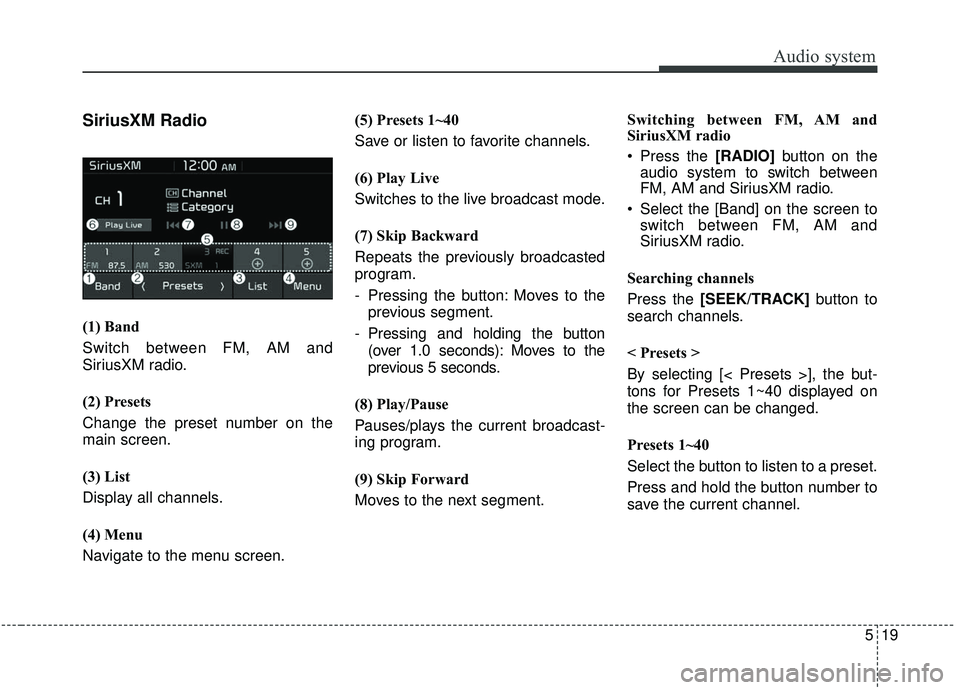
SiriusXM Radio
(1) Band
Switch between FM, AM and
SiriusXM radio.
(2) Presets
Change the preset number on the
main screen.
(3) List
Display all channels.
(4) Menu
Navigate to the menu screen. (5) Presets 1~40
Save or listen to favorite channels.
(6) Play Live
Switches to the live broadcast mode.
(7) Skip Backward
Repeats the previously broadcasted
program.
- Pressing the button: Moves to the
previous segment.
- Pressing and holding the button (over 1.0 seconds): Moves to the
previous 5 seconds.
(8) Play/Pause
Pauses/plays the current broadcast-
ing program.
(9) Skip Forward
Moves to the next segment. Switching between FM, AM and
SiriusXM radio
Press the [RADIO]
button on the
audio system to switch between
FM, AM and SiriusXM radio.
Select the [Band] on the screen to switch between FM, AM and
SiriusXM radio.
Searching channels
Press the [SEEK/TRACK] button to
search channels.
< Presets >
By selecting [< Presets >], the but-
tons for Presets 1~40 displayed on
the screen can be changed.
Presets 1~40
Select the button to listen to a preset.
Press and hold the button number to
save the current channel.
Page 261 of 564
Audio system
23
5
(Continued)
• Use of aftermarket USB hubs and
extension cables can result in the
vehicle’s audio system failing to
recognize your USB device.
Connect the USB device directly to
the multimedia port of your vehi-
cle.
• When using high-capacity USB devices with logical drive divi-
sions, only files saved on the high-
est level logical drive can be
played.
If applications are loaded on a
USB drive, file playback may fail.
• Some MP3 players, cell phones, digital cameras, etc. (USB devices
that are not recognized as mobile
storage) may not operate normally
when connected.
• USB charging may not be sup- ported by some mobile devices.
• Operation is guaranteed only for standard (Metal Cover Type) USB
Memory drives.
• Operation of HDD, CF, SD and memory stick devices is not guar-
anteed. (Continued)(Continued)
• DRM (Digital Rights Management)
files cannot be played.
• SD-type USB memory, CF-type USB memory, and other USB
memory devices that require
adapters for connection are not
supported.
• Proper operation of USB HDDs or USB
drives with connectors
that loosen due to vehi-
cle vibrations is not guaranteed.
(iStick, etc.)
• USB products that are used as key chains or cell phone accessories
may damage the USB jack and
affect proper file playback. Please
refrain from use. Use only prod-
ucts with plug connectors, as
shown in the following illustration.
• When MP3 devices or cell phones are connected simultaneously
through AUX, BT Audio and USB
modes, a popping noise or mal-
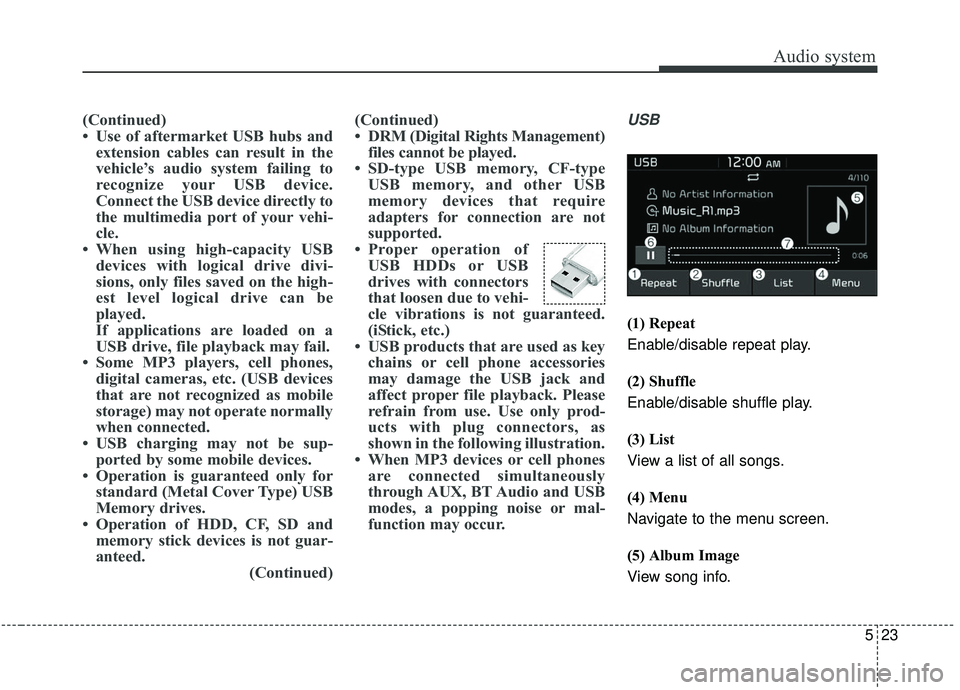
function may occur.USB
(1) Repeat
Enable/disable repeat play.
(2) Shuffle
Enable/disable shuffle play.
(3) List
View a list of all songs.
(4) Menu
Navigate to the menu screen.
(5) Album Image
View song info.
Page 264 of 564
Audio system
526
(Continued)
• There may be noise if the audiosystem is used with an iPod
®or
AUX external device connected to
the power jack. In these cases, dis-
connect the iPod
®or external
device from the power jack.
• Play may be interrupted, or device malfunctions may occur depend-
ing on the characteristics of your
iPod
®/iPhone®/iPad®.
• Play may fail if your iPhone®is
connected through both
Bluetooth
®Wireless Technology
and USB. In this case, select Dock
connector or Bluetooth
®Wireless
Technology on your iPhone®to
change the sound output settings.
• If your software version does not support the communication proto-
col or your iPod
®is not recognized
due to device failure, anomalies or
defects, iPod
®mode cannot be
used.
• iPod
®nano (5th generation)
devices may not be recognized if
the battery is low. Charge suffi-
ciently before use. (Continued)(Continued)
• The search and song play order in
the iPod
®device may be different
from the search order in the audio
system.
• If the iPod
®has failed due to an
internal defect, please reset the
iPod
®(consult your iPod®manu-
al).
• Depending on the software ver- sion, the iPod
®may fail to sync
with the system. If the media is
removed or disconnected before
recognition, the previous mode
may not be restored (iPad
®cannot
be charged).
• Cables other than the 1-meter cable provided with iPod
®/iPhone®/iPad®
products may not be recognized.
• When other music apps are used on your iPod
®, the system sync
function may fail due to malfunc-
tion of the iPod
®application.
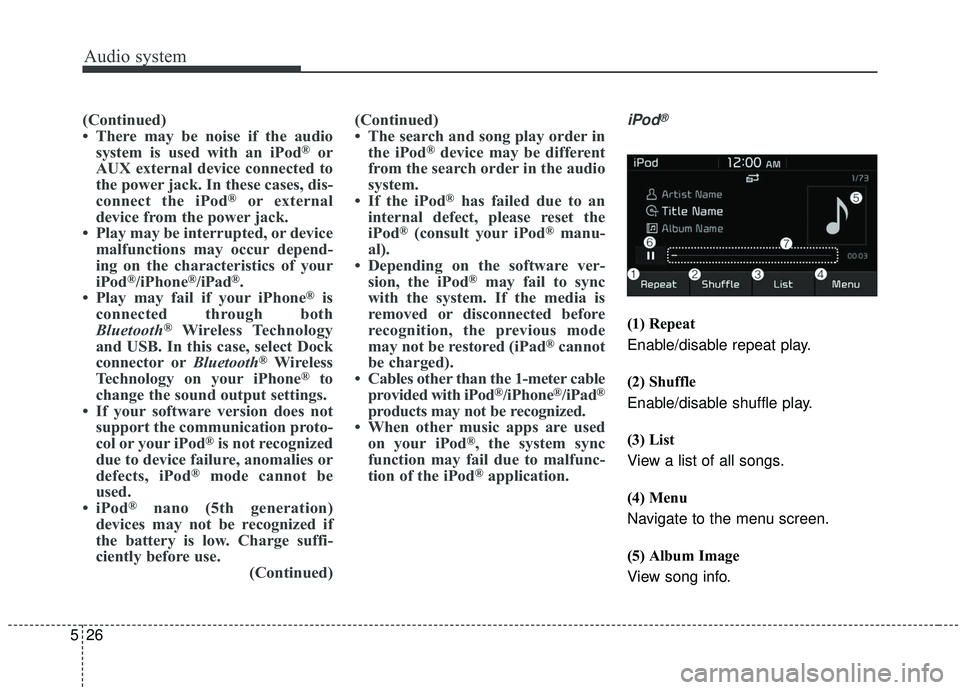
iPod®
(1) Repeat
Enable/disable repeat play.
(2) Shuffle
Enable/disable shuffle play.
(3) List
View a list of all songs.
(4) Menu
Navigate to the menu screen.
(5) Album Image
View song info.
Page 274 of 564
![KIA SOUL 2019 Owners Manual Audio system
536Pairing a second Bluetooth
®Wireless
Technology device
Press the [SETUP] button on the
audio system ➟ Select [Bluetooth] ➟
Select [Connections] ➟ Select [Add
New].
- The pairing](/img/2/40387/w960_40387-273.png "KIA SOUL 2019 Owners Manual Audio system
536Pairing a second Bluetooth
®Wireless
Technology device
Press the [SETUP] button on the
audio system ➟ Select [Bluetooth] ➟
Select [Connections] ➟ Select [Add
New].
- The pairing")
Audio system
536Pairing a second Bluetooth
®Wireless
Technology device
Press the [SETUP] button on the
audio system ➟ Select [Bluetooth] ➟
Select [Connections] ➟ Select [Add
New].
- The pairing procedure from this point is identical to [Pairing the first
Bluetooth device].✽ ✽ NOTICE
•Bluetooth®Wireless Technology
standby mode lasts for three min-
utes. If a device is not paired with-
in three minutes, pairing is can-
celed. Start over from the begin-
ning.
• For most Bluetooth
®Wireless
Technology devices, a connection
is established automatically after
pairing. Some devices, however,
require separate confirmation
when connecting after pairing. Be
sure to check your Bluetooth
®
Wireless Technology device after
pairing to confirm that it has con-
nected.
Connecting Bluetooth®Wireless
Technology devices
If there are no connected devices
Press the [PHONE] button on the
audio system or the [CALL] button in
the steering wheel remote control ➟
List of paired
Bluetooth®Wireless
Technology devices ➟Select the
desired
Bluetooth®Wireless Technology
device from the list ➟ Connect
Bluetooth®
Wireless Technology.
Page 279 of 564
Audio system
41
5
Voice Recognition
✽ ✽
NOTICE
-
Using the Voice Recognition
• Voice recognition is a safety tech-
nology that recognizes user voice
commands and executes multime-
dia functions during driving.
• Unfortunately, due to technical limitations, the system is unable to
recognize all voice commands. To
address these limitations, the voice
commands that the system recog-
nizes are displayed on the screen.
Use the displayed commands.
• Because human speech varies, voice recognition is sometimes
unable to properly recognize user
voice commands. In these cases,
repeat the voice command dis-
played on the screen, or use the
button on the screen to execute the
desired function.
Precautions to ensure smooth voice
recognition
If the language setting is Korean,
voice recognition is not supported.
Voice recognition only supports voice commands indicated on-
screen or in the user manual.
For proper voice recognition, speak after the beep, which
sounds after voice notification.
Voice recognition automatically stops in the following events.
1) Outgoing and incoming phone calls.
2) Media (USB, etc.) is connected (voice recognition mode is main-
tained when iPod
®s are connected).
3) Rear camera is activated
(if
equipped)
.
4) Vehicle is started or engine is turned off.
5) Screen transition buttons, such as [RADIO] or [MEDIA], are
selected.
6) When a pop-up message is dis- played on the screen due to
accidental execution of the voice
recognition function. The voice recognition microphone
is located above the driver’s seat.
To ensure proper voice recogni-
tion, state voice commands while
maintaining proper driving posture.
Better voice recognition is possible if you speak naturally and clearly,
as you would in normal conversa-
tion.
In the following situations, outdoor noise may prevent proper voice
recognition.
1) Wind noise from an open win- dow or sunroof may disrupt
voice recognition.
2) Operating the climate blower at a high level may cause wind
noise that disrupts voice recog-
nition. The recommended set-
ting is 3 or below.
3) When passing through tunnels, vehicle echoes may disrupt
voice recognition.
4) When passing over uneven ter- rain, vehicle noise may disrupt
voice recognition.
5) Noise from rain in heavy storms may disrupt voice recognition.
Page 280 of 564
![KIA SOUL 2019 Owners Manual Audio system
542
Starting/ending voice recognition,and settings
Starting voice recognition
Press the [VOICE] button on the
steering wheel remote control to
start voice recognition and see the
voice re](/img/2/40387/w960_40387-279.png "KIA SOUL 2019 Owners Manual Audio system
542
Starting/ending voice recognition,and settings
Starting voice recognition
Press the [VOICE] button on the
steering wheel remote control to
start voice recognition and see the
voice re")
Audio system
542
Starting/ending voice recognition,and settings
Starting voice recognition
Press the [VOICE] button on the
steering wheel remote control to
start voice recognition and see the
voice recognition screen. Ending voice recognition
In voice recognition mode, say the
command ‘Exit’ to end voice recog-
nition.
Press the [Exit] on the bottom left corner of the screen to end voice
recognition.
Press and hold the [VOICE] button
on the steering wheel remote con-
trol to end voice recognition. Quick-starting voice recognition
(manual control)
Normally, to start voice recognition,
you must wait for the voice prompt
before saying a command. This
involves some waiting time. To run
the function immediately to select
the commands displayed on the
screen.
This feature is useful if the voice prompt takes too long or the sys-
tem fails to properly recognize your
voice commands.
Page 286 of 564
Audio system
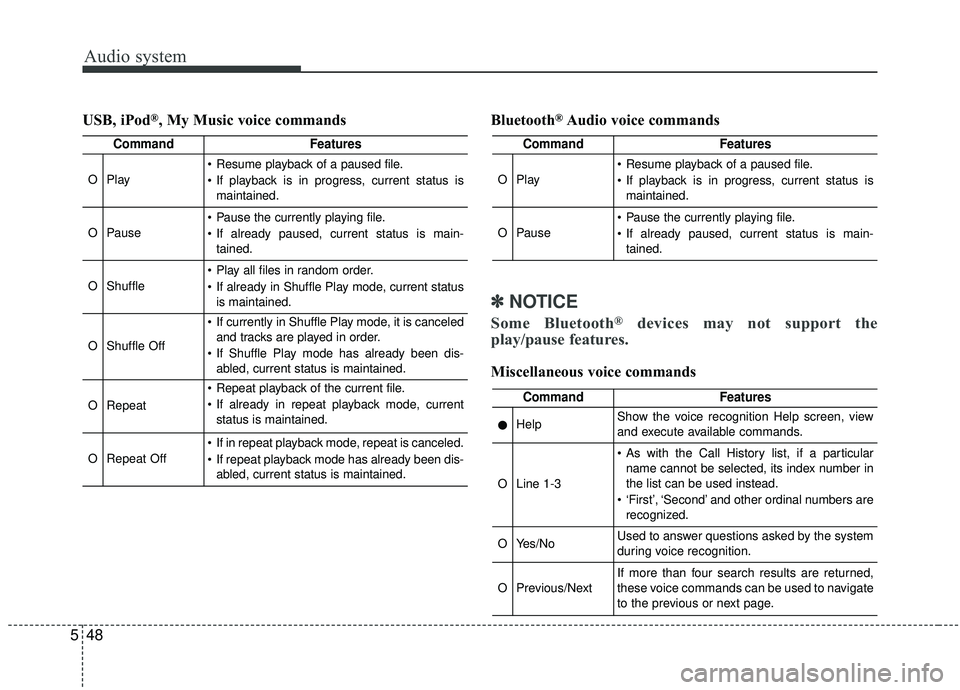
548USB, iPod
®, My Music voice commands
Bluetooth®Audio voice commands
✽ ✽
NOTICE
Some Bluetooth®devices may not support the
play/pause features.
Miscellaneous voice commands
CommandFeatures
OPlay
Resume playback of a paused file.
If playback is in progress, current status is
maintained.
OPause
Pause the currently playing file.
If already paused, current status is main-tained.
OShuffle
Play all files in random order.
If already in Shuffle Play mode, current statusis maintained.
OShuffle Off
If currently in Shuffle Play mode, it is canceledand tracks are played in order.
If Shuffle Play mode has already been dis- abled, current status is maintained.
ORepeat
Repeat playback of the current file.
If already in repeat playback mode, currentstatus is maintained.
ORepeat Off
If in repeat playback mode, repeat is canceled.
If repeat playback mode has already been dis-abled, current status is maintained.
CommandFeatures
OPlay
Resume playback of a paused file.
If playback is in progress, current status ismaintained.
OPause
Pause the currently playing file.
If already paused, current status is main-tained.
CommandFeatures
●HelpShow the voice recognition Help screen, view
and execute available commands.
OLine 1-3
As with the Call History list, if a particularname cannot be selected, its index number in
the list can be used instead.
‘First’, ‘Second’ and other ordinal numbers are recognized.
OYes/NoUsed to answer questions asked by the system
during voice recognition.
OPrevious/NextIf more than four search results are returned,
these voice commands can be used to navigate
to the previous or next page.
Page 292 of 564
. . . 6-79
. . . . . . . . . . . . . . . 6-79
. . . . . . . . . . . . . . . . . . . . . . 6-80
Drive mode integrated control system . . . . . . . . . 6-86
Lane Departure Warning System (LDWS) . . . . . 6-88
. . . . . . . . . . . . . . . . . . . . . . . . . . . . 6-90
. . . . . . . . . . . . . . 6-91
vehicle leaves the lane, or may warn you even if the
vehicle does not leave the lane when; . . . . . . . . . . . 6-91
Blind Spot Detection system (BSD) . . . . . . . . . . . 6-93
LCA (Lane Change Assist) . . . . . . . . . . . . . . . . . . . . 6-94
. . . . . . . . . . . . . . . . . . . . . . . . . . . . 6-99
Economical operation . . . . . . . . . . . . . . . . . . . . . 6-101
Special driving conditions . . . . . . . . . . . . . . . . . . 6-103
. . . . . . . . . . . . . . . . . 6-103
. . . . . . . . . . . . . . . . 6-103
. . . . . . . . . . . . . . . . . . . . . . . . . . 6-104
. . . . . . . . . . . . . . . . . . . . . . . . . . . 6-105
. . . . . . . . . . . . . . . . . . . . . . . . . . . . . 6-105
. . . . . . . . . . . . . . . . . . . . . . . . . . . 6-106
. . . . . . . . . . . . . . . . . . . . . . 6-107
. . . . . . . . . . . . . . . . . . . . . . . . . . . . . 6-107 . . . . . . . . . . . . . . . . . . . . . . . . . . . . 6-107
Winter driving . . . . . . . . . . . . . . . . . . . . . . . . . . . 6-109
. . . . . . . . . . . . . . . . . . . . . . 6-109
. . . . . . . . . 6-110
. . . . . . . . . . . . . . . . . . . . . 6-110
. . . . . . 6-110
. . . . . . . . . . . . . . . . . . . 6-110
. 6
-110
. . . . . . . . . . . . 6-111
. . . 6-111
. . . . . . . . . . . . . . . . . . 6-111
Trailer towing . . . . . . . . . . . . . . . . . . . . . . . . . . . . 6-111
Vehicle load limit . . . . . . . . . . . . . . . . . . . . . . . . . 6-112
. . . . . . . . . . . . . 6-112
. . . . . . . . . . . . . . . . . . . . . . . . . . . 6-116
Vehicle weight glossary . . . . . . . . . . . . . . . . . . . . 6-118
. . . . . . . . . . . . . . . . . . . . . . . . . . . 6-118
. . . . . . . . . . . . . . . . . . . . . . . . . . 6-118
. . . . . . . . . . . . . . . . . . . . . . . . . . . . . . . 6-118
. . . . . . . . . . . . . . . . . . . . 6-118
. . . . . . . . . . . . . 6-118
. . . . . . . . . . . . . . . . . . 6-118
. . . . . . . . . . 6-118
6
Page 298 of 564
Driving your vehicle
86
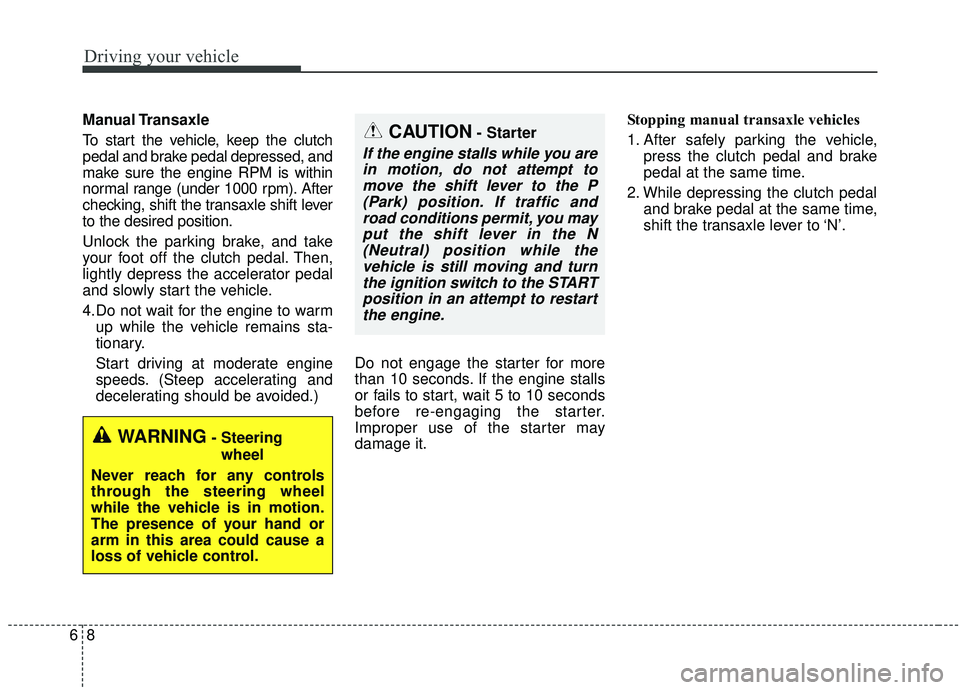
Manual Transaxle
To start the vehicle, keep the clutch
pedal and brake pedal depressed, and
make sure the engine RPM is within
normal range (under 1000 rpm). After
checking, shift the transaxle shift lever
to the desired position.
Unlock the parking brake, and take
your foot off the clutch pedal. Then,
lightly depress the accelerator pedal
and slowly start the vehicle.
4.Do not wait for the engine to warmup while the vehicle remains sta-
tionary.
Start driving at moderate engine
speeds. (Steep accelerating and
decelerating should be avoided.) Do not engage the starter for more
than 10 seconds. If the engine stalls
or fails to start, wait 5 to 10 seconds
before re-engaging the starter.
Improper use of the starter may
damage it. Stopping manual transaxle vehicles
1. After safely parking the vehicle,
press the clutch pedal and brake
pedal at the same time.
2. While depressing the clutch pedal and brake pedal at the same time,
shift the transaxle lever to ‘N’.CAUTION- Starter
If the engine stalls while you arein motion, do not attempt tomove the shift lever to the P(Park) position. If traffic androad conditions permit, you mayput the shift lever in the N(Neutral) position while thevehicle is still moving and turnthe ignition switch to the STARTposition in an attempt to restartthe engine.
WARNING- Steering
wheel
Never reach for any controls
through the steering wheel
while the vehicle is in motion.
The presence of your hand or
arm in this area could cause a
loss of vehicle control.
Page 302 of 564
Driving your vehicle
12
6
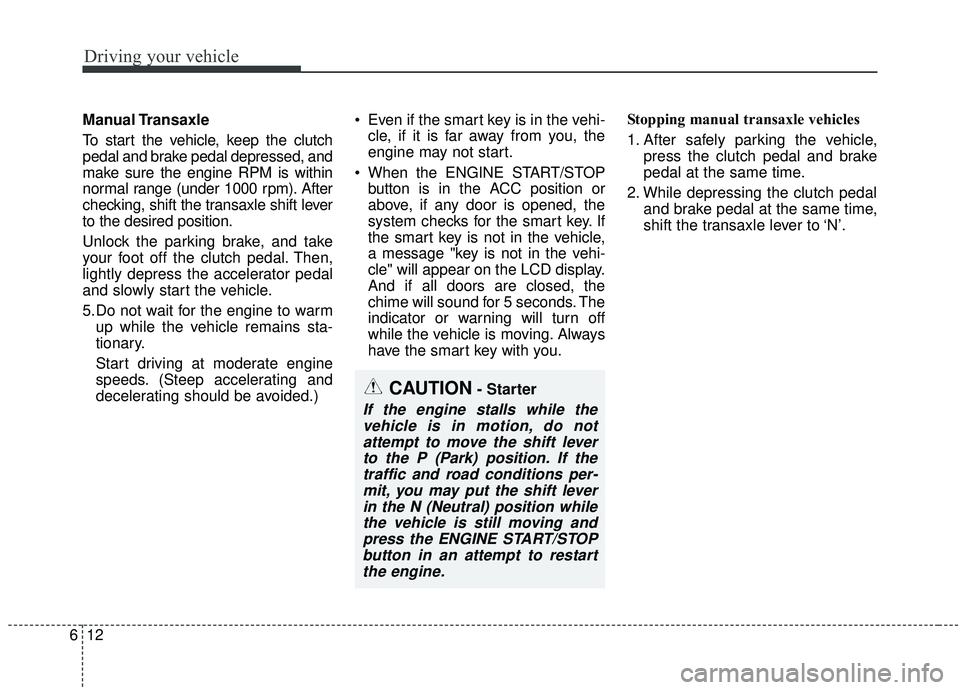
Manual Transaxle
To start the vehicle, keep the clutch
pedal and brake pedal depressed, and
make sure the engine RPM is within
normal range (under 1000 rpm). After
checking, shift the transaxle shift lever
to the desired position.
Unlock the parking brake, and take
your foot off the clutch pedal. Then,
lightly depress the accelerator pedal
and slowly start the vehicle.
5.Do not wait for the engine to warm
up while the vehicle remains sta-
tionary.
Start driving at moderate engine
speeds. (Steep accelerating and
decelerating should be avoided.) Even if the smart key is in the vehi-
cle, if it is far away from you, the
engine may not start.
When the ENGINE START/STOP button is in the ACC position or
above, if any door is opened, the
system checks for the smart key. If
the smart key is not in the vehicle,
a message "key is not in the vehi-
cle" will appear on the LCD display.
And if all doors are closed, the
chime will sound for 5 seconds. The
indicator or warning will turn off
while the vehicle is moving. Always
have the smart key with you. Stopping manual transaxle vehicles
1. After safely parking the vehicle,
press the clutch pedal and brake
pedal at the same time.
2. While depressing the clutch pedal and brake pedal at the same time,
shift the transaxle lever to ‘N’.
CAUTION- Starter
If the engine stalls while thevehicle is in motion, do notattempt to move the shift leverto the P (Park) position. If thetraffic and road conditions per-mit, you may put the shift leverin the N (Neutral) position whilethe vehicle is still moving andpress the ENGINE START/STOPbutton in an attempt to restartthe engine.