set KIA SOUL 2021 Navigation System Quick Reference Guide
[x] Cancel search | Manufacturer: KIA, Model Year: 2021, Model line: SOUL, Model: KIA SOUL 2021Pages: 211, PDF Size: 6.67 MB
Page 185 of 211
10-7
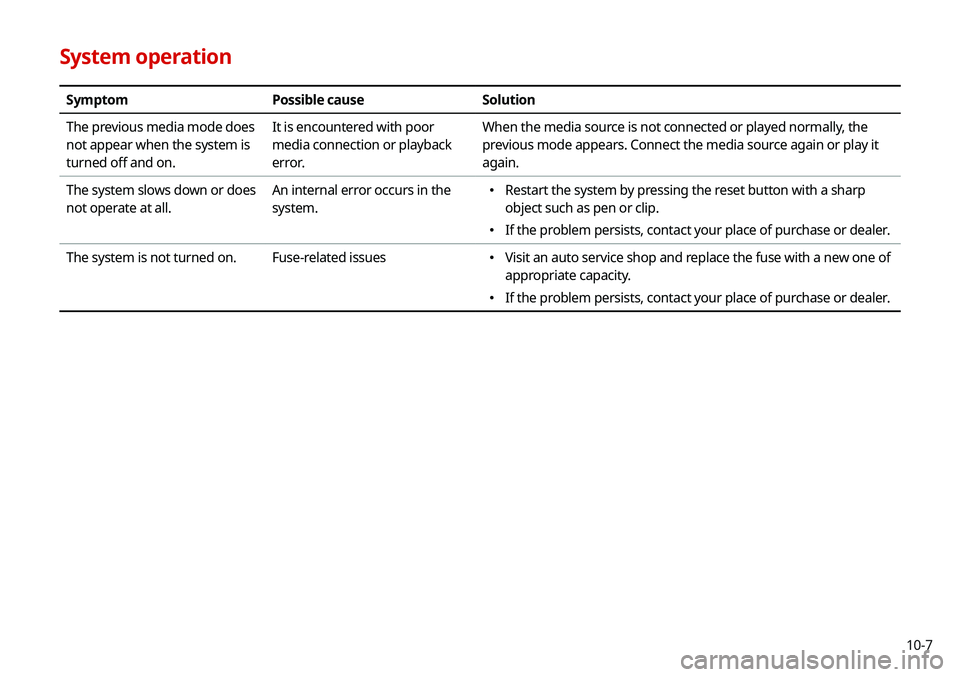
System operation
SymptomPossible cause Solution
The previous media mode does
not appear when the system is
turned off and on. It is encountered with poor
media connection or playback
error. When the media source is not connected or played normally, the
previous mode appears. Connect the media source again or play it
again.
The system slows down or does
not operate at all. An internal error occurs in the
system.
\225
Restart the system by pressing the reset button with a sharp
object such as pen or clip.
\225If the problem persists, contact your place of purchase or dealer.
The system is not turned on. Fuse-related issues
\225
Visit an auto service shop and replace the fuse with a new one of
appropriate capacity.
\225If the problem persists, contact your place of purchase or dealer.
Page 189 of 211
10-11
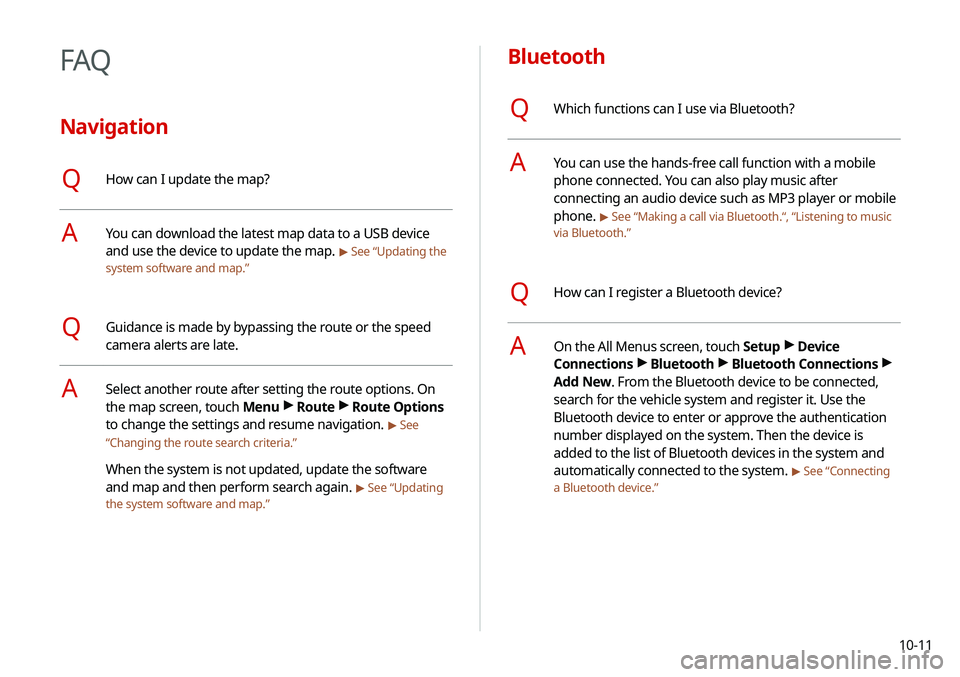
Bluetooth
QWhich functions can I use via Bluetooth?
AYou can use the hands-free call function with a mobile
phone connected. You can also play music after
connecting an audio device such as MP3 player or mobile
phone.
> See “Making a call via Bluetooth.“, “Listening to music
via Bluetooth.”
QHow can I register a Bluetooth device?
AOn the All Menus screen, touch Setup >
Device
Connections >
Bluetooth >
Bluetooth Connections >
Add New. From the Bluetooth device to be connected,
search for the vehicle system and register it. Use the
Bluetooth device to enter or approve the authentication
number displayed on the system. Then the device is
added to the list of Bluetooth devices in the system and
automatically connected to the system.
> See “Connecting
a Bluetooth device.”
FAQ
Navigation
QHow can I update the map?
AYou can download the latest map data to a USB device
and use the device to update the map.
> See “Updating the
system software and map.”
QGuidance is made by bypassing the route or the speed
camera alerts are late.
ASelect another route after setting the route options. On
the map screen, touch Menu >
Route >
Route Options
to change the settings and resume navigation.
> See
“ Changing the route search criteria.”
When the system is not updated, update the software
and map and then perform search again.
> See “Updating
the system software and map.”
Page 191 of 211
10-13
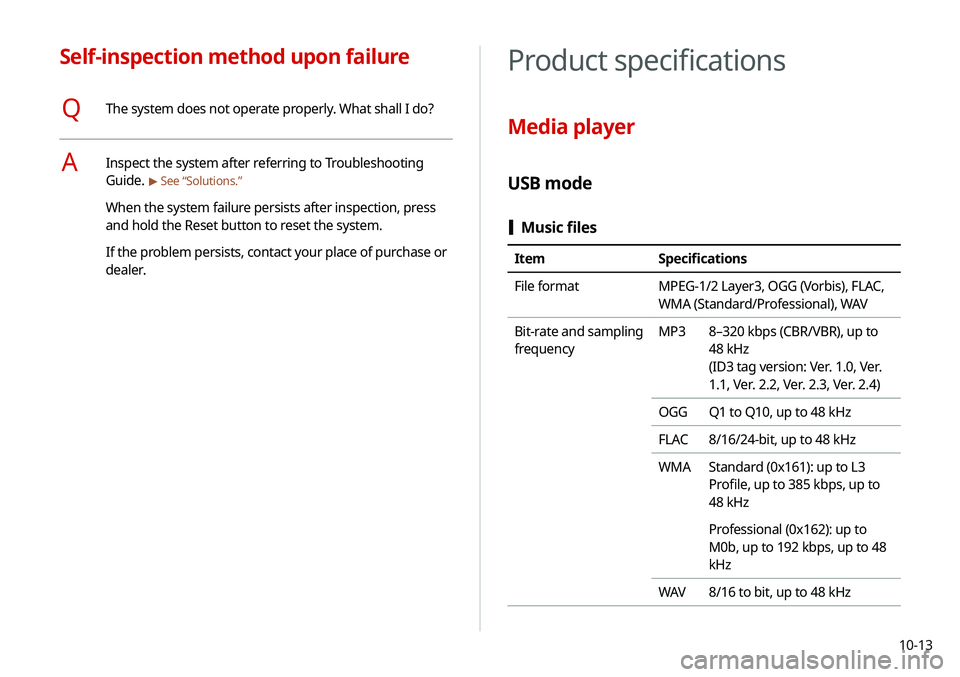
Product specifications
Media player
USB mode
[Music files
Item Specifications
File format MPEG-1/2 Layer3, OGG (Vorbis), FLAC,
WMA (Standard/Professional), WAV
Bit-rate and sampling
frequency MP3
8–320 kbps (CBR/VBR), up to
48 kHz
(ID3 tag version: Ver. 1.0, Ver.
1.1, Ver. 2.2, Ver. 2.3, Ver. 2.4)
OGG Q1 to Q10, up to 48 kHz
FLAC 8/16/24-bit, up to 48 kHz
WMA Standard (0x161): up to L3
Profile, up to 385 kbps, up to
48 kHz
Professional (0x162): up to
M0b, up to 192 kbps, up to 48
kHz
WAV 8/16 to bit, up to 48 kHz
Self-inspection method upon failure
QThe system does not operate properly. What shall I do?
AInspect the system after referring to Troubleshooting
Guide.
> See “Solutions.”
When the system failure persists after inspection, press
and hold the Reset button to reset the system.
If the problem persists, contact your place of purchase or
dealer.
Page 195 of 211
10-17
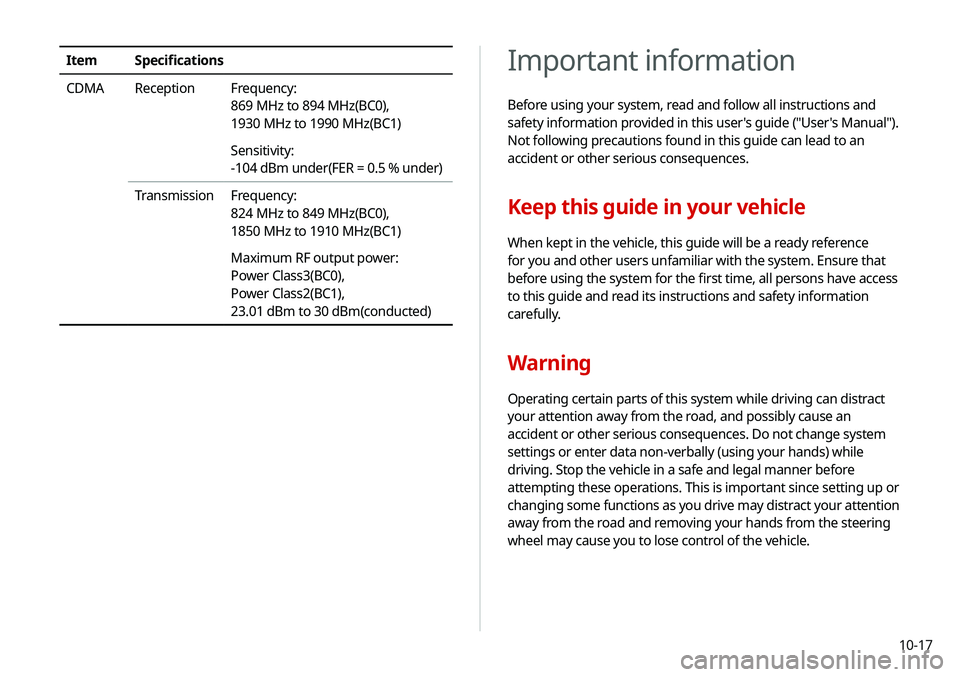
Important information
Before using your system, read and follow all instructions and
safety information provided in this user's guide ("User's Manual").
Not following precautions found in this guide can lead to an
accident or other serious consequences.
Keep this guide in your vehicle
When kept in the vehicle, this guide will be a ready reference
for you and other users unfamiliar with the system. Ensure that
before using the system for the first time, all persons have access
to this guide and read its instructions and safety information
carefully.
Warning
Operating certain parts of this system while driving can distract
your attention away from the road, and possibly cause an
accident or other serious consequences. Do not change system
settings or enter data non-verbally (using your hands) while
driving. Stop the vehicle in a safe and legal manner before
attempting these operations. This is important since setting up or
changing some functions as you drive may distract your attention
away from the road and removing your hands from the steering
wheel may cause you to lose control of the vehicle.
ItemSpecifications
CDMA Reception Frequency:
869 MHz to 894 MHz(BC0),
1930 MHz to 1990 MHz(BC1)
Sensitivity:
-104 dBm under(FER = 0.5 % under)
Transmission Frequency:
824 MHz to 849 MHz(BC0),
1850 MHz to 1910 MHz(BC1)
Maximum RF output power:
Power Class3(BC0),
Power Class2(BC1),
23.01 dBm to 30 dBm(conducted)
Page 196 of 211

10-18
Navigation features
Navigation features included in the system are intended to
provide detailed instructions to get you to a desired destination.
Ensure that all persons using this system carefully read and follow
all instructions on safety information.
Distraction hazard
Some navigation features may require manual (non-verbal) setup.
Attempting to perform such setup or inputting data while driving
can seriously distract your attention and could cause an accident.
Stop the vehicle in a safe and legal manner before attempting
these operations.
Let your judgment prevail
Any navigation features are provided only as an aid. Make your
driving decisions based on your observations of local conditions
and existing traffic regulations. Any such feature is not a
substitute for your personal judgment. Any route suggestions
made by this system should never replace any local traffic
regulations or your personal judgment or knowledge of safe
driving practices.
General operation
Voice command control
Features within the system may be executed using only voice
commands. Using voice commands while driving allows you
to operate the system without removing your hands from the
steering wheel.
Prolonged views of screen
Do not access any function requiring a prolonged view of the
screen while you are driving. Pull over in a safe and legal manner
before attempting to access a function of the system requiring
prolonged attention. Even short views of the screen may be
hazardous if your attention has been diverted away from your
driving.
Volume setting
Do not raise the volume excessively. Keep the volume at a level
where you can still hear outside traffic and emergency signals
while driving. Driving while unable to hear these sounds could
cause an accident.
Page 198 of 211
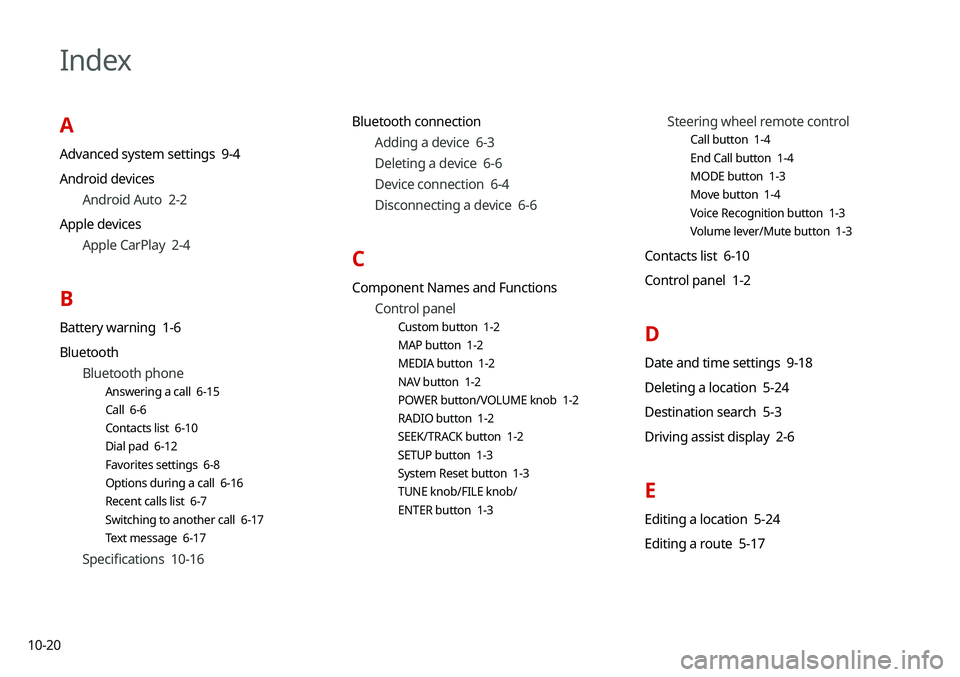
10-20
Index
A
Advanced system settings 9-4
Android devicesAndroid Auto 2-2
Apple devices Apple CarPlay 2-4
B
Battery warning 1-6
BluetoothBluetooth phone
Answering a call 6-15
Call 6-6
Contacts list 6-10
Dial pad 6-12
Favorites settings 6-8
Options during a call 6-16
Recent calls list 6-7
Switching to another call 6-17
Text message 6-17
Specifications 10-16 Bluetooth connection
Adding a device 6-3
Deleting a device 6-6
Device connection 6-4
Disconnecting a device 6-6
C
Component Names and FunctionsControl panel
Custom button 1-2
MAP button 1-2
MEDIA button 1-2
NAV button 1-2
POWER button/VOLUME knob 1-2
RADIO button 1-2
SEEK/TRACK button 1-2
SETUP button 1-3
System Reset button 1-3
TUNE knob/FILE knob/
ENTER button 1-3
Steering wheel remote control
Call button 1-4
End Call button 1-4
MODE button 1-3
Move button 1-4
Voice Recognition button 1-3
Volume lever/Mute button 1-3
Contacts list 6-10
Control panel 1-2
D
Date and time settings 9-18
Deleting a location 5-24
Destination search 5-3
Driving assist display 2-6
E
Editing a location 5-24
Editing a route 5-17
Page 199 of 211
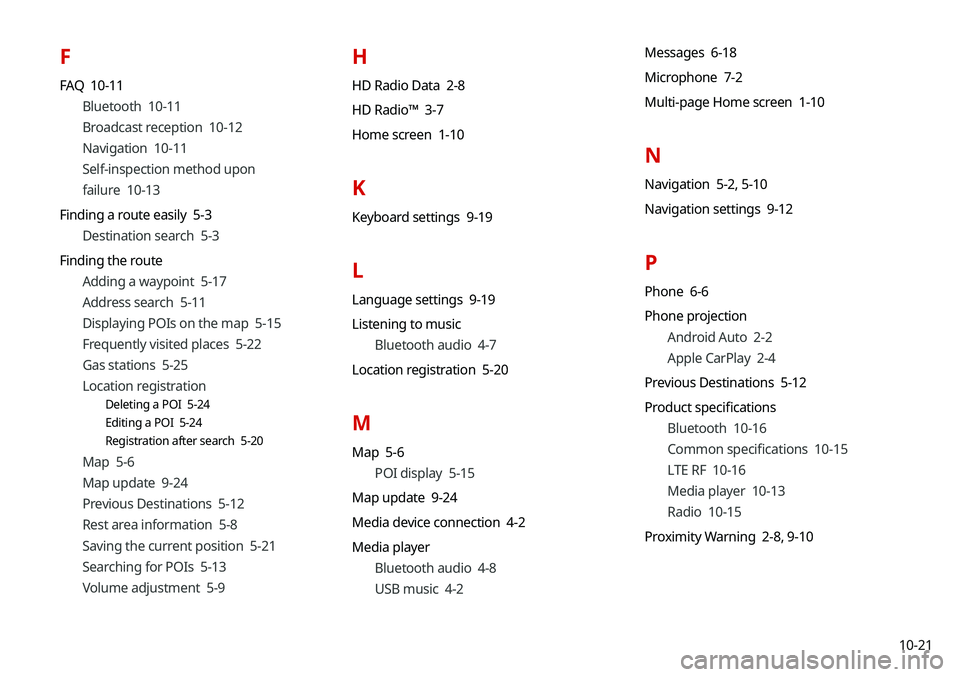
10-21
F
FAQ 10-11Bluetooth 10-11
Broadcast reception 10-12
Navigation 10-11
Self-inspection method upon
failure 10-13
Finding a route easily 5-3 Destination search 5-3
Finding the route Adding a waypoint 5-17
Address search 5-11
Displaying POIs on the map 5-15
Frequently visited places 5-22
Gas stations 5-25
Location registration
Deleting a POI 5-24
Editing a POI 5-24
Registration after search 5-20
Map 5-6
Map update 9-24
Previous Destinations 5-12
Rest area information 5-8
Saving the current position 5-21
Searching for POIs 5-13
Volume adjustment 5-9
H
HD Radio Data 2-8
HD Radio™ 3-7
Home screen 1-10
K
Keyboard settings 9-19
L
Language settings 9-19
Listening to musicBluetooth audio 4-7
Location registration 5-20
M
Map 5-6 POI display 5-15
Map update 9-24
Media device connection 4-2
Media player Bluetooth audio 4-8
USB music 4-2 Messages 6-18
Microphone 7-2
Multi-page Home screen 1-10
N
Navigation 5-2,
5-10
Navigation settings 9-12
P
Phone 6-6
Phone projection Android Auto 2-2
Apple CarPlay 2-4
Previous Destinations 5-12
Product specifications Bluetooth 10-16
Common specifications 10-15
LTE RF 10-16
Media player 10-13
Radio 10-15
Proximity Warning 2-8, 9-10
Page 200 of 211

10-22
R
RadioChanging the channel 3-4
Changing the radio mode 3-4
Deleting a channel 3-6
Registering a channel 3-5
Scanning channels 3-5
Rear view display 2-7
Recent calls list 6-7
Reset Bluetooth 9-3
Navigation settings 9-15
Screen settings 9-23
Sound settings 9-11
System settings 9-21
S
Save searched place 5-20
Saving frequently visited places 5-22
Saving the current position 5-22
Screen saver settings 9-20
Screen settings 9-21
Screen touch sound settings 9-11
SettingsAdvanced settings 9-4
Bluetooth settings 9-2
Date and time 9-18
Device connection 9-2
Keyboard 9-19
Navigation settings 9-12
Screen saver settings 9-20
Screen touch sound 9-11
System display settings 9-21
System Info 9-20
System language 9-19
System Sound 9-8
UVO settings 9-16
Voice recognition settings 9-11 SiriusXM™ 3-8
Changing to SiriusXM mode 3-8
Featured Favorites channels 3-11
Searching for channels 3-10
Seeing the program schedule 3-11
Selecting channels 3-10
Sound Mood Lamp 2-11
Sound settings 9-7
Split screen 1-12
Steering wheel remote control 1-3
System Info 9-20
System status indicator icons 10-9
T
Troubleshooting 10-2 Bluetooth connection 10-5
Navigation operation 10-8
Phone projection 10-6
Sound and display 10-2
System operation 10-7
USB playback 10-4
TUNE Knob Function 9-4
Turning the system on or off 1-4
Page 201 of 211

10-23
U
Update 9-24
USB file specifications 10-13
USB music 4-2
USB port 4-2
USB storage device specifications 10-14
Using the sound mood lamp 2-11
Using the touch screen 1-6
UVOService 8-2
UVO menu
Diagnosing the vehicle 8-6
Driving Information 8-5
My POIs 8-7
Roadside Assistance 8-6
Settings 8-9, 9-16
Virtual Assistant 8-8
Voice Local Search 8-9
V
Voice memo 7-19
Voice recognition
Help 7-4
Microphone 7-2
Navigation commands 7-7
Other commands 7-10
POI name 7-11
Radio commands 7-10
Using the voice recognition 7-2
Volume setting 7-4
Voice recognition settings 9-11
Page 204 of 211

10-26Caution: Any changes or modifications to this device not explicitly
approved by manufacturer could void your authority to operate
this equipment.
This device complies with part 15 of the FCC Rules. Operation is
subject to the following two conditions: (1) This device may not
cause harmful interference, and (2) this device must accept any
interference received, including interference that may cause
undesired operation.
This equipment complies with FCC radiation exposure limits set
forth for an uncontrolled environment.
This equipment should be installed and operated with minimum
20 cm between the radiator and your body. This transmitter must
not be co-located or operating in conjunction with any other
antenna or transmitter unless authorized to do so by the FCC.
FCC Certification
This equipment has been tested and found to comply with the
limits for a Class B digital device, pursuant to part 15 of the FCC
Rules. These limits are designed to provide reasonable protection
against harmful interference in a residential installation.
This equipment generates, uses and can radiate radio
frequency energy and, if not installed and used in accordance
with the instructions, may cause harmful interference to
radio communications. However, there is no guarantee that
interference will not occur in a particular installation. If this
equipment does cause harmful interference to radio or television
reception, which can be determined by turning the equipment off
and on, the user is encouraged to try to correct the interference
by one or more of the following measures:
\225
Reorient or relocate the receiving antenna.
\225Increase the separation between the equipment and receiver.
\225Connect the equipment into an outlet on a circuit different
from that to which the receiver is connected.
\225Consult the dealer or an experienced radio/TV technician for
help.